---
updatedAt: 2026-09-16T22:54:10.000Z
agentTools:
projectIndex: https://docs.redbird.io/llms.txt
---
# Add specialist AI agents
Manage the focused experts Autopilot can bring into your conversations — including ones you define yourself
## Introduction
Specialist agents are focused experts that Autopilot can bring into a conversation when a request falls in their area of expertise. You don't call them directly — Autopilot decides when a specialist is the right tool for what you asked, hands the work over, and brings the results back into your chat.
There are two kinds:
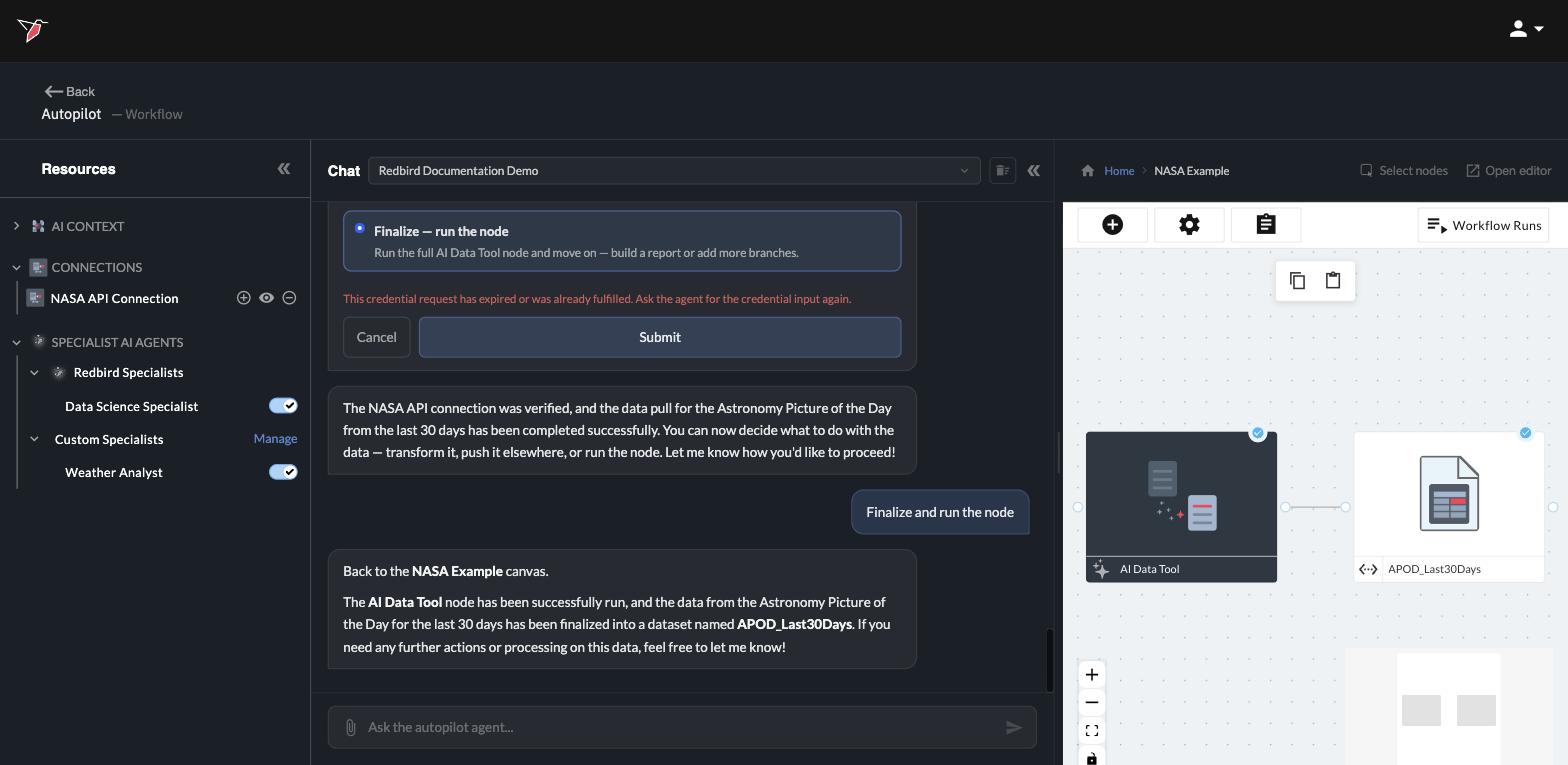
* **Redbird Specialists** — provided out of the box, like the **Data Science Specialist** used for forecasting and modeling.
* **Custom Specialists** — experts you define yourself, with your own rules for when they should step in, how they should think, and what they should do.
## Where specialists live
Open the **Resources** panel on the left and expand **Specialist AI Agents**. You'll see both groups, each specialist with an **on/off toggle**: switched on, Autopilot can bring that specialist into the conversation; switched off, it's excluded — without deleting anything.
## Add or edit a custom specialist
Click **Manage** next to Custom Specialists to open the Specialist Agents page. Your custom specialists are listed on the left — click **+ New specialist** to create one, or select one to edit it. (Redbird-provided specialists aren't edited here; they're managed for you and controlled through their toggle only.)
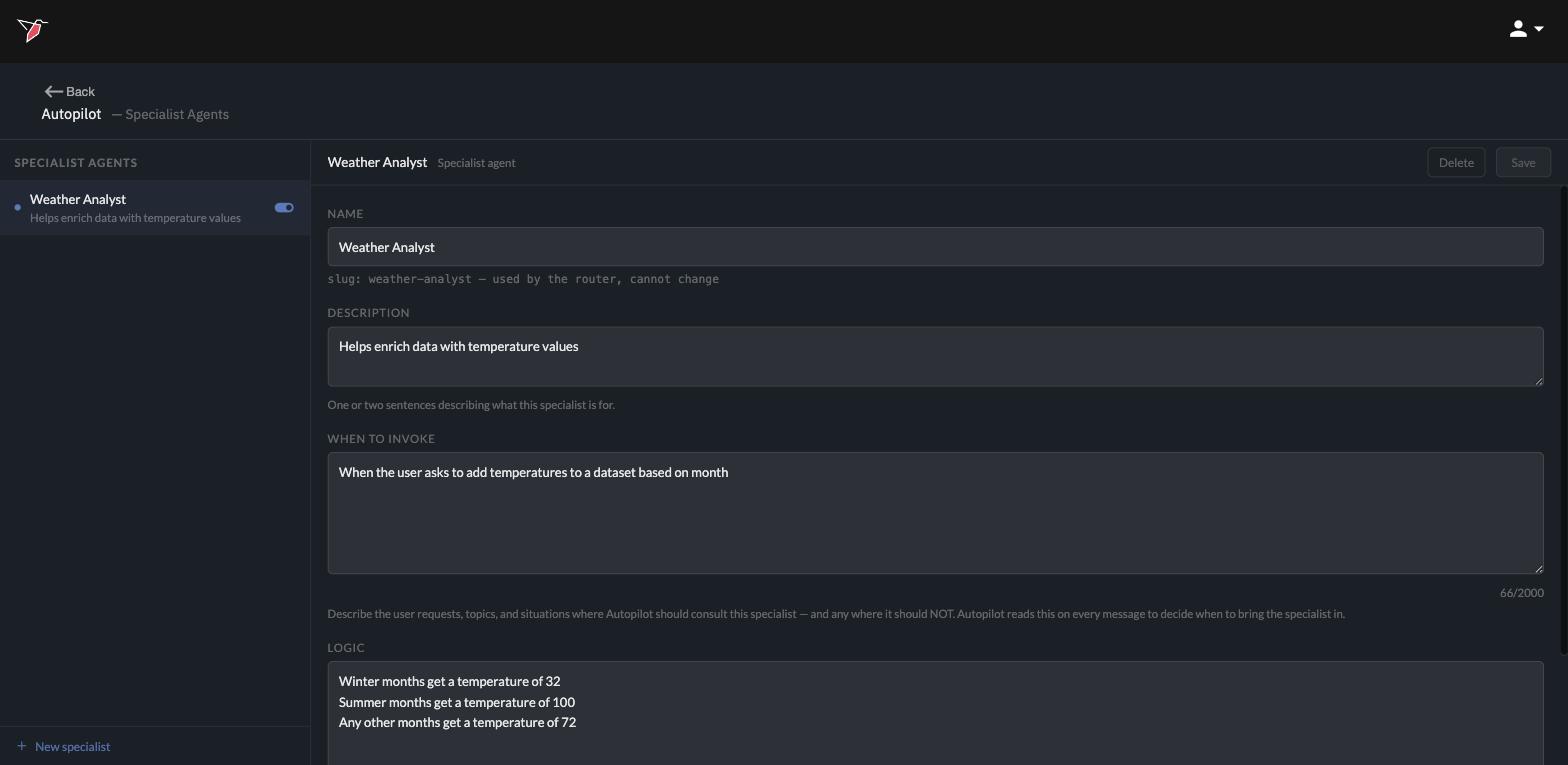
Each specialist is defined by four fields:
* **Name** — what the specialist is called. (Its internal identifier is set when it's created and doesn't change afterward.)
* **Description** — one or two sentences on what this specialist is for.
* **When to invoke** — the important one: describe the requests, topics, and situations where Autopilot should consult this specialist — and anywhere it should *not*. Autopilot reads this on every message to decide when to bring the specialist in.
* **Logic** — the specialist's thinking style and rules for its scenarios. Specialists automatically get read-only tools for exploring your data and drafting plans; this field tells them how to apply those tools in your domain.
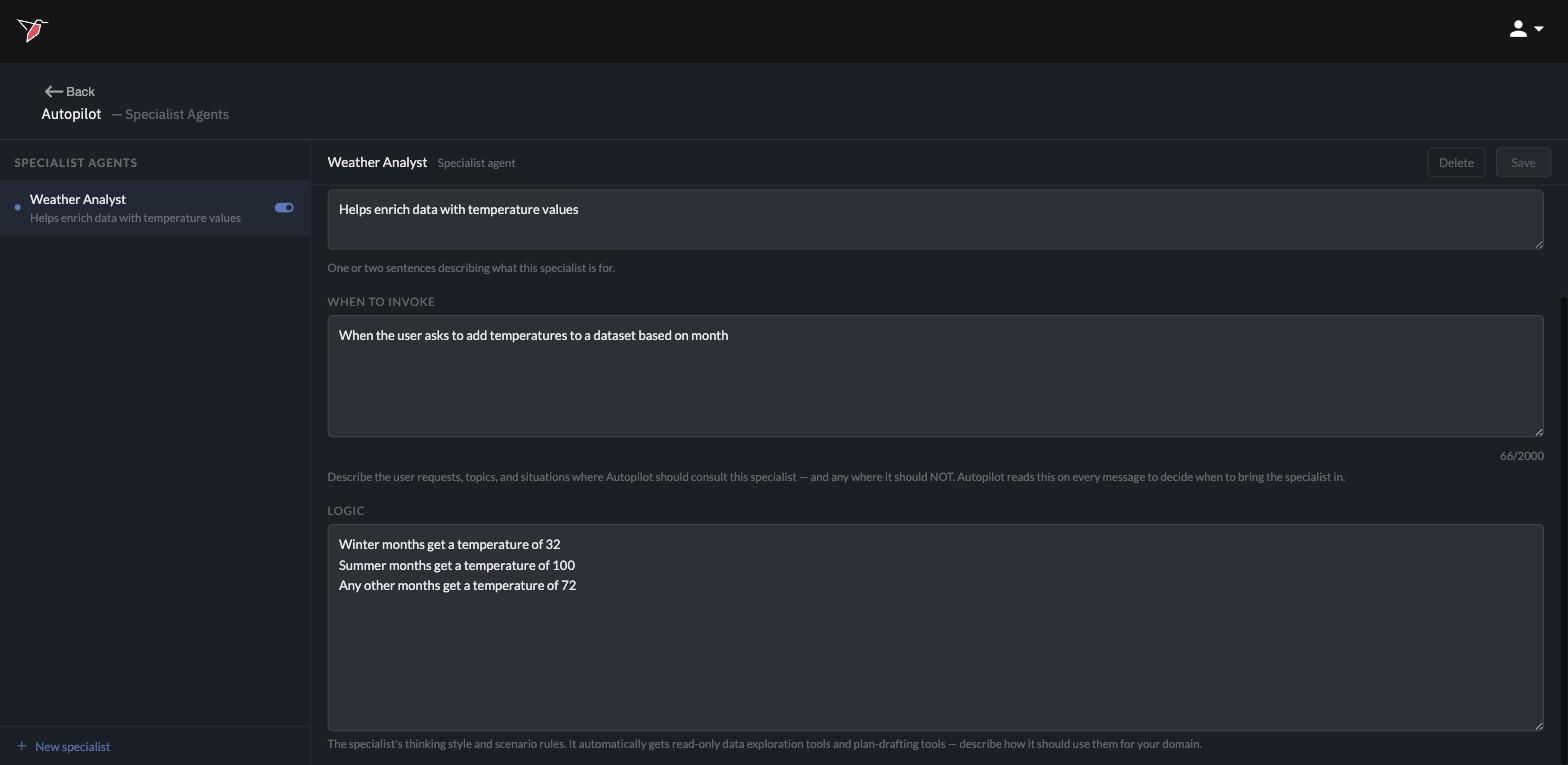
Use **Save** to keep your changes, or **Delete** to remove a custom specialist entirely. If you just want a specialist to sit out for a while, use its toggle in the Resources panel instead — deleting removes its definition for good.
## Using a specialist
Once a specialist is toggled on, there's nothing more to set up: make requests as usual, and Autopilot brings the specialist in when its "when to invoke" description applies. You can also ask for one explicitly:
> Ask the data science specialist to forecast total sales for the next quarter
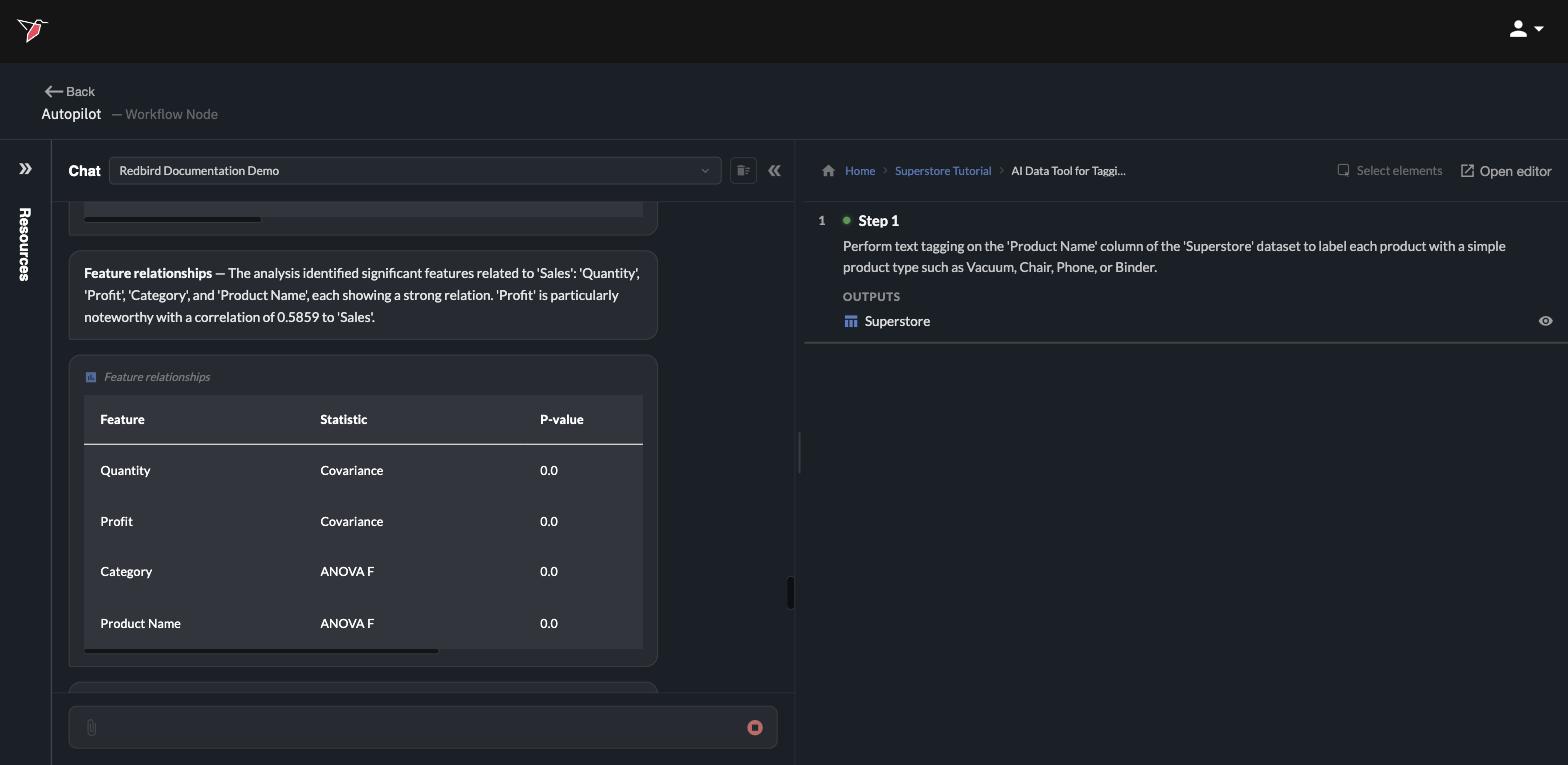
The specialist works in the open — narrating its steps and sharing its findings directly in your chat.
**Good custom specialists are narrow.** The best "when to invoke" descriptions name specific request types ("when the user asks to add temperatures to a dataset based on month") rather than broad topics — the crisper the trigger, the more reliably Autopilot brings the right expert in at the right time.