---
updatedAt: 2026-09-16T22:53:05.000Z
agentTools:
projectIndex: https://docs.redbird.io/llms.txt
---
# Build & run workflows
Create workflows by asking, run them on demand, and schedule them to run automatically
## Introduction
A **workflow** is where your work lives in Redbird: a visual sequence of connected steps — called nodes — that carries your data from its source, through any preparation, to its outputs. The workflow canvas shows the whole journey at a glance: the connections to tools outside of Redbird, where data comes in, what happens to it, and what it produces.
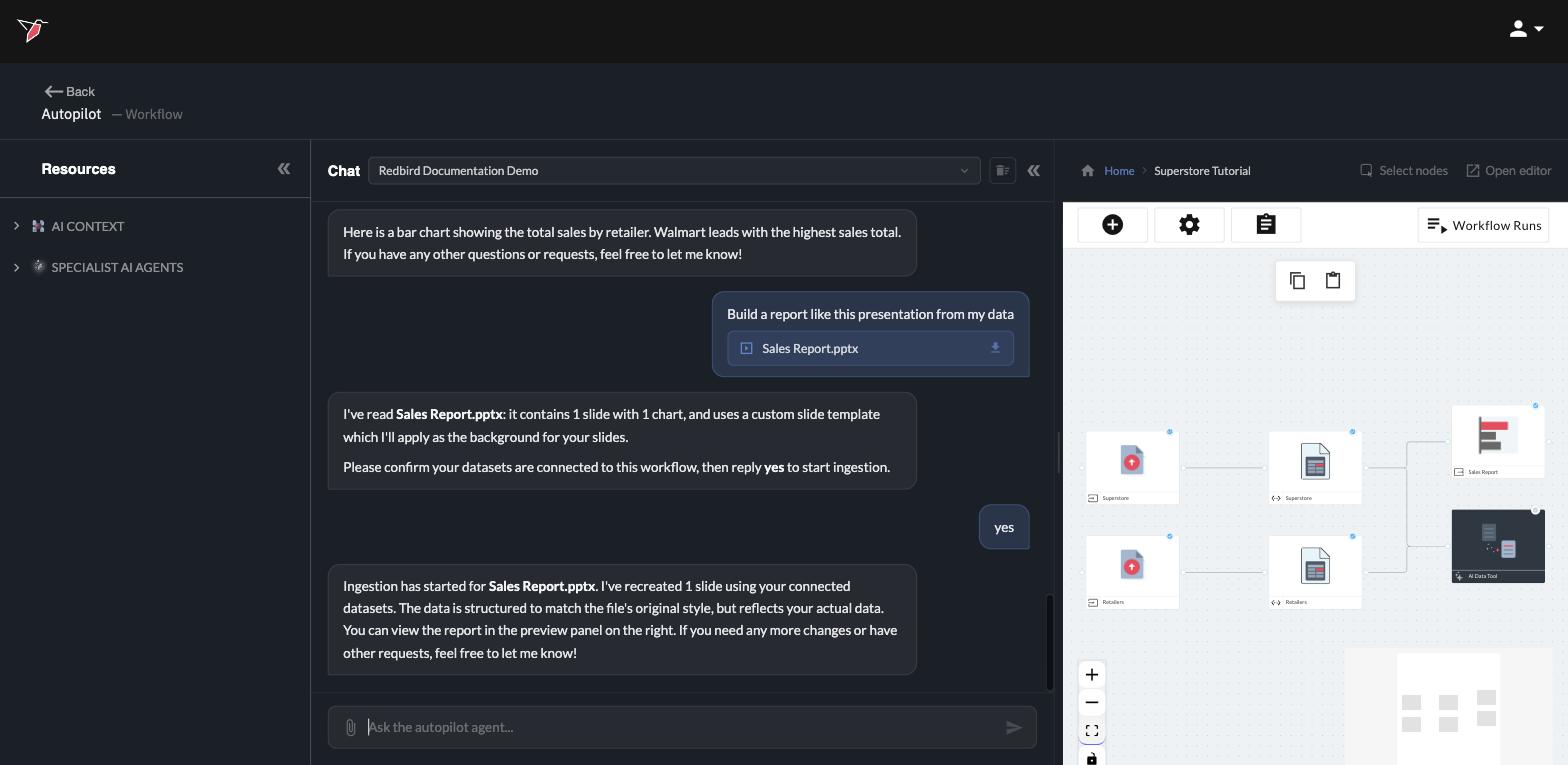
Once a workflow is built, it isn't a one-time effort — you can re-run it whenever you like, or schedule it to run automatically, and everything downstream (including reports or delivery of data to other team members or tools) updates with fresh data.
## Build and edit a workflow
The primary way to build is to **tell Autopilot what you want**. It creates the workflow, adds the right nodes, and connects them for you:
> Create a new workflow called Superstore Tutorial
> Add these two files to my workflow as datasets
> Join the Retailers dataset into this data using Retailer ID
Each request becomes real structure on the canvas — upload steps, datasets, transformation nodes — connected in the right order. Editing works the same way: ask Autopilot to add a step, change one, or remove a node, and the canvas updates.
**Prefer to work by hand?** Everything is also available directly on the canvas: the **plus (+)** icon in the canvas toolbar adds nodes, and you can drag lines between nodes to connect them, or select a node to edit or remove it. The two approaches mix freely — many people let Autopilot do the building and then fine-tune by hand.
## Run a workflow
To run on demand, just ask:
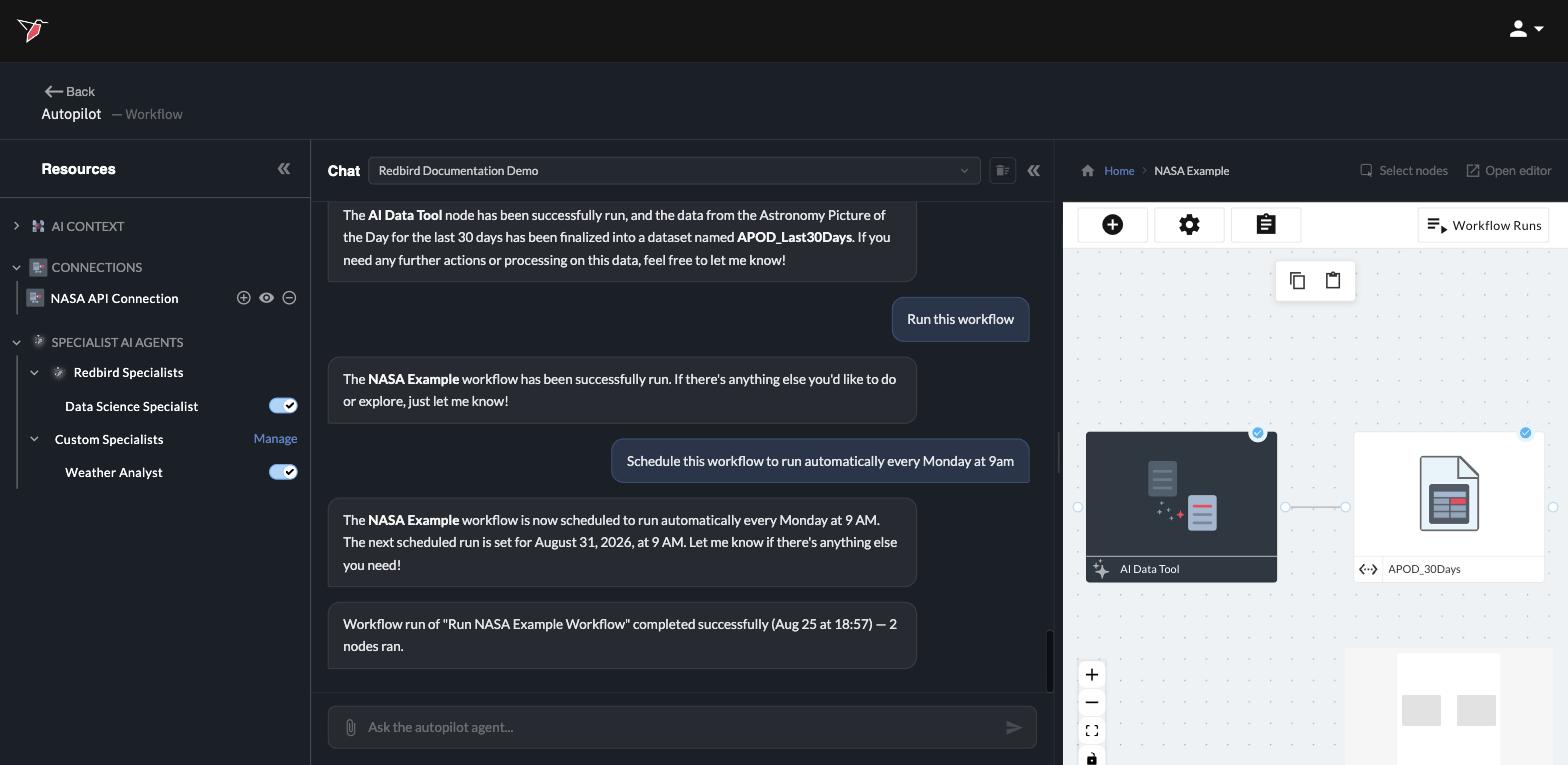
> Run this workflow
Before anything starts, Autopilot asks one quick question in the chat: should this run include every node in the workflow, or only specific nodes?
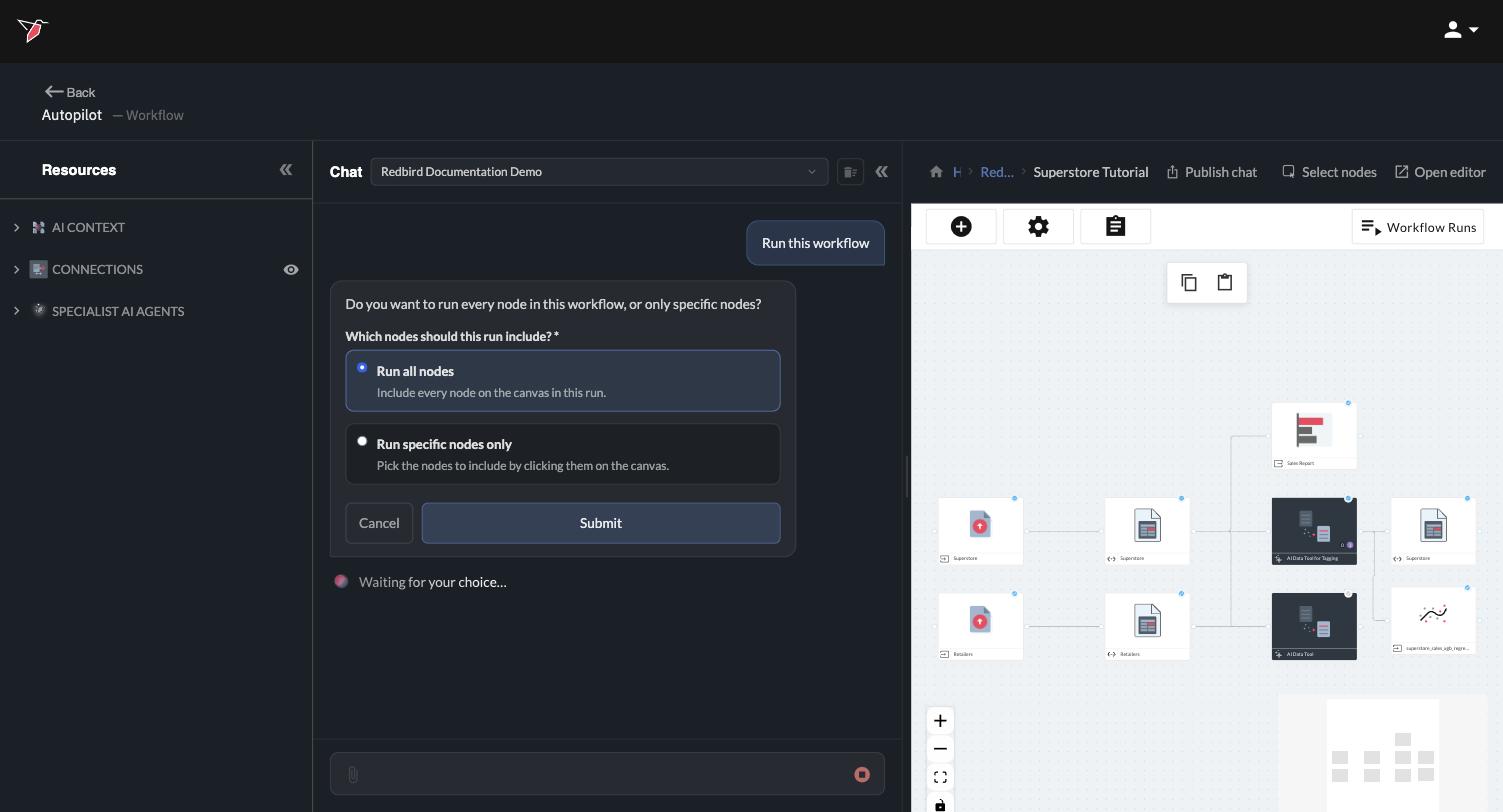
* **Run all nodes** — the default. Click **Submit** and the whole workflow runs.
* **Run specific nodes only** — choose this when you only want part of the workflow to run, for example to refresh a single data source without re-running everything downstream.
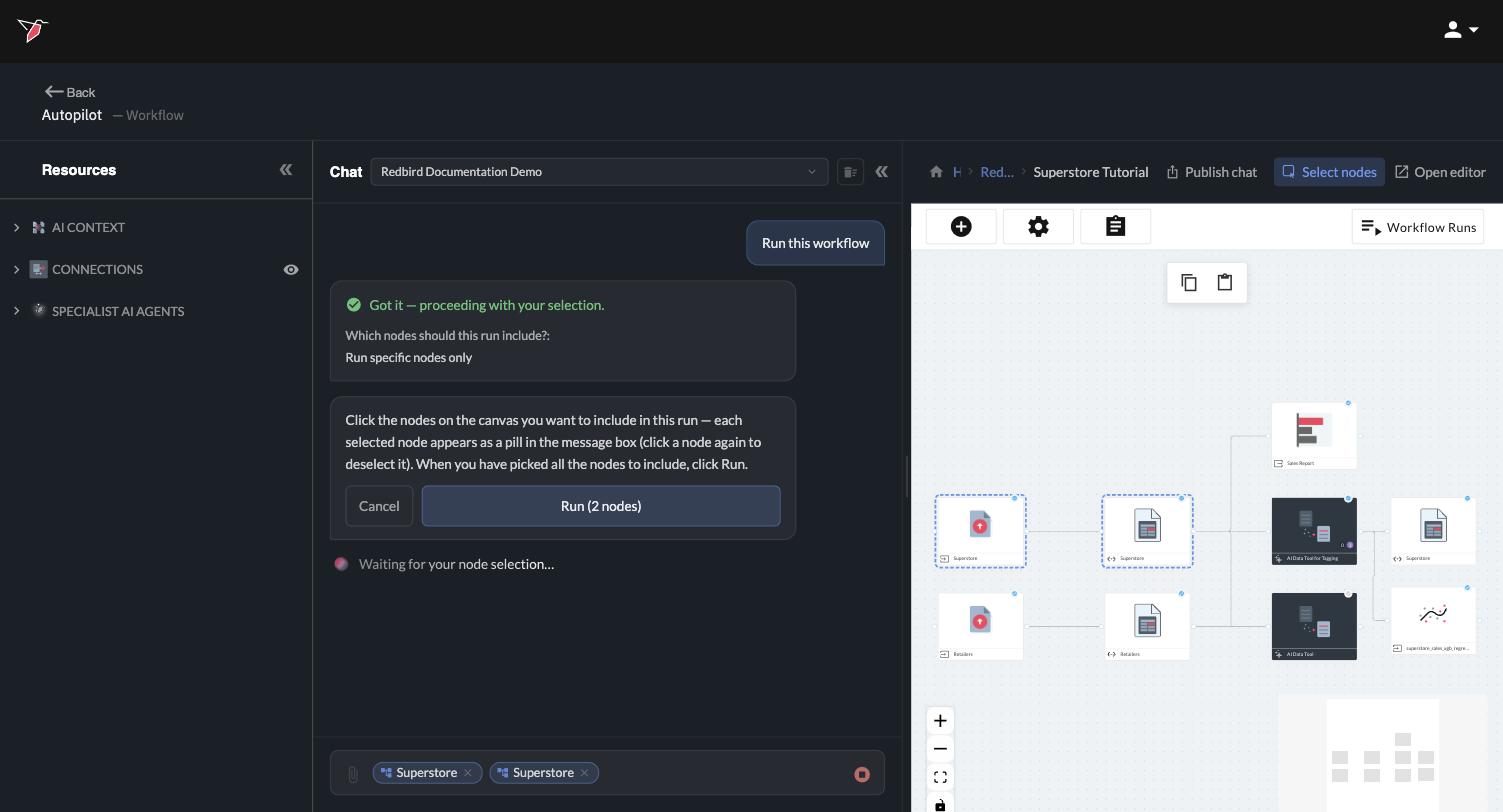
If you pick **Run specific nodes only**, the canvas switches to selection mode. Click each node you want to include — every node you pick appears as a pill in the message box, and clicking a node a second time deselects it. The **Run** button keeps count as you go (for example, **Run (2 nodes)**). When you've picked all the nodes you want, click it to start the run.
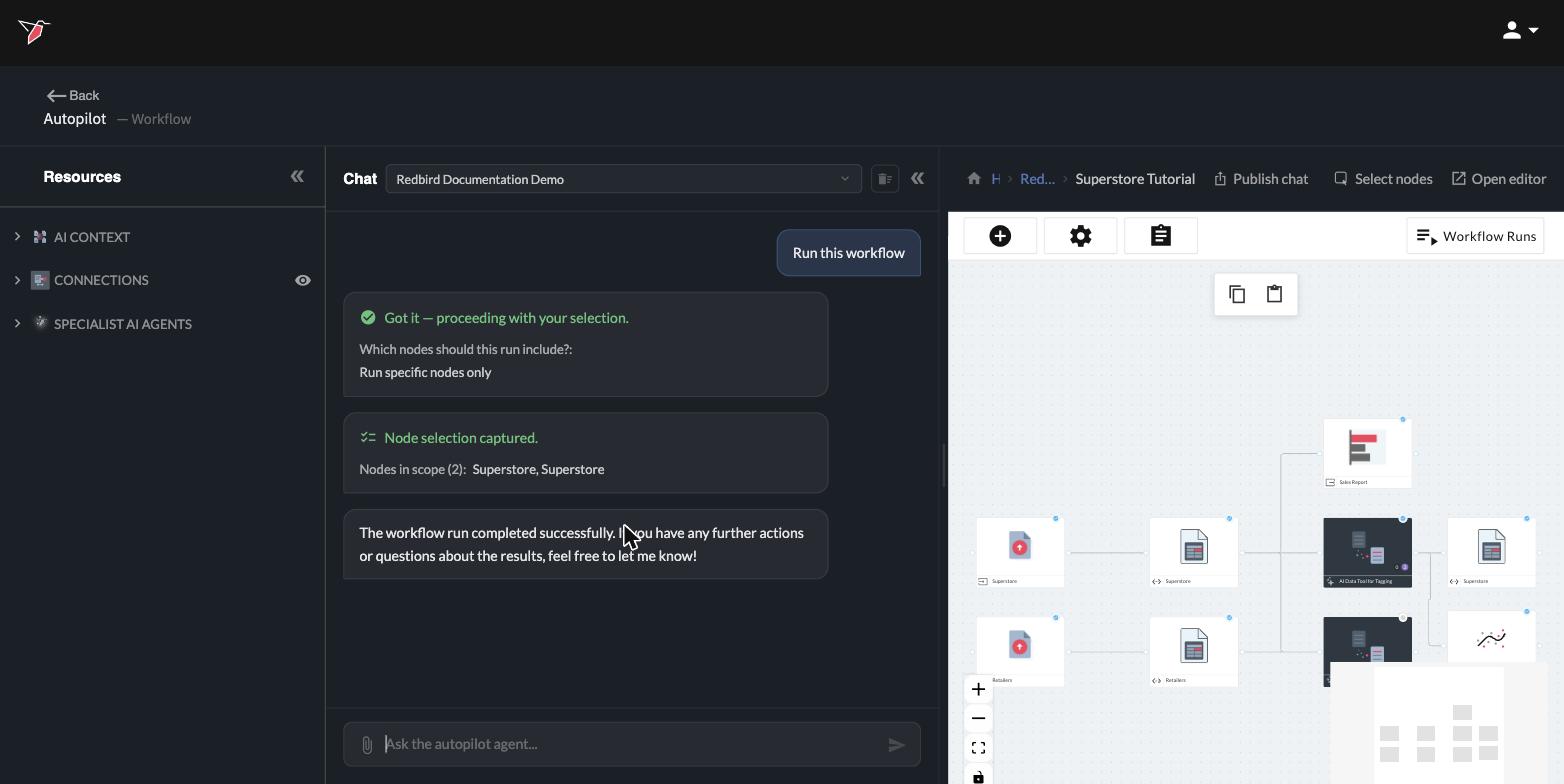
You'll see progress on the canvas as each node executes, and a confirmation arrives in the chat when the run finishes. The chat also keeps a record of the choices you made, so you can always look back at what a run included.
**Already know what you want to run?** If you name the nodes in your request — "Run the Superstore node" — Autopilot skips the question and runs exactly what you asked for. And there's no commitment while choosing: click **Cancel** on either step and nothing runs.
You can also run without the chat: the **Workflow Runs** button in the top-right corner of the canvas opens the runs panel, where you can select Manual Run or click the **Run** button on a previous Manual Run to start a run directly.
## Schedule automatic runs
To keep a workflow's data and outputs fresh without lifting a finger, put it on a schedule — again, just by asking:
> Schedule this workflow to run automatically every Monday at 9am
Autopilot asks the same node question as an on-demand run — every scheduled run can cover the whole workflow or just the nodes you pick — then sets up the automated run and confirms the schedule, including when the next run will happen.
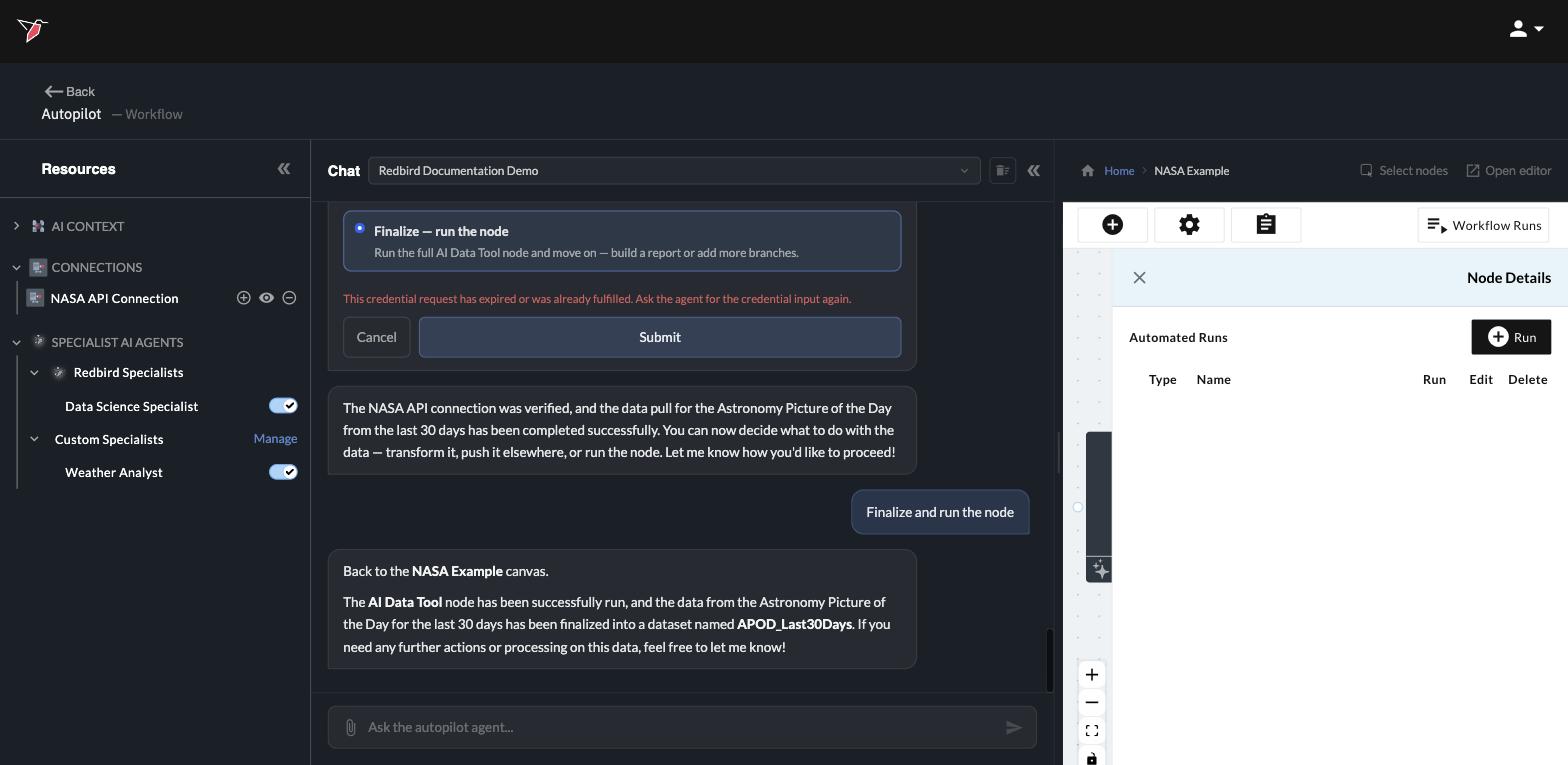
Your schedules are listed in the runs panel under **Automated Runs**, where you can also create, edit, or delete them by hand.
**Changing your mind is easy.** Schedules aren't set in stone — ask Autopilot to change the cadence or remove a schedule, and it will confirm before deleting anything.
## What runs when a workflow runs
Every node executes in order: connections pull fresh data (see Connect your tools), preparation steps re-apply data transformation and enrichment automatically, and outputs — like reports — update to reflect the new data (see Generating presentations). That's the payoff of building in a workflow: the work you did once keeps happening on its own.