

Code Editor File Library
The Code Editor File Library is a RedBird-based repository of files produced by Code Editor operations. You can commit any files from within the Code Editor operation to the library and retrieve any previously committed files for use within other Code Editors. Using the library is especially helpful if you want the file to be updated as part of an automated workflow.
Committing files to the library
Any file can be committed to the library within a Code Editor operation by using macro.commit_file_to_library() command and providing file name and path as arguments:
from cube_client import get_current_macro
macro = get_current_macro()

macro.commit_file_to_library(name="dataset_1",path="dataset_1.csv")
Important:Files saved to the Code Editor library can be of any type and are only accessible to operations within the same Redbird project
Important:A file will be saved to the library only after your macro runs in full
Using files from the library
To access a file previously committed to the Code Editor File Library by ID, call macro.get_library_file_path([file id]).
from cube_client import get_current_macro
macro = get_current_macro()

file_path = macro.get_library_file_path(123)
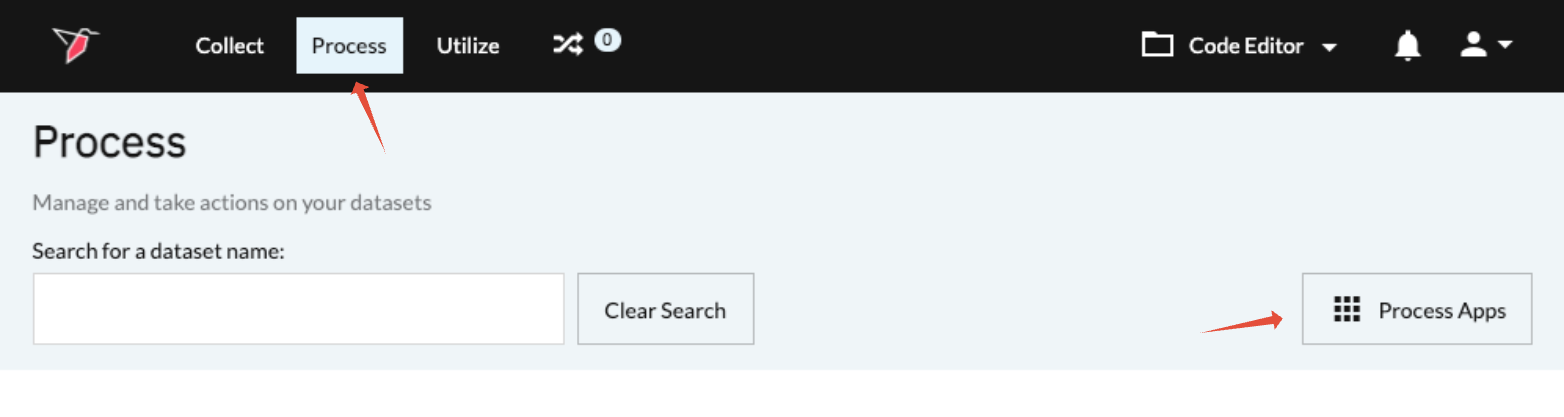
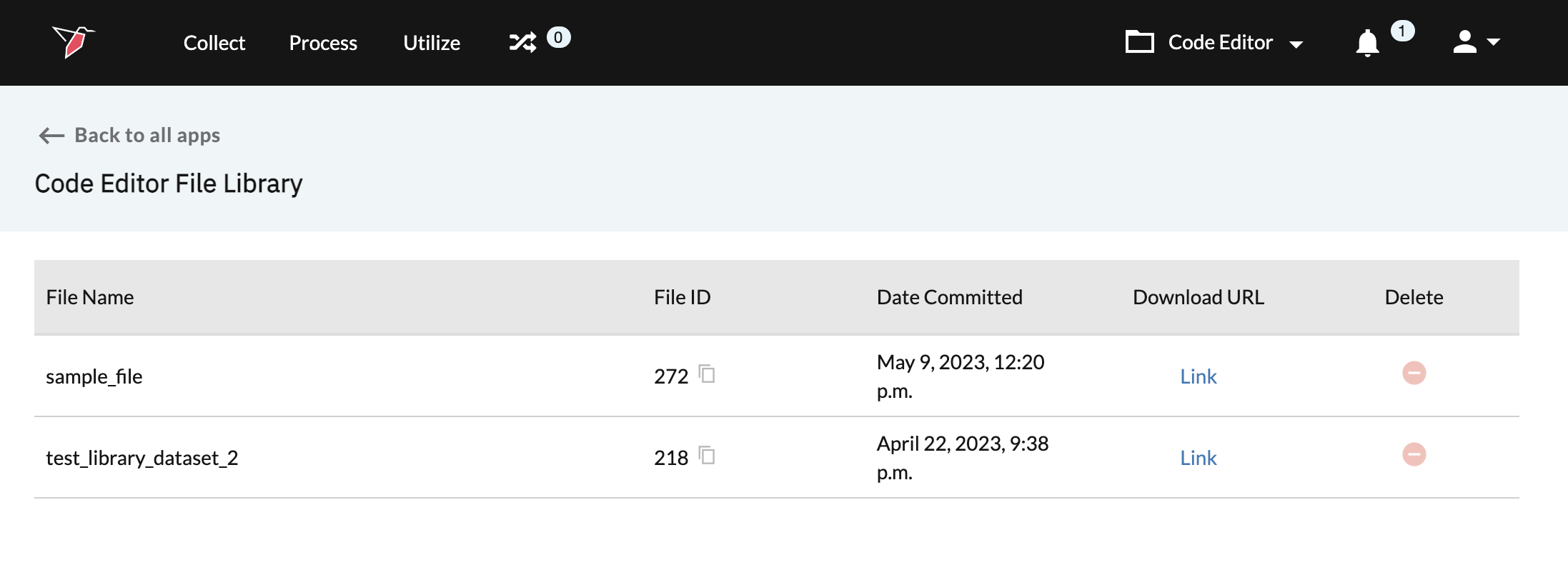
Tip:In order to find file's ID, open your Code Editor library by going to Process, clicking Process Apps in the top right corner and selecting Code Editor from the list of available apps. You can copy the file ID of the desired file by clicking on the copy icon.
Note:If you don't see Code Editor in the list of apps, please reach out to your account administrator to discuss your permission level
Updating library files
The library file updates every time the macro with the Code Editor operation that produced that file runs in full as long as it maintains the same file name.
Important:The library file will not be updated when you run blocks within Code Editor user interface or when you run Code Editor operation incrementally. It will only be updated when you run the macro in full.
Important:Be careful when renaming your files. Giving the file a different name within the commit_file_to_librarycommand will effectively create a new file within the library with a different ID, while the old file will be deleted, potentially affecting any workflow that uses this file in any subsequent macros.
Managing files in Code Editor File Library
You can access your Code Editor file library from the Process home page by clicking on Process Apps...
...and selecting Code Editor from the available applications
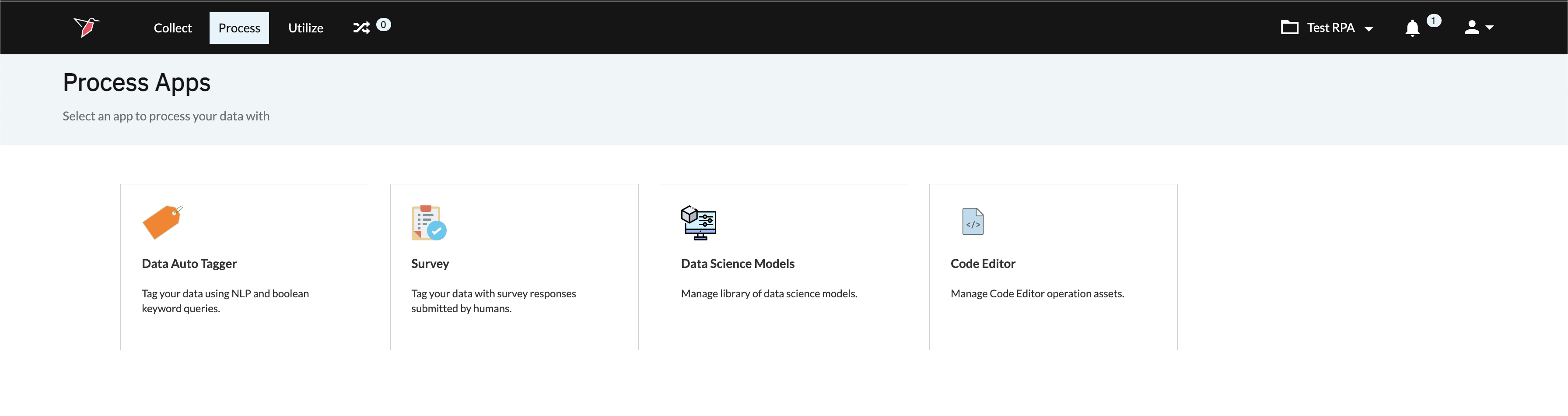
Note:If you don't see Code Editor in the list of apps, please reach out to your account administrator to discuss your permission level
Within the Code Editor File Library, you can find all the files previously committed from Code Editor operations that exist within your current project Folder. You can:
- copy FILE ID to be used within macro.get_library_file_path([file id]) method
- download the file to your computer
- delete the file from the library
Updated 9 months ago