

File Uploader
For more general information on data collection in Redbird, check out: Getting Started With Data Collection
If you cannot see the File Uploader app in the left-side panel on the workflow canvas, refer to: Enabling Collection Apps Guide
Overview
You can easily upload files stored on your local device to Redbird. If you upload a CSV or an Excel file containing a single sheet, and Redbird recognizes it as a well-defined structured dataset (i.e., a clear table), a Redbird tabular dataset will be automatically generated. This dataset can, for example, be connected directly to a dashboard.
If you upload multiple files or if the data in your file(s) is unstructured, Redbird will instead create a file library, where each row in the dataset node corresponds to an uploaded file. This can then be referenced or transformed into other datasets using nodes such as the AI Data Tool node (see documentation here).
Creating a New Configuration
To upload files to Redbird, follow the steps below:
- Double-click the node to enter configuration mode
- Name your data collection by clicking the gray pencil at the top of your screen.
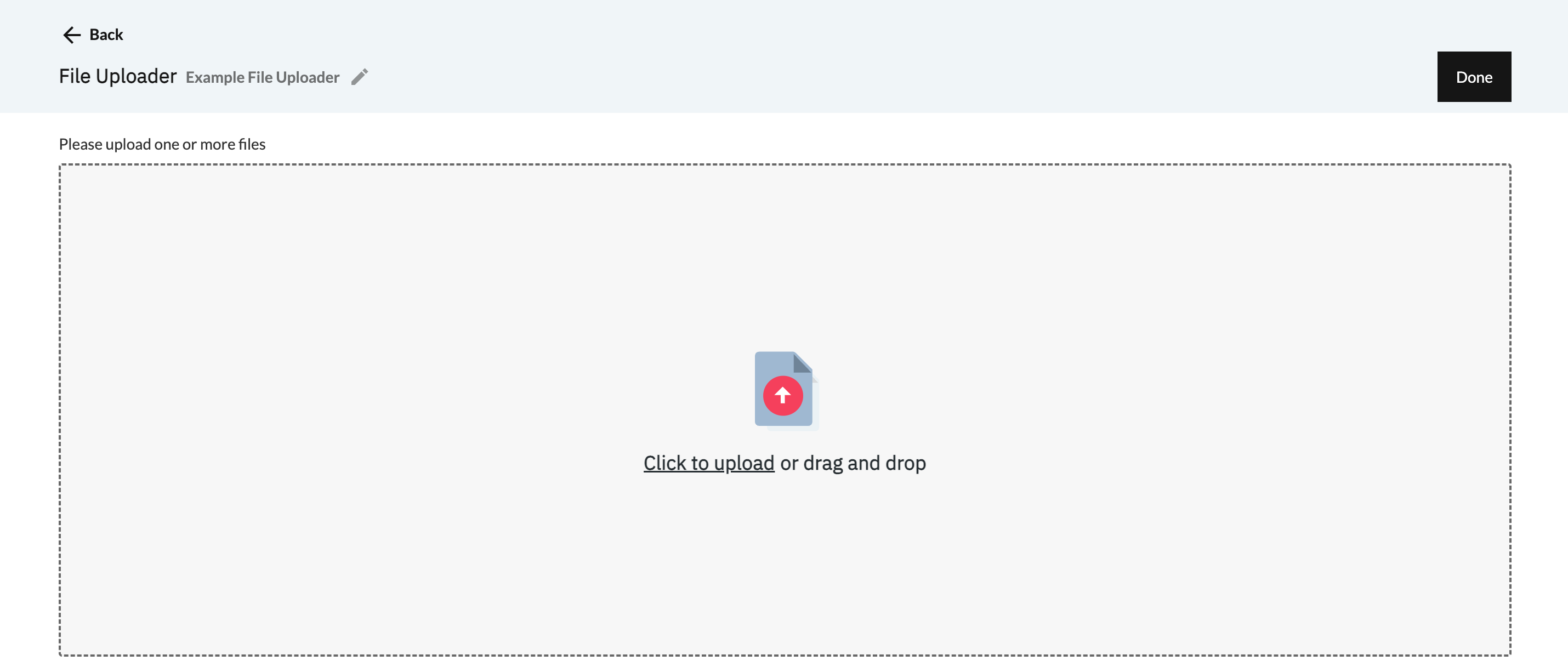
- Within the upload box, either click the "Click to Upload" link to open up the documents browser of your computer then choose the file(s) to upload, or simply drag and drop your file(s) in. The file(s) will automatically start uploading.
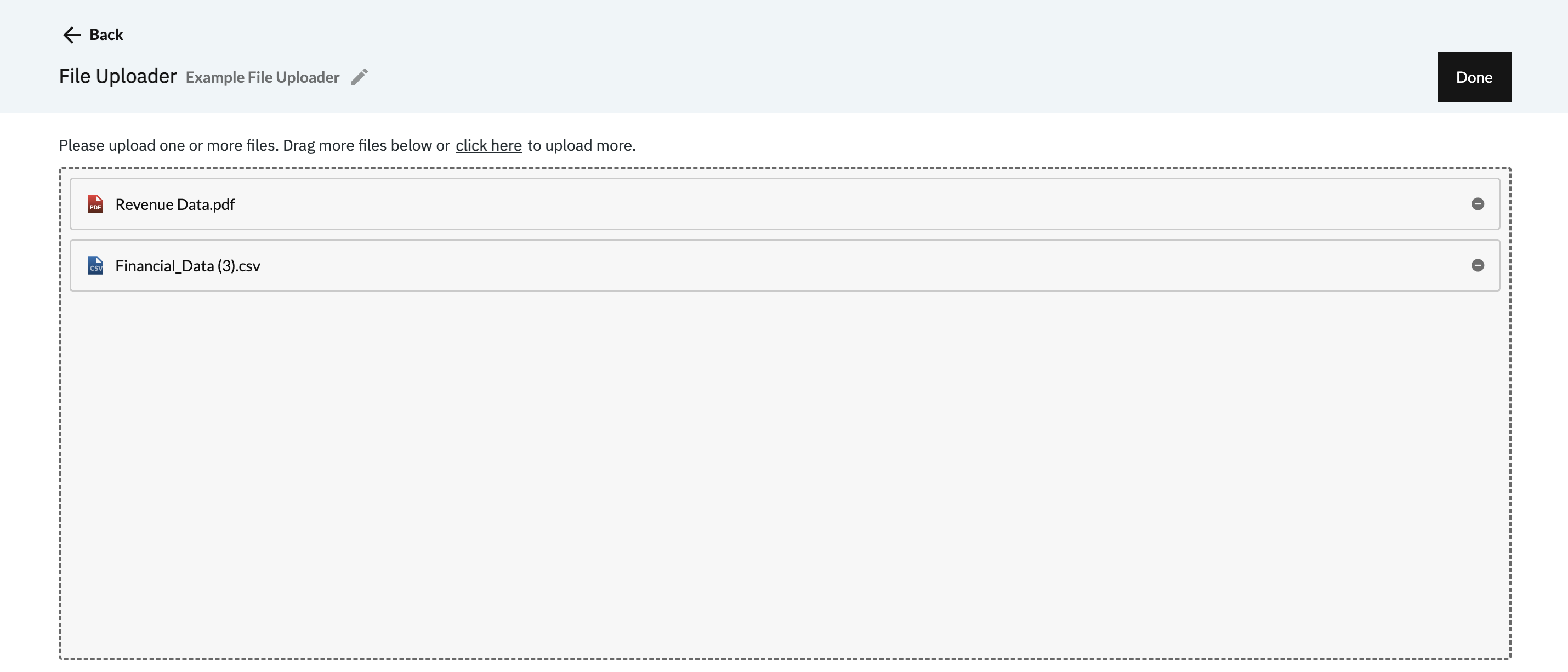
- Once the upload finishes, you will see the file(s) as rows in the box. At this point, if required, you can remove any uploaded file by clicking the minus icon.
- You can also add more file(s) to the list by dragging them in or clicking on the link at the top of the box that says click here to use the file navigator.
- The Advanced Settings section lets you choose whether the workflow should Append to the existing dataset or Replace it each time it runs. Note that Append is only supported when the file contains only one structured table, i.e. from a CSV or an Excel file with a single tab. You can also toggle the option to refresh the dataset only when new data is detected.
- Click Done to exit the node configuration screen
- Click on the node to open the right-side panel, then click Run.
Note on Dataset Types (Regular Dataset vs. File Collection)If you upload a CSV, Google Sheet, or Excel file containing a single sheet, and Redbird recognizes it as a well-defined structured dataset (i.e., a clear tabular table), it will automatically generate a standard Redbird tabular dataset. This dataset can, for example, be connected directly to a dashboard.
If you upload multiple files, or if the uploaded file is unstructured, Redbird will instead create a File Collection node. In this context, an unstructured file is one that does not contain a single clean tabular dataset in standard cell format (e.g. a CSV file, or a single-sheet Excel document). In these scenarios, Redbird uses AI agents and computer vision to scan the documents, extract relevant information, and convert it into structured tabular format when needed.
From a File Collection node, you can preview the collected documents by double-clicking the node, or by selecting the node and clicking Explore in the right-hand side panel. Within the Explore view, click the eye icon next to each document or its subcomponents (e.g. individual Excel tabs, PDF pages, or PowerPoint slides).
These extracted components can then be referenced or transformed into structured datasets using nodes such as the AI Data Tool (see documentation here).
Note: When a File Collection node is created, only the Replace upload method is supported — Append is not available.
Updated 8 months ago