

Pushing to Cloud Storage
Background
Redbird's Cloud Data Storage Output provides a simple, flexible way to push datasets or dashboards from Redbird into a cloud storage service. This is configured by adding a Cloud Storage Output node as a step in your workflow. Supported destinations include Amazon S3, Google Drive, Google Cloud Storage, SharePoint, and FTP. Datasets are exported as CSV files and dashboards as PPT files.
Connecting In Dataset or Collection Nodes
- You need to connect a Redbird Dataset or Dashboard node on your canvas to the Cloud Storage Output node (by drawing a line between them) in order to push it to your cloud storage platform.
- You can only select one object per node.
- If you are pushing a dashboard PPT to cloud storage for the first time, you need to have generated the download on the dashboard node first. See here for more details.
Create a Configuration and Input Credentials
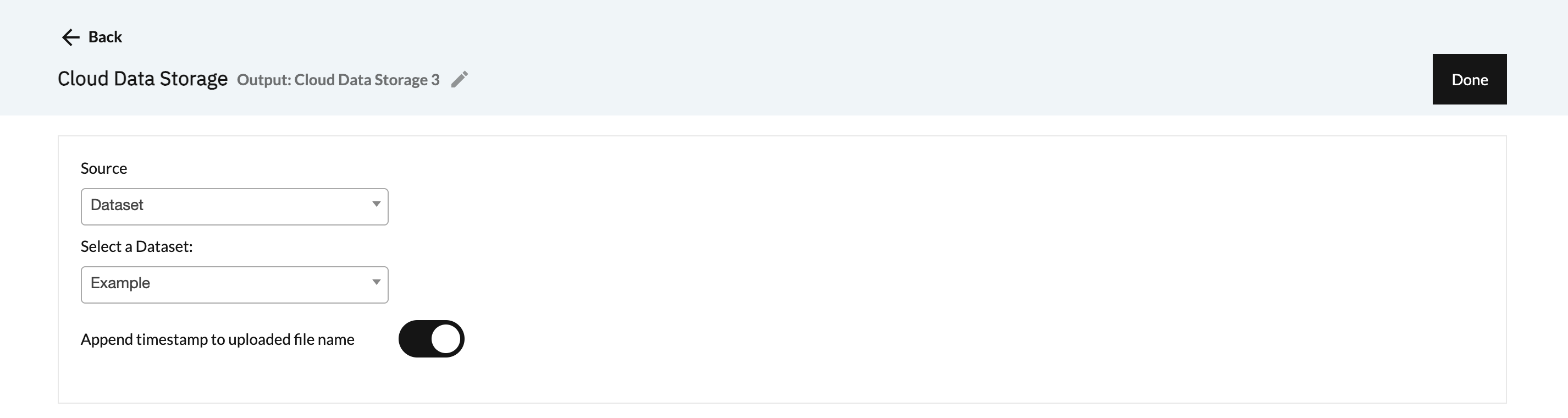
- Double-click the node to enter configuration mode.
- Name your configuration by clicking the gray pencil at the top of the screen.
- Select the source type from the Source dropdown (either Dataset or Output):
- If you select Dataset, a second dropdown labeled Select a dataset will appear, showing all datasets attached to the node.
- If you select Output, a second dropdown labeled Select an Output Type will appear — choose Dashboard. A third dropdown labeled Select a Presentation will then appear, showing all dashboard nodes connected to this node.
- You can choose whether to automatically append a timestamp of when the file is pushed to the uploaded file name (this is on by default) by using the toggle.
- If credentials have already been added to Redbird, they will appear in the Selected Source dropdown. Simply choose the ones you want to use. (If only one set exists, it will be selected automatically.) To add new credentials or edit existing ones, click Add/Edit Credentials.
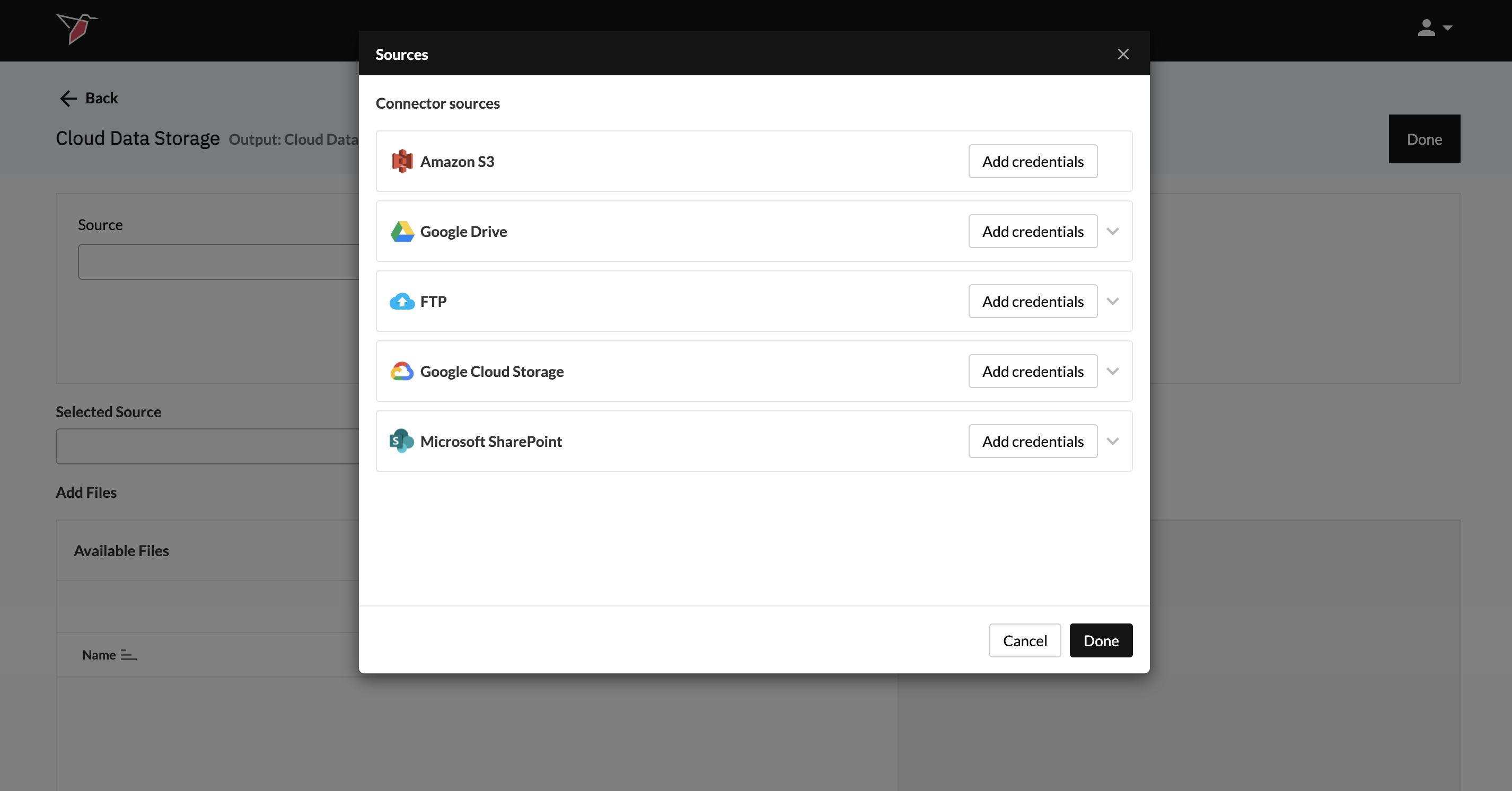
- From the Sources modal, click Add credentials on the Cloud Data Storage Platform you wish to use.
- You can refer to the guides below on the requirements needed for each of the specific platforms. The first step will always be to name your credentials so that you can reference them at the end of this process.
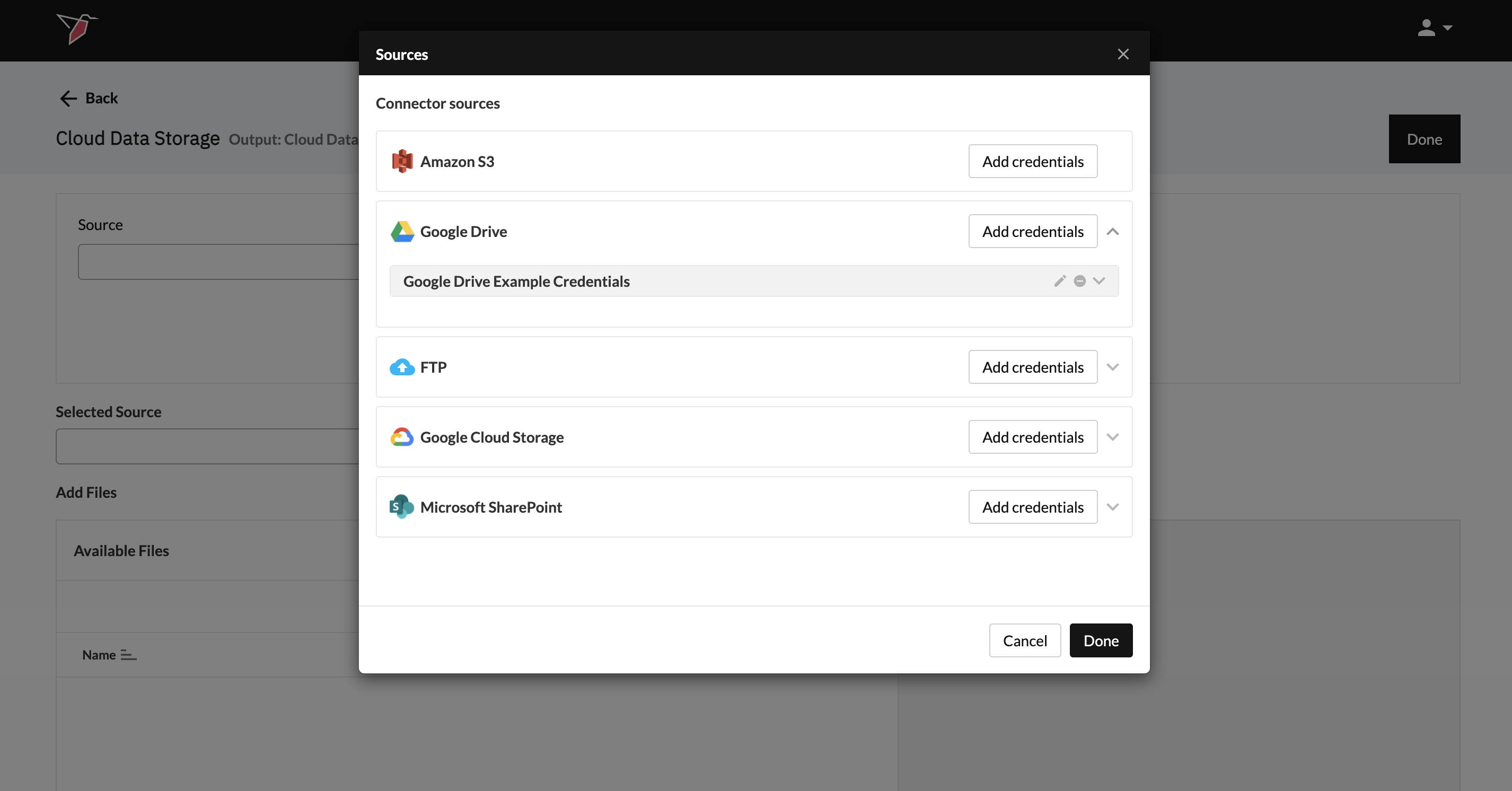
- Once credentials have been added, they will appear in a grey box beneath the Cloud Data Storage Platform name. You can edit them by clicking the pencil icon or delete them by clicking the minus icon.
- Click Done to return to the main configuration screen.
Selecting The Destination For Your Dataset / Dashboard
- Once connected, navigate your cloud folder structure and select the folder you wish to push the object to. You can use the search box to help you locate your folder if needed.
Pushing to Google SheetsNote: If using the Google Drive connector and pushing a dataset, you also have the option to select a Google Sheet instead of a folder. In this case, the dataset will be pushed into that Google Sheet, either appending or replacing the data each time depending on the Upload Method selected in the Advanced Settings section.
- Make your selection under Available Files and click + Add to move your folder/Google Sheet into the Selected Folder/File pane.
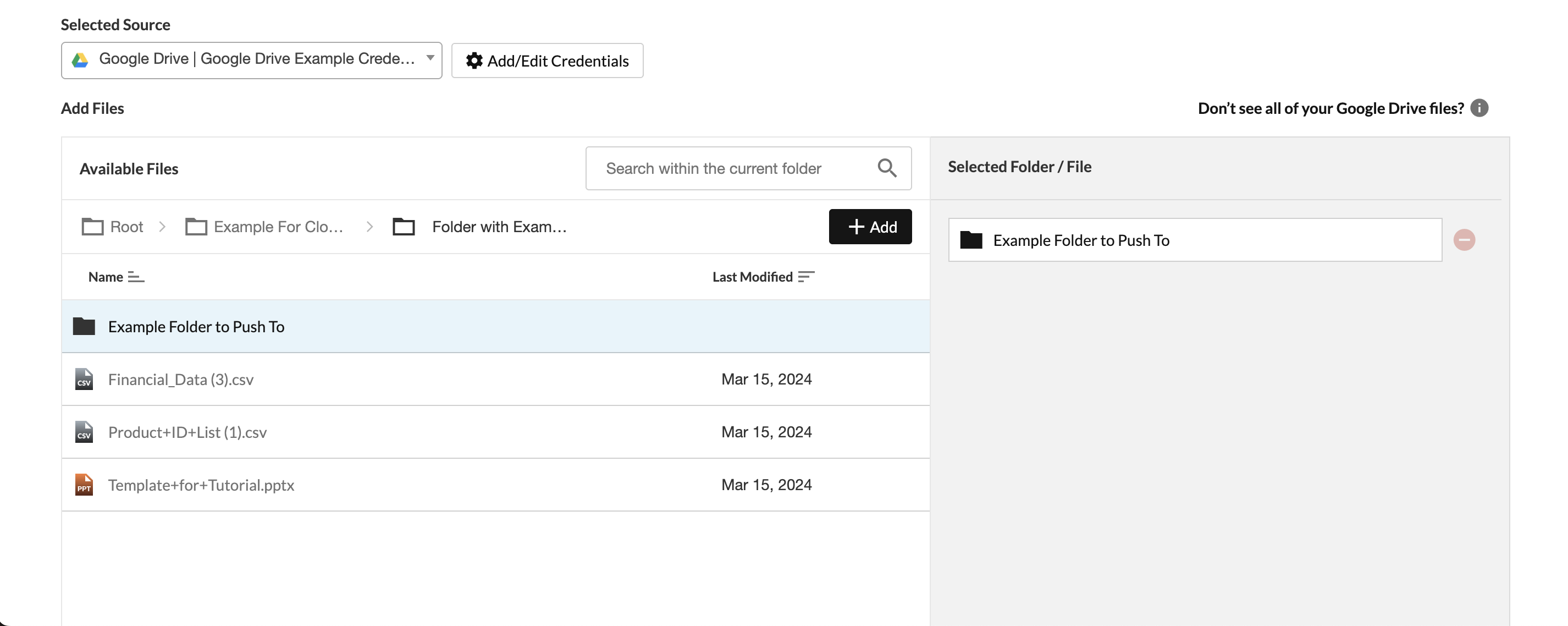
- To remove a folder/Google Sheet, click the red minus icon next to the individual folder/Google Sheet.
Advanced Settings
In the Advanced Settings section, if you are pushing data to Google Sheets, you’ll see options that let you control how your collection runs:
- Append keeps the historical data and adds future data pulls below it.
- Replace removes the historical data and writes the new data in its place.
If you are pushing data to a folder, a new file will be created each time the node runs.
Once you are finished, click Done.
Running a Configuration
- Click the node to expose the right-side panel.
- Click Run
Updated 6 months ago