

Prepping data
Ask Autopilot to clean up a column and combine the two datasets
Introduction
Raw data usually needs a little preparation before it's ready for analysis. In this guide you'll make two improvements to the tutorial data, both by describing what you want to Autopilot: first you'll tidy up a date column, then you'll combine the two datasets so every sale shows the retailer it belongs to.
This guide picks up right where Collecting data left off — you should have the Superstore and Retailers datasets in your workflow.
Clean up a column
The Order Date column in the superstore data includes a time of day that's always midnight — noise we don't need. Ask Autopilot to fix it. In the message box, type:
Clean up the Order Date column in the Superstore dataset so it shows just the date without the time
Autopilot records this as a step inside an AI Data Tool node — a node it adds to your workflow whose job is to hold your data preparation work. Every transformation or enrichment you ask for becomes a numbered step in that node, kept in order, so the same preparation is repeated automatically every time the workflow runs with fresh data. This is also what the preview panel on the right side of the screen is showing in the screenshots below: the AI Data Tool node's steps, and the output each step produced.
Autopilot runs the new step, and when it finishes, asks what you'd like to do next and offers a few choices: keep transforming the data, send the results somewhere, or finalize.
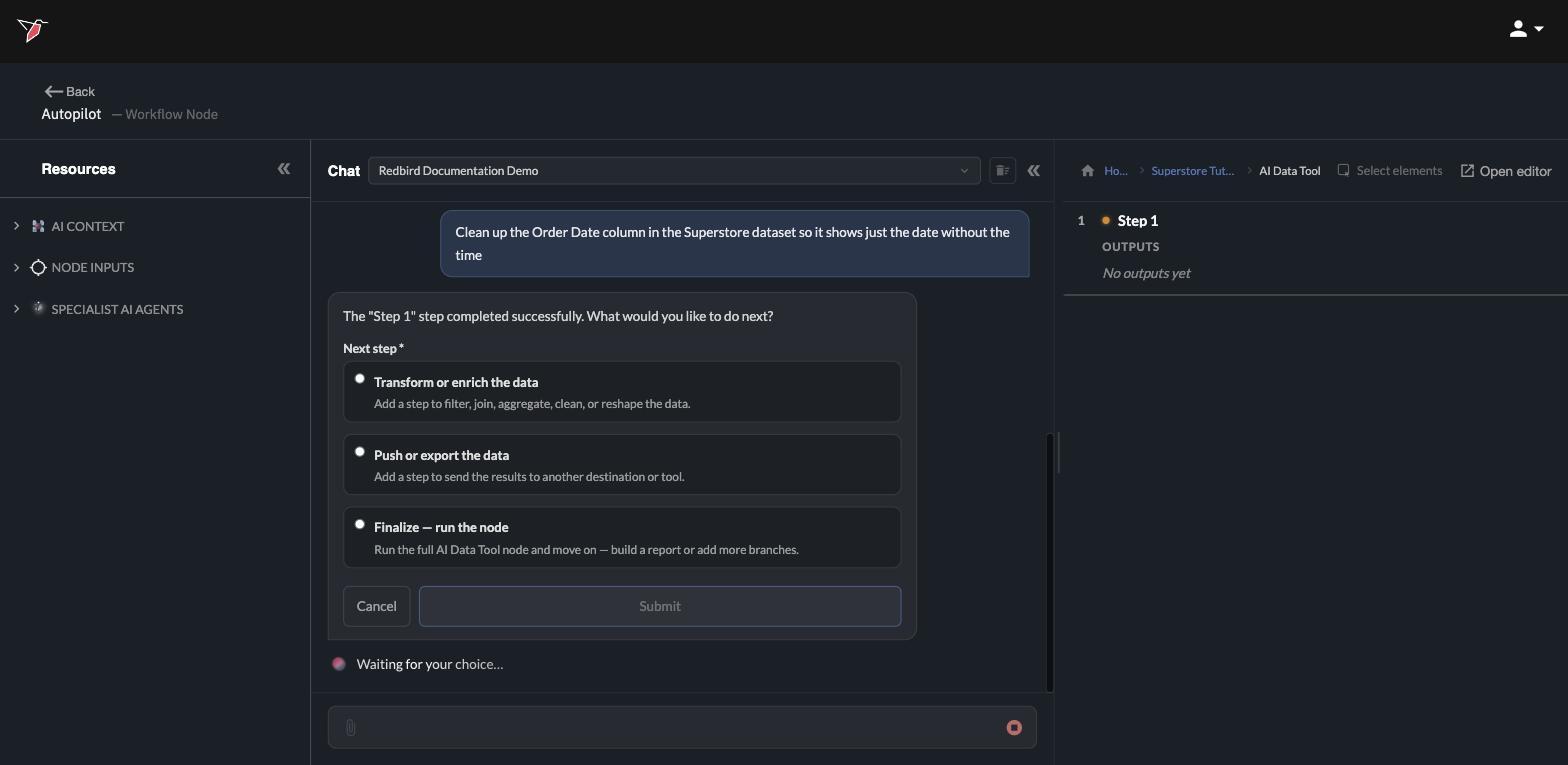
Since we have more preparation to do, select Transform or enrich the data and click Submit. Autopilot confirms the change and shares the updated dataset in the chat.
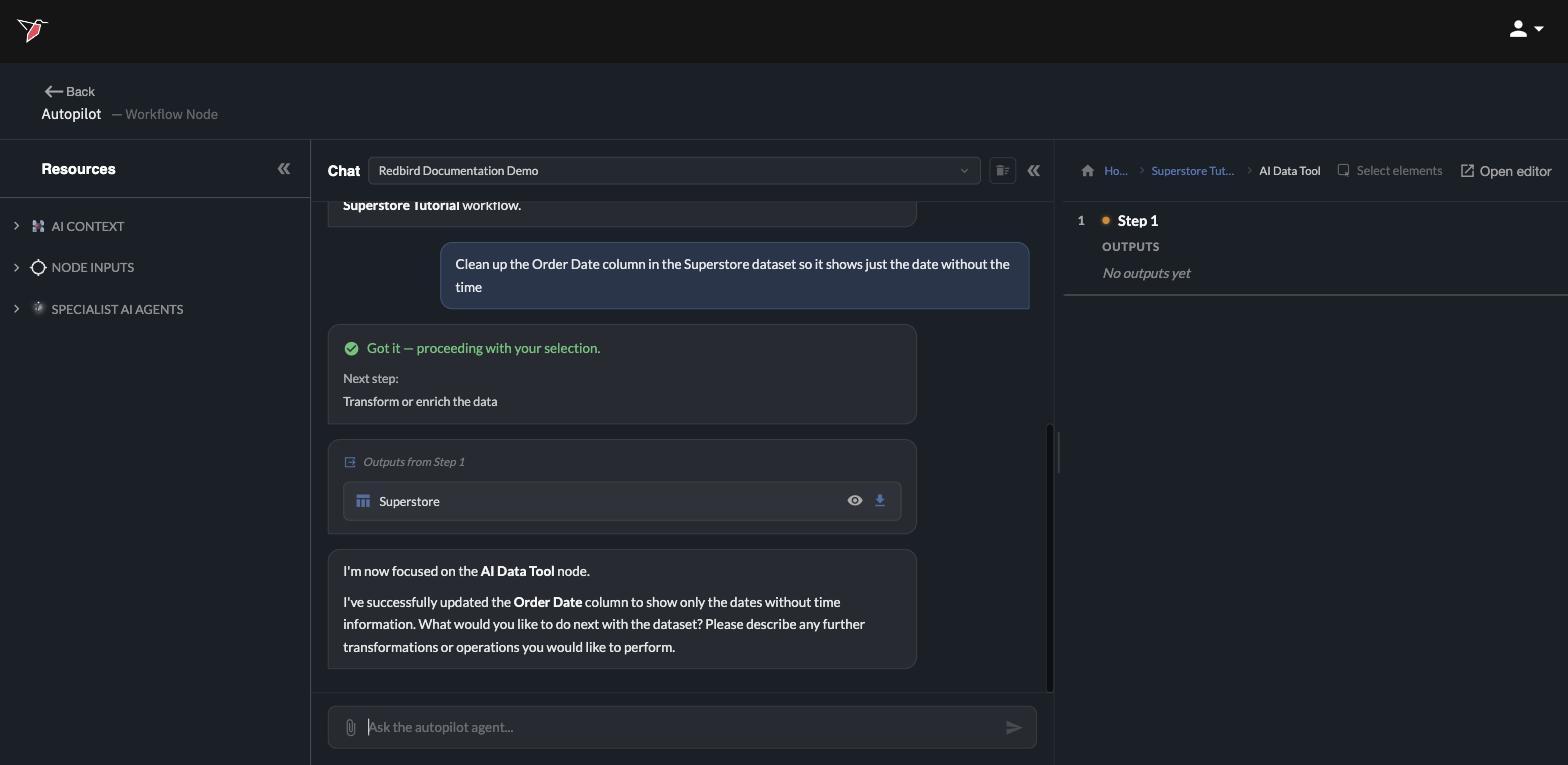
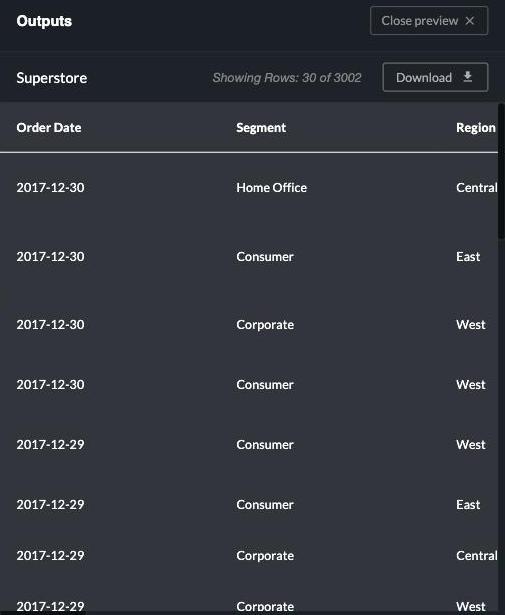
You can check the result at any time: click the eye icon next to the dataset in the chat to open a preview. The Order Date column now shows clean dates.
Combine the two datasets
Right now, each sale identifies its retailer only by a number — the Retailer ID. The actual names live in the separate Retailers dataset. Ask Autopilot to bring them together:
Join the Retailers dataset into this data using Retailer ID so each sale shows the retailer's name
Autopilot adds a step that matches the two datasets on their shared Retailer ID and runs it. When it finishes, it shares the combined dataset in the chat. Preview it with the eye icon and scroll to the right: every sale now has a Retailer Name column with the actual retailer — Amazon, Costco, Best Buy, and so on.
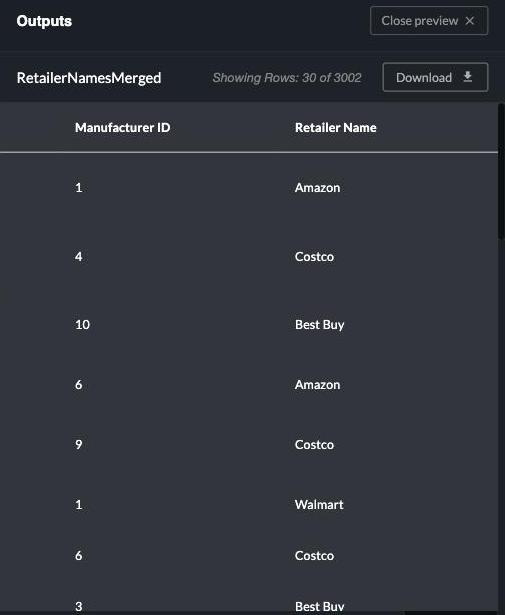
Always glance at the result. The preview is the quickest way to confirm a change did what you expected. If something looks off, just tell Autopilot what's wrong in plain words — for example, "the names don't match the Retailers dataset" — and it will correct the step.
What you built
Your workflow now prepares the data automatically: dates are clean, and every sale carries its retailer's name. These preparation steps are part of the workflow itself — whenever it runs again with fresh data, the same cleanup happens without you lifting a finger.
Next, start asking questions: continue to Exploring data.
Updated 4 days ago