

Creating a Custom Operation
Background
Once a dataset has been loaded into the Redbird platform, it is often necessary to transform your data before it can be utilized for further purposes
such as a presentation. If any of the other prebuilt operations don’t meet your data transformation needs, you can build a custom operation.
A custom operation allows you to combine a number of building blocks to meet your specific data transformation needs. These building blocks
include:
- Adding column(s)
- Removing column(s) or row(s)
- Editing data values based on conditional logic and boolean (AND, OR, NOT) operators
- Editing data values using formulas (mathematical and text-based)
- Applying the same transformation logic across multiple columns through iterations
How it Works
To demonstrate how to build a custom operation and the value it can provide in your analysis, we are going to walk through an example using
financial data from a fictitious company that produces widgets.
The data below was uploaded into the Redbird Platform and includes six columns: Business Unit, Region, Month, Sales, Discounts, and Expenses.
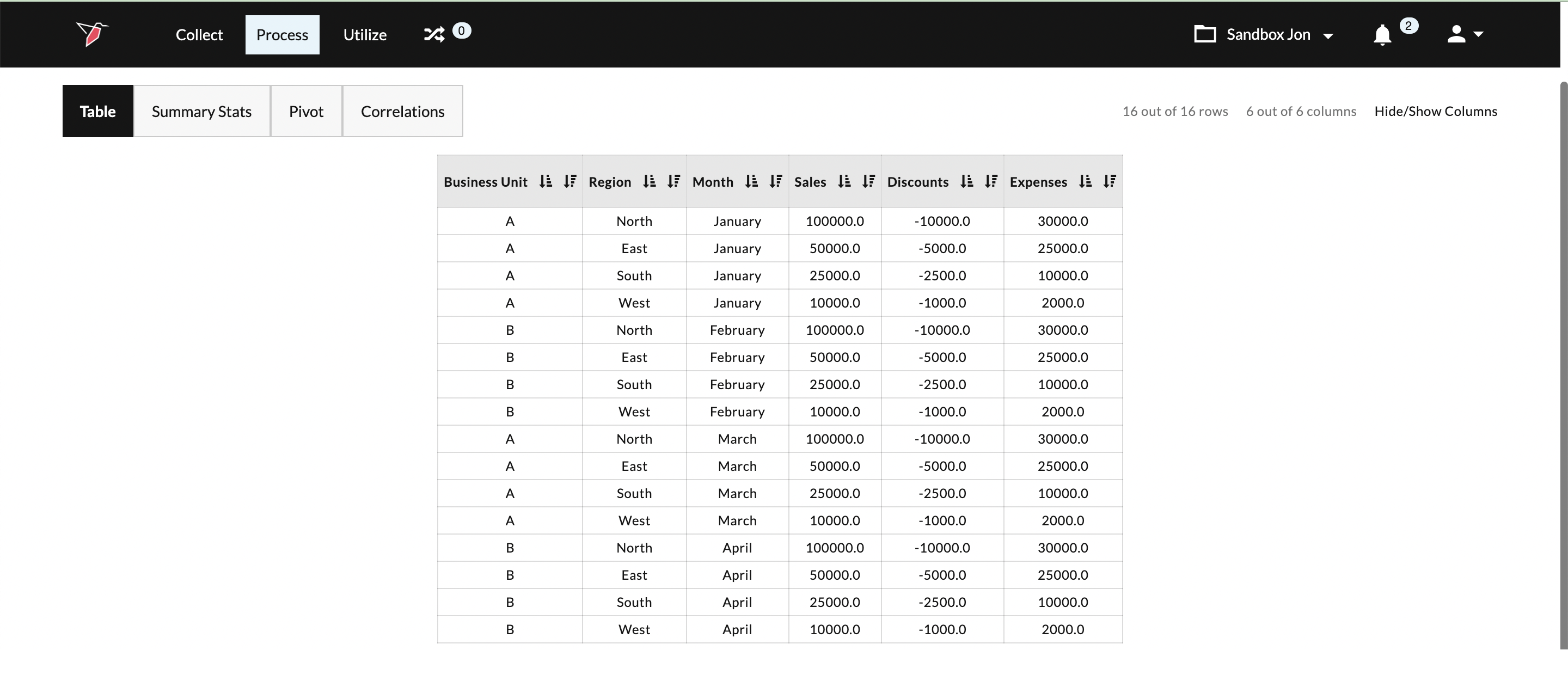
As business analysts, we are interested in understanding how our expense structure affects our profit. To complete our analysis, we are going to create a custom operation that will:
- Add a column called Profit to our dataset
- Calculate profit (Sales + Discounts - Expenses)
- Edit the newly created profit column with the calculated profit
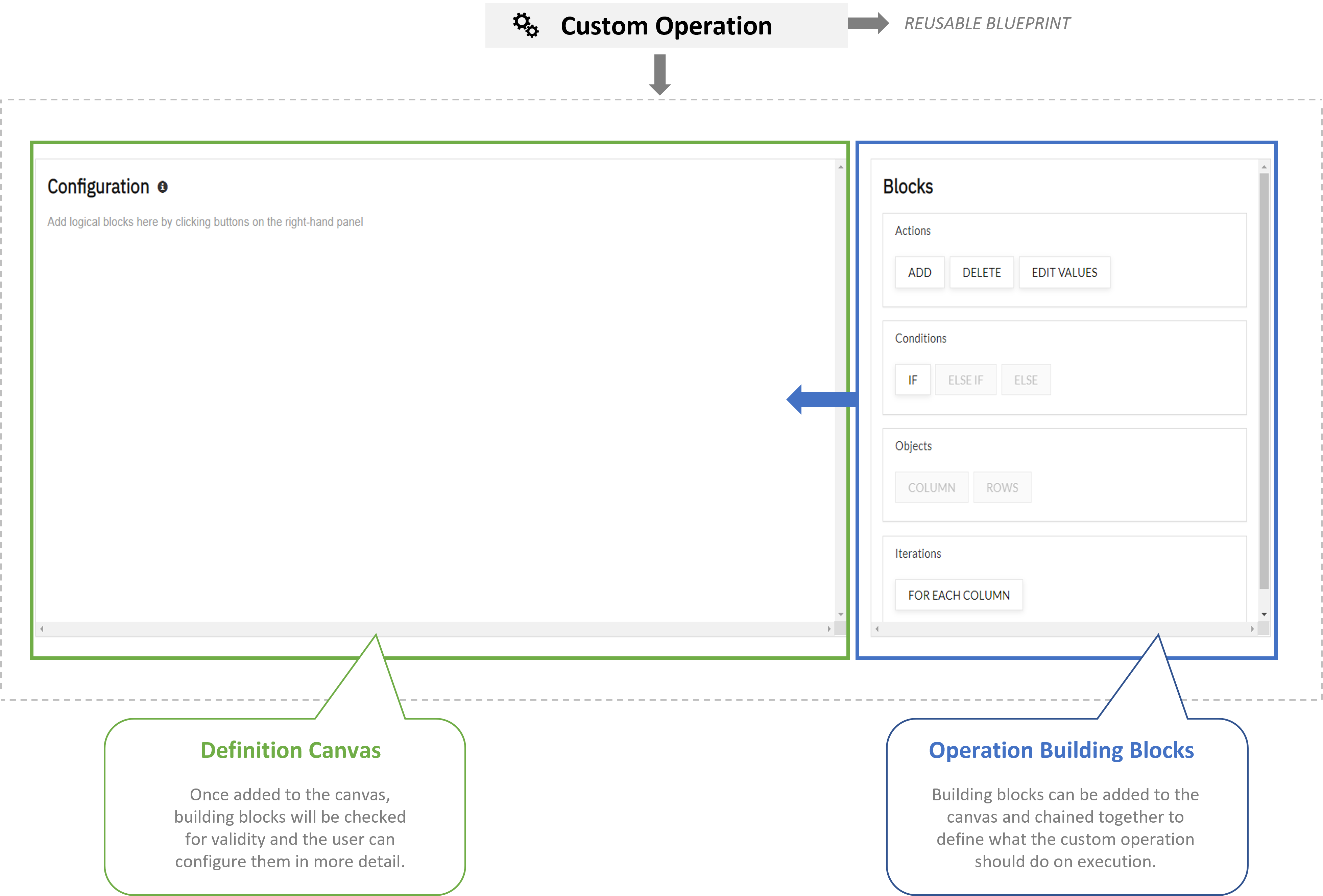
To build our custom operation, we are going to utilize the definition canvas and a set of stackable, prebuilt building blocks. The core building blocks include:
- Actions: The Action block allows you to modify your original dataset by
- adding objects
- deleting objects
- editing values of objects
- Conditions: The condition block allows you to set up conditional logic to determine when to run an action.
- Objects: The object block determines what you want to add, delete, or edit. An object can either be a column or a row.
- Iterations: Iterations allow you to loop through all of the columns in a group of columns with similar data values and perform the same transformations on each individual column in the group (eliminating the need to create multiple operations for each column).
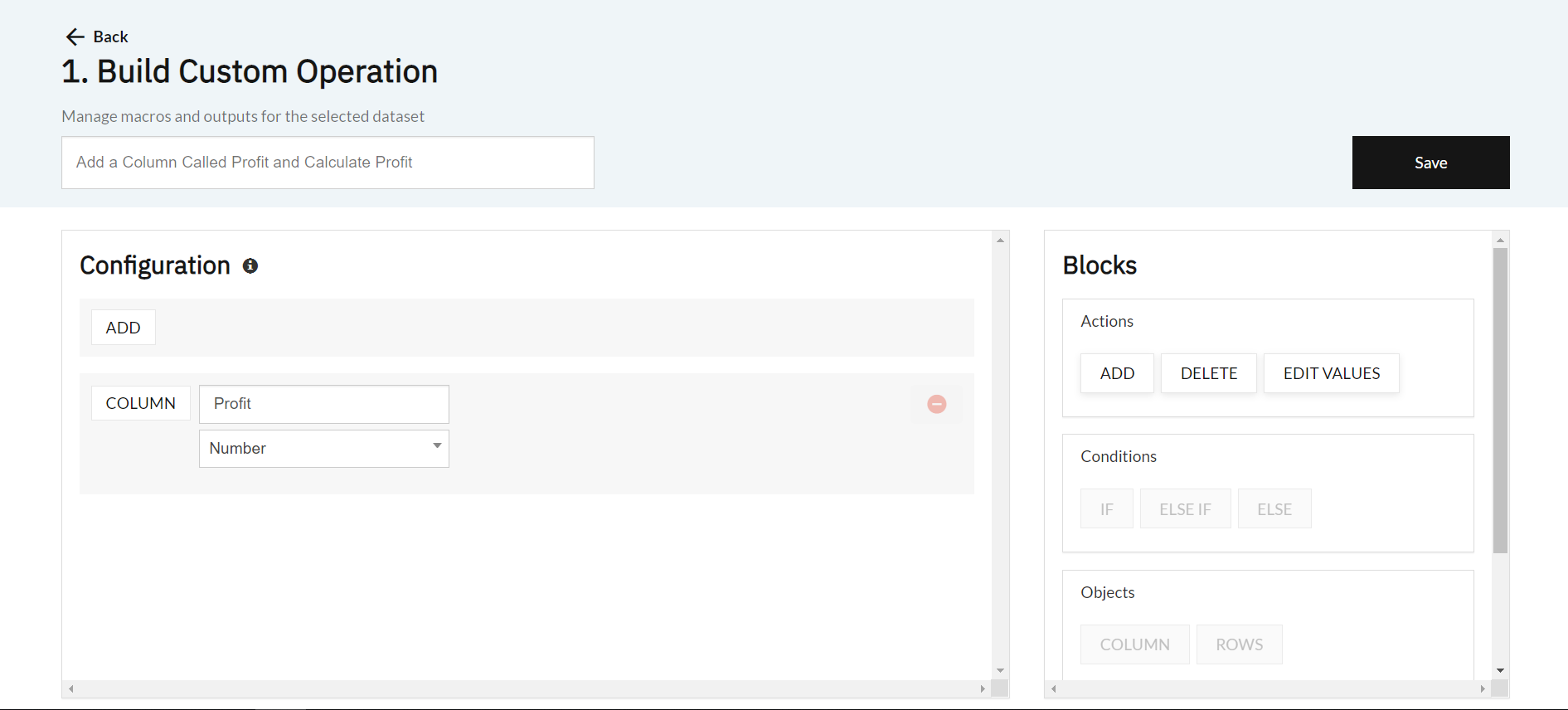
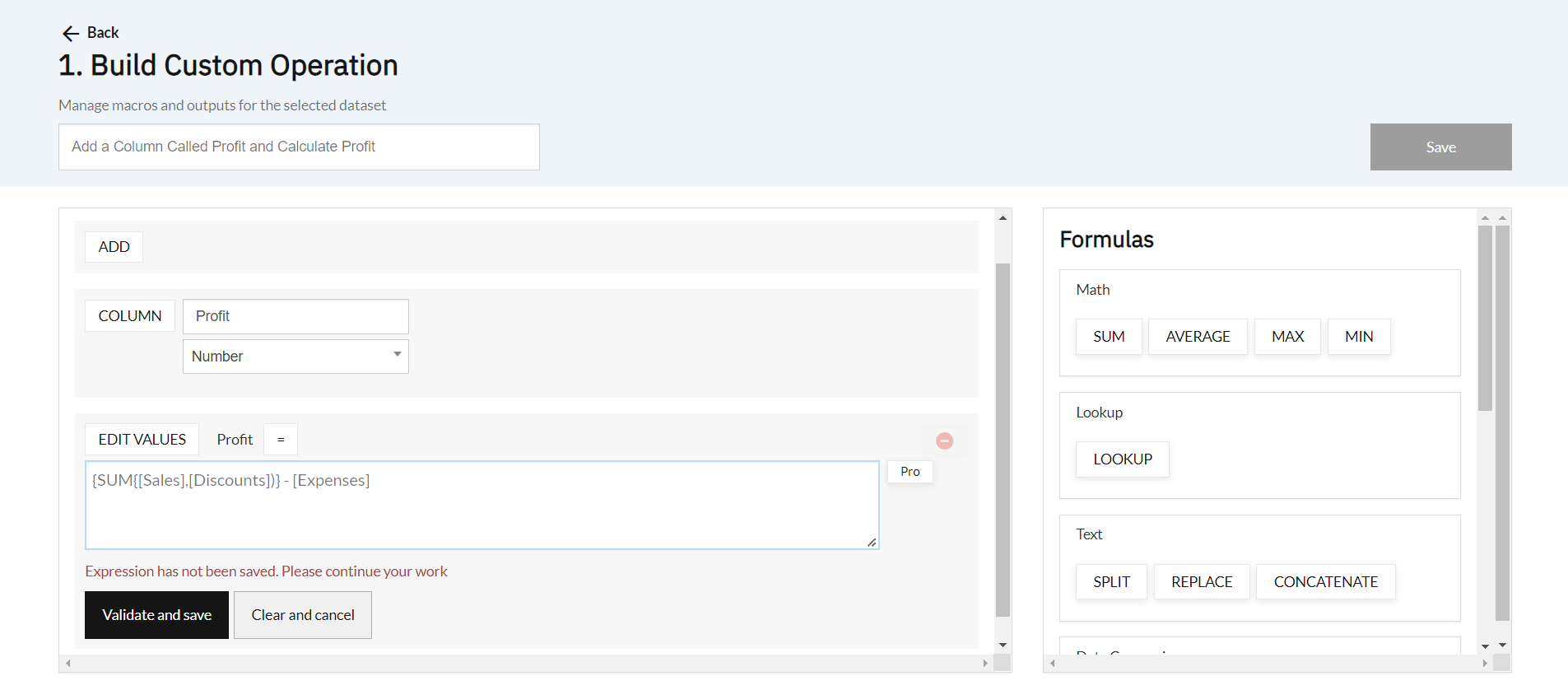
For our use case, we will be using a combination of actions and objects. In the below screenshot, you can see that we used the Add action followed by the Column object. These two building blocks were used together to create a new column called Profit. When creating a new column, you will need to indicate the data type of the column so Cube knows how to treat it. There are 4 data type options: Boolean, Number, Text, and Date.
Important:Not all of the building blocks are eligible to use at all times. Redbird's validation engine will only allow you to select building blocks and formulas that are legal.
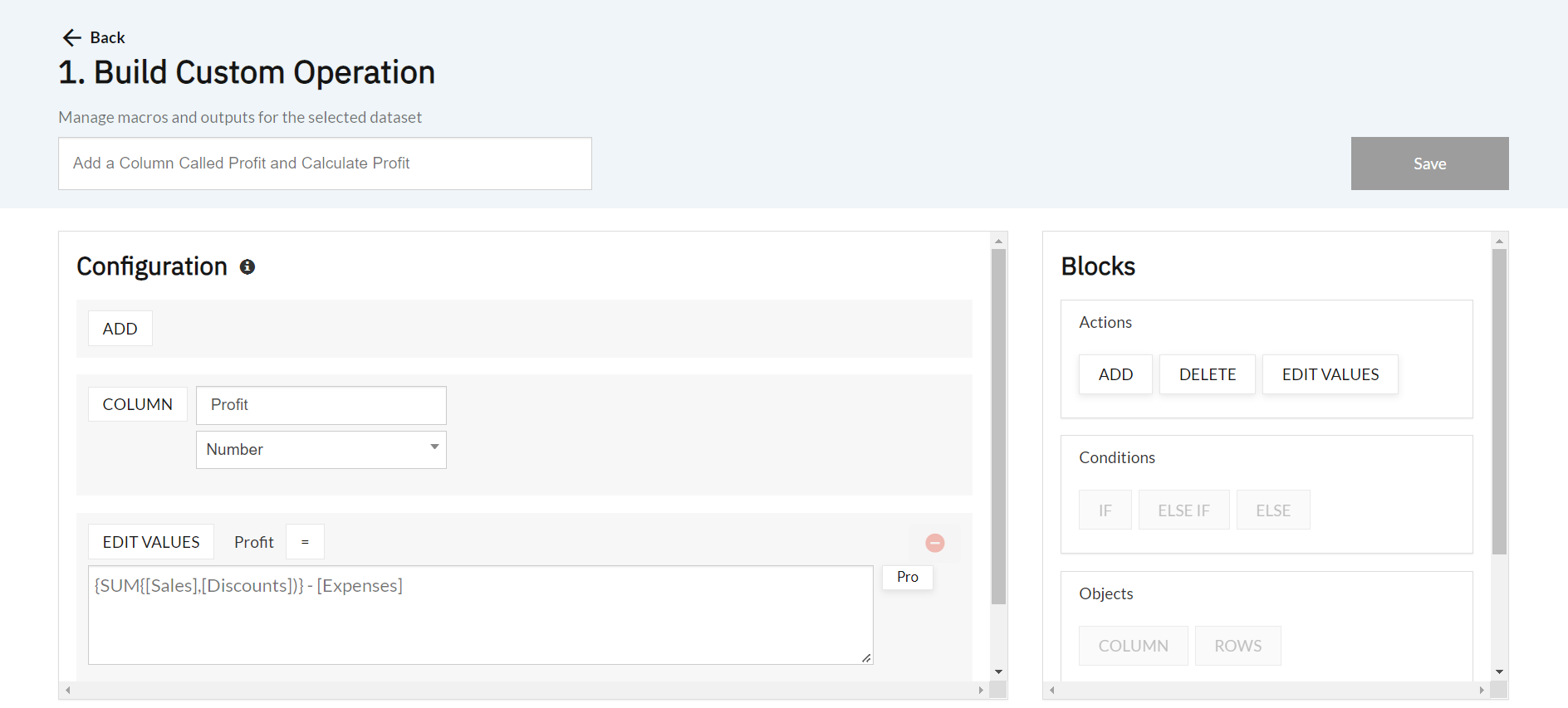
We then used the Edit Values building block, which gave us access to an expression box and a number of prebuilt formulas. Our Edit Values building block will first calculate profit and then update the values within the Profit column with the calculated values.
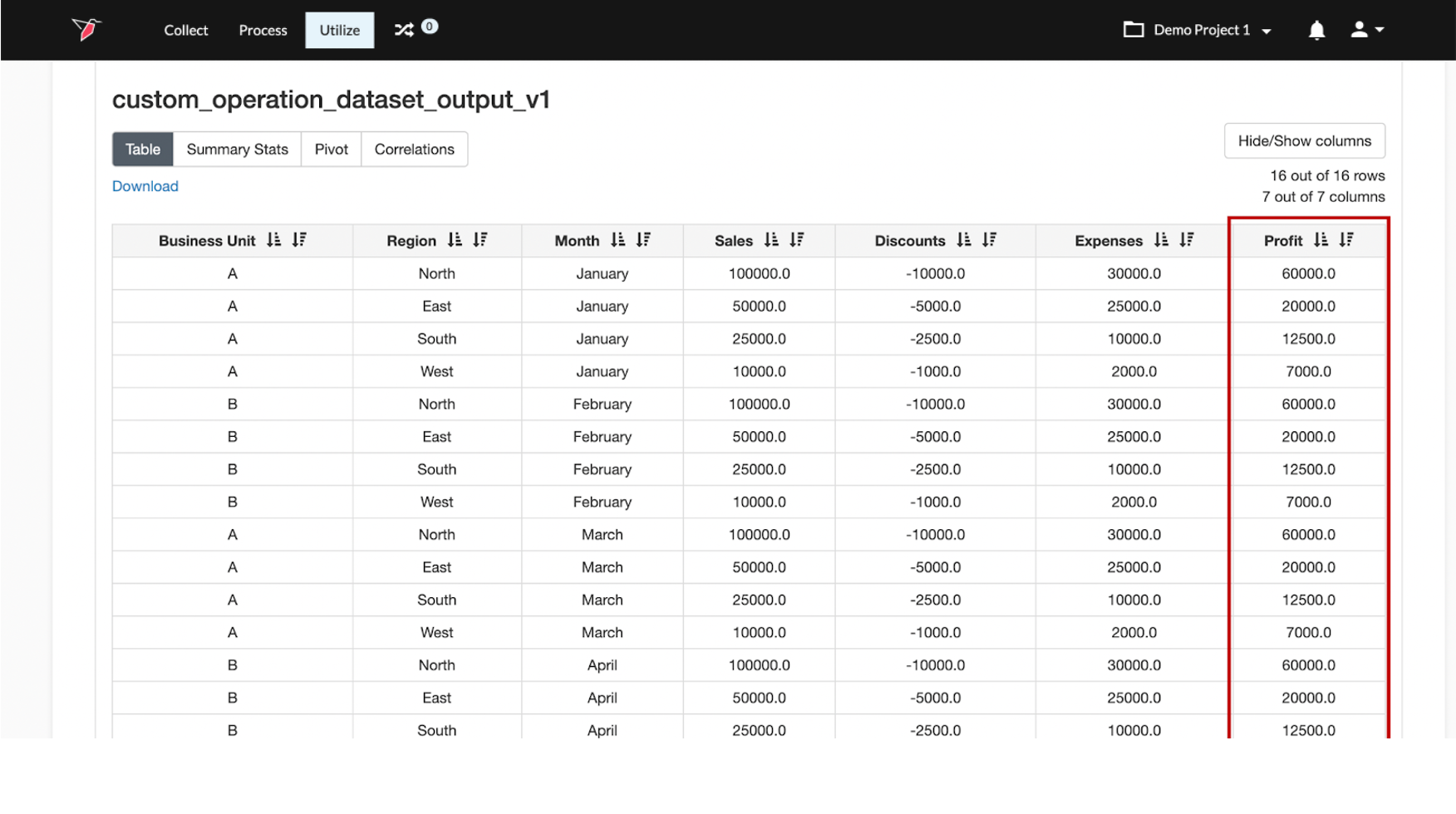
Once we are comfortable with our configurations, we can run the macro. The macro that contains the custom operation will create a new data output that appends additional column(s) to a copy of the original dataset. The column represents the values that were calculated as a result of the configurations that were set. The below screenshot highlights that a new column called Profit was created, the profit calculation was run, and the
profit values were inserted into the cells within that column.
Configure the Custom Operation
To configure the operation you will utilize the definition canvas and a set of prebuilt building blocks. You will use a different set of building blocks to accomplish different data transformations.
To demonstrate how the definition canvas and building blocks work together to configure a custom operation, we are going to return to our example of the fictitious business discussed in the How It Works section. In our example, we needed to transform our data to create a useful output. The transformations included:
- Adding a column called Profit, which will hold the number values
- Calculating profit (Sales + Discounts - Expenses)
- Editing the values of the newly created Profit column to reflect our calculation
To accomplish these transformations, the configuration was set by clicking the building blocks located in the right panel and stacking them in the Definition Canvas on the left. As each building block is added to the Definition Canvas, you are requested to Validate and Save your custom operation. The validation ensures that each operation can be properly completed.
Edit Values Block
The Edit Values block is a powerful feature that will allow you to update the contents of a column by utilizing prebuilt formulas to write an expression. In our example, we were interested in populating the newly created Profit column. Using the Edit Values block we were able to calculate profit by using the available formulas. Below you will find some tips to help you write expressions.
- To add a column
- Type [ (left square bracket) to see a list of columns or;
- Double-click on an existing column to activate the column picker modal
- To add a formula
- Type { (left curly bracket) to see a list of formulas or;
- Click on a formula in the right-hand asset panel to activate the formula configuration modal
- To add boolean operators
- Use AND, OR, NOT
- To add mathematical operators
- Use =, !=, <, <=, >, >=
- To group formulas for order of operations purposes
- Use ( ) (parentheses)
Important:To nest formulas within the Edit Values building block, you must click on the Pro button located to the right of the expression box.
Important:
- Two additional formulas that were not mentioned in our example include Conditions and Iterations.
- These formulas can be utilized and stacked in a similar fashion to Actions and Objects.
If you are comfortable with your configuration, you can click Save. This will return you to the Edit Macro Page.
After you have saved your configuration for the custom operation, you can run the macro.
Updated 8 months ago