

Connect your tools
Connect into and automate interactions with the tools and services that you already use
Introduction
Most of your data doesn't start as a file on your desktop — it lives in other tools: databases, cloud drives, business apps, SaaS tools, and other source systems. Connections are how Redbird works with those tools — and they run in both directions. You set a connection up once, and from then on any workflow can pull fresh data in, push outputs and updates back out, or trigger automated actions in the connected tool.
There are two ways a connection can talk to a tool, and this guide covers both:
- Through the tool's API — most applications offer a programmatic interface (an "API") that enable other applications to communicate with it through the API. This is relatively standard, and it's what Redbird connectors use by default when available.
- Through a recording of your own steps — for tools and websites that don't offer an API, you can record yourself doing the task once in a real browser window, and Redbird repeats those steps whenever the workflow runs. This is called Robotic Process Automation (RPA).
As everywhere in Redbird, the primary way to set up and use a connection is to ask Autopilot.
Connect through a service's API
This is the route for the vast majority of tools. This section walks through a complete example — connecting to NASA's public data service and pulling a month of its "Astronomy Picture of the Day" data — which mirrors the process of connecting your own tools.
Ask Autopilot to connect
From any workflow, describe what you want to connect to and what data you're after, in one sentence:
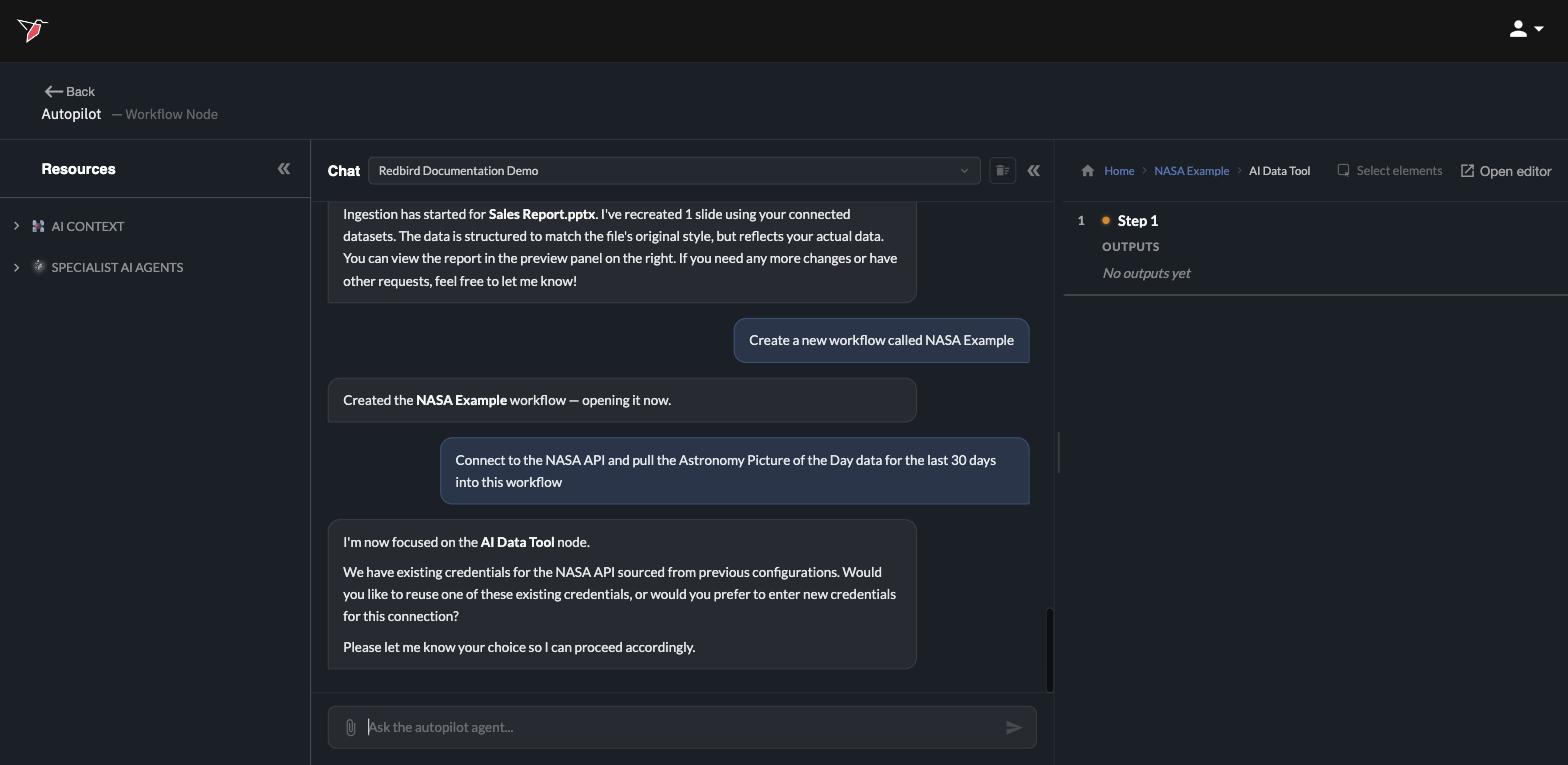
Connect to the NASA API and pull the Astronomy Picture of the Day data for the last 30 days into this workflow
Autopilot takes care of the sequence that follows: it checks whether you already have credentials for that service, sets up the connection, verifies it works, and pulls the data you asked for.
About credentials — most services need a key or sign-in so they know it's you:
- First time connecting? Autopilot asks you for the service's key or sign-in details in the chat and stores them securely as a reusable credential.
- Connected before? Autopilot spots your existing credentials and offers to reuse them — no need to enter anything again.
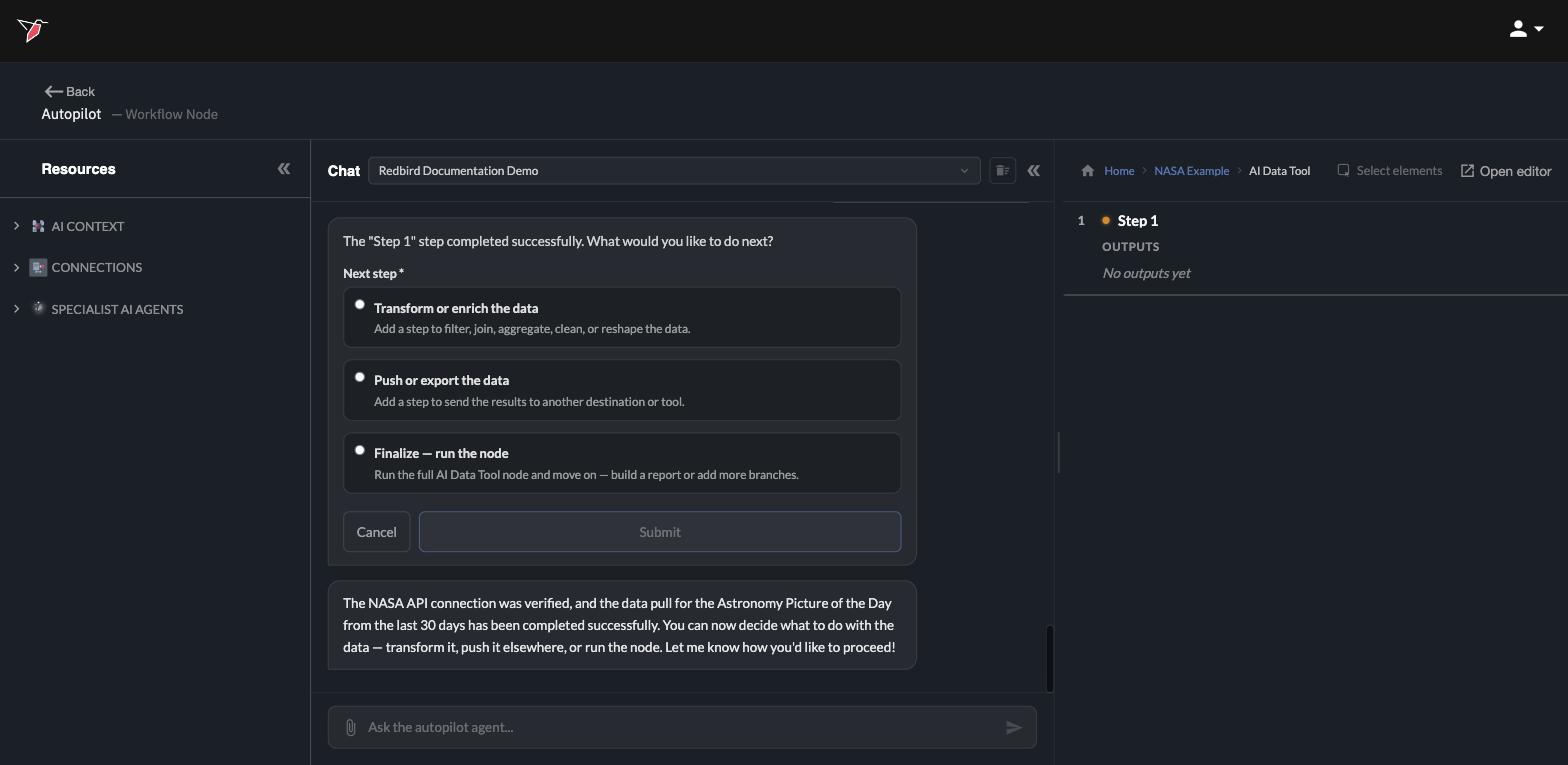
Autopilot verifies and pulls the data
Once the credentials are settled, Autopilot verifies the connection against the live service and runs the data pull. You'll see a confirmation in the chat when the data has arrived, along with choices for what to do next — keep transforming the data, send it somewhere, or finalize.
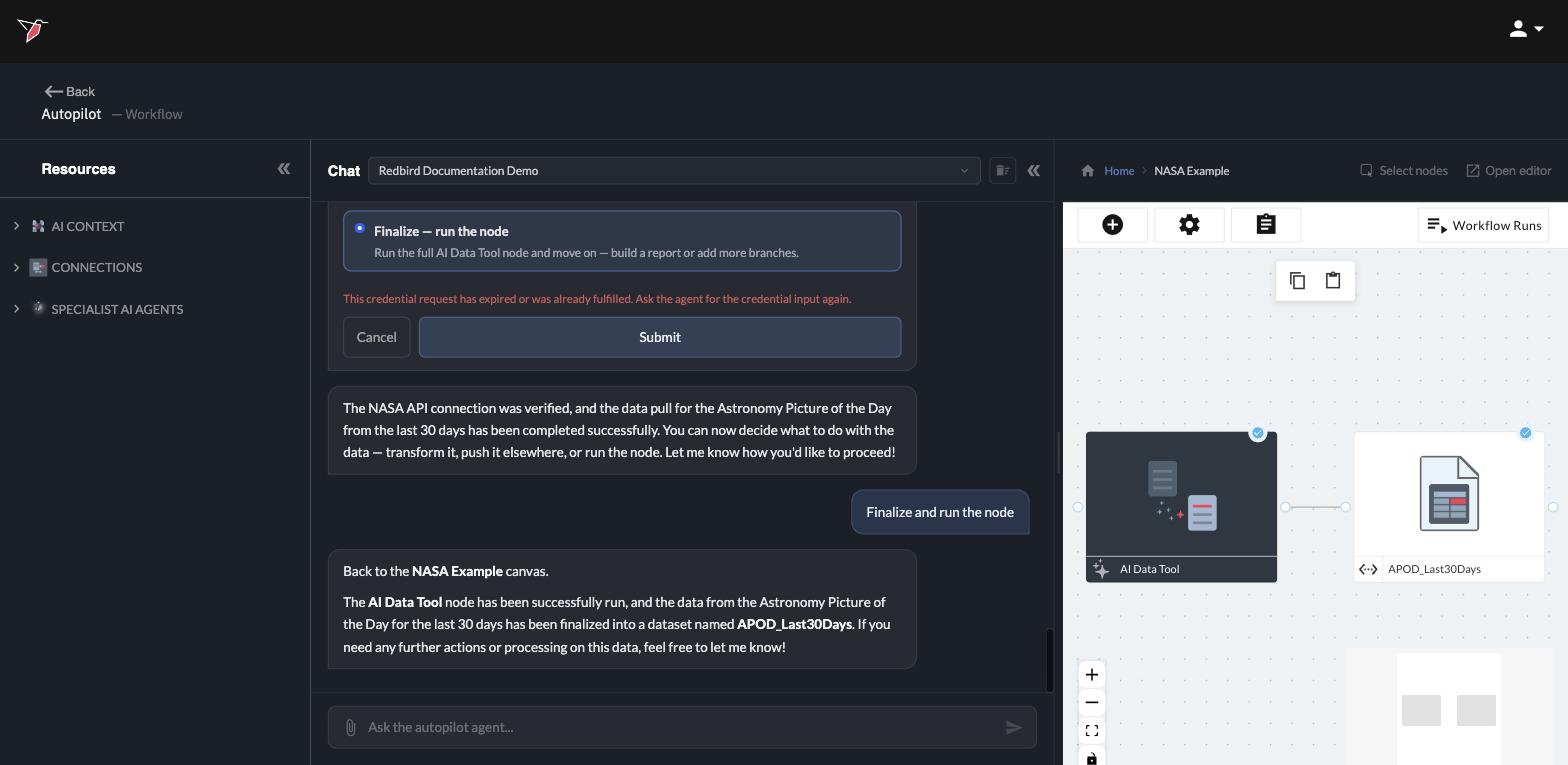
Select Finalize — run the node (or just say so in the chat) and Autopilot completes the workflow: the pulled data lands on your canvas as a dataset, ready to prepare, analyze, or report on like any other data in Redbird.
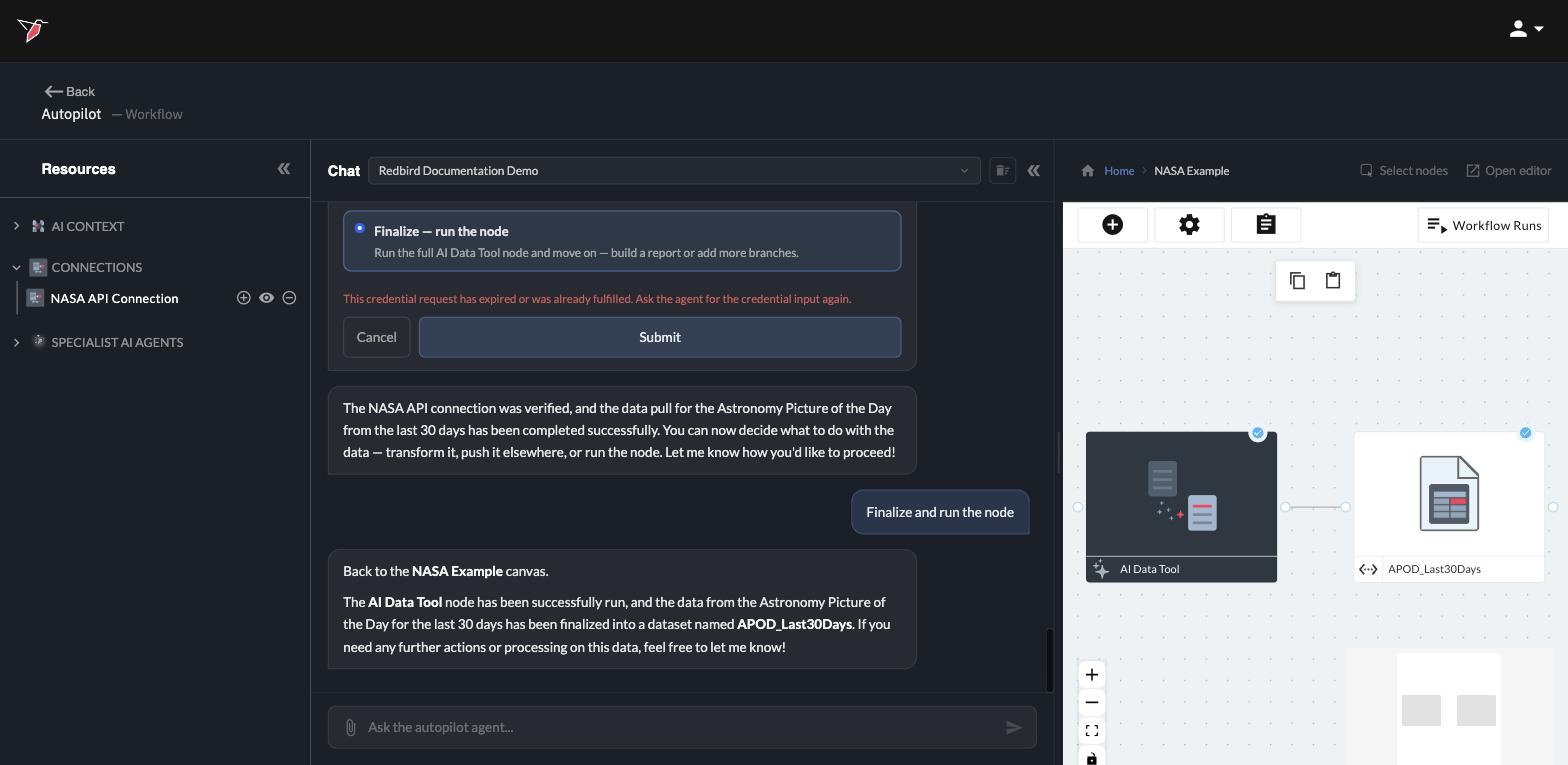
Where your connections live
Open the Resources panel on the left and expand the Connections section to see the connections available to the workflow you're in. From here you can preview a connection with the eye icon or remove one you no longer need.
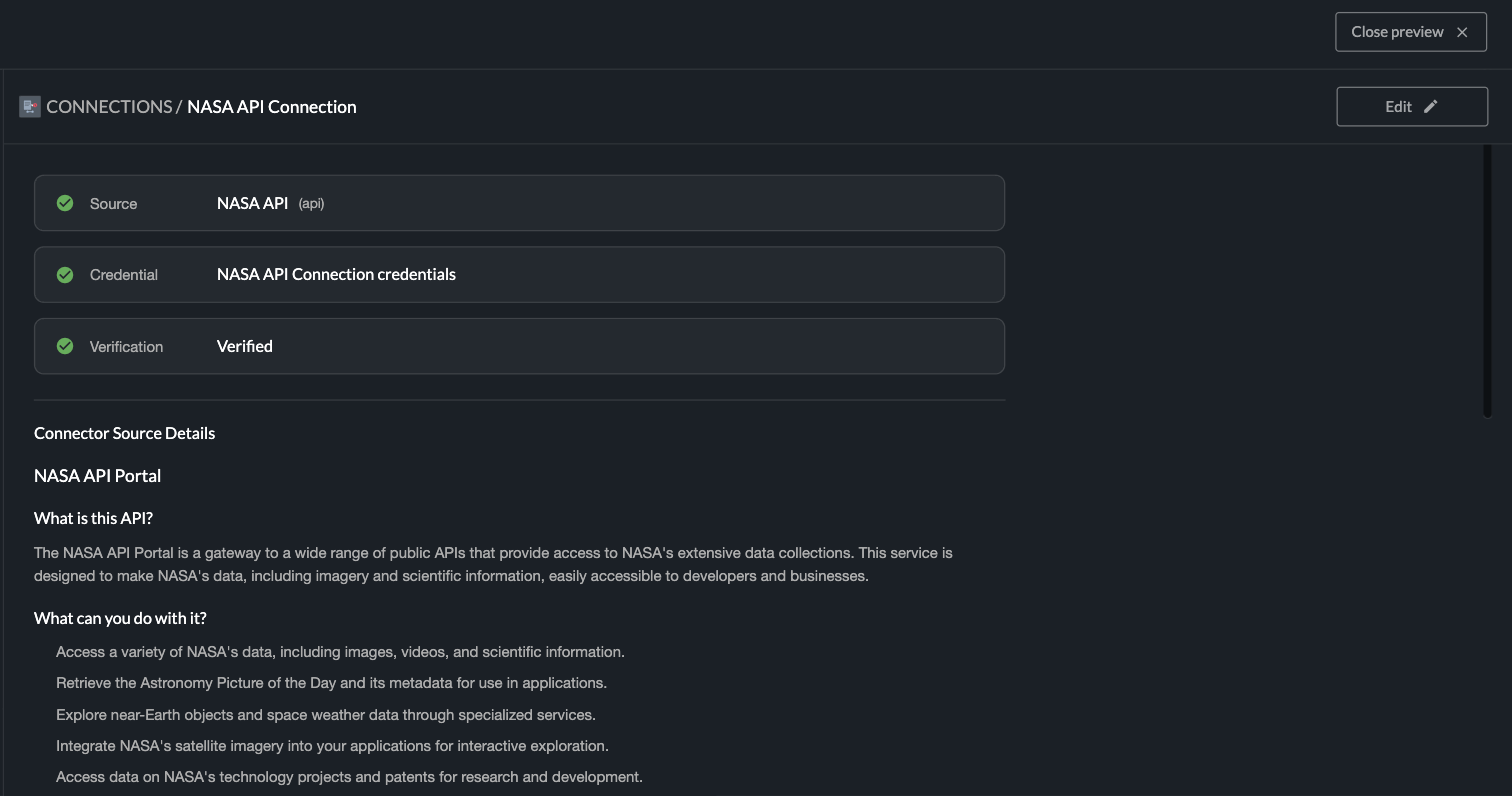
Clicking the eye icon opens the connection's summary in the panel on the right. At a glance it shows the three things that make the connection work — the Source (which service it talks to), the Credential in use, and its Verification status — each with a green check when healthy. Below that, Connector Source Details describes in plain language what the service is and what you can do with it, and an Edit button takes you into the connection's settings if you ever need to change something by hand.
Reuse beats re-entering. Next time you need the same service — in this workflow or a new one — just ask ("pull yesterday's astronomy picture data"). Autopilot finds the existing connection and uses it, so you never re-enter credentials for a service you've already connected.
Preset connectors — and tools we don't cover yet
Redbird ships with preset connectors for most of the tools you're likely to need — databases, cloud storage, business applications, and popular SaaS services — so connecting is usually as quick as the NASA example above.
If you use a tool Redbird doesn't yet have preset coverage for, you're not stuck. Point Autopilot at the tool's name and its documentation — for example, a link to the service's API documentation, or the documentation files themselves. Redbird's internal connector AI agents scan that documentation and build a new connector for the tool, which then works like any other connection: credentials stored once, reusable across your workflows, in both directions.
And if the tool offers no API at all — a website you normally work in by hand — you can connect to it by recording your steps instead. That's the next section.
No API? Record the steps instead
Some data lives in tools and websites that offer no official way for apps to connect — the only way in is to sign in and click through pages yourself. For those, Redbird lets you record yourself doing the task once in a real browser window. The recording becomes a connection, and from then on workflows repeat your steps automatically to fetch fresh data.
One-time setup: the Redbird browser extension. Recording uses Chrome plus the Redbird browser extension, which drives the browser window during recording. If you don't have it (or yours is out of date), Autopilot shows install instructions with a Get Extension button the first time you ask to record — install it, click Done, and Autopilot picks up right where you left off.
Start a recording
Ask Autopilot for a recording explicitly, with the web address where the task starts:
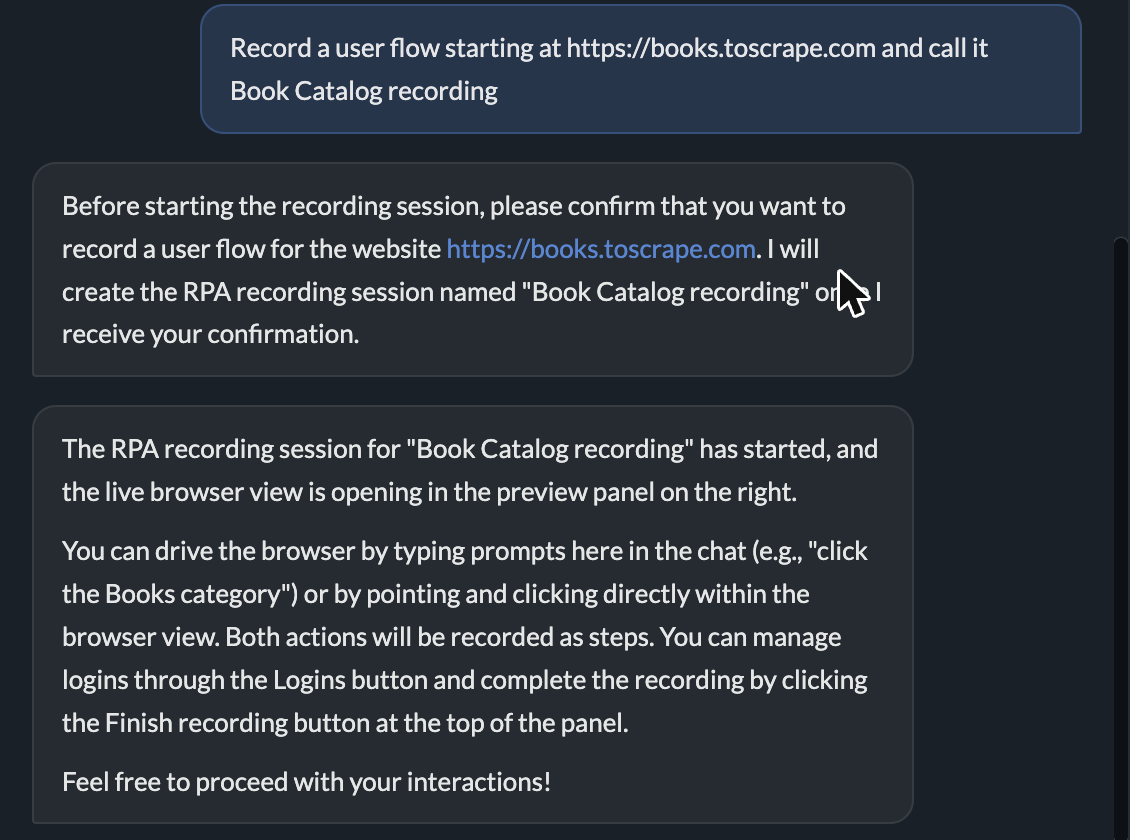
Record a user flow starting at https://books.toscrape.com and call it Book Catalog recording
Autopilot confirms the details, opens the recording view, and a second browser window opens beside Redbird showing the website — that window is where your steps happen.
While you're recording
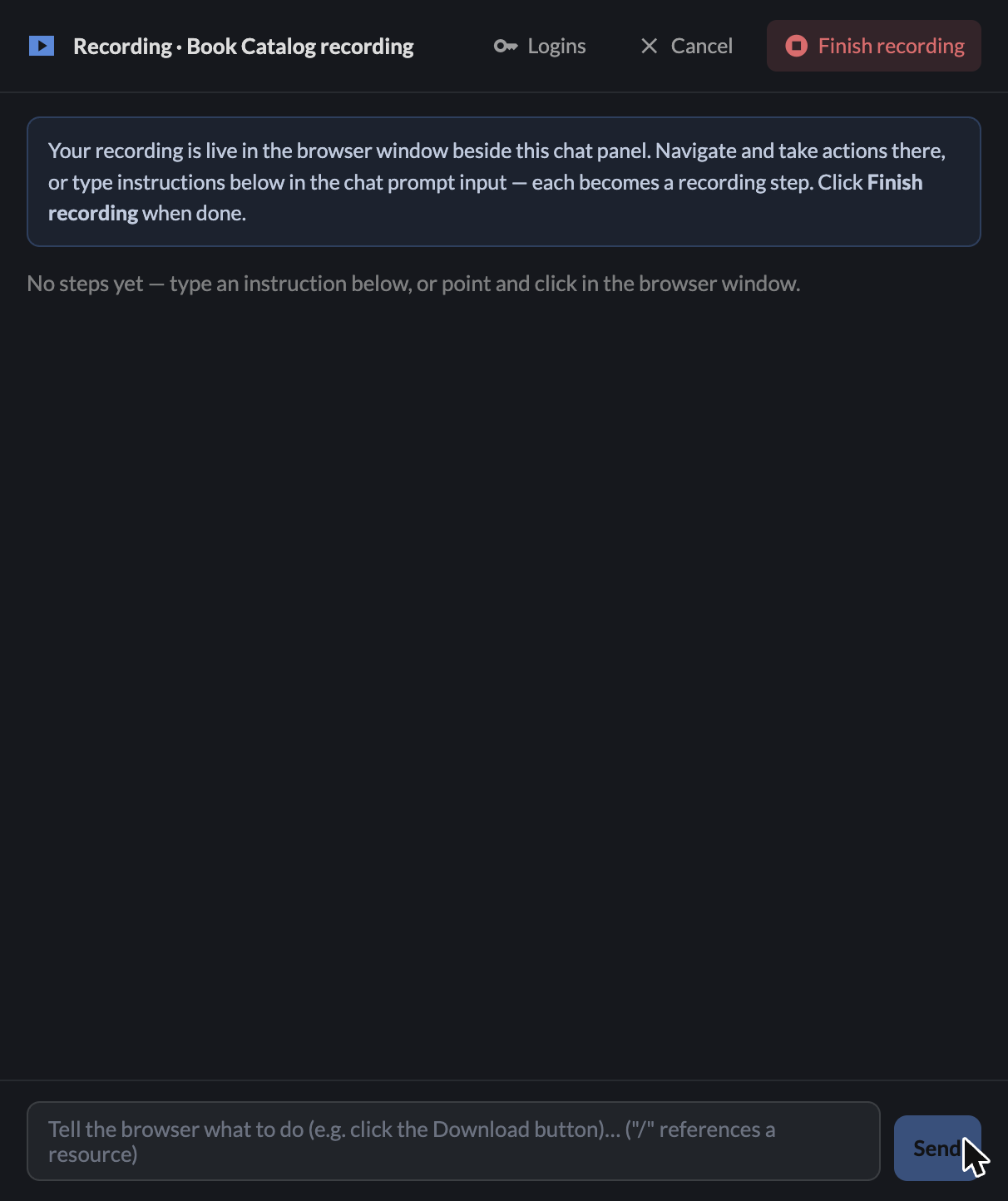
The Redbird window switches to the recording view: your steps listed as you go, with Logins, Cancel, and Finish recording buttons at the top.
You can add steps two ways, and mix them freely:
- Point and click in the browser window — navigate and do the task exactly as you normally would. Your actions are captured as steps.
- Type an instruction in the box at the bottom ("click the Download button", "open the Reports tab") — Redbird performs it in the browser window and records it as a step.
Each step appears in the list with a short description and a status dot. Steps that gather data show a preview of the collected values, with a CSV button to download them and check the recording picked up what you wanted.
Signing in during a recording
If the site needs a sign-in, don't type your password into the page. Click Logins at the top, then Add login — give it a name, enter the username and password once, and pick the account's MFA setting (None, Email, or Authenticator) if it uses two-step verification.
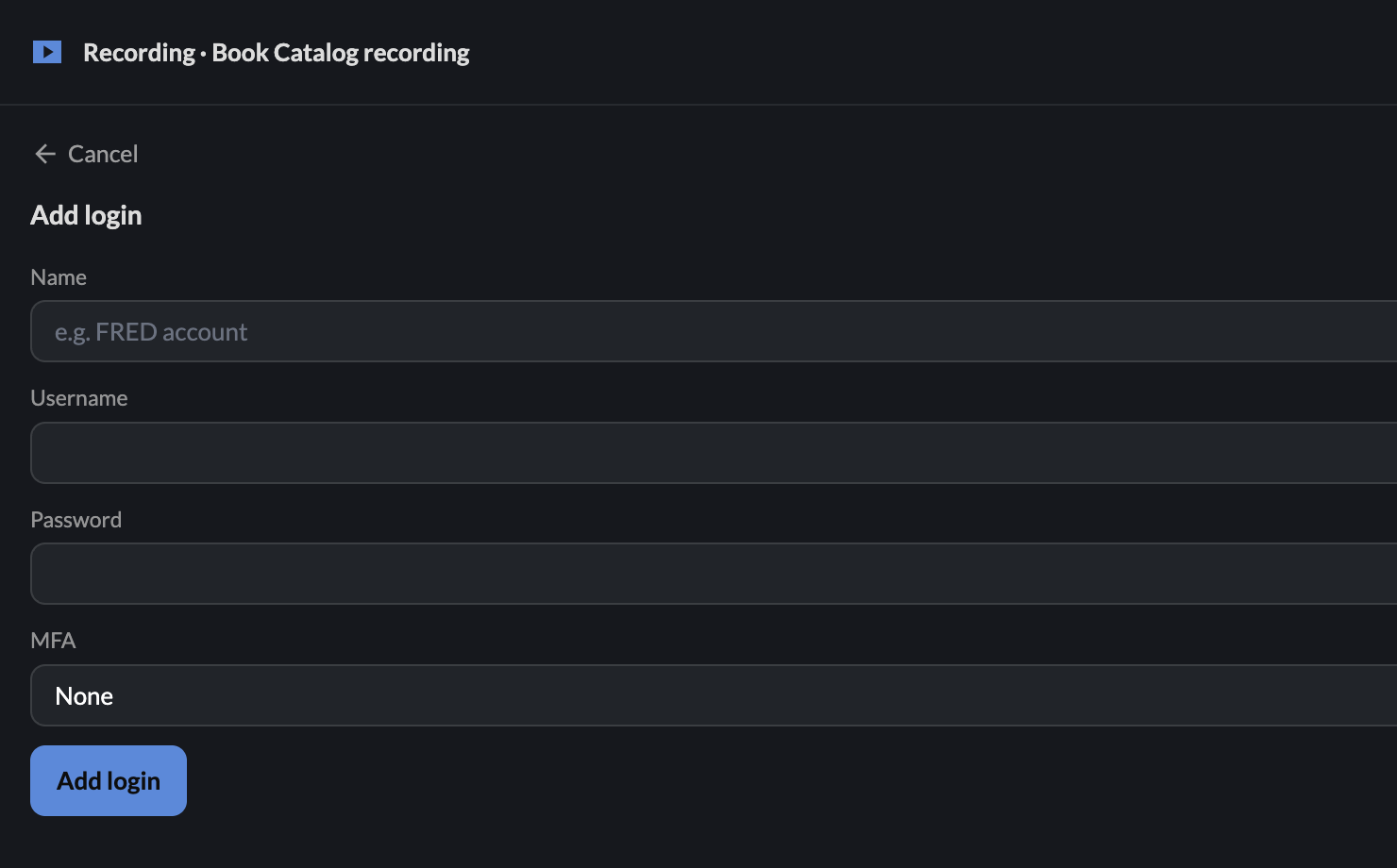
Back in the Logins list, click Use to insert the sign-in as a recording step. The login is saved with your other Redbird credentials and is never shown back to you — and when the recording runs later, Redbird signs in with it (and handles the two-step code) automatically.
Finish — and what you get
Click Finish recording when the task is done. Redbird wraps up the recording and creates a connection named after it, which appears in the Connections section of the Resources panel like any other. Its summary includes a Session Recording video, so you can always replay exactly what the automation does.
Autopilot then offers to add the connection to your canvas as an AI Data Tool step. Say yes, and running that step — manually or on a schedule — repeats your recorded steps in the background and delivers whatever data they produce as a dataset on your canvas, ready to use like any other data in Redbird.
Recordings don't need API credentials — and never show as "verified." A recorded connection works by repeating your steps, not through a service's API, so there is nothing to verify against. Seeing it stay "unverified" is normal and doesn't mean anything is wrong.
A few things to know while recording:
- Cancel throws the recording away — the session, its steps, and its video are deleted entirely. Use Finish recording to keep your work.
- One recording at a time per chat — finish or cancel the current one before starting another.
- Keep the Redbird window open while you record. A recording left idle for 30 minutes ends on its own.
What this means for your own tools
The NASA example is exactly the flow you'll use for your own systems: say what you want to connect to and what data you need, provide credentials once if asked, and let Autopilot verify and pull. When a tool has no API, the recording route gets you the same result — a reusable connection — from nothing more than doing the task once yourself. And remember that connections carry traffic both ways — the same connection that pulls data in can push a workflow's outputs back out to the tool, update its records, or kick off automated actions in that system. Just describe what you want to happen ("send these results to…", "create a record in…") and Autopilot builds that step through the connection.
To keep data flowing in automatically, schedule the workflow to run on a cadence — see Build & run workflows.
Updated 4 days ago