

Calculate Time-Based Metric Operation
Background
Once a dataset has been loaded into Redbird, you may find that it is necessary to analyze your data by running
a time-based calculation. For example, you may want to examine how much a certain metric has grown or
contracted over a given year, quarter, month, week, or day. This analysis can be completed using the Calculate
Time-Based Metric operation in the Macro Builder tool.
How it Works
To demonstrate how the Calculate Time-Based Metric operation works, we are going to walk through an
example where we analyze monthly revenue data for a widget manufacturing company.
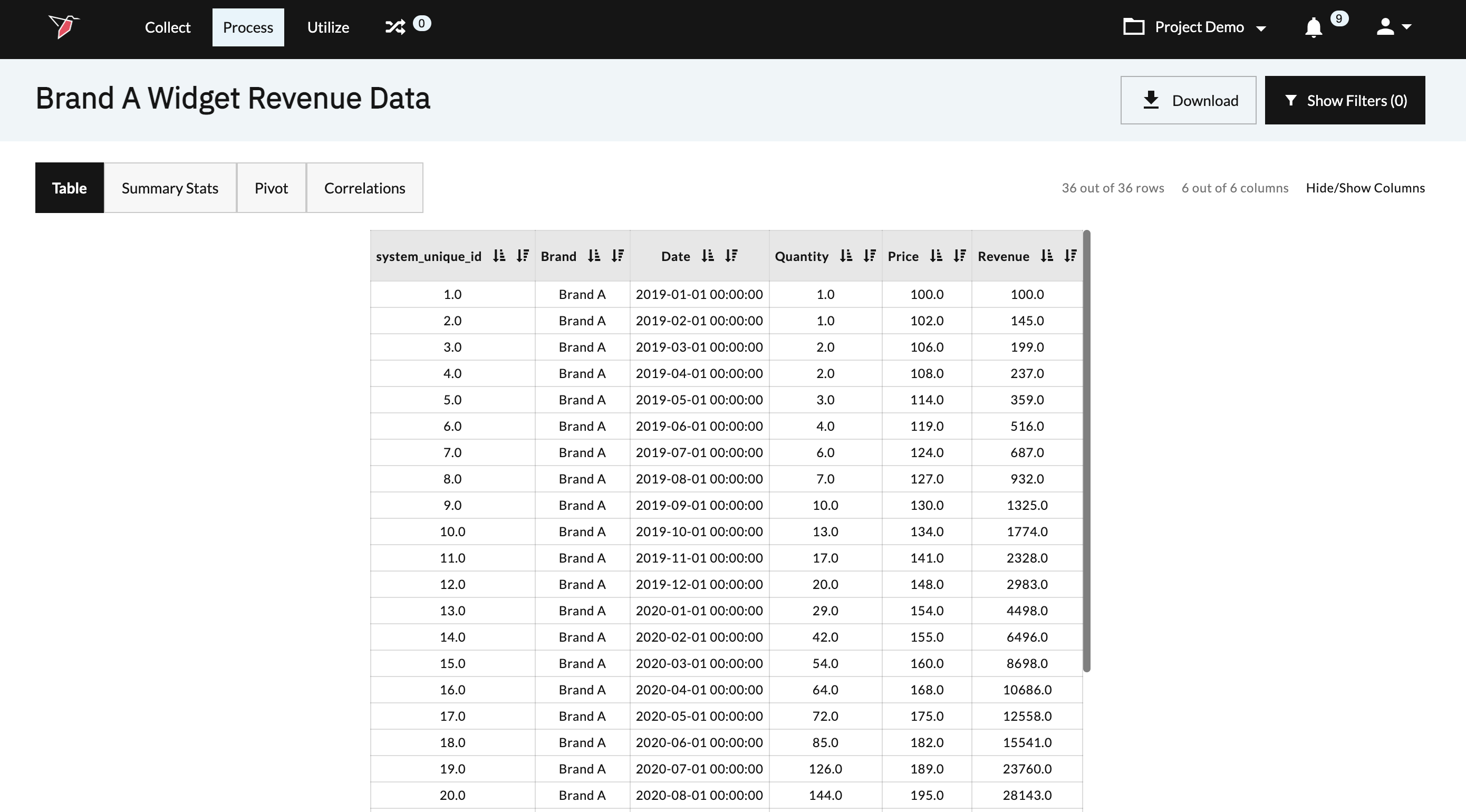
The below data was uploaded to the Redbird platform. It includes 3 years of monthly revenue data.
To configure the Calculate Time-Based Metric operation, we first need to determine the formula we would like to
use. Redbird’s Calculate Time-Based Metric operation can be configured to use one of five formulas.
- Change - Absolute
- Change - Percent
- Compound Growth Rate
- Rolling Calculation - Average
- Rolling Calculation - Sum
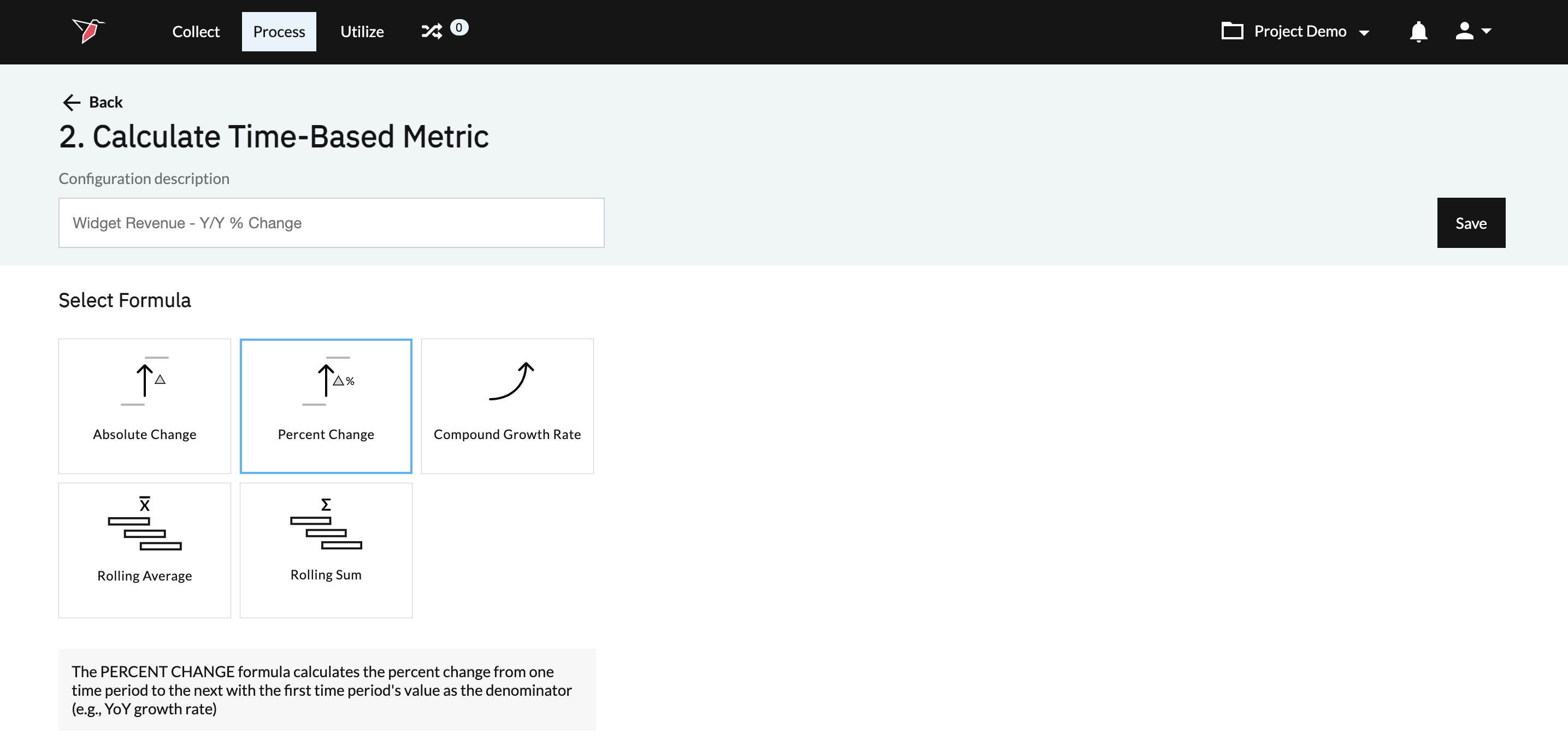
For our analysis, we want to understand how our revenue has grown relative to the corresponding month in the
prior year. To accomplish our analysis, we are going to configure our operation to use the “Change - Percent”
formula.
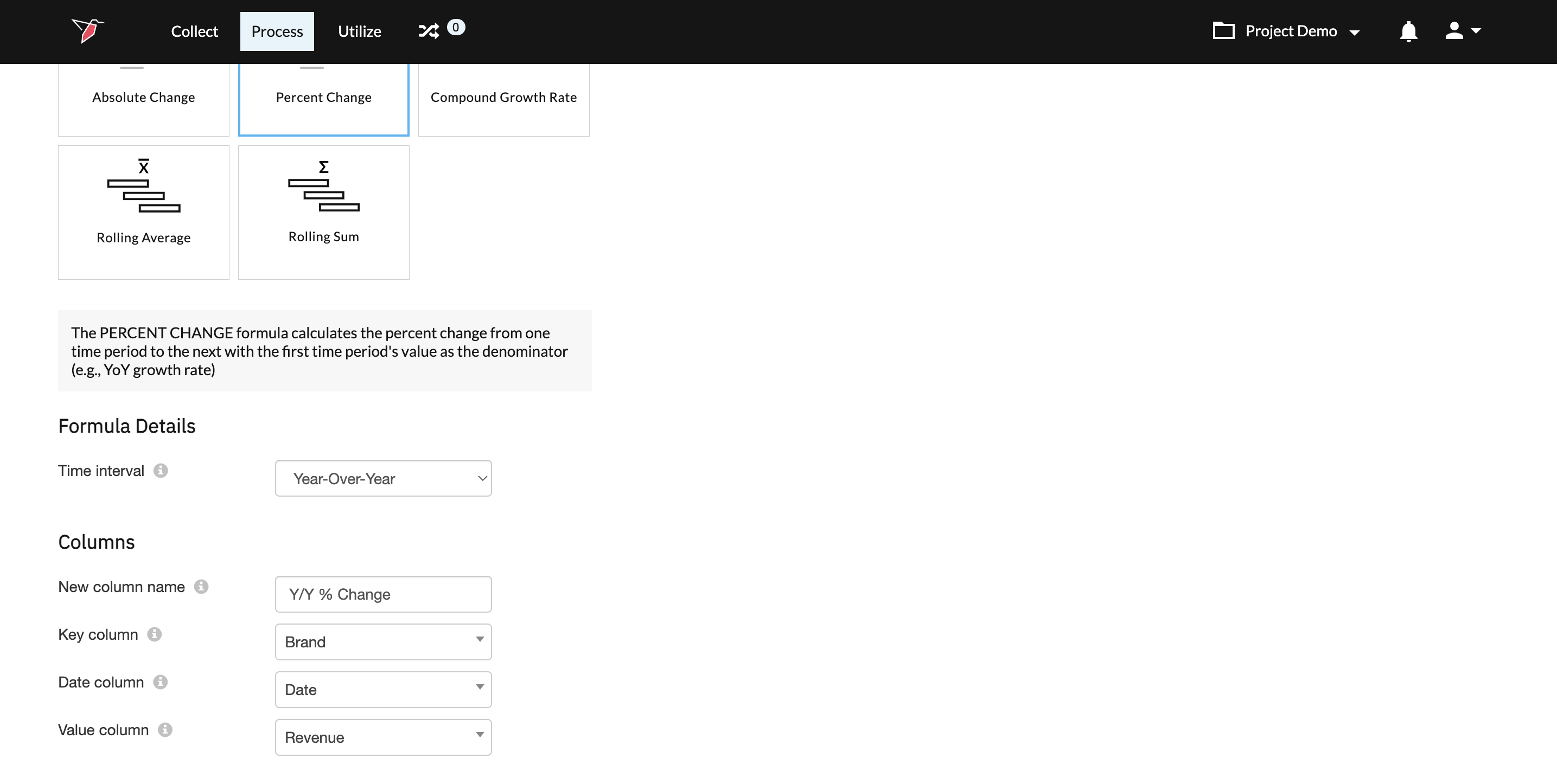
Once you have determined the formula we want to use in our analysis, we will need to set a number of other
configurations. These configurations include:
- Time Interval: Select the time interval for the calculation. In our example, we want to do a “Year-Over-
Year” analysis. - New Column Name: Specify a name for the new column this operation will create. The new column will
contain the results of the time-based calculation. In our example, we will call the new column “Y/Y %
Change”. - Key Column: Select the column that contains the unique identifier for which the metric is being
calculated. For our example, we want to analyze the revenue change by “Brand”. - Date Column: Select the column that contains the dates for the corresponding target values. The
column must be of the data type date. In our example, the column we will use is “Date”. - Value Column: Select the columns that contain the values off of which you would like to calculate the
time-based metric. The column must be of the data type number. In our example, we want to calculate
the change for “Revenue”.
If we were interested in using the Compound Growth Rate formula or one of the rolling calculations formulas,
there are a couple of additional configurations that would need to be set prior to running the operation.
Compound Growth Rate:
- Compounding Frequency: Select the frequency with which you want the growth to be compounded.
- Rolling Date Enabled: Enable rolling date if you want the algorithm to find the most recent date for
each entity every time the macro runs and use it to calculate the start and the end dates. If turned off,
start and end dates will need to be specified. - Number of Periods: Specify how many time intervals (based on the Compounding Frequency) you
want the calculation to capture.
Rolling Calculations:
- Rolling Window Time Unit: Specify the time unit for your rolling window.
- Number of Units in Rolling Time Unit: Specify the number of time units that your rolling window
includes (e.g., 3 months, 1 year, 30 days, etc.)
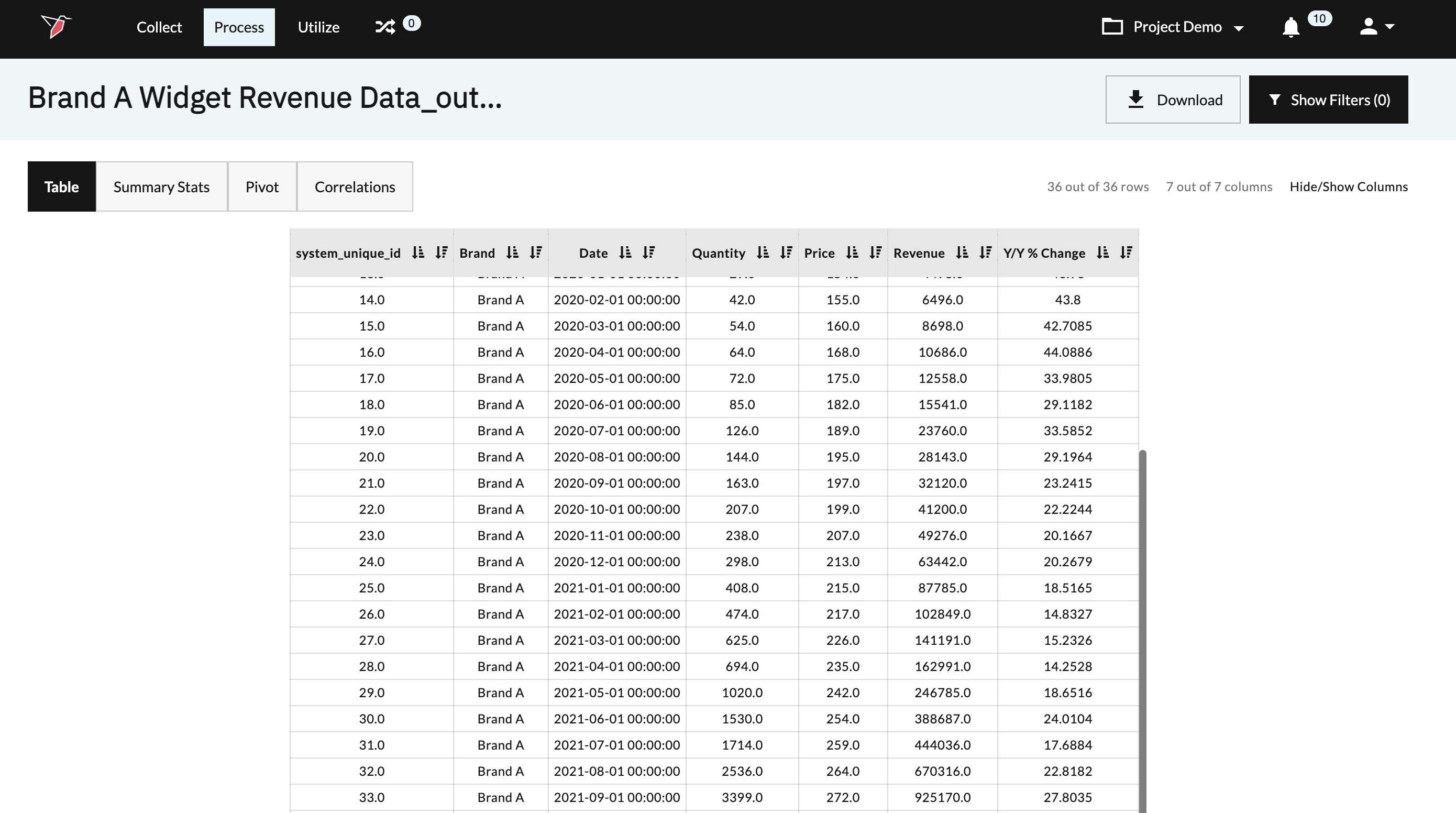
When we run the Calculate Time-Based Metric operation, Redbird will use our configurations to determine
which formula we want to use to conduct our calculation, which metric we want to analyze, which periods need
to be compared, calculate the change between the periods, and create a new column that will contain the
calculated value. Below is an example of the output that is created when we run the Calculate Time-Based
Metric operation.
Configuration - Calculate Time-Based Metric Operation
To configure the Calculate Time-Based Metric operation, please follow the below steps.
- Provide your configuration with a description for future reference. This description will be associated with
the operation and will be visible within the Macro Builder.

- Select the formula you would like to use for your time-based calculation. Once you select a formula, a list
of additional inputs specific to your chosen formula will be generated to configure.
- Configure the inputs to meet your specific analytical requirements. To learn more about each of the
inputs, please refer to the How It Works section of the article or see the tooltips for each metric.
- Click Save once you have configured all of the inputs for the Calculate Time-Based Metric operation.
- Run the macro.
Updated 8 months ago