

Setting up Google Drive
Overview
Connecting your Google Drive enables Redbird to access your stored files, making it easy to bring them directly into the platform. Once connected, you can select the files you want to use—such as spreadsheets, reports, or documents—and start working with them in Redbird without the need to move or manually re-upload anything. You can also use our Cloud Storage Connector within the Outputs section to push datasets to your Google Drive.
Set Up
- Start by clicking Add/Edit Credentials button and click on the "Add Credentials" button next to Google Drive.
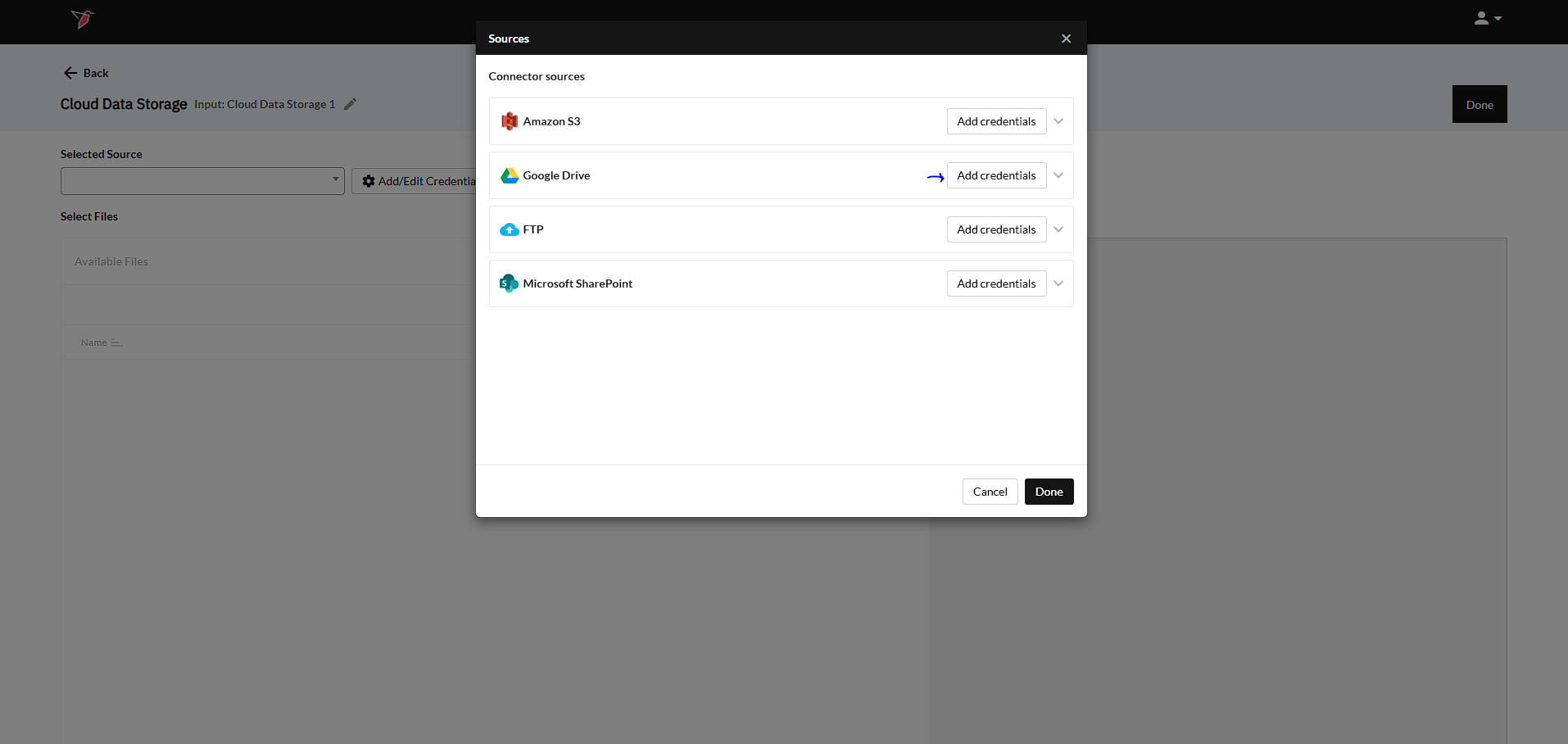
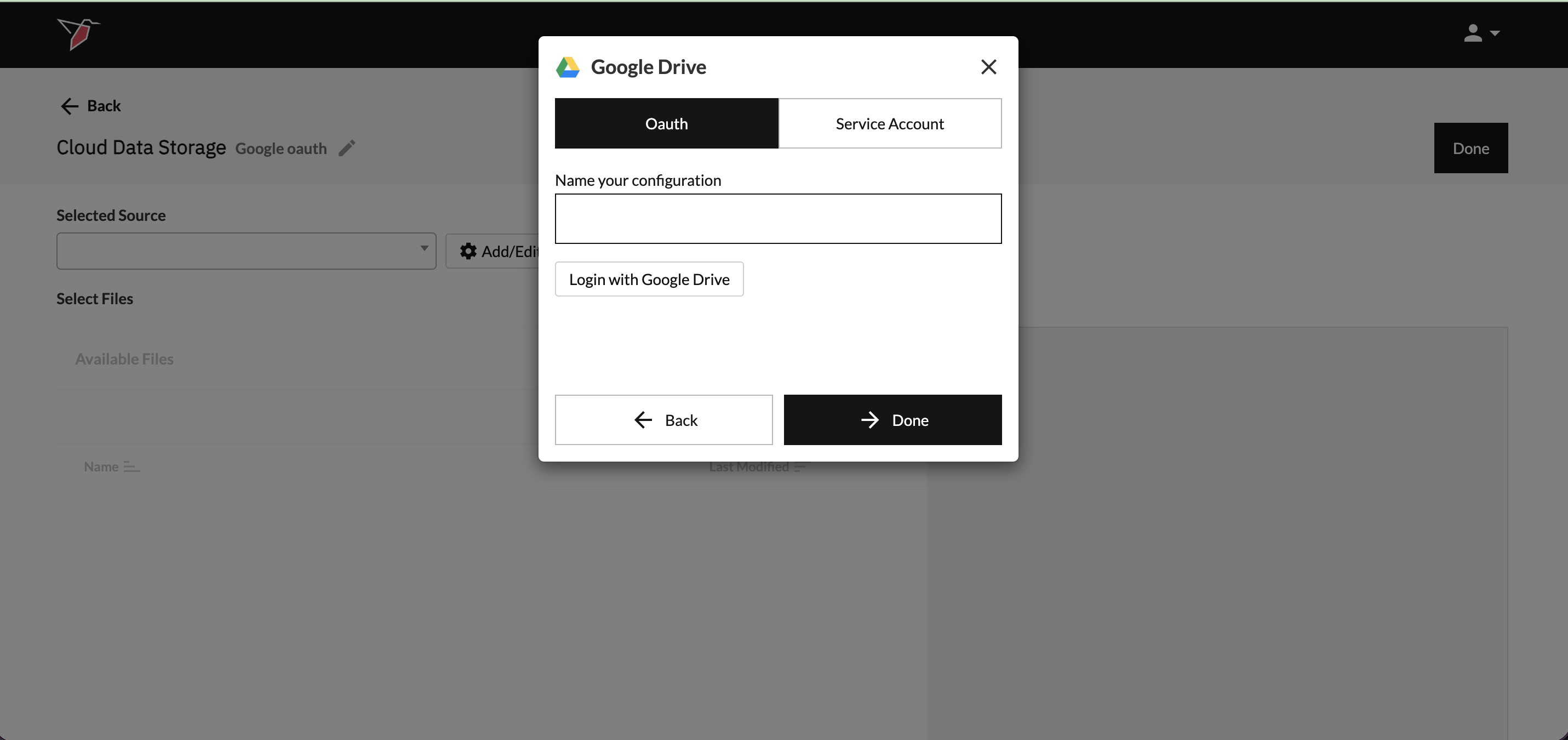
- From there, you you will be prompted to give it a name and choose your log in method.
-
OAuth – This option uses your Google account to authenticate automatically. It is our recommended and easiest method.
To use this option, ensure OAuth is selected, then click Login with Google Drive. You will be prompted to sign in with your Google account on the next page of the modal.
-
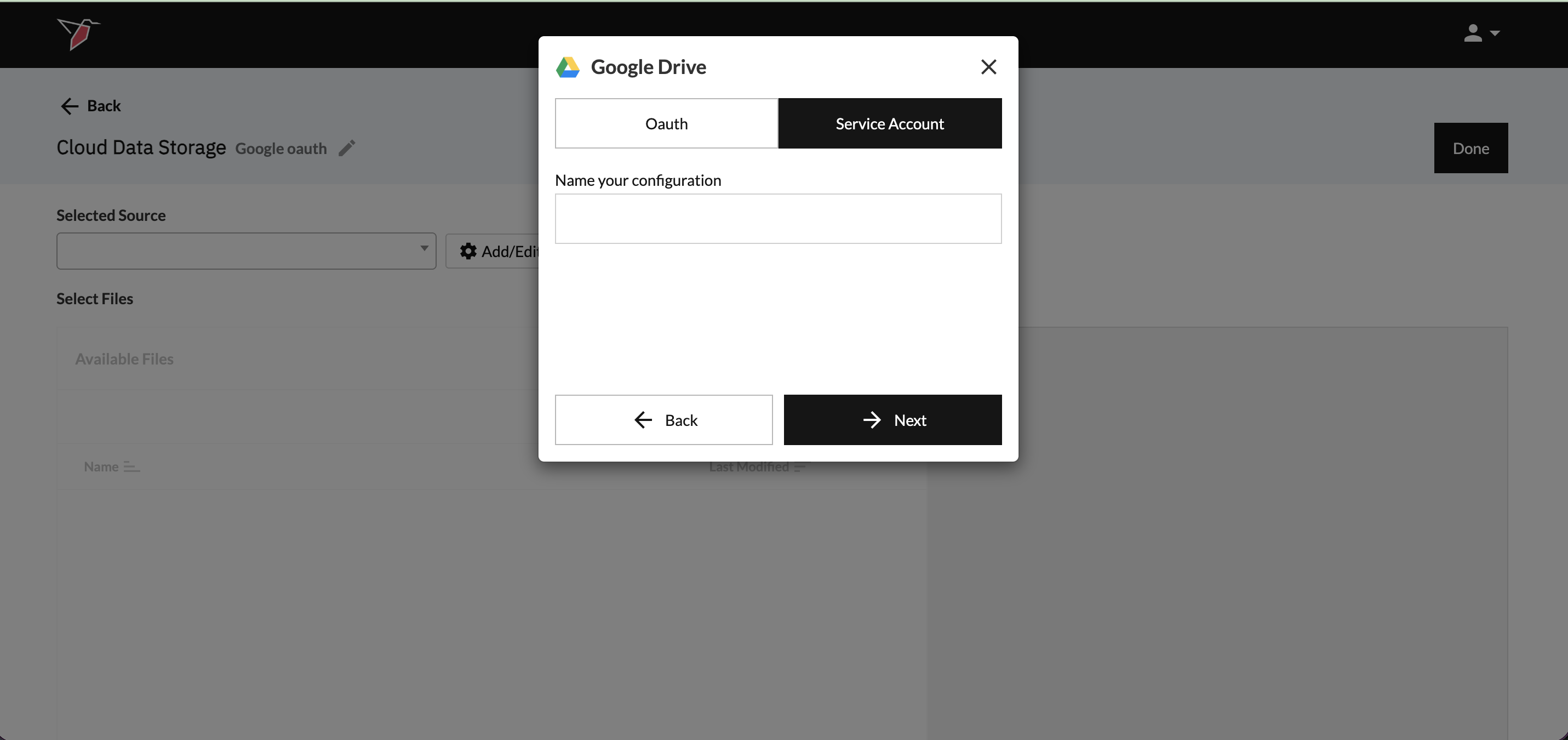
Service Account – A service account is a special type of Google account that can be granted permission to access Google products. Redbird uses your service account, together with Google APIs, to access the files and folders you want to process from Google platforms.
To use this option, ensure Service Account is selected in the modal, then follow the instructions in the rest of this guide.
-
Creating a Google Service Account
A service account is a special kind of account that can be granted permission to access Google Products. Redbird will use your service account and the various APIs to access the files and folders you want to process from Google's Platforms. Follow the steps below to complete this process.
- Log into your Google account.
- Access the Enable API Wizard by clicking here.
- Click Create Project.
- Provide the Project with a name and select your organization.
- Click Create.
- Follow the steps to enable access to API (1. Confirm Project; 2. Enable API).
- Navigate to Google Cloud Console.
- Go to Menu menu > IAM & Admin > Service Accounts.
- Click Create Service Account and follow the steps.
- Click Done.
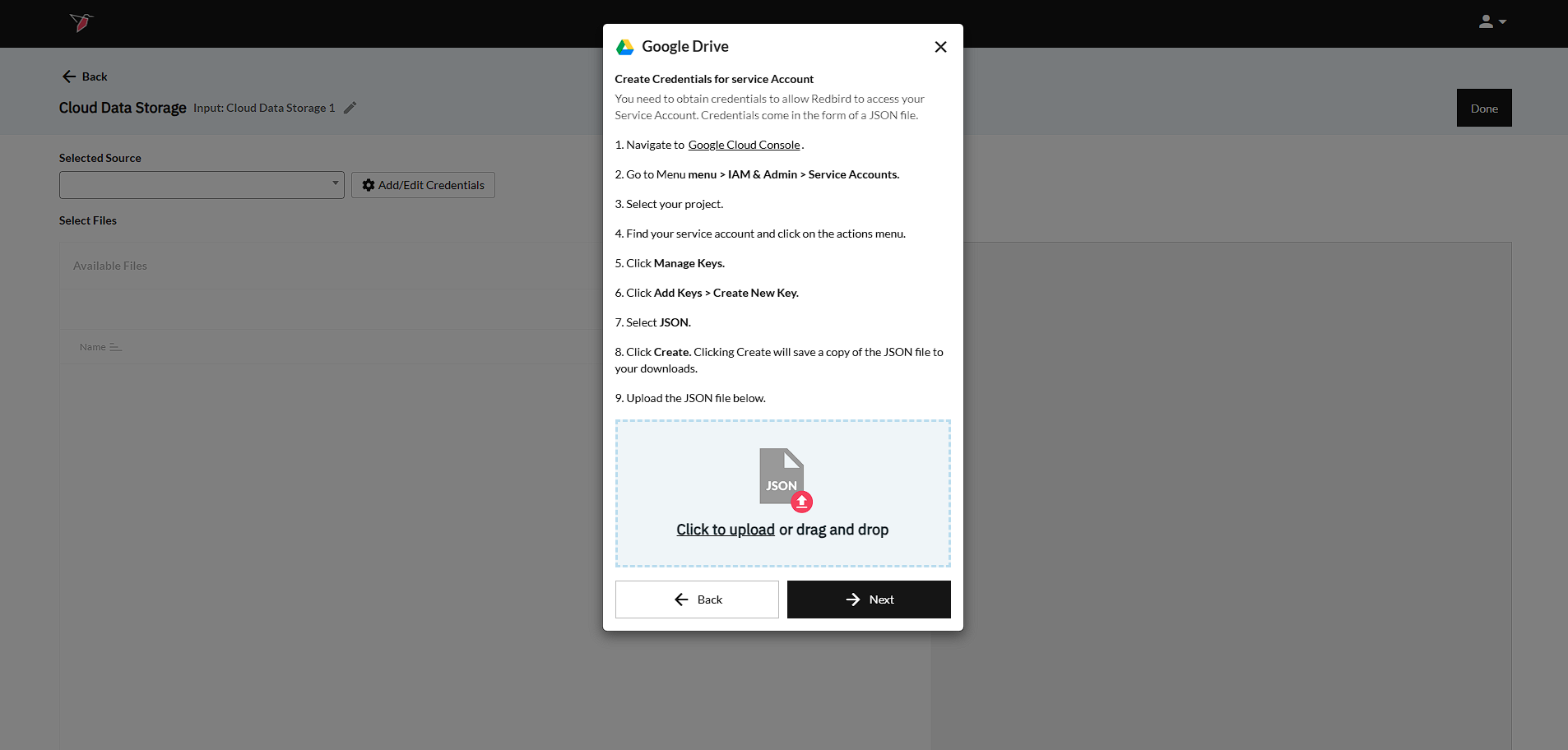
Next, you will need to create credentials for the service account. The next section in this guide walks you through this process.
Create Credentials for Service Account
You need to obtain credentials to allow Redbird to access your Service Account. Credentials come in the form of a JSON file.
- Navigate to Google Cloud Console.
- Go to Menu menu > IAM & Admin > Service Accounts.
- Select your project.
- Find your service account and click on the actions menu.
- Click Manage Keys.
- Click Add Keys > Create New Key.
- Select JSON.
- Click Create. Clicking Create will save a copy of the JSON file to your downloads.
Once the JSON file has been loaded into Redbird, your configuration modal window should look like below. Click Next.
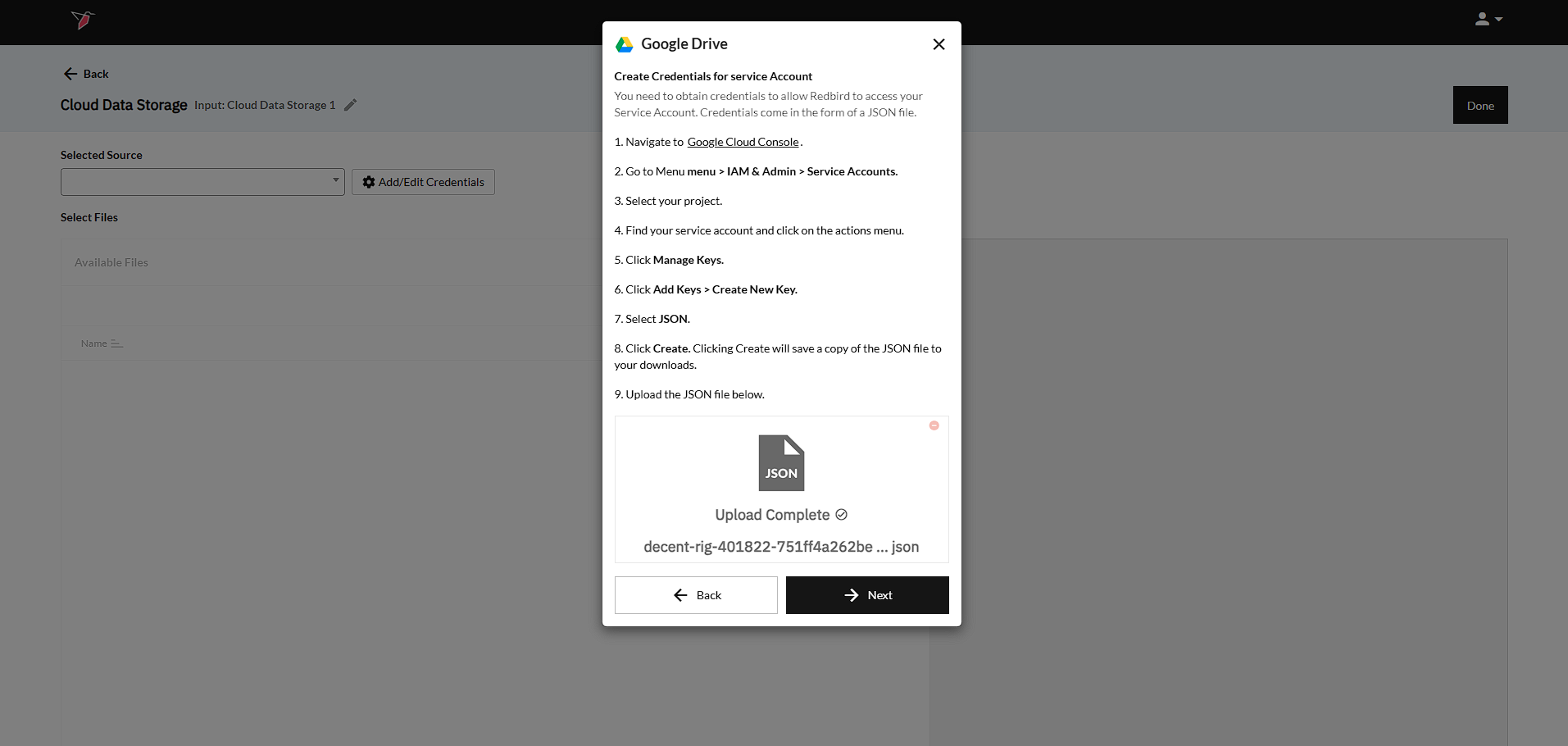
Next, you need to enable the Google Drive and Google Sheets APIs, which we outline in the next section.
Enabling Google Drive and Google Sheets APIs
The Google Drive API allows Redbird to access files shared with your Service account. Follow the steps below to get connected.
- Go to the API Console.
- Ensure your project is selected by clicking on it (it will appear in a box at the top of the page with an icon with 3 dots on the left hand side of the box).
- Go to Library.
- Search for "Google Drive API" and click on the first result. Click Enable.
- Click the back arrow at the top left corner of the page to return to the list of available APIs.
- Now do a search for Google Sheets API. Click on the first result. Click Enable.
- Now in your Redbird window, click on "Verify API Connection". You should now green text saying "Connected" right above the button.
- Click Next.
.
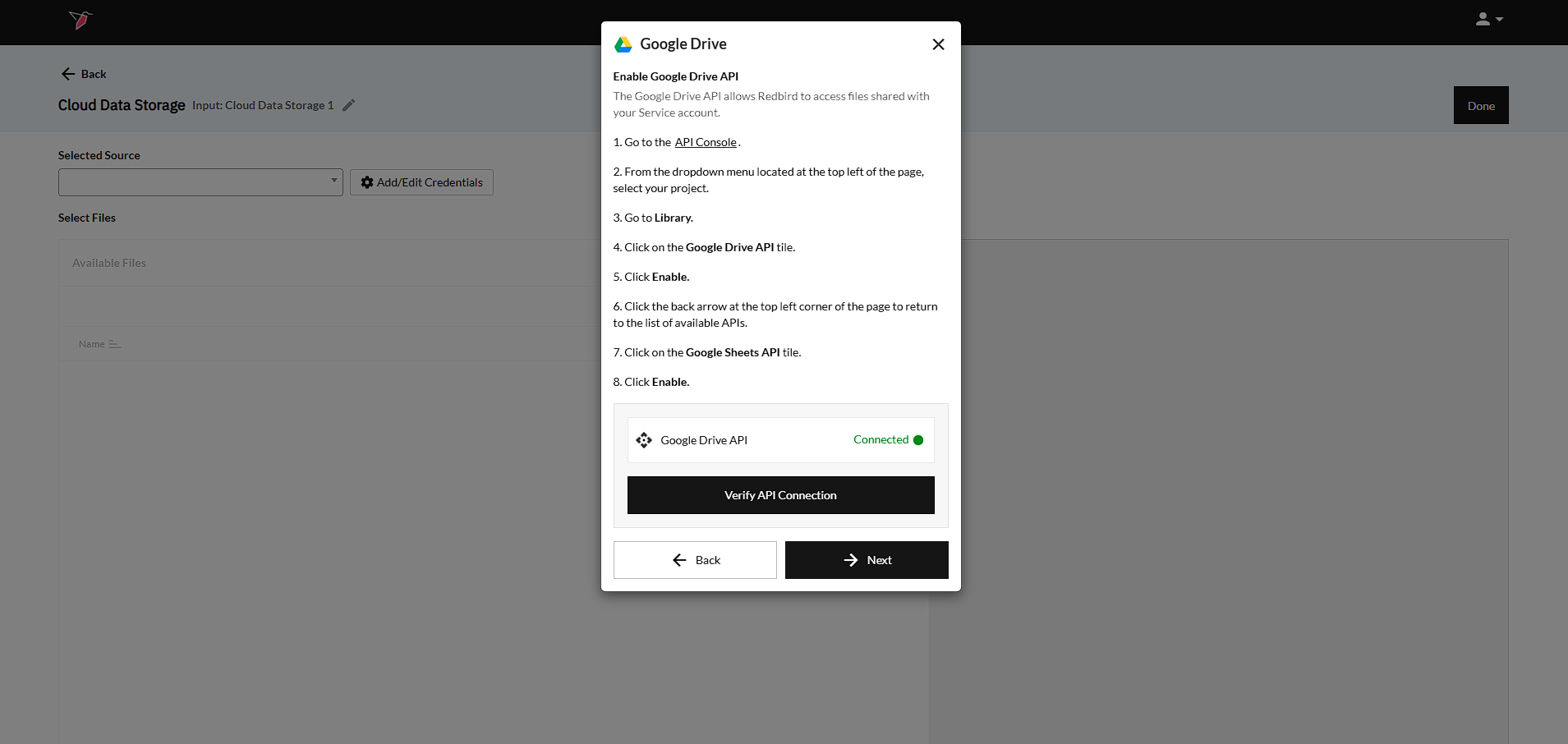
The last section of this guide will walk your through the final step in the process: Sharing Google Drive Folder Access
Share Google Drive Folder Access
To finalize the setup process, copy the email provided in the modal window and use it to share the folder(s) and/or file(s) that you want Redbird to be able to access in the Cloud Data Storage collection app. Click Done.
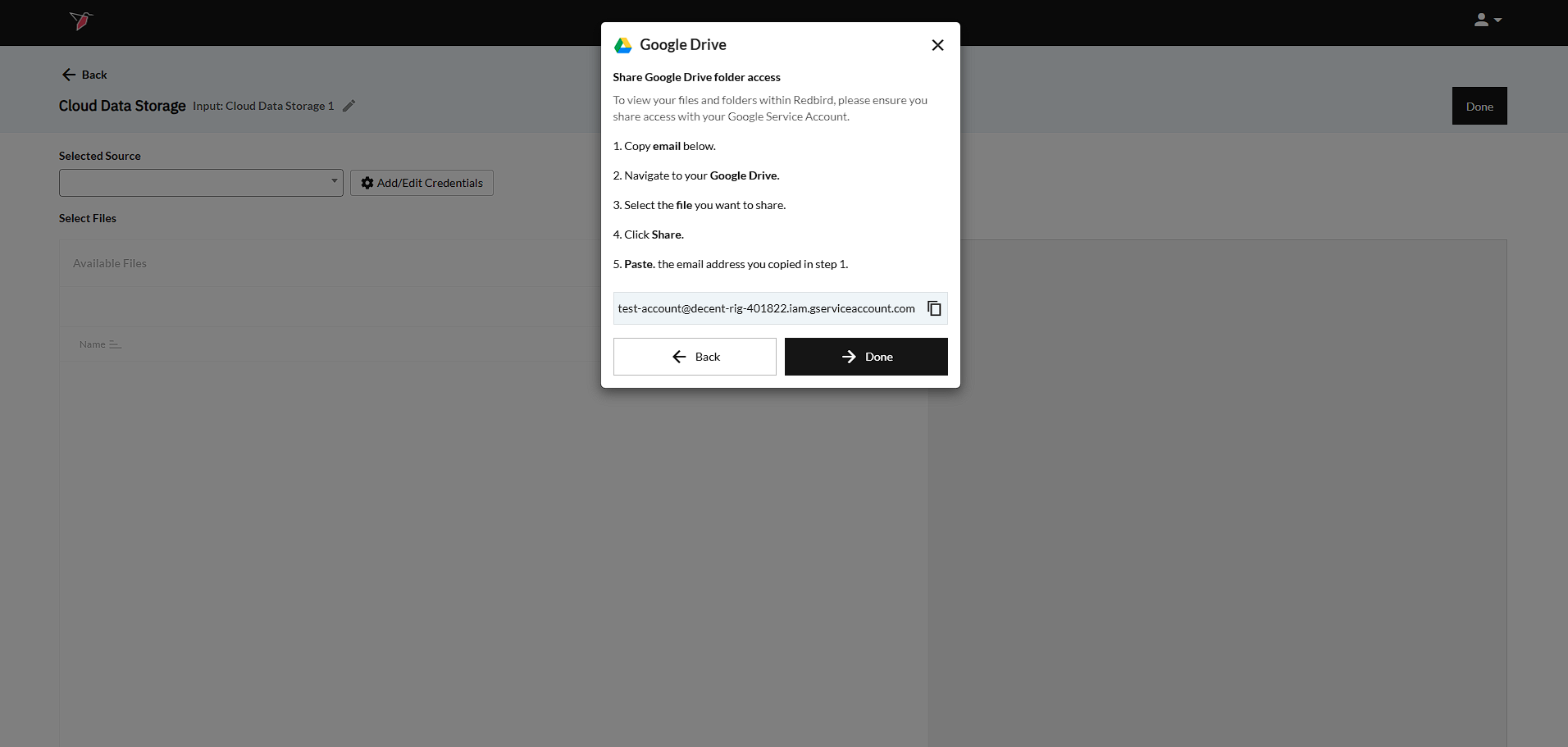
Now you are all set up to use your new Google Drive connection within Redbird. Simply select the connection you would like to use from the Selected Source dropdown on the main configuration page. See here for the guide on how to choose the files you wish to extract and here for guide on how to push files to Google Drive.
Updated 8 months ago