

Generating presentations
Build robust presentations from a description or an example file, and keep them current automatically
Introduction
Presentations in Redbird are slide-based reports — charts, headline figures, and commentary — built from the live data in your workflow. You can build them out component by component or you can simply tell Autopilot what you want with words or by uploading example PowerPoint presentations, and have it build the Redbird presentation. And because a Redbird presentation lives in your workflow connected to an upstream data pipeline, it updates itself as your data refreshes. Redbird presentations can be exported as full PowerPoint outputs that can be further edited natively within PowerPoint.
Build a presentation from a description
The simplest way to start is to describe the presentation you want in the chat:
Build a presentation that shows monthly sales trends, the top retailers by revenue, and a regional breakdown
Autopilot plans the slides, builds the charts from your workflow's data, and shares the finished presentation in the preview panel. You can be as specific or as loose as you like — name the exact charts you want, or describe the business question and let Autopilot propose the structure.
Build a presentation from an example file
If you already have a PowerPoint that looks the way you want your presentations to look, hand it to Autopilot as a model:
- Click the paperclip icon and attach the example
.pptxfile. - Type:
Build a presentation like this example from my data
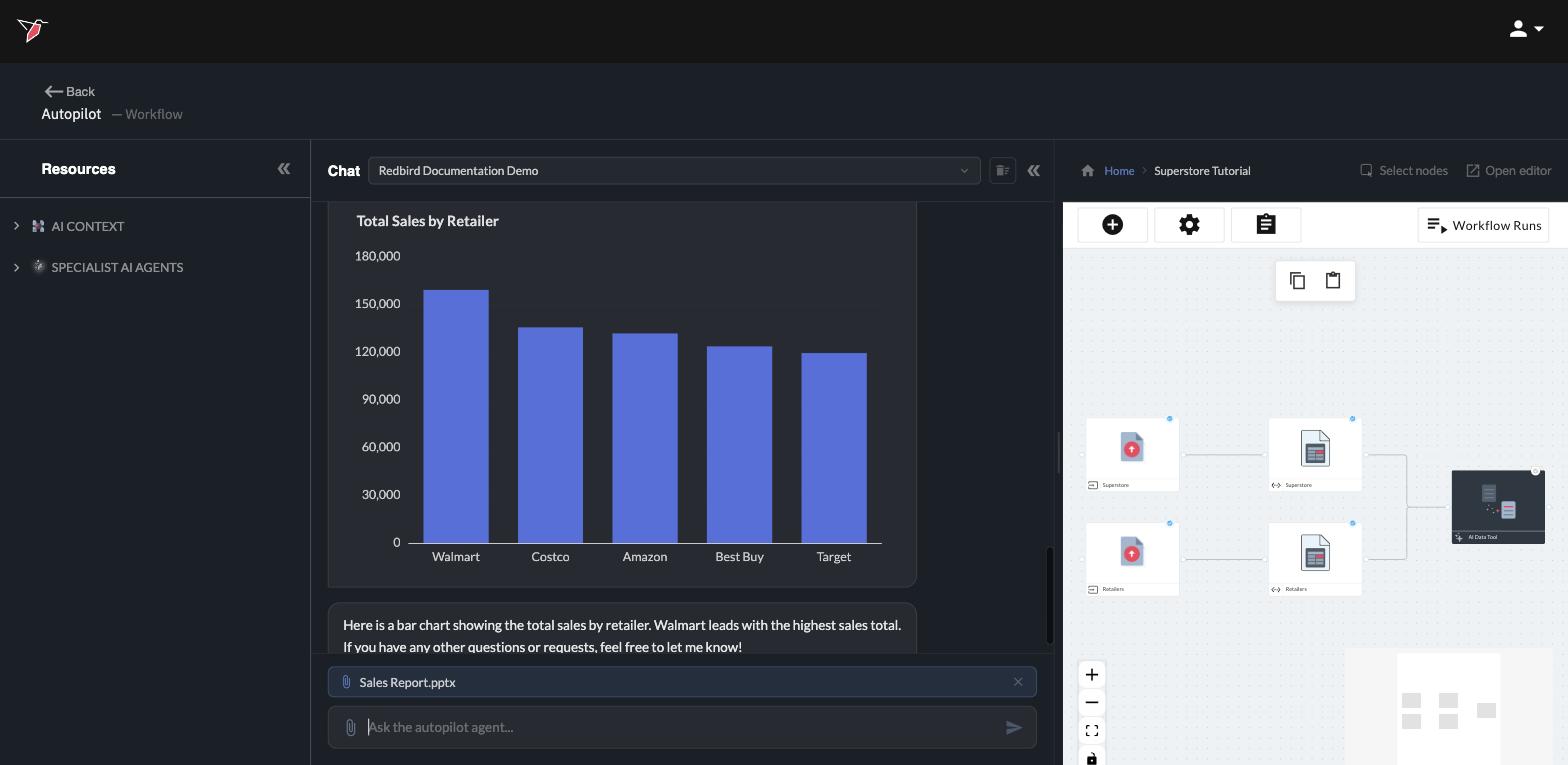
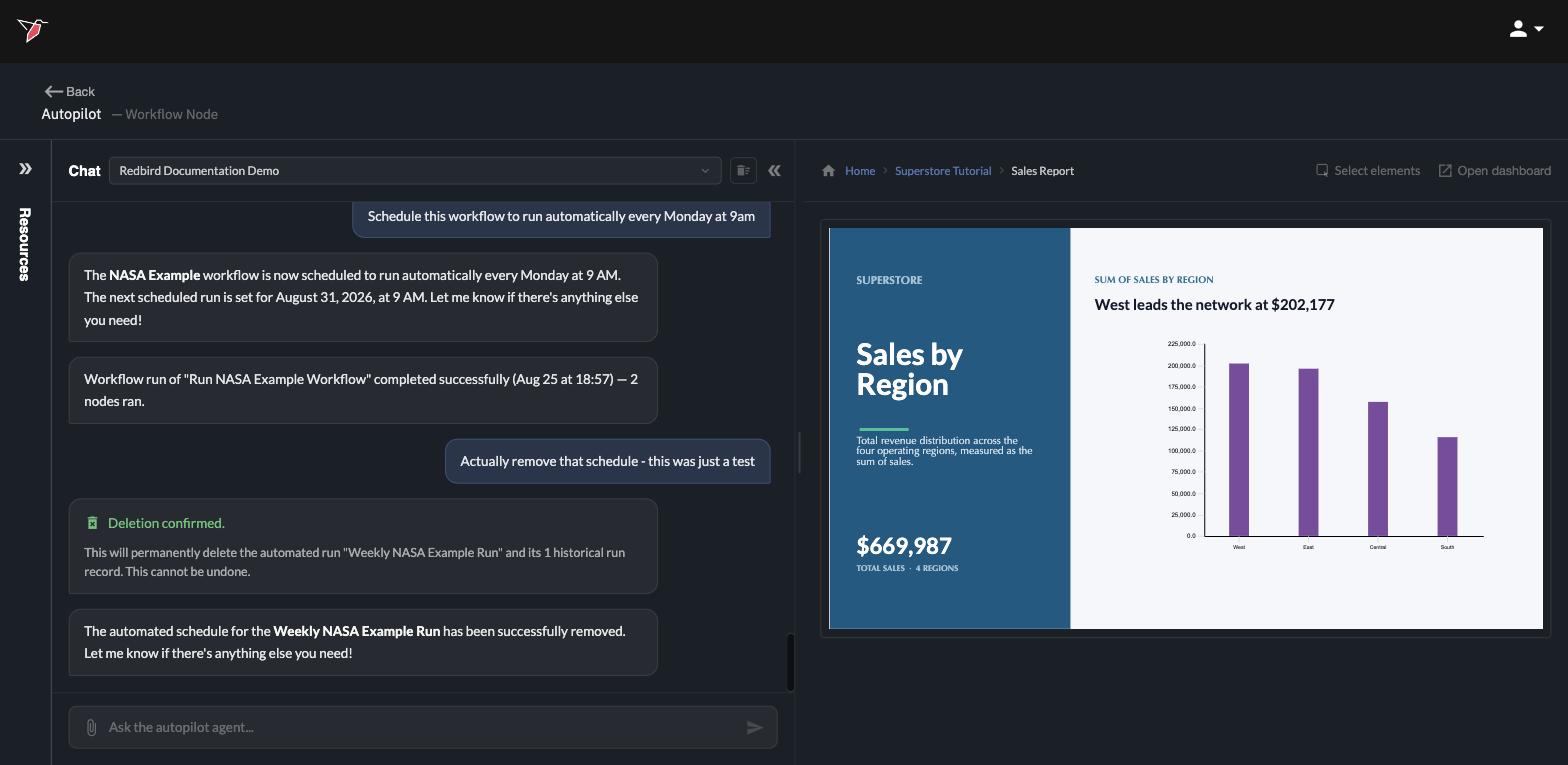
Autopilot reads the example — its slides, charts, and design — and confirms what it found. It may ask a quick question before building, such as whether your datasets are the same kind of data the example was built from; answer in the chat and the build starts. A few minutes later, the finished presentation appears in the preview panel: the example's look and layout, filled entirely with your data.
Change a presentation
To modify a presentation, the primary route is the same as everything else: ask. Request a different chart type, a new slide, changed colors, or updated commentary, and Autopilot revises the presentation.
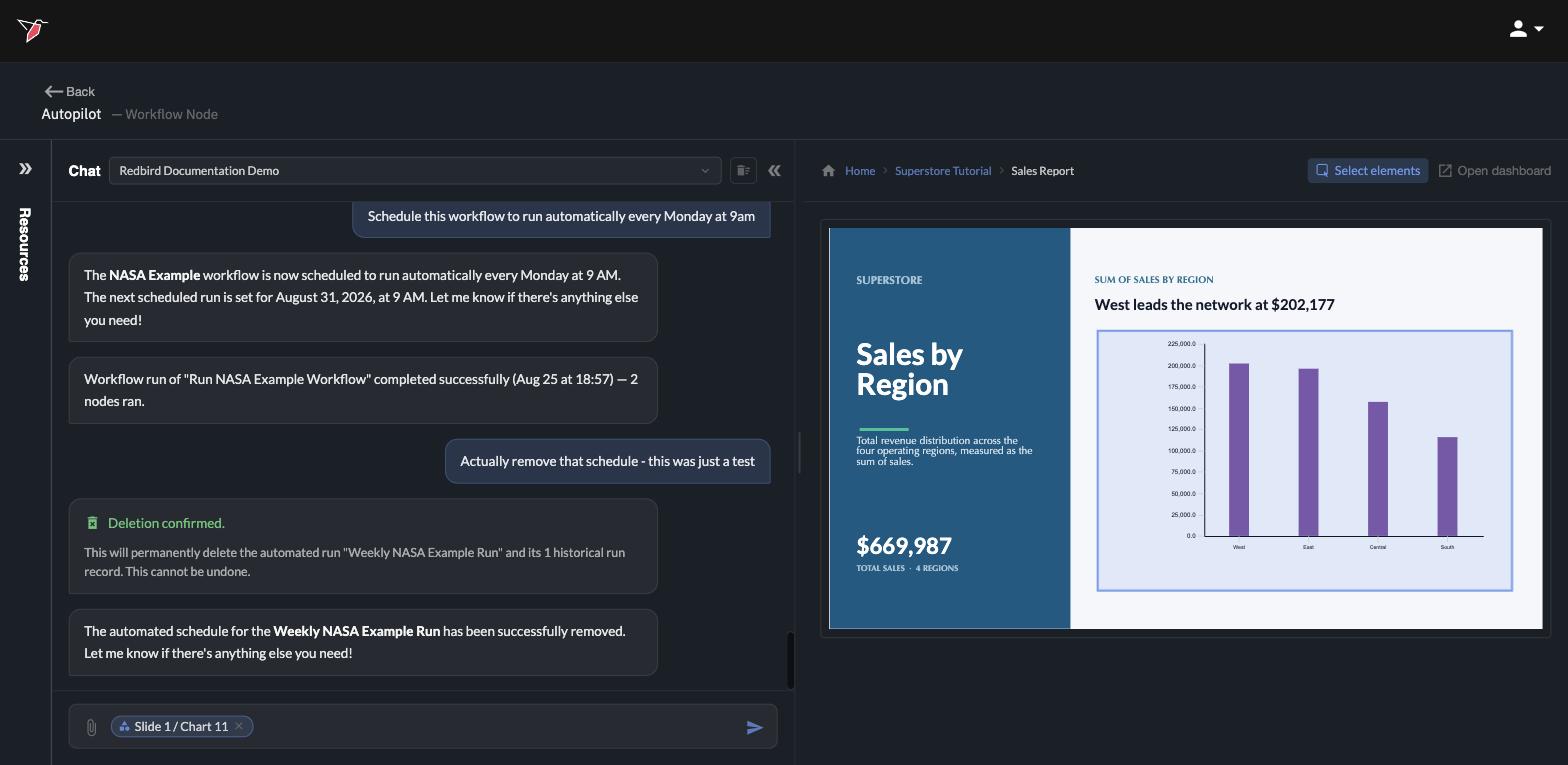
When you want to point at something specific, use Select elements at the top of the preview: switch it on, click any element in the presentation — a chart, a headline, a text block — and it attaches to your next chat message, so requests like "make this a pie chart" are unambiguous.
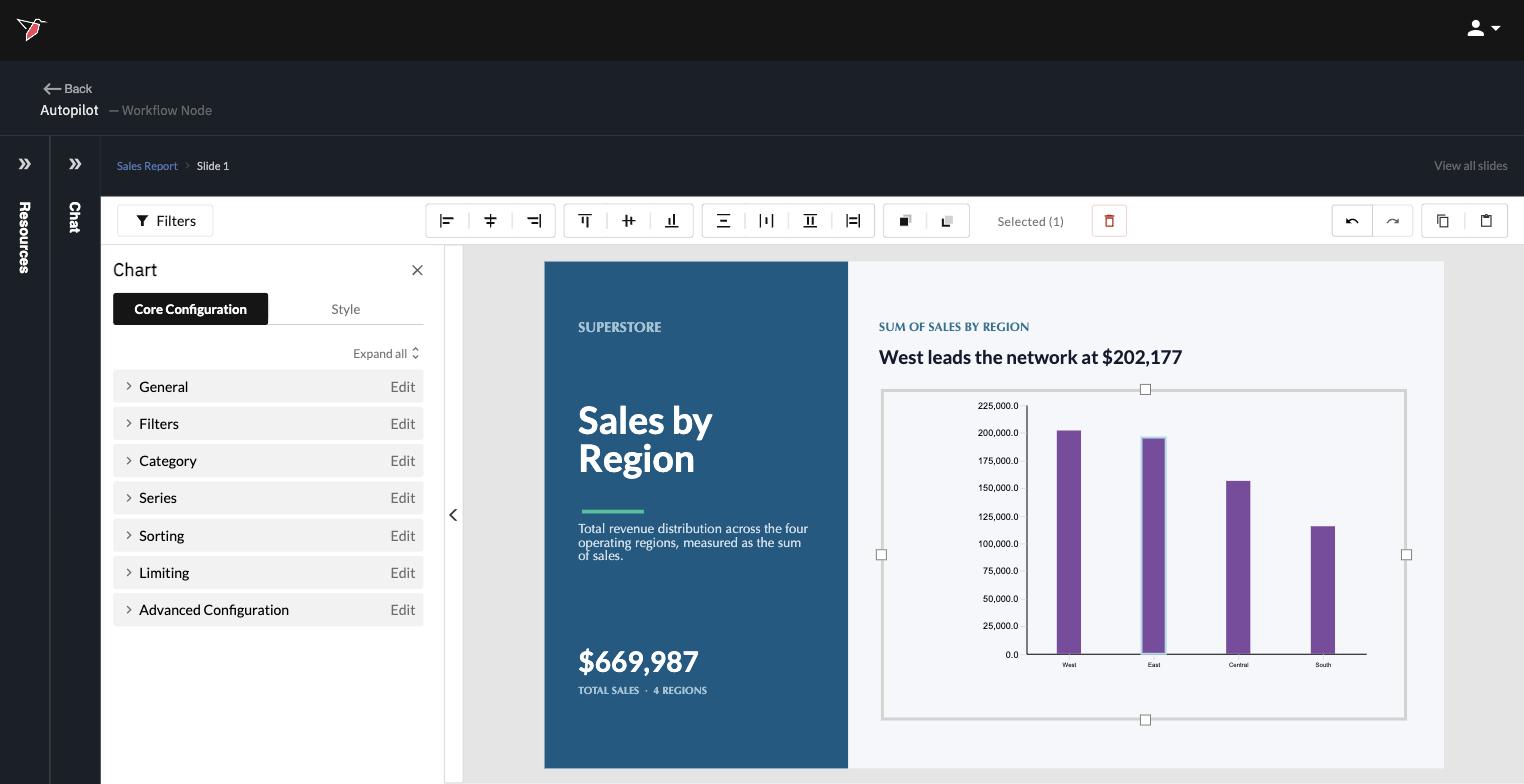
For hands-on, point-and-click editing, open the slide editor view: either click Open report at the top of the preview and then click the slide you want to edit, or simply click that slide directly in the preview panel.
Inside the slide editor you can still ask Autopilot to modify the presentation by chatting — but you can also work directly on the presentation and its components through point-and-click configuration. Click any component on the slide — a headline, a chart, a table, an image — and its configuration menu opens beside it, with two sides to every object: Style, for how it looks, and Core Configuration, for what drives it — the underlying settings and calculations such as its filters, categories, series, and sorting.
Use your slide templates
If your organization has a branded PowerPoint template — the slide designs behind every deck your team produces — Redbird can build presentations directly on those designs. Any .pptx file that carries its own slide designs works: a pure template file with no slides in it, or a finished branded deck.
First, get the template into Redbird:
- For the current conversation: click the paperclip icon and attach the
.pptxfile, just like an example file. - For every conversation: add the file to AI Context instead (see AI Context Configuration). A template added at the Workspace level is available wherever you build, so every presentation can match your company's look.
Once the file is in, open the Resources panel on the left and expand the template's row — you'll find a Slide Layouts row grouping every slide design the file contains. Expand it to see each design listed by name. Click the eye icon on the Slide Layouts row to preview thumbnails of all the designs at once, or on a single design to preview just that one.
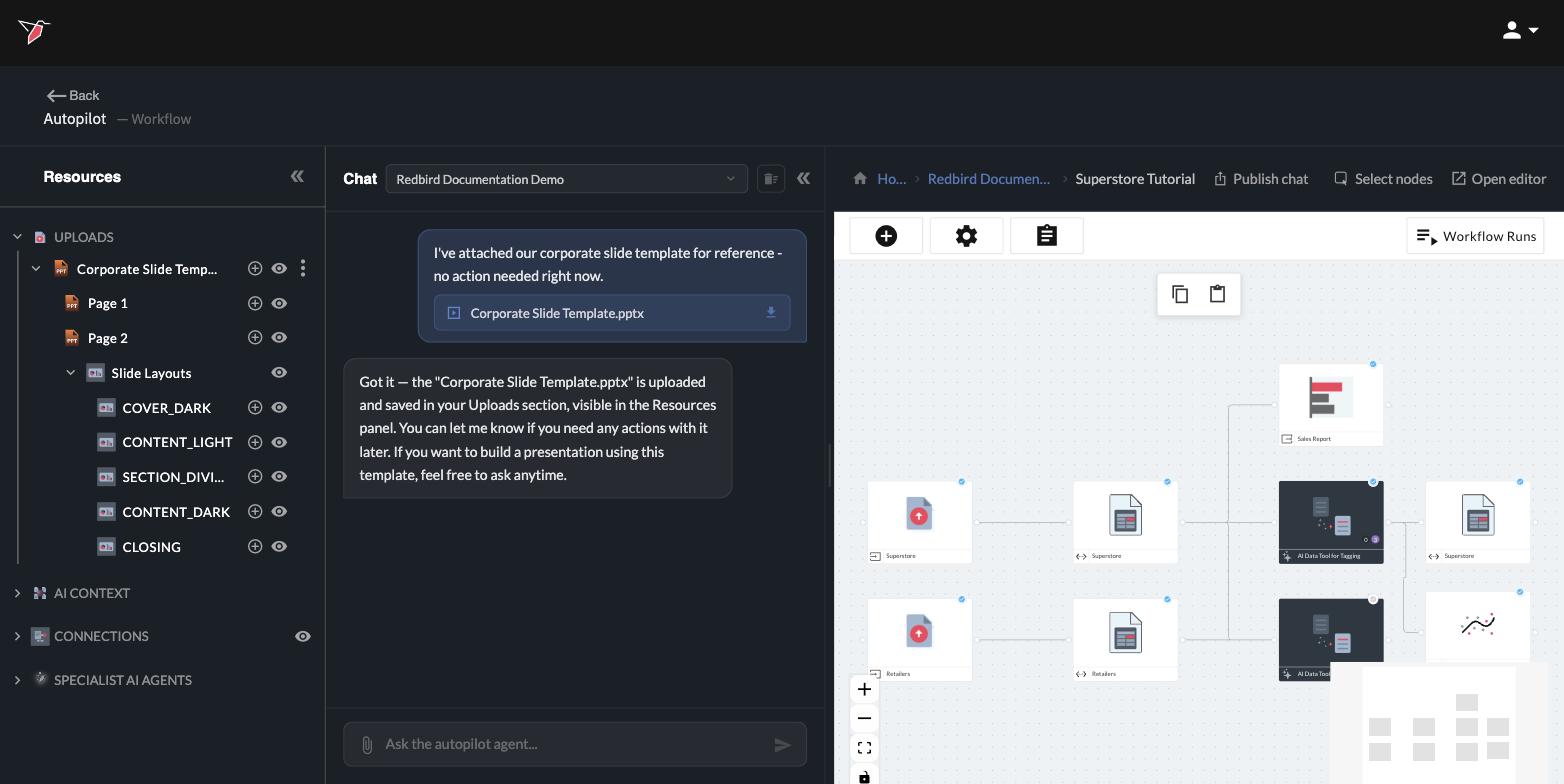
To build with a specific design, click the plus (+) icon next to it — it attaches to your message as a reference pill (you can also type "/" in the message box and pick it from the menu). Then ask for your presentation:
Build a presentation showing monthly sales trends using this layout
The slides are composed on the design you picked. If you reference the template file without choosing a specific design, Autopilot picks a sensible one from the template on its own.
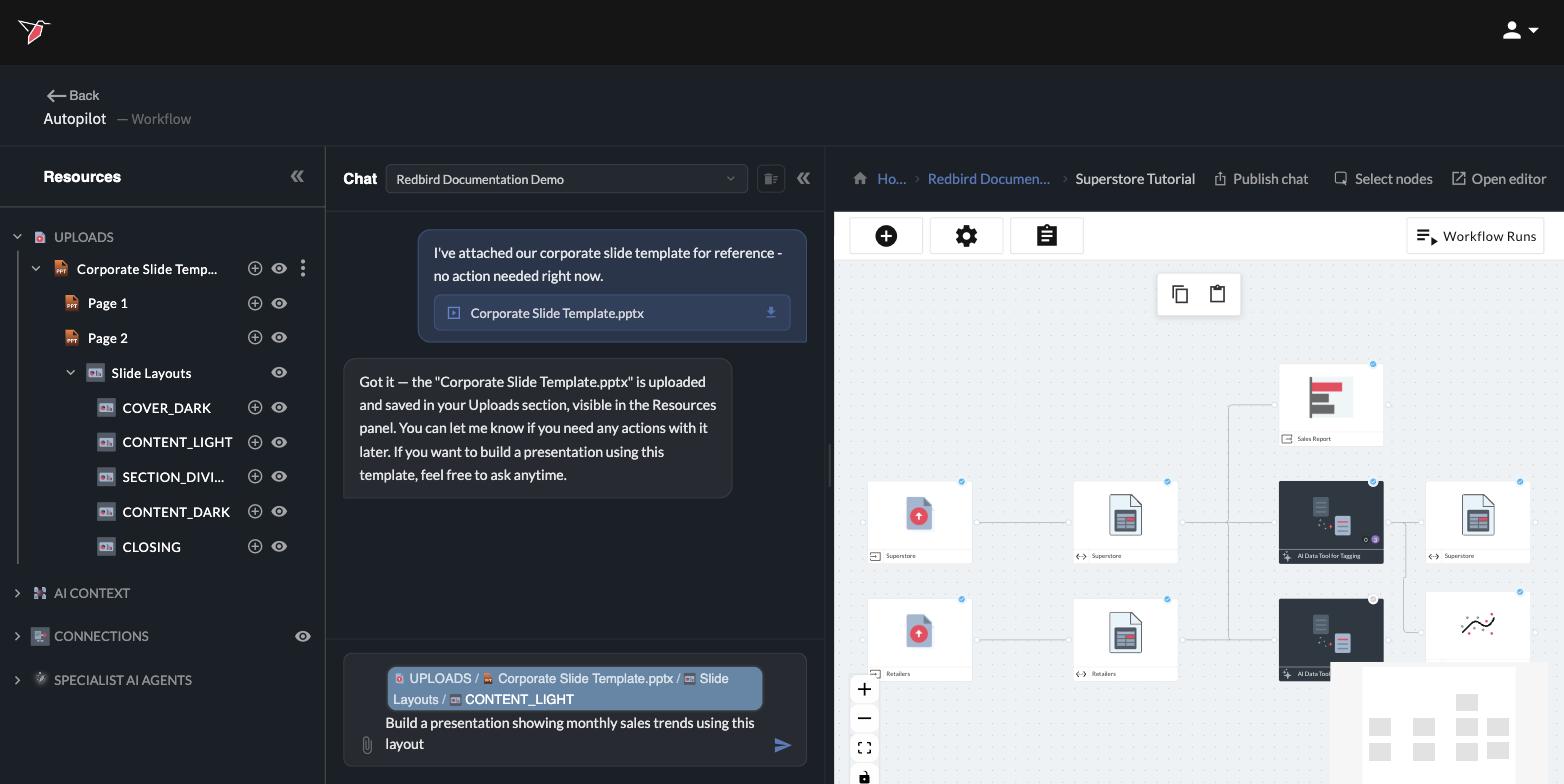
Templates attached with the paperclip and sent to the resources panel stay with that conversation — use the three-dot menu next to the file to remove one from the resources panel. Templates in AI Context stay available until you remove them from context.
Presentations stay current
A presentation is a node in your workflow, downstream of your data. When the workflow runs — on demand or on a schedule — the presentation's charts and figures recalculate from the fresh data automatically. Build the presentation once, schedule the workflow (see Build & run workflows), and every Monday morning there's an up-to-date deck waiting.
Try it end to end. The Get started tutorial walks through building your first presentation from an example file, using sample data, in a few minutes.
Updated 4 days ago