

Dashboard - Shapes
Background
An important aspect of creating a rich presentation is the ability to add shapes. Redbirdʼs Dashboard Builder
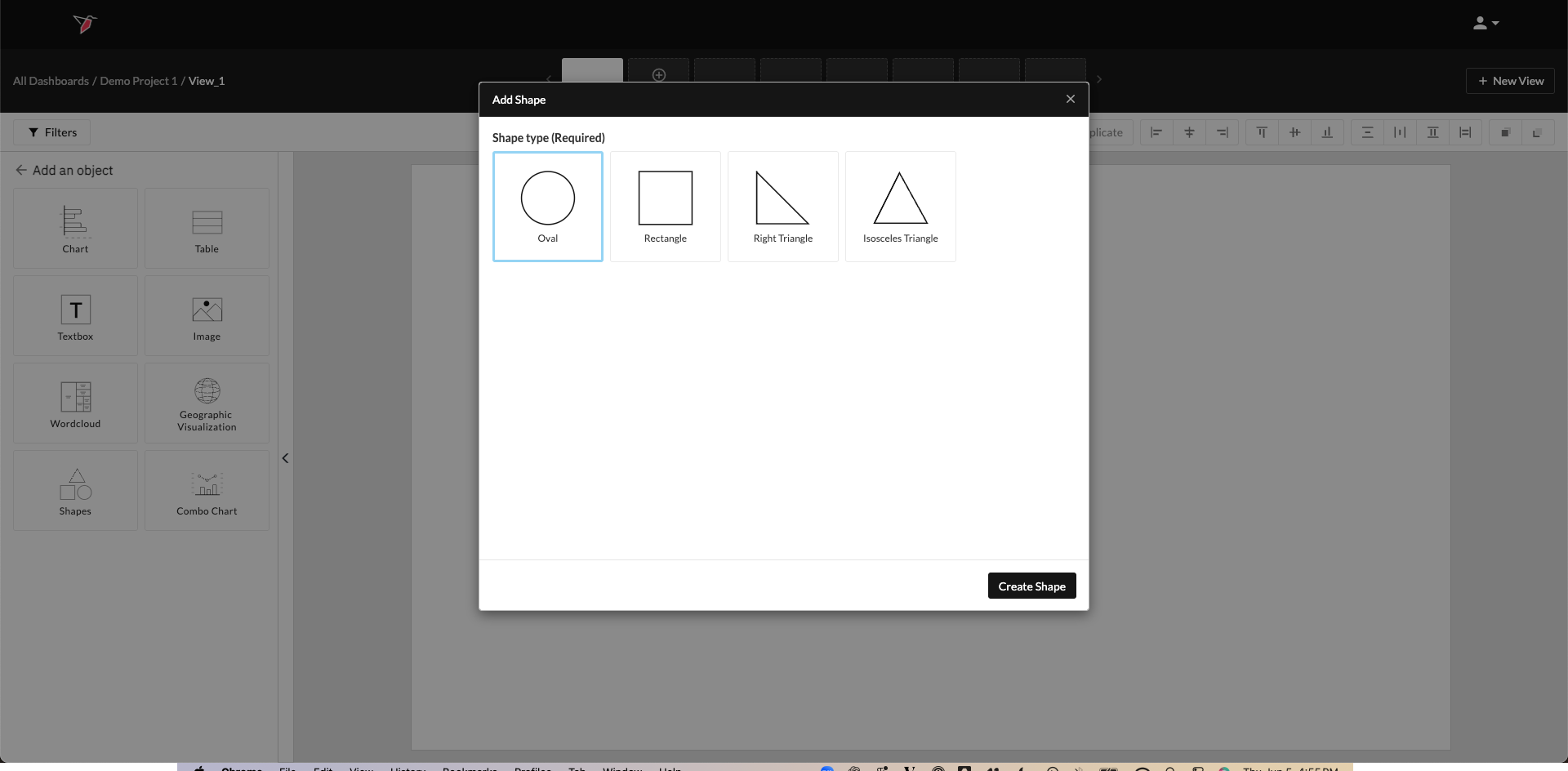
allows you to easily add shapes to your presentation and format them to best communicate your message. Redbird supports a range of shapes including rectangles, oval/circles, right-angled, and isosceles triangles.
Insert a Shape
Once you have identified the dashboard and slide you are interested in updating, follow the below steps to add
a shape:
-
Click Add Object in the Actions Panel to activate the Object Library.
-
Click Shapes in the Object Library.
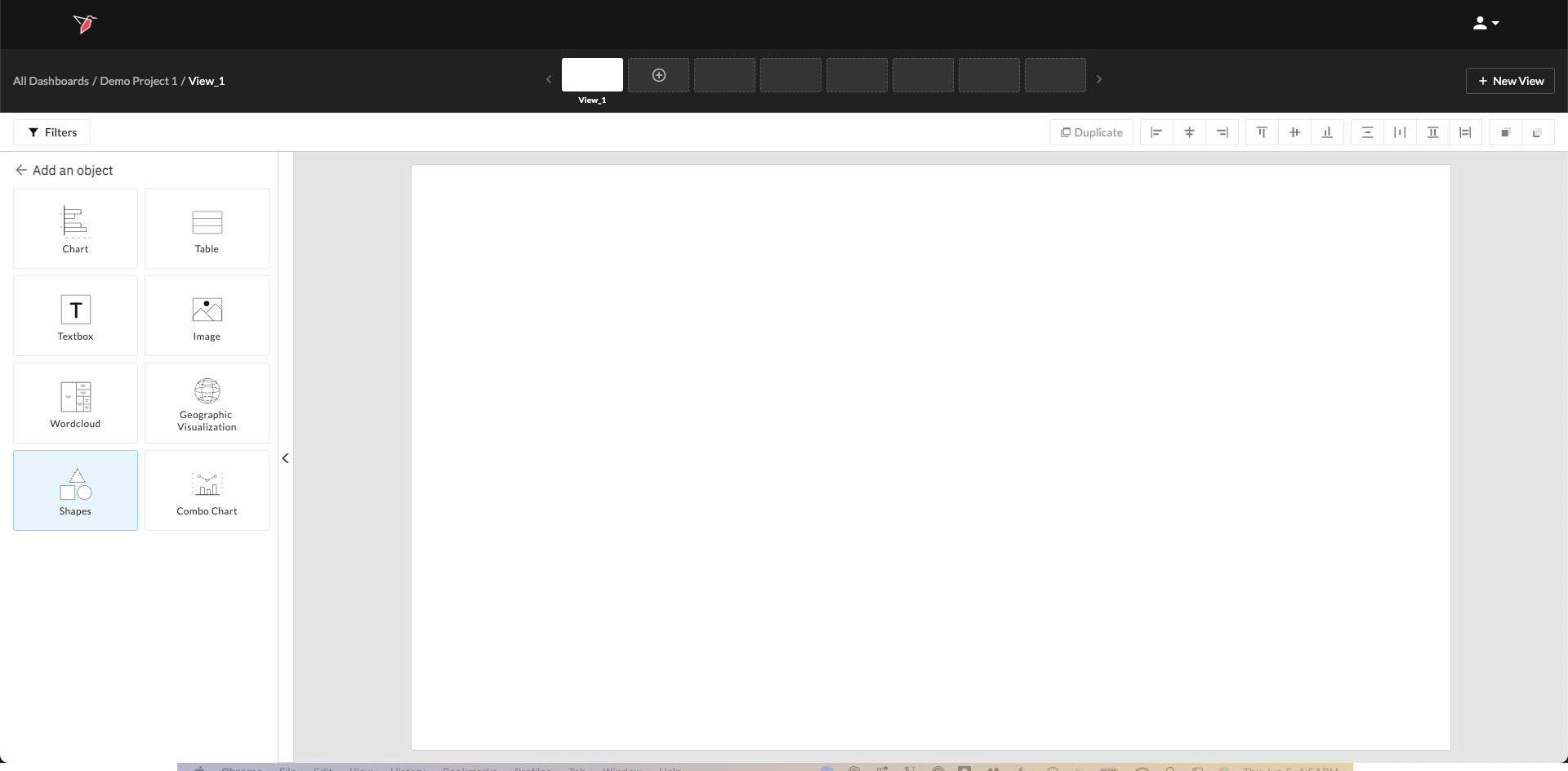
- Select the shape you wish to add then click Create Shape and it will appear on the dashboard canvas.
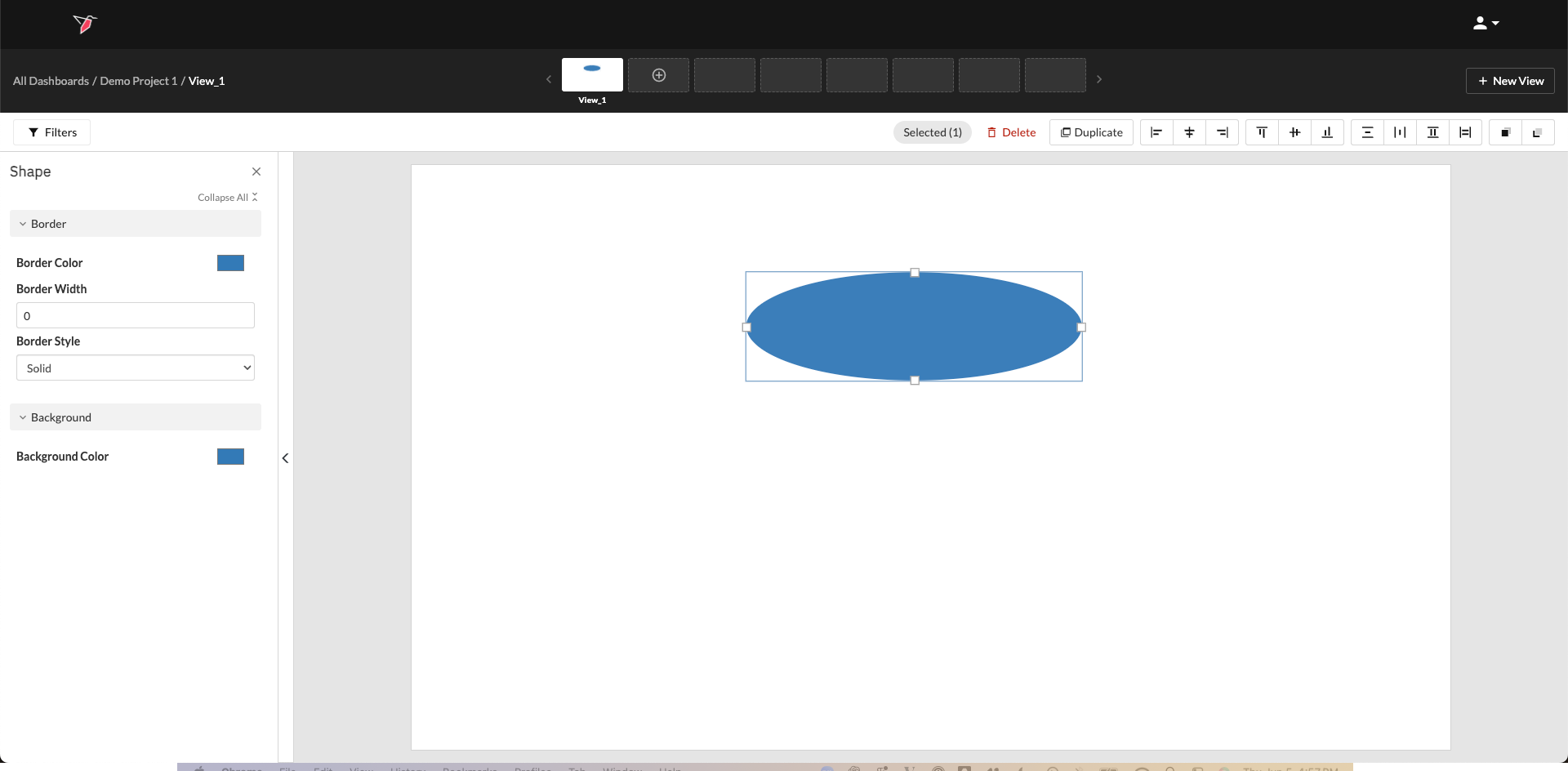
- With the shape selected, you can make adjustments via the Actions Panel. These include changing the background color, border width, border color, and border style.
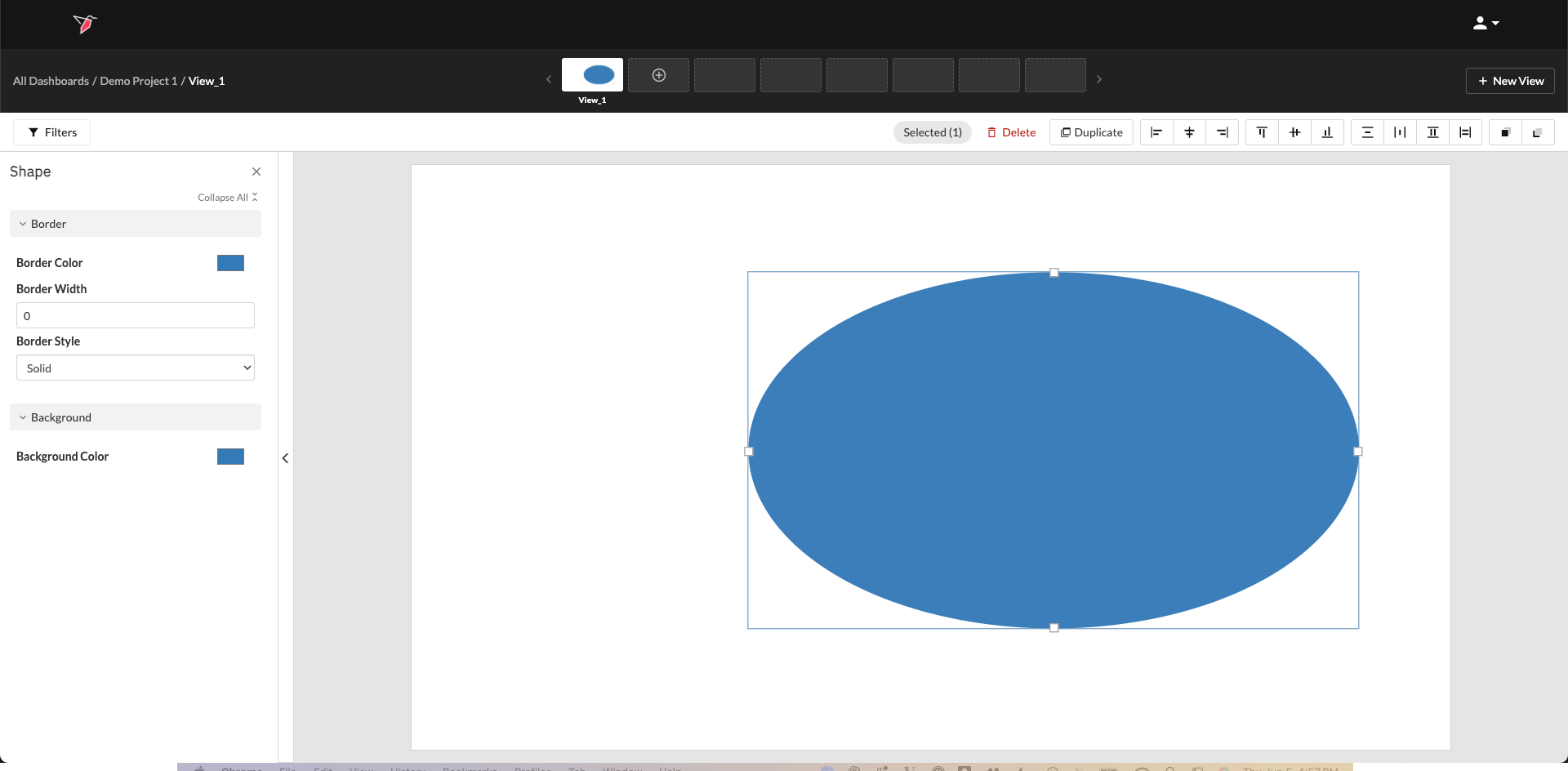
- You can also resize the shape by dragging and adjusting the white boxes that appear on the shape's border.
Updated 8 months ago
What’s Next
Did this page help you?