

Collecting data
Upload the sample files and have Autopilot add them to your workflow
Introduction
In this guide you'll create a workflow and get the two sample datasets into it — all by asking Autopilot. By the end, both files will appear in your workflow as datasets, ready to be prepared and analyzed in the next guide.
Before you start, make sure you've downloaded the two CSV files from the Overview page: the superstore sales data and the retailer list.
Create a workflow
A workflow is where your project lives — your data, the steps that prepare it, and the outputs it produces. You can ask Autopilot to set one up for you.
- Open Autopilot. You'll see the chat panel with the message box at the bottom.
- In the message box, type:
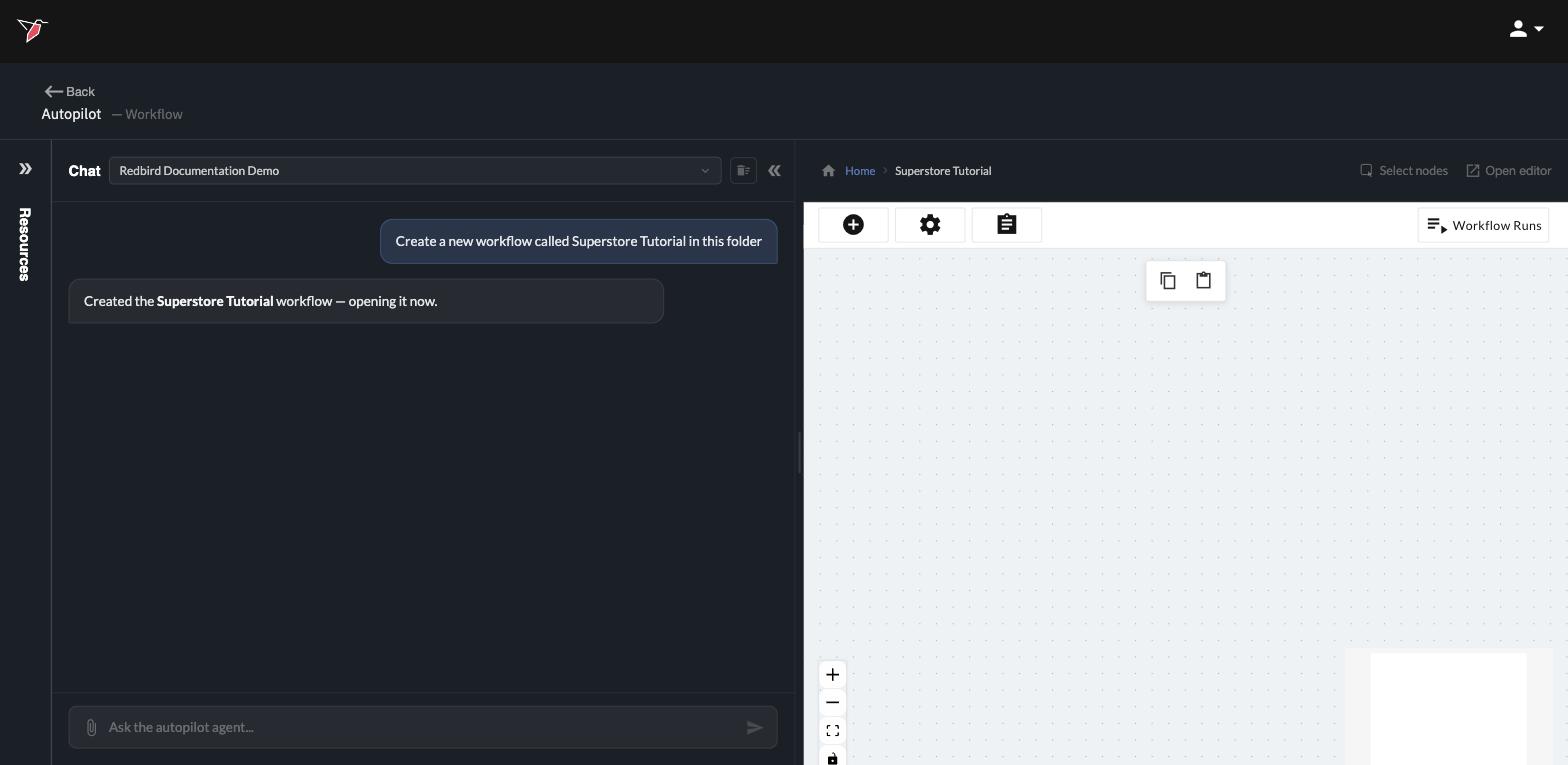
Create a new workflow called Superstore Tutorial
- Press Enter. Autopilot creates the workflow and opens it for you — you'll see an empty canvas on the right, with the workflow's name at the top.
Attach the sample files
Next, hand Autopilot the two sample files.
- Click the paperclip icon in the message box.
- Select both files —
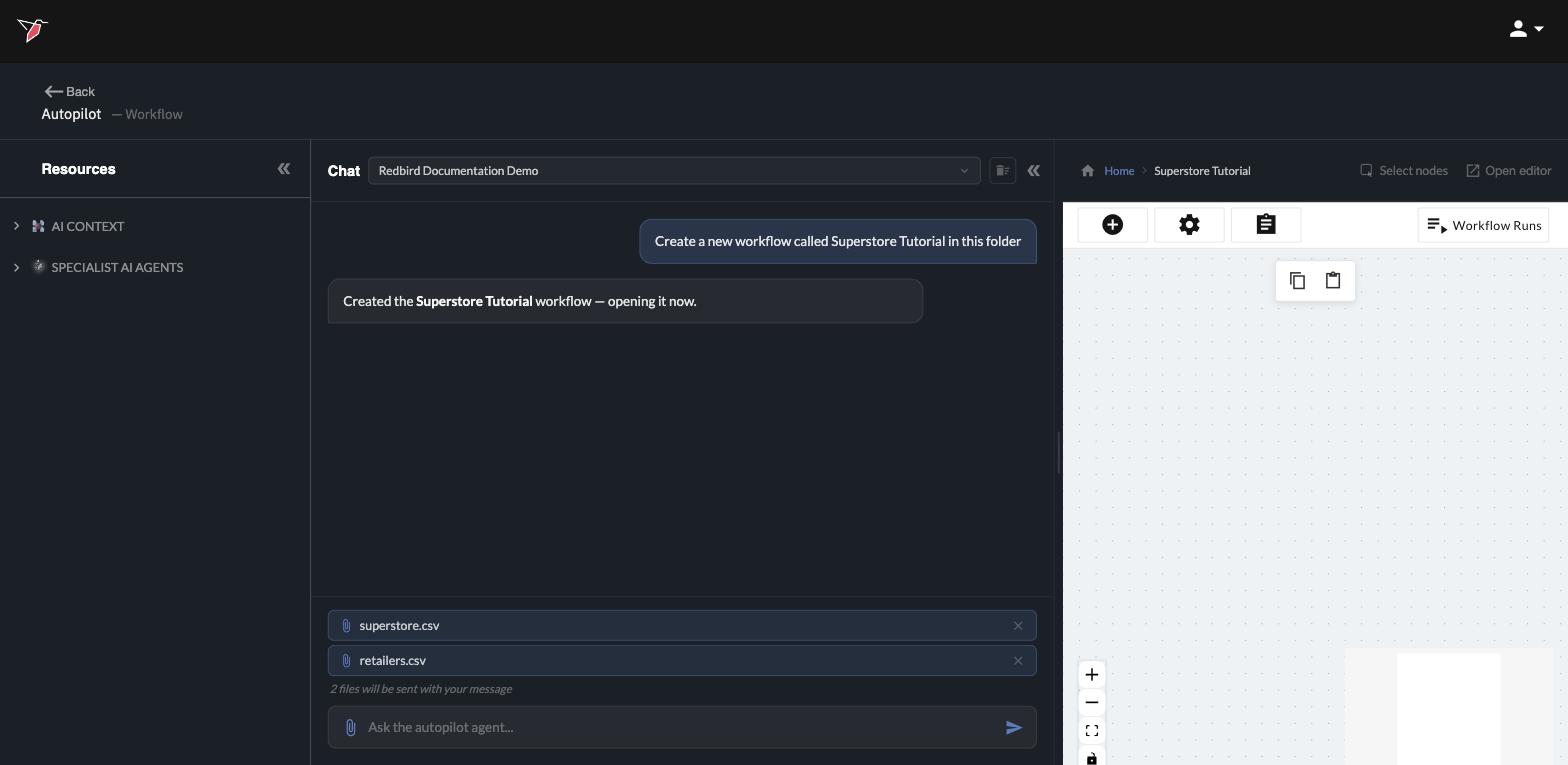
superstore.csvandretailers.csv. You can attach them together. - The files appear above the message box, with a note confirming they'll be sent with your next message.
Add the files to your workflow
Now tell Autopilot what to do with them. With the two files still attached, type:
Add these two files to my workflow as datasets
Press Enter and let Autopilot work. You'll see progress messages in the chat as it runs each file, and nodes will start appearing on the canvas. This usually takes a minute or two.
When it finishes, Autopilot confirms that both files have been added, and your canvas shows the result: each file has an upload step connected to its dataset — Superstore and Retailers.
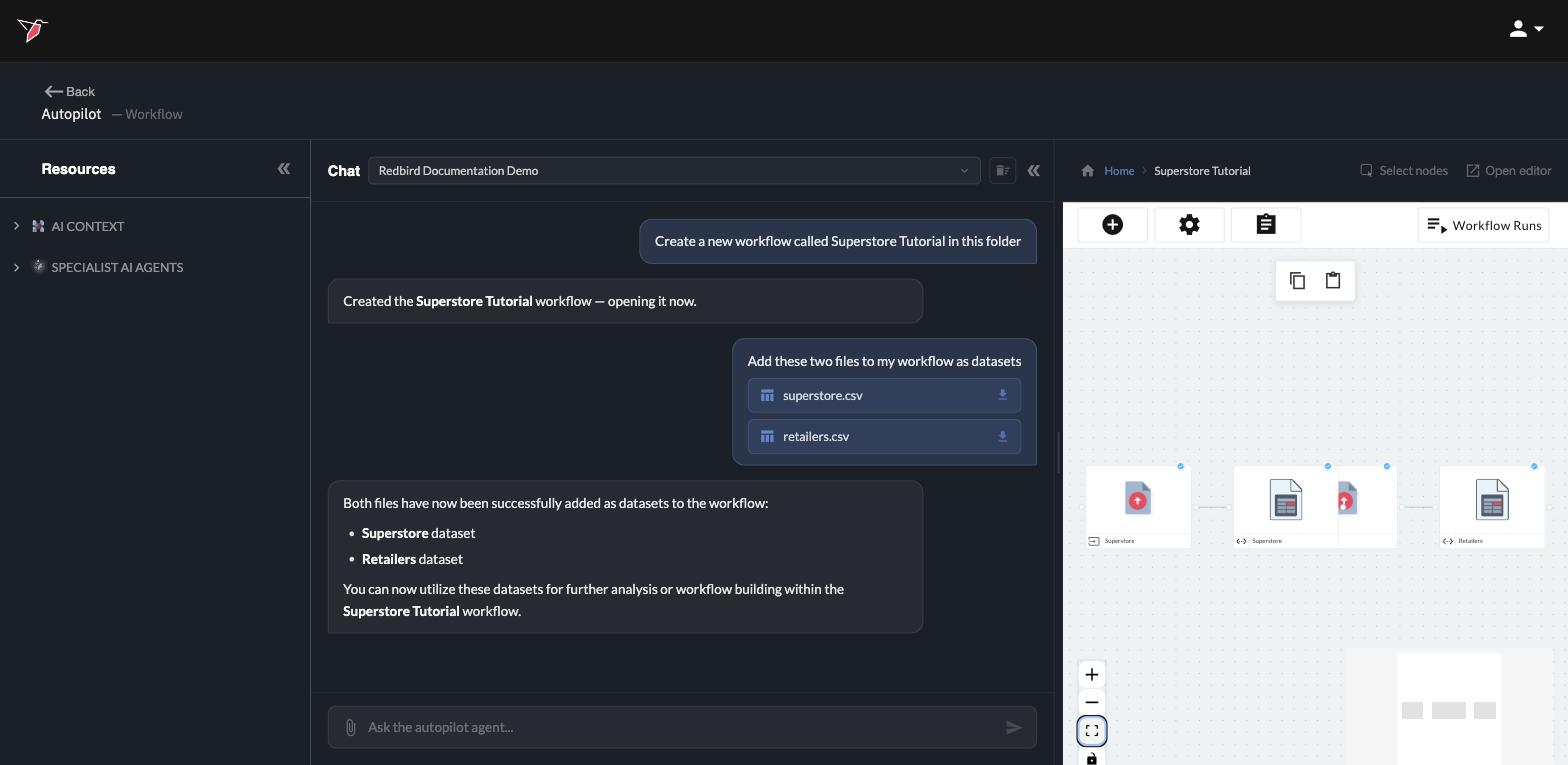
Where your data lives from here. The datasets are now part of the workflow itself — you won't need to attach the files again. Every guide that follows builds on this same workflow.
What you built
You created the Superstore Tutorial workflow and loaded both sample files into it as datasets — without touching a single menu. Next, you'll clean up the data and combine the two datasets into one: continue to Prepping data.
Updated 4 days ago