

Dashboard Management - Slide Templates
Background
The Redbird platform allows users to create powerful, well-designed dashboards that can be used in executive-level presentations. In this article, we will be discussing how you can quickly upload existing PowerPoint templates into the Redbird Platform to ensure that presentations remain consistent and on-brand throughout your organization. This guide will help you understand how to add a PowerPoint template to a new or existing dashboard and update the layout of an existing slide within a Dashboard.
Modify PowerPoint Template to Work in Redbird
To ensure that your PowerPoint template will work properly within Redbird, there are a couple of items that should be addressed prior to uploading a template into the platform.
- The file that you will import into Redbird must be a .pptx file. No other file type can be uploaded as a template into Redbird.
- All of the template designs that you are interested in uploading into Redbird must be included in the PowerPoint slide master. Redbird will not migrate any of the content from slides in the regular presentation view.
- Redbird will only migrate over images from the slide master. Textboxes, charts, and other objects will not be included in the upload. Please ensure that all non-image objects are removed from the slide master prior to uploading them into Redbird.
Once these updates have been made, you are ready to upload your template into Redbird.
Add Template to a New Dashboard
When you first create a dashboard, you will have the opportunity to upload a PowerPoint template to ensure that your slides are designed to meet your organization's specifications.
- Add a Dashboard Builder node to the canvas and double click it. This will bring you to a page where you can name your dashboard and upload a template.
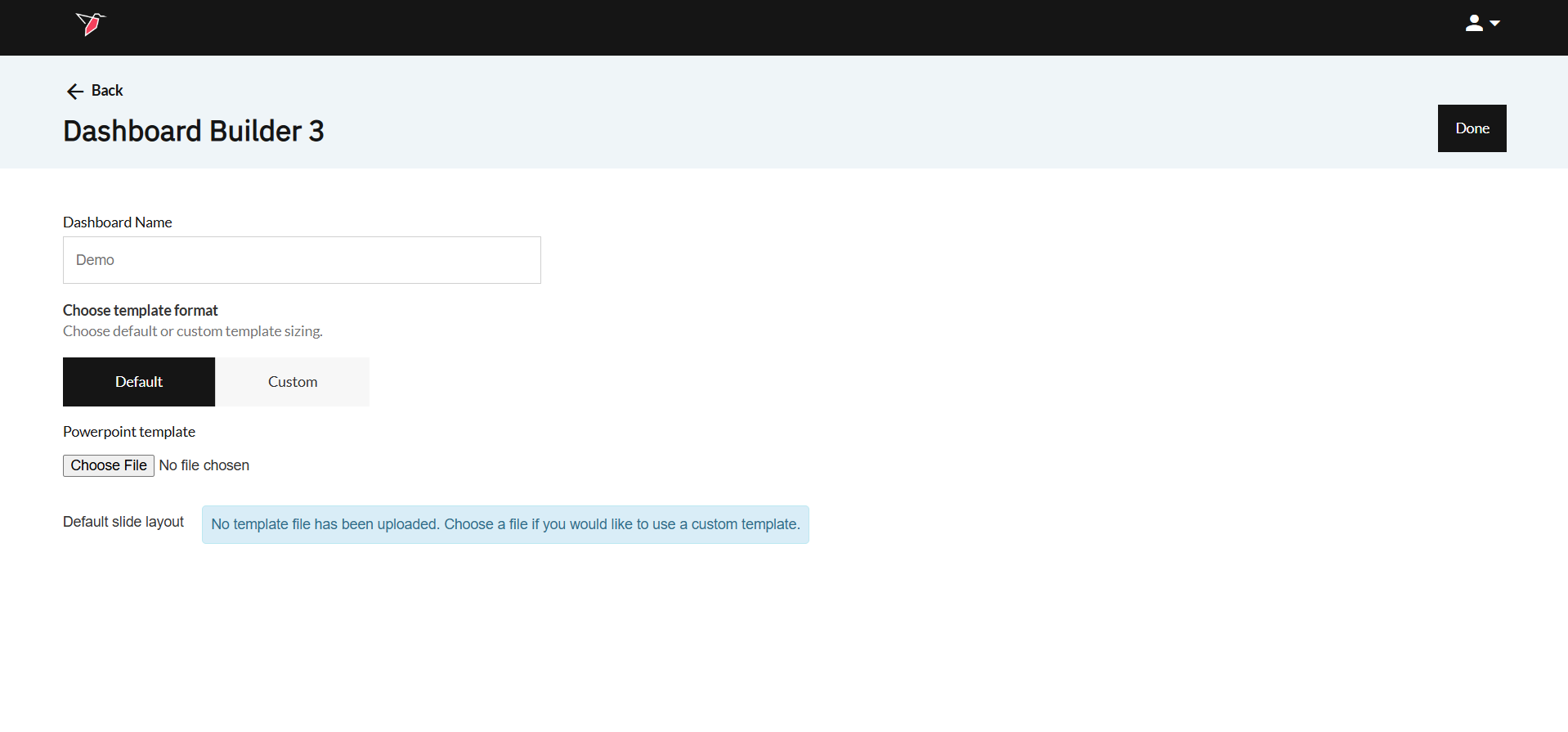
- Configure the dashboard by:
- Providing the dashboard a name in the Dashboard name field.
- Uploading a PowerPoint template by clicking Choose File. Once the PowerPoint template has been successfully loaded into Redbird, you will see the available slide layouts as thumbnails at the bottom of the page.
Important:To ensure that your PowerPoint template will work properly within Redbird, please read the section titled Modify PowerPoint Template to Work in Redbird and complete all of the steps prior to uploading a template.
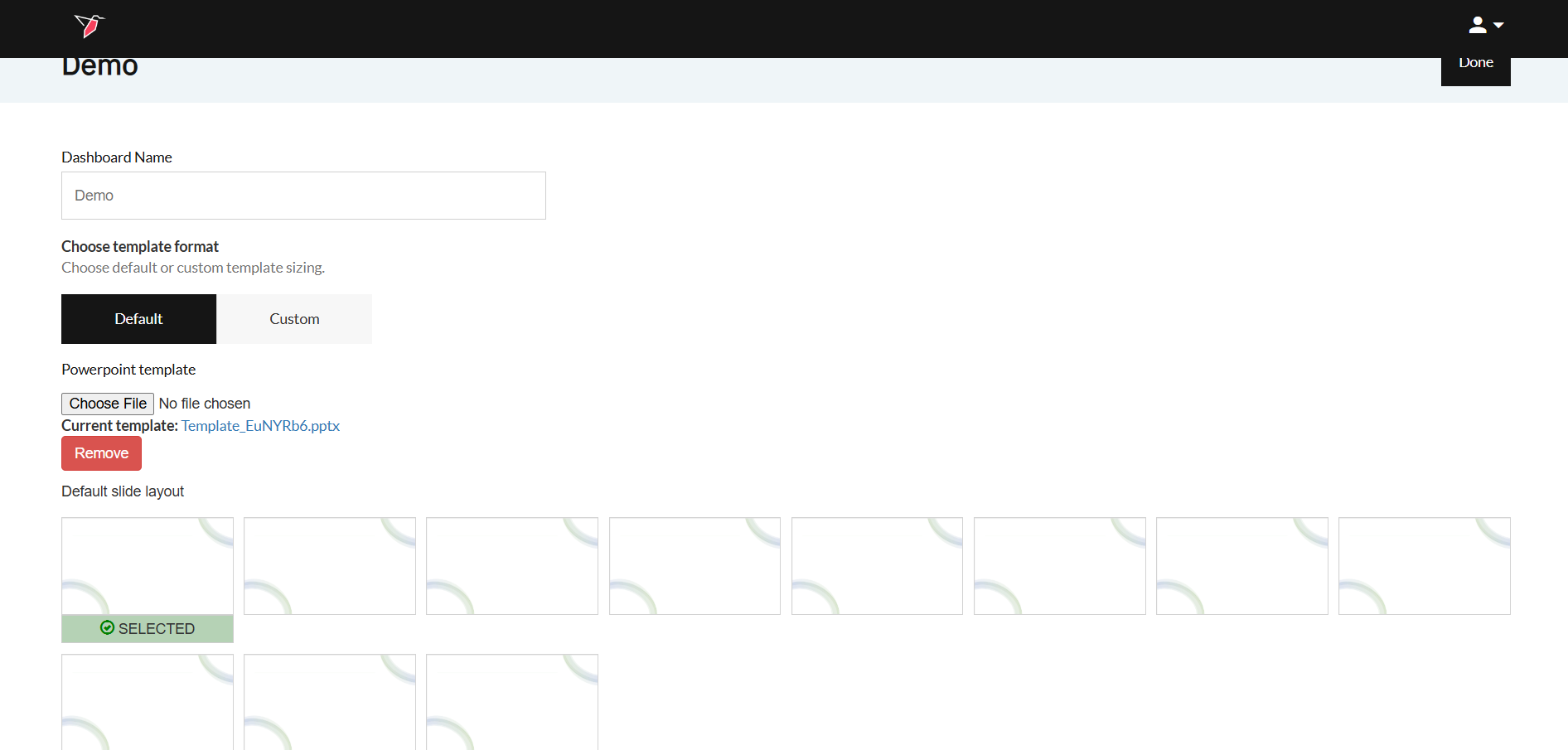
- Select the default slide layout for your dashboard. The default slide layout will be the initial layout that is displayed when you create new slides. The thumbnails represent different slide layouts such as title, section header, content, etc. If you are interested in updating a layout for a specific slide, you can learn more by reading the Update Layout within Existing Slide section of this article. If you decide to change the default slide layout, you can learn more by reading Update Template of Existing Dashboard.
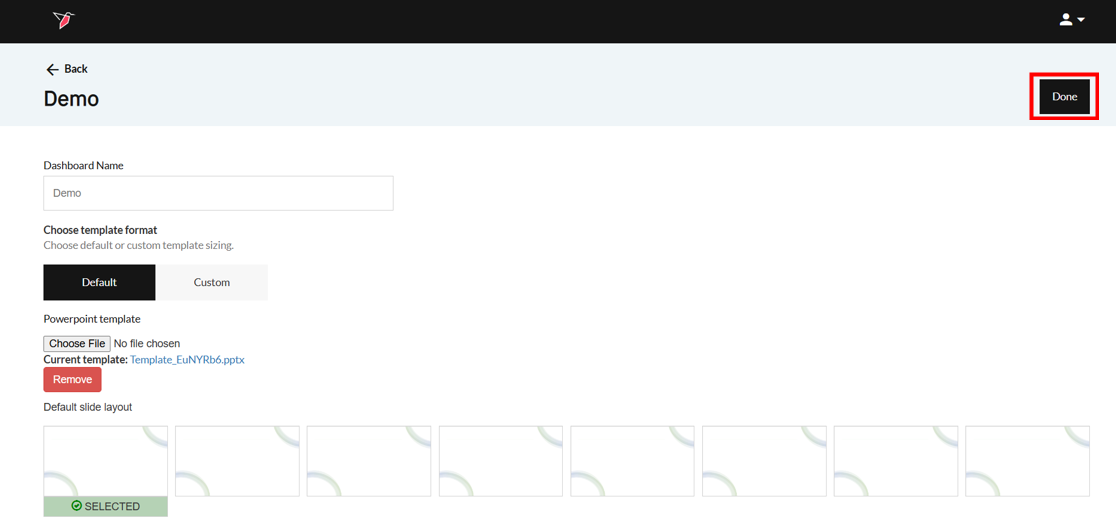
- Click Done located at the top of the page. At this point, you have successfully created a dashboard that is associated with your PowerPoint template. You will be taken to the view layout page where you can start adding views to your dashboard.
Update Template of Existing Dashboard
You may find that you want to update the template that is associated with your current dashboard to meet a new design need.
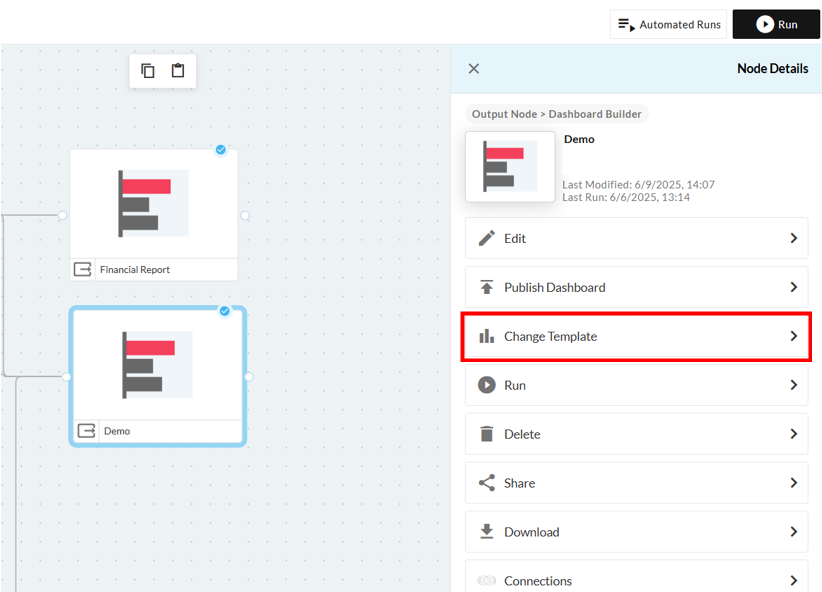
- Select the Dashboard Builder node and click Change Template in the right side panel. This will bring you to the dashboard configuration page where you will see the existing template and update it if needed.
- Click Choose File and select the new PowerPoint template you want to use. Once the PowerPoint template has been successfully loaded into Redbird, you will see the available slide layouts as thumbnails at the bottom of the page.
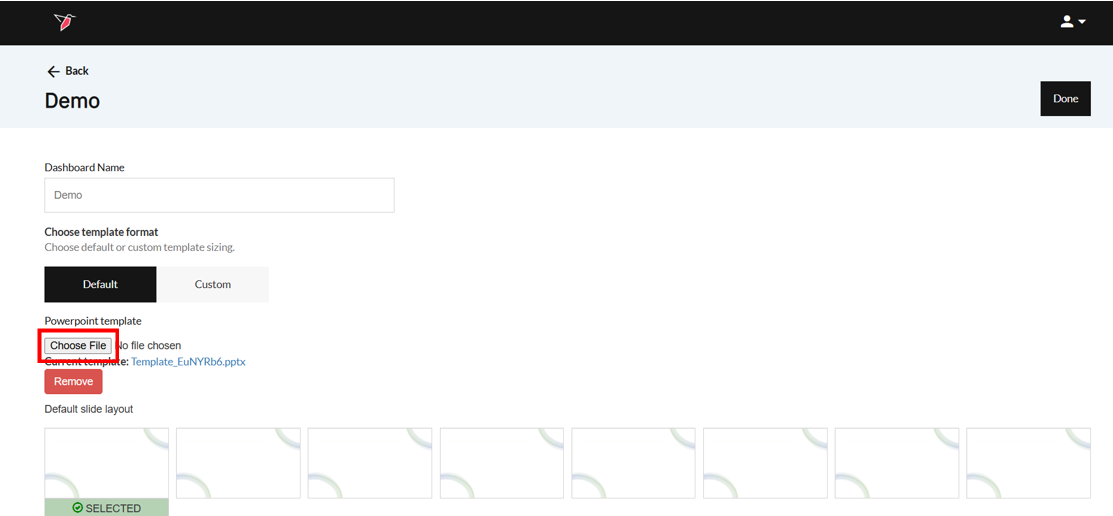
Important:To ensure that your PowerPoint template will work properly within Redbird, please read the section titled Modify PowerPoint Template to Work in Redbird and complete all of the steps prior to uploading a template.
- Select the default slide layout for your dashboard. The default slide layout will be the initial layout that is displayed when you create new slides. The thumbnails represent different slide layouts such as title, section header, content, etc. If you are interested in updating a layout for a specific slide, you can learn more by reading the Update Layout within Existing Slide section of this article.
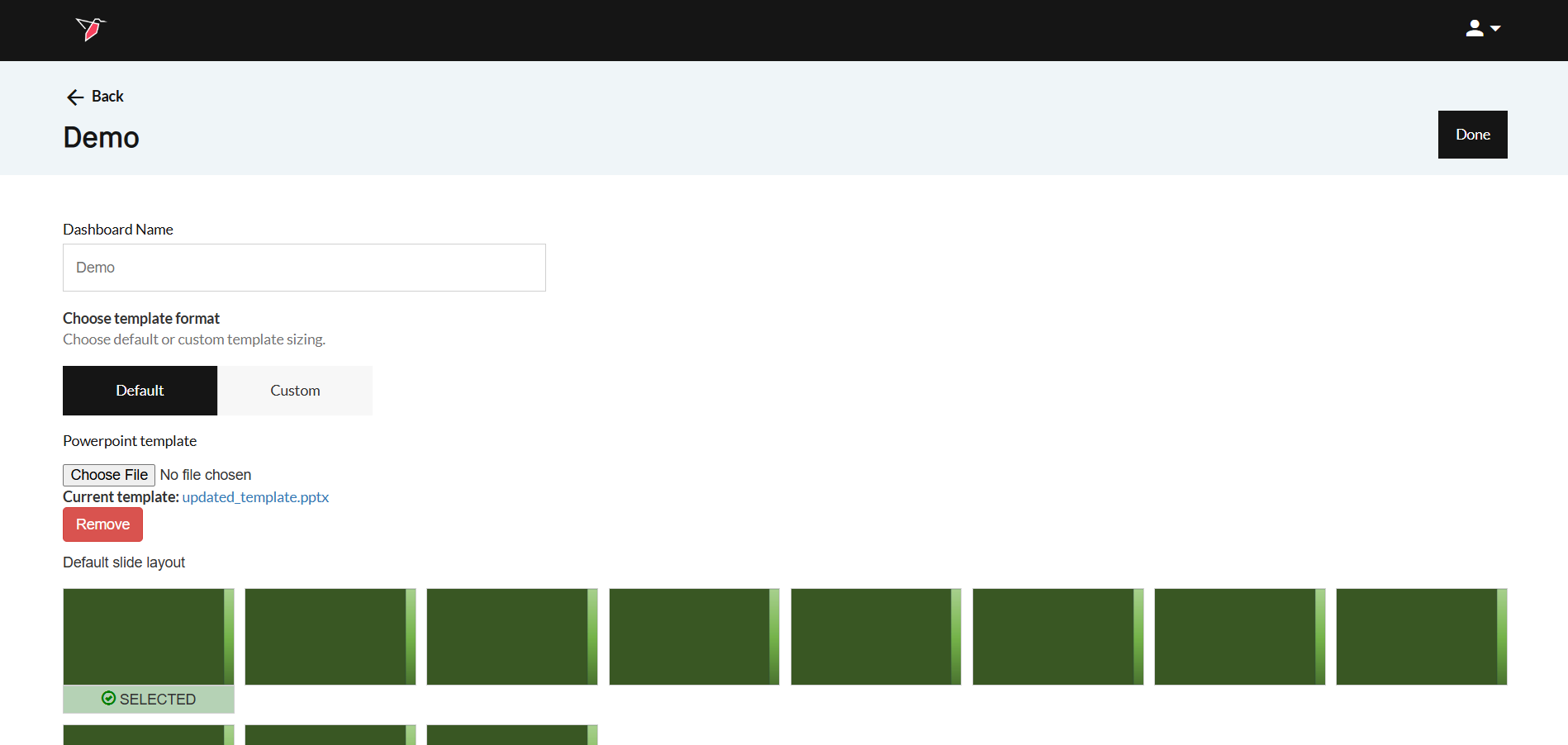
- Click Done located at the top of the page to finalize your changes. This will bring you to the list of views within the dashboard to continue editing.
Update Layout within Existing Slide
You may find that the default slide layout is incorrect for the slide you want to create. You can update the default slide layout for a single slide by following these steps.
- Double click the Dashboard Builder node you want to work on. Click the three dots on the view you want to update.
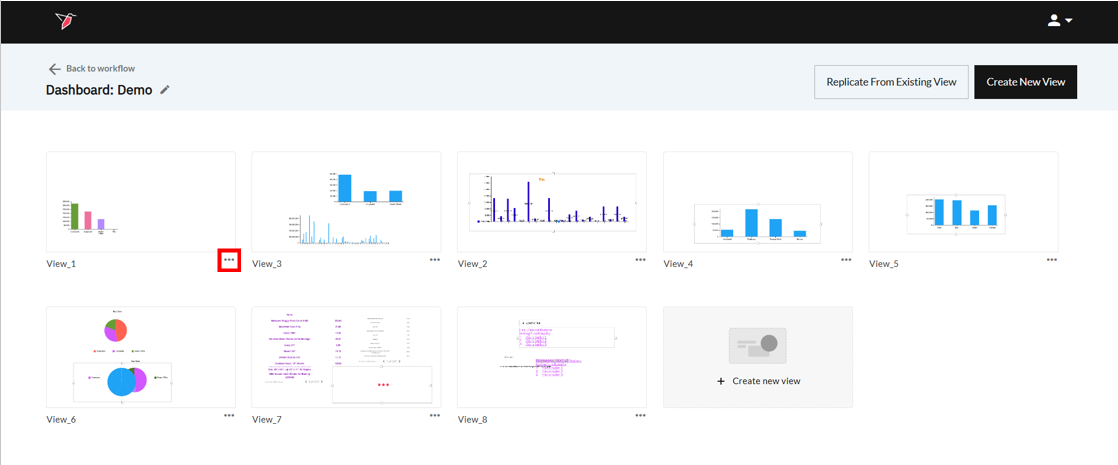
- Click Change Template. This will bring you to a page where you can select a new slide layout.
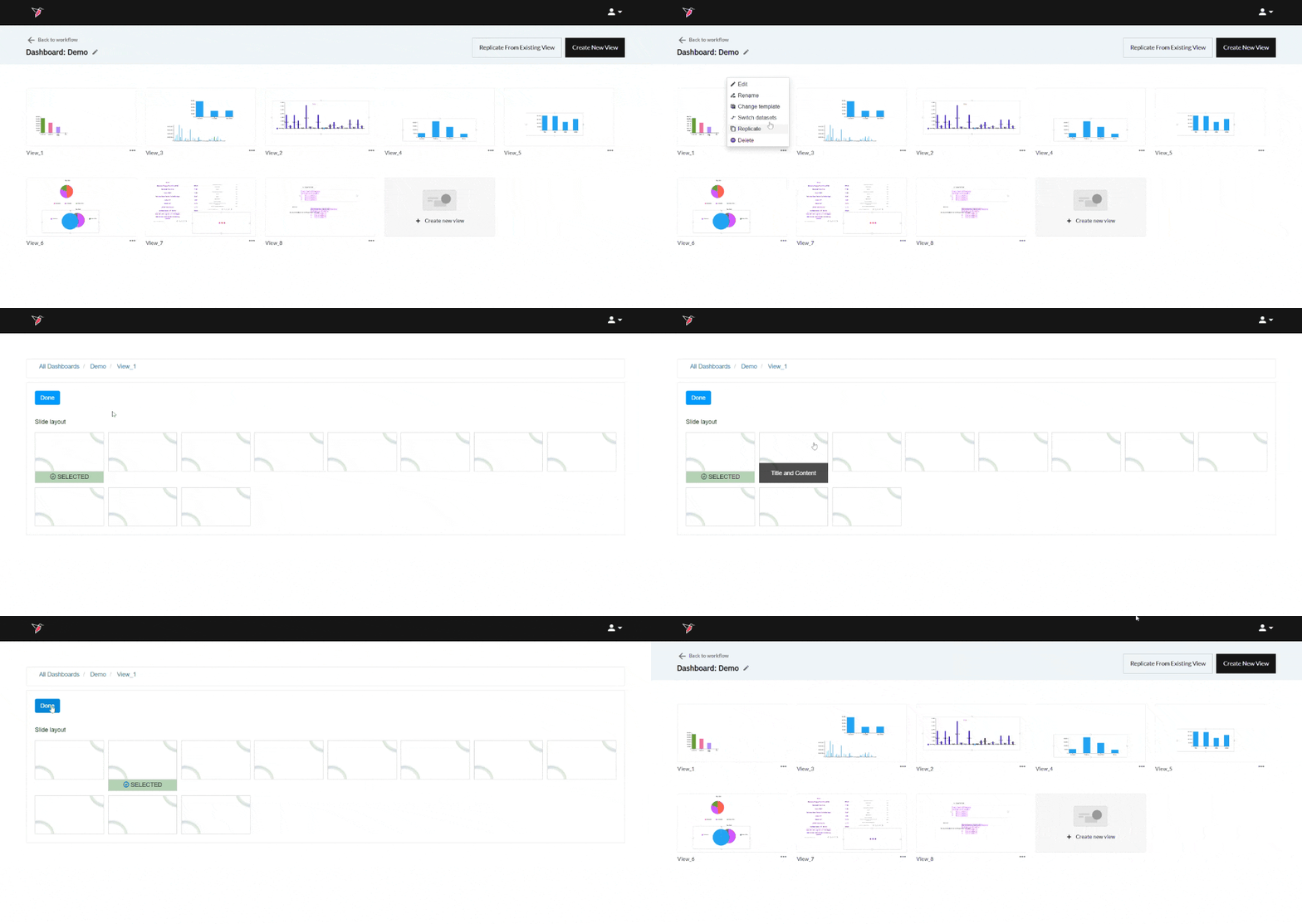
- Select a new slide layout that will meet your design and presentation needs. Each thumbnail at the bottom of the page represents a different slide layout that can be used to meet your specific use case. Examples of slide layouts include title, section header, and content.
- Click Done located at the top of the page to finalize your changes. This will bring you to a page that includes all of the existing views that are related to your dashboard.
Updated 8 months ago