

Stitch Dataset Operation
Background
Once a dataset has been loaded into Redbird, you may find that it is necessary to combine your existing dataset with a new one. For example, you may want to add a dataset that includes additional rows that represent the most up-to-date data (vertical stitch), or additional columns that provide additional context to your existing data (horizontal stitch). This task can be completed using Redbird’s Stitch Dataset operation in the Macro Builder tool.
How it Works
To demonstrate how the Stitch Dataset operation works, we are going to walk through a couple of examples using data from a fictitious company that grows fruit.
The below product list was uploaded into Redbird and includes two columns: product and price.
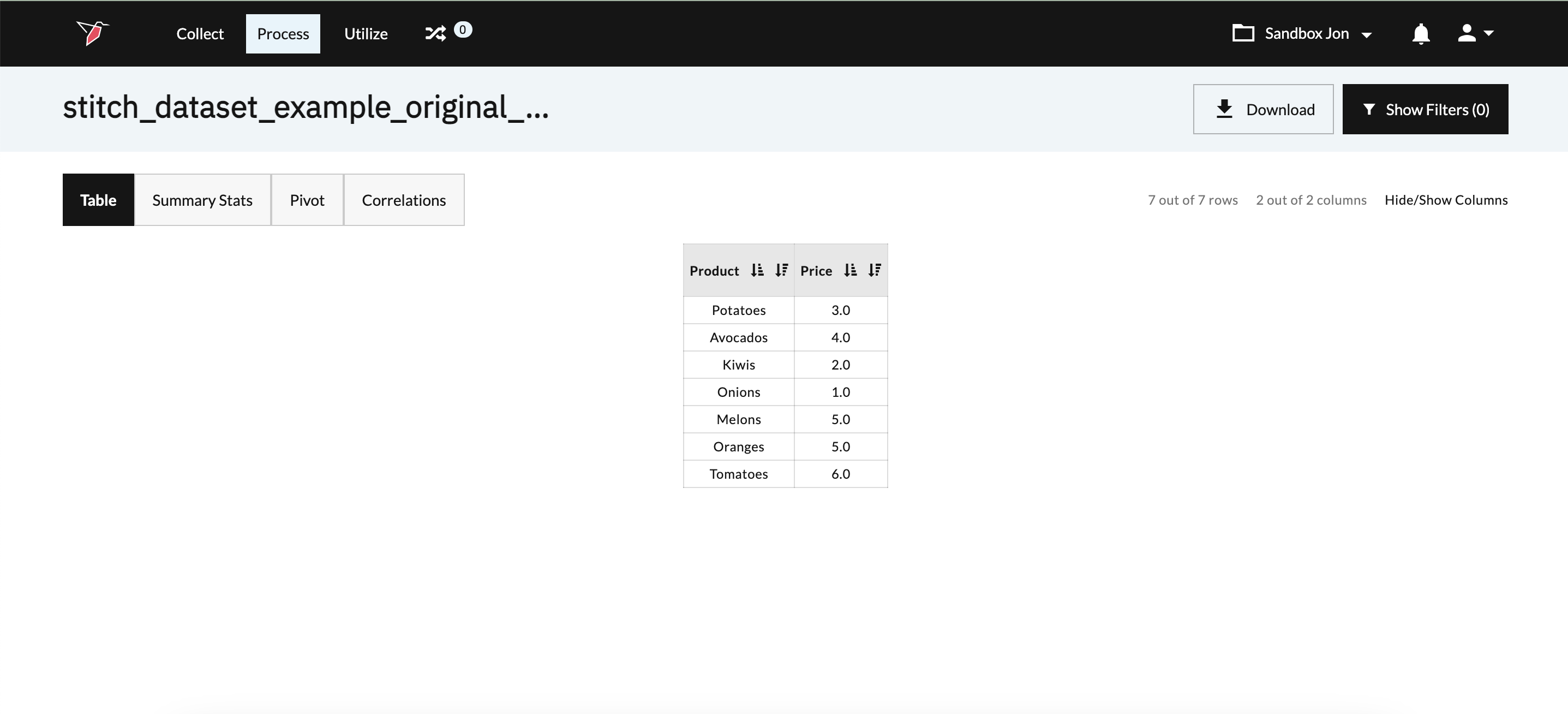
We can update the original product list as new data becomes available by configuring the Stitch Dataset operation to utilize either a vertical or horizontal stitching method.
Vertical Stitch
To demonstrate how a vertical stitch works, we are going to walk through an example where our fictitious fruit company is interested in adding additional fruit to its product line. The new products are captured by the below dataset that was uploaded into Redbird.
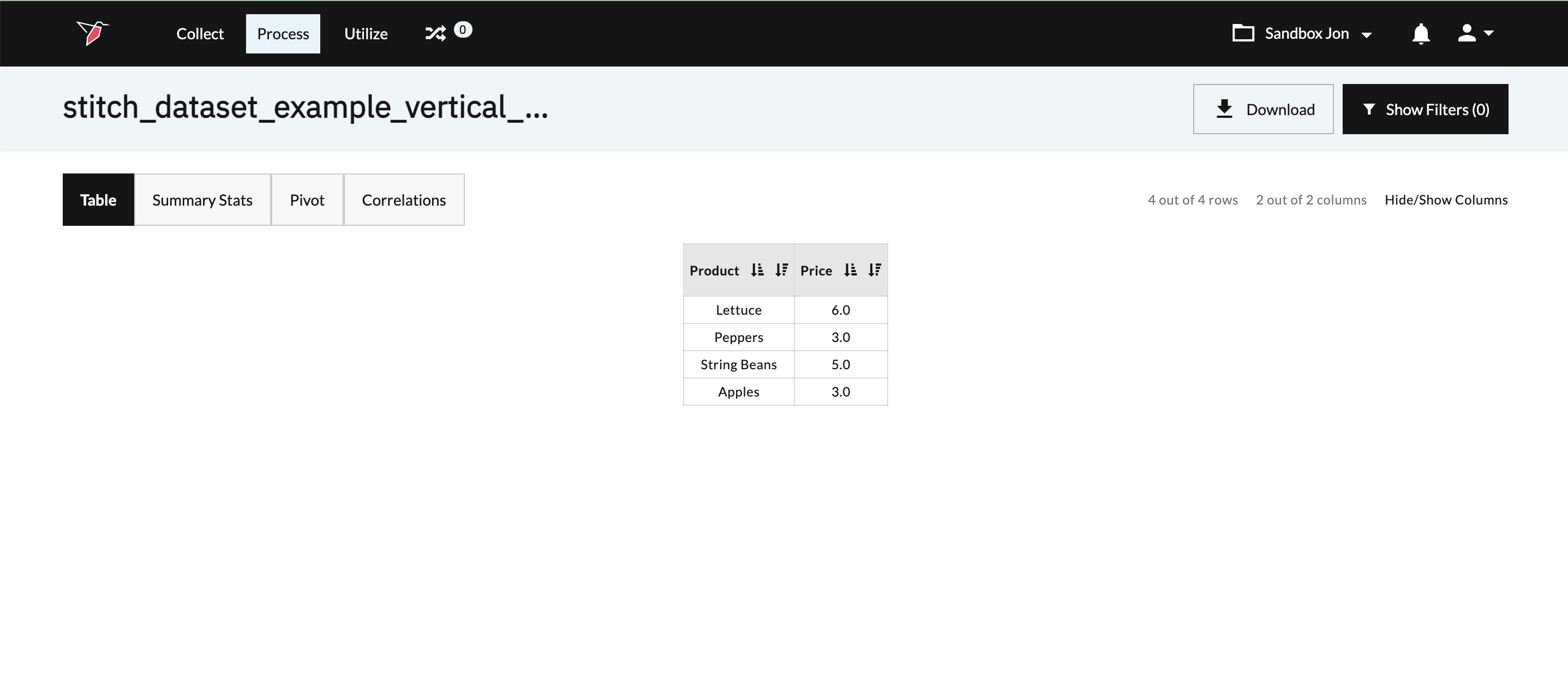
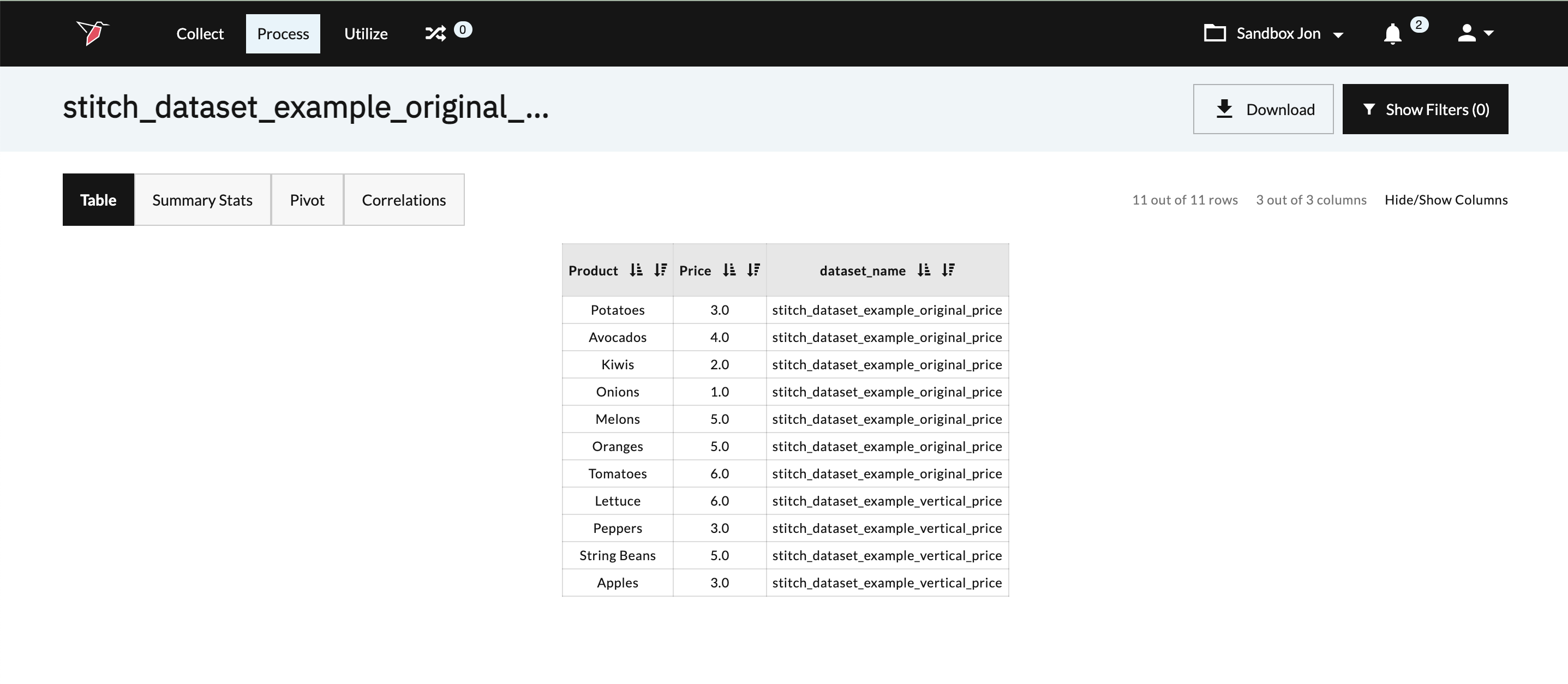
We can stitch together the new dataset with the existing dataset by configuring the Stitch Dataset operation to use the Vertical stitching method. The below screenshot represents the newly created dataset that includes both the original product line and the new product line.
Horizontal Stitch
To demonstrate how a horizontal stitch works, we are going to walk through an example where our fictitious fruit company wants to add data about how much inventory is available for each of its products. The new inventory data about each product is captured in the below dataset.
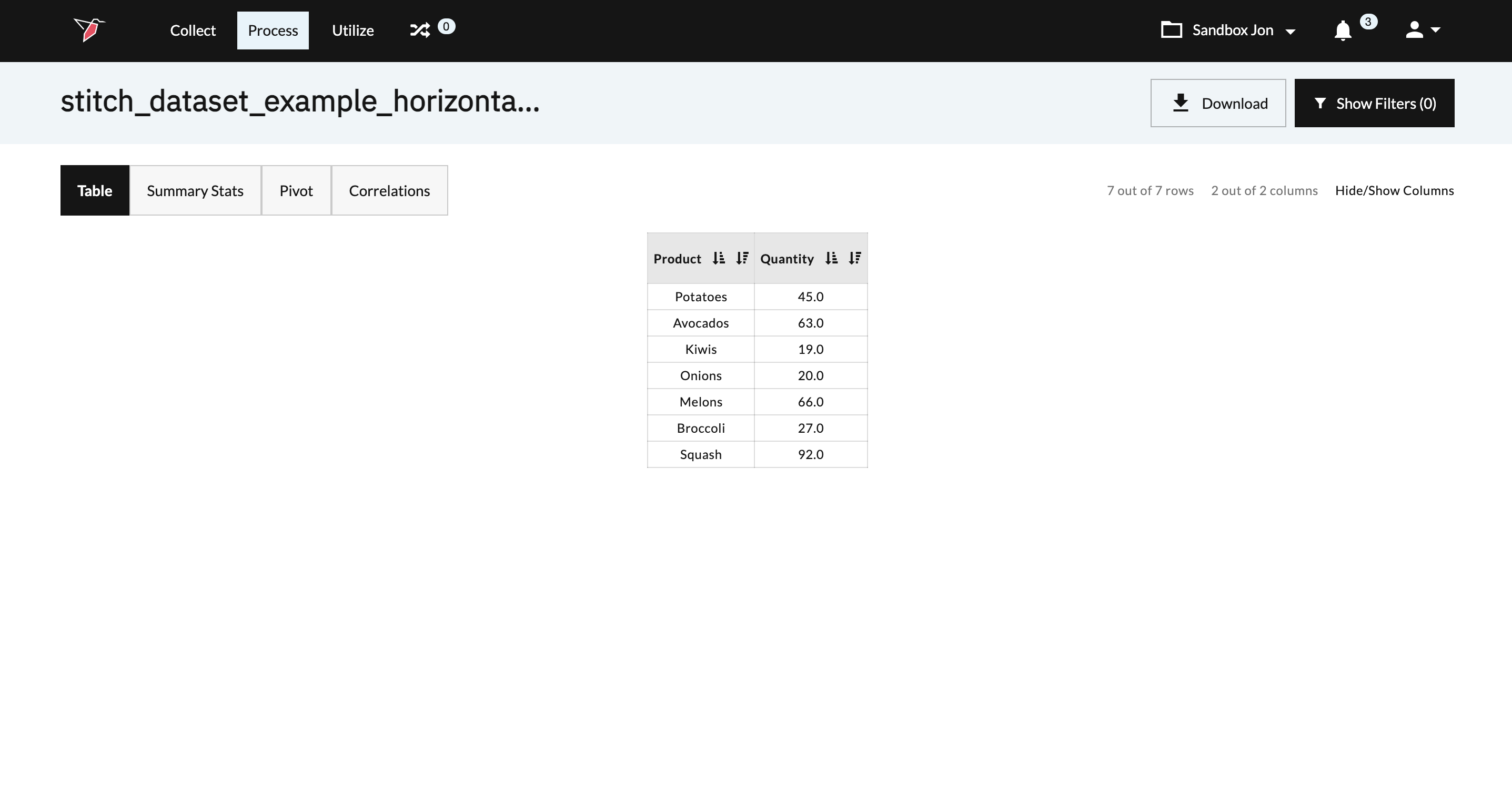
To combine our original dataset with the new dataset, we can use the horizontal stitching method. A horizontal stitch can be configured to run one of three ways - Left Outer Join, Inner Join, and Full Outer Join.
Left Outer Join
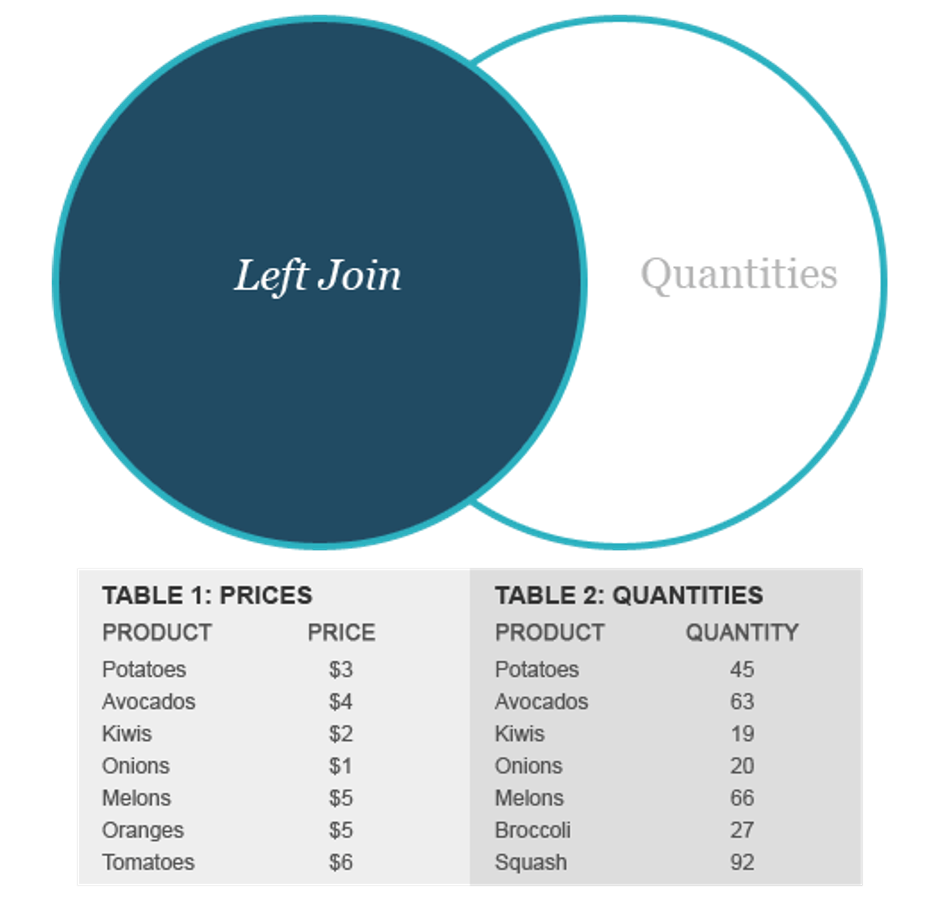
A left outer join will return all the data from the original dataset (left side of the Venn diagram), but only the shared data from the new dataset (right side of the Venn diagram).
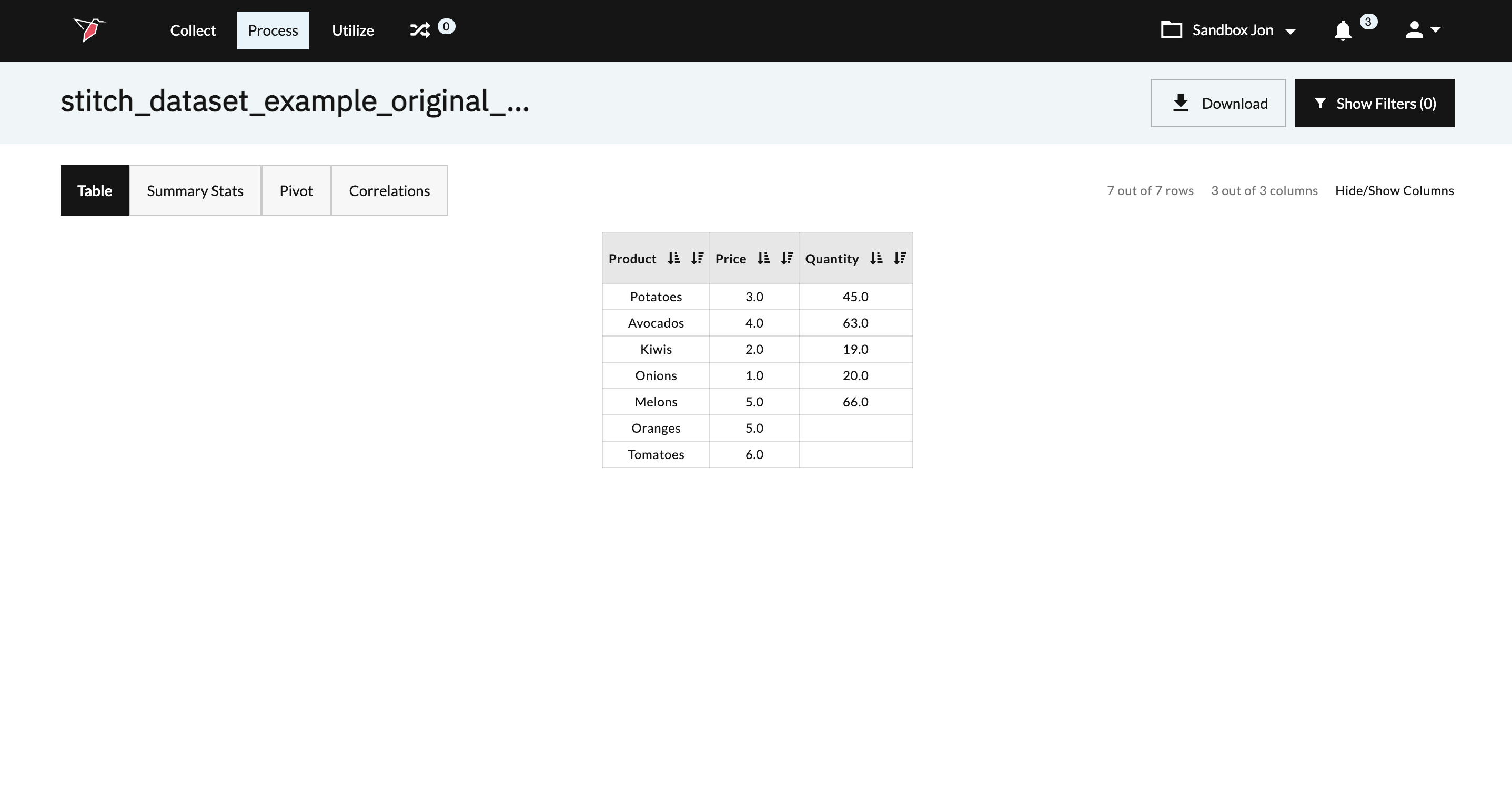
New Output
Inner Join
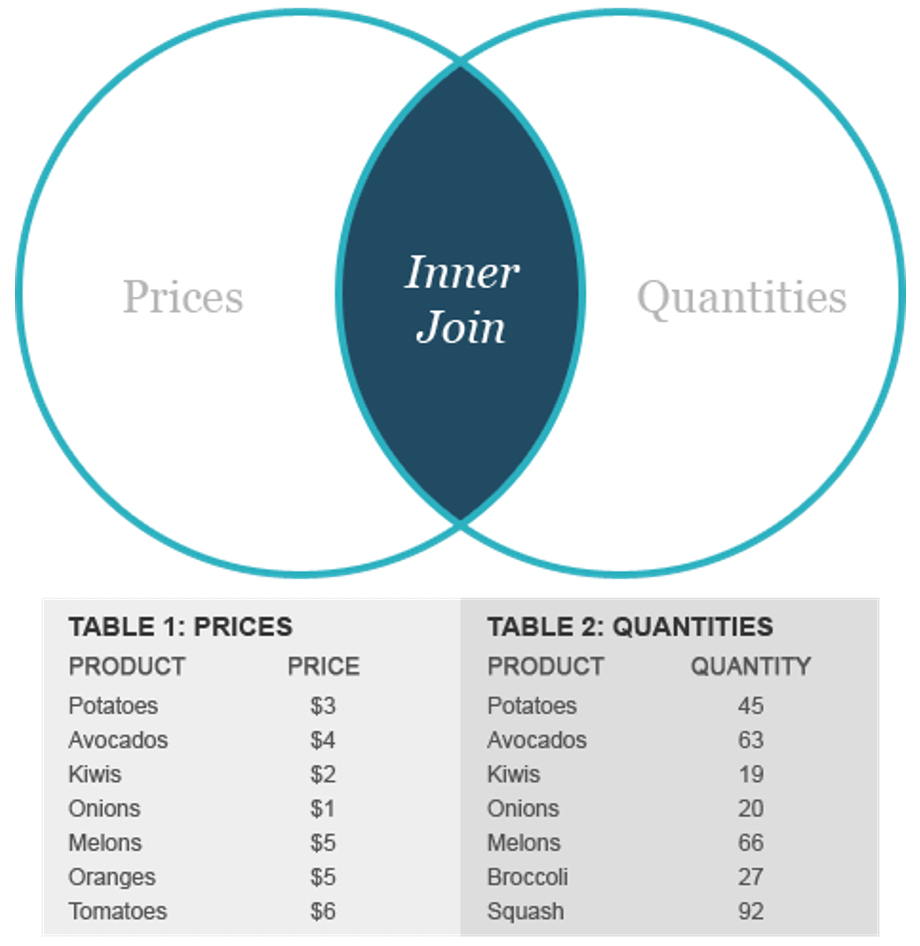
An inner join focuses on the commonality between two tables. When using an inner join, there must be some matching data between the two tables that are being compared. An inner join searches the tables for matching or overlapping data. Upon finding matches, the inner join combines and returns the data into one new table.
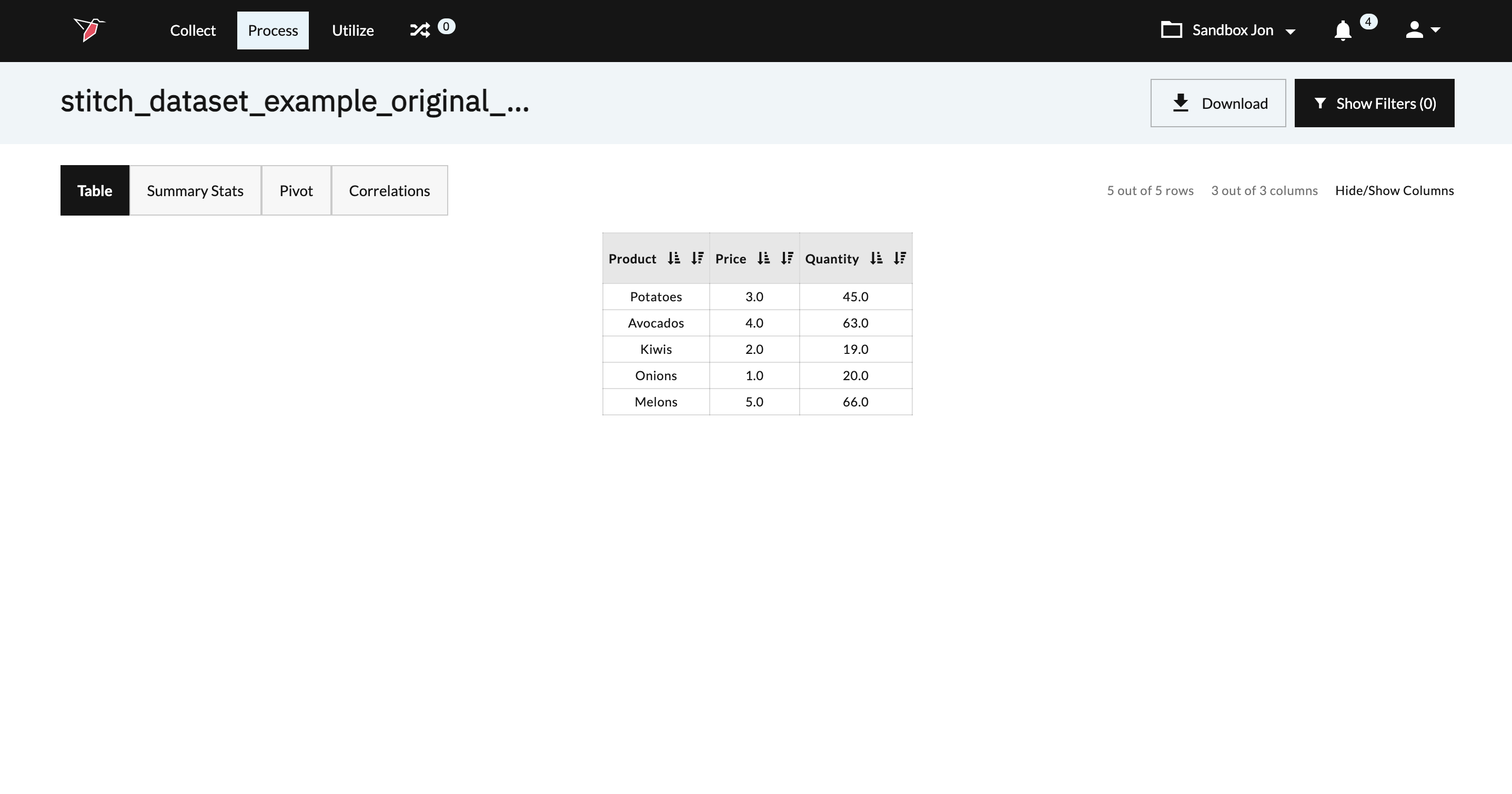
New Output
Full Outer Join
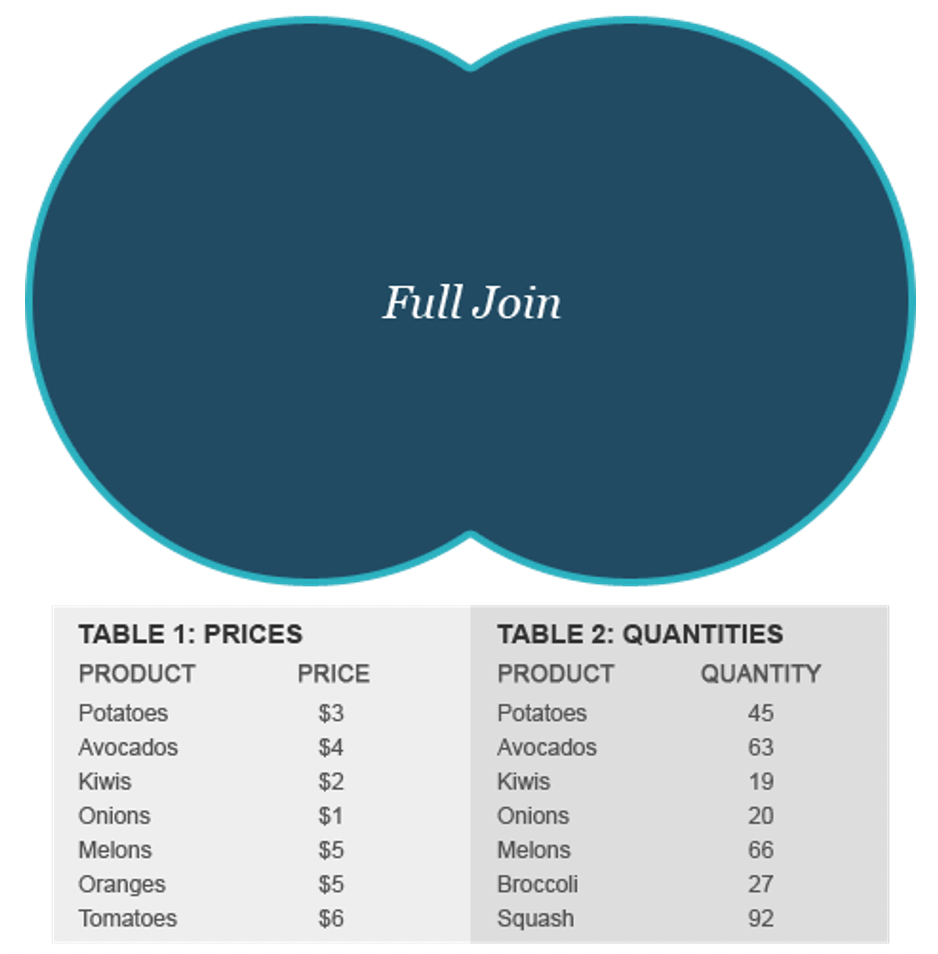
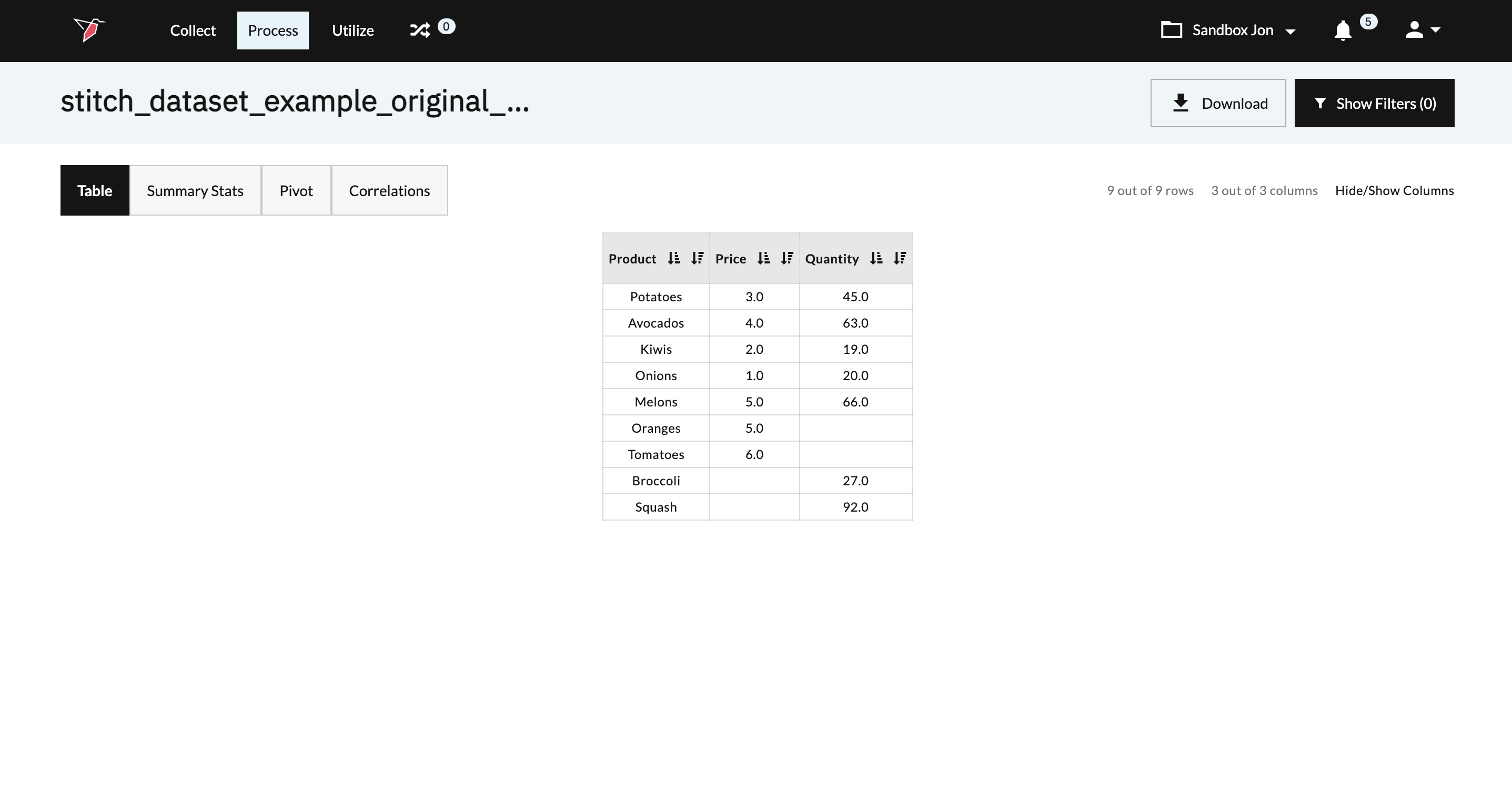
A full outer join is a combination of a right and left join. The full outer join will create a single table that contains all data from both tables (rows that match, rows that are only in the left table and the rows that are only in the right table). If data is only available in one of the tables for a given row, blank fields will be produced for the table without data.
New Output
Configure a Vertical Stitch
To configure a vertical stitch, follow the below steps using the Stitch Dataset operation within Redbird’s Macro Builder.
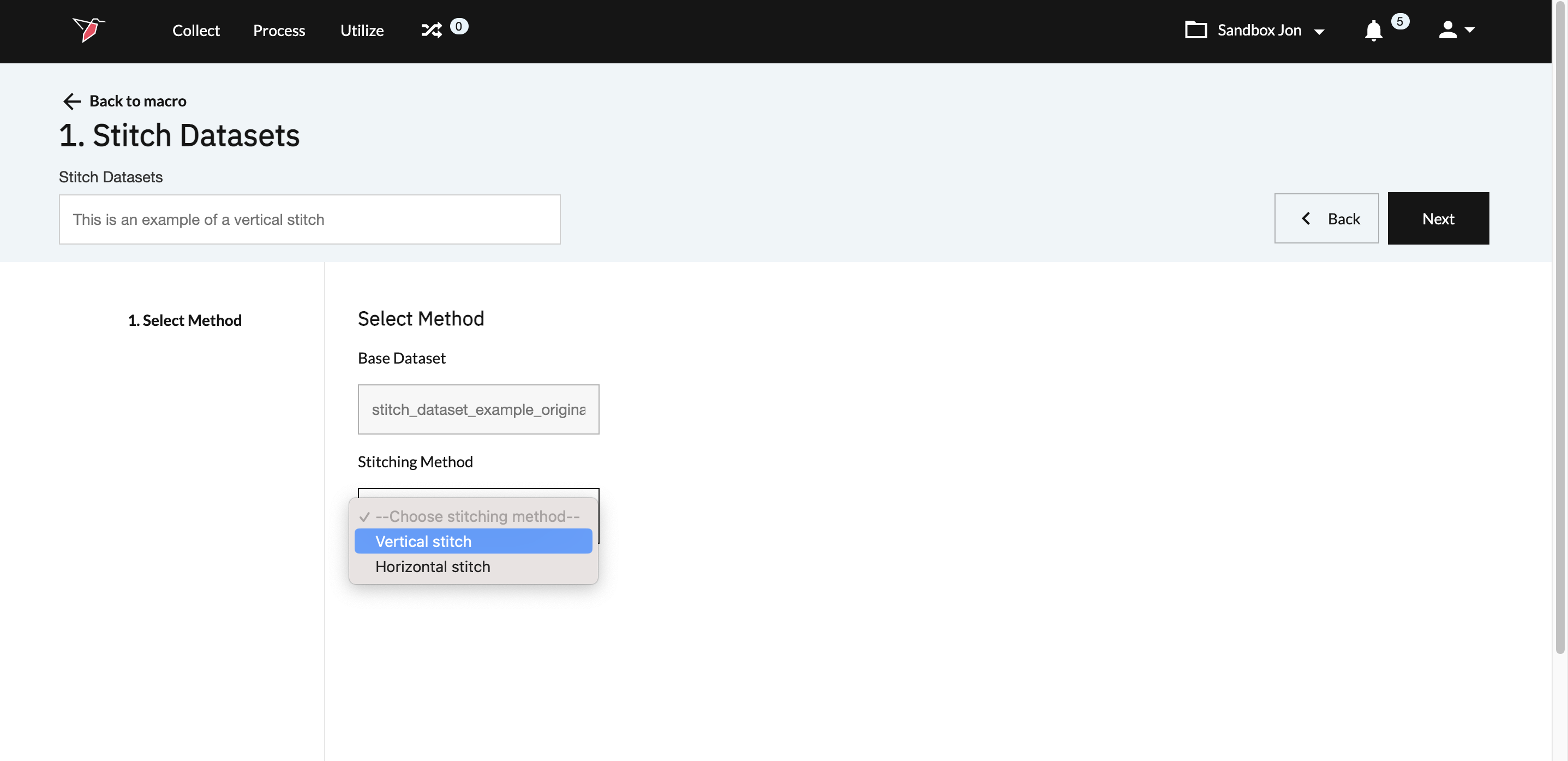
- Select Vertical Stitch as your Stitching Method.
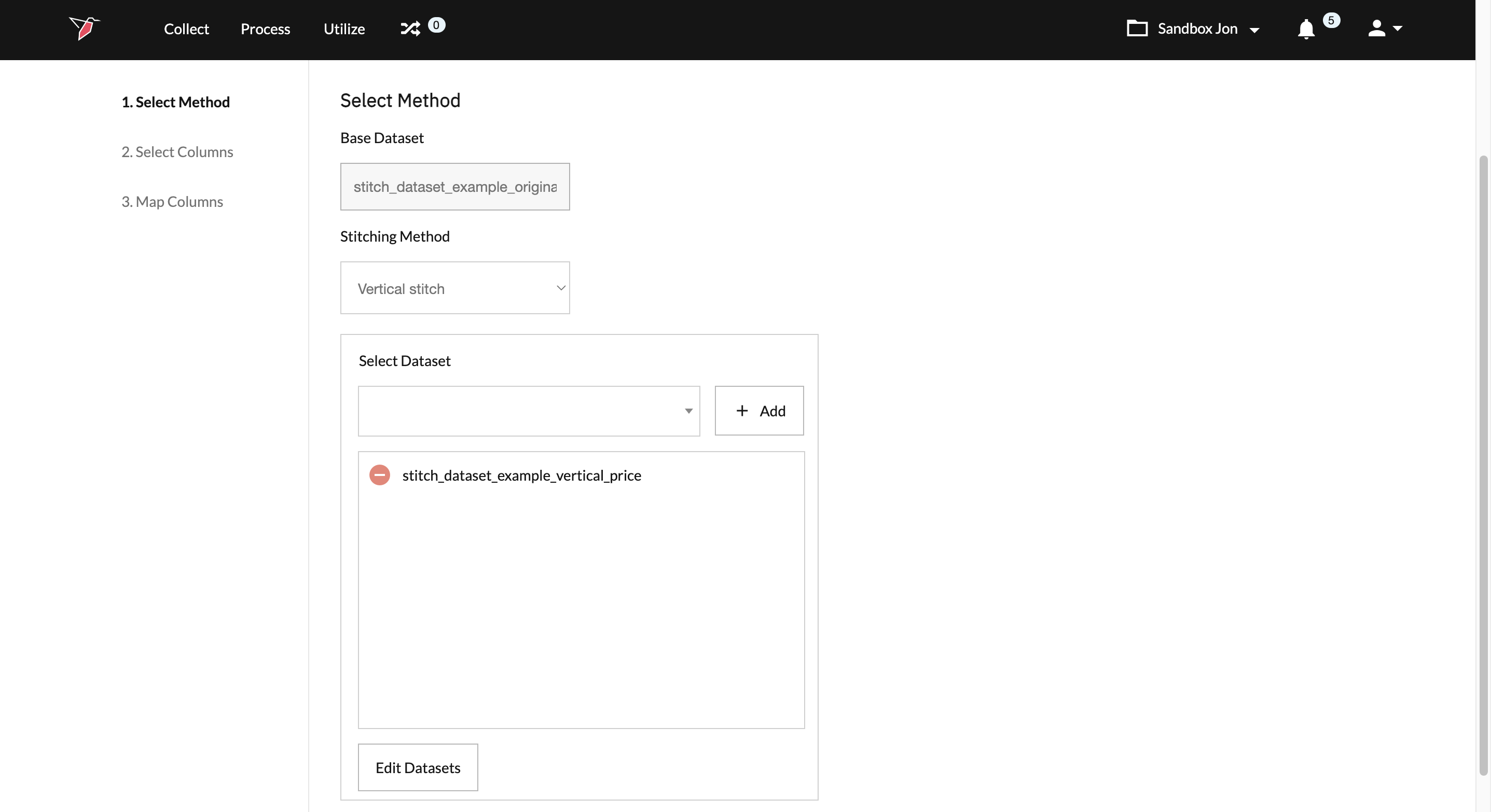
- Select and add the dataset you want to stitch with your original dataset. If your project requires, you can select multiple datasets to stitch with your original dataset.
- Click Next located on the top right of the screen to continue the configuration process.
- Select the columns from each of your datasets that should be included in the operation’s output.
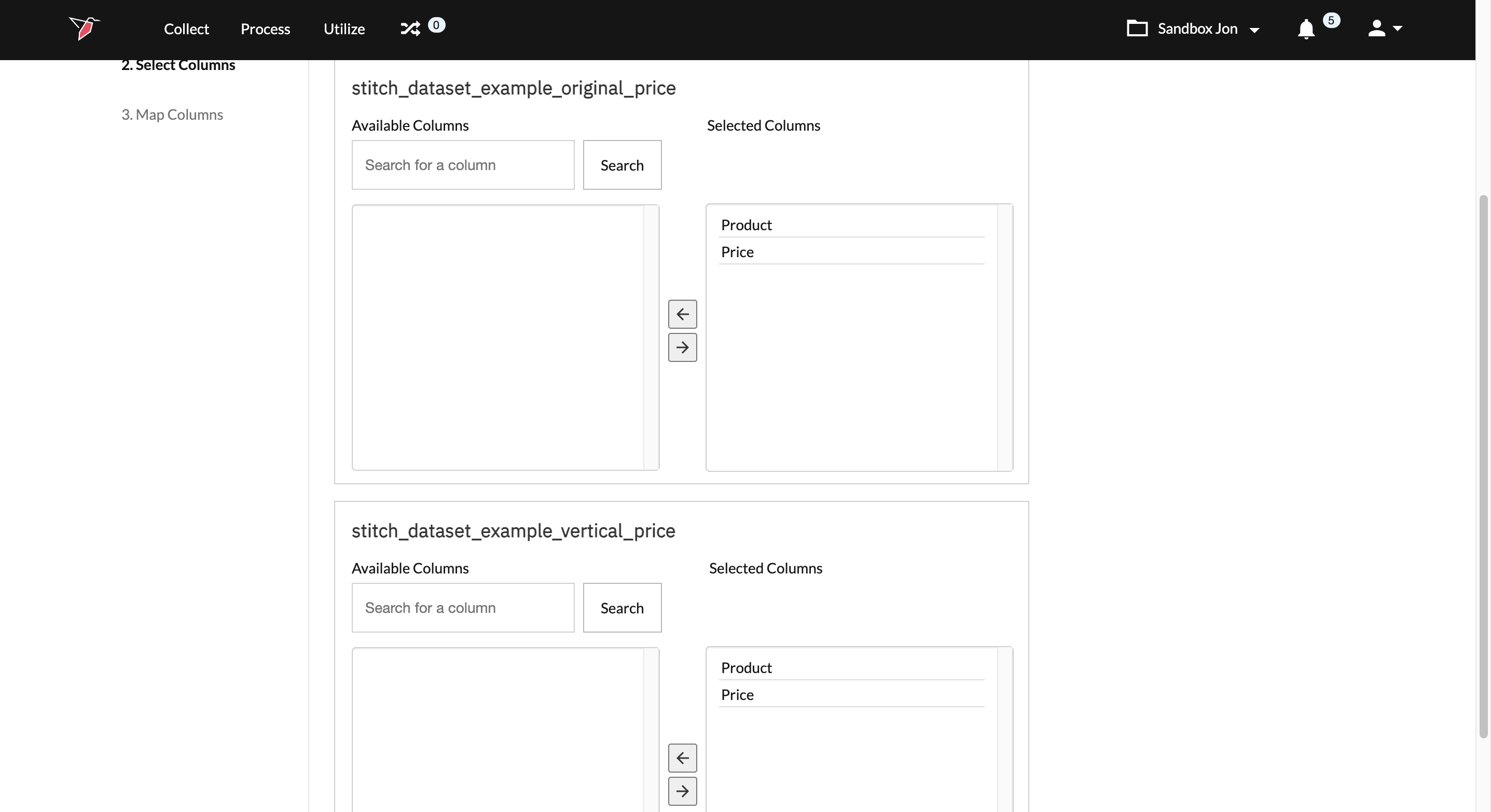
- Click Next located on the top right of the screen to continue the configuration process.
- Map the columns in the new dataset to the corresponding columns in the original dataset. If the columns in your new dataset match the columns in your original dataset, you can use the button that reads Auto-map columns with matching names.
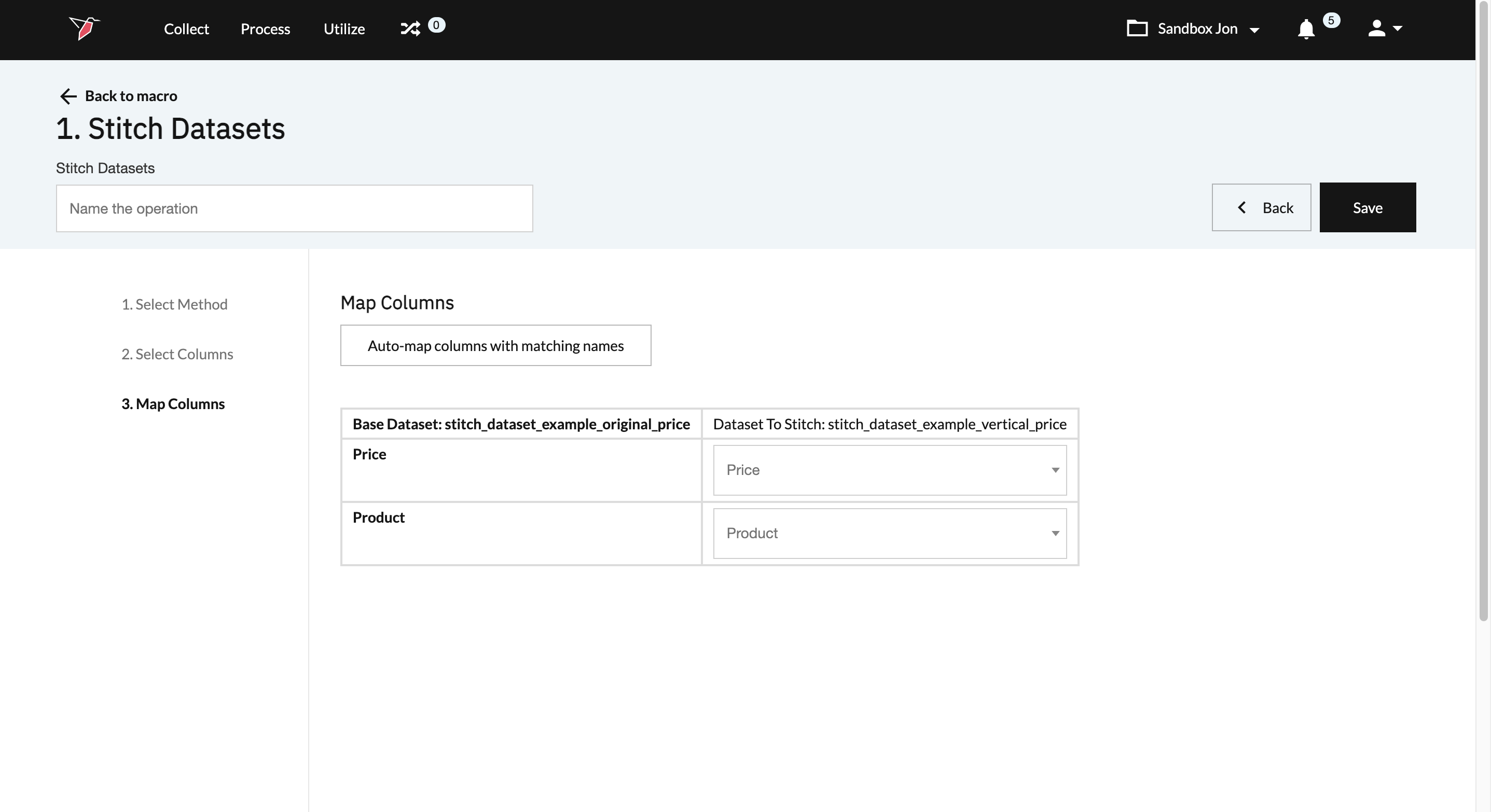
- Click Save located on the top right of the screen to complete the configuration process.
- Run the macro.
Configure a Horizontal Stitch
To configure a horizontal stitch follow the below steps using the Stitch Dataset operation within Redbird’s Macro Builder.
- Select Horizontal Stitch as your Stitching Method.
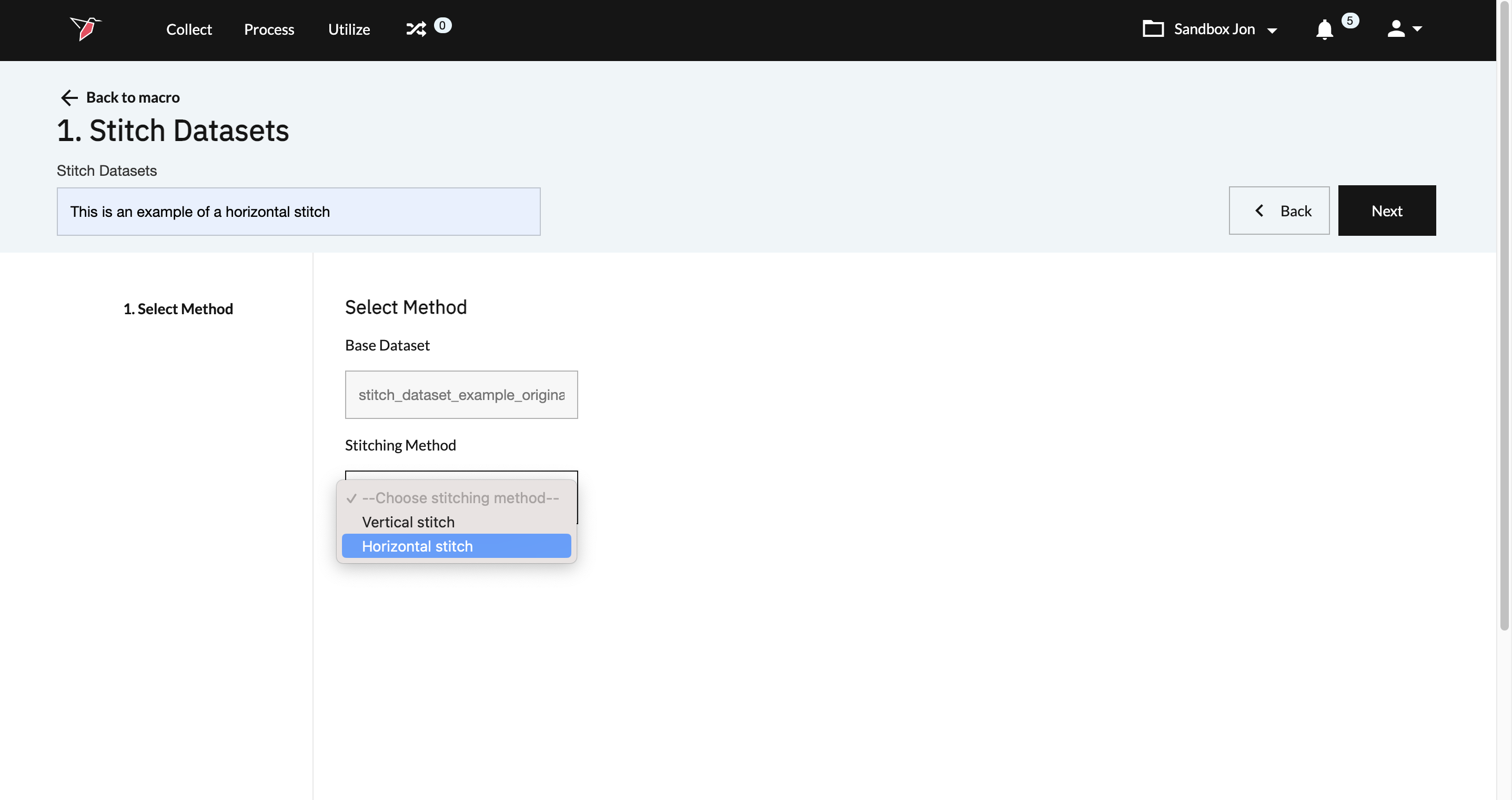
- Select the Stitching Method Type you would like to perform. Your options include Left Outer Join, Inner Join, and Full Outer Join. For a full review on how these stitching methods work, please refer to the How it Works section of the article. For our illustrative purposes, we are going to select Left Outer Join.
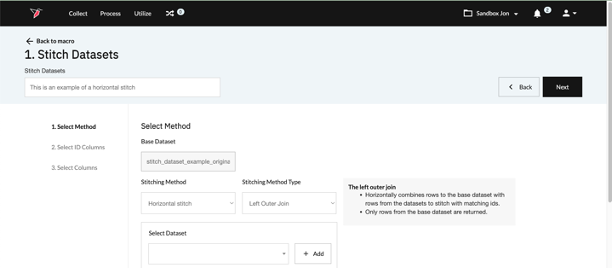
- Select and add the dataset you want to stitch with your original dataset. If your project requires, you can select multiple datasets to stitch with your original dataset.
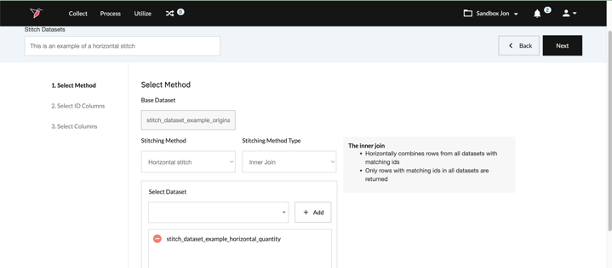
- Click Next located on the top right of the screen to continue the configuration process.
- Select the column(s) that will be used to combine the datasets. These column(s) must contain values that are common to one another to allow for the data to be properly stitched.
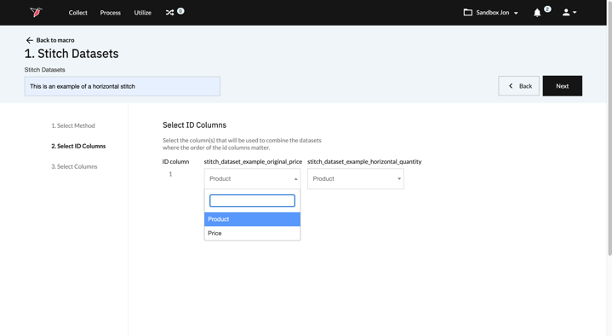
- Click Next located on the top right of the screen to continue the configuration process.
- Select the columns from each of your datasets that should be included in the operation’s output. Columns that you identified as necessary to combine the datasets in step 7 will automatically be included in the output and do not need to be addressed here. All columns that remain in the left panel will not be included in the final output.
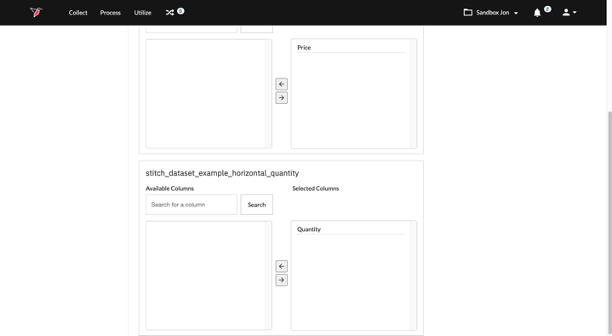
- Click Save located on the top right of the screen to complete the configuration process.
- Run the macro.
Updated 8 months ago