

Filter Operation
Background
Once a dataset has been loaded into Redbird, you may require to filter it by a certain value in your dataset, to create a subset of the data to work from. You can complete this task by using Redbird’s Filter operation in the Macro Builder tool.
How it works
To demonstrate how the Filter operation works, we are going to walk through an example using data from a fictitious superstore that sells a variety of products.
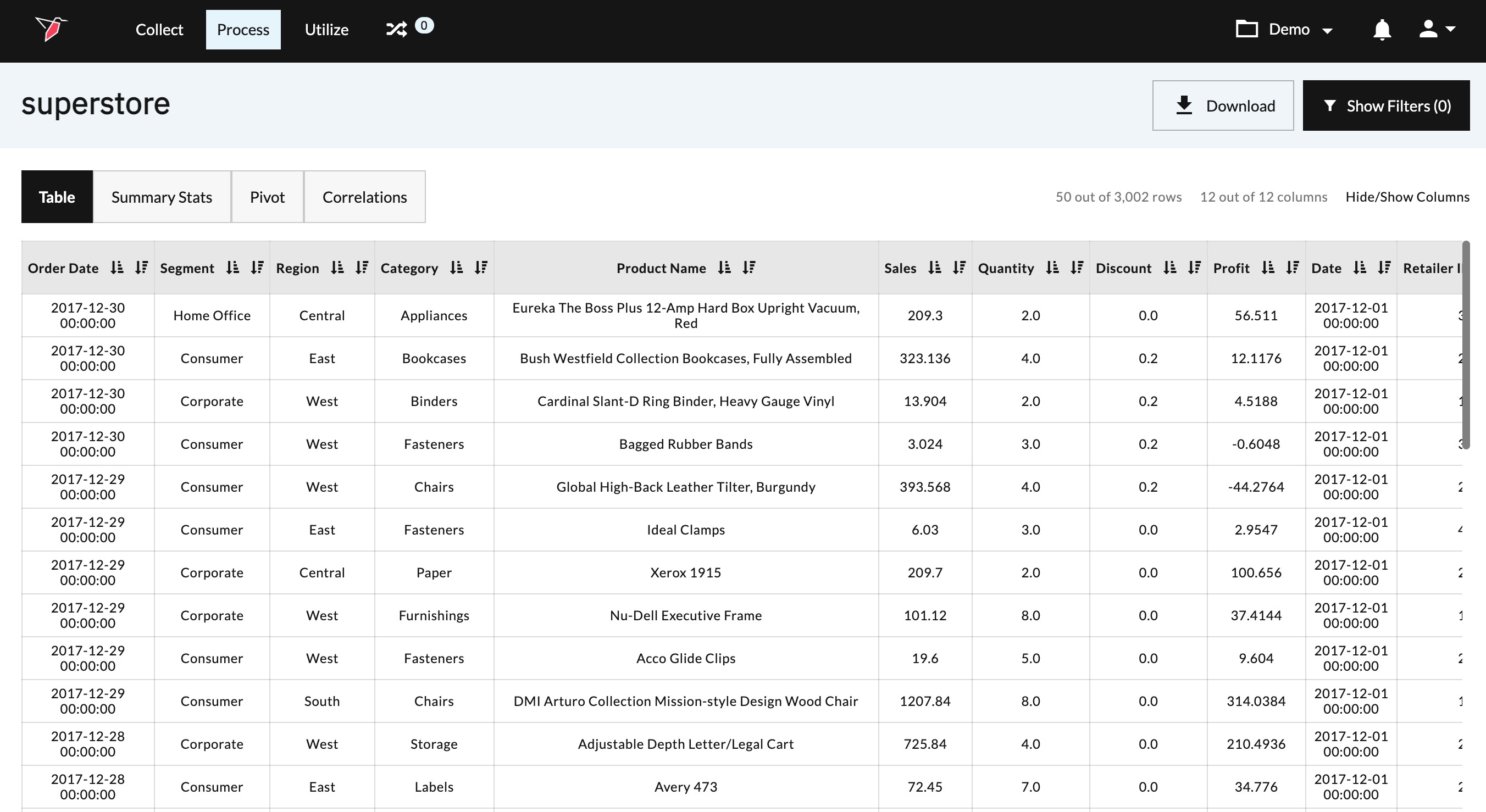
The data below was uploaded into Redbird and contains twelve columns including those denoting business Segment and Sales. The full data set contains 3,002 rows.
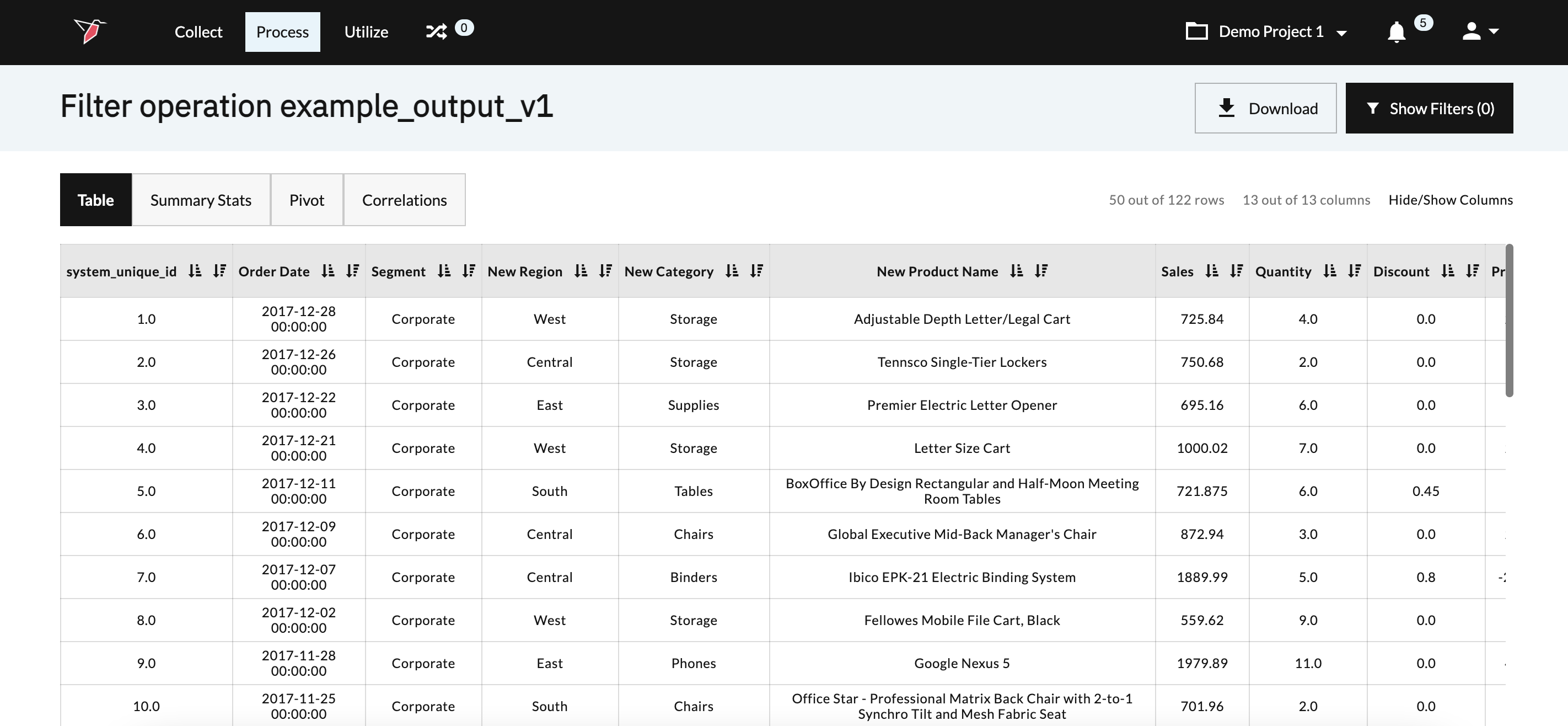
After filtering the dataset on the Corporate Segment where sales were above $500, it contains just 122 rows and looks as follows:
Configure a Filter Operation
To configure the Filter operation, please follow the below steps.
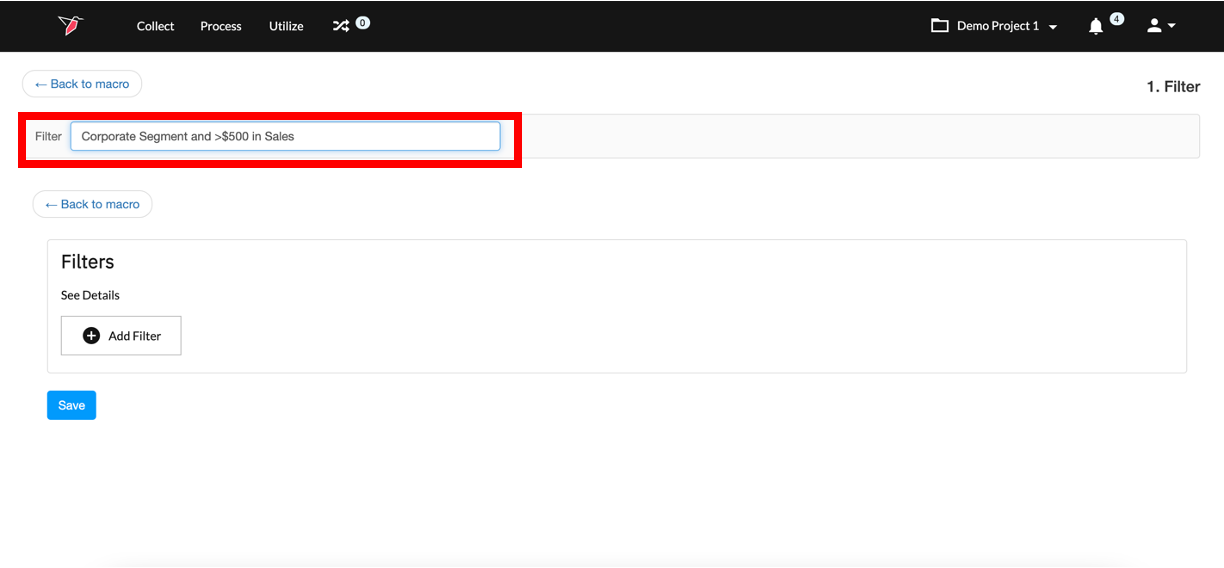
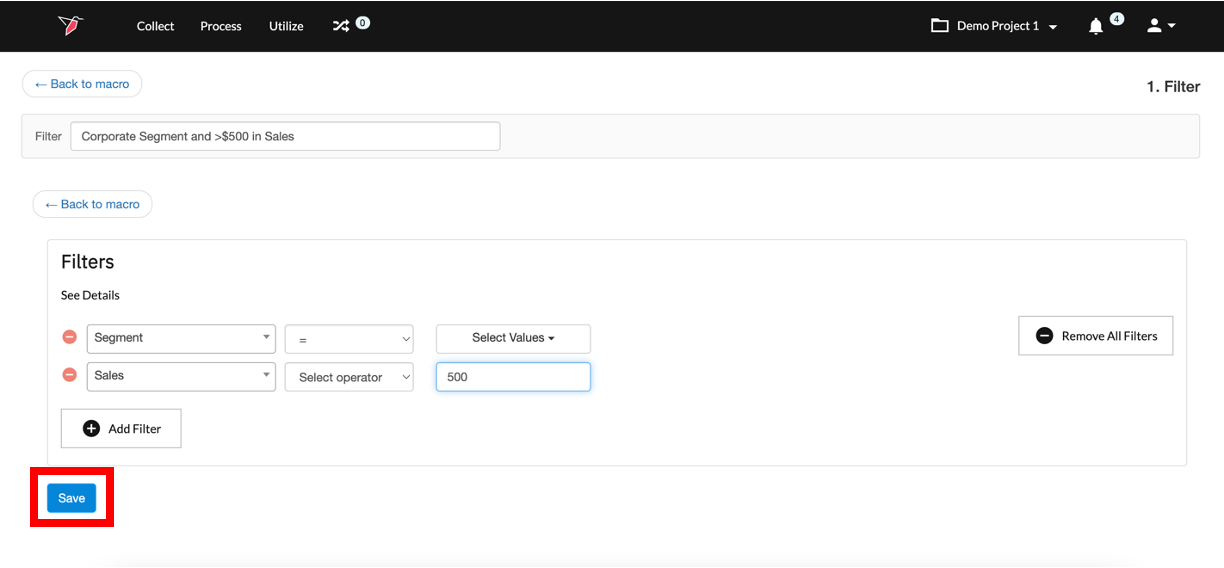
- Provide your configuration with a description for future reference. This description will be associated with the operation and will be visible within the Macro Builder.
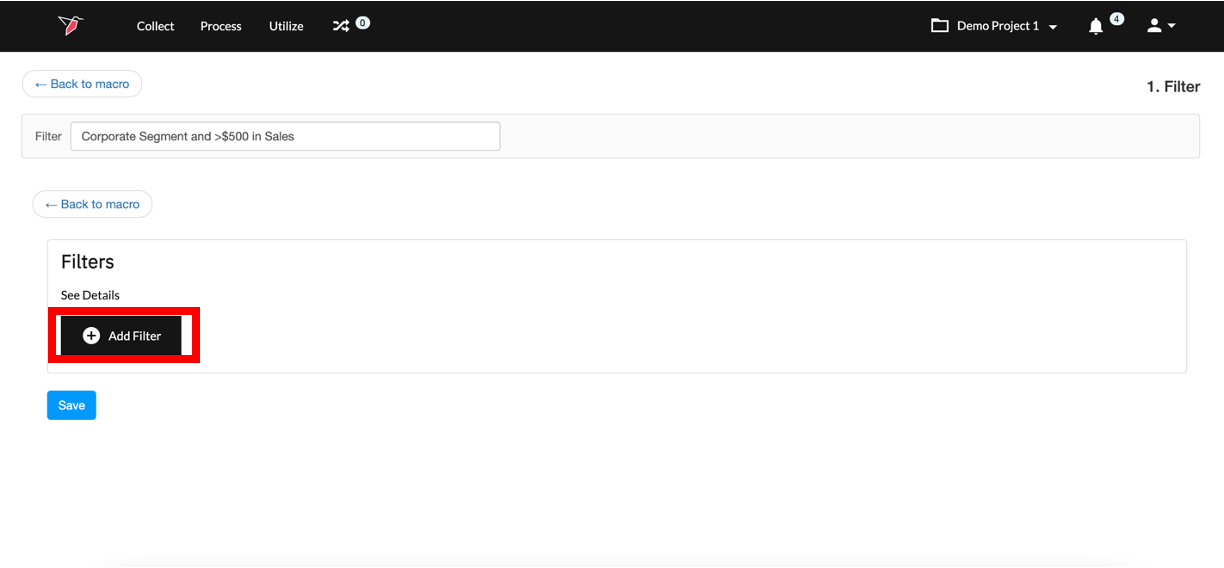
- Click Add Filter to enter the filter selection menu.
- Use the Select a Column drop-down to select the column containing the values you wish to filter on. In this example, we wish to first filter based on one of the segments,
which can be accessed through the Segment column.
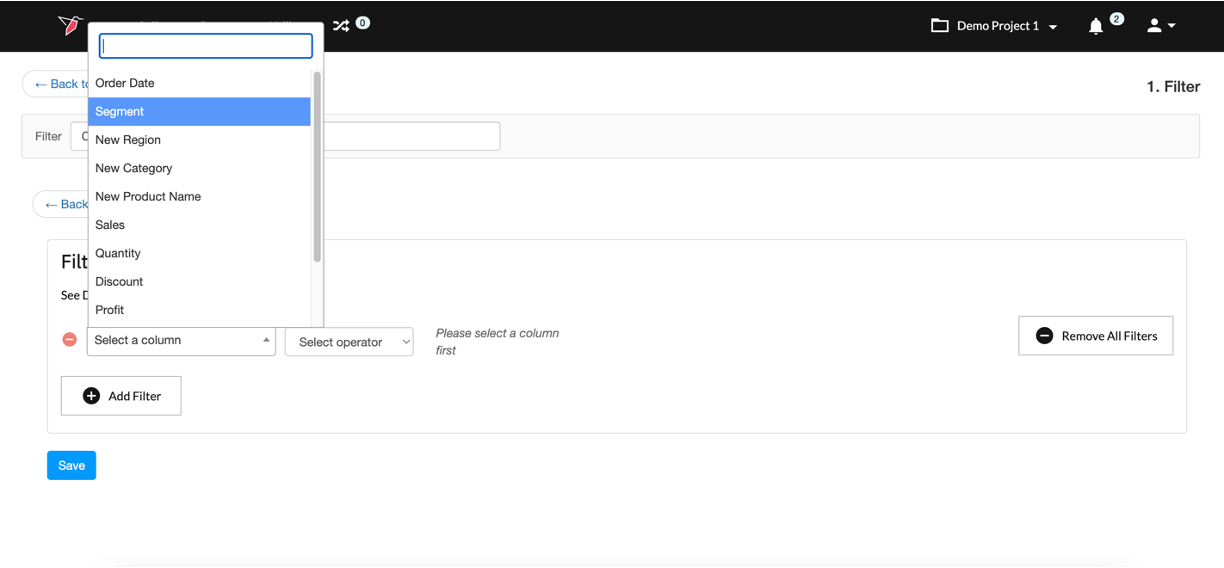
- Then use the Select Operator drop-down to choose the operator to apply the desired filter logic
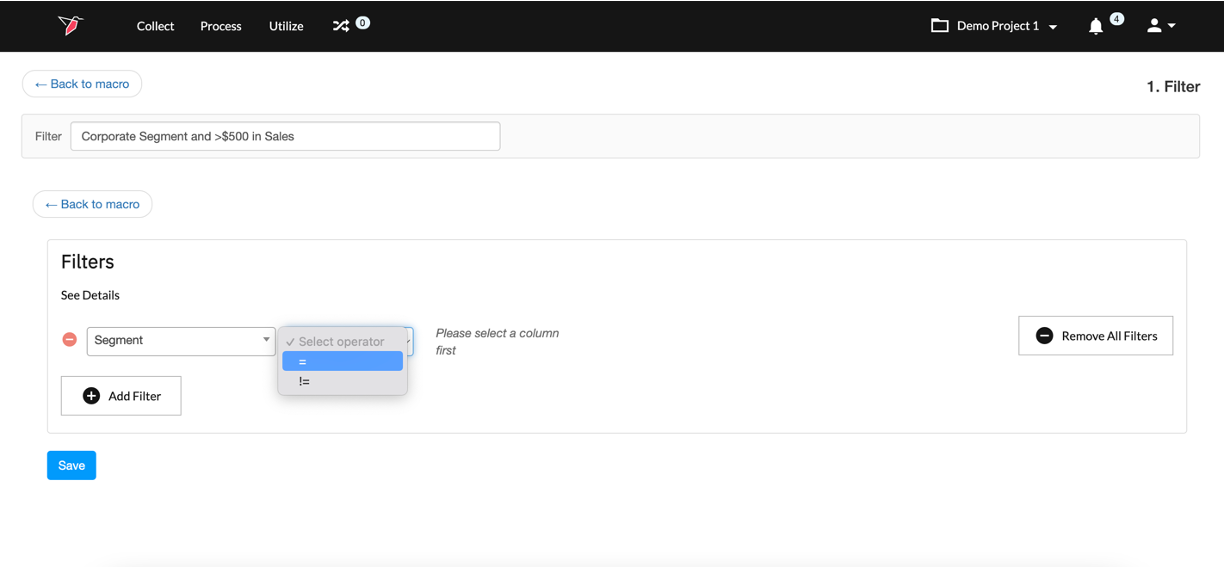
NoteThe operators available vary dependent on the data type of the column, as follows:
Binary or Text: Equals (=), Not Equal To (!=)
Number: Equals (=), Not Equal To (!=), Less Than (<), Less Than Or Equal To (<=), More Than (>), More Than Or Equal To (>=)
Date: Equals (=), Not Equal To (!=), Less Than (<), Less Than Or Equal To (<=), More Than (>), More Than Or Equal To (>=), Last (x) Days, Last (x) Weeks, Last (x) Months, Last (x) Quarters, Last (x) Years, Last (x) Dates, Year To Date (YTD).
- Lastly, use the Select Values drop-down to select the values that you wish to filter on. In this example, we wish to filter on only the Corporate segment. You may choose
multiple values if you wish.
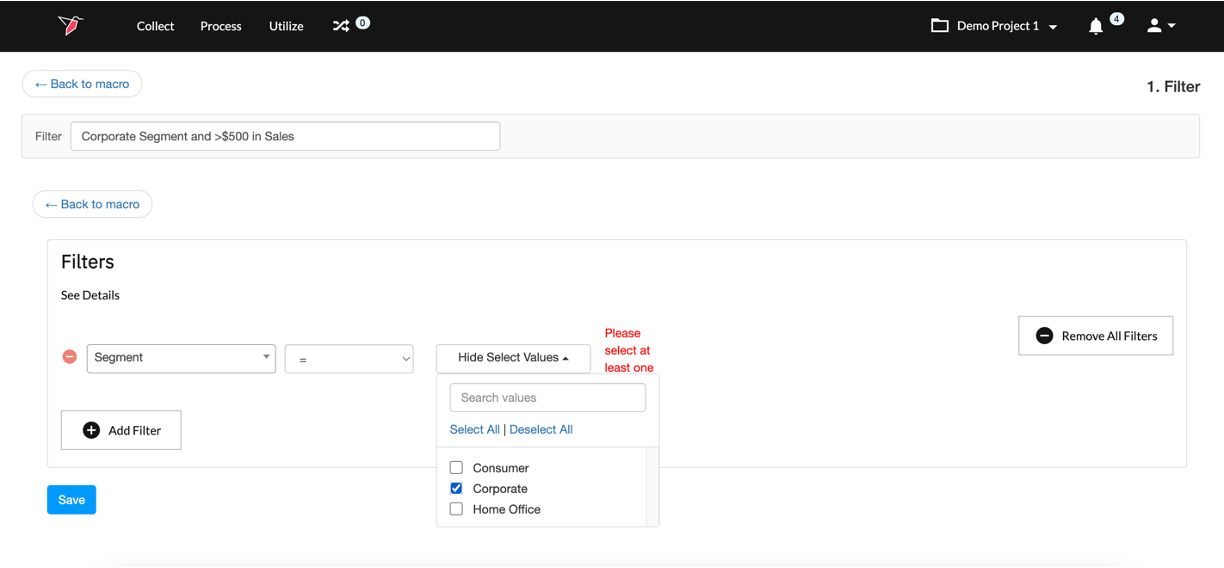
- If you only require to filter on one question then proceed directly to the next step (8) to finalize the operation.
However, you can continue to add filters should you require to filter based on multiple values (columns). To do this, follow steps 4-6 for each additional filter you wish to
add. Once you have added all the filters required, proceed to Step 8.
In our example, we will add one more filter so we can also filter on Sales over $500.
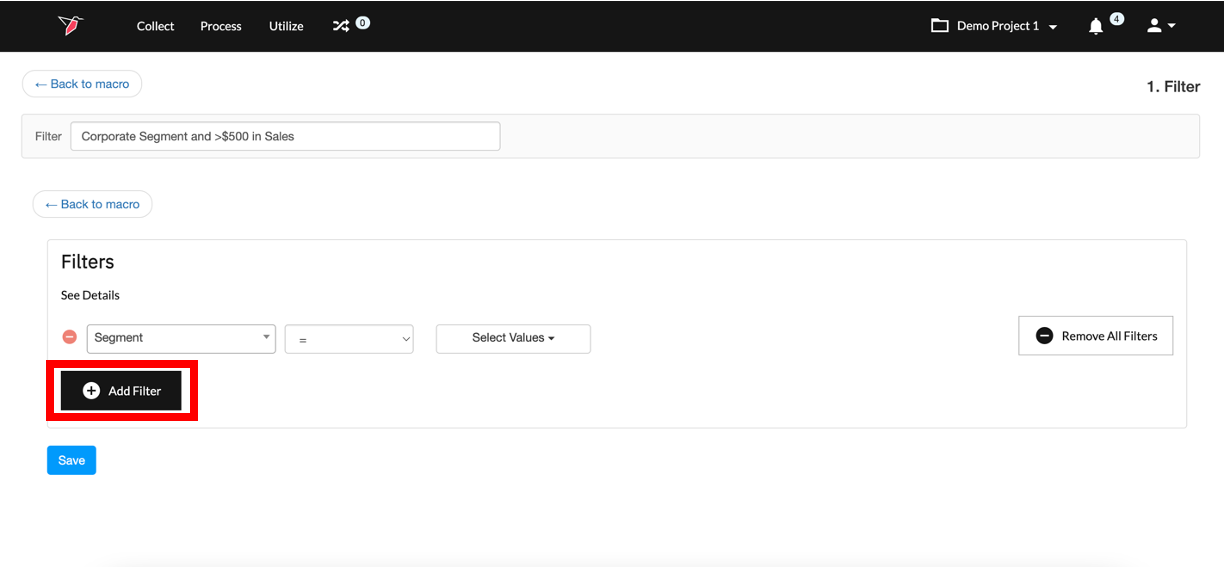
- Click Save.
Updated 8 months ago