

Add specialist AI agents
Manage the focused experts Autopilot can bring into your conversations — including ones you define yourself
Introduction
Specialist agents are focused experts that Autopilot can bring into a conversation when a request falls in their area of expertise. You don't call them directly — Autopilot decides when a specialist is the right tool for what you asked, hands the work over, and brings the results back into your chat.
There are two kinds:
- Redbird Specialists — provided out of the box, like the Data Science Specialist used for forecasting and modeling.
- Custom Specialists — experts you define yourself, with your own rules for when they should step in, how they should think, and what they should do.
Where specialists live
Open the Resources panel on the left and expand Specialist AI Agents. You'll see both groups, each specialist with an on/off toggle: switched on, Autopilot can bring that specialist into the conversation; switched off, it's excluded — without deleting anything.
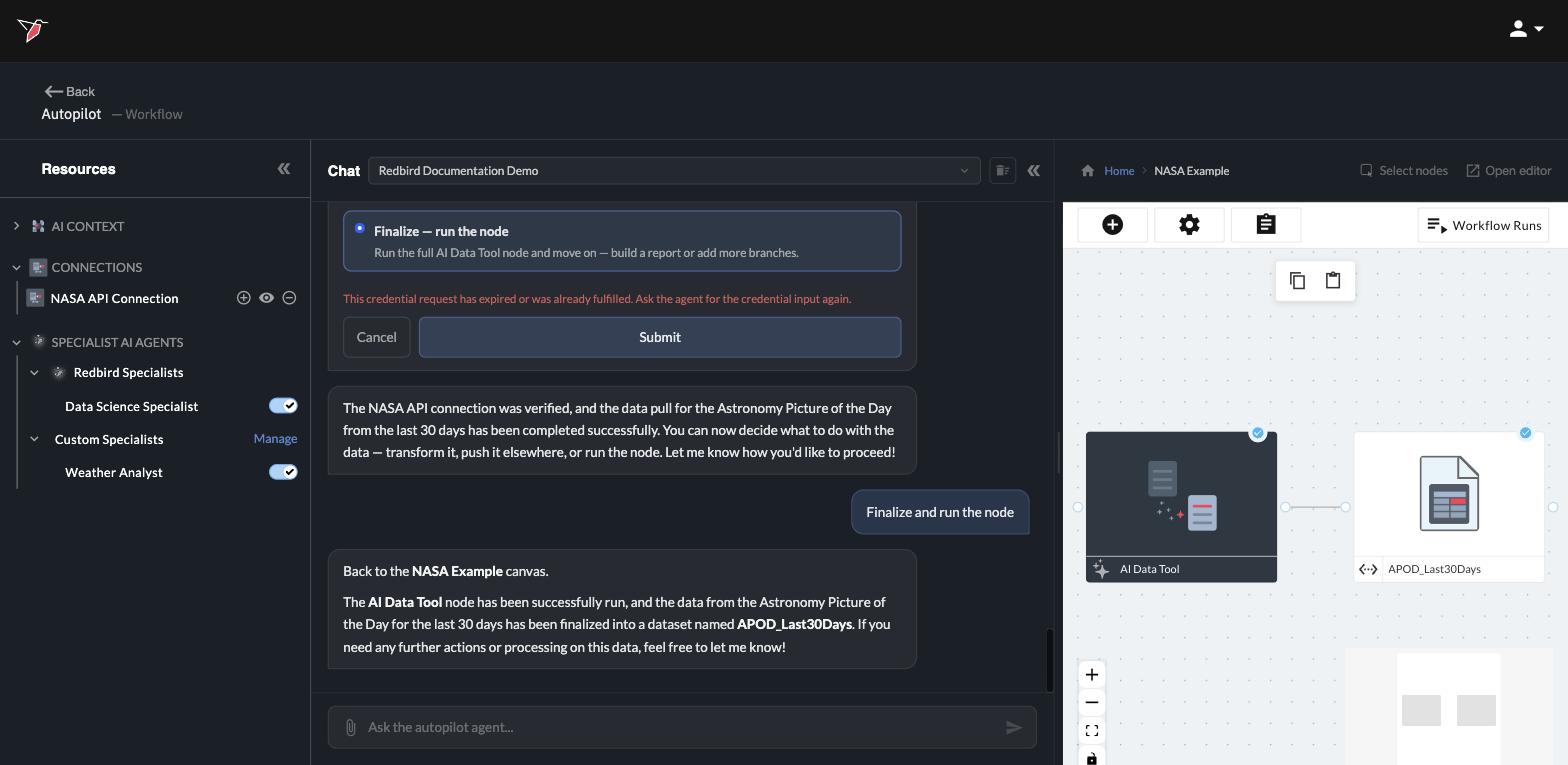
Add or edit a custom specialist
Click Manage next to Custom Specialists to open the Specialist Agents page. Your custom specialists are listed on the left — click + New specialist to create one, or select one to edit it. (Redbird-provided specialists aren't edited here; they're managed for you and controlled through their toggle only.)
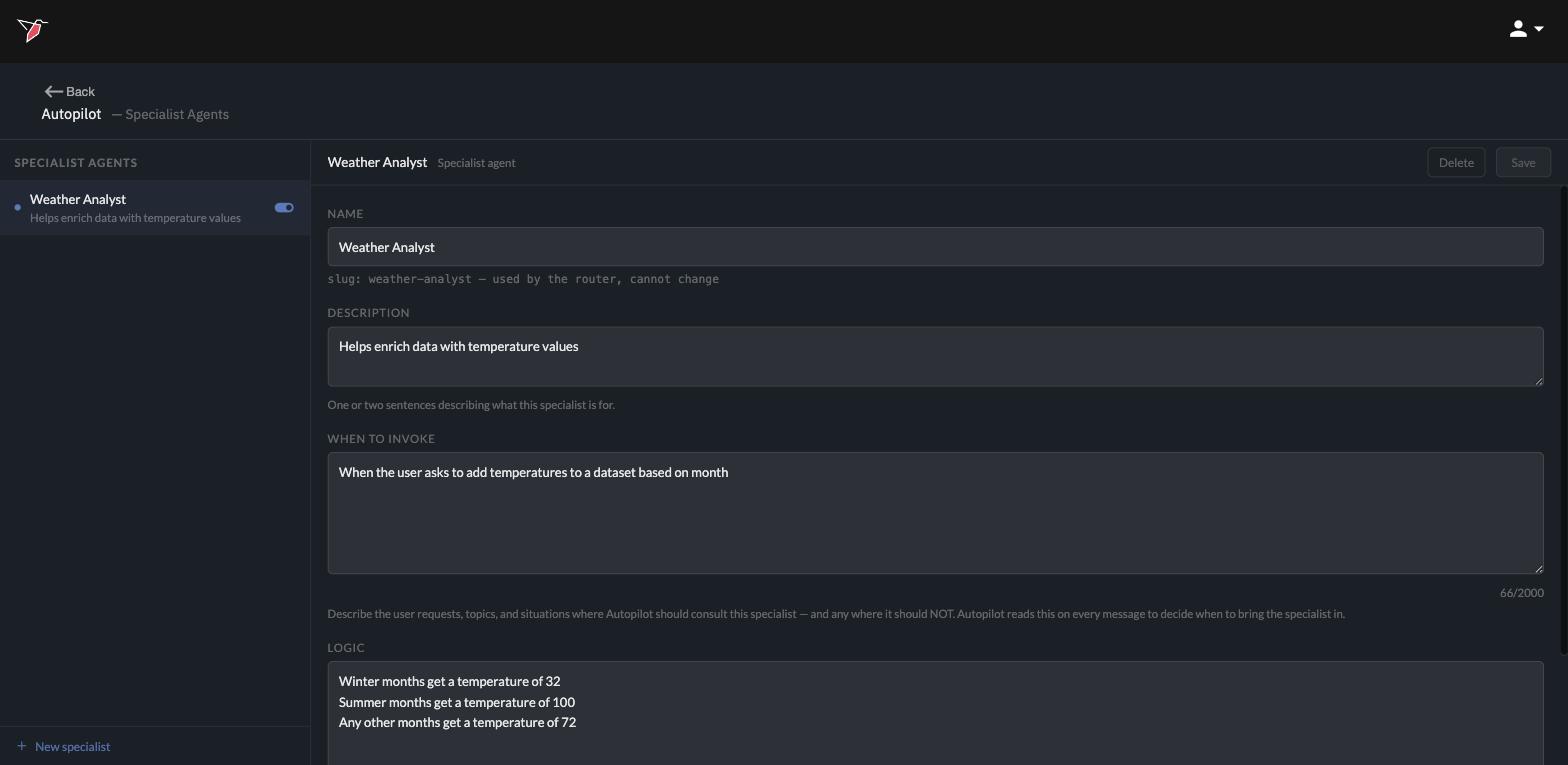
Each specialist is defined by four fields:
- Name — what the specialist is called. (Its internal identifier is set when it's created and doesn't change afterward.)
- Description — one or two sentences on what this specialist is for.
- When to invoke — the important one: describe the requests, topics, and situations where Autopilot should consult this specialist — and anywhere it should not. Autopilot reads this on every message to decide when to bring the specialist in.
- Logic — the specialist's thinking style and rules for its scenarios. Specialists automatically get read-only tools for exploring your data and drafting plans; this field tells them how to apply those tools in your domain.
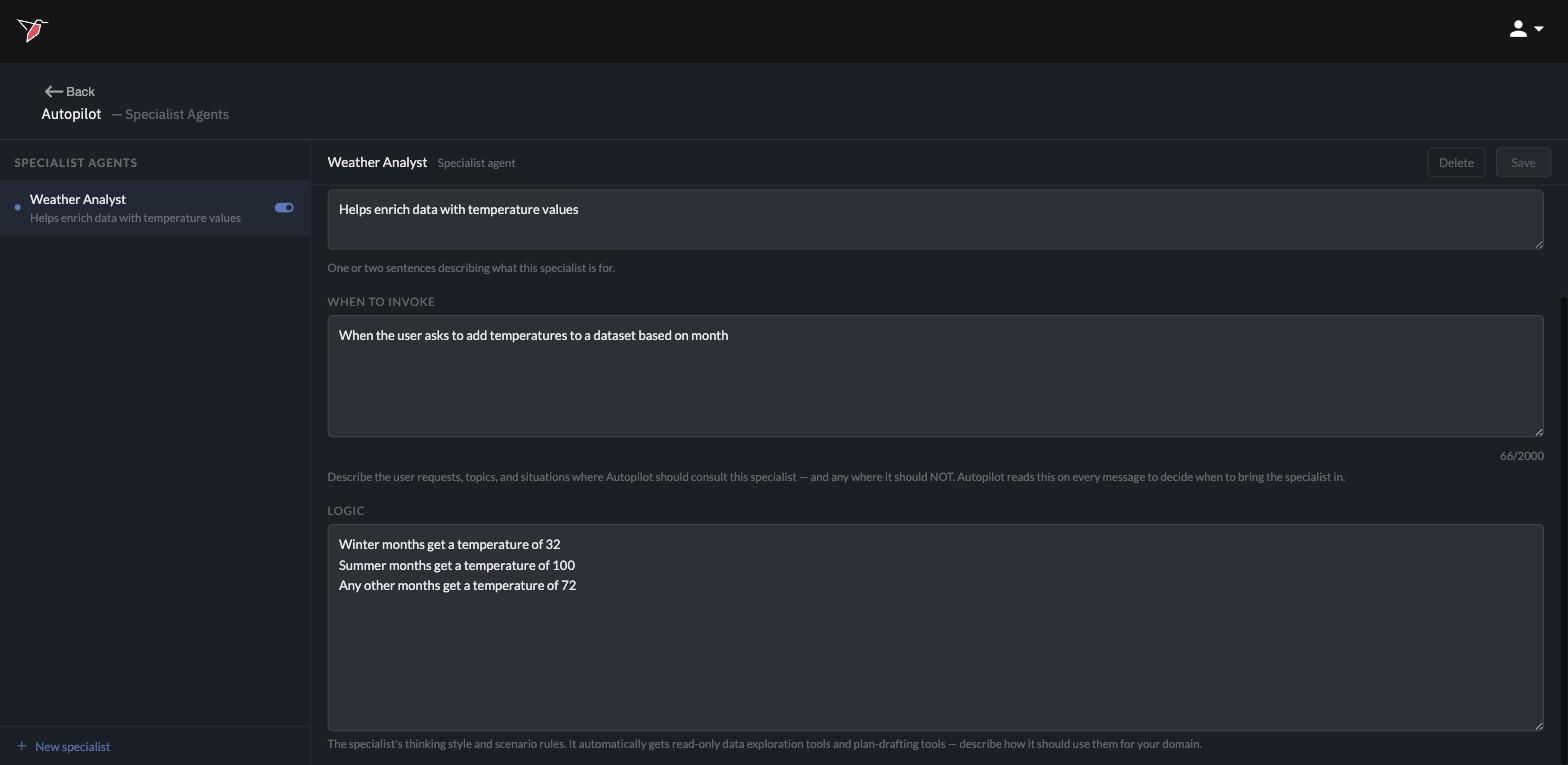
Use Save to keep your changes, or Delete to remove a custom specialist entirely. If you just want a specialist to sit out for a while, use its toggle in the Resources panel instead — deleting removes its definition for good.
Using a specialist
Once a specialist is toggled on, there's nothing more to set up: make requests as usual, and Autopilot brings the specialist in when its "when to invoke" description applies. You can also ask for one explicitly:
Ask the data science specialist to forecast total sales for the next quarter
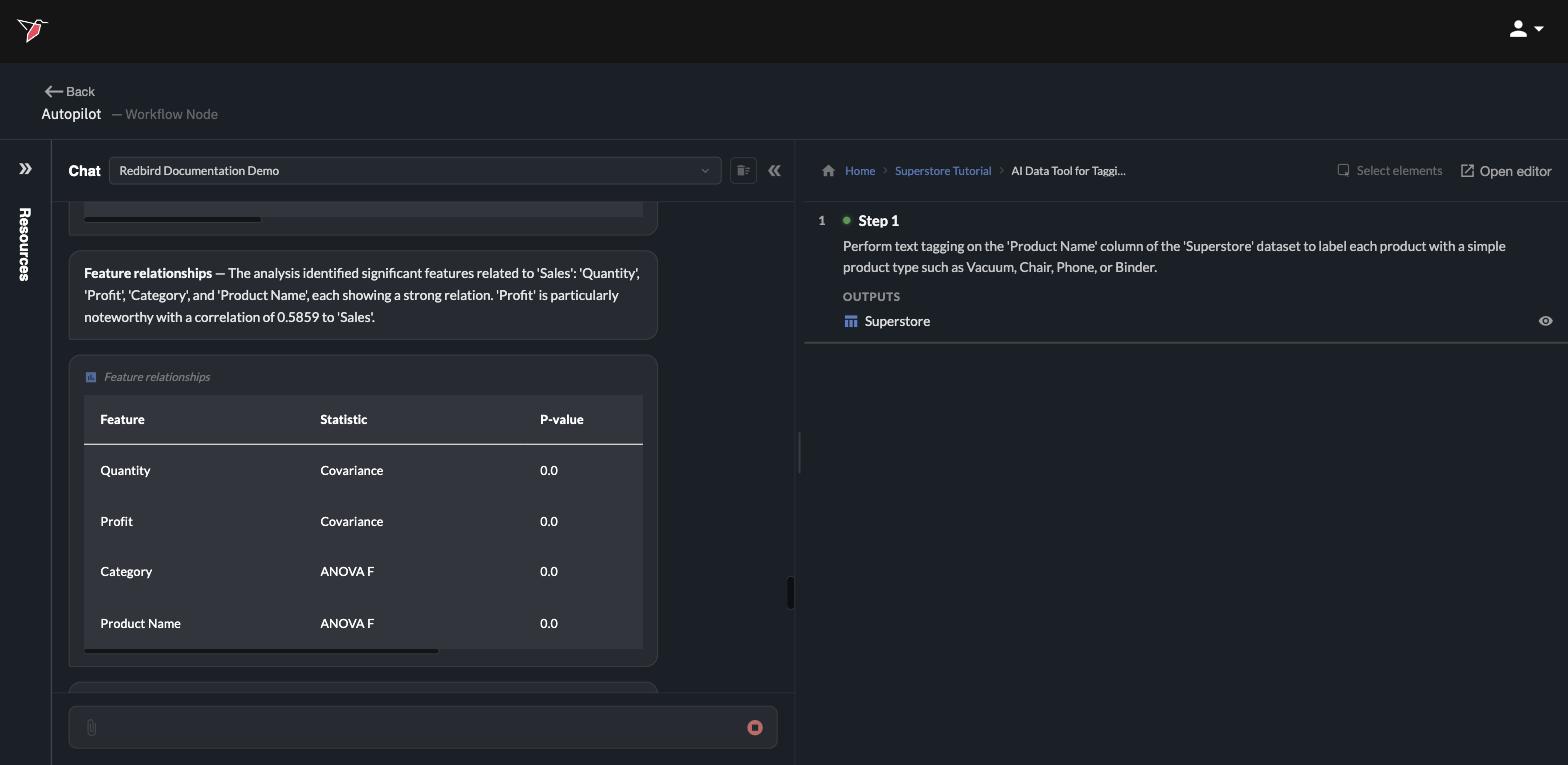
The specialist works in the open — narrating its steps and sharing its findings directly in your chat.
Good custom specialists are narrow. The best "when to invoke" descriptions name specific request types ("when the user asks to add temperatures to a dataset based on month") rather than broad topics — the crisper the trigger, the more reliably Autopilot brings the right expert in at the right time.
Updated 4 days ago