

Redbird Datasets and File Collections
Understand the difference between Redbird Datasets and File Collections, how each is created during data ingestion, and how they are used within workflows across the platform.
Datasets in Redbird
Redbird supports two primary dataset types:
- Redbird Tabular Datasets
- File Collections
Which type is created depends on how your data is uploaded.
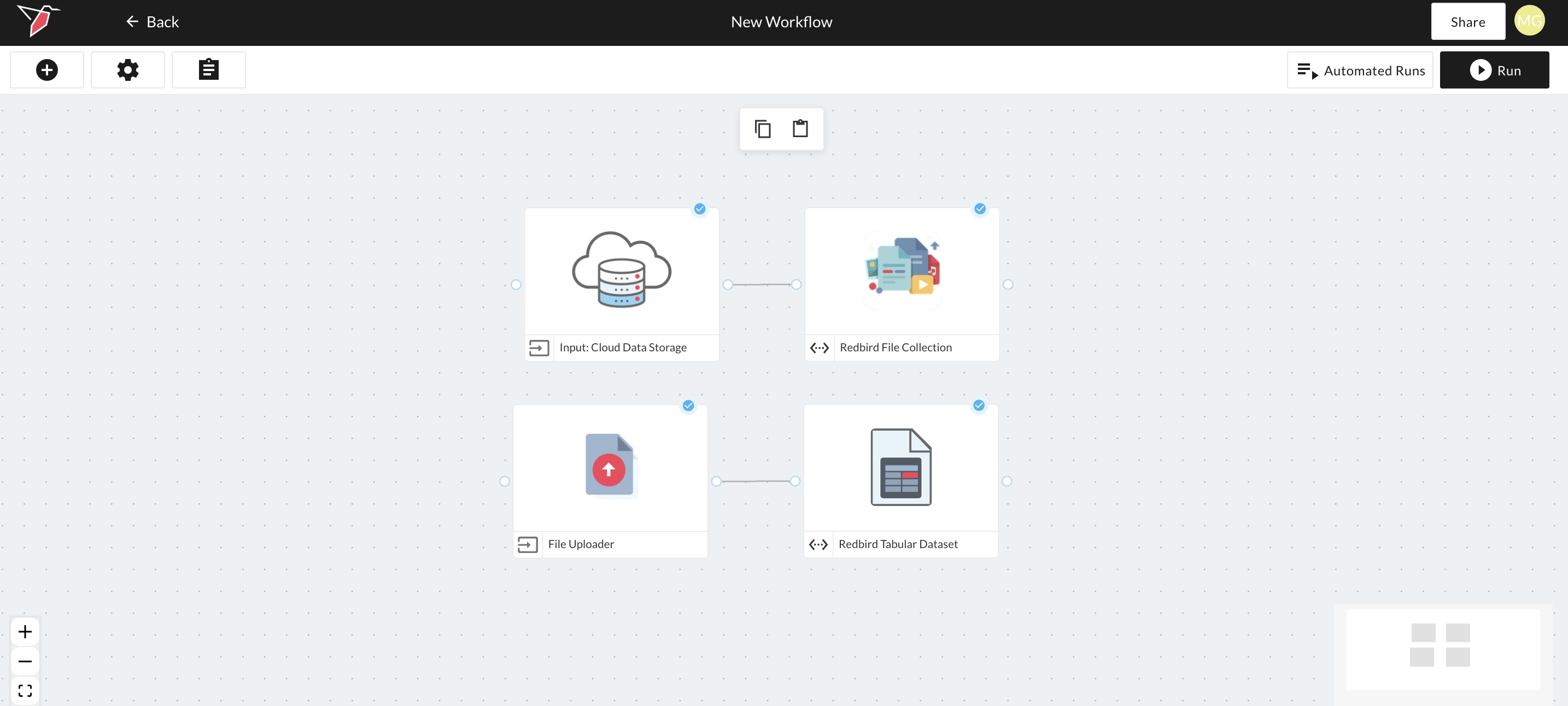
Redbird Tabular Datasets
If you upload:
- A CSV file
- A Google Sheet with single sheet
- An Excel file containing a single sheet
And Redbird recognizes it as a clean, structured table, it will automatically generate a standard Redbird tabular dataset.
These datasets:
- Will create a dataset node when run
- Appear under Redbird Objects within AI tools such as AI DT or AI Chat
- Will have column types automatically assigned and AI metadata generated
- Can connect immediately to dashboards
- Support append + replace upload methods
See: Configuring Redbird Datasets for more information.
File Collections
Redbird creates a File Collection node when:
- Multiple documents are uploaded at once (even if structured), or
- The uploaded file is unstructured.
An unstructured file is one that does not contain a single clean tabular dataset in standard cell format — for example:
- PDFs
- Multi-tab (sheet) Excel files
- Word documents
- PowerPoint files
In these cases, Redbird uses AI agents and computer vision to scan the documents, extract relevant information, and convert it into structured tabular format when needed.
File Collections:
- Appear under the ingestion source in AI nodes such as AI DT (e.g. File Uploader, Google Drive, Email Collect)
- Support Replace only (no Append)
- Require extraction or transformation before being used as a standard dataset
See: Using File Collections with the AI Data Tool
Previewing Documents in a File Collection Node
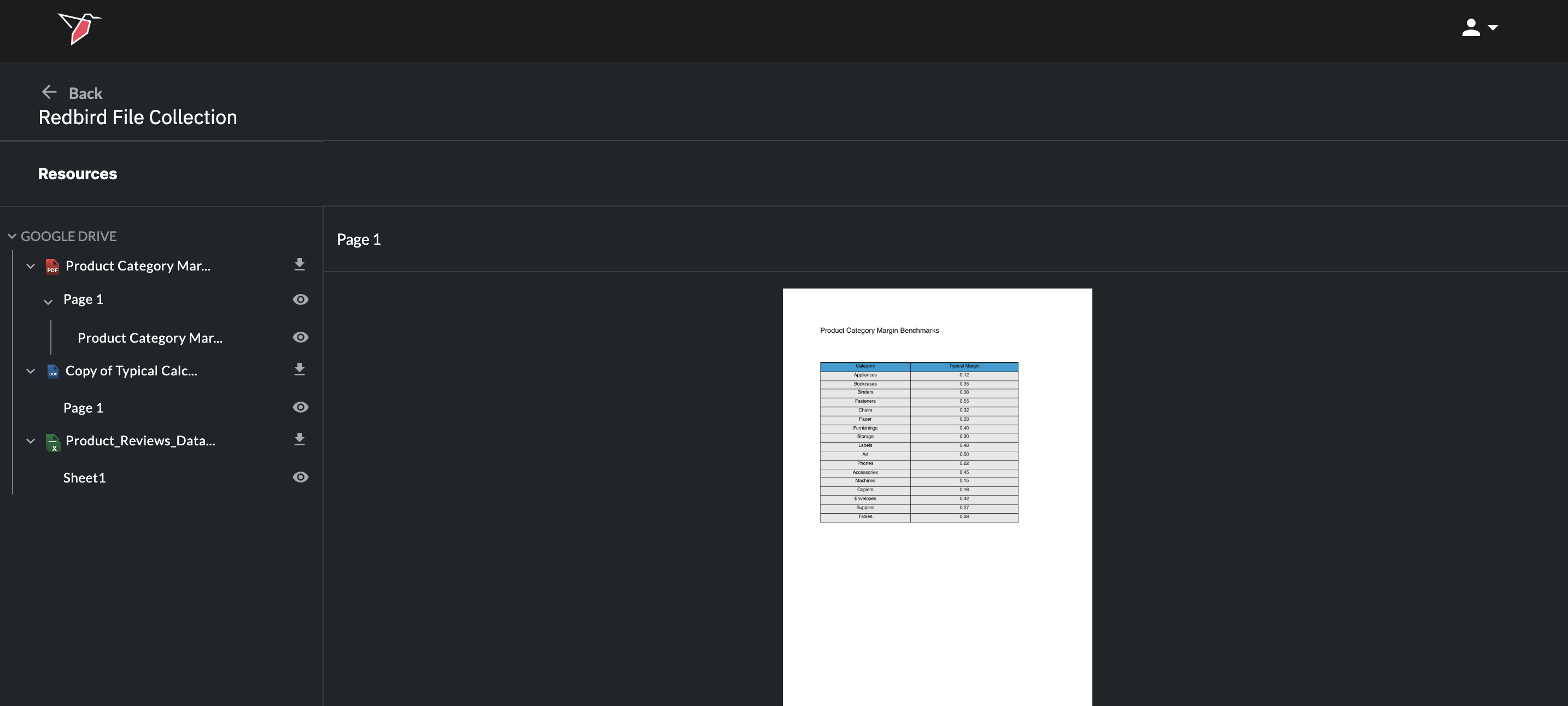
From a File Collection node, you can preview the collected documents by:
- Double-clicking the node, or
- Clicking the node and selecting Explore in the right-hand side panel
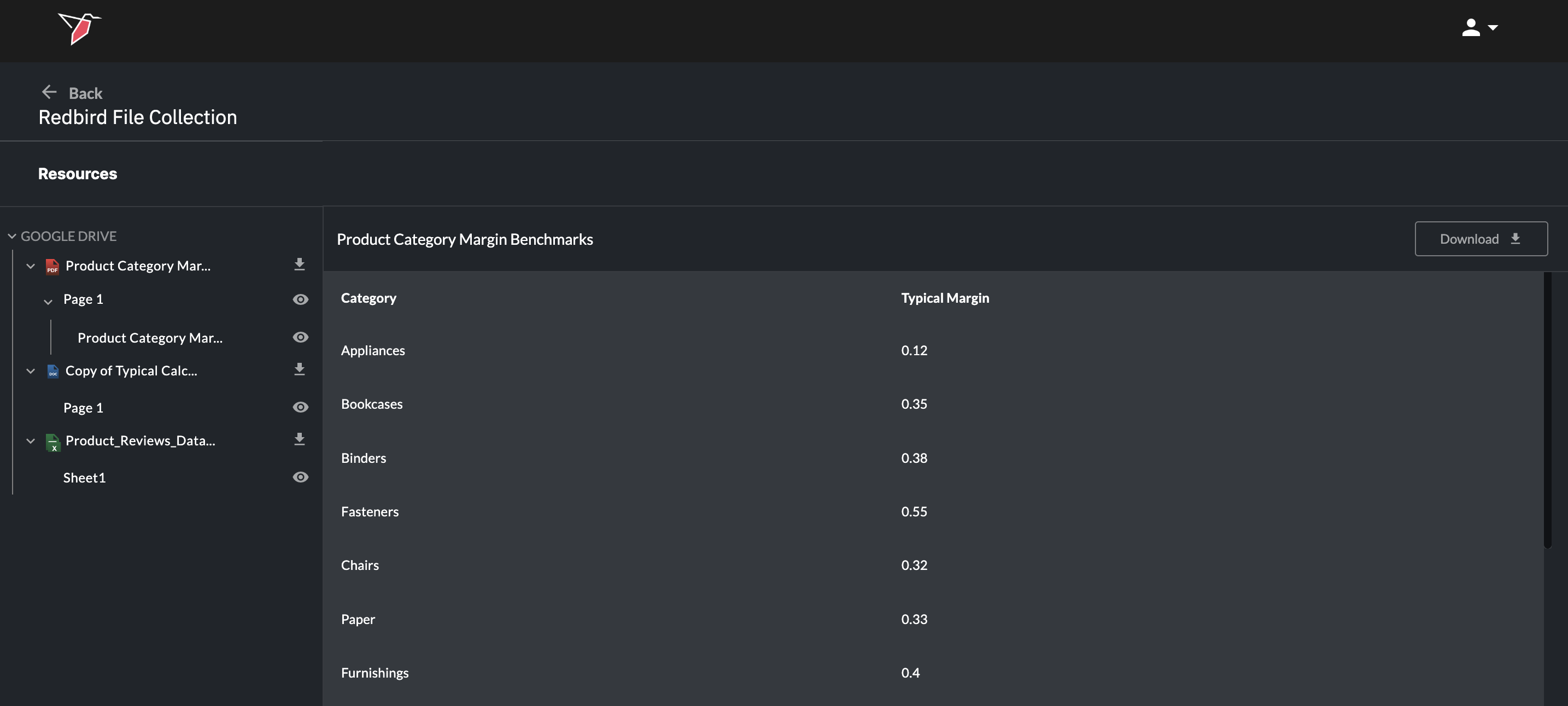
Within the Explore view, you can:
- Click the download icon next to each document to download a copy of the whole document, or
- Click the eye icon of the subcomponents within it (e.g. individual tabs in Excel, pages in PDFs, slides in PowerPoint, or the objects themselves e.g. tables)
These extracted components can then be referenced or used downstream as separate objects in your workflow.
Updated 8 months ago