

Dashboard Management - Copying Dashboards
Background
You may come across a scenario where you want to build a new dashboard that leverages some or all of the
work from an existing dashboard. Redbird users have the ability to make a copy of a dashboard and map it to a
new dataset as needed.
In this article, we’ll walk through a fictitious example involving a business analyst at a widget manufacturing company. She’s interested in copying an existing dashboard and mapping it to a new dataset that reflects the company’s latest production numbers.
For instance, the original dashboard includes a dynamic table highlighting widget production across various size and shape combinations. While the analyst wants to preserve this version of the dashboard for historical reference, she also wants to create a new version — identical in structure — but connected to the most recent manufacturing data.
Copy Existing Dashboard
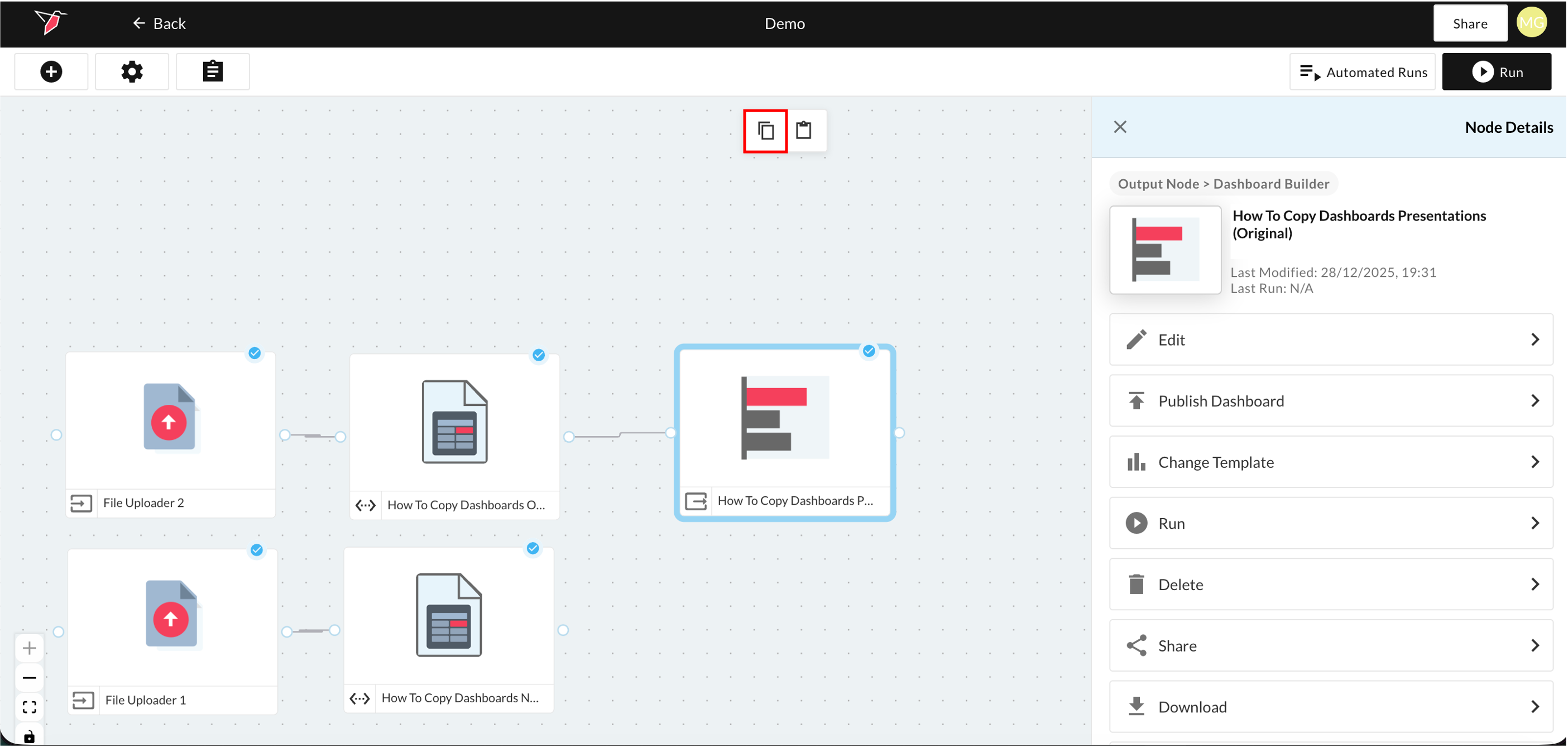
- Click the Dashboard Builder node that you want to copy and select the copy button at the top of the workflow canvas. You can place the node on the same canvas or a new one. Go to the canvas where you want to paste the copied dashboard.
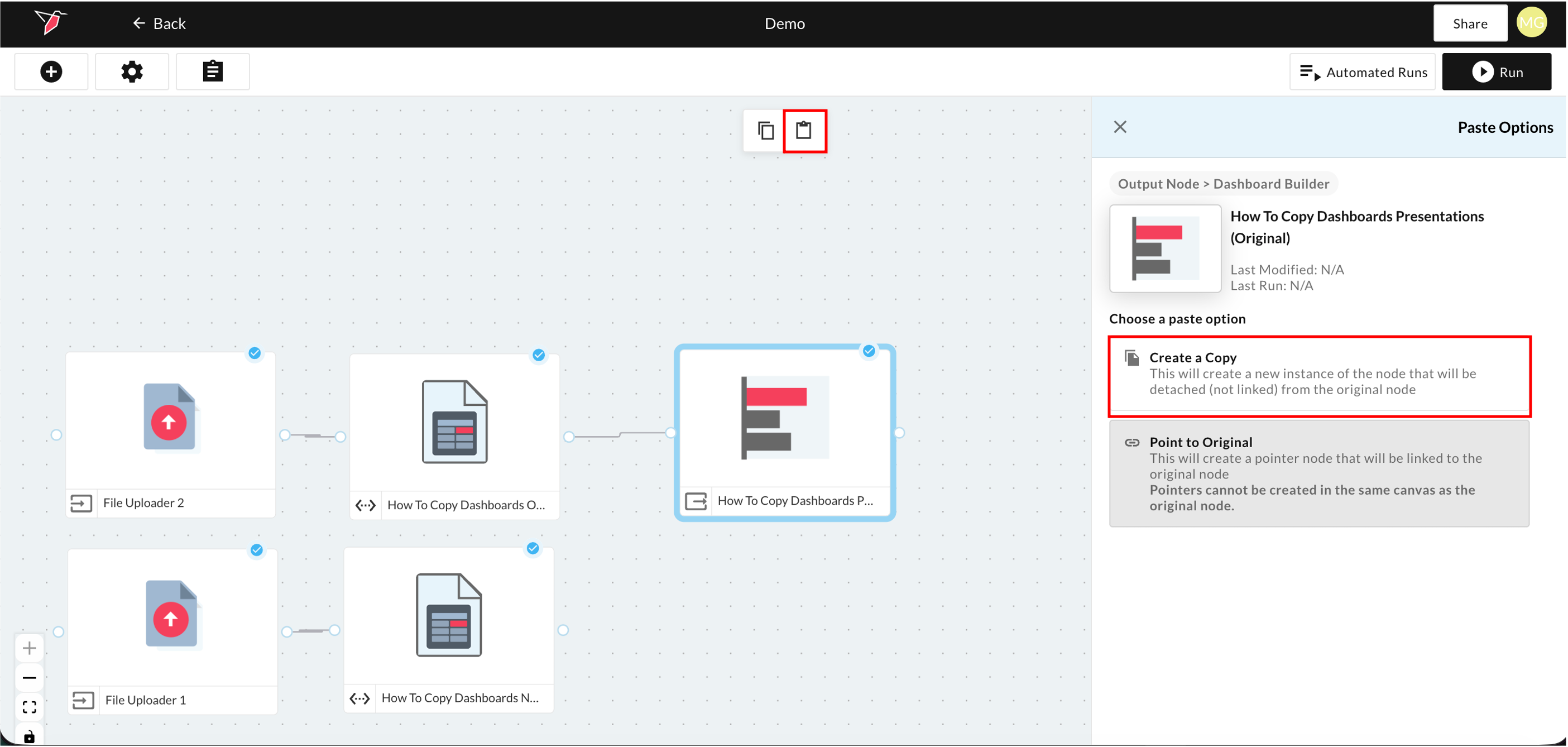
- Select the Paste icon at the top of the workflow canvas and select the "Create a Copy" option.
- Once you paste the dashboard, the Mapping Wizard page will open and you can map the new dataset to the new dashboard. Select the dataset you want to use to update your new dashboard from the New Dataset dropdown.
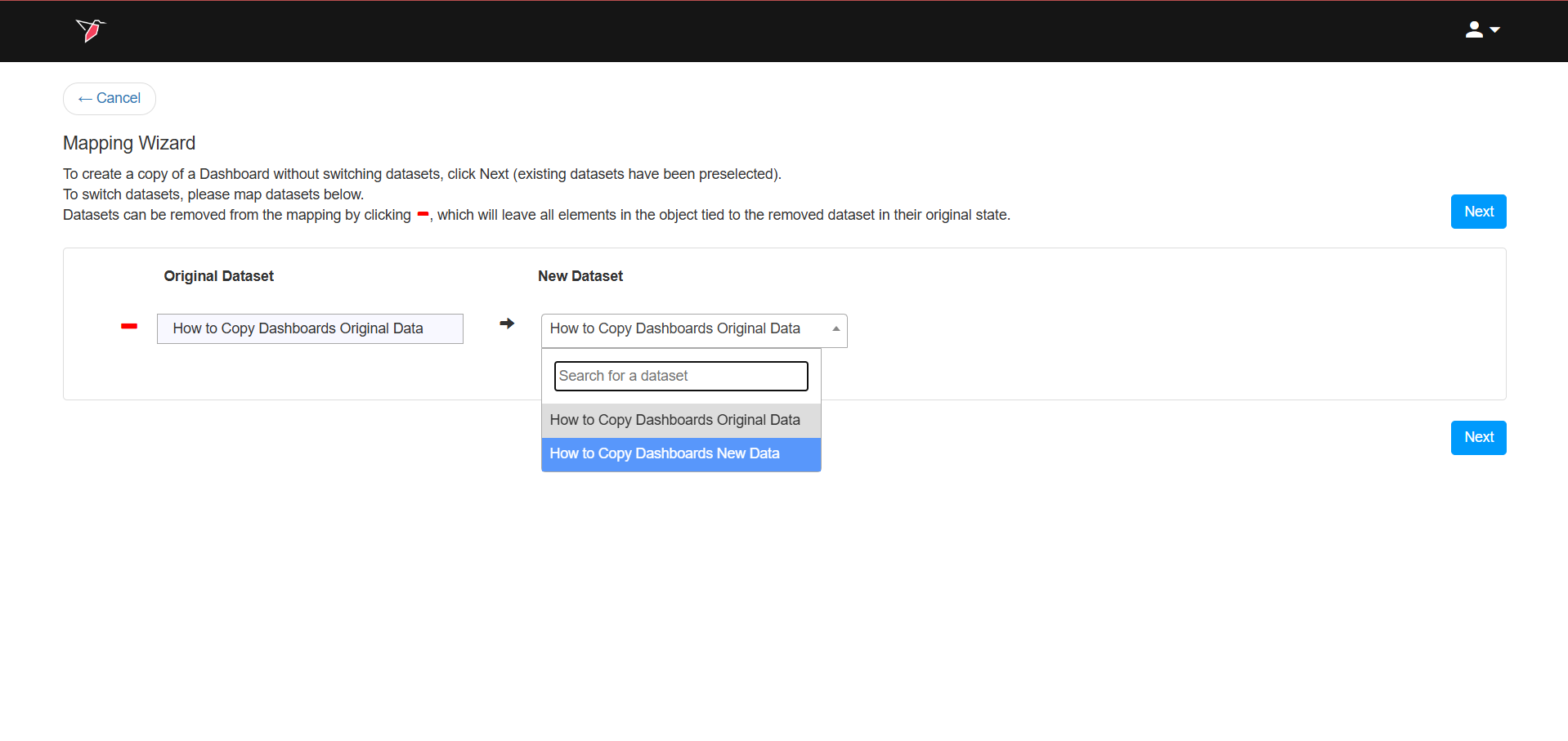
- Click Next located on the bottom right of the screen to proceed to the next step in the mapping process,
which is to map your variables.
- Review your variable mappings. Redbird will attempt to automap variables on your behalf, however, Manual intervention and mapping may be necessary if your new dataset uses different column names or data values.
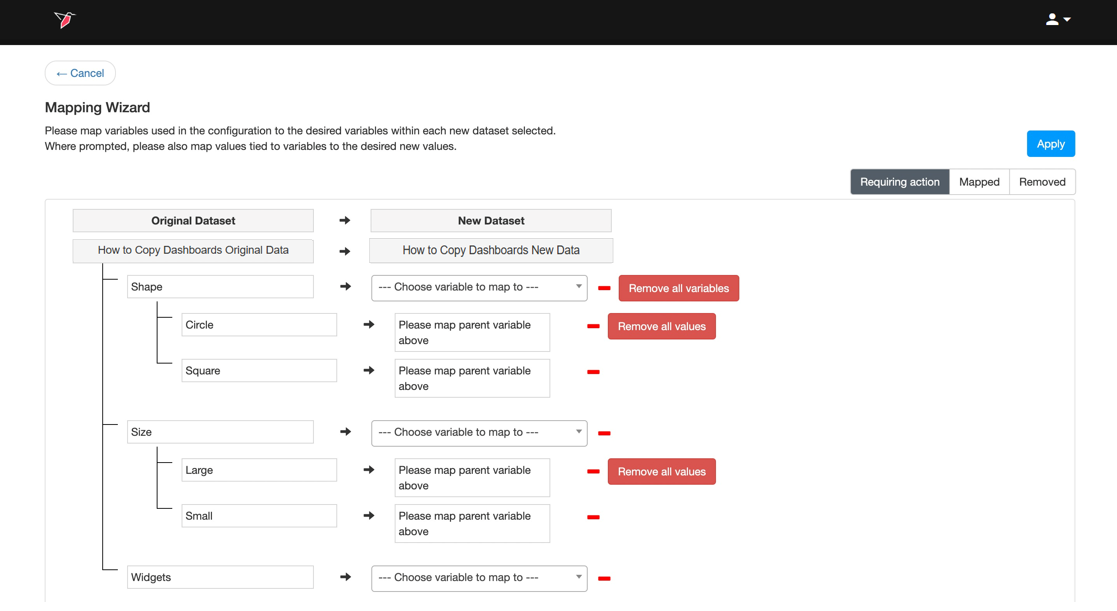
- Map the variables from your new dataset to the corresponding variables in your old dataset by using the dropdown associated with each variable in your new dataset. As each variable is successfully mapped, it will transition to the Mapped tab in the upper right corner of the screen. When all of the variables that require mapping have been mapped, a message that begins with “No items need to be mapped” will appear on the screen.
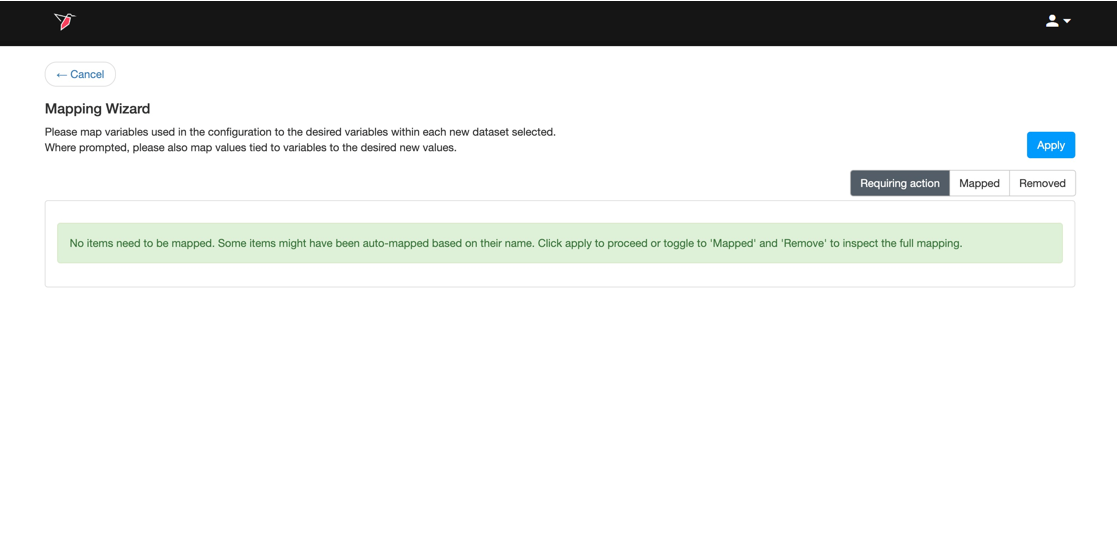
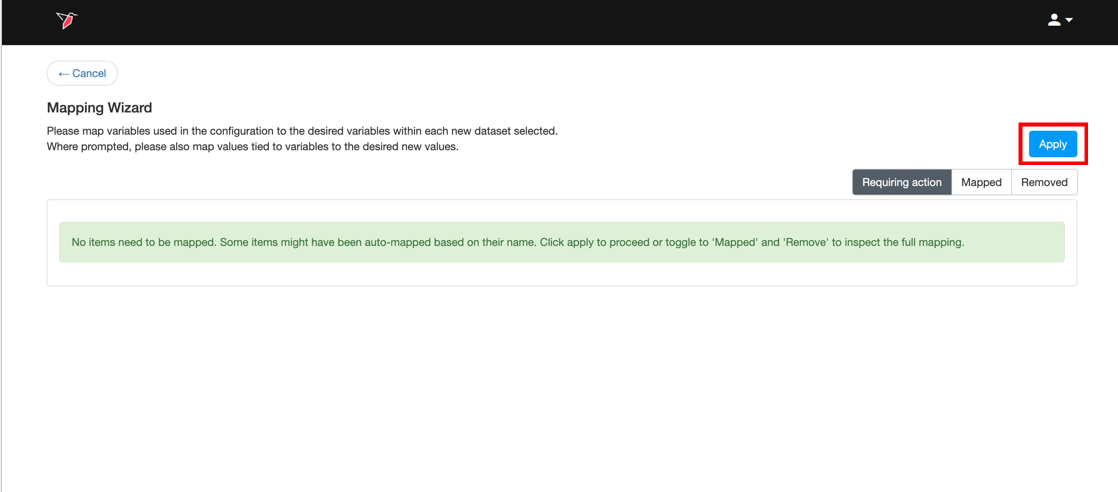
- Click Apply on the upper right corner of the screen. This will create a copy of your original dashboard
using the updated dataset and return you to your list of dashboards.
Updated 8 months ago