

Dashboard - Images
Background
An important aspect of creating a rich presentation is the ability to add images. Redbird’s Dashboard Builder allows you to easily add images to your presentation and configure the image to best communicate your message. Redbird supports a range of image formats including JPEG, PNG and even dynamic formats such as GIFs. Redbird also allows you to set up dynamic images that update either based on loading a new image to a static URL or based on changes in your dataset or selected filters.
Insert an Image
Once you have identified the dashboard and view you are interested in updating, follow the below steps to add an image:
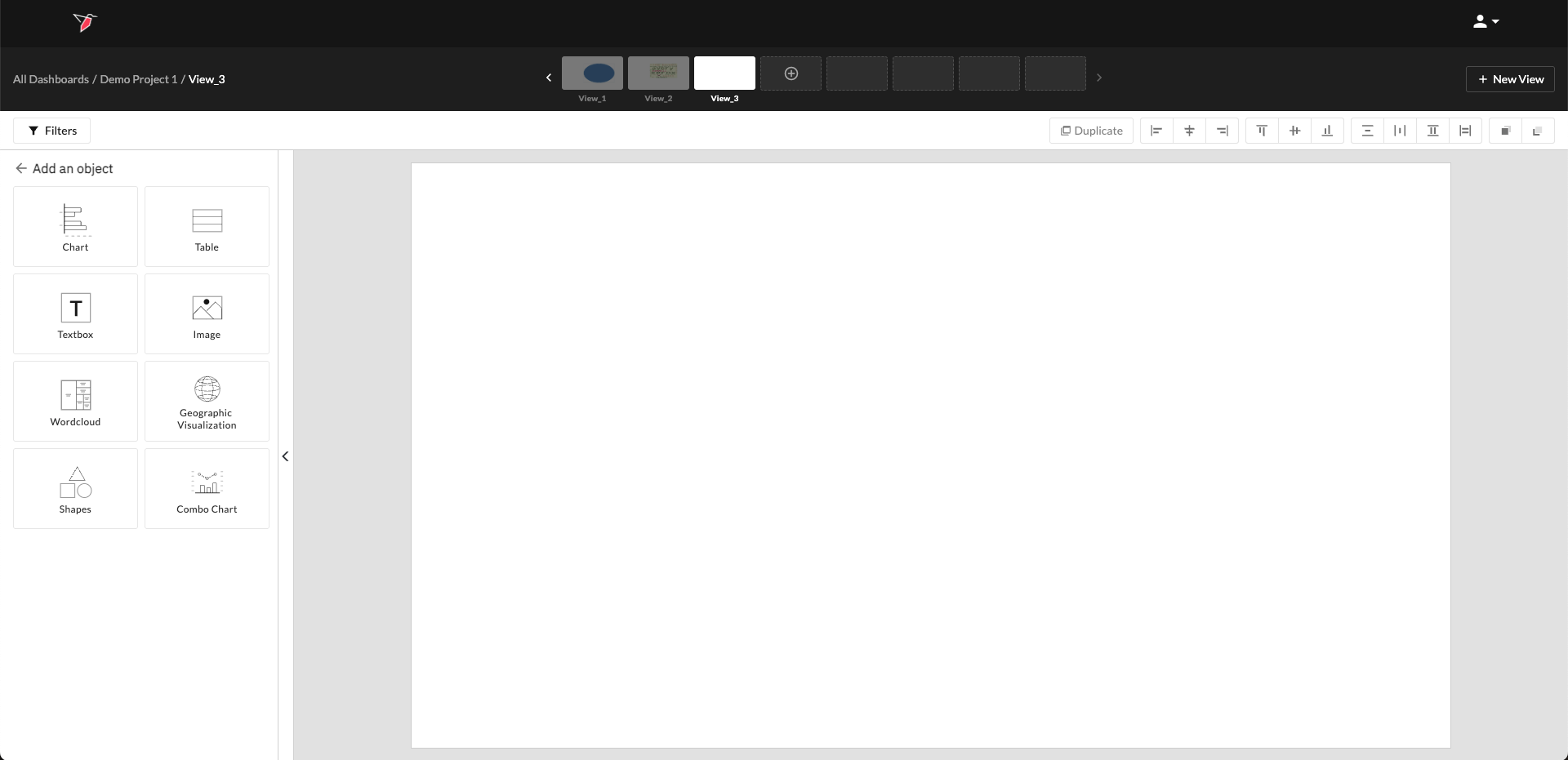
- Click Add Object in the Action Panel to activate the Object Library.
- Click Image in the Object Library.
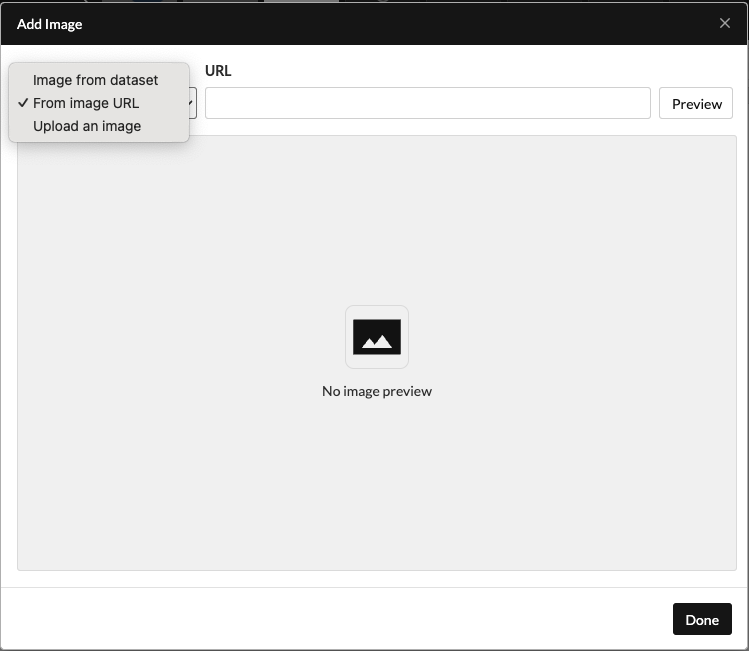
- Configure the Image by providing an image source. The options for image sources include:
- Image URL: If you are hosting images on a domain, you can provide the URL of the image that you would like to use.
- Uploaded Image: If you have stored an image on your computer, you can upload that image to Redbird.
- Dataset: If your dataset includes a list of image URLs, you can retrieve the specific image URL by using the Filter and Column dropdowns.
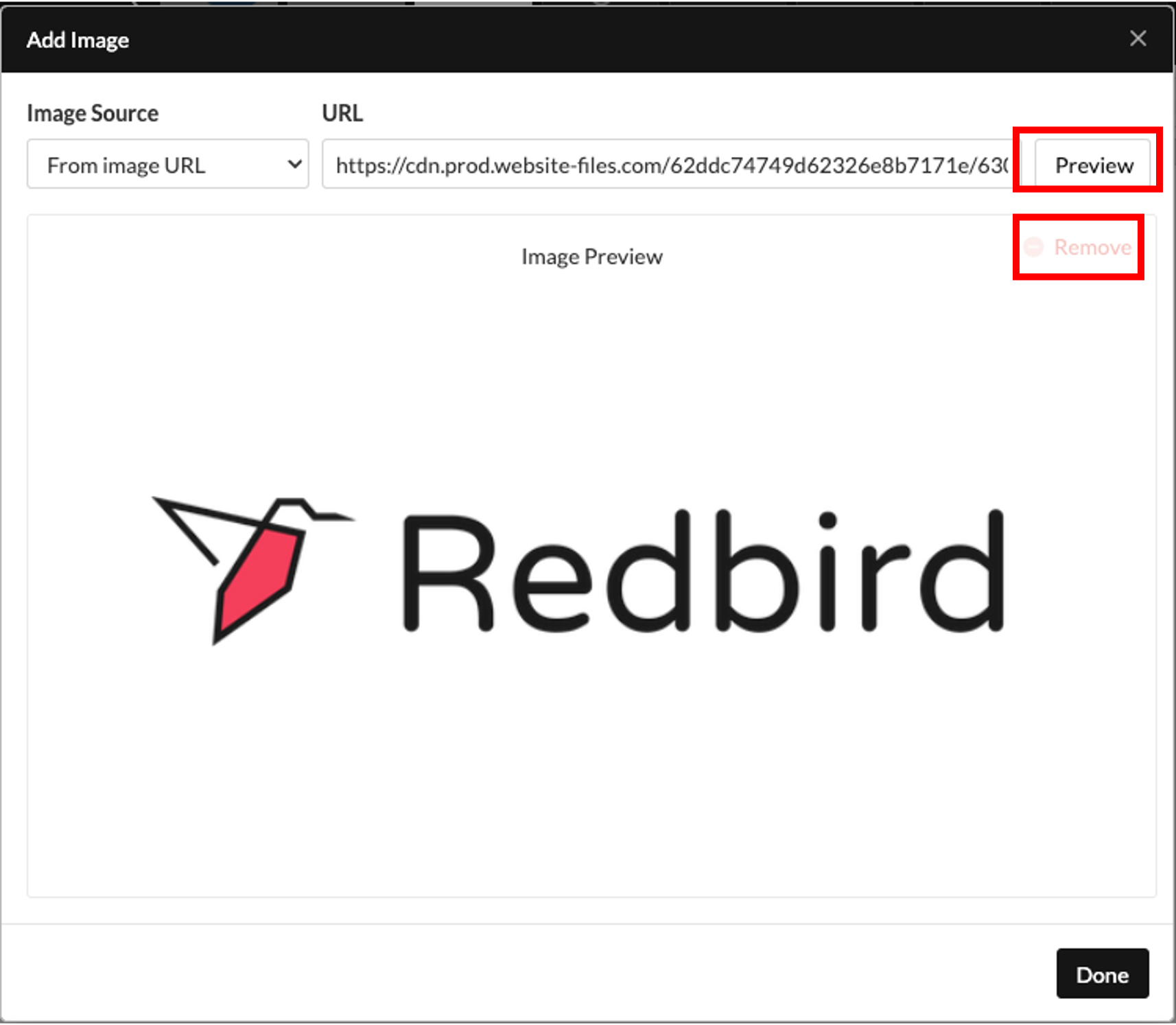
- You can preview the image by clicking the Preview button or remove it by clicking the Remove button if you wish to switch it for another one.
- Click Done once you are comfortable with your image configuration.
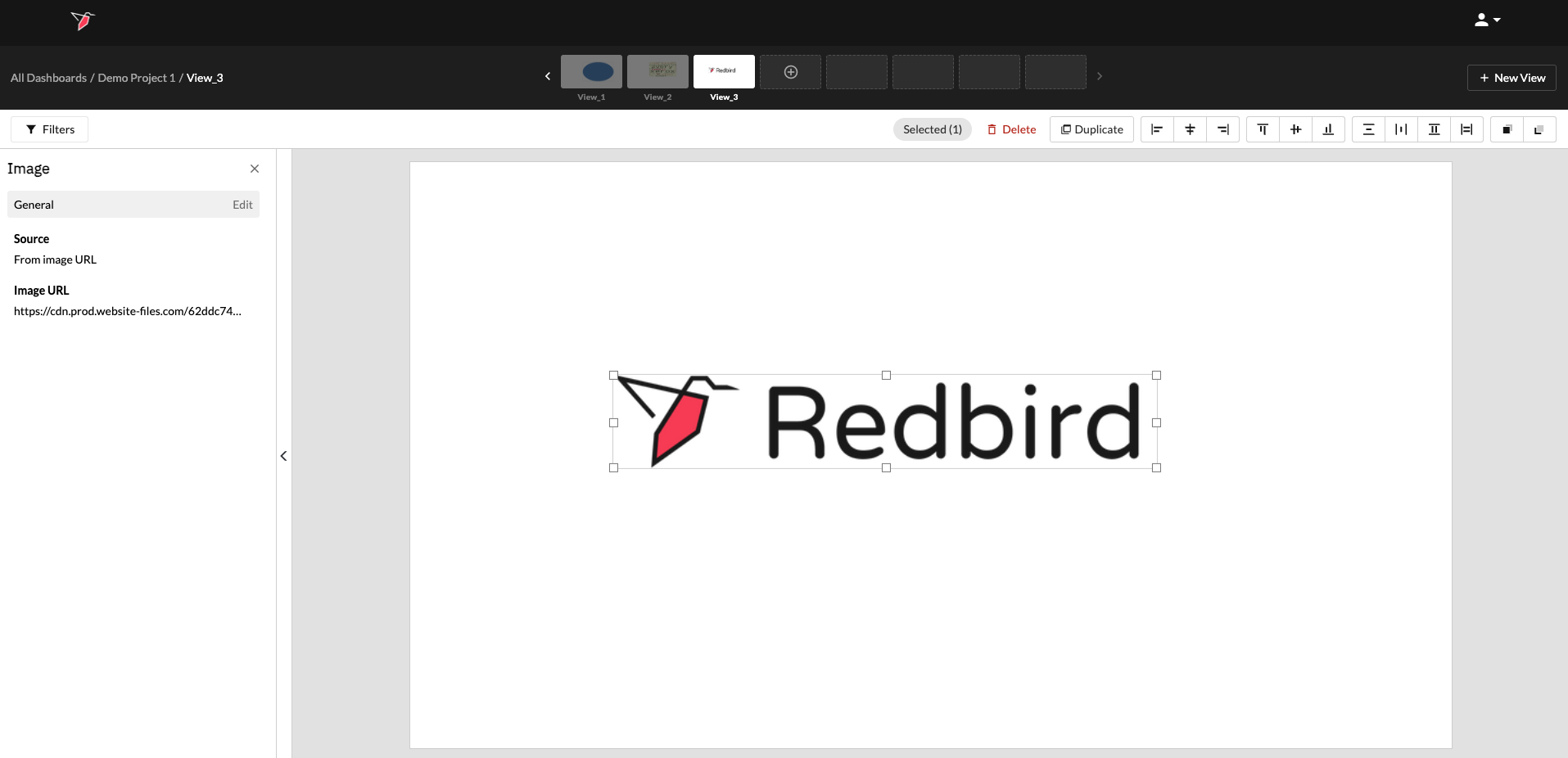
Important:Only one image can be added at a time. If you decide to use the Dataset option to add an image, please ensure that you select a single image URL by using the Filter and Column dropdowns.
Updated 8 months ago