

Code Editor
Background
Code editor provides an alternative to Redbird's other, no-code operations for users who are comfortable writing their own custom Python code. This operation has the full range of functionality offered within a standard Jupyter Notebook but with the added benefit of seamlessly orchestrating with the rest of the Redbird operating system. WIth Redbird's code editor, you can write custom code that can communicate with other parts of your workflow in Redbird (both upstream and downstream of your code editor operation). This enables repeatable, automated workflows that leverage a combination of no-code, code, and reporting steps all in one place.
How it Works
Using the Code Editor operation is not much different from using a standard Jupyter Notebook. You can find full documentation for Jupyter Notebook here.
You are able to upload files necessary for your analysis into the notebook's workspace and produce/save files within the workspace for further use.
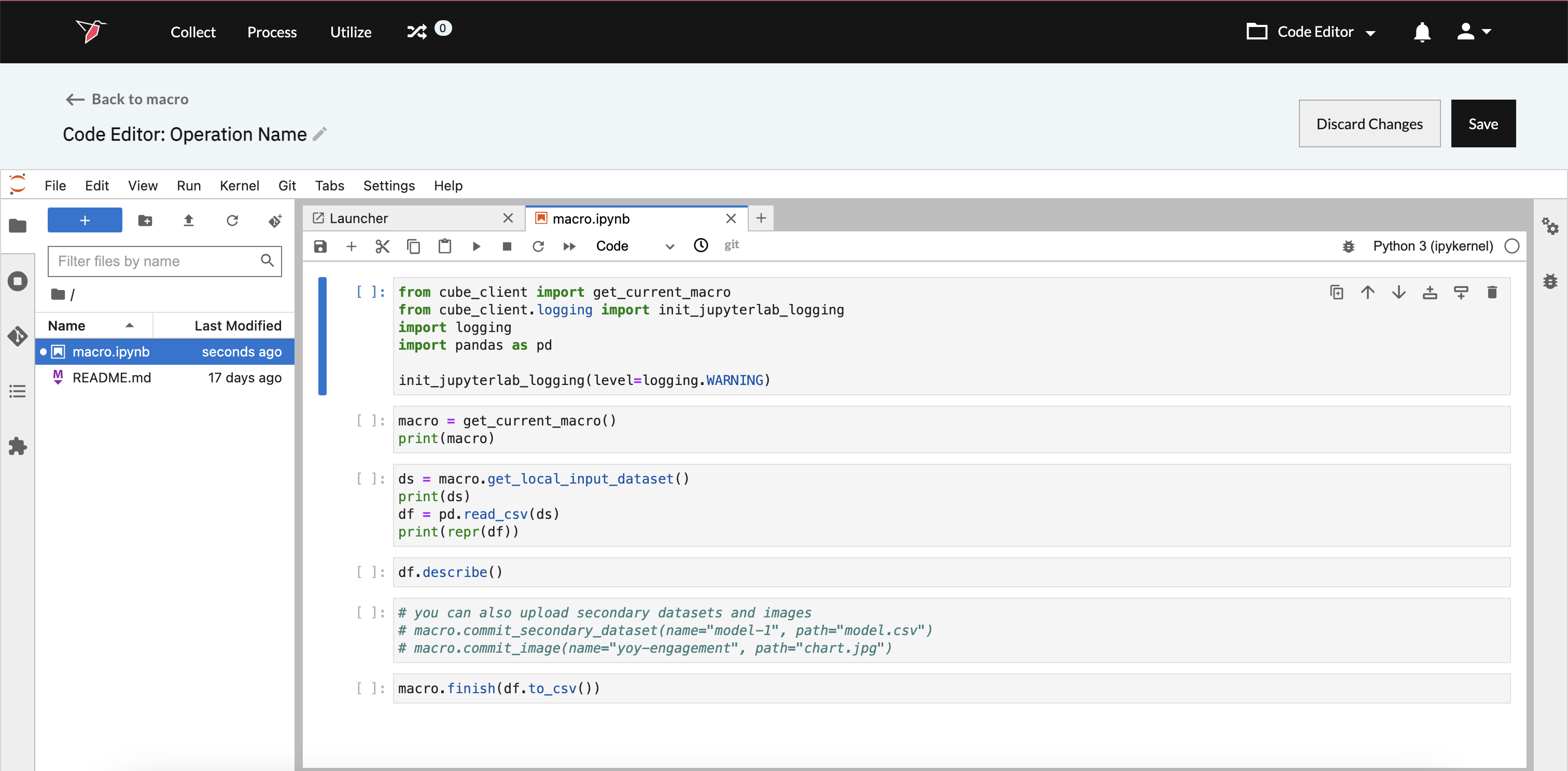
Additionally, as an integral part of Redbird's macro ecosystem, you are also able to seamlessly use the resources from your Redbird project and update Redbird macro outputs using Redbird's API client methods. Below is the overview of methods available to you.
Accessing existing macro resources
- To access a CSV of the macro's current dataset within Code Editor, call macro.get_local_input_dataset():
from cube_client import get_current_macro
macro = get_current_macro()

ds_csv_path = macro.get_local_input_dataset()
print(ds_csv_path)
df = pd.read_csv(ds_csv_path)
print(repr(df))
Important:get_local_input_dataset will return the most up-to-date CSV of the current macro, i.e., it will represent the result of the last operation step that that ran within the macro prior to the Code Editor step. If no operations were run, the CSV returned will be that of the original dataset the macro is based on.
- To access the CSV of another dataset within the Redbird project by the dataset's ID, call macro.get_dataset_path(<dataset_id>):
from cube_client import get_current_macro
macro = get_current_macro()

ds_csv_path = macro.get_dataset_path(123)
print(ds_csv_path)
df = pd.read_csv(ds_csv_path)
print(repr(df))
Important:Only datasets that are located within the same Redbird project can be accessed via this method. If a dataset you need to access is located with a different project, you will first need to copy the dataset into the current project.
Tip:In order to find a dataset's ID, open your dataset in Explore mode and copy the final part of the of the url. For example, 1234 is the id of the dataset that opens via this url https://redbird.io/explore/dataset/1234
- To access a file previously committed to the Code Editor File Library by ID, call macro.get_library_file_path(<file_id>). Please see the Code Editor File Library documentation for more info.
from cube_client import get_current_macro
macro = get_current_macro()

file_path = macro.get_library_file_path(123)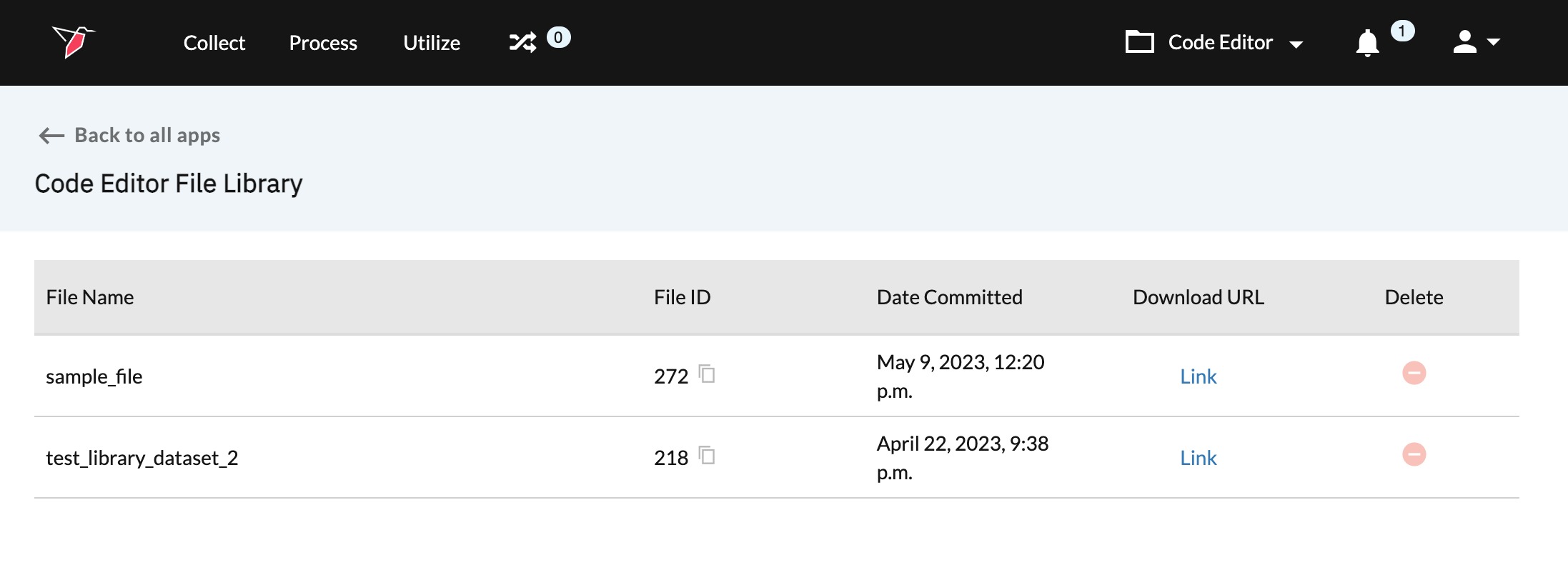
Tip:More information on committing a file to the Code Editor File Library can be found below.
Tip:In order to find a file's ID, open your Code Editor library by going to Process, clicking Process Apps in the top right corner and selecting Code Editor from the list of available apps. You can copy the file ID of the desired file by clicking on the copy icon.
Note: If you don't see Code Editor in the list of apps, please reach out to your account administrator to discuss your permission level
Committing Code Editor outputs
To work with files produced by Code Editor within your Redbird workflow, they need to be committed to the library within Code Editor as any of the following output types:
- the primary macro output dataset
- a secondary macro output dataset
- an object within the Dashboard library
- a file within the Code Editor library
- Use your Code Editor's CSV output file to update the main macro output dataset by calling macro.finish() and passing your local CSV path as an argument
from cube_client import get_current_macro
macro = get_current_macro()

macro.finish("new_output.csv")
Important:When the Code Editor operation is saved, Redbird's orchestration engine will update the dataset columns available to downstream operations based on any new column names created within Code Editor. If the CSV committed by Code Editor has columns that match the dataset columns available prior to the Code Editor operation, they will be mapped as the same columns based on name.
When the macro runs, a macro.finish() call will update the macro's main output dataset based on the CSV commited.
- Commit a Code Editor CSV output as a macro secondary dataset output by calling macro.commit_secondary_dataset and providing a desired name and the CSV's local path as arguments
from cube_client import get_current_macro
macro = get_current_macro()

macro.commit_secondary_dataset(name="Secondary macro output dataset",path="dataset_1.csv")
More info:See more information on Secondary Dataset Outputs within the Macro article.
- Save a Code Editor image output or CSV as an object that can be accessed from the Dashboard Library
- call macro.commit_image() to commit a .jpg or .png file
from cube_client import get_current_macro
macro = get_current_macro()

file = macro.commit_image(name="image_1",path="image_1.jpg")- call macro.commit_library_dataset() to commit a .csv file
from cube_client import get_current_macro
macro = get_current_macro()

macro.commit_library_dataset(name="dataset_1",path="dataset_1.csv")
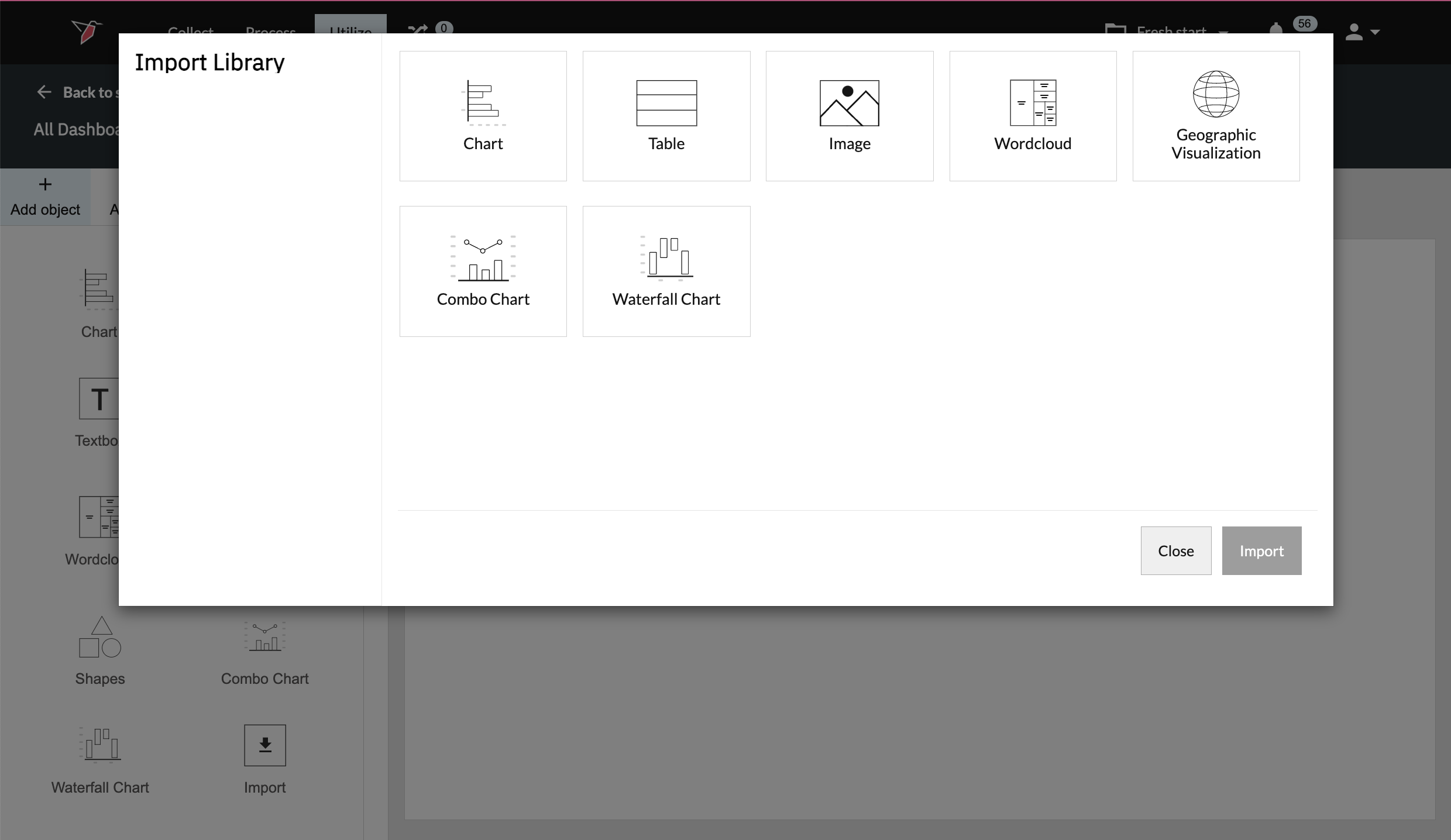
Tip:Images and CSVs saved to the Dashboard Library can be used downstream directly within dashboards for visualization purposes. You can find objects saved to the Dashboard Library within your Dashboard Builder by going to Add object -> Import and selecting any object type (for committed datasets) or Image (for committed image files). Once you have selected one of the import options, you can filter by Macro and Operation using the dropdowns on the left navigation pane in order to locate the committed object that you would like to use.
Important:An object will be saved to the library only after your macro runs in full
- Save a Code Editor output file to the overall Code Editor Library to access the file object within other Code Editor operations. To save to the library, call macro.commit_file_to_library()
from cube_client import get_current_macro
macro = get_current_macro()

macro.commit_file_to_library(name="dataset_1",path="dataset_1.csv")
Tip:Saving files to the Code Editor library allows you to easily access files created by other Code Editors. By doing so you can use outputs from one Code Editor operation as inputs within another Code Editor, as part of an automated, multi-step workflow.
Important:Files saved to the Code Editor library can be of any type and are only accessible to operations within the same Redbird project
Important:A file will be saved to the library only after your macro runs in full
Other Helpful Methods
summarize_files_into_csv(files_folder_path=<path>, csv_name=<name>)
This method can be used to create a summary dataset (CSV) containing links to files uploaded to a local folder on the code editor. The summary file has information of each file in the folder.
This method takes the following parameters:
- files_folder_path - Required. A string specifying the local path to the folder
- csv_name - Required. A string specifying the name of the CSV to be created
The method will return the local path of the summary CSV.
from cube_client import get_current_macro
macro = get_current_macro()

# code that creates folder named “image_files” and
# puts 3 files in it (image1.jpg, image2.jpg, image3.jpg)

local_csv_path = macro.summarize_files_into_csv(
                                                files_folder_path="image_files",
                                                csv_name="images_data"
                                                )

# code to add any additional metadata by using pandas or any other package
# code to commit the csv as a dataset or any other form
Sample output

Configuring Code Editor
To add and configure the Code Editor operation, please follow the steps below:
- Navigate to Macro Builder for the dataset you want to use
- Select the Code Editor operation in the right panel
- Click Edit within the Code Editor operation in the Macro Builder panel
- Make any necessary code changes.
Tip:By default some simple starter code is provided within the editor.
- Once finished editing your code, click Save in the top right corner to return to the Macro Builder.
- To ensure that the next operation has access to the changes Code Editor made, run this operation incrementally
Managing Python Packages
Code Editor comes with multiple pre-installed Python packages. To see the latest list of packages available run help('modules') in your code editor.
If a package you require is not pre-installed, you may install it within the Code Editor itself using this command
%pip install <your_package>Code Editor File Library
Detailed information about the Code Editor File Library can be found here.
Updated 8 months ago