

Setting Up Two-Factor Authentication (2FA) Credentials
Introduction
Redbird can automate data collection from sources that require 2FA - a secondary authentication beyond username and password. Redbird currently supports email and Time-based One-Time Password (TOTP) as the secondary authentication methods, with SMS coming soon. You will need to register the platform credentials for each login that may be used.
NoteBoth Email, TOTP and SMS (coming soon) authentication methods can be set up, but only one can be active at a time and you should toggle between them depending on the method chosen when logging in.
Configuring 2FA Authentication
Before you can start using 2FA, you will need to set up either Email and/or TOTP authentication. Currently, the below Collect apps support 2FA configuration.
- Adobe Analytics
- Amazon Prime Video Direct
- Apple iTunes Connect
- Extension Collect
- Vudu
- Xumo
Extension Collect
Navigate to and select the Extension Collect app. Double click on the node to enter it. Click the Configure button (next to the Create Collection button). This will open up a modal to configure the Email, TOTP or SMS authentication.
Within the modal, click + Add new login. Scroll down to find steps on configuring either Email, TOTP or SMS Authentication.
Other Collect Apps
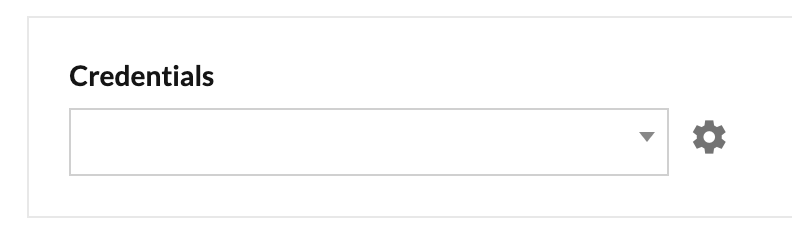
Navigate to the collect app you would like to use and set up 2FA for and click Create Collection. This will take you to a new page and within the page you will find the following Credentials section. Simply select the gear icon to the right of the drop-down and it will show the modal from which you can configure your 2FA settings. Scroll down to find steps on configuring either Email and/or SMS Authentication.
Setting up Email Authentication
Here we will go over Email Authentication. Within the modal window, follow the below steps.
Click on the Email button, and fill in the necessary information.
- Credential Name (for you to identify it when you need to use this 2FA logic within the collect App/Email collect)
- Username
- Password
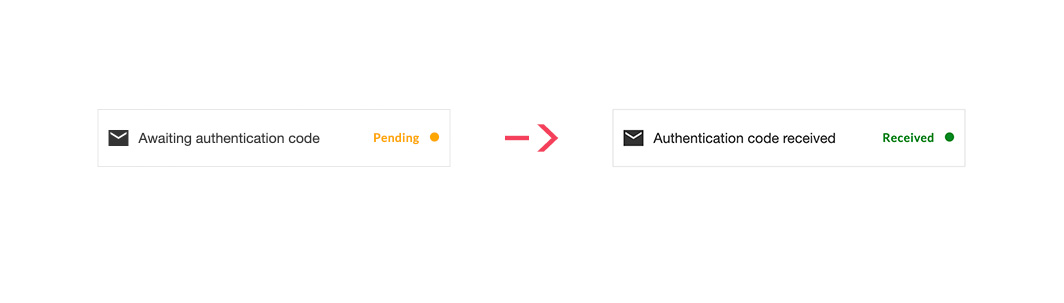
Once complete, you will need to set up the forwarding to the email address that is generated within the modal. Instructions for this are right below. Once complete, the Awaiting authentication code and yellow Pending · icon will change to Authentication code received and green Received ·.
Setting up Forwarding of Authentication Codes to Redbird
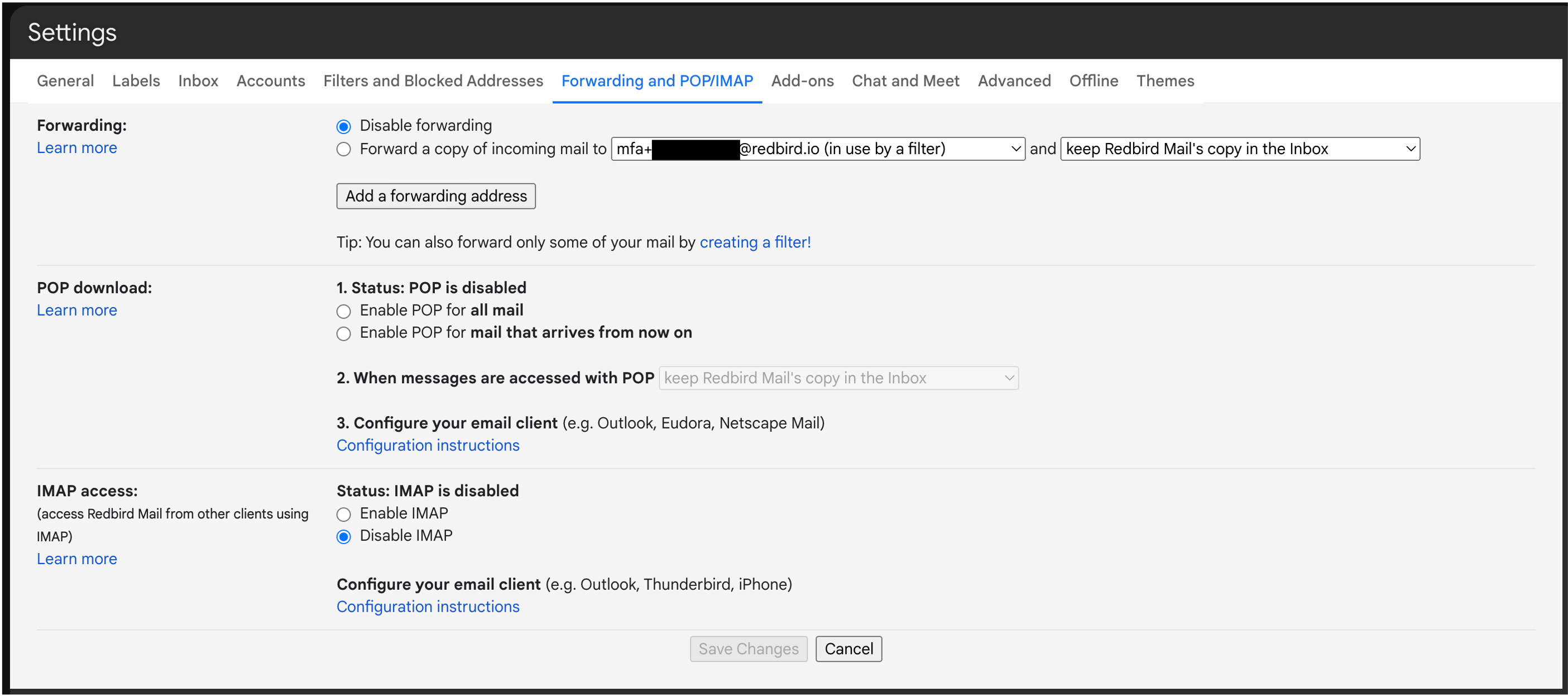
For the process to be automated, Redbird will need to receive a copy of the authentication codes that are emailed to you every time we log into the platform. To enable this, you will therefore need to set up automatic forwarding of those emails to a specific Redbird email address, unique to each login you register. See here for our guide on setting up forwarding for major email clients.
Setting up Filters/Rules for Email
We suggest setting up forwarding rules based on the email address the authentication code comes from and/or if the subject or body of the email contains key terms such as "authentication", "verification", or something else. If you are using one email address to receive all your 2FA codes within your organization (i.e. through Google Voice service), you can set up all the forwarding from that one email but be sure to forward each specific platform 2FA email code to the assigned Redbird email address for that platform by including filtering criteria such as "includes [Platform name] in the body of the email." as well as the term "authentication" or "verification, for example.
Use the verification email you receive from the platform to guide you as to the best forwarding criteria. Here are some example screenshots using that criteria in Gmail.
- Click on "creating a filter" under "add a forwarding address" to bring up the filter menu within Gmail.
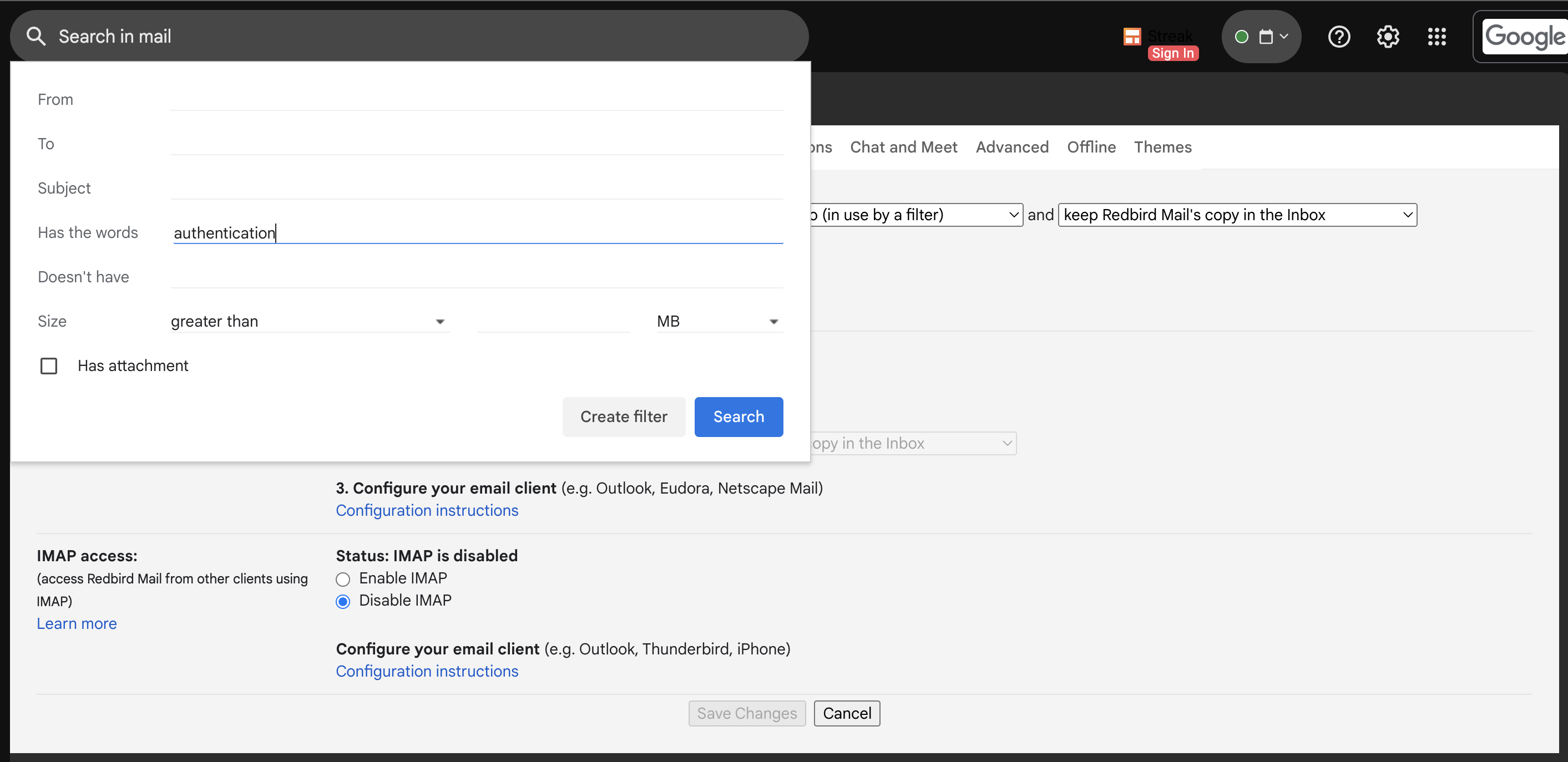
- Within the filter setting window, add the rules that you would like. In the below example, we put "authentication" in the Has the words section. Once complete, click Create filter.
- Now make sure to check the box next to Forward it to:[] and select the corresponding forwarding email you would like to use from the dropdown. Click Create filter.
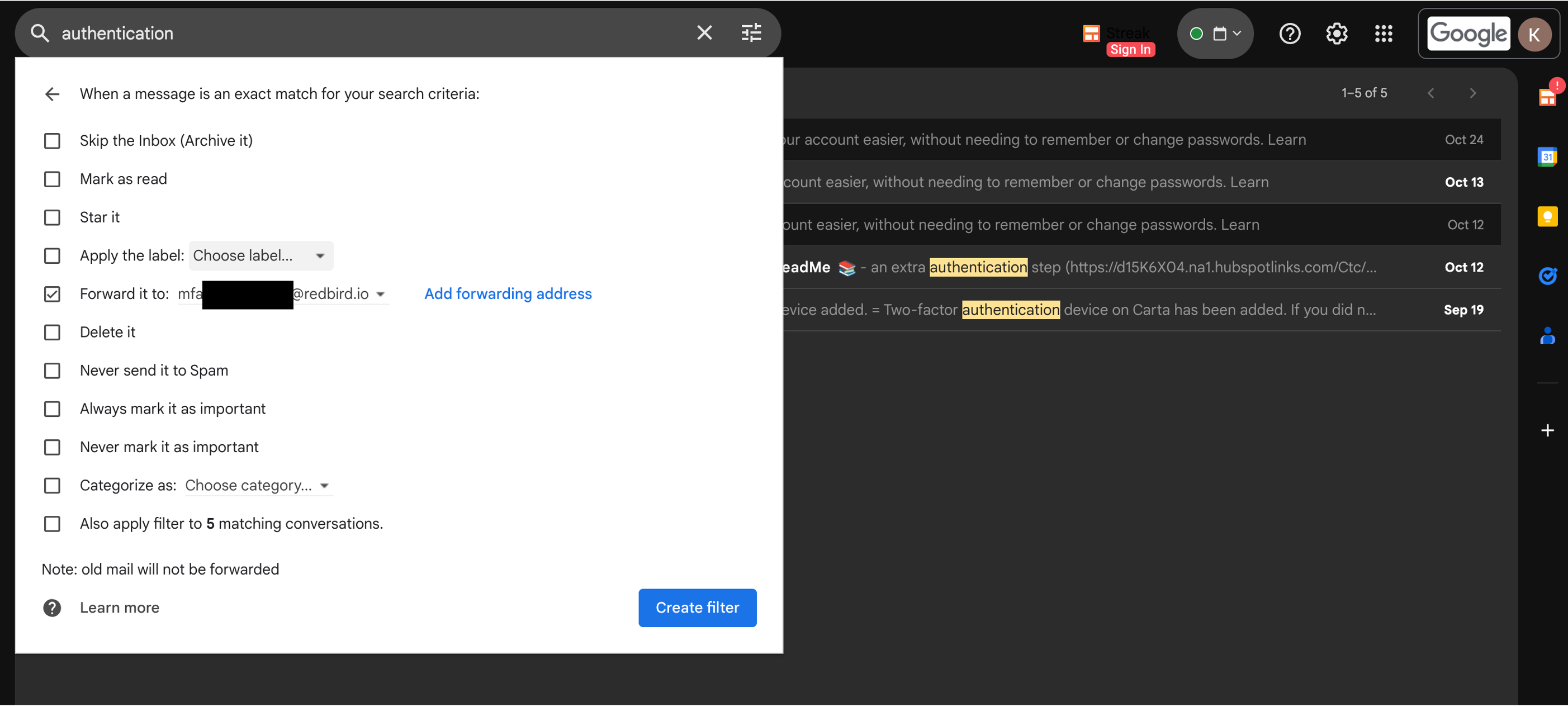
Now you are all set up, and the next time you receive an authentication or verification code to your email it will be forwarded to the Redbird email that was generated above.
Setting up TOTP Authentication
Here we will go over TOTP Authentication. Within the modal window, follow the below steps:
Click on the TOTP button, and fill in:
- Credential Name (for you to identify it when you need to use this 2FA logic within the collect App/Email collect)
- Username
- Password
- TOTP Key
- A TOTP key (also called a TOTP secret or seed) is a shared secret code that is generated when you set up TOTP-based two-factor authentication (2FA) on an account.
- It's a random string of characters, typically encoded in Base32 (e.g., JBSWY3DPEHPK3PXP).
- This key is the foundation for generating the 6-digit time-based codes you see in authenticator apps.
- Both your authenticator app and the server (e.g., Google, GitHub) store this key.
Once the fields are complete click Done.
Setting up SMS Authentication
Coming Soon.
Updated 8 months ago