

Setting up Snowflake
Overview
The below steps can be taken to set up your Snowflake account within a Redbird Data Warehouse configuration.
Snowflake
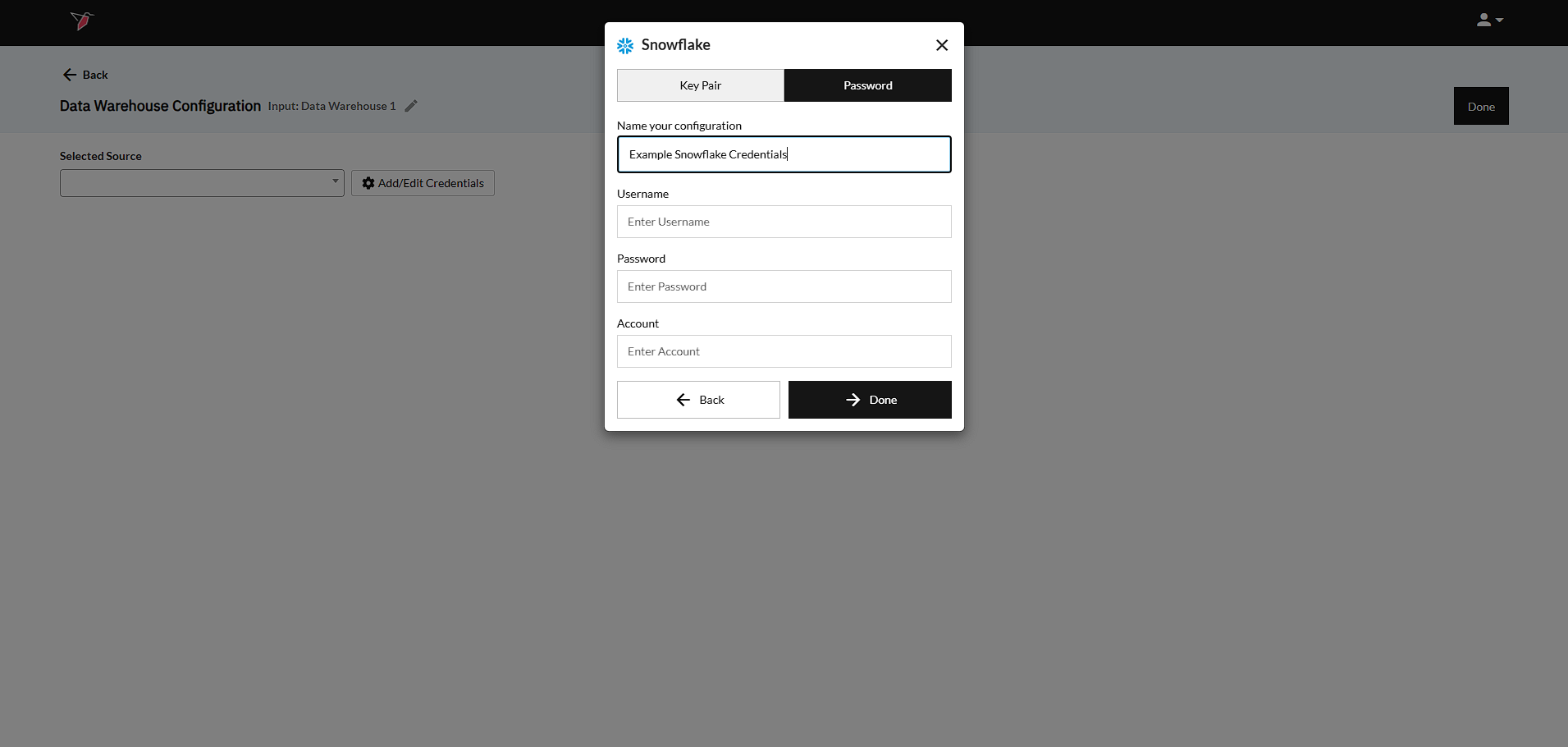
- Input the login credentials. This will be the same username and password used to log into the Snowflake platform.
If the user needs to provide a Key Pair rather than provide a password, they can use the Key Pair toggle at the top and use the Choose File and Upload buttons to add the key. - Input the Account Name - The user will need to provide the Account Name that they would like to access on Redbird. You can find the Snowflake documentation on Account identifiers here.
- Click Done to return to the previous screen.
Note:If you are having issues connecting with Snowflake, ensure that the Account field has both the Snowflake account name and region, and follows this format <account_id>.<aws_region>.aws (e.g. yyyy.us-east-1). Additionally please ensure that the following static IPs are whitelisted on your Snowflake so that you can access it through Redbird:
34.225.231.95
3.220.216.70
54.236.75.236
54.156.166.120
Updated 8 months ago
Did this page help you?