

Build & run workflows
Create workflows by asking, run them on demand, and schedule them to run automatically
Introduction
A workflow is where your work lives in Redbird: a visual sequence of connected steps — called nodes — that carries your data from its source, through any preparation, to its outputs. The workflow canvas shows the whole journey at a glance: the connections to tools outside of Redbird, where data comes in, what happens to it, and what it produces.
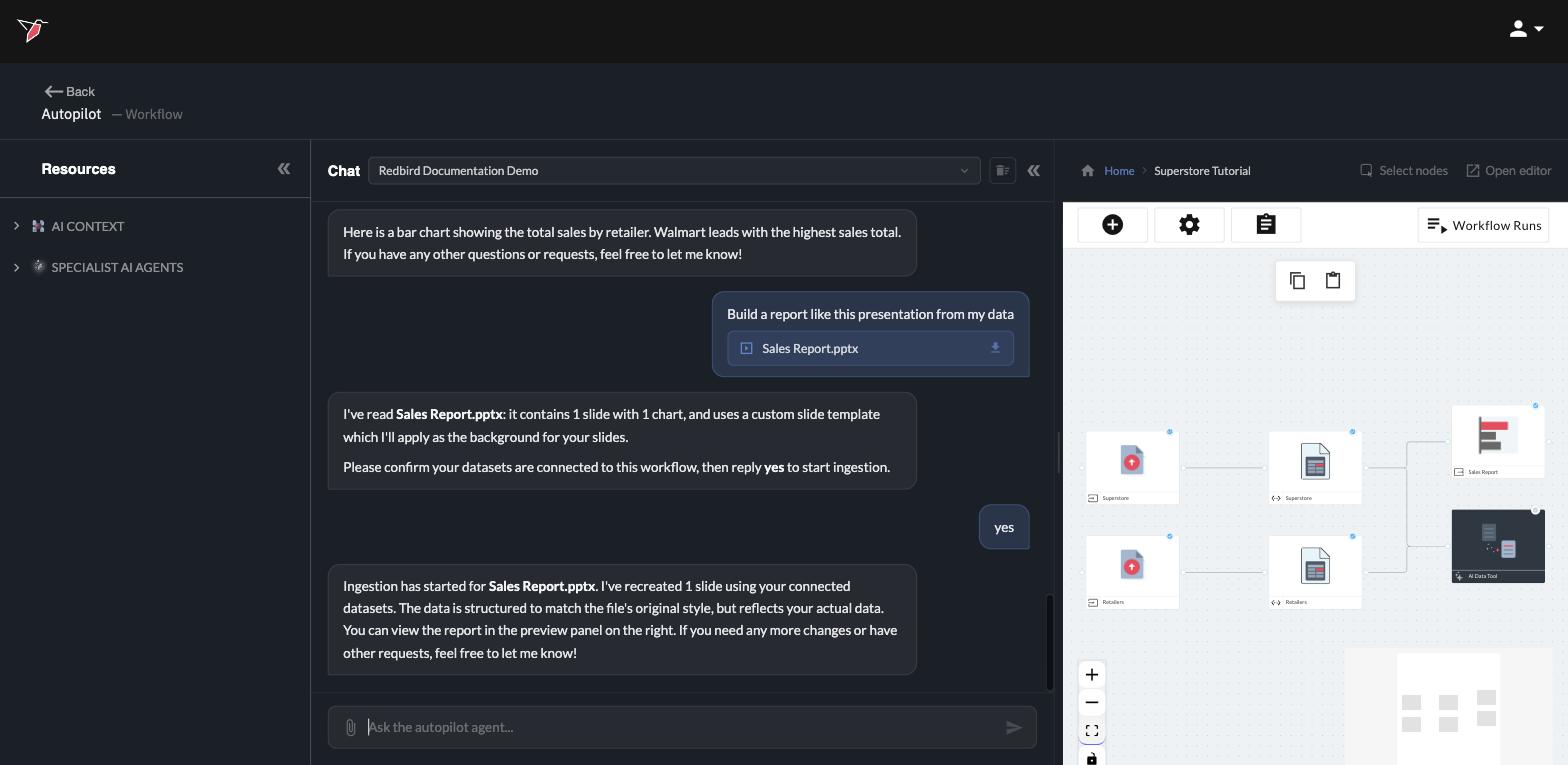
Once a workflow is built, it isn't a one-time effort — you can re-run it whenever you like, or schedule it to run automatically, and everything downstream (including reports or delivery of data to other team members or tools) updates with fresh data.
Build and edit a workflow
The primary way to build is to tell Autopilot what you want. It creates the workflow, adds the right nodes, and connects them for you:
Create a new workflow called Superstore Tutorial
Add these two files to my workflow as datasets
Join the Retailers dataset into this data using Retailer ID
Each request becomes real structure on the canvas — upload steps, datasets, transformation nodes — connected in the right order. Editing works the same way: ask Autopilot to add a step, change one, or remove a node, and the canvas updates.
Prefer to work by hand? Everything is also available directly on the canvas: the plus (+) icon in the canvas toolbar adds nodes, and you can drag lines between nodes to connect them, or select a node to edit or remove it. The two approaches mix freely — many people let Autopilot do the building and then fine-tune by hand.
Run a workflow
To run on demand, just ask:
Run this workflow
Before anything starts, Autopilot asks one quick question in the chat: should this run include every node in the workflow, or only specific nodes?
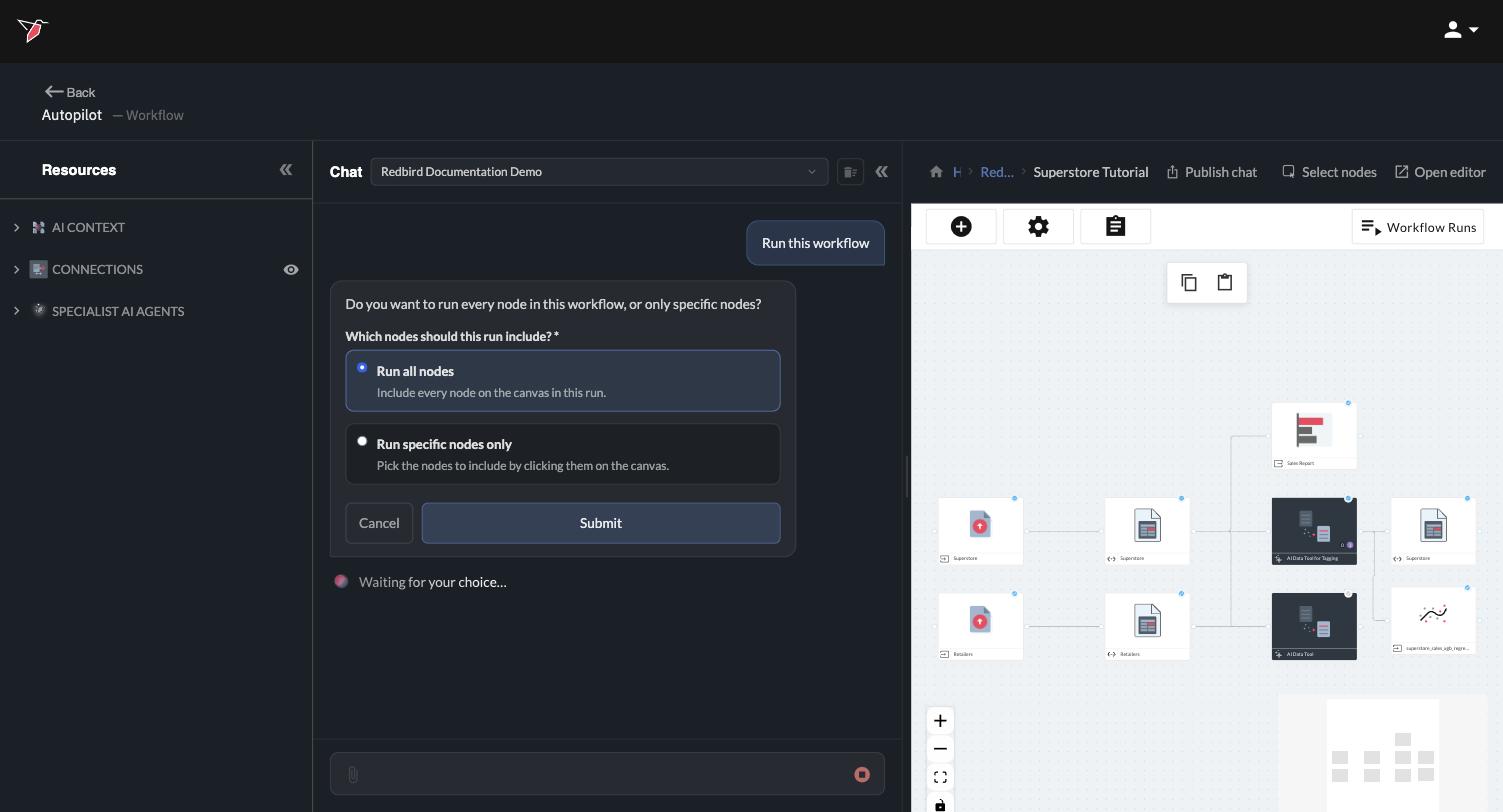
- Run all nodes — the default. Click Submit and the whole workflow runs.
- Run specific nodes only — choose this when you only want part of the workflow to run, for example to refresh a single data source without re-running everything downstream.
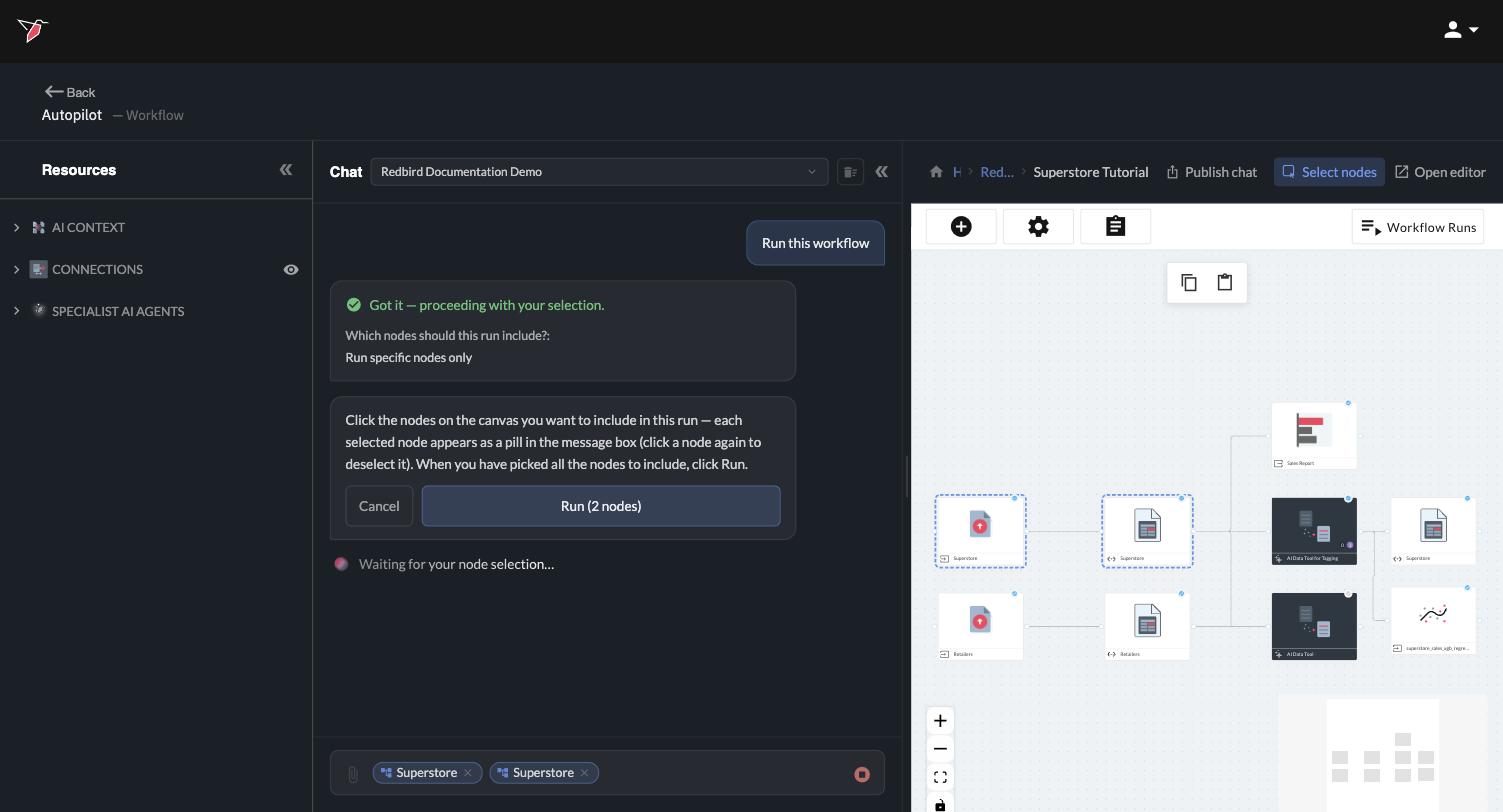
If you pick Run specific nodes only, the canvas switches to selection mode. Click each node you want to include — every node you pick appears as a pill in the message box, and clicking a node a second time deselects it. The Run button keeps count as you go (for example, Run (2 nodes)). When you've picked all the nodes you want, click it to start the run.
You'll see progress on the canvas as each node executes, and a confirmation arrives in the chat when the run finishes. The chat also keeps a record of the choices you made, so you can always look back at what a run included.
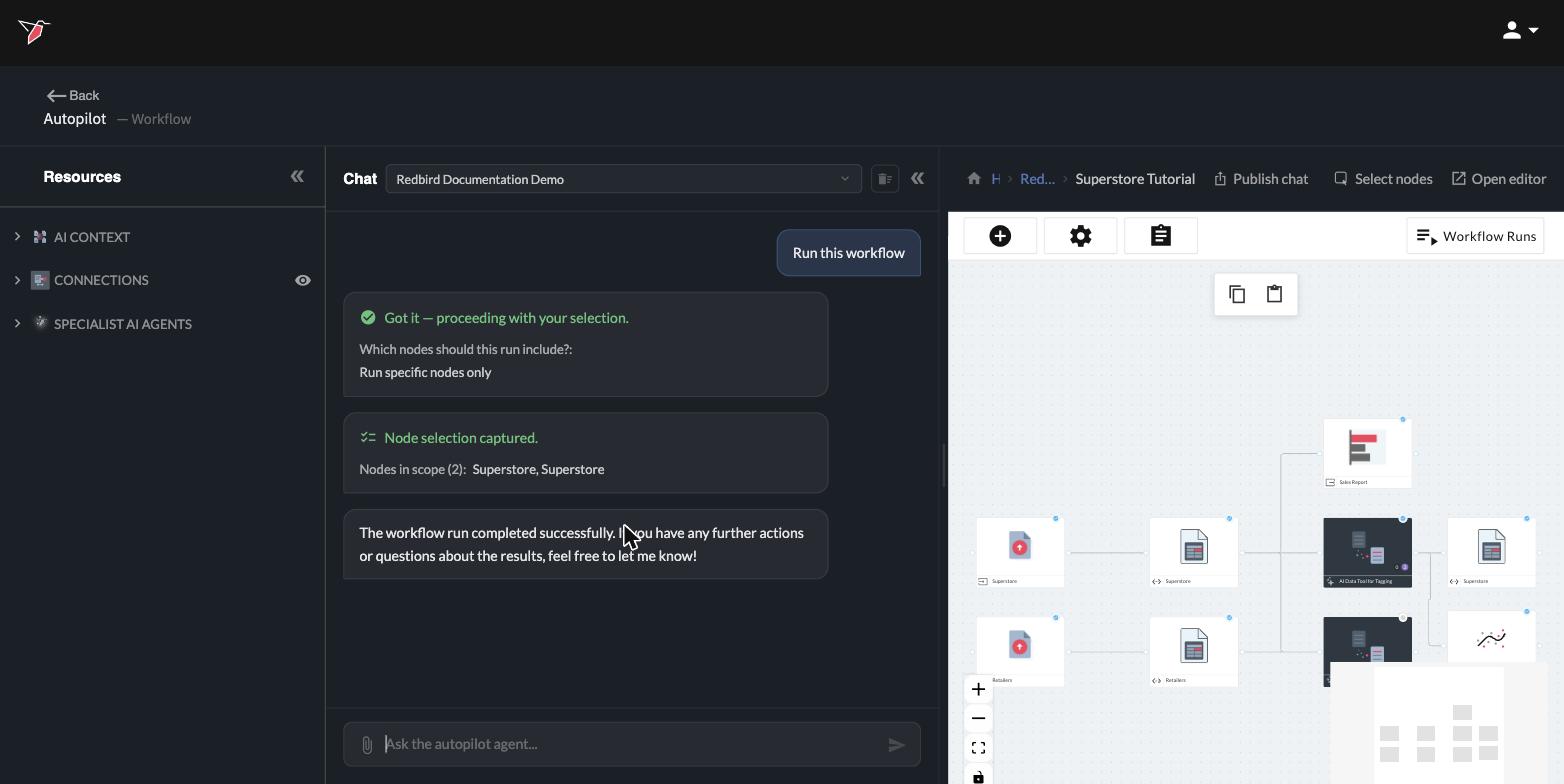
Already know what you want to run? If you name the nodes in your request — "Run the Superstore node" — Autopilot skips the question and runs exactly what you asked for. And there's no commitment while choosing: click Cancel on either step and nothing runs.
You can also run without the chat: the Workflow Runs button in the top-right corner of the canvas opens the runs panel, where you can select Manual Run or click the Run button on a previous Manual Run to start a run directly.
Schedule automatic runs
To keep a workflow's data and outputs fresh without lifting a finger, put it on a schedule — again, just by asking:
Schedule this workflow to run automatically every Monday at 9am
Autopilot asks the same node question as an on-demand run — every scheduled run can cover the whole workflow or just the nodes you pick — then sets up the automated run and confirms the schedule, including when the next run will happen.
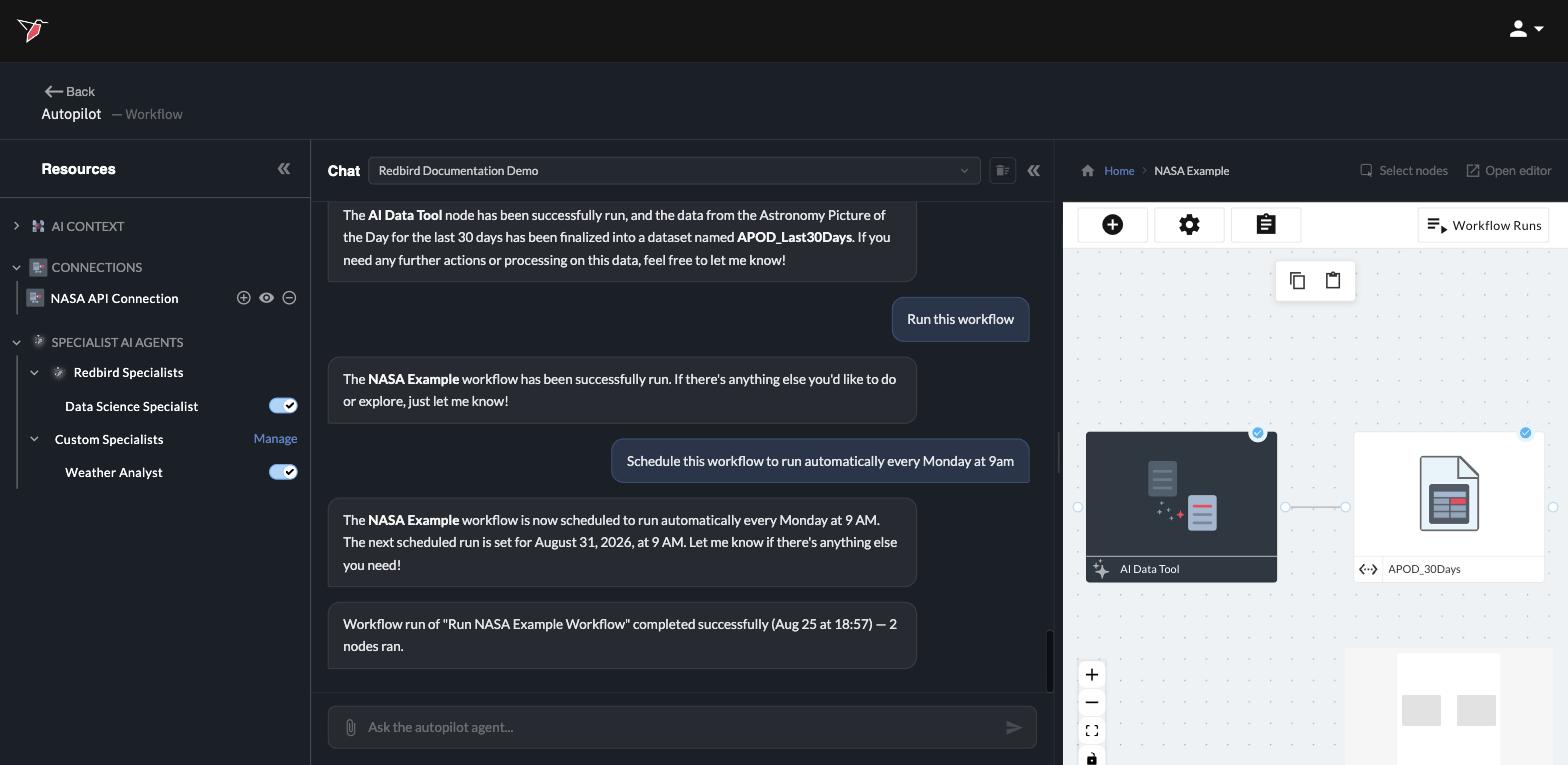
Your schedules are listed in the runs panel under Automated Runs, where you can also create, edit, or delete them by hand.
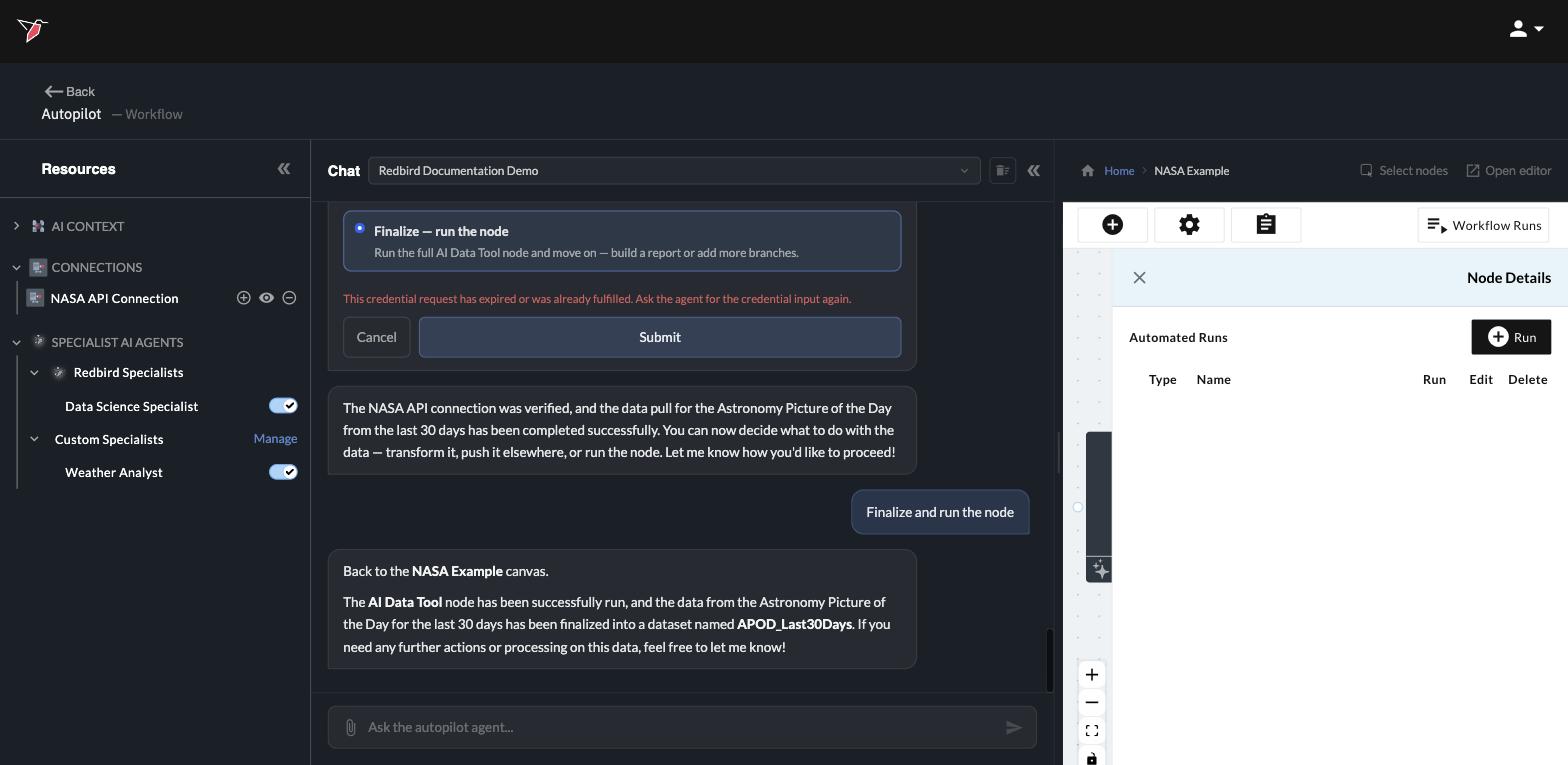
Changing your mind is easy. Schedules aren't set in stone — ask Autopilot to change the cadence or remove a schedule, and it will confirm before deleting anything.
What runs when a workflow runs
Every node executes in order: connections pull fresh data (see Connect your tools), preparation steps re-apply data transformation and enrichment automatically, and outputs — like reports — update to reflect the new data (see Generating presentations). That's the payoff of building in a workflow: the work you did once keeps happening on its own.
Updated 4 days ago