

Dashboard Management - Exporting to PowerPoint
Background
It is often necessary to share your dashboard with executives or other stakeholders. Redbird allows users to easily export their dashboards into PowerPoint to seamlessly share data and insights throughout their organization. The PowerPoint exports are deep copies of the Redbird dashboard. All charts and tables will contain embedded data that can be edited within Excel, and all objects can be further configured within PowerPoint.
You can export both regular "builder" dashboards or Published dashboards to PowerPoint (see here for more on publishing dashboards). The sections below will outline the process for each.
Exporting Dashboard Builder to PowerPoint
- Click the Dashboard Builder node. In the right side panel, select Download.
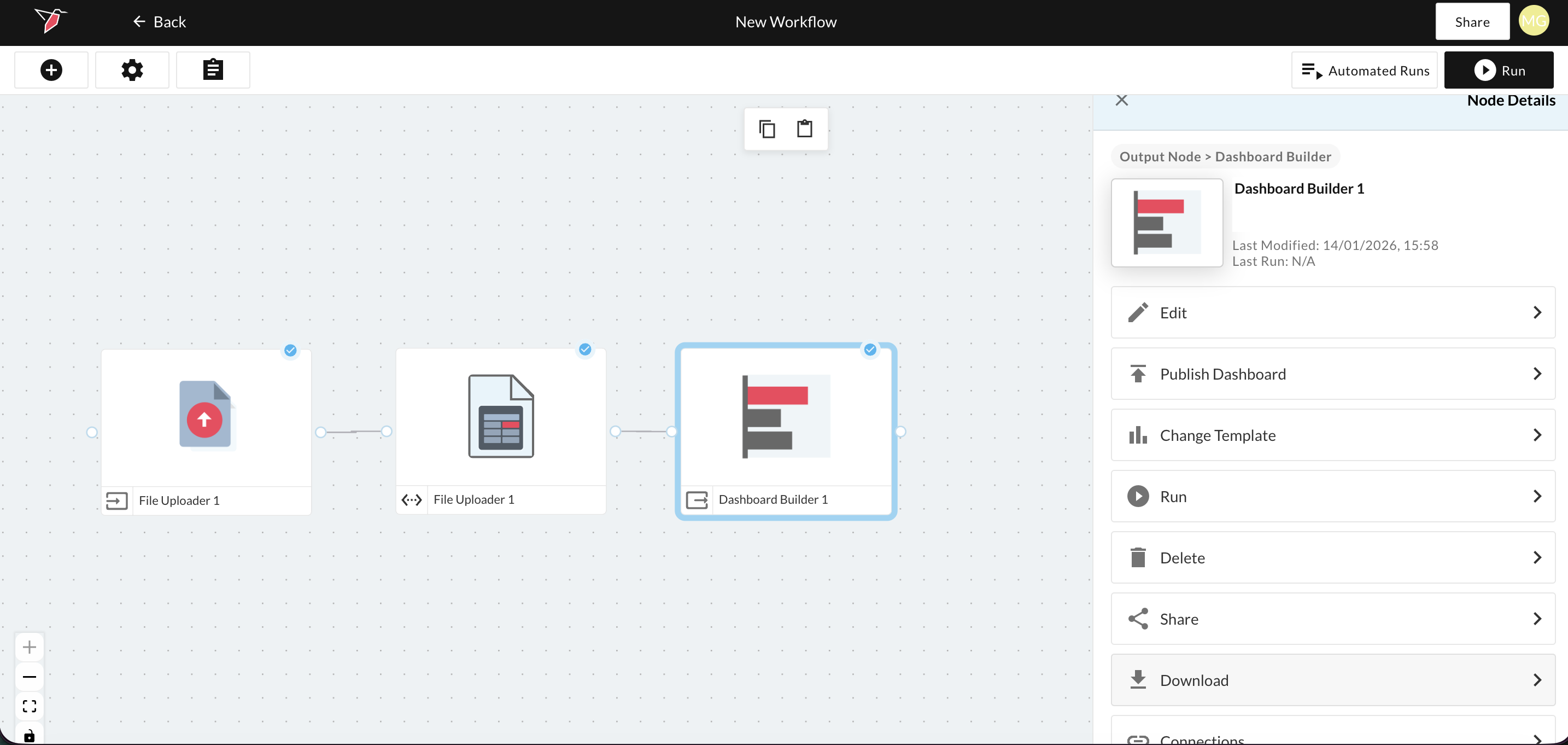
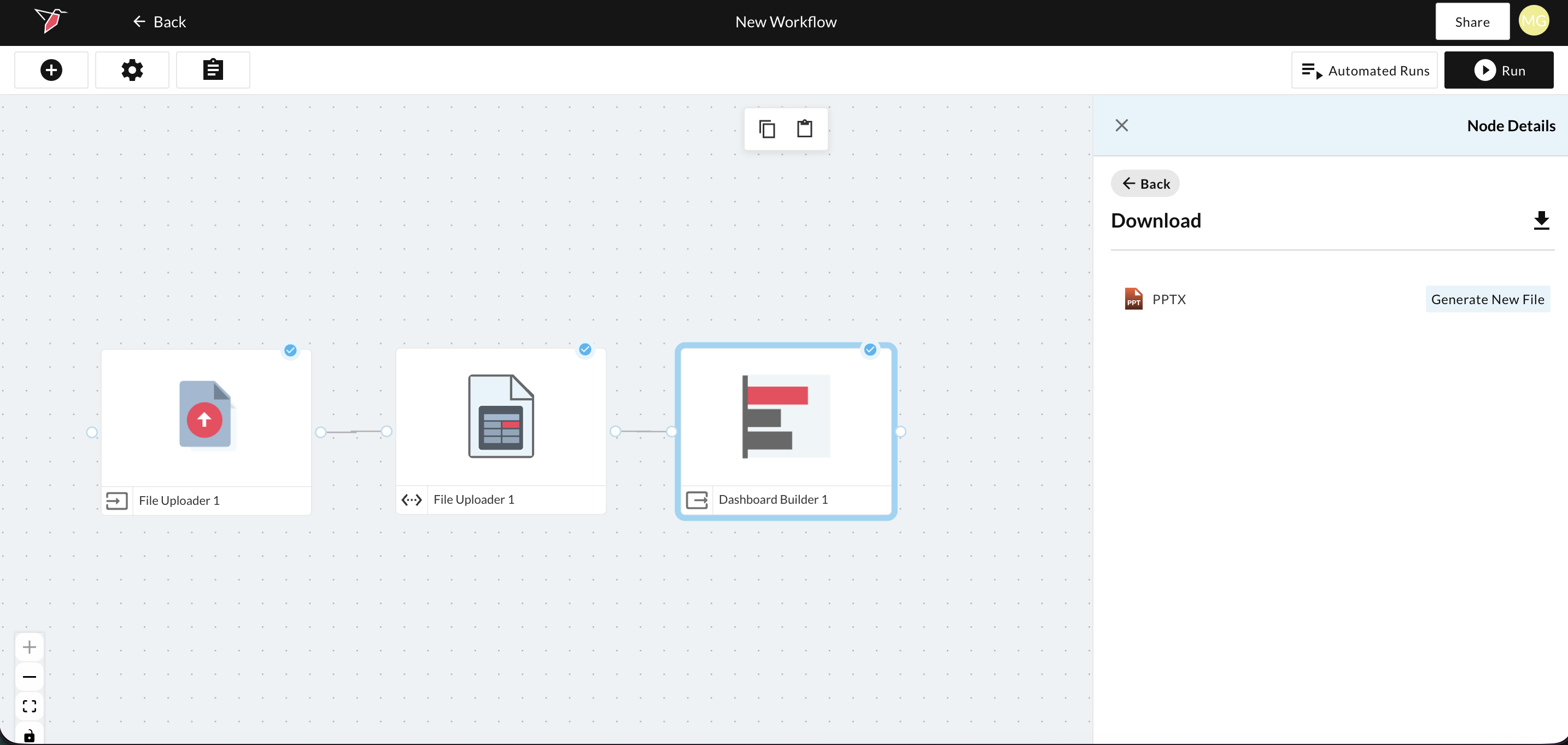
- Click Generate New File and Redbird will transform the dashboard into a PowerPoint presentation for you to download.
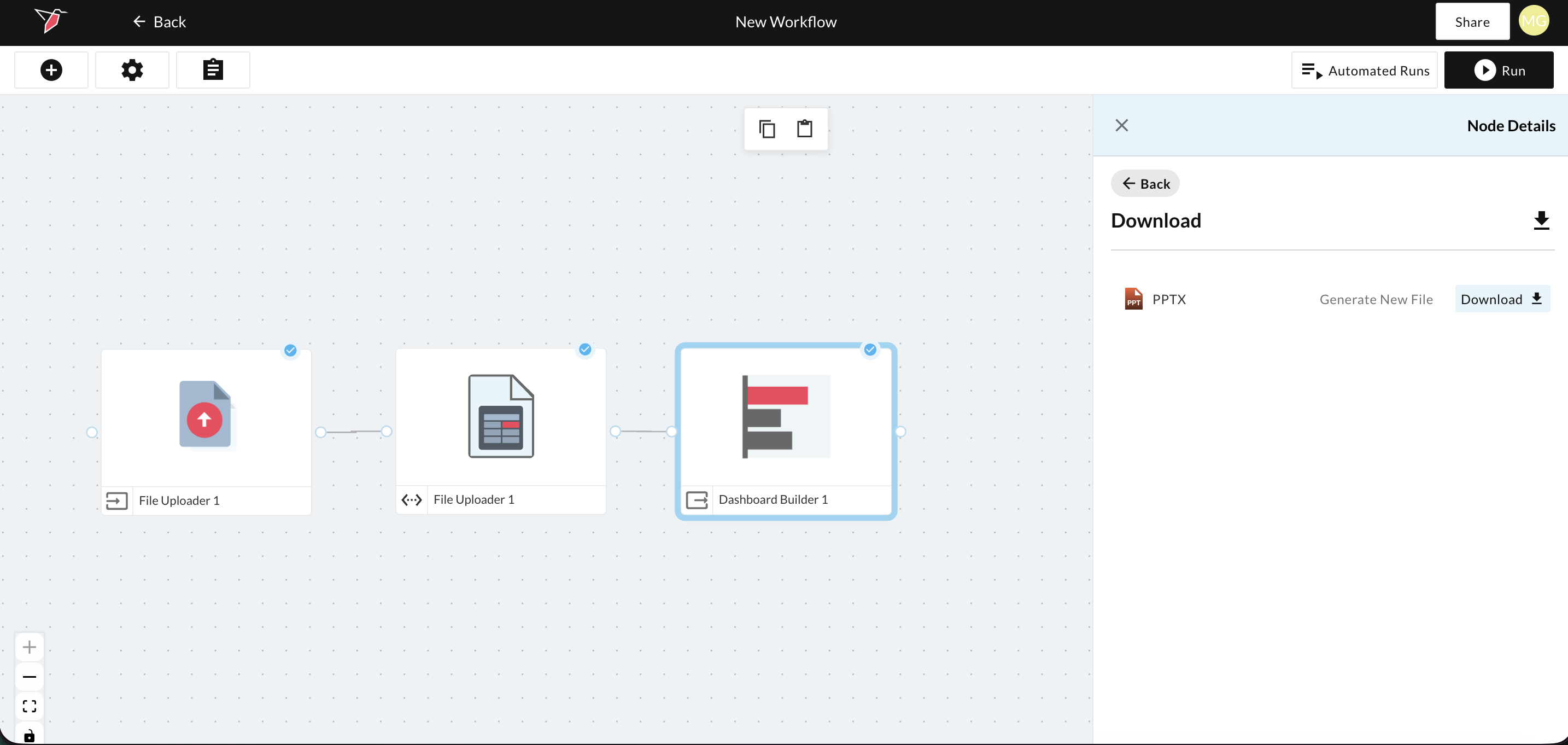
- Once the process is complete, click the Download button that appears in the right side panel.
- Click on the zip file downloaded in your browser. This will open the PowerPoint presentation.
Note - the PPT download will be regenerated automatically every time the dashboard node is run.
Exporting a Published Dashboard to PowerPoint
There are two places from which you can export a published dashboard to PowerPoint:
Exporting a Published Dashboard Via the Workflow Canvas
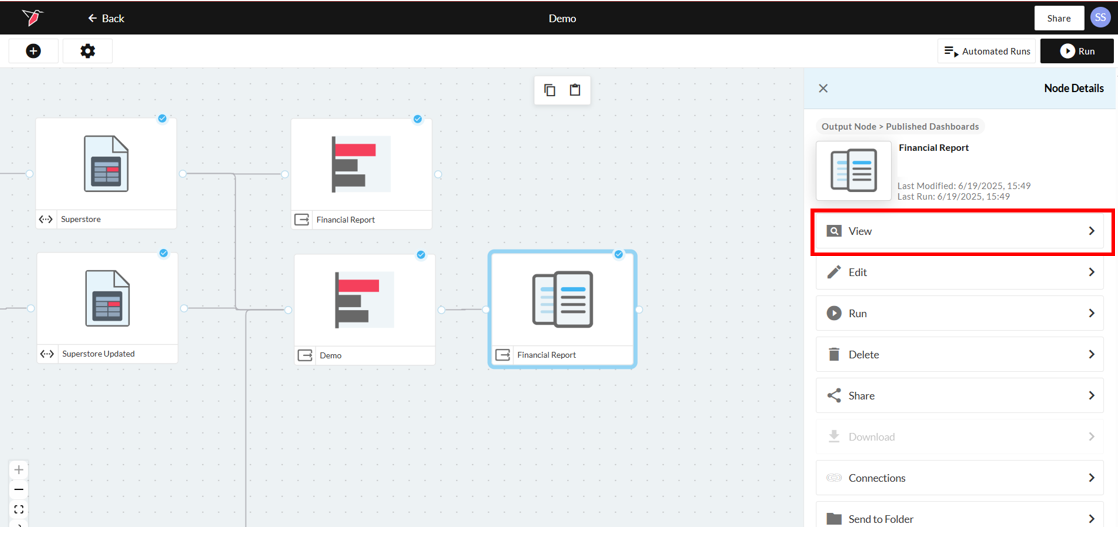
- Click the published dashboard node, then click View from the right side panel.
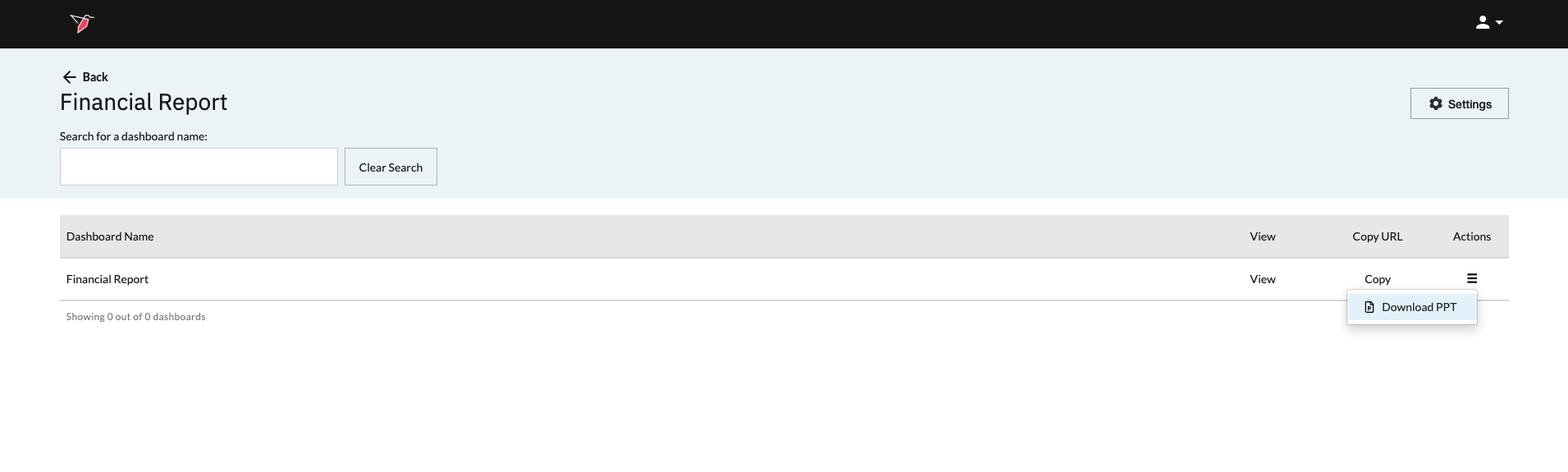
- In the case of a single published dashboard, you will only have the option to download the PowerPoint (PPT). Click the Actions menu icon , then click Download PPT.
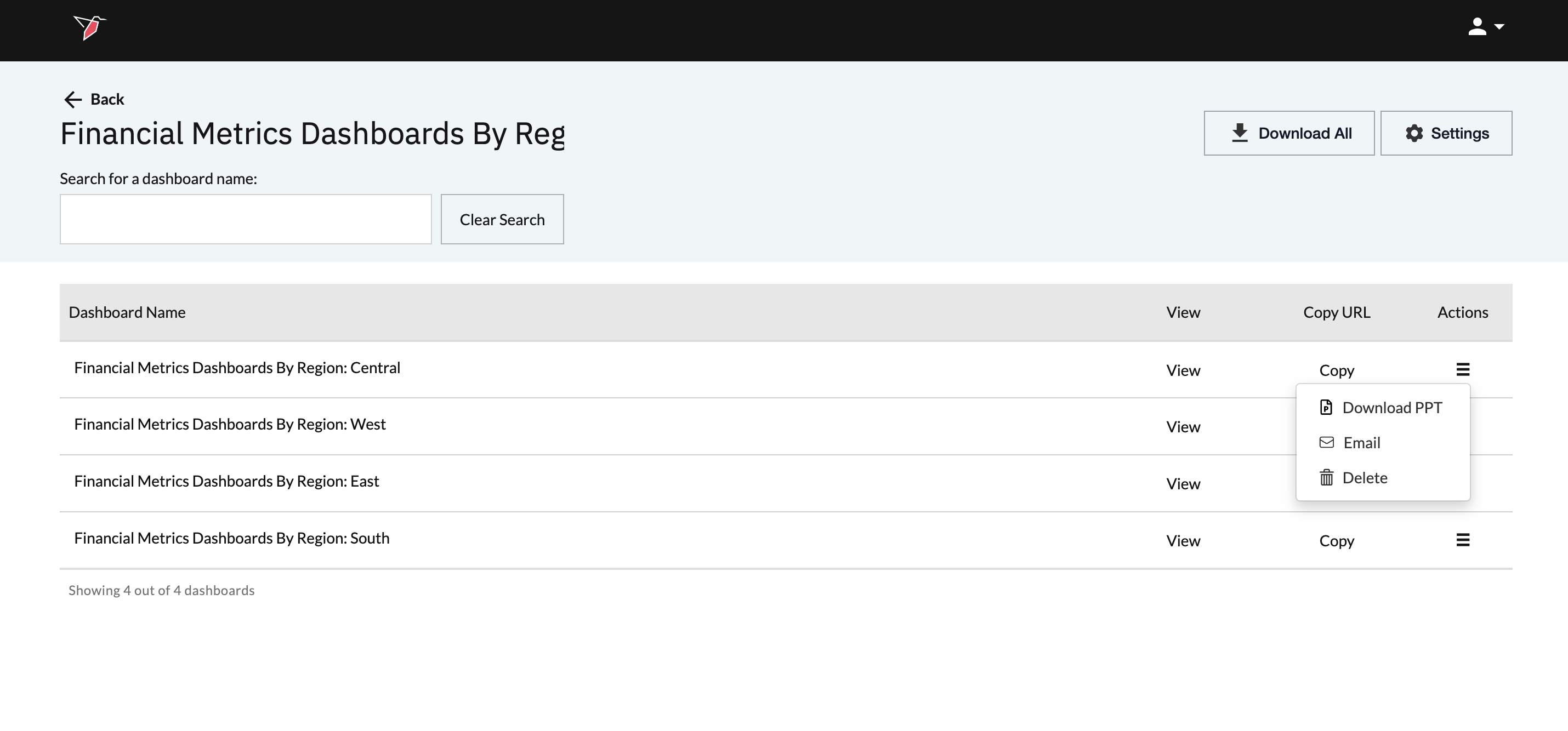
- In the case where the dashboard is part of a series published using Publish Multiple, you will have the change to download but also email out a link to the Published Dashboard to users via this interface.
-
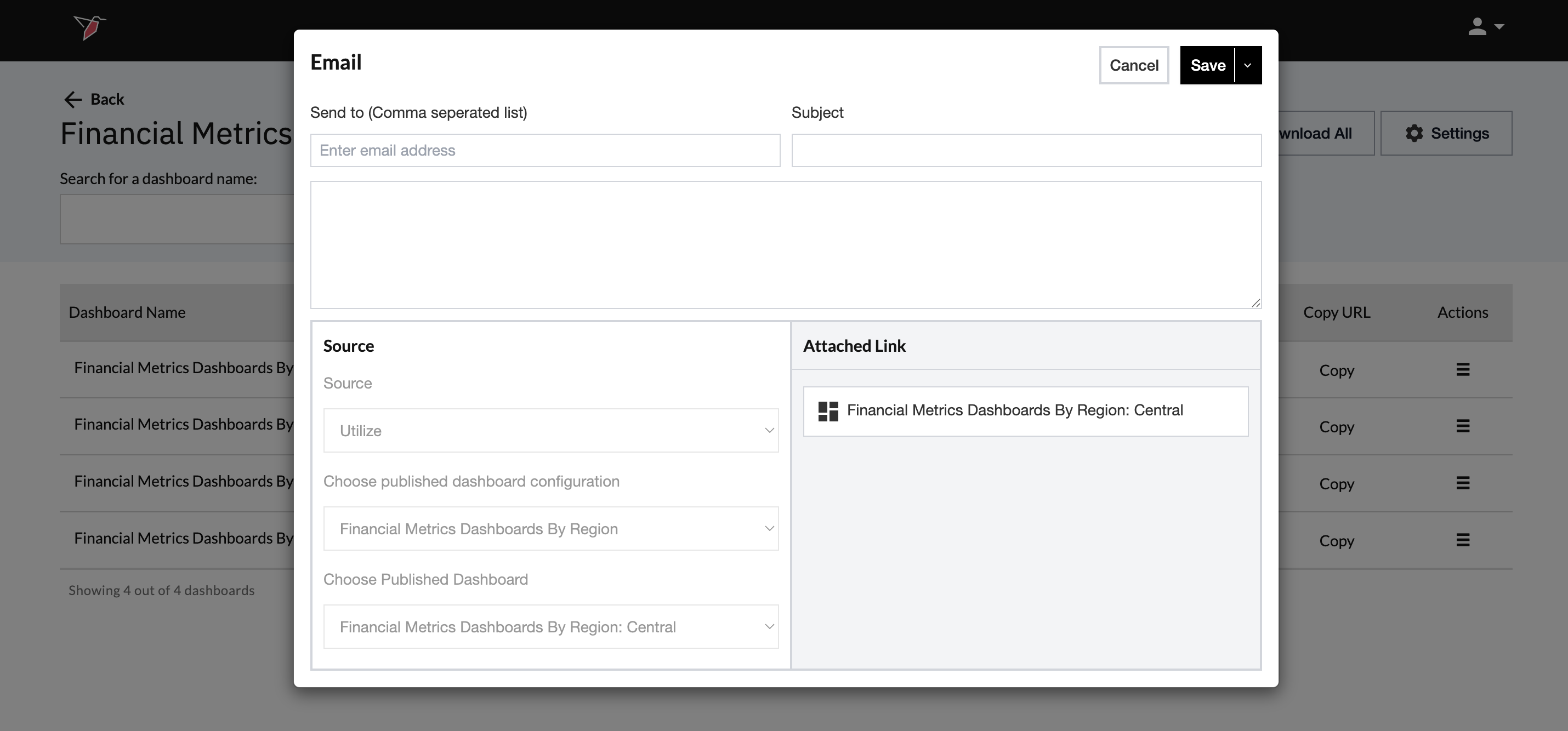
To email the dashboard to users, click Email. On the subsequent page, enter the list of Recipients (comma-separated), the Subject, and the email Body. This will share a link to the specific published dashboard.
Once finished, choose Save or Save and Send.
Exporting a Published Dashboard Via the Published Dashboard
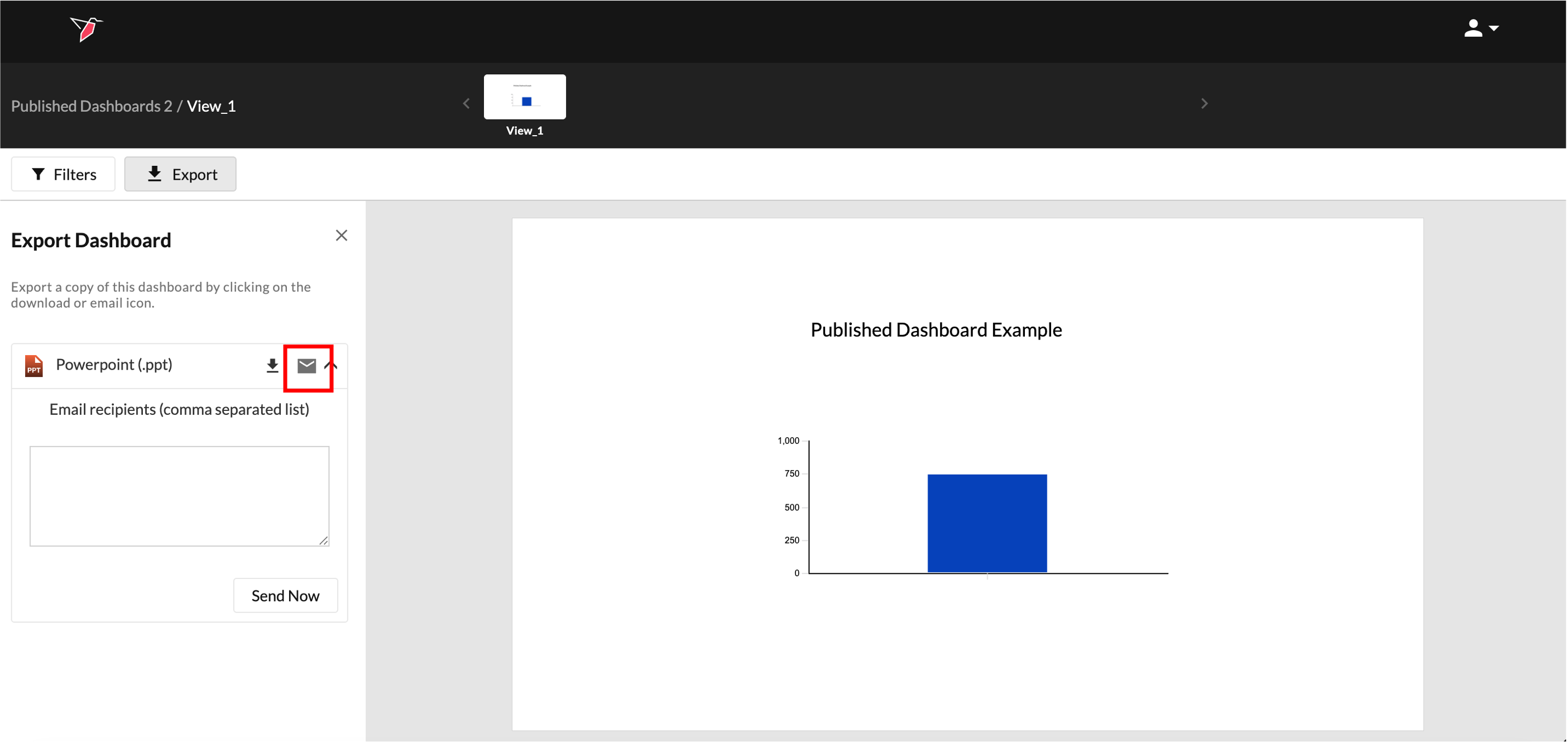
Alternatively, once you are viewing the published dashboard, click Export on the left-hand side to open the left-side panel. From there, click the Download icon to download the file directly.
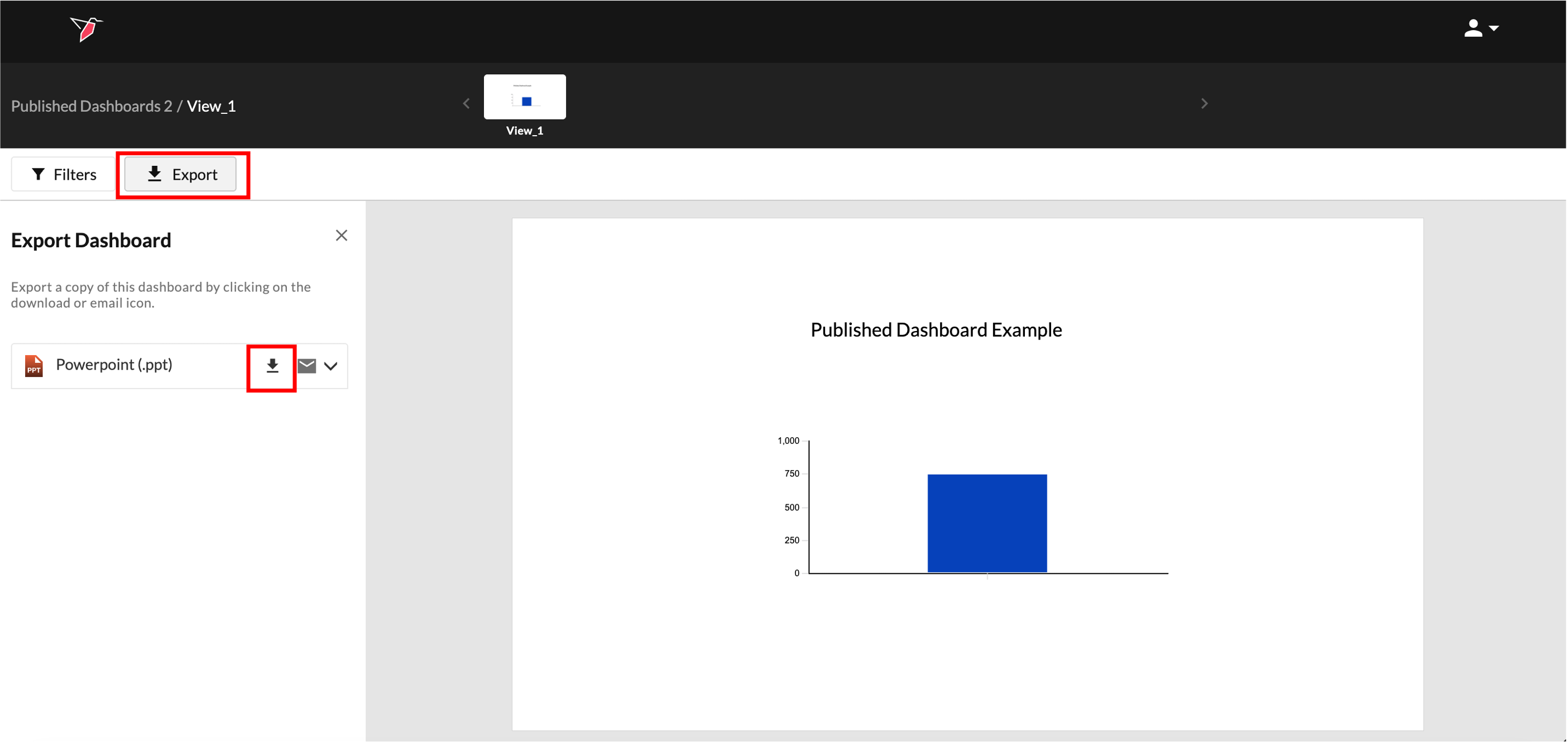
You can also click the Email icon to email the PowerPoint. A box will appear where you can enter comma-separated email addresses. Click Send Now to send it out.
Updated 6 months ago