

Setting up Google BigQuery
Overview
The below steps can be taken to set up your Google BigQuery account within a Redbird Data Warehouse configuration.
To connect to Google BigQuery you will need to set up a service account. A service account is a special kind of account that can be granted permission to access Google Products.
Creating a Google Service Account
- Log into your Google account.
- Access the Enable API Wizard by clicking here.
- Click Create Project.
- Provide the Project with a name and select your organization.
- Click Create.
- Follow the steps to enable access to API (1. Confirm Project; 2. Enable API).
- Navigate to Google Cloud Console.
- Go to Menu menu > IAM & Admin > Service Accounts.
- Click Create Service Account and follow the steps.
- Click Done.
Create Credentials for Service Account
You need to obtain credentials to allow Redbird to access your Service Account. Credentials come in the form of a JSON file.
- Navigate to Google Cloud Console.
- Go to Menu menu > IAM & Admin > Service Accounts.
- Select your project.
- Find your service account and click on the actions menu.
- Click Manage Keys.
- Click Add Keys > Create New Key.
- Select JSON.
- Click Create. Clicking Create will save a copy of the JSON file to your downloads.
Giving BigQuery Access to Service Account
After exporting the JSON file above, you'll need to provide the Service Account Credentials (the authorization principal) access to your Google Big Query Dataset.
- Navigate to Big Query Studio
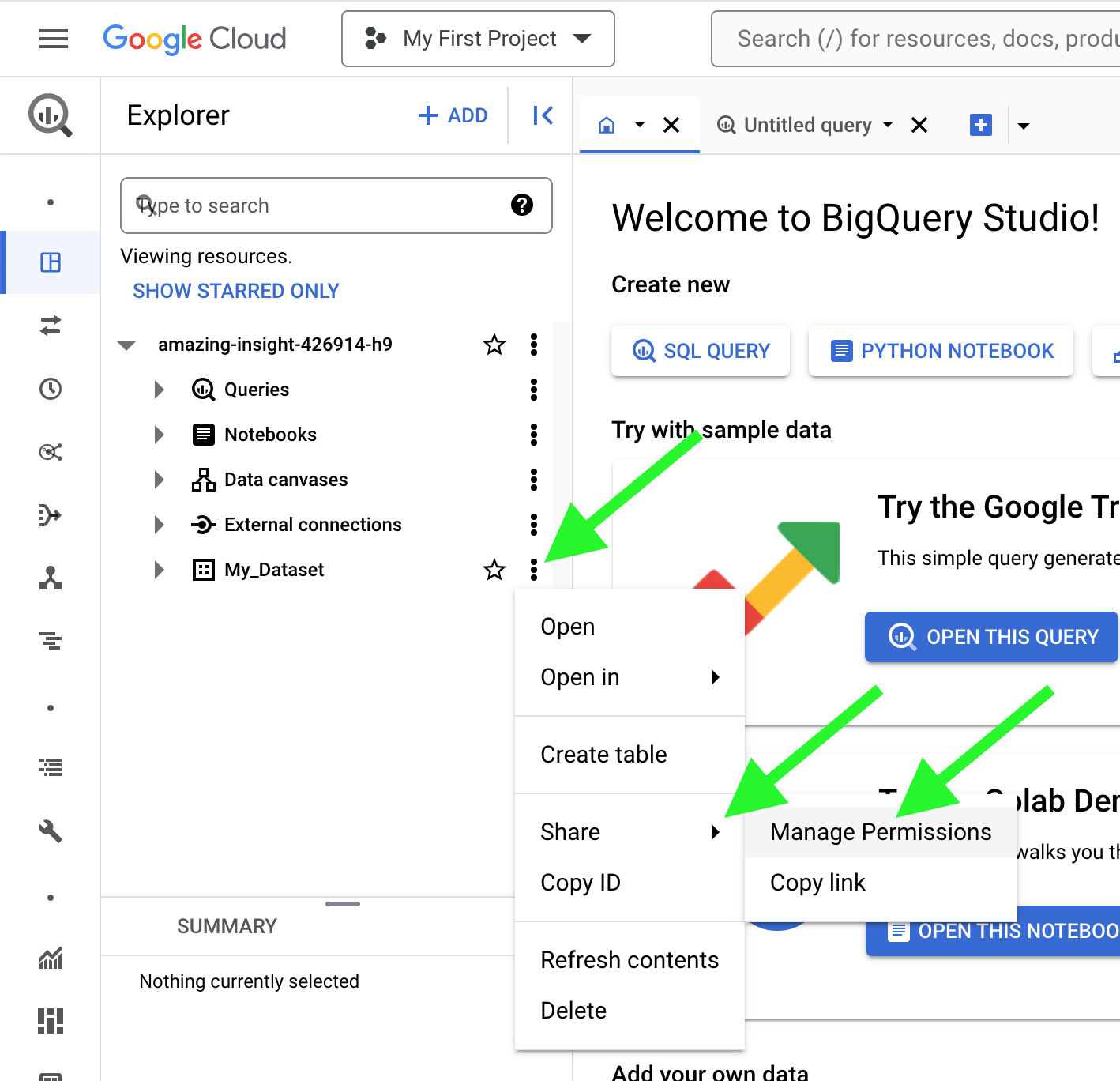
- Click on the three dots next to your Dataset to open its options. (Note you'll need to have an existing Dataset to do this). Click "Share" > "Manage Permissions"
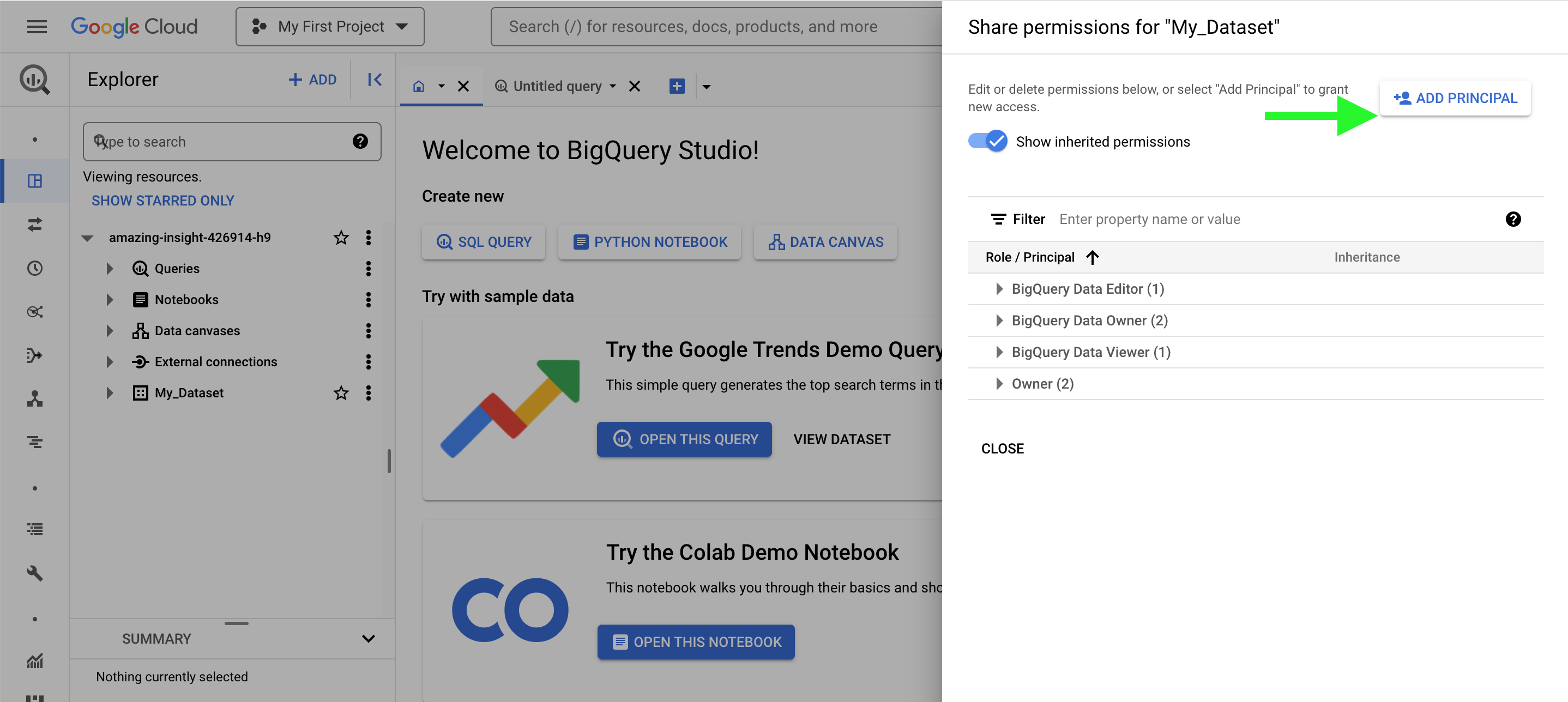
- Click "Add Principal"
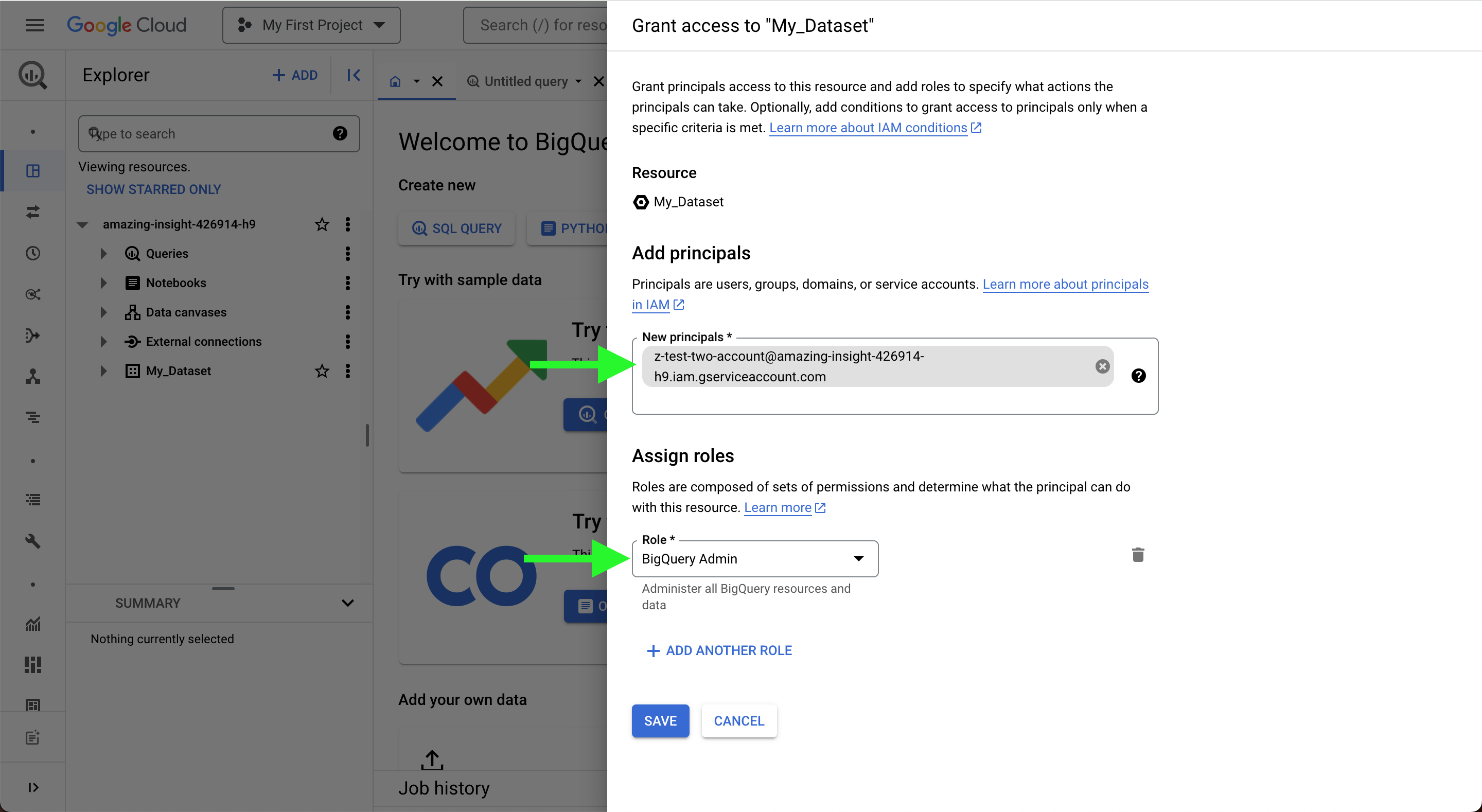
- In the "New Principals" textbox, enter the email address that is inside of the generated JSON file that was downloaded in the earlier step. This is the ID that is associated with the Service Account that was created. Set the Role to "BigQuery Admin" and click "Save".
Ex: z-test-two-account@amazing-insight-426914-h9.iam.gserviceaccount.com
Ex: BigQuery Admin
Finalizing the Connection
Back in the Redbird platform in the credential creation modal, upload your JSON file using the Choose File button and click Connect.
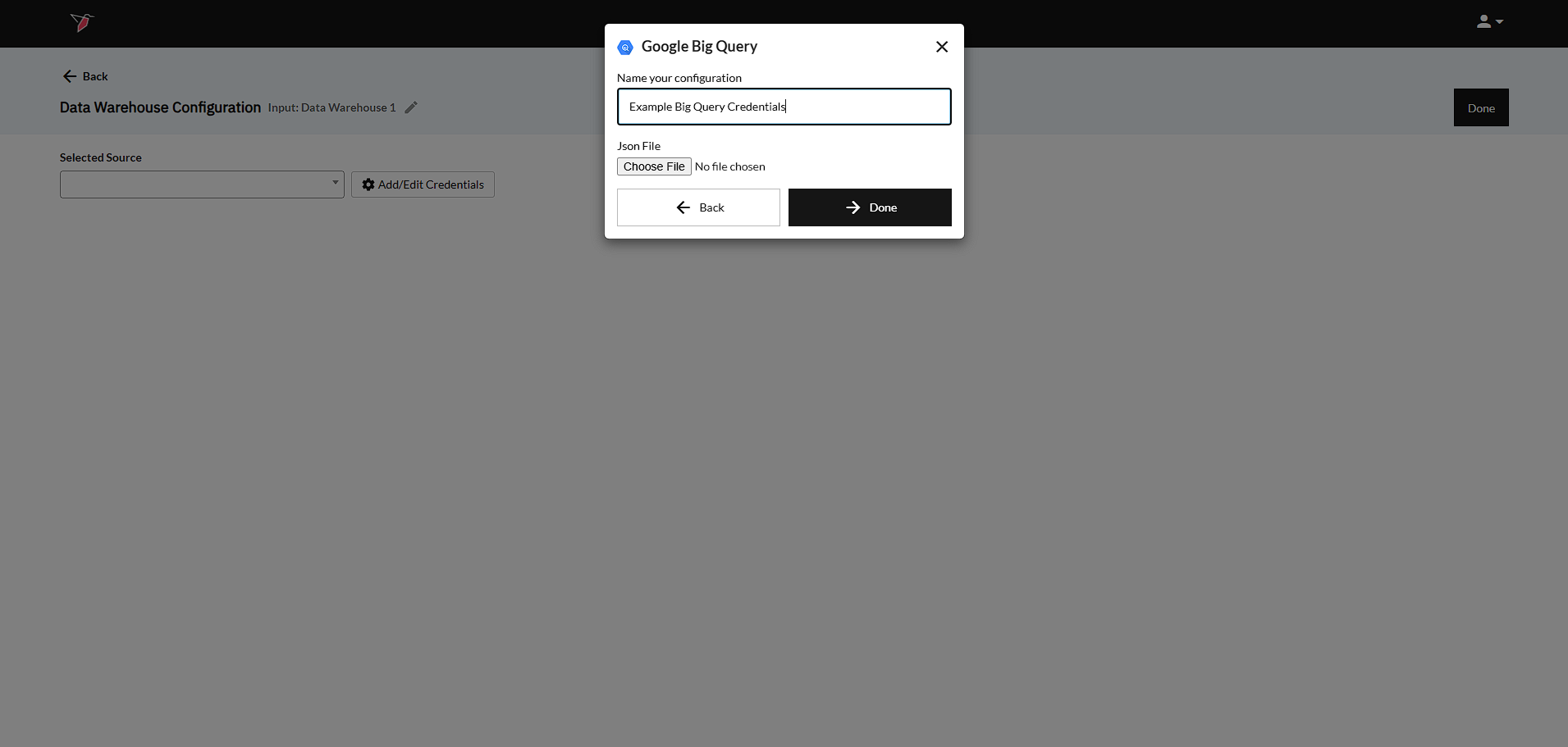
Once connected, your Datastore & Tables will be visible in the Redbird platform.
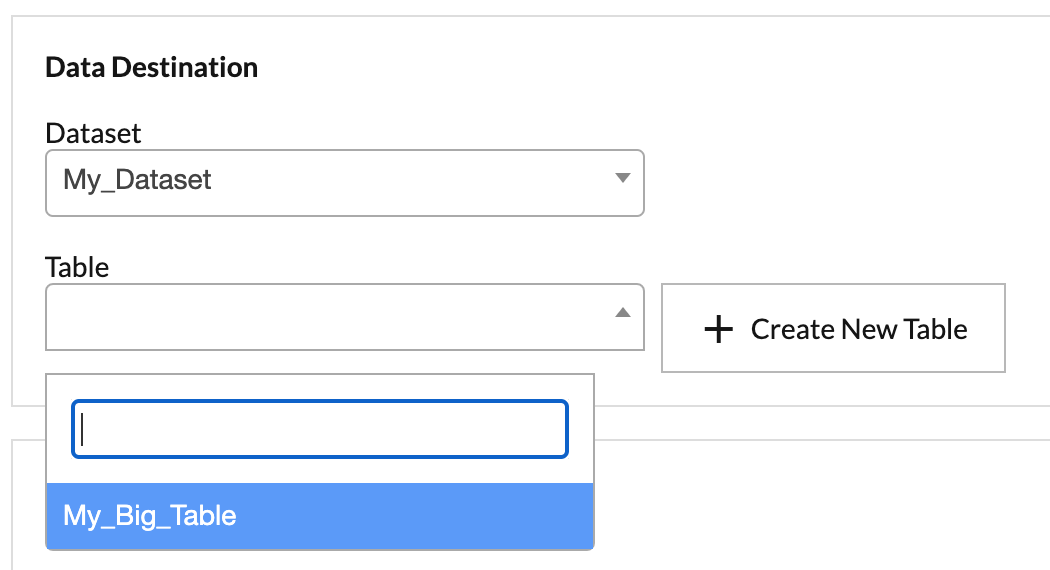
Now you are all set up to use your new Google BigQuery connection within Redbird. Simply select the connection you would like to use from Source dropdown. See here for the guide on how to extract tables from a Data Warehouse and here for the guide on how to push data to a Data Warehouse.
Note:The service account that was created will need to be granted access to the BigQuery tables that users would like to access. If the user does not have sufficient permissions to grant the service account access, they should reach out to an administrator to assist.
Updated 8 months ago