

Generate Sample Operation
Background
Once a dataset has been loaded into Redbird, especially if it is large, it may be useful for you to separate a smaller sample to work from. To avoid any bias, and for the sample to be representative of the whole dataset, it should be randomly generated. You can complete this task by using Redbird’s Generate Sample operation in the Macro Builder tool.
How it works
To demonstrate how the Generate Sample operation works, we are going to walk through an example using data from a fictitious superstore that sells a variety of products.
The data below was uploaded into Redbird and contains 12 columns and 3,002 rows.

The final dataset will be a subset of this dataset, containing fewer rows. Exactly how many rows will be dependent on the sampling method you choose to apply. There are two options:
- You can choose a set sample size you wish to draw if you have a quantity in mind.
- You can let Redbird determine the appropriate sample size based on a significance test, with you specifying the acceptable confidence level and margin of error.
The final output would look something like this - in this case, still with all the columns of data but with a random selection of only 249 rows.
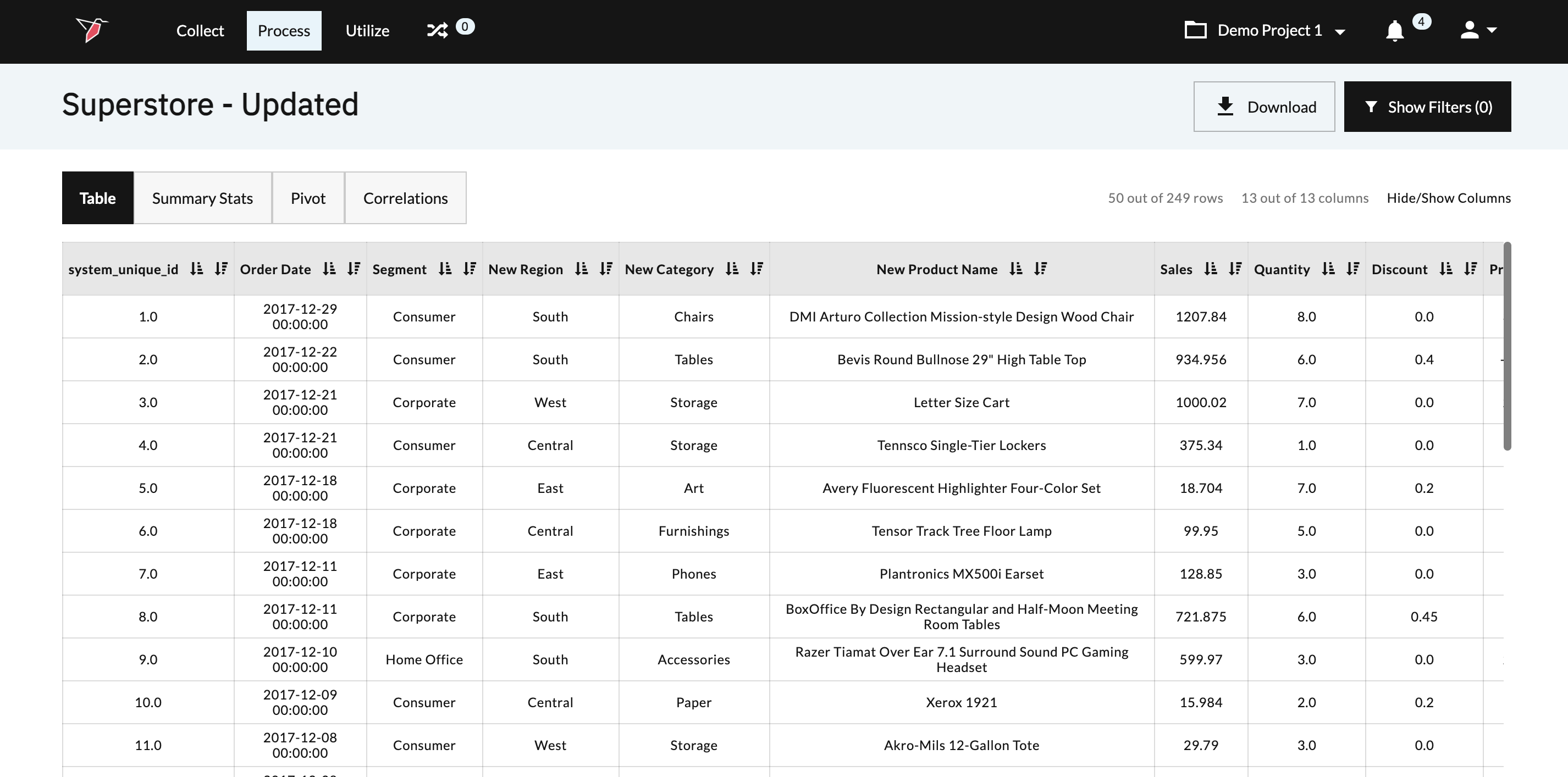
Configure a Generate Sample Operation with a user-defined sample size
To configure the Generate Sample operation where you define the sample size, please follow the steps below.
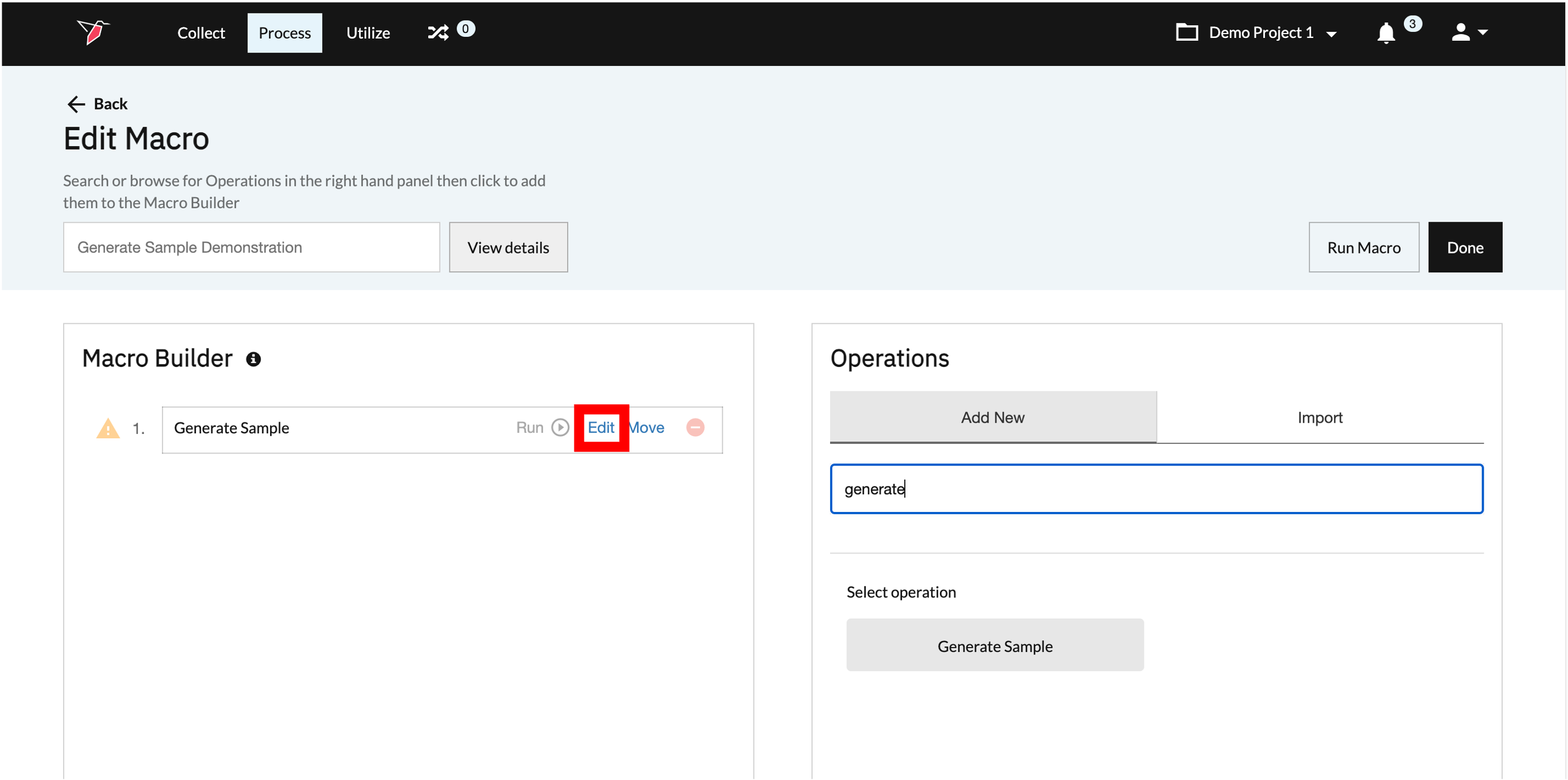
- Click Edit within the Generate Sample operation in the Macro Builder panel. This will kick off the Generate Sample configuration process.\
 \
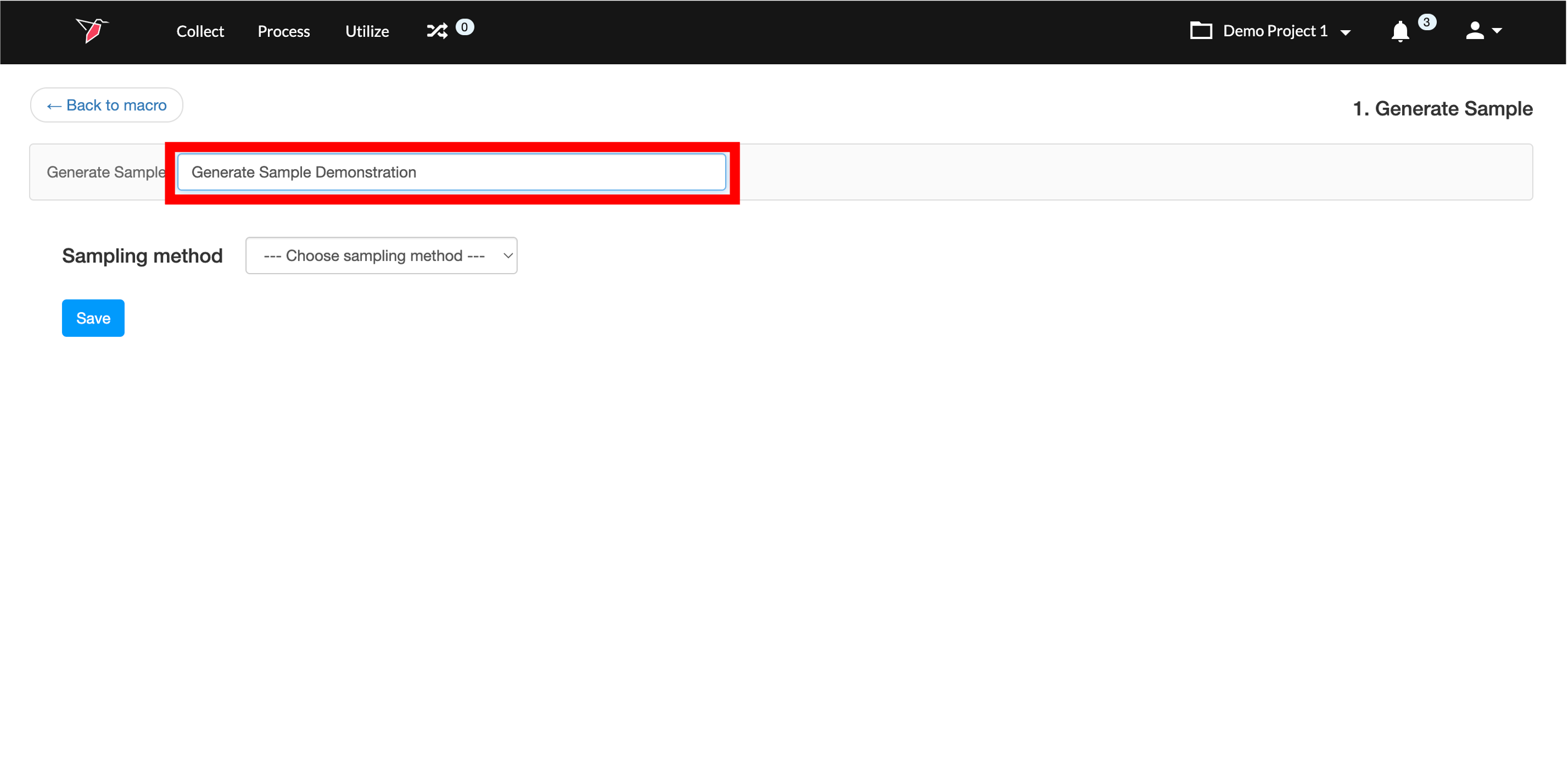
\ - Enter a name for your configuration in the box.\
 \
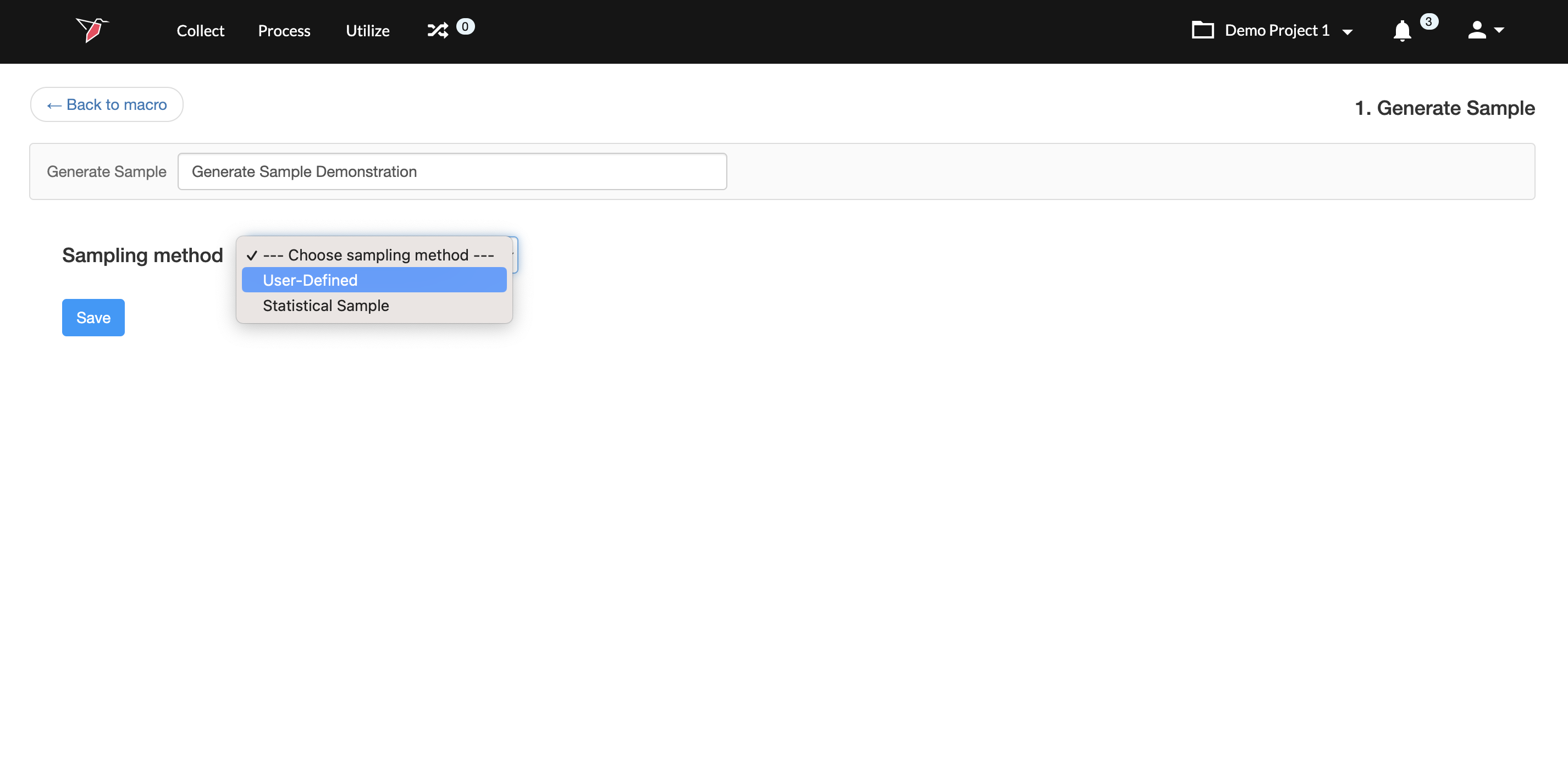
\ - Choose User-Defined as the method from the Sampling Method drop-down.\
 \
\ - Enter the desired sample size in the box.\
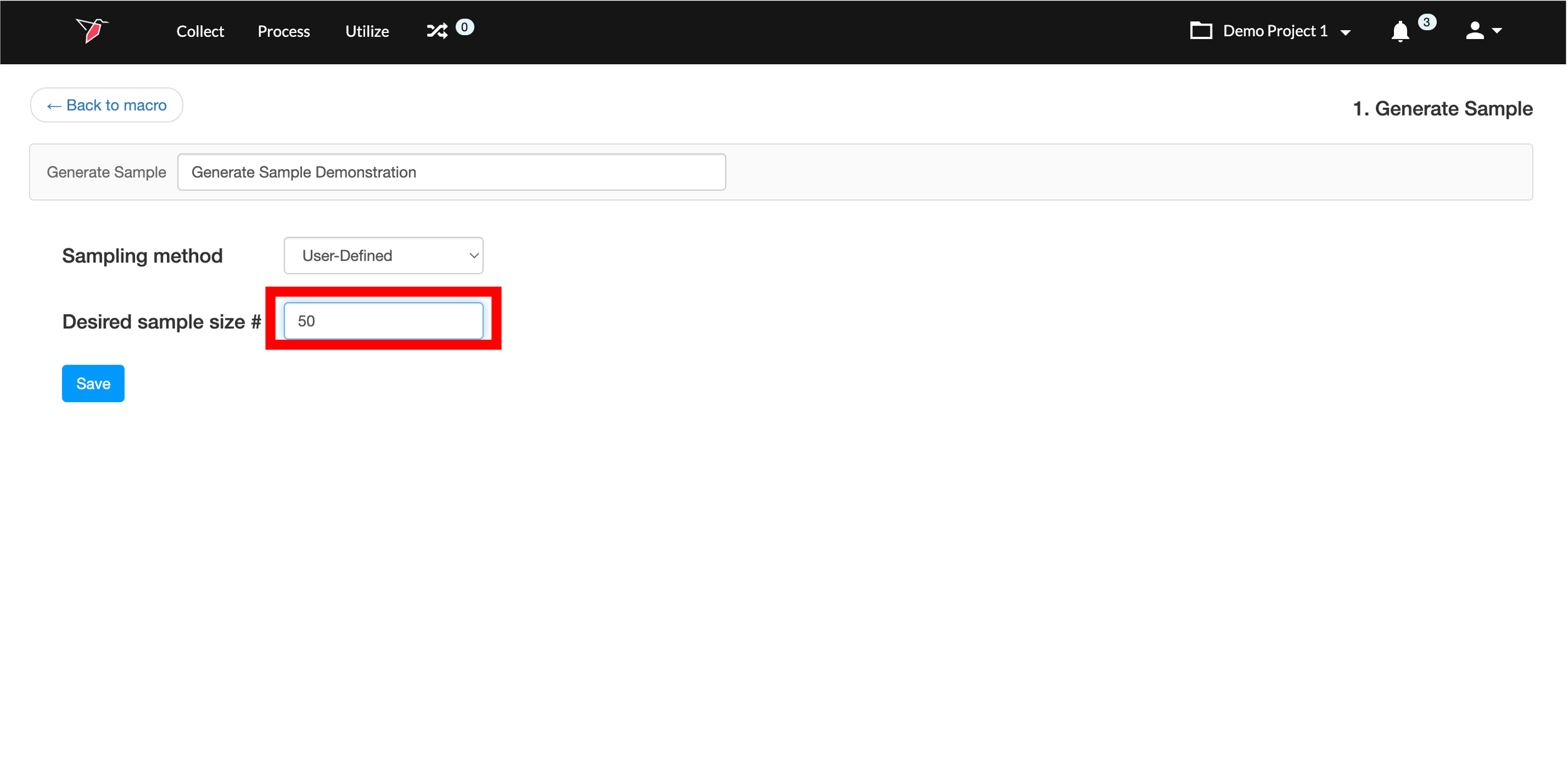 \
\ - Click Save.\
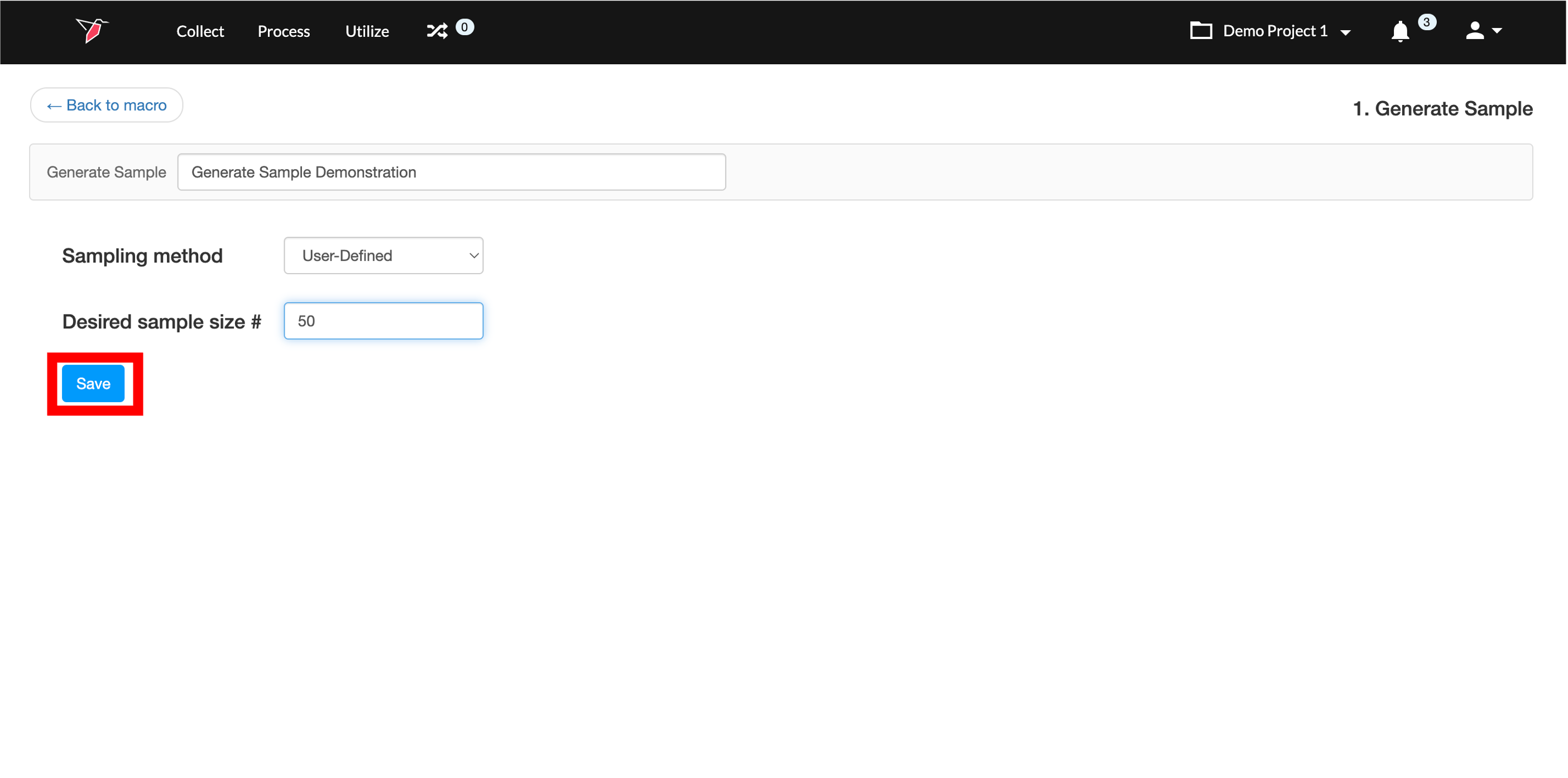 \
\ - Click Run Macro to get your results.\
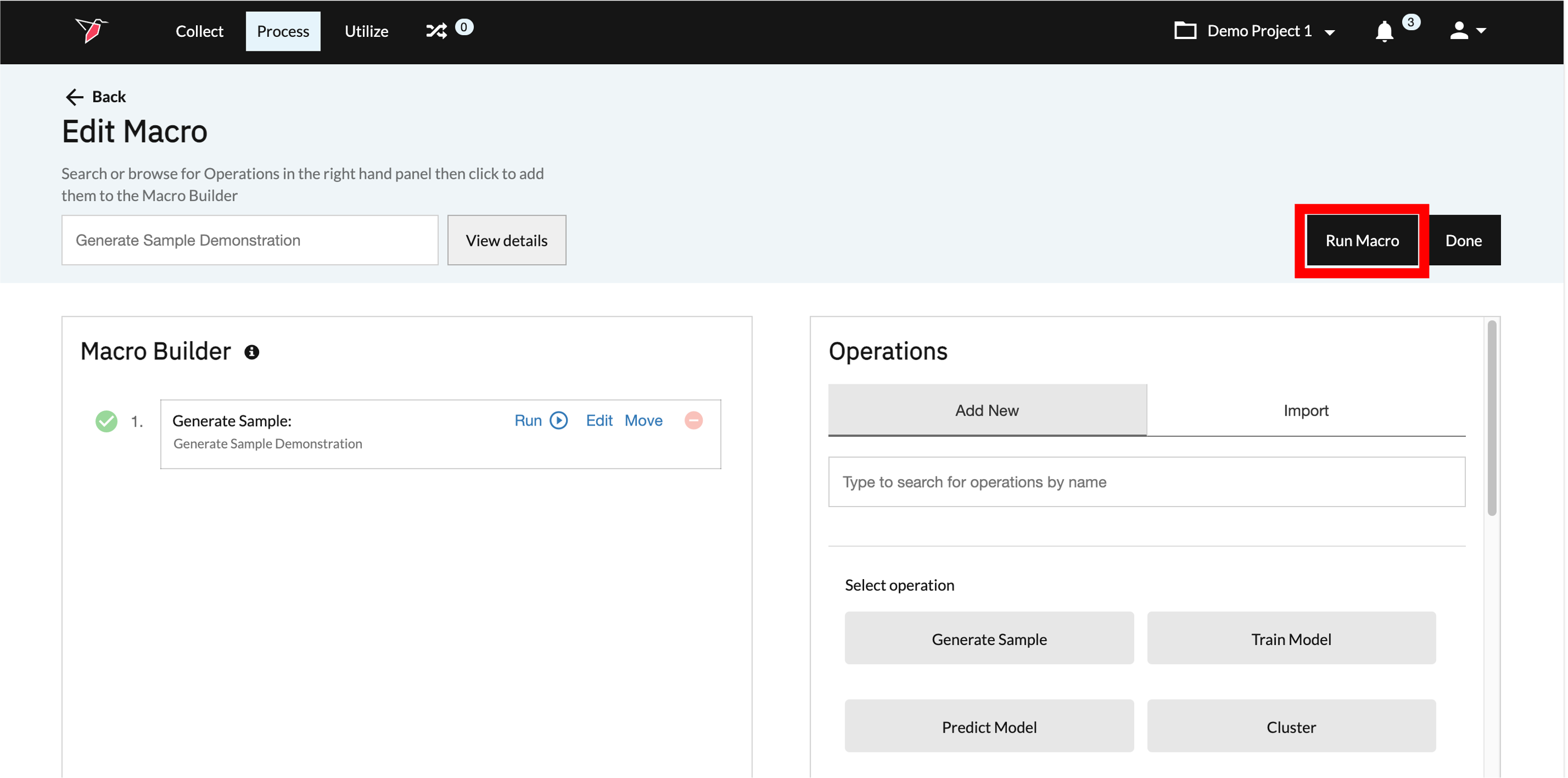 \
\
Configure a Generate Sample Operation with a statistically defined sample size
To configure the Generate Sample operation where Redbird defines the sample size using statistical methods, please follow the steps below.
- Click Edit within the Generate Sample operation in the Macro Builder panel. This will kick off the Generate Sample configuration process.\
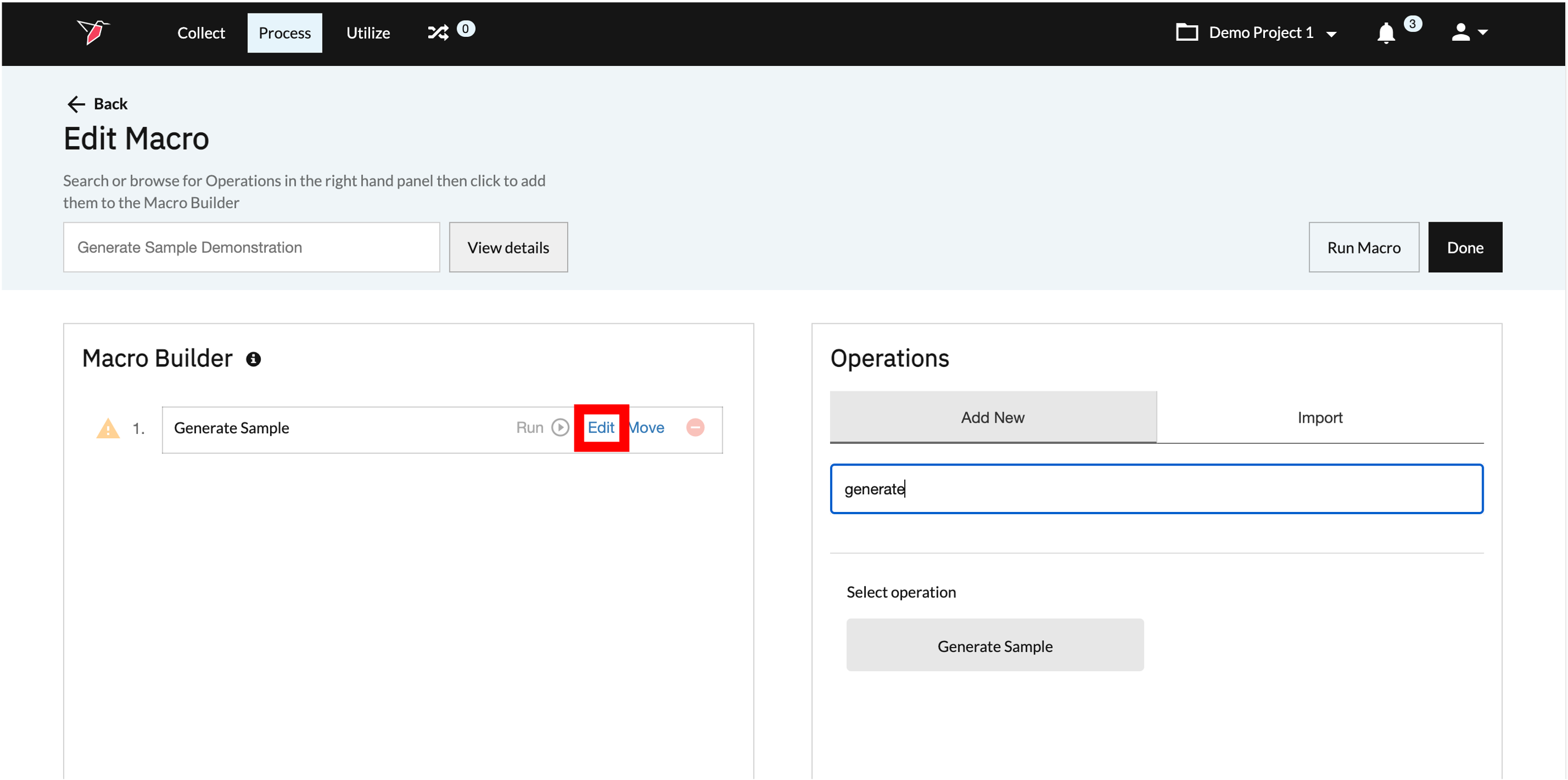 \
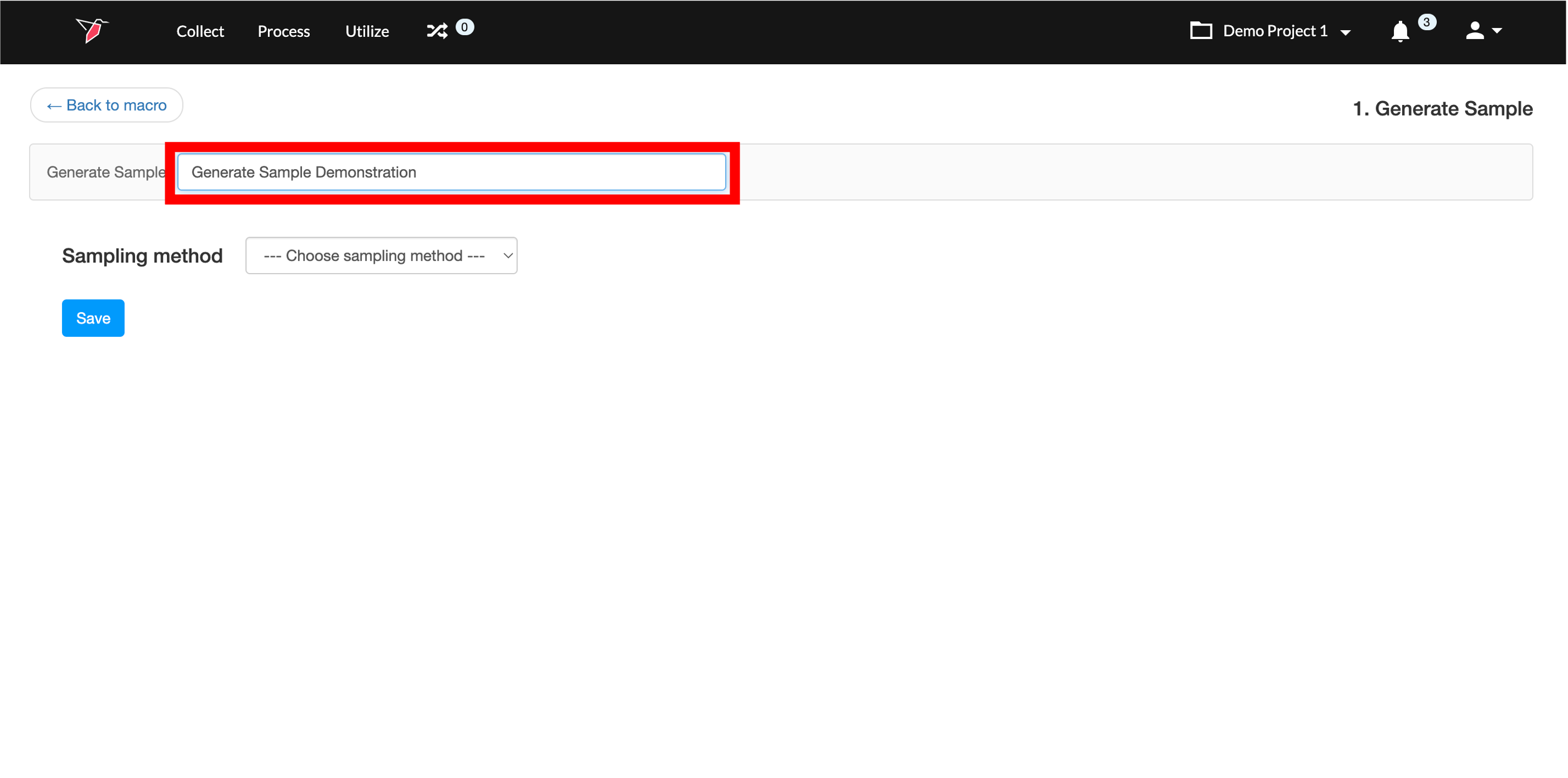
\ - Enter a name for your configuration in the box.\
 \
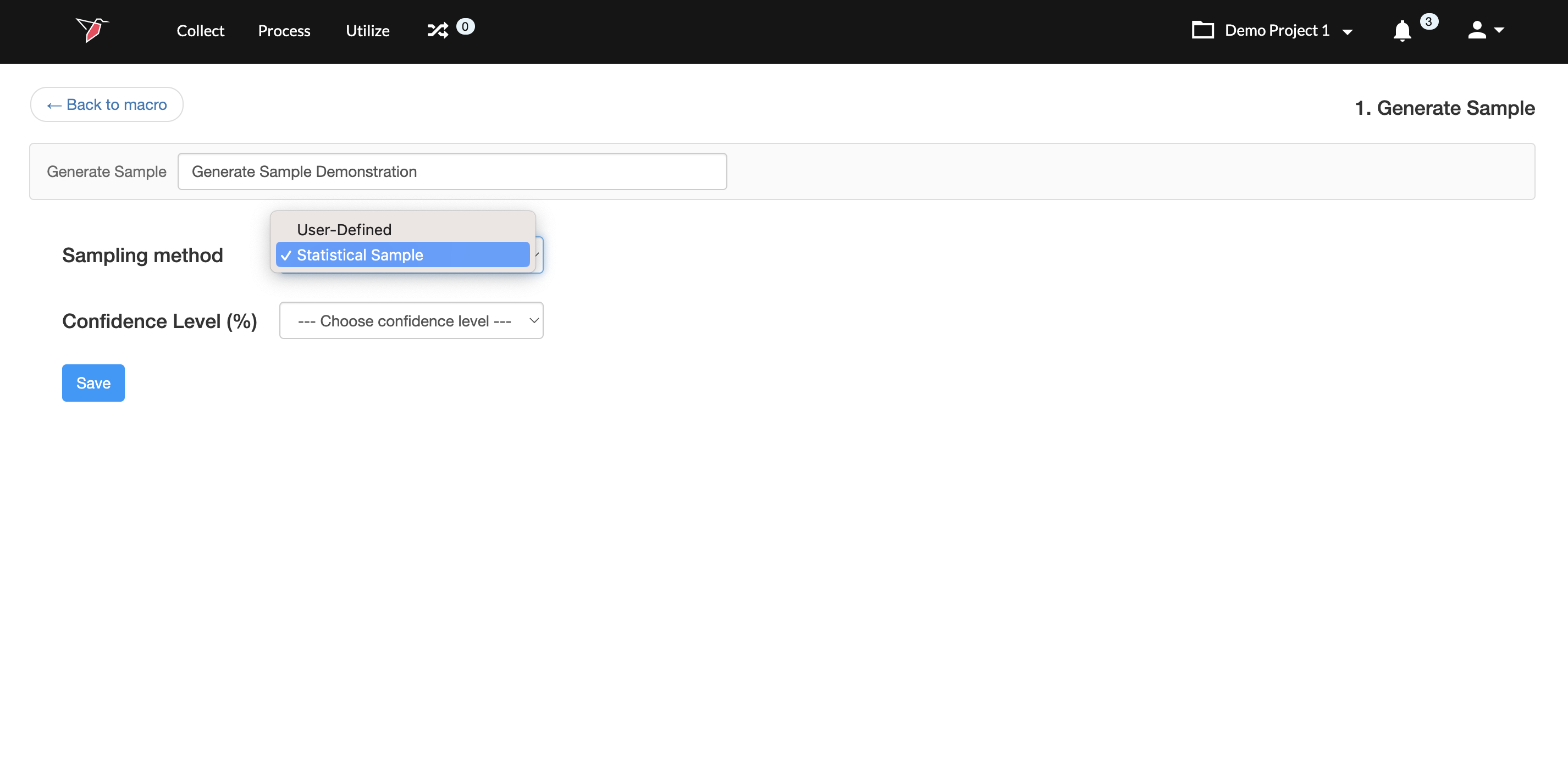
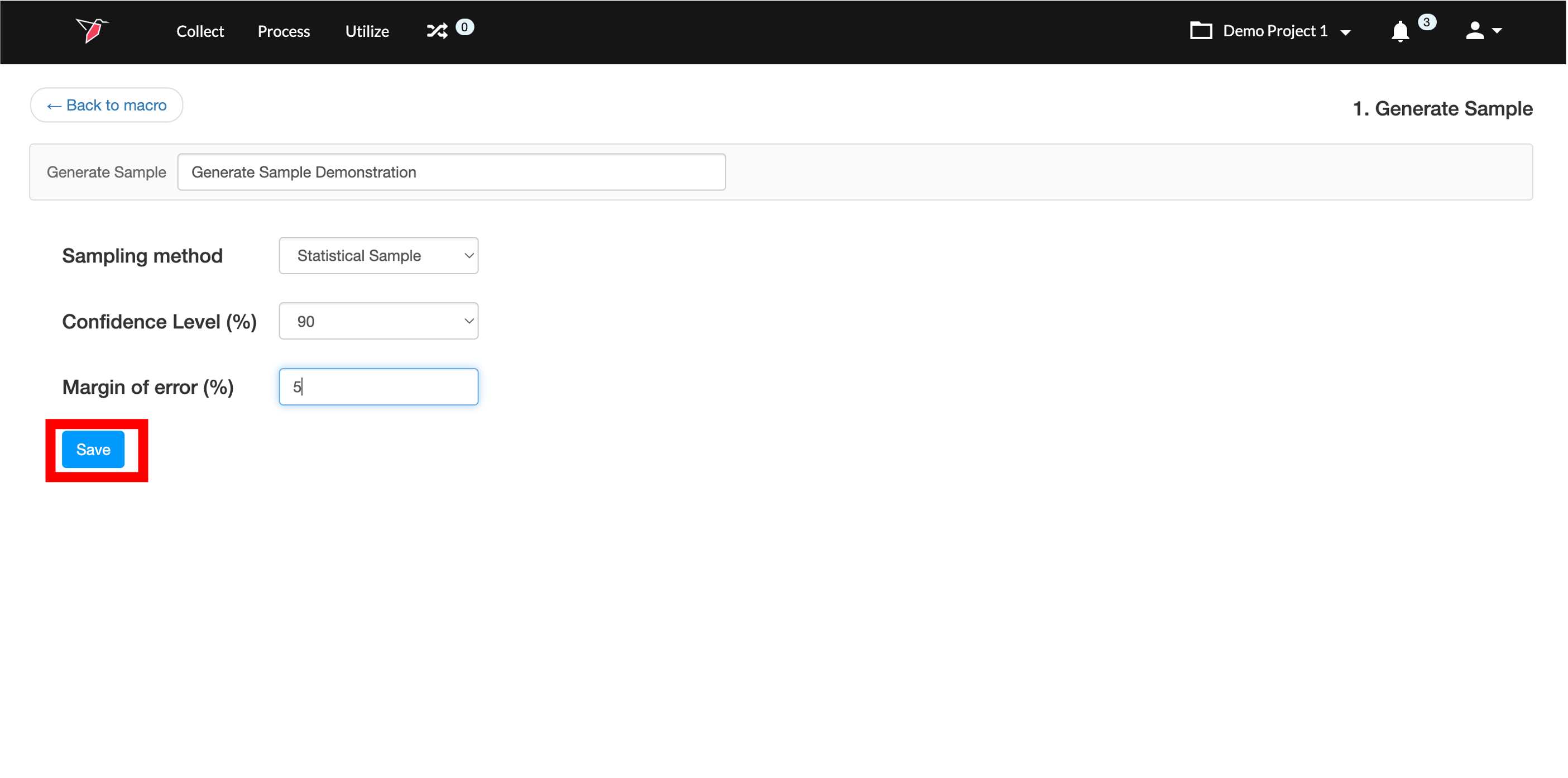
\ - Choose Statistic Sample from the Sampling method drop-down.\
 \
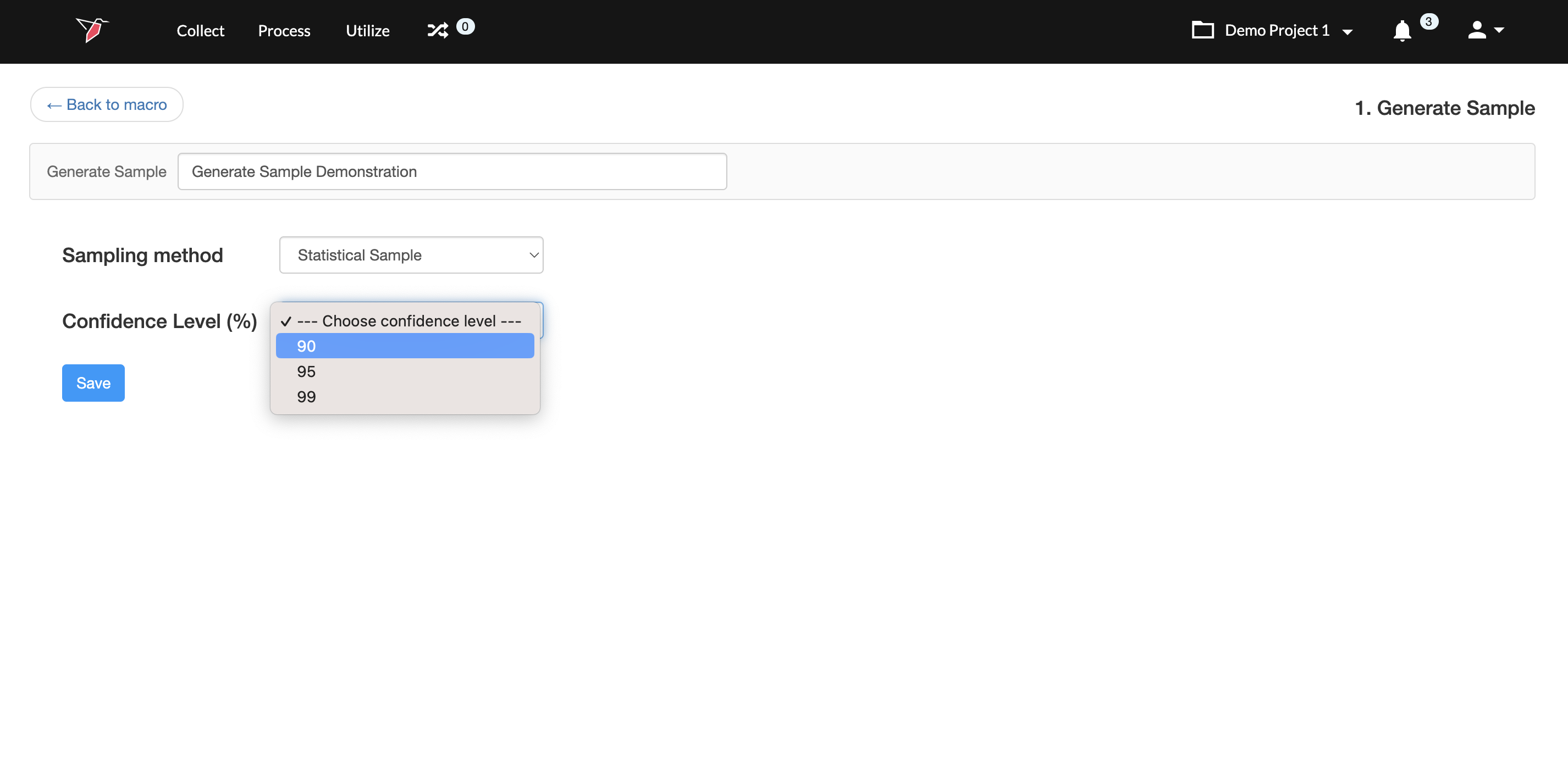
\ - Choose the desired confidence level percentage from the Confidence Level drop-down. The higher the confidence level required, the larger the sample size will be.\
 \
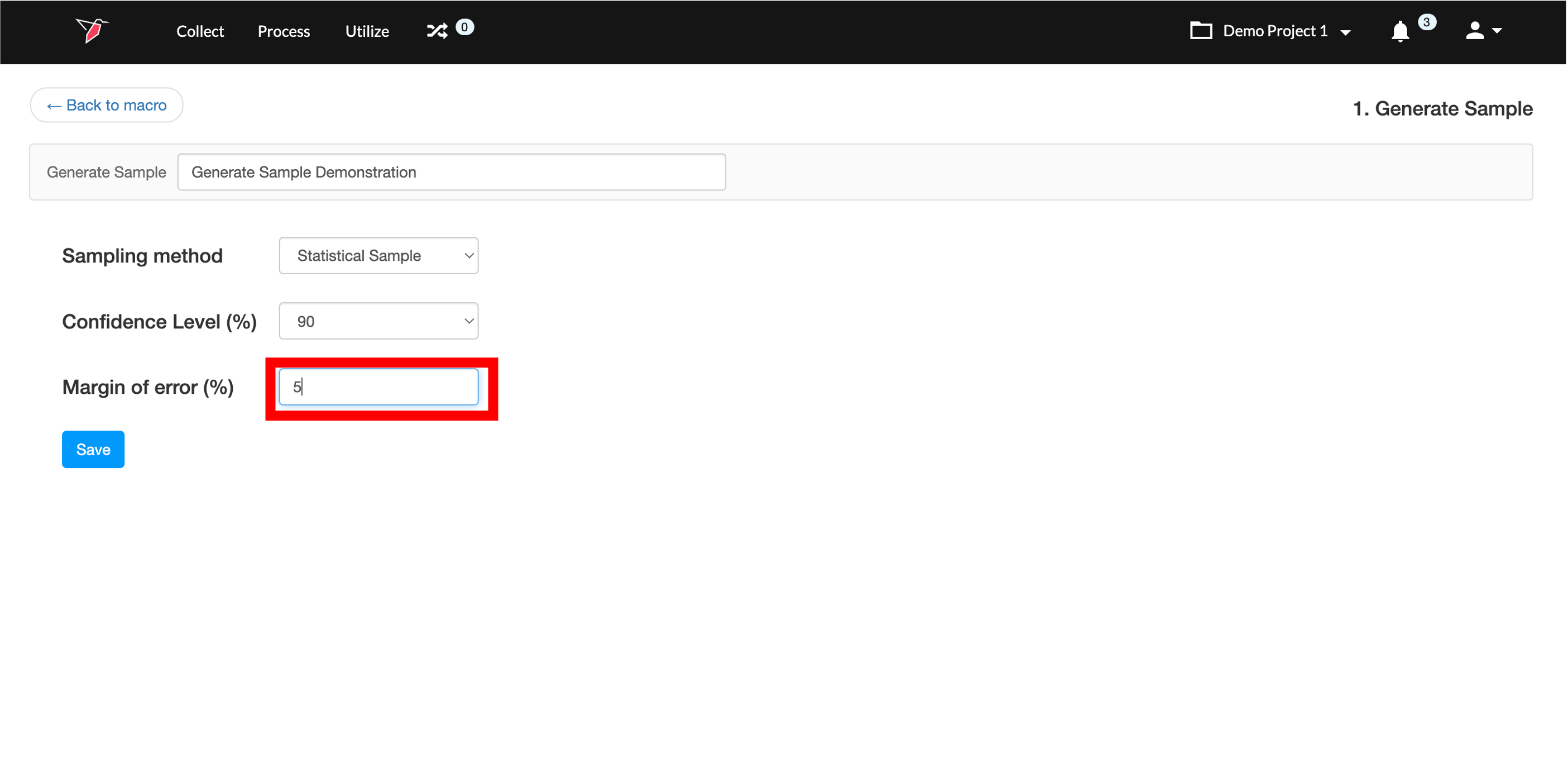
\ - Enter the acceptable margin of error as a number in the Margin of error box. This will represent the percentage margin of error you are comfortable with. The smaller the margin of error, the larger the sample size will be.\
 \
\ - Click Save.\
 \
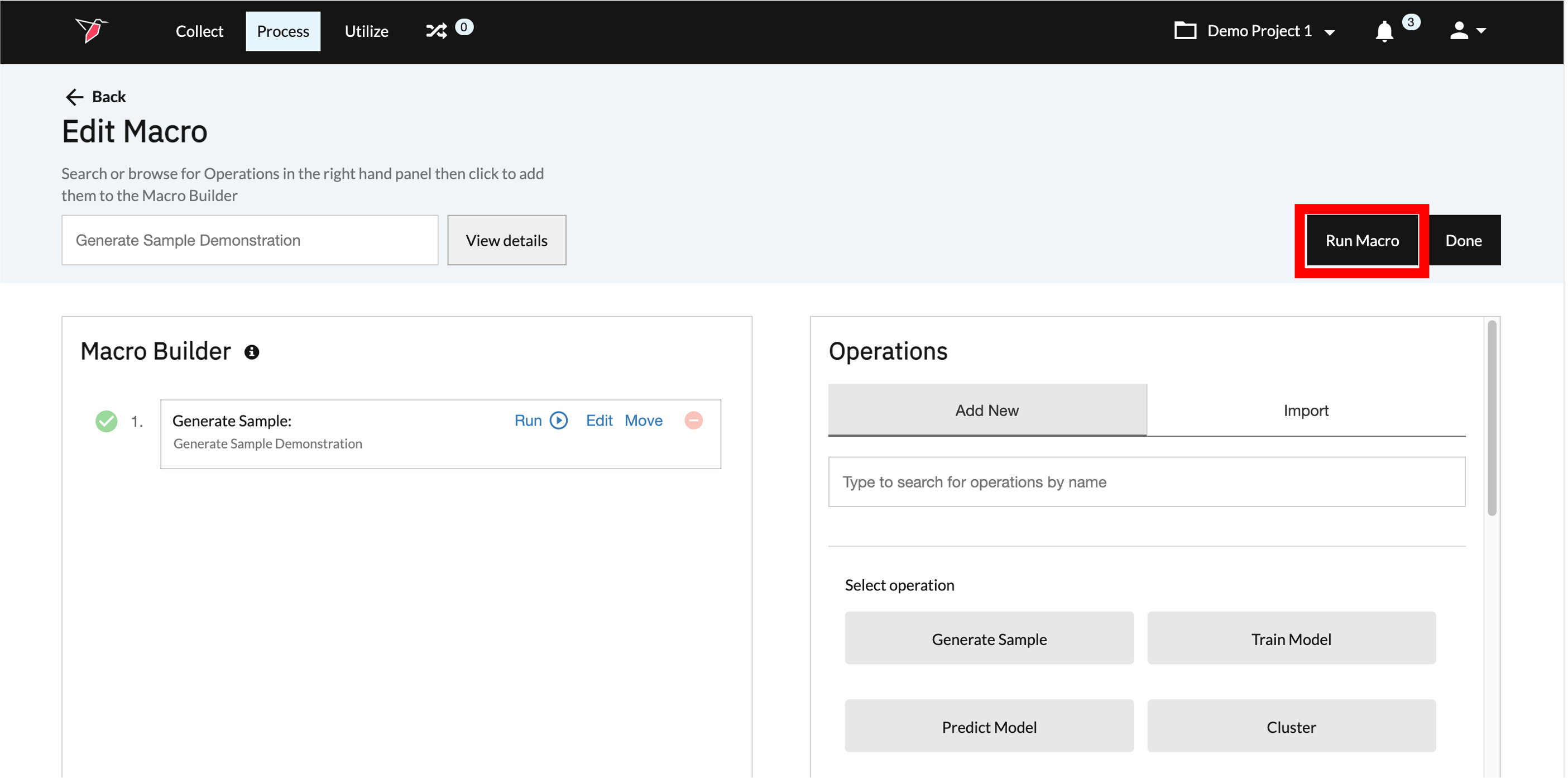
\ - Click Run Macro to get your results.\
 \
\
Updated 9 months ago