

Deduplicate Operation
Background
Once a dataset has been loaded into Redbird, you may find that it is necessary to identify and remove duplicate
values from your dataset. You can complete this task by using Redbird’s Deduplicate operation in the Macro
Builder tool.
How it Works
To demonstrate how the Deduplicate operation works, we are going to walk through an example where we
analyze inventory data for a food market.
The below products and their associated data were uploaded into the Redbird platform.
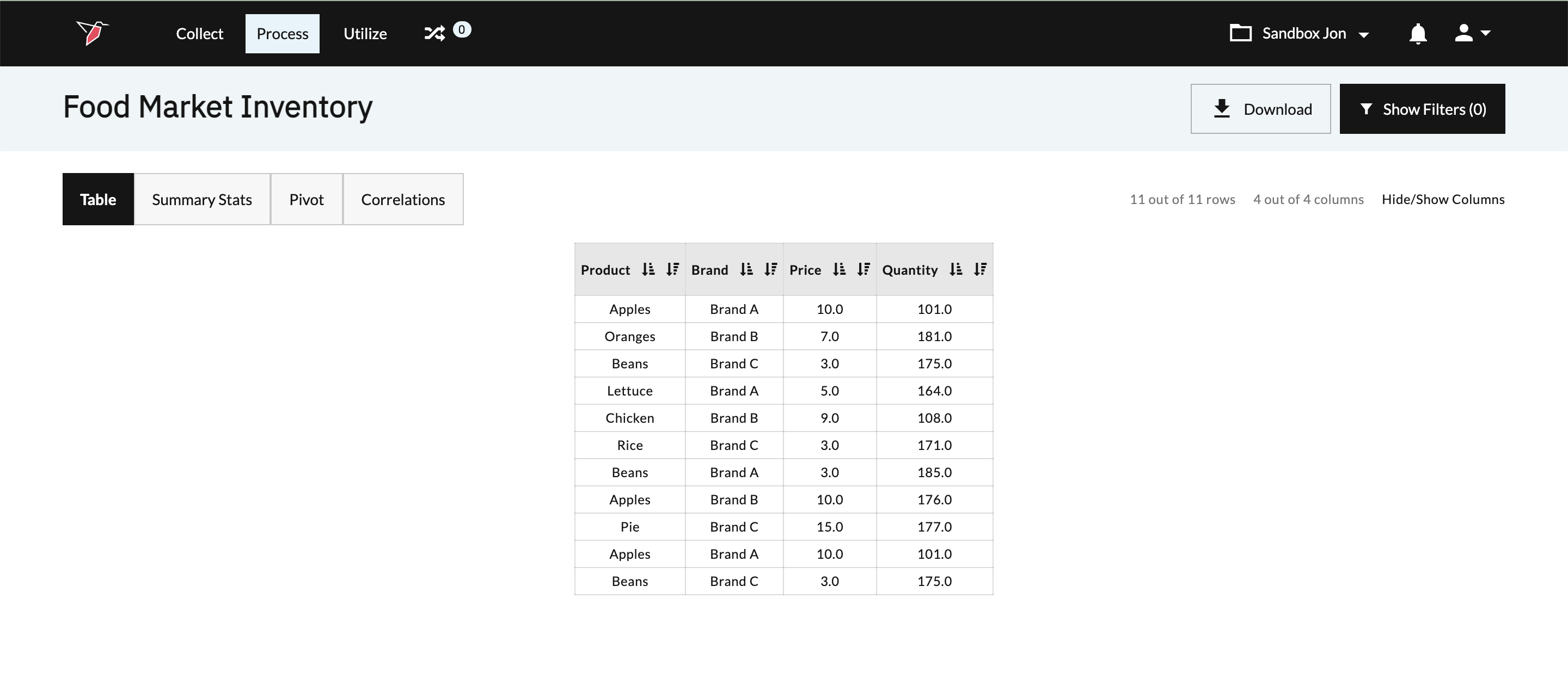
After doing an initial review of the dataset, it appears that apples from Brand A and beans from Brand C were
recently added to the inventory list. The problem, however, is that these products were already included on the
inventory list and are currently being double-counted. We can remove these duplicate values by configuring the
Deduplicate operation.
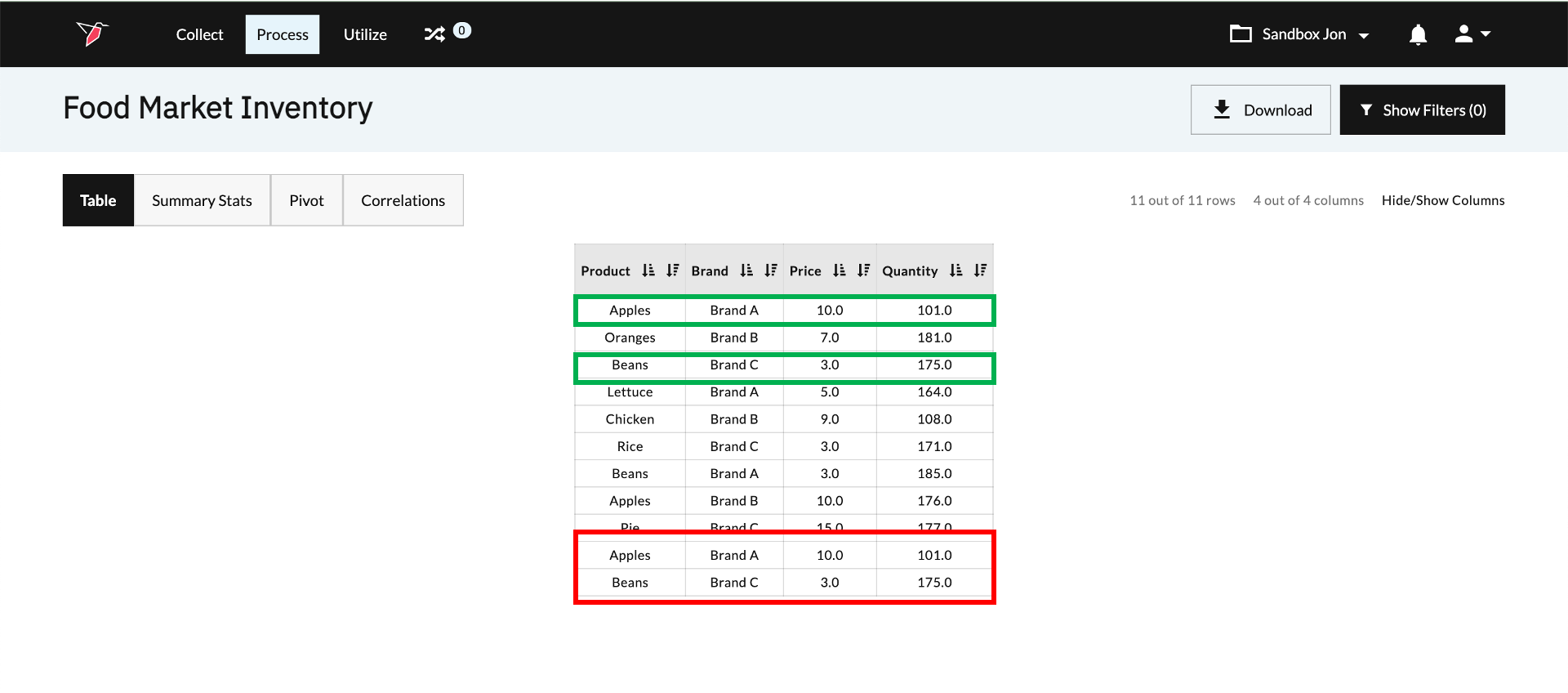
To configure the Deduplicate operation, we need to determine the column(s) that we want to analyze. In our
example, we want to remove rows where the Product and Brand columns contain values that are duplicative
with another row’s values. When we run the Deduplicate Operation, Redbird will identify rows in the dataset that
have duplicative values for the columns we configured and generate a new dataset that has those rows
removed.
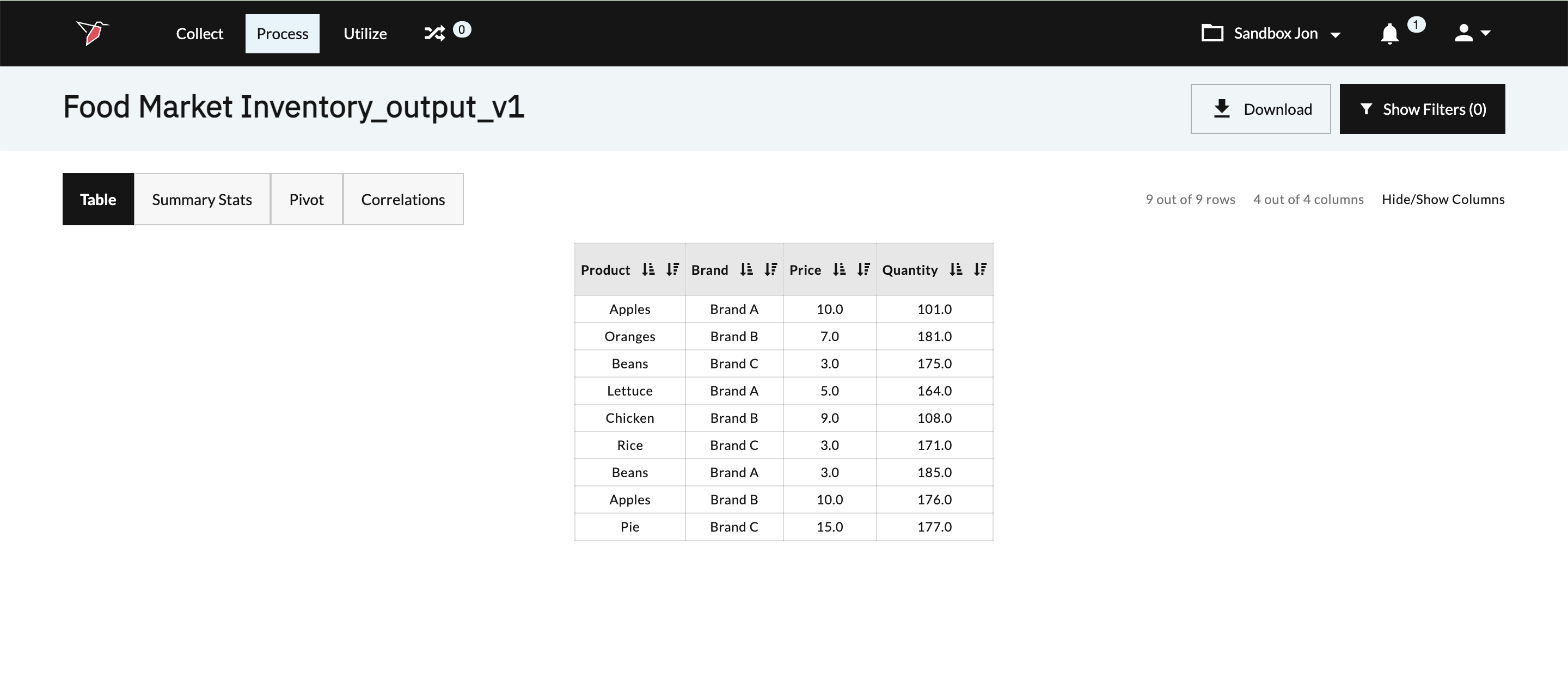
Below is an example of the output that is created when we run the Deduplicate operation. The duplicated values
have been removed from the new dataset.
Configuration - Deduplicate Operation
To configure the Deduplicate operation, please follow the below steps.
- Provide your configuration with a description for future reference. This description will be associated with
the operation and will be visible within the Macro Builder.
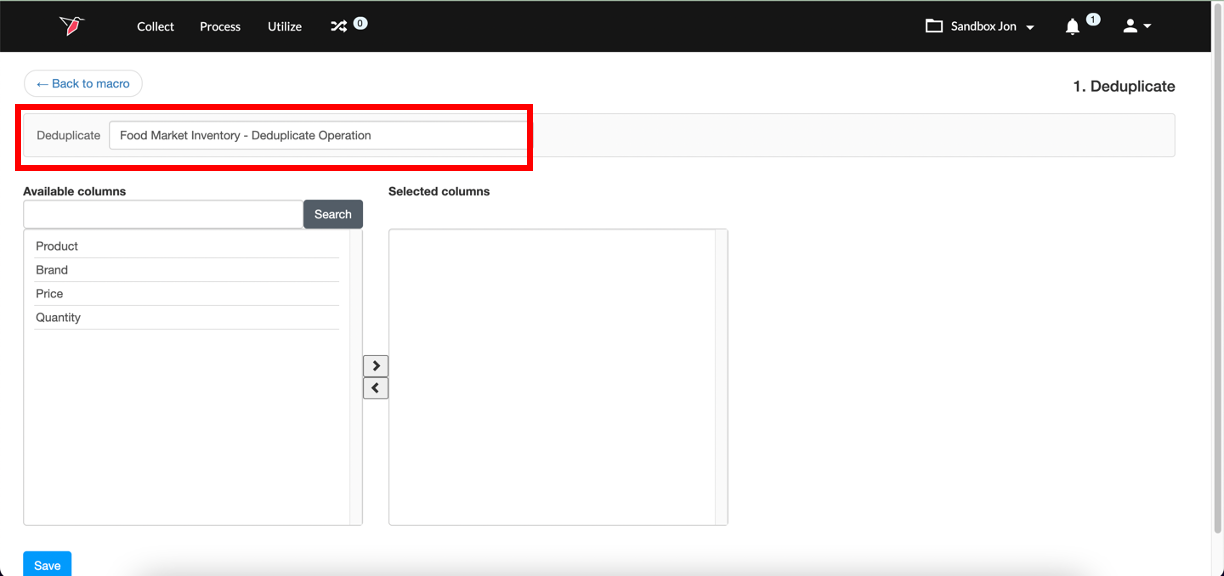
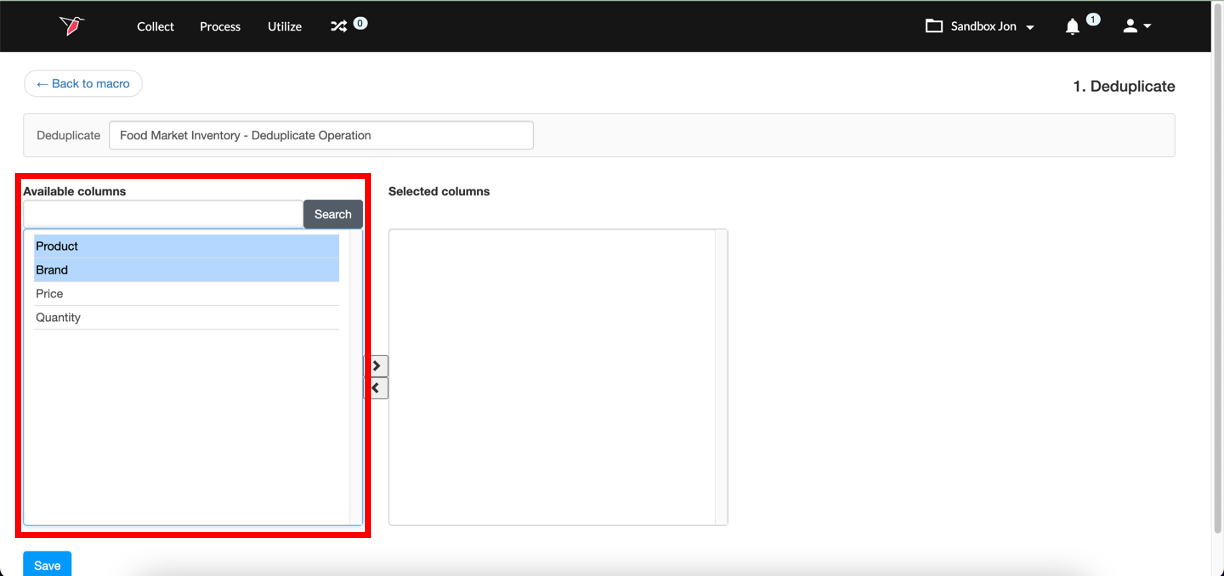
- Select the columns that include the cell values that you want Redbird to analyze by clicking on the
relevant columns in the Available columns list and using the > icon to move them to the Selected
columns list. When the Deduplicate operation is run, Redbird will identify rows in the dataset that have
duplicative values for the columns we configured and generate a new dataset that has those rows
removed.
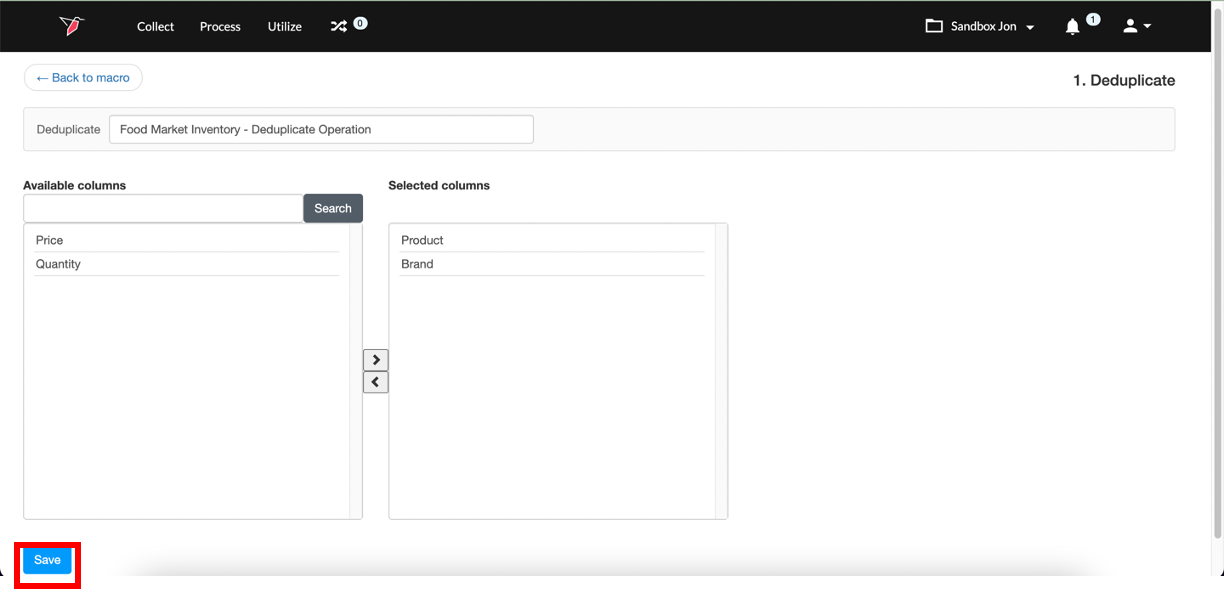
- Click Save.
- Run the Macro.
Updated 8 months ago