

Getting Started With Data Collection
Introduction
The Redbird platform is designed to automate your data analytics processes end-to-end, from data collection to producing analytical outputs. But before you start, you first need to load data into Redbird, and this guide will help you understand how this process works.
Getting Started with Data Collection
Redbird enables you to bring data into the platform in two ways:
- AI Connect — use natural language to connect to APIs, web platforms, websites and structured data sources and extract the data you need.
- Collection Apps — use pre-built, point-and-click connectors to ingest data from supported sources and formats.
Both approaches generate structured datasets that can be used in downstream workflows.
Option 1: AI Connect
AI Connect allows you to retrieve data using natural language.
You can connect to:
- APIs
- Web-based applications or websites
- Structured data platforms (e.g. data warehouses)
You describe the data you want, and Redbird generates a structured dataset that can be used for transformation and analysis.
AI Connect is available within AI DT (AI Data Tool), Redbird’s natural-language data collection and transformation environment.
For a full overview of AI Connect, see here.
Option 2: Collection Apps (Pre-built Connectors)
Collection Apps are pre-built connectors used to ingest data from supported sources and formats.
These include:
- Universal connectors (e.g. file uploaders, cloud storage, data warehouses)
- Bespoke connectors built for specific third-party platforms
Collection Apps are configuration-driven and designed for recurring or structured data ingestion.
Key Terms (Collection Apps)
-
Collection App (“App”): An application that is used to load data from a specific external source to Redbird.
-
Collection Configuration (“Configuration”): Specifies how the data from a source should be loaded into Redbird. For example, a configuration contains information such as the list of metrics to collect, frequency of data collection and other parameters specific to the data source.
-
Reference File: A reference file contains additional information that some data sources need in order to fetch the desired data. For example, a reference file may include a list of brands or queries. Please note that some data sources require no reference file, while others require more than one.
-
Collection Node: A collection node is a repository that contains the data collected from a source as defined in the configuration.
-
Dataset: A dataset is a subset of structured, tabular data extracted from a collection for further processing and analysis. Conceptually, collections are where the full set of raw data collected from the source resides. In order to not corrupt the raw data, additional processing needs to be done on a separate copy of the data generated from the raw Collection. Those separate copies are called datasets.
-
File Collection: Redbird creates a File Collection node when:
- Multiple documents are uploaded at once (even if they are structured files such as CSVs), or
- An unstructured document is uploaded. In this context, an unstructured document is basically any file that does not contain a single, clean tabular dataset in standard cell format — for example, PDFs, multi-tab Excel files, Word documents, PowerPoint files, and similar formats.
In these scenarios, Redbird uses AI agents and computer vision to scan the documents, extract the relevant information, and convert it into a structured tabular format when needed.
How Collection Apps Work
Stage 1: The user configures a collection node in Redbird.
Stage 2: Redbird loads the data from the source based on the configuration defined by the user.
Stage 3: The data is fetched and stored in the collection node.
Stage 4: A dataset is autogenerated from the collection for further processing. Each collection can only have one dataset and each time a collection is updated the dataset is automatically re-run.
Collection nodes can be configured to run on a schedule within the workflow schedule section of any workflow that the collection is part of.
Load Data into Redbird with Collection Apps
To ingest data using a specific collect app follow the steps below:
- Click on the canvas you want to start working on. Select Inputs on the left-hand panel. The following screen will show you the list of the Collection Apps within Redbird that have been activated for your account.
Important:If you don't see a Collection App you are looking for, it might be due to one of the reasons below:
• The app has not been activated/made visible for you.
• The app is not included as part of your subscription.
• Redbird does not currently support the data source.Please contact [email protected] for more information.
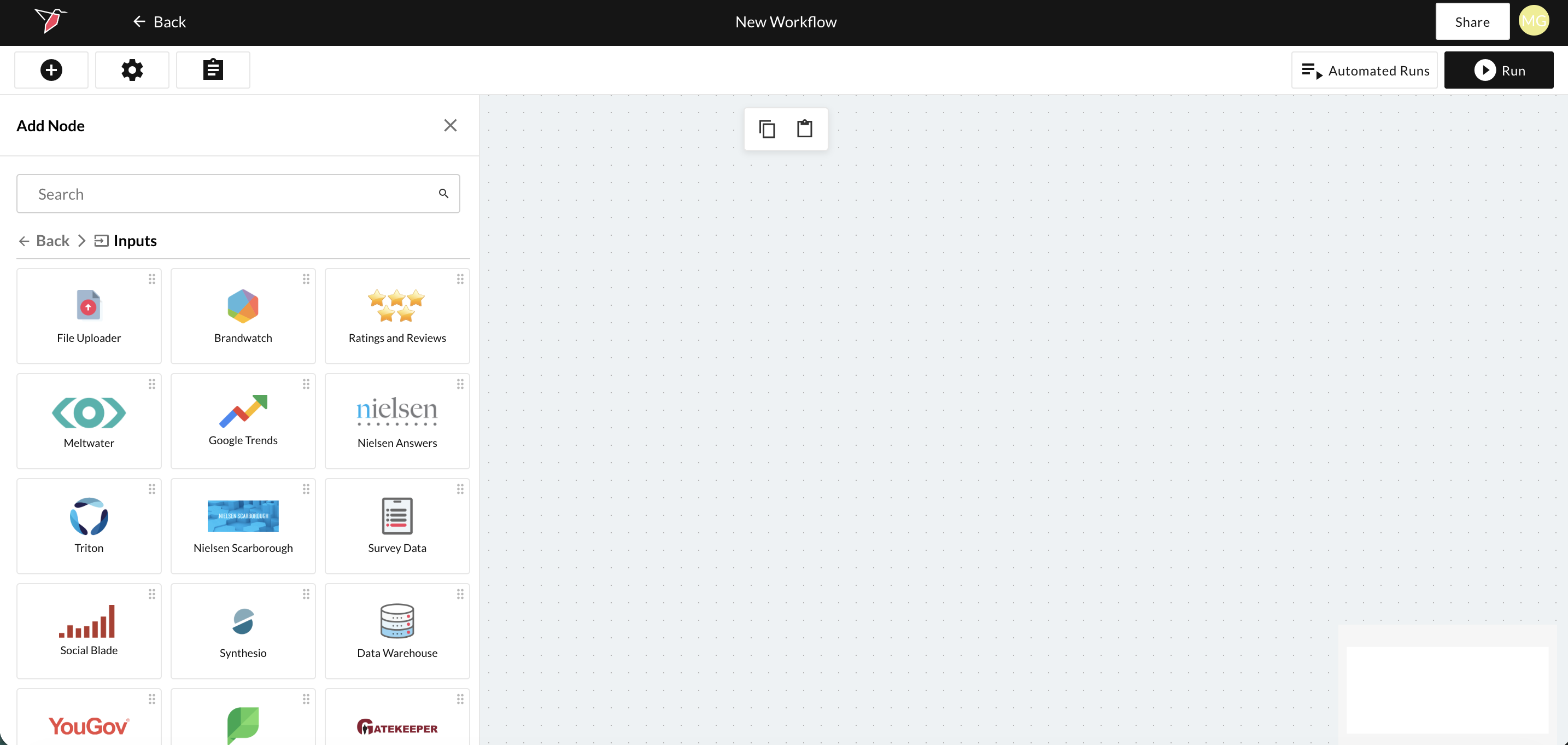
- Drag and drop the Collection Node you need onto the canvas.
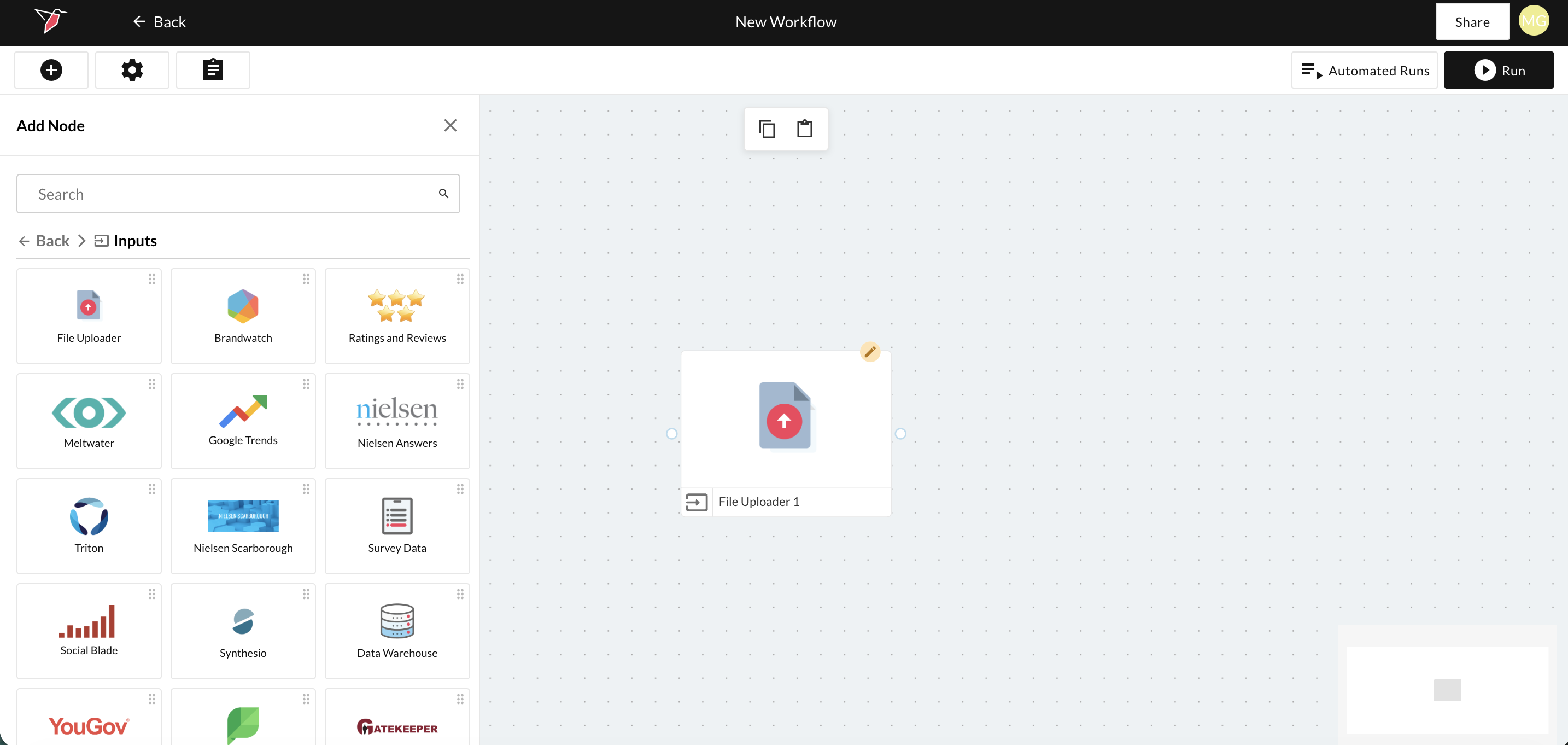
- Click on the node and a panel called Node Details will populate on the right side of the screen. Note - these options may differ slightly by node type and some may be inactive until certain conditions have been met e.g. the node has been run.
Node Details
- Click Edit to configure the node. Configurations contain the parameters that you define to collect specific data you want from a source. These parameters include, but are not limited to, the metrics you want, the data timeframe, the collection schedule, etc. Once the node is configured, you can use the right hand panel to interact with it.
- Click Explore to view the collected data in a new tab.
- Click Run to start a data collection task. For some apps, you will be prompted to enter a start date and an end date if you select Manual in the Date Selection drop down.
- Click Delete to remove the node.
- Click Share to provide access to the selected node. Read this article for instructions on how to share the entire workflow with collaborators.
- Click Download to download the collected data.
- Click Connections to see the inputs and outputs for this node.
- Click View Details to see more information about the configuration, such as the metrics collected, data timeframe, etc.
- Click Checkpoints to see more information about checkpoints associated with that node and to turn them on or off or edit. For more information about checkpoints see here.
- Click Signals where applicable to turn any signals associated with the node on or off. These signals such as when the node has run successfully, failed or the dataset has bene updated. Codes from these signals can be copied and pasted and used downstream in checkpoints on a specific node or in a triggered workflow run.
Updated 3 months ago