

Activating Redbird in Claude
Add the Redbird connector to Claude and sign in with your Redbird account
Introduction
To use Redbird from Claude, you add Redbird as a custom connector once and sign in with your normal Redbird account. After that, you can switch Redbird on in any Claude conversation and ask for your data in plain words.
You'll need:
- A Redbird account.
- A Claude plan that supports custom connectors. On Team and Enterprise plans, an organization owner can add the connector once for everyone.
Quick reference inside Redbird. These same steps are available on the Manage MCP page — click Set Up Redbird MCP in the top bar and choose the Claude tab.
Add the Redbird connector
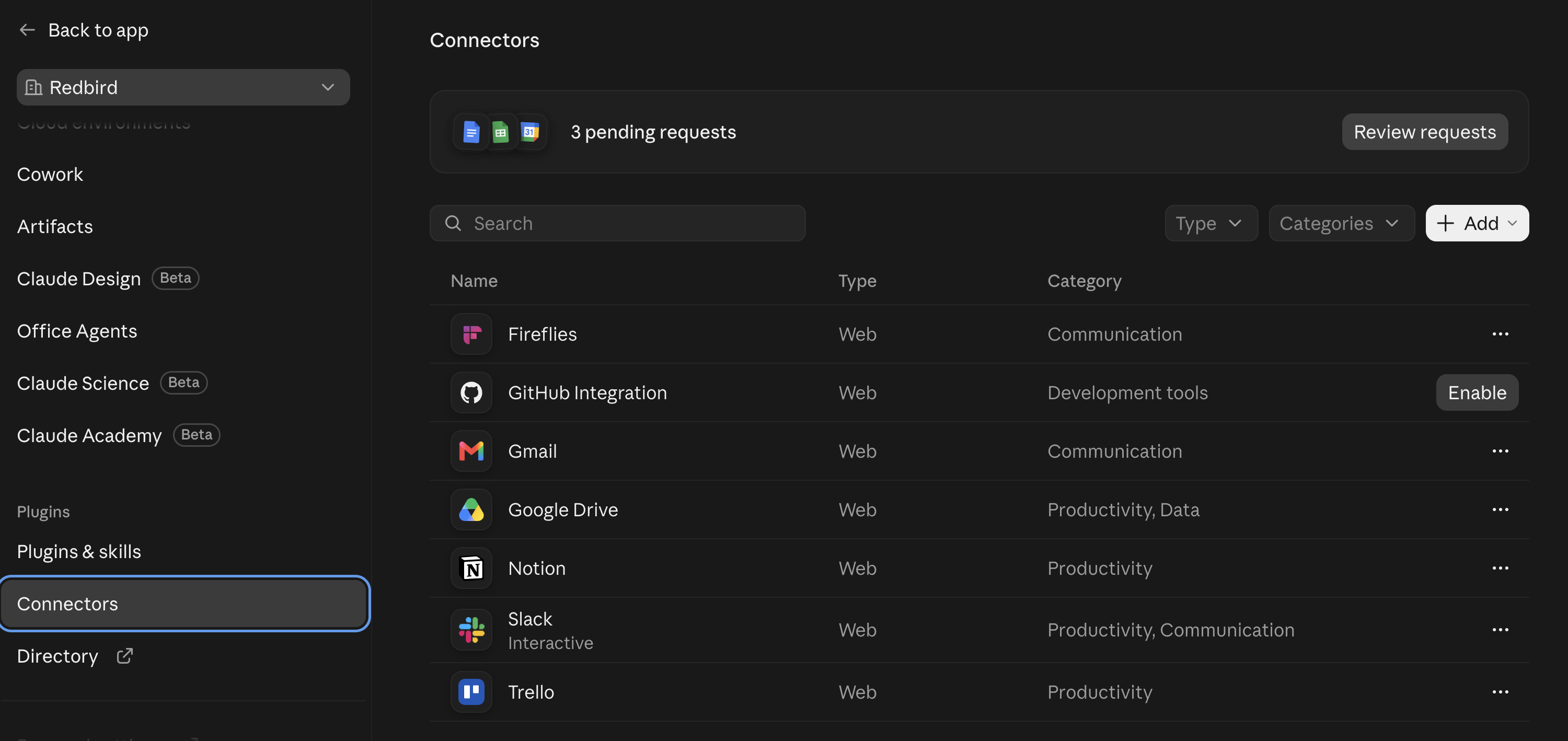
- In Claude, open Settings (Organization Settings if configuring for your organization) and go to Connectors.
-
Click Add -> Custom -> Web or Desktop to add a custom connector.
-
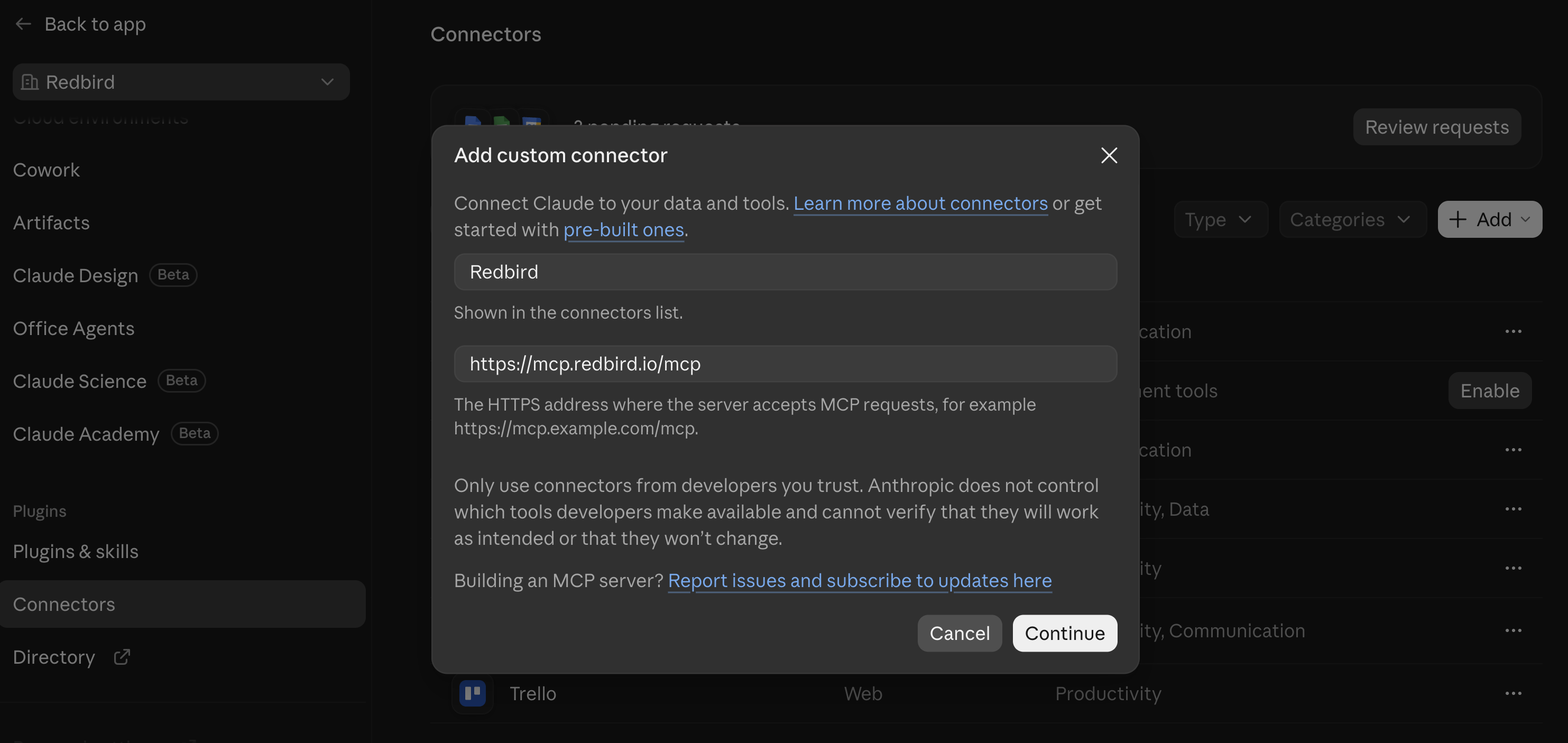
Give the connector a name, such as Redbird, and enter the Redbird server address:
-
Click Continue.
-
-
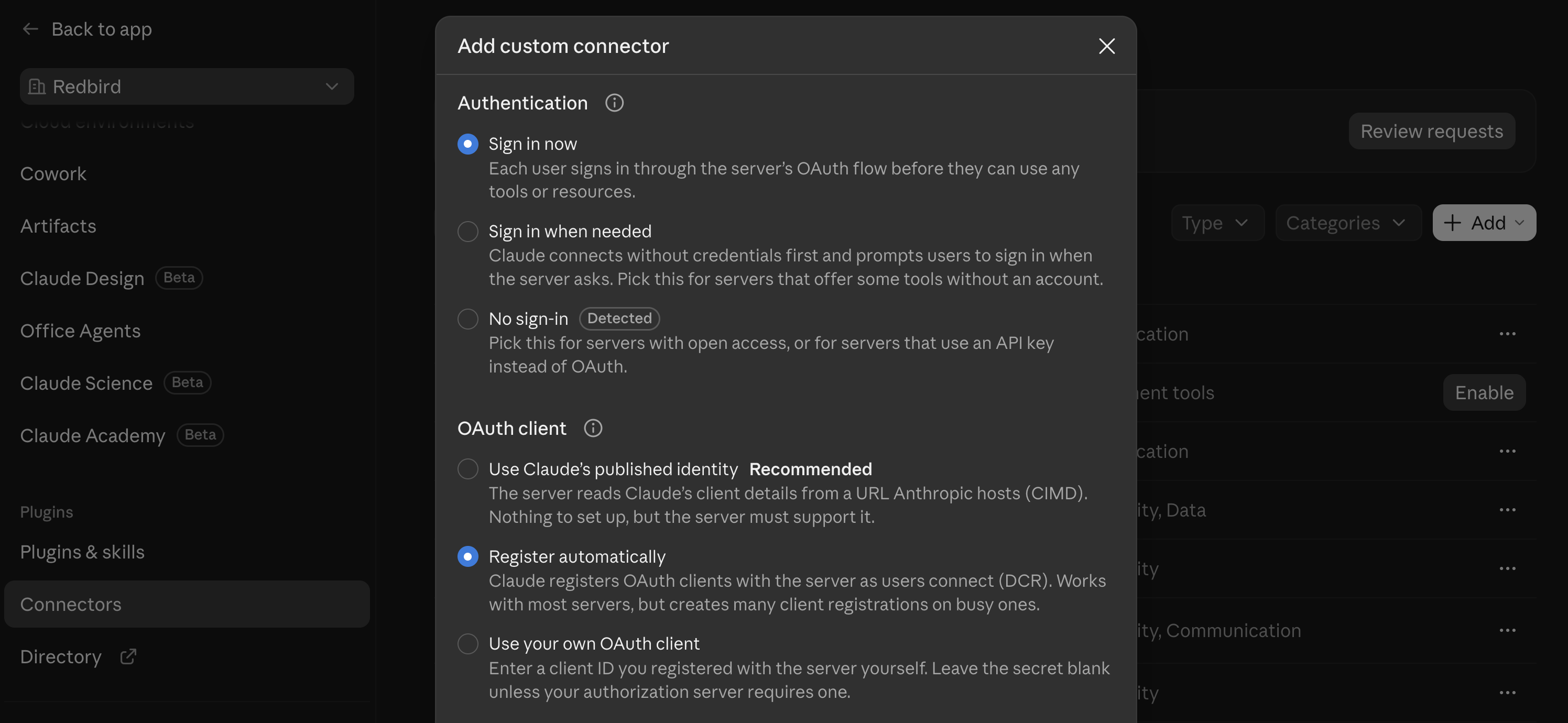
Choose Sign in now and Register automatically in the next screen
-
Click Add
Sign in to Redbird
- If Claude asks you to connect, choose to sign in. Claude opens Redbird's sign-in page in a new window.
- Log in with your normal Redbird username and password.
- Redbird asks whether to allow Claude to access your Redbird data. Click Approve.
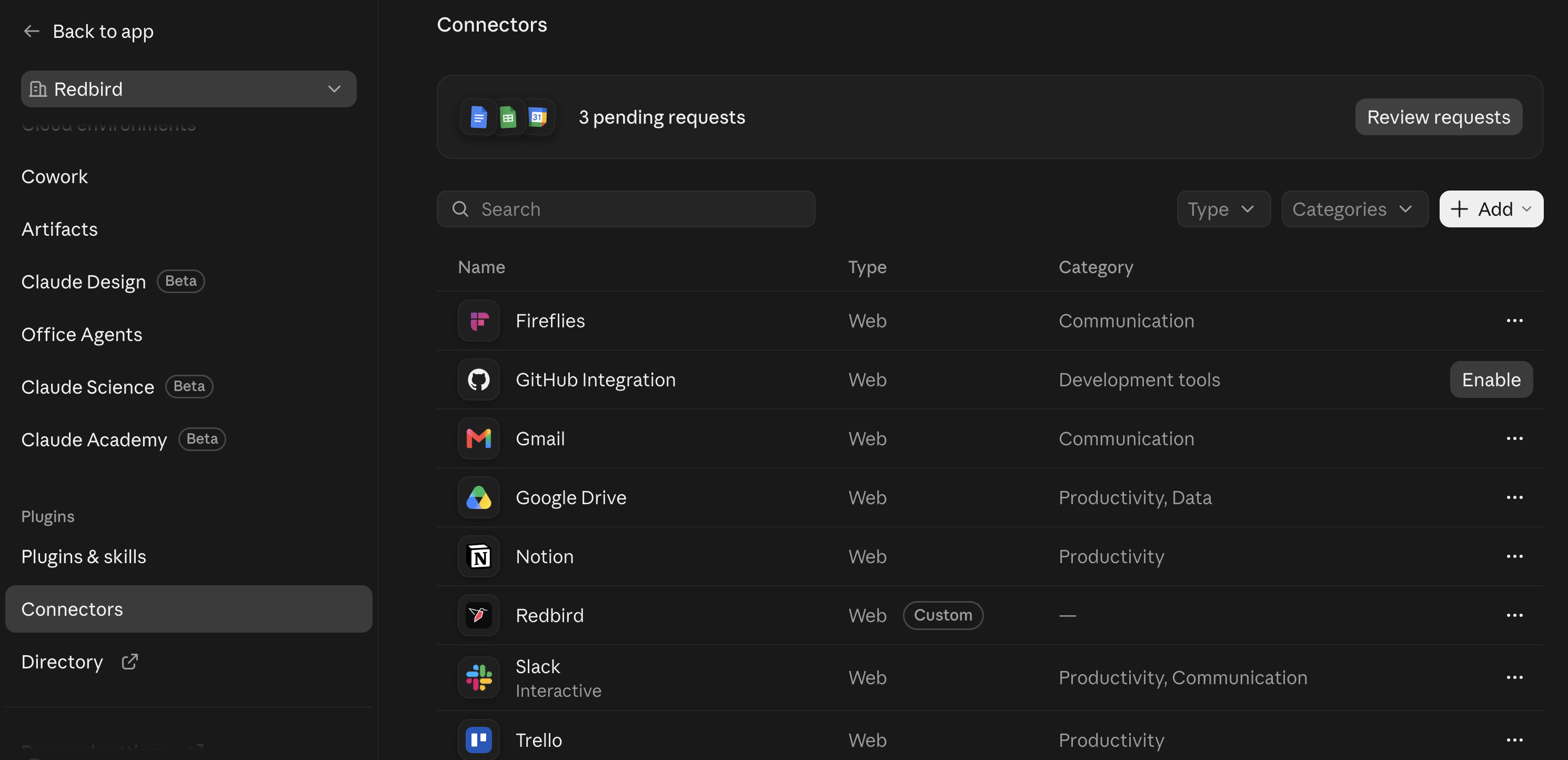
- The window closes and Claude shows Redbird as connected.
Turn Redbird on in a conversation
-
Start a new conversation in Claude.
-
Open the tools menu in the message box and switch Redbird on.
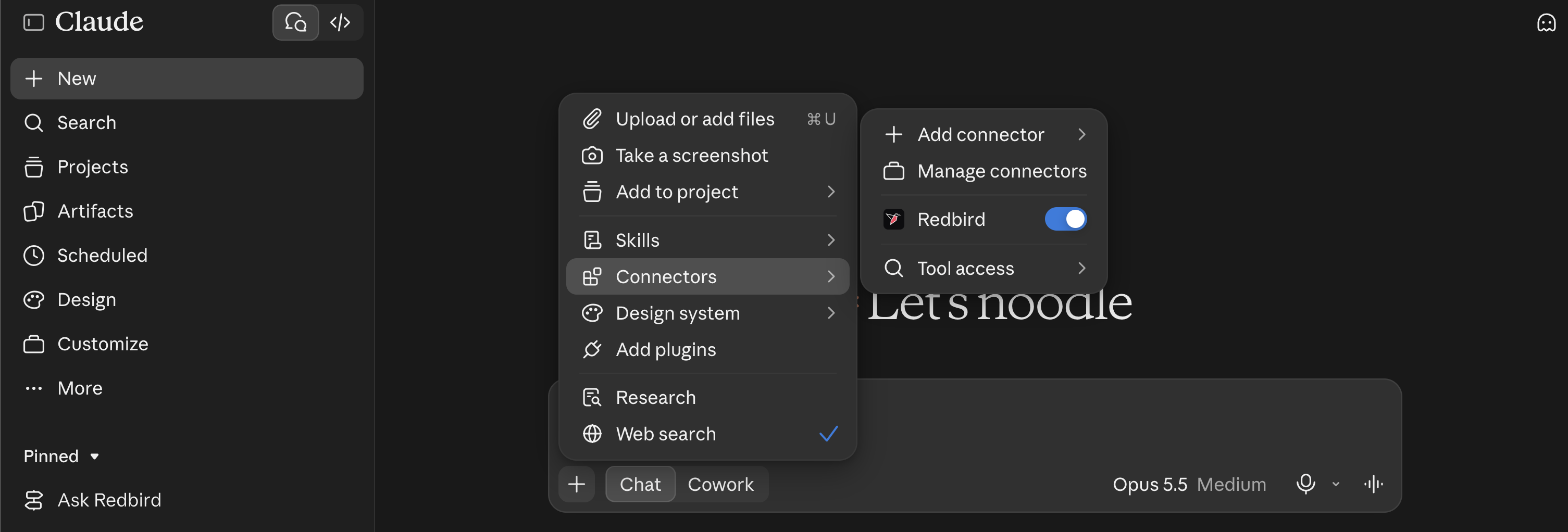
-
For the best results, also turn on Claude's code execution . This lets Claude download the files Redbird sends and analyze them in full.
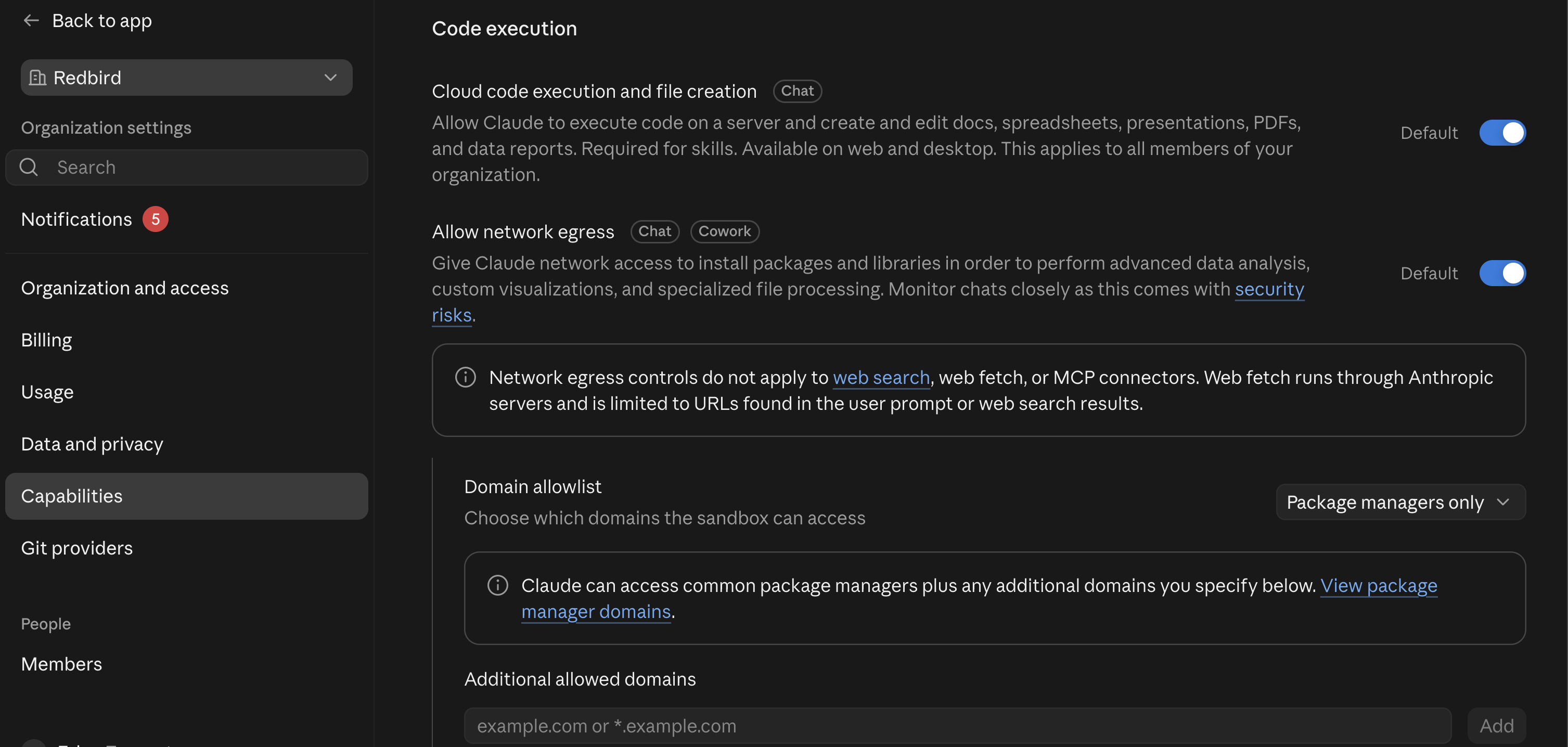
- Try it: ask Claude "What can I access in Redbird?" or "List my Redbird connections."
For administrators: allow file downloads. If your organization limits which websites Claude's code environment can reach, an admin should allow files.redbird.io in Claude's organization settings, under the code execution network access options. Without it, Claude still works — it gives you a download link to open yourself instead of downloading the file automatically.
Troubleshooting
- Claude can't find any data. Make sure Redbird is switched on in the conversation's tools menu, and that you've set up at least one connection or have an MCP workflow available (see Managing MCP in Redbird).
- Claude asks you to sign in again. Your sign-in renews automatically, but if you haven't used Redbird in Claude for about a month, you'll be asked to sign in and Approve again.
- You removed the connector by mistake. Add it again using the steps above — your connections and workflows in Redbird are unaffected.
Next, see Using Redbird MCP in Claude and ChatGPT for what you can do once Redbird is connected.
Updated 2 days ago