

Using Redbird MCP in Claude, ChatGPT, and other tools
Use your chat tool to work with your Redbird connections and workflows
Introduction
Once Redbird is added to your chat tool (see Activating Redbird in Claude, Activating Redbird in ChatGPT, or the relevant activation guide for your tool), you work with it the same way you work with Autopilot: describe what you want in plain words. The assistant figures out what to ask Redbird for, and Redbird does the work behind the scenes.
This guide covers what the assistant can see through Redbird and the main things you can ask it to do.
What your assistant can see
Through Redbird, your assistant can see:
- Your MCP connections — which tools you've connected, whether each is ready to use, and details about what's available in them (for example the tables in a database or the files in a cloud drive).
- The data you ask for — results pulled from those connections at your request.
- Your MCP workflows — the workflows published for MCP that you own or that have been shared with you, and the items in scope in each one: datasets, file collections, presentations, data science models, and sheets.
It can't see anything else in your Redbird account — not your other workflows, your workspace, or connections you set up inside workflows.
Set up a new connection
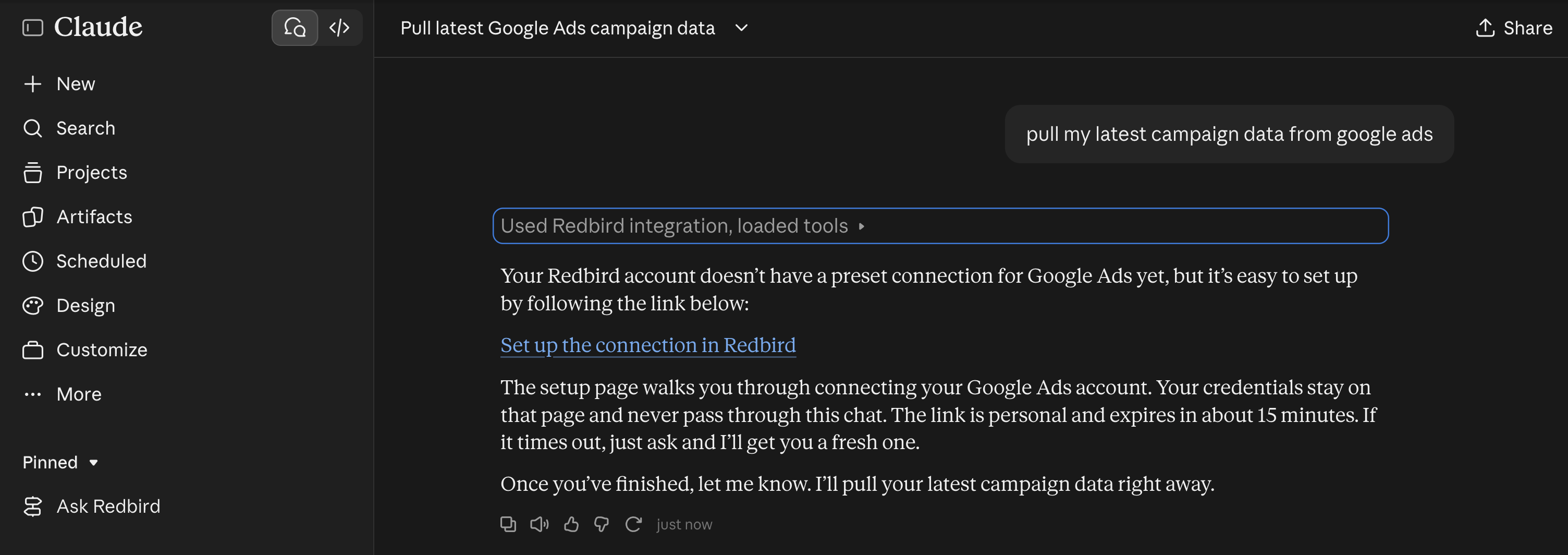
If you ask for data from a tool you haven't connected yet, the assistant doesn't ask for your password or key — it can't. Instead, it gives you a personal setup link.
- Ask for the data you want, for example: "Pull last week's submissions from Formspree."
- The assistant replies with a link. Click it within about 15 minutes — the link is personal to you and expires for security.
- The link opens the Manage MCP page in Redbird, with the chat already primed with the tool's name and your request.
- Finish the setup in the chat:
- Tools with an API — Redbird asks for the key or sign-in details, stores them securely, and checks the connection works.
- Websites without an API — Redbird helps you record the steps once with the Redbird browser extension.
- Click Back to Claude (or Back to ChatGPT) in the top bar and continue your conversation. The new connection is ready to use.
For more on setting up and managing connections, see Managing MCP in Redbird.
Work through your connections
Once a connection is set up, you can do with it what you'd normally do in Redbird — just by asking:
- Ask questions — "How many deals did we close in HubSpot this month?"
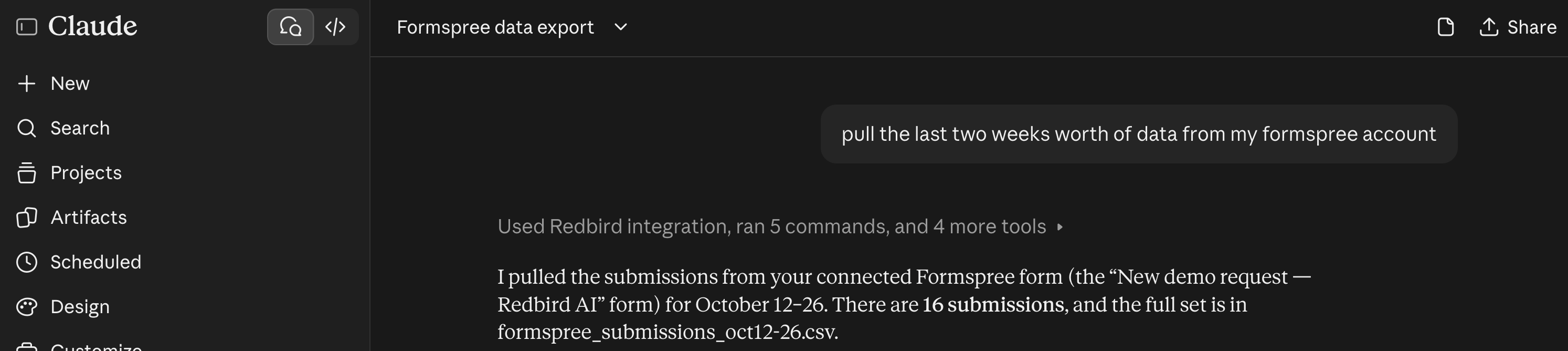
- Pull data — "Get all Formspree submissions from the last 7 days."
- Push data or take actions — where the tool allows it, for example "Add these contacts to my newsletter list."
Use your own words. Redbird reads your request as you wrote it, so there's no need to rephrase it for the assistant.
Some requests take a minute or two. The assistant starts the request in Redbird and checks back until it's finished. You'll also get an email from Redbird when a longer request completes.
Recorded browser connections may run in your own browser. Some connections built from a recording need to run in your own Chrome window. When that happens, the assistant gives you a link — open it, let the recording run in your browser with the Redbird extension, and the results come back to the assistant when it's done.
Work with the data you collect
Redbird hands results back as files, so the assistant gets the complete data, not just a sample.
- Download for full analysis. With code execution turned on, the assistant downloads the file into its workspace and can analyze, chart, or combine it with other information. Download links last a few minutes, but the assistant can always get a fresh one. Results stay available for about a day.
- Explore and query. Small results come back directly in the conversation. For databases, the assistant can also run a quick query and show the answer straight away. Documents and other files can be read and summarized.
Explore your MCP workflows
MCP workflows give the assistant a curated set of results to explore — whatever was put in scope when the workflow was published for MCP.
Find a workflow
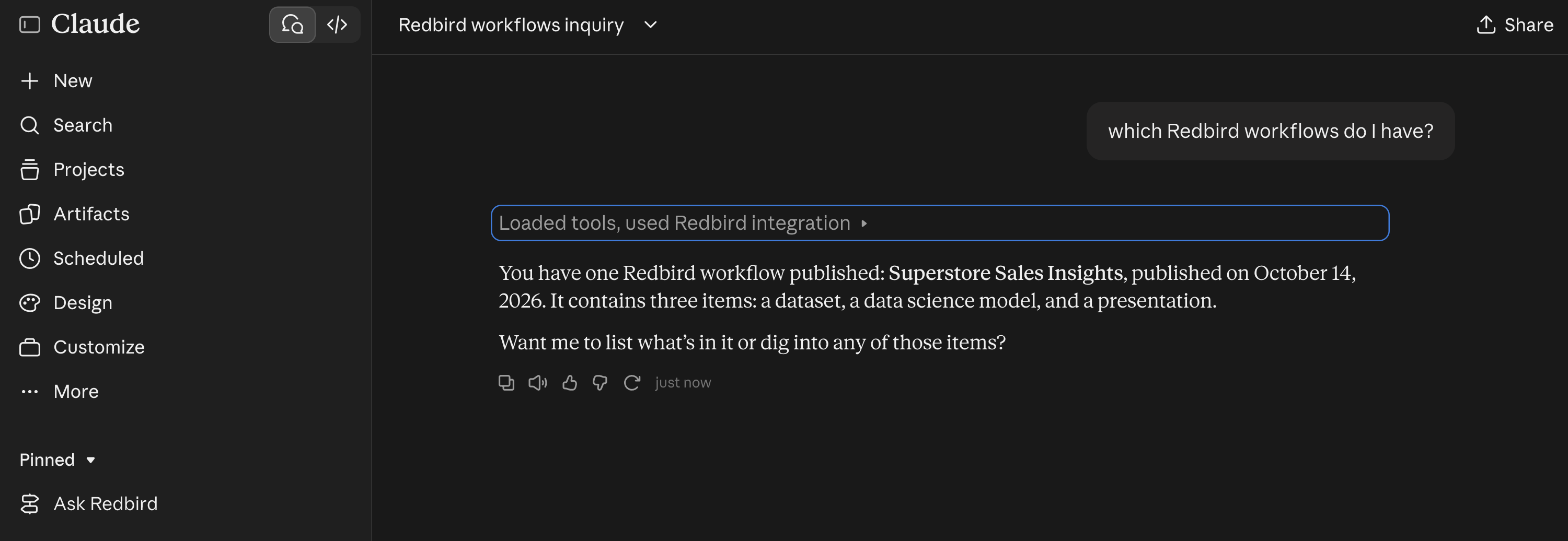
Ask "Which Redbird workflows do I have?" The assistant lists the MCP workflows you can access, with how many items each one has in scope. You can also search by name: "Do I have a sales workflow in Redbird?"
See what's inside
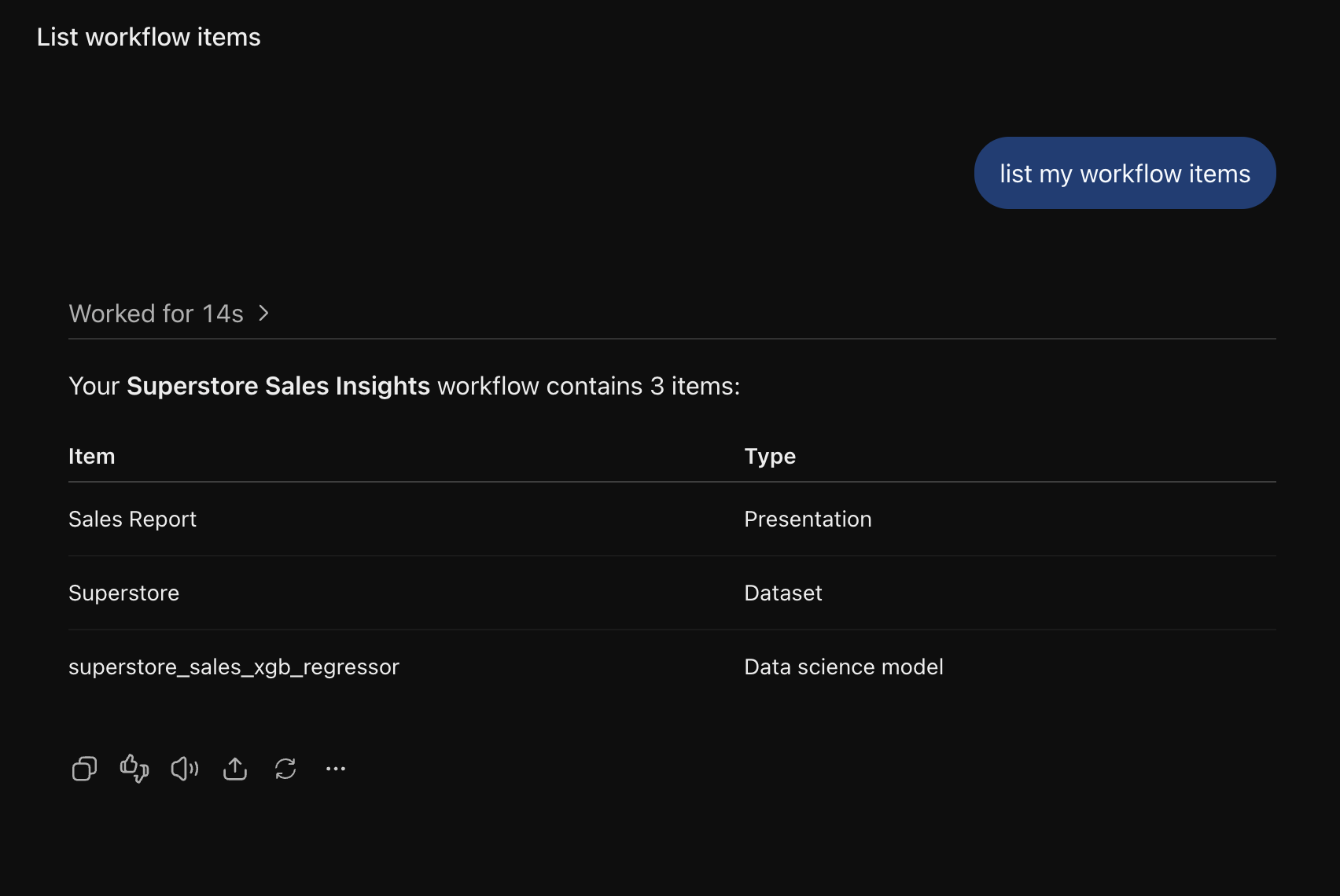
Ask "What's in the Q3 Sales workflow?" The assistant lists the items in scope — datasets, file collections, presentations, data science models, and sheets — by name. Nothing outside that list is visible.
Explore and query individual items
What the assistant can do depends on the kind of item:
- Datasets — describe the columns, preview the first rows, and answer questions by querying the data: "What were total sales by region?"
- File collections — list the files in the collection, read any document, answer questions from a spreadsheet in the collection, or search across all the documents at once: "What do the contracts say about renewal terms?"
- Presentations — read and search the presentation's PowerPoint file: "Summarize the key findings in the Q3 deck."
- Data science models — describe what the model predicts, which inputs it uses, and how well it performed when it was built.
- Sheets — read the values on any tab of the sheet.
Any item can also be downloaded as a file: a dataset as CSV or Excel, a collection file in its original format, a presentation as PowerPoint, a model as its model file, and a sheet tab as CSV.
Always current. MCP workflows point at the live results of your workflow. When the workflow runs in Redbird based on a schedule or other triggering actions set up with Redbird workflow orchestration, the assistant sees the refreshed data — and while it's running, the assistant will tell you the data is updating and to try again shortly.
Updated 2 days ago