

Managing MCP in Redbird
Set up the connections and workflows your AI assistant can use through Redbird
Introduction
Everything Claude and ChatGPT can reach through Redbird is managed in one place: the Manage MCP page. This is where you set up the connections your assistant can pull data from, and where you find, share, and remove the workflows that have been published for your assistant to explore.
Open the Manage MCP page
- In Redbird, click the person icon in the top-right corner to open the user menu.
- Click Manage MCP.
The page has three areas:
- Resources panel on the left — files you've uploaded and notes you've added while setting things up.
- Chat in the middle — a guided conversation that sets up connections for you, just like Autopilot.
- On the right, two tabs: MCP CONNECTIONS and MCP WORKFLOWS.
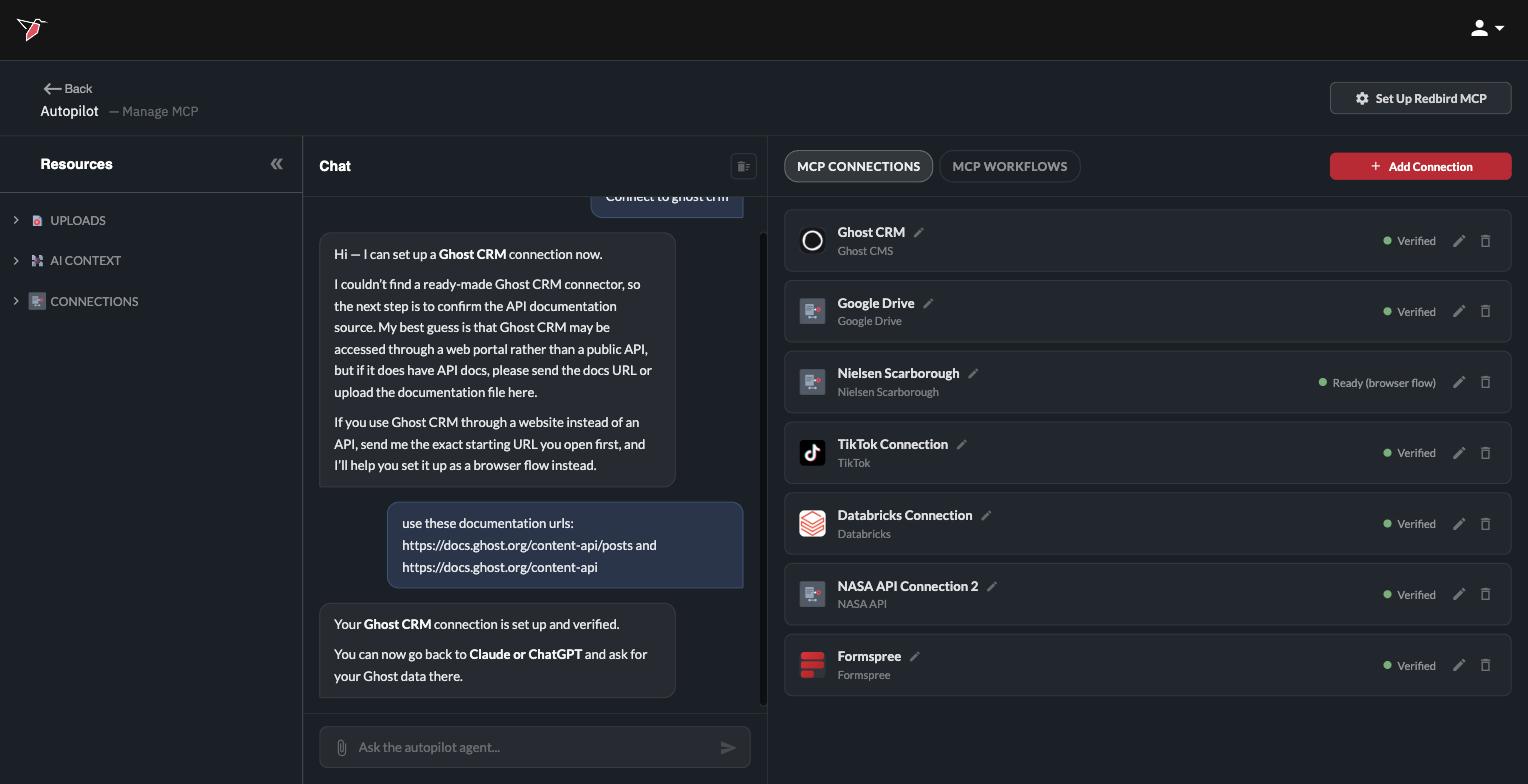
In the top bar you'll also find Set Up Redbird MCP, which opens step-by-step instructions for adding Redbird to Claude or ChatGPT.
Arrived from Claude or ChatGPT? When your assistant sends you to this page with a setup link, a Back to Claude (or Back to ChatGPT) button appears in the top bar so you can jump straight back to your conversation when you're done.
MCP connections
What makes an MCP connection different
An MCP connection works the same way as any Redbird connection — through the tool's API, or through a recording of your own steps in a browser (see Connect your tools). The difference is who it's for:
- MCP connections are for your AI assistant. They belong to you personally and aren't attached to any workflow. Claude and ChatGPT can use them; your workflows can't see them.
- Workflow connections are for your workflows. Connections you set up inside a workflow stay with that workflow and are never visible to your assistant.
If you want a tool available in both places, set it up in both.
Add a connection
- On the MCP CONNECTIONS tab, click the red Add Connection button.
- The chat starts a fresh conversation for the new connection. Say which tool you want to connect — for example, "Connect to Formspree".
- Follow the chat's lead:
- For tools with an API, Redbird asks for the key or sign-in details the tool needs, stores them securely, and checks that the connection works.
- For websites without an API, Redbird helps you record the steps once using the Redbird browser extension, and repeats them whenever you ask for data.
When the connection is ready, it appears as a card on the MCP CONNECTIONS tab.
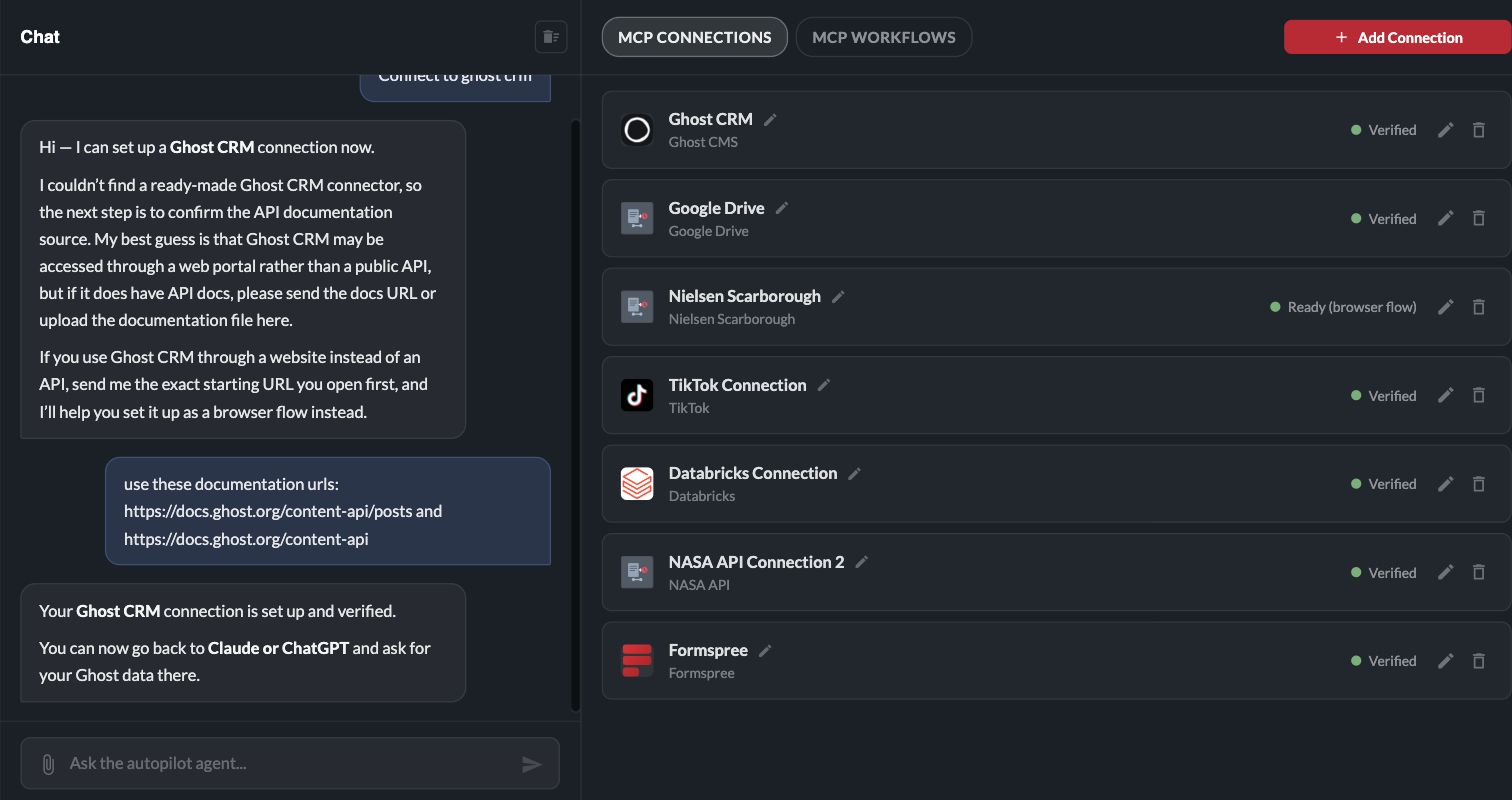
You don't have to start here. If you ask your assistant for data from a tool you haven't connected yet, it sends you a personal link that opens this page with the chat already primed with the tool's name and your request.
Manage your connections
Each card shows the connection's name, the tool it connects to, and its status:
- Verified — ready to use.
- Setup in progress — the setup hasn't been completed yet.
- Verification failed — the connection couldn't be confirmed; edit it to fix the details.
- Ready (browser flow) — a recorded browser connection that's ready to use.
- Preparing metadata… — Redbird is still reading what's available in the connection; this usually takes a moment.

From a card you can:
- Click the small pencil icon next to the name to rename it.
- Click the edit icon on the right to change the connection's configuration, such as updated credentials.
- Click the trash icon, then Remove, to delete it. Deleting a connection also removes its request history and any stored credentials that no other connection uses.
MCP workflows
What makes an MCP workflow different
An MCP workflow is a Redbird workflow published for your AI assistant. It's built on the same idea as a published chat environment (see Publish a chat environment): you choose exactly which workflow resources to expose, and the pipeline behind them stays private. The differences:
- Who uses it — a published chat is a chat page inside Redbird; an MCP workflow is used from Claude or ChatGPT.
- Where it lives — a published chat appears as an object in your workspace; an MCP workflow doesn't appear in the workspace at all. You find it on the MCP WORKFLOWS tab.
- What users can do — an MCP workflow is read-only. Your assistant can explore, query, and download the results in scope, but can't upload files, add notes, or build reports in the workflow.
Because an MCP workflow points at your live results, every time the workflow runs, your assistant sees the refreshed data. While the workflow is running, the assistant will let you know the data is updating and to try again shortly.
Publish a workflow for MCP
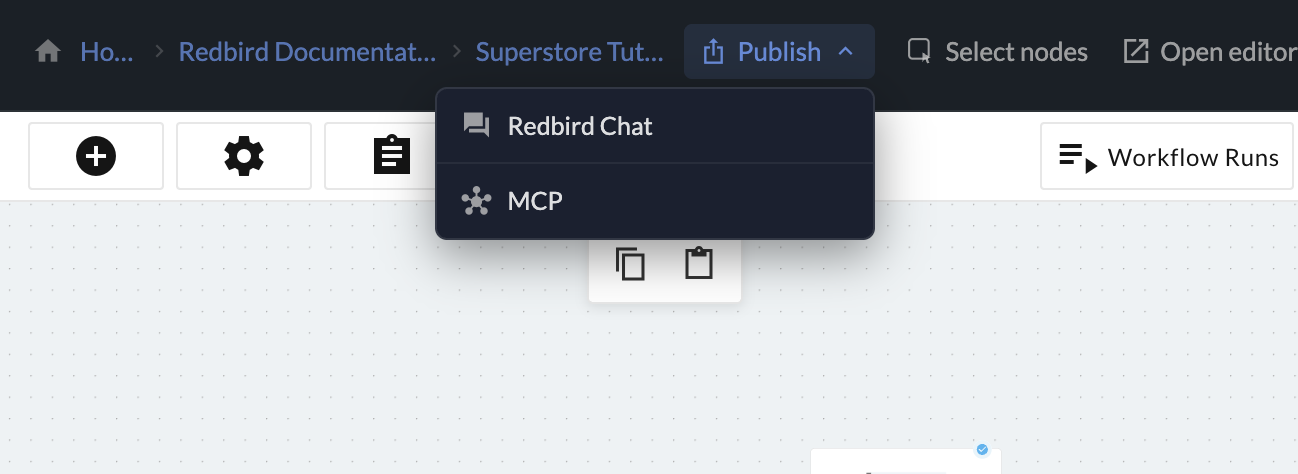
- Open the workflow in Autopilot and click Publish at the top of the workflow preview.
- Choose MCP from the menu. (Redbird Chat publishes a chat environment instead.)
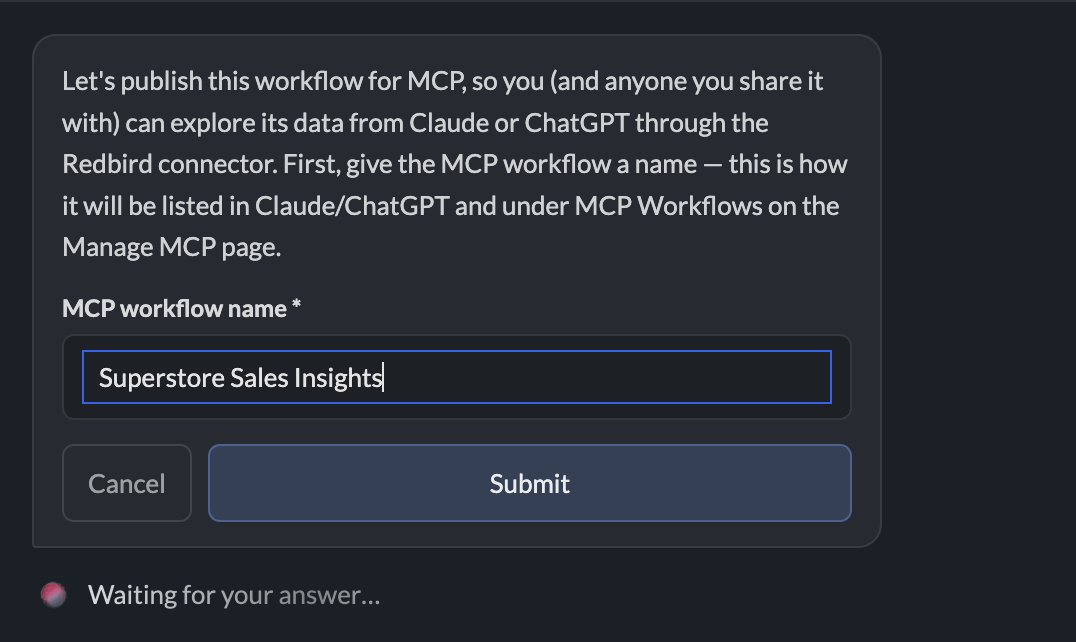
- Give the MCP workflow a name and click Submit. This is how it appears in Claude, ChatGPT, and the MCP WORKFLOWS tab, so choose something descriptive.
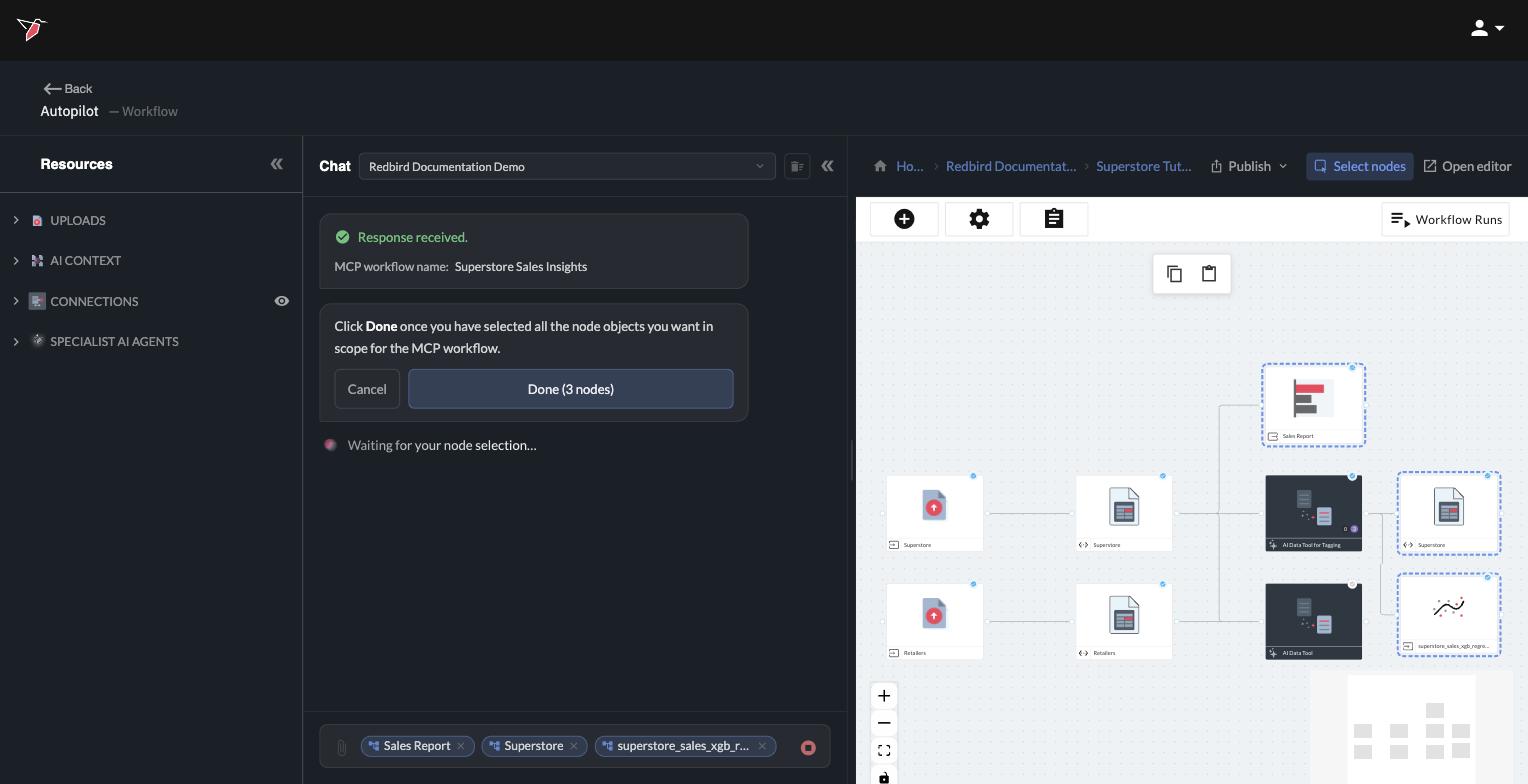
- Select the nodes that should be in scope — click a node to select it, click again to deselect. You can choose datasets, file collections, presentations, data science models, and sheets. Anything you leave unselected stays invisible to the assistant.
- Click Done. The button shows how many nodes you've selected.
Autopilot confirms the MCP workflow has been published, lists what's in scope, and links to the Manage MCP page.
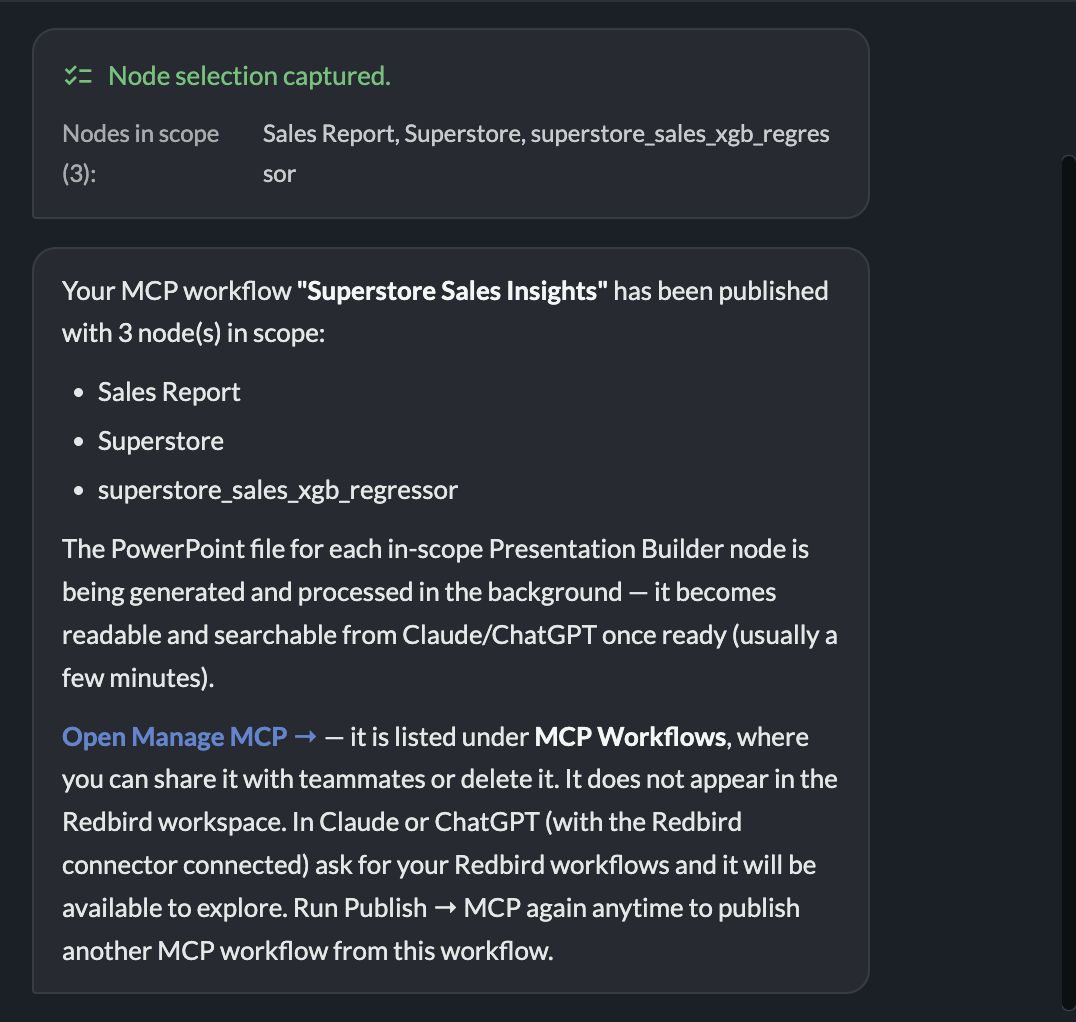
Presentations are shared as a PowerPoint file. For each presentation in scope, Redbird generates a PowerPoint snapshot that the assistant can read and download. This can take a few minutes after publishing, and the snapshot is refreshed whenever the presentation is run again.
Share or delete an MCP workflow
Open the MCP WORKFLOWS tab to see the MCP workflows you've published or that have been shared with you. Each card shows the workflow's name, the workflow it was published from, how many items are in scope, and when it was published.

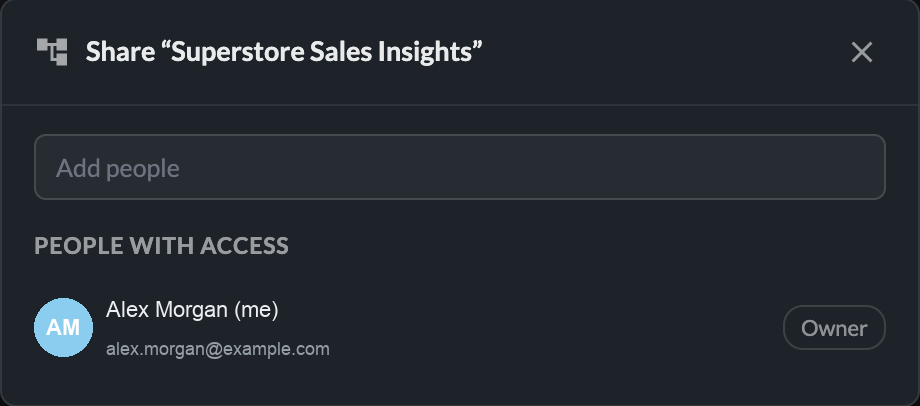
- Click the share icon (a person with a plus sign) to give teammates access. In the share window, search for a teammate under Add people and select them — they're added as a Viewer. To take access away, change their Viewer setting to Remove. Only the owner can change who has access.
- Click the trash icon, then Delete, to remove the MCP workflow. Only the owner can delete it. This doesn't touch the underlying workflow — only the MCP version goes away.
MCP workflows can't be edited after publishing. To change what's in scope, publish a new one from the workflow and delete the old one.
Updated 2 days ago