

Overview
Use your Redbird connections and workflows from inside Claude and ChatGPT
Introduction
Many people already do a lot of their thinking inside an AI assistant like Claude or ChatGPT — drafting, analyzing, asking questions. The data they need, though, usually lives somewhere else: in business apps, databases, cloud drives, and the workflows you've built in Redbird.
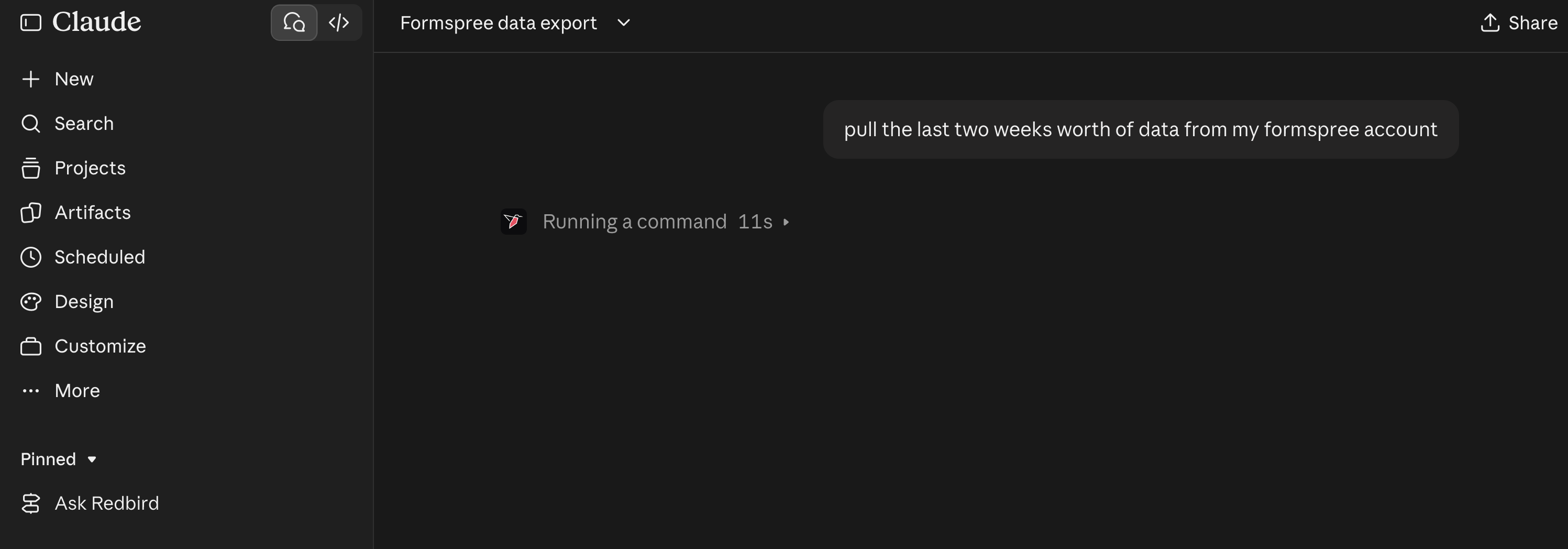
Redbird MCP brings the two together. Once you add Redbird to Claude or ChatGPT, the assistant can reach the data and tools you've connected in Redbird — without you copying, exporting, or pasting anything. You ask in plain words ("pull last week's form submissions", "what's in the Q3 sales workflow?"), and the assistant works through Redbird to get the answer.
What is MCP?
MCP (short for Model Context Protocol) is an open standard that lets AI assistants connect to outside services. Think of it as a universal plug: a service that "speaks MCP" can be added to any assistant that supports it, and the assistant learns what the service can do.
Redbird speaks MCP. You add it to Claude or ChatGPT once, sign in with your normal Redbird account, and from then on Redbird is one of the tools the assistant can use in your conversations.
What Redbird MCP lets you do
Through Redbird, the assistant can work with two kinds of things:
- Your MCP connections — the tools and data sources you've connected for use with your assistant (for example a business app, a database, or a website you've recorded steps for). The assistant can see which connections you have, pull data from them, and — where the tool allows it — push data back or take actions in them.
- Your MCP workflows — Redbird workflows that you (or a teammate) have published for MCP. Each one exposes a hand-picked set of results — datasets, file collections, presentations, data science models, and sheets — that the assistant can explore, query, and download.
A few things are true across both:
- Your credentials stay in Redbird. Passwords, keys, and sign-ins for your tools are set up and stored in Redbird. Claude and ChatGPT never see them — they only receive the data you ask for.
- Setup still happens in Redbird. If you ask for data from a tool you haven't connected yet, the assistant hands you a personal link that opens Redbird, where the connection is set up through a guided chat.
- You only see what you're allowed to see. The assistant can only reach your own connections and the workflows that have been shared with you.
When to use Redbird MCP vs. the Redbird platform
Both work with the same data — the difference is where you are and what you're trying to do.
Use Redbird MCP in Claude or ChatGPT when you want to:
- Ask quick questions of your data in the middle of other work, without switching tools.
- Pull data into the assistant to analyze, chart, summarize, or combine with other information.
- Explore results a teammate has published for you, without needing to know how the workflow behind them was built.
Use the Redbird platform directly when you want to:
- Build, schedule, and run workflows that keep data fresh automatically (see Build & run workflows).
- Prepare and transform data in repeatable steps, or generate presentations driven by a full data workflow upstream.
- Decide exactly what others can see — by publishing a chat environment for Redbird users, or an MCP workflow for assistant users.
Where to go next. Start with Managing MCP in Redbird to see where your MCP connections and workflows live, then follow Activating Redbird in Claude or Activating Redbird in ChatGPT to add Redbird to your assistant.
Updated 2 days ago