

AI Agent Run
Run an agent as part of a repeatable automated workflow
Overview
The AI Agent Run lets users pre-configure the inputs required by the agent and then run agents automatically, without needing to interact via an AI chat interface. This makes it easy to generate repeatable outputs as part of a workflow.
Agent Agent Run Configuration
To get started, add the AI Agent Run Node to the Workflow Canvas.
To configure the AI Agent Workflow Node, double-click the node to open the configuration screen, from here you can choose the agent you wish to leverage in this AI Agent Run from the drop-down.
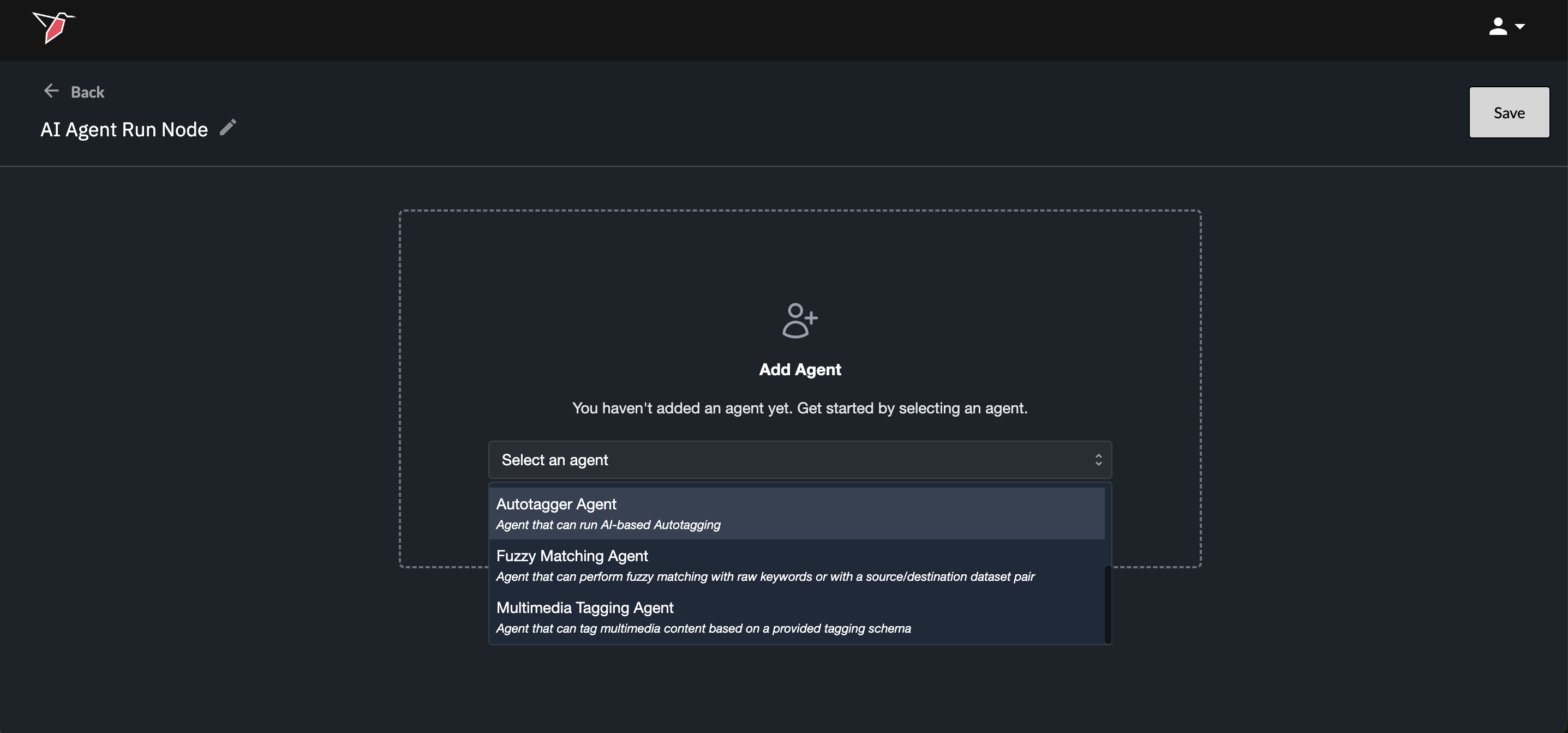
In the Overview section, you’ll see a brief description of what the agent does, along with a list of configuration items required for the agent to run without user intervention as part of a workflow.
Each item represents an Agent Requirement. Some requirements are mandatory, while others are marked as (Optional) and do not need to be populated.
For each requirement, provide an input by entering a value (for example, free-text or numerical input) or by selecting an option from a dropdown, depending on the requirement. Status indicators appear next to each item; all indicators must be non-red for the Agent Workflow node to run successfully.
The resource panel on the right-hand side displays all objects connected to the node, including datasets, file collections, and context nodes (each can be previewed via the eye icon).
If needed for an agent input configuration, you can reference these resources using a forward-slash prompt—for example, to reference a tagging framework or you can select them using drop-down menus when inputs are required.
.
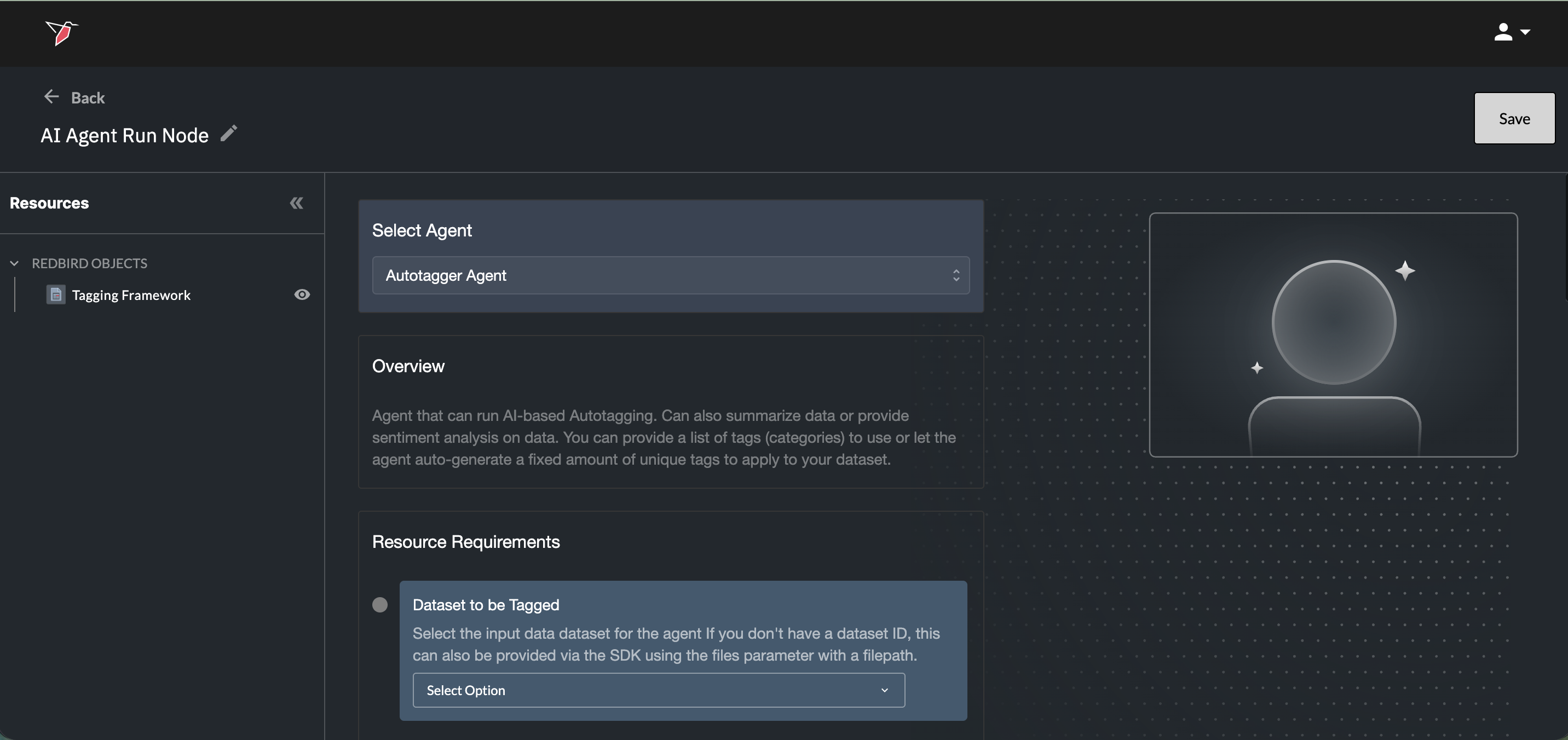
Note that any required Redbird dependency like a Dataset, Chart, Data Science Model, etc, must be first connected to the Agent Workflow Node before it will show up in any options menu for an agent requirement.
To understand more about what the agents can do and a detailed description of all the different parameters and settings, you can reference each agent's documentation within the AI Agents section of the documentation.
Once you are satisfied with the configuration, you can run the node manually or setup an automated workflow. For more details on this process, see Running Nodes and Workflows Documentation .
In most cases, the AI Agent Run will produce an output asset (for example, a dataset, dashboard, or summary document). This output can be used downstream in the same workflow, referenced by another workflow, or extracted from the platform (for example, downloaded, pushed to cloud storage, or sent via email etc.). More information on how to work with outputs can be found in the Outputs section of the documentation.
Updated 5 months ago