

Node Copies
Easily replicate nodes on the same or other canvases

The Copy and Paste actions on the toolbar allow you to easily make copies of nodes, both on the same canvas and other canvases.
First, select a node (a blue border will display around it). Then, click the copy icon in the toolbar.
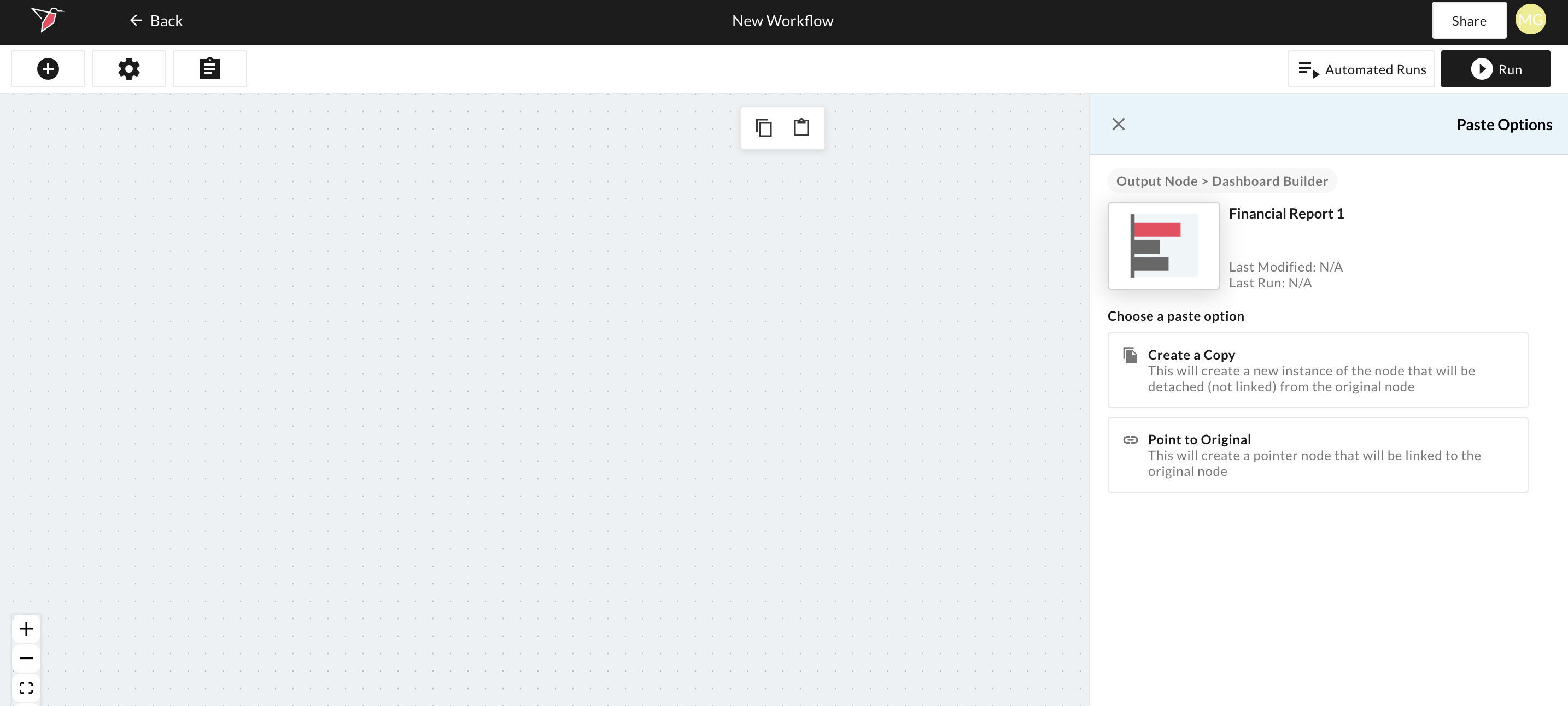
When you paste a copied node, options will appear for what type of paste you would like. Depending on the situation, you can "Create a copy" or "Point to Original". If you are copying to the same canvas, only "Create a Copy" is enabled.
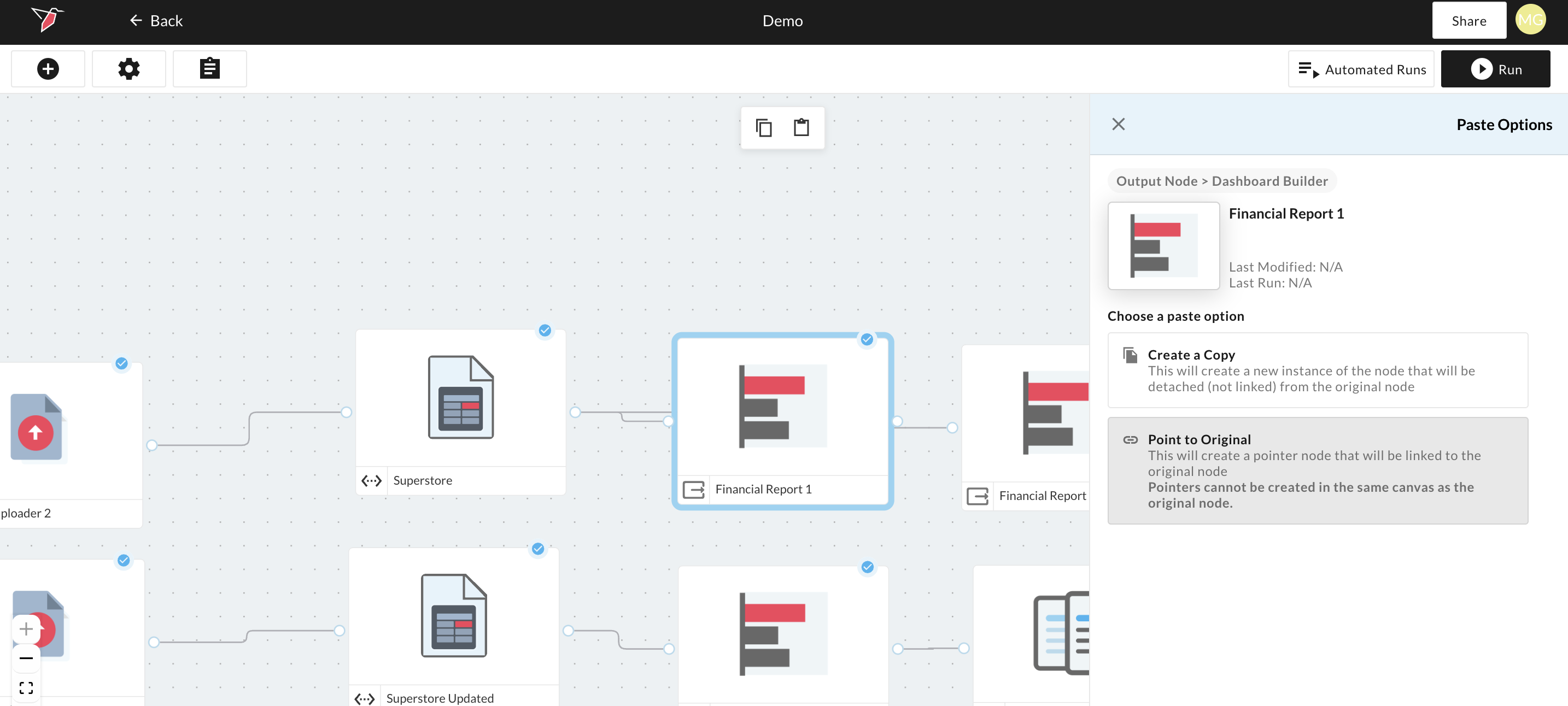
"Create a copy" creates a duplicate of the node completely detached from the original. This is useful for copying a complex configuration or output so you don't have to recreate from scratch.
For certain nodes — such as Dashboards — after clicking Paste, you’ll be prompted to go through a mapping wizard. This allows you to reconnect the node to datasets, either reusing the same datasets (if you’re pasting within the same canvas) or mapping to different datasets (if you’re pasting into a new canvas or working with different inputs).
Note - Dataset and File Collection nodes cannot be copied. You can only create pointers to them.
If you're copying to a different canvas, you'll also see the option enabled to "Point to Original". This is discussed separately in the Node Pointers article.
Updated 6 months ago