

Consumer Financial Protection Bureau
For more general information on data collection in Redbird, check out: Getting Started With Data Collection
This guide explains how to set up access and collect complaints data from Consumer Financial Protection Bureau (CFPB).
Enabling Collection Apps
- Click the person icon located in the upper right-hand corner of the page
- Click Account Settings
- Click Apps
- Navigate to Consumer Financial Protection Bureau
- Select the box under the Visible? heading to enable the collection app

- Click Done
Creating a Collection
- Click Collect on the top navigation bar
- Select Consumer Financial Protection Bureau
- Click Create Collection
- Click the pencil next to Configuration Name to name your collection
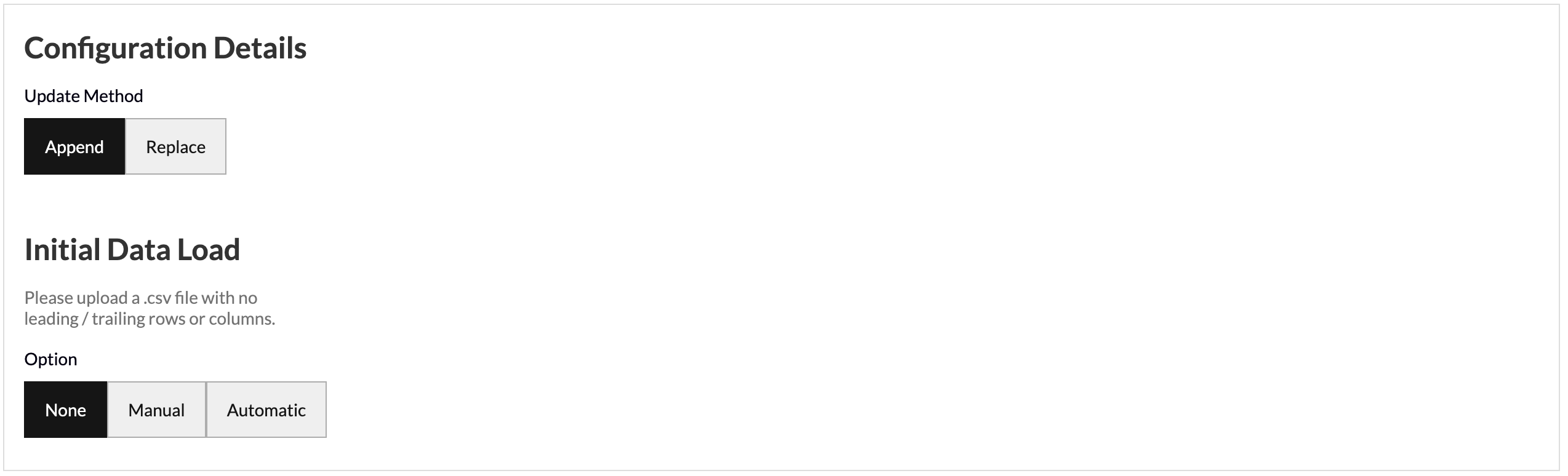
- The Update Method allows you to select how you want your data to aggregate when you run future data pulls. Append keeps the historical data and adds the future data pulls below. Replace deletes the historical data and generates the new data in its place.
- Initial Data Load allows you to upload historical data in bulk as a one-off in the event that you have the data saved on your computer. You can upload your data as a CSV file with no leading/trailing rows or columns and Redbird will run future data collections using the configuration that you set up in previous steps.
- Click Done
Running a Collection
- Click Collect Data under Run
- Click Run Collection
- Input the time period required
- Click Run
Updated 8 months ago
Did this page help you?