

Sprinklr
For more general information on data collection in Redbird, check out: Getting Started With Data Collection
This guide explains how to set up access and collect data from the Sprinklr platform which collects social media metrics. You will need API access enabled on your Synthesio account to use this collect App. Please ensure that the metrics you need are already populated in Sprinklr's dashboard feature. Through this collection app, we can pull the data within the widgets for the specified dashboard(s).
If you cannot see the Sprinklr collection app in the left-side panel on the workflow canvas, refer to: Enabling Collection Apps Guide
Creating a Collection
- Double-click on the node to enter configuration mode
- Click the pencil next to Configuration Name to name your collection
- Click the Cog icon next to the credentials to enter your credentials. Click Add new login then enter the following:
- Server Environment e.g. Prod2. You can find out your server environment here.
- Then click Login with Sprinklr to set up the connection (note, you only need to do this once for each configuration).
- On the "Pull metrics from Sprinklr to analyze in the Redbird Platform" page click Submit
- Log in with your Sprinklr Username, Password and MFA code.
- Select the Checkbox for all accounts you want it to have access to on the "Clients to be given access" page. Click Submit.
- You can access data using two methods:
- Standard dashboards - these are those that are in built in the platform. In this case you just select the required dashboard from the drop down
- Custom dashboards - ones that have been custom built in the platform. In this case you need to enter the API payload information in the box. See here on how to do that.
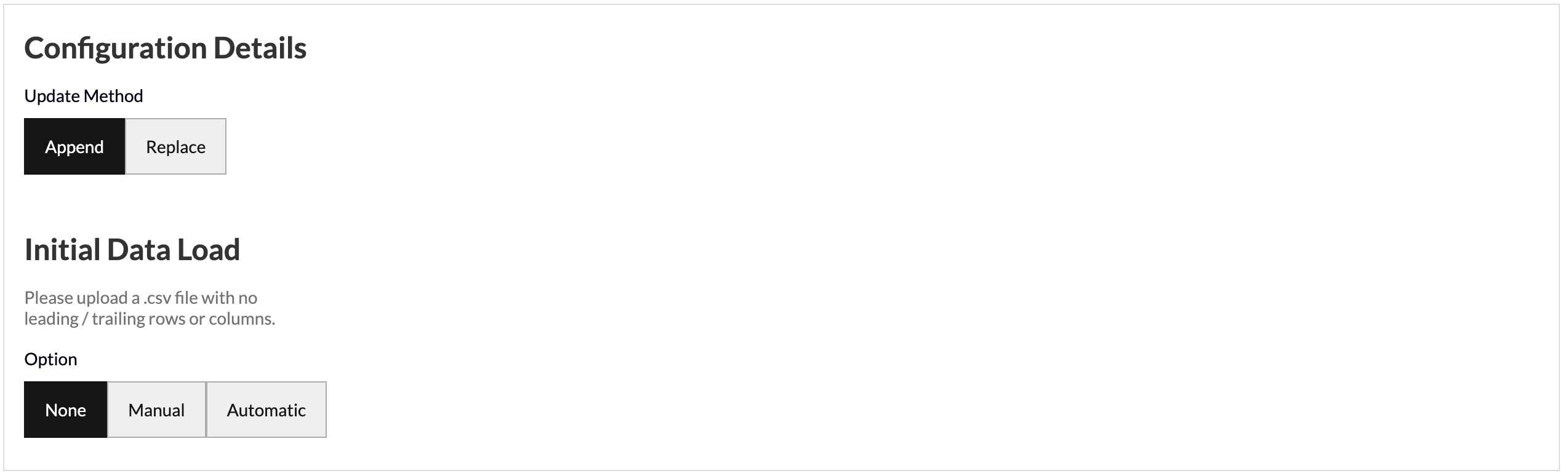
- Update Method allows you to select how you want your data to aggregate when you run future data pulls. Append keeps the historical data and adds the future data pulls below. Replace deletes the historical data and generates the new data in its place.
- Initial Data Load allows you to upload historical data in bulk as a one-off in the event that you have the data saved on your computer. You can upload your data as a CSV file with no leading/trailing rows or columns and Redbird will run future data collections using the configuration that you set up in previous steps.
- Click Done
Running a Collection
- Click on the node.
- In the right-side panel click Run
Updated 7 months ago
Did this page help you?