

Node Status Indicators
Each node on the canvas displays a status indicator in its top-right corner. This indicator shows the current state of the node, helping you quickly understand whether it needs configuration, is ready to run, has run successfully, or has encountered an error.
As you work with a node—configuring it, running it, or updating it—the status indicator updates automatically to reflect its current state.
Edit required (orange pencil icon)
Status: Edit required
Icon: Orange with a pencil
A node appears in the Edit required state whenever it is missing mandatory configuration and cannot be run.
This can happen:
- When a node is first added to the canvas
- If you edit a node and leave one or more required fields unconfigured
- If changes elsewhere in the workflow cause the node to become unconfigured
To configure the node:
- Click the node to open the right-hand configuration panel and select Edit, or
- Double-click the node directly on the canvas.
Once all required configuration is completed and saved, the node will automatically move to the Ready to run state.
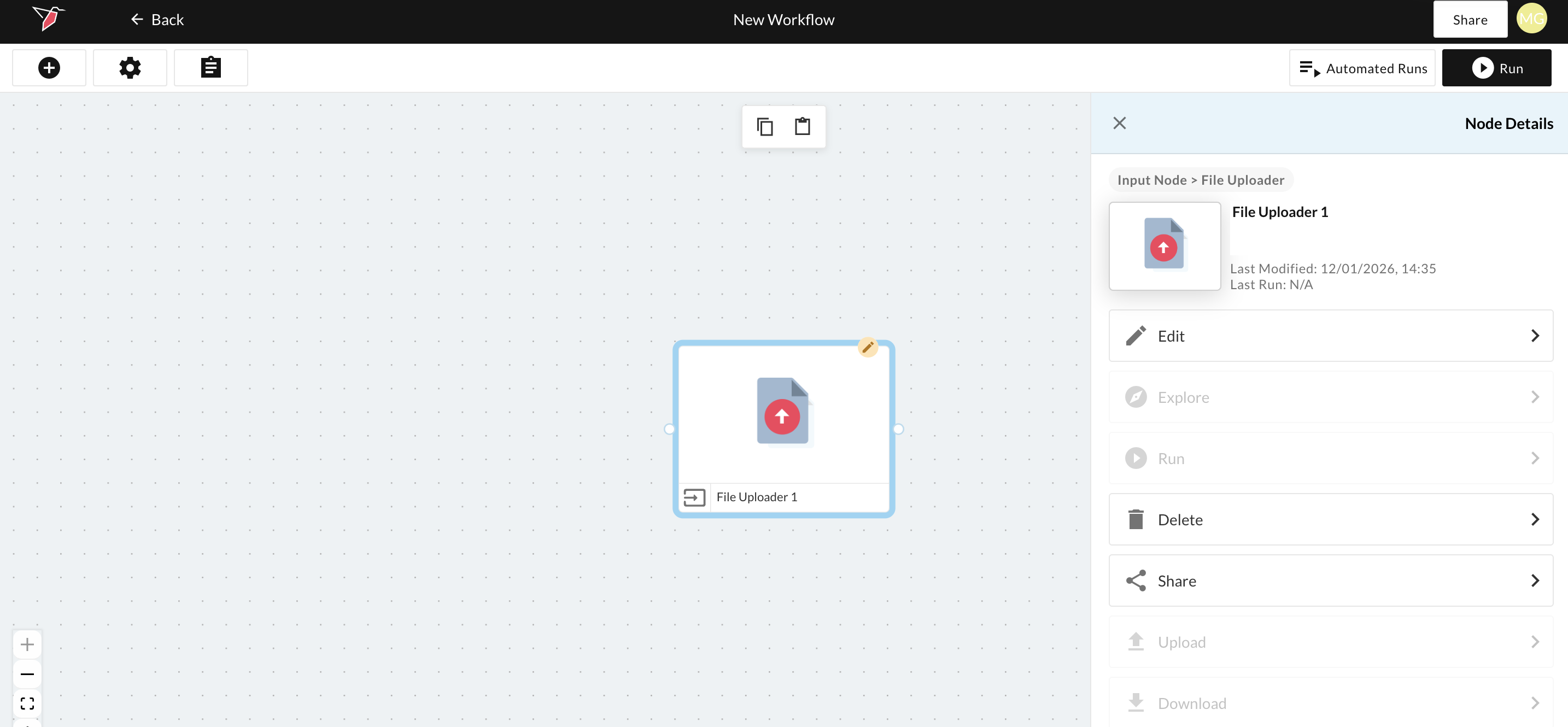
Ready to run (grey check icon)
Status: Ready to run
Icon: Grey with a check mark
A node in the Ready to run state has been fully configured and is ready for execution.
From this state, you can:
- Run the node manually using the Run option in the right-hand panel or include the node in an ad hoc run or automated run. See here for more information on running nodes.
- Reopen the node to edit its configuration if needed
This status indicates that no further setup is required before the node can be executed.
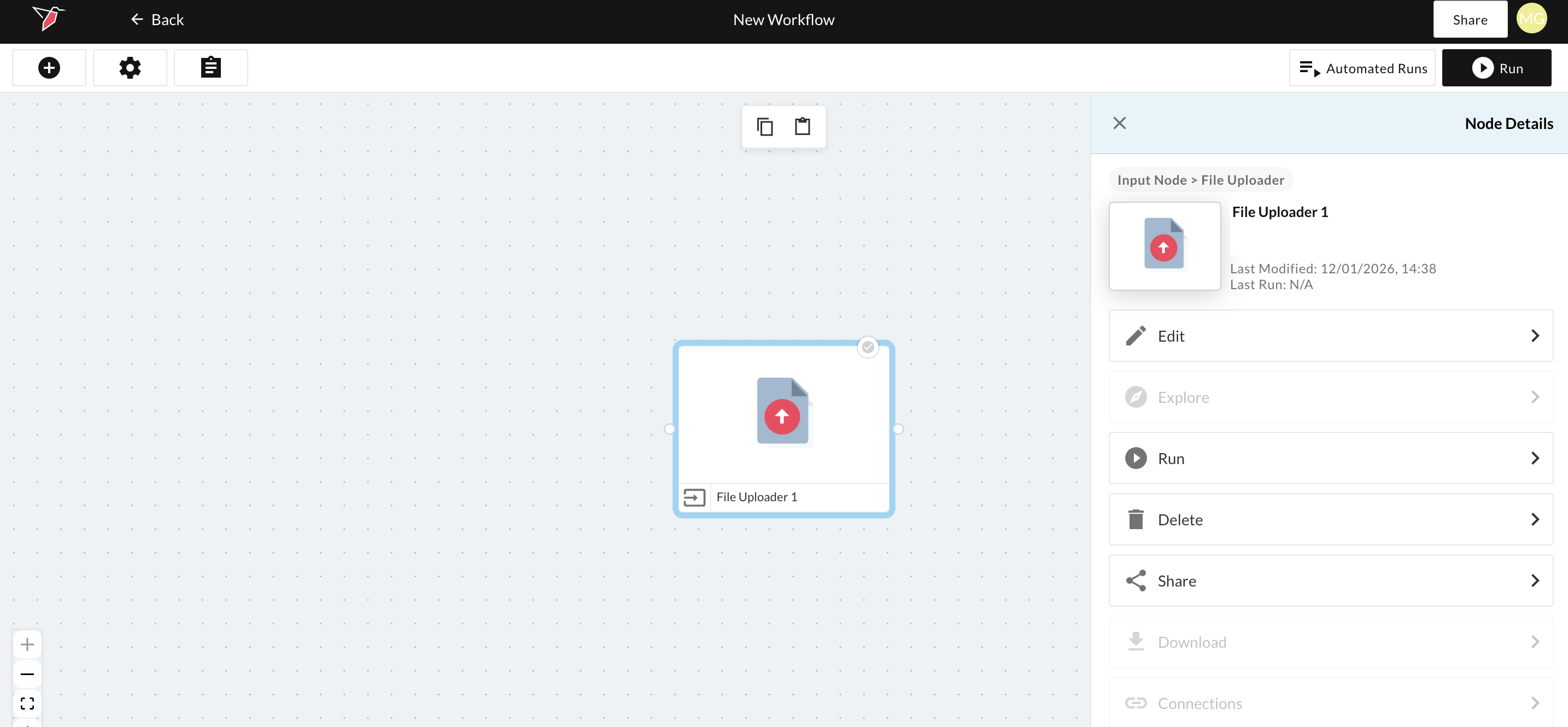
Run successful (blue check icon)
Status: Run successful
Icon: Blue with a check mark
After a node has been run successfully, its status indicator updates to show a blue check icon.
This confirms that the node executed without errors during its most recent run. The node can be run again, included in other runs, or edited further if required.
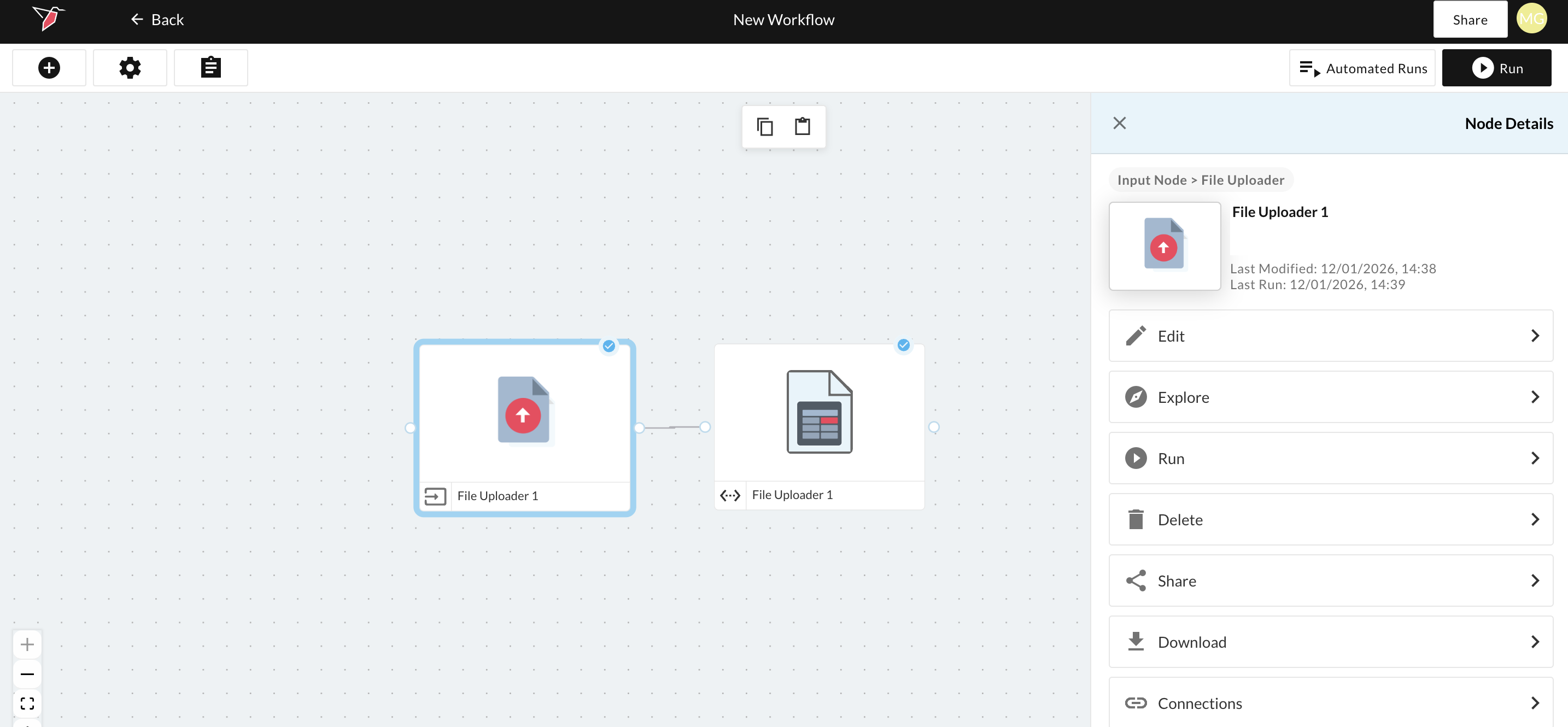
Run failed (red triangle icon)
Status: Run failed
Icon: Red with a triangle
If a node fails during execution, its status indicator changes to a red triangle. This indicates that the node encountered an error and did not complete successfully.
You can review the Event Logs to understand why the failure occurred (see the Event Logs documentation
for more information). From there, you can edit the node if needed and rerun it once the issue has been addressed.
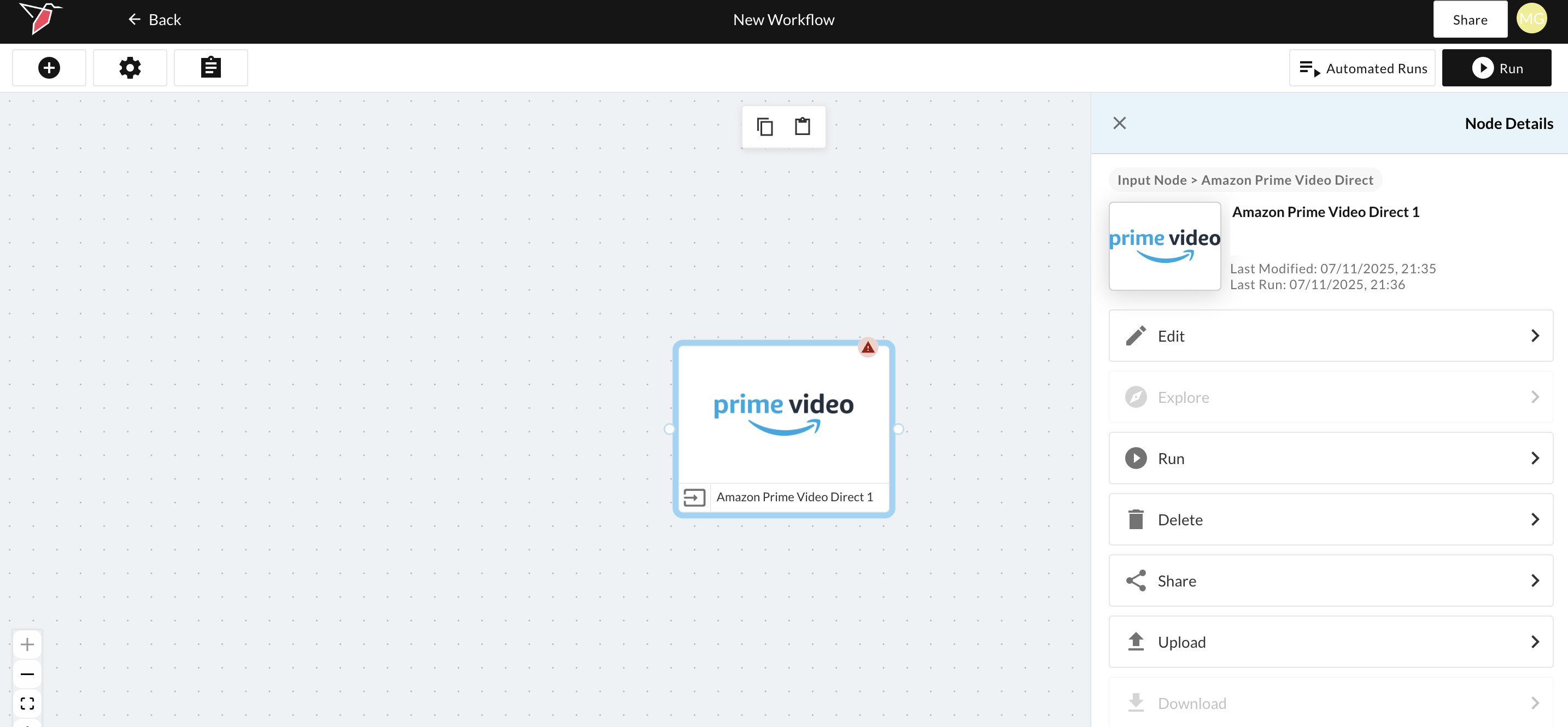
Workflow run status banner
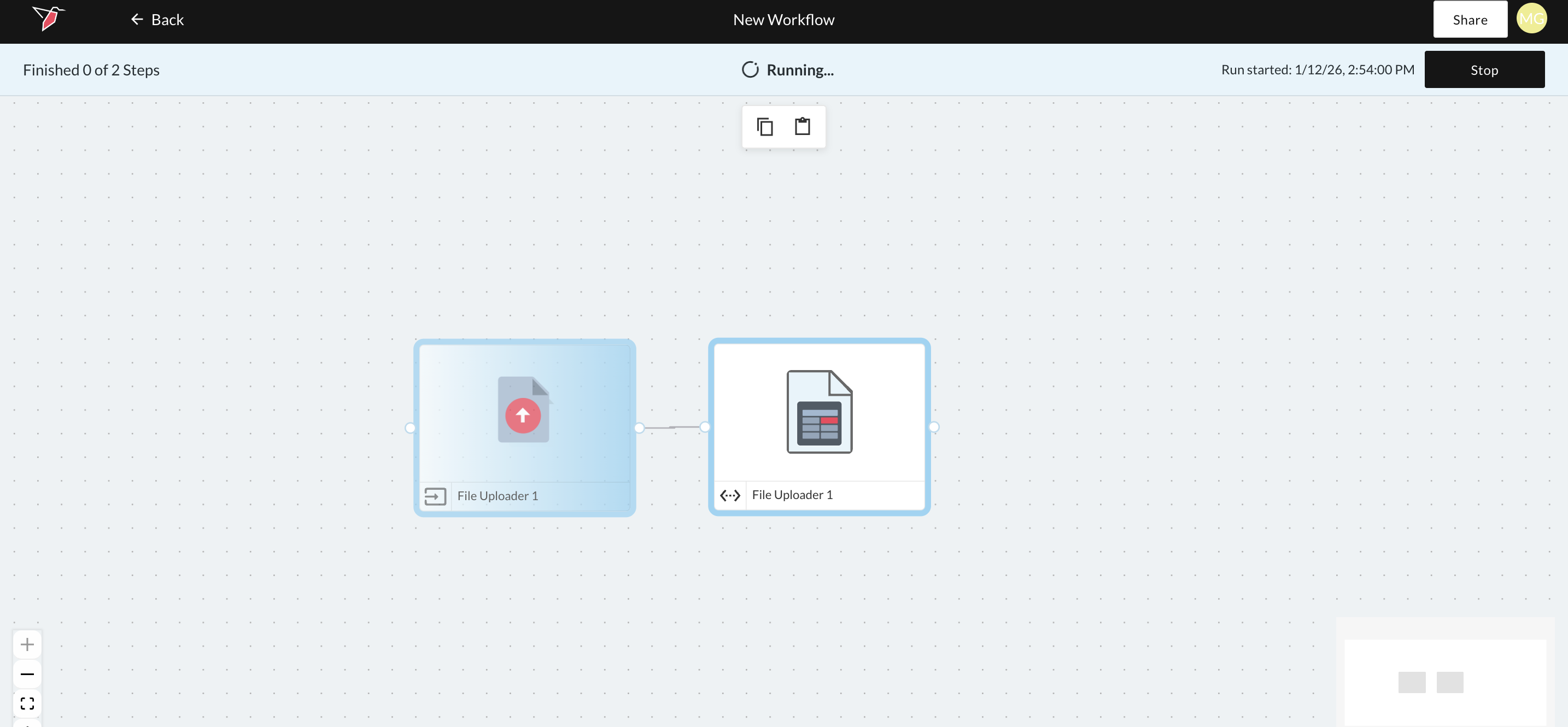
When you run a node or multiple nodes as part of a workflow, a run status banner appears at the top of the canvas. This banner reflects the overall state of the workflow during execution and complements the individual node status indicators on the canvas.
The banner updates in real time as the workflow progresses:
- Blue banner
Indicates that the workflow is running or has completed successfully. - Yellow banner
Indicates that the workflow is paused and user input is required to continue.
This is distinct from the Edit required node status and relates specifically to stop points or run-time input. - Red banner
Indicates that the workflow has encountered an error and did not complete successfully.
The run status banner provides a high-level view of workflow execution, while individual node status icons show the state of each node within the run.
Updated 7 months ago