

Workflow Settings
The workflow settings panel allows you to create configurations for handling various outcomes of any workflow run on the canvas. Using this, you can notify users based on whether a workflow ran successfully or not, or trigger another action based on any workflow's outcome.
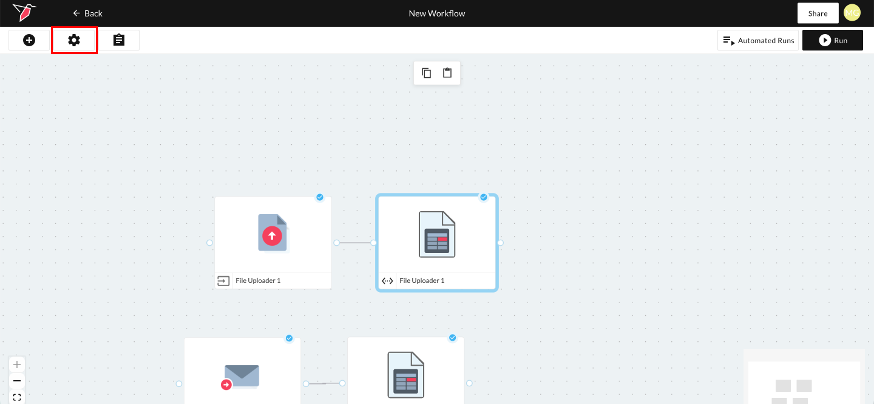
Click on the Cog icon to enter the Workflow Settings.
Click + New to create a new configuration.
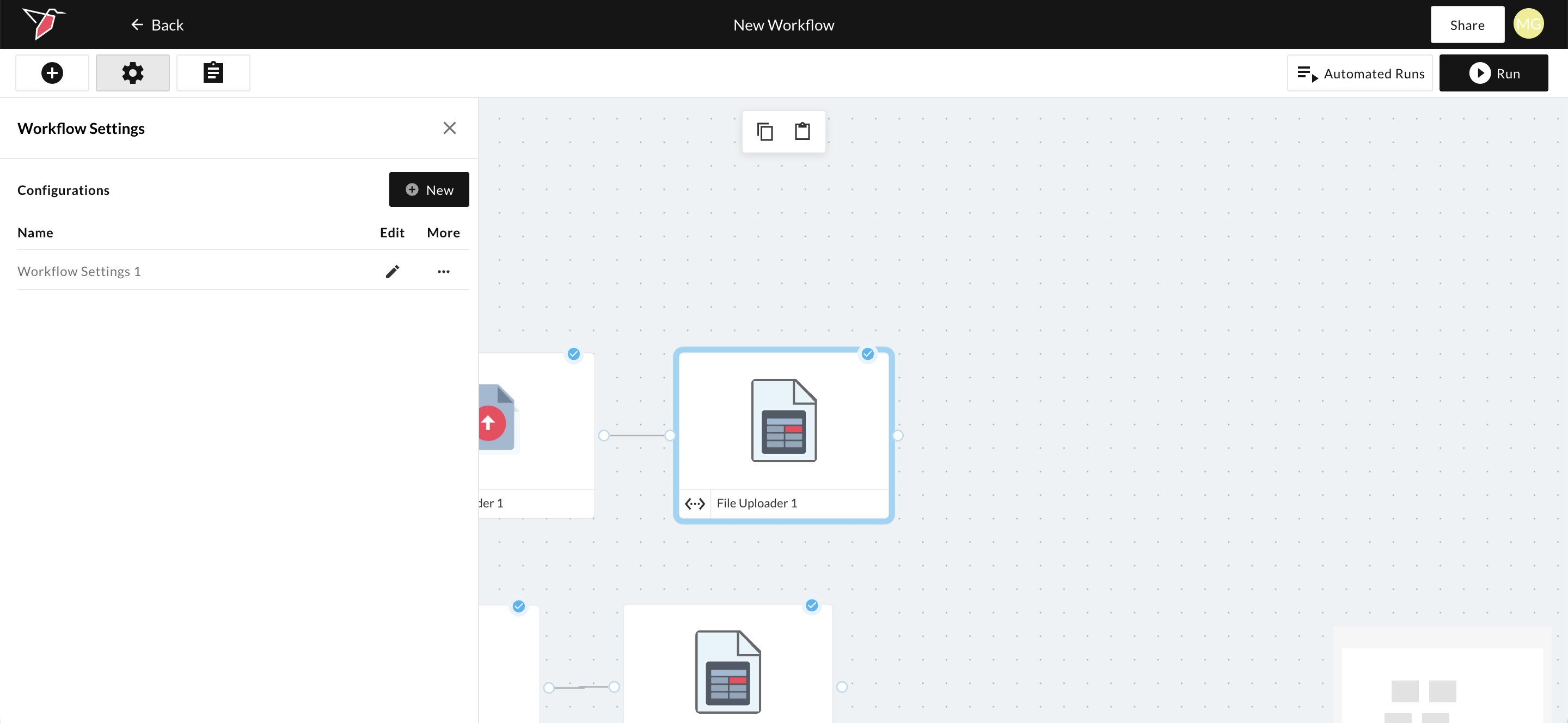
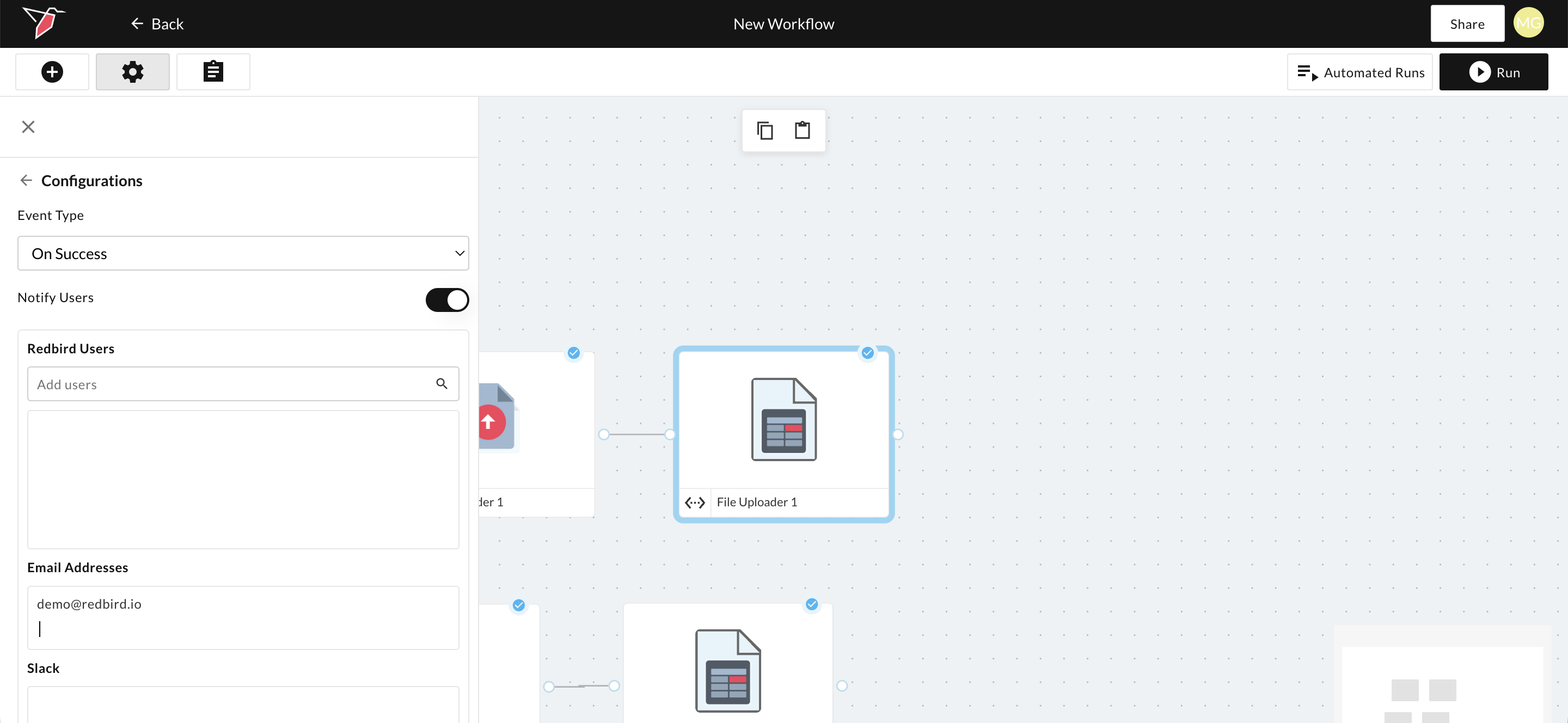
Click the pencil icon to edit the configuration. From here, you can choose the event type the logic is based on (Success, Failure, Update, or Any Event) and toggle notifications on if needed. You can then add users by searching in the Redbird Users field, by entering email addresses in the Email Addresses field, or by adding Slack channels to the Slack field.
Workflow Settings apply to any automated and adhoc run within the canvas whereas notifications set up on an automated run only trigger for that specific automated run.
Updated 3 months ago
What’s Next
Now that you’ve learned how to run and monitor workflows, click below to move to the next section to understand how to manage and share them.