

Processing the Data
Once you have uploaded your data, you can transform it step-by-step using natural language in an AI Data Tool (AI DT) node. These steps can range from simple formulas to data science, tagging and fuzzy matching. You can add steps to complete all of the necessary calculations and generate the desired output. We will walk you through an example setup for this tutorial, but you can find more information about AI DT nodes here.
Setting Up the AI Data Tool Node
- Click the plus sign in the top left to open the Add Node panel. Select AI and drag and drop an AI Data Tool node onto the canvas. Connect your Dataset and File Collection nodes to the AI DT by linking the right side of each node to the left side of the AI DT node.
- Double click the AI DT node, or select it and click Edit.
- Label the node "Processing for Financial Data". On the left, add the steps required to process your data. Use Resources to access the connected datasets, and write prompts on the right to instruct Redbird how to transform the data and view the outputs.
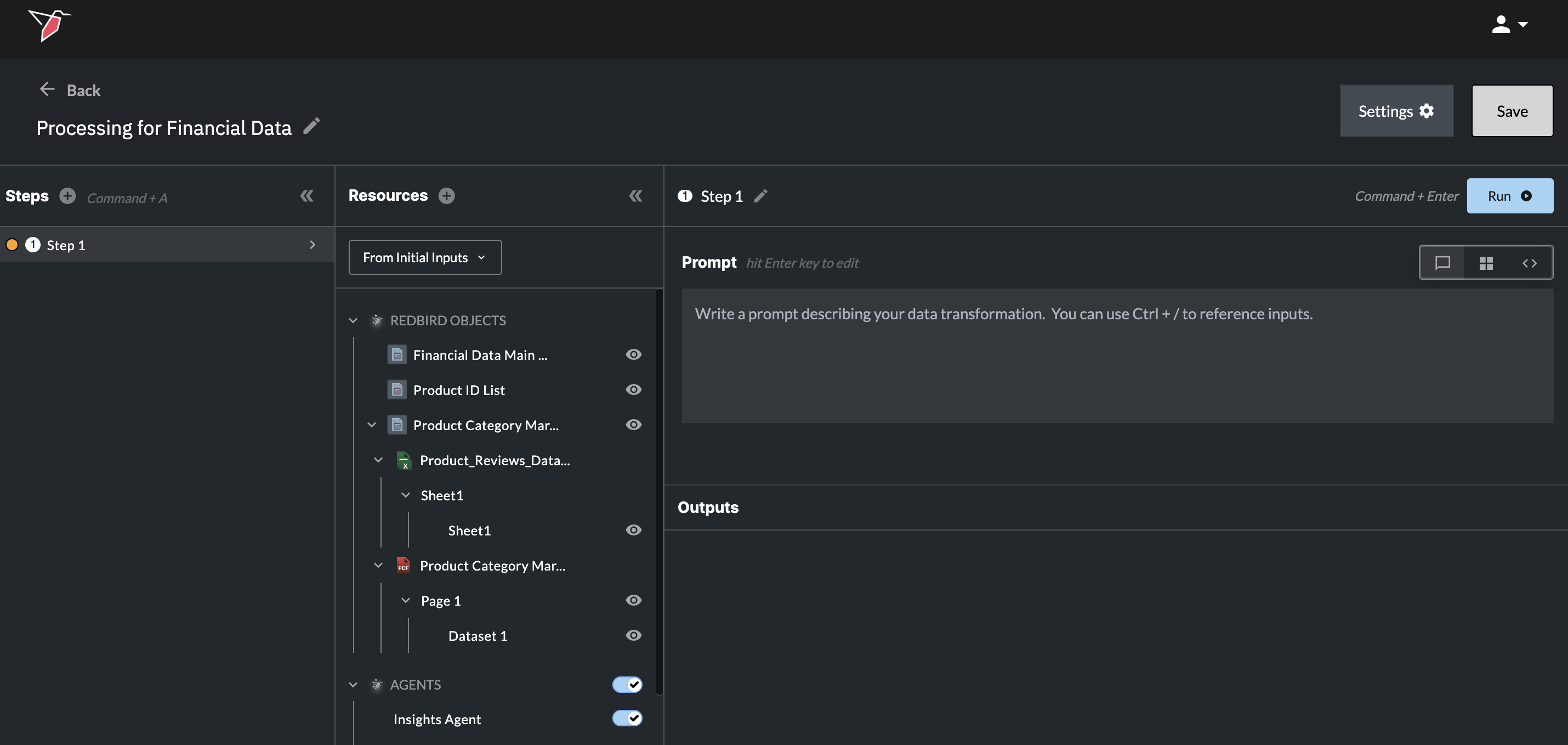
Adding Steps to Process the Data
The prompts below outline some standard data processing steps that you can use, but the AI DT node can address a variety of transformations from lookups to fuzzy matching or even data science. Add steps by using the plus button next to "Steps" or using the shortcuts (Command or Control + A). Copy and paste each of these prompts into a new step. It helps to name each step accordingly by using the pencil icon next to the step name. You can either run each step individually (to check in on progress incrementally), or you can run all steps at once by clicking Run just on the final step.
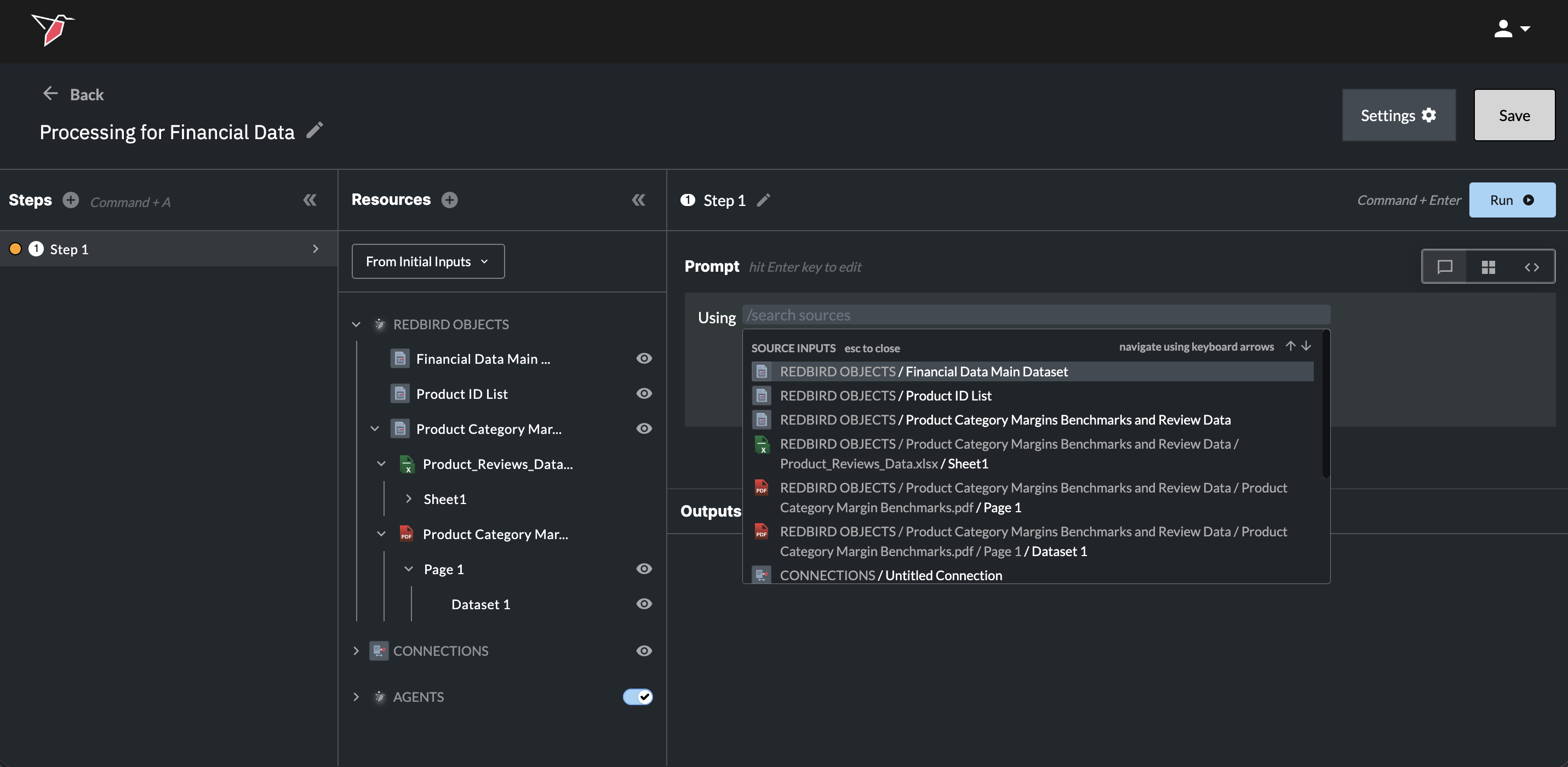
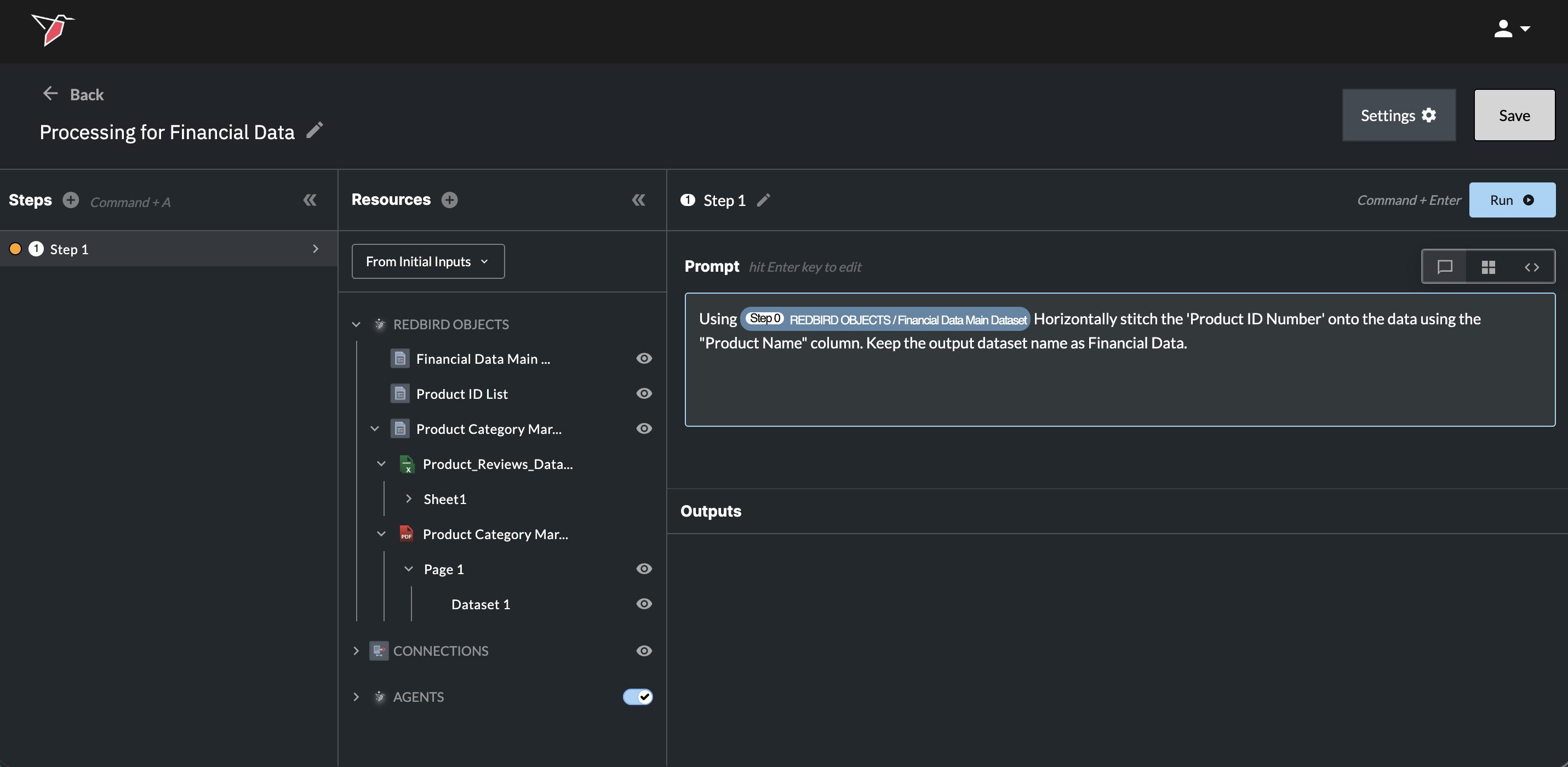
- Using / [Financial Data Main] Dataset as the base dataset, Horizontally stitch the 'Product ID Number' onto the data using the "Product Name" column. Keep the output dataset name as Financial Data.
Note: You can either type the name of the dataset you’re referring to (in this case, Financial Dataset – Main), or use Command or Control + / to open the source inputs menu and select from the list of available inputs.
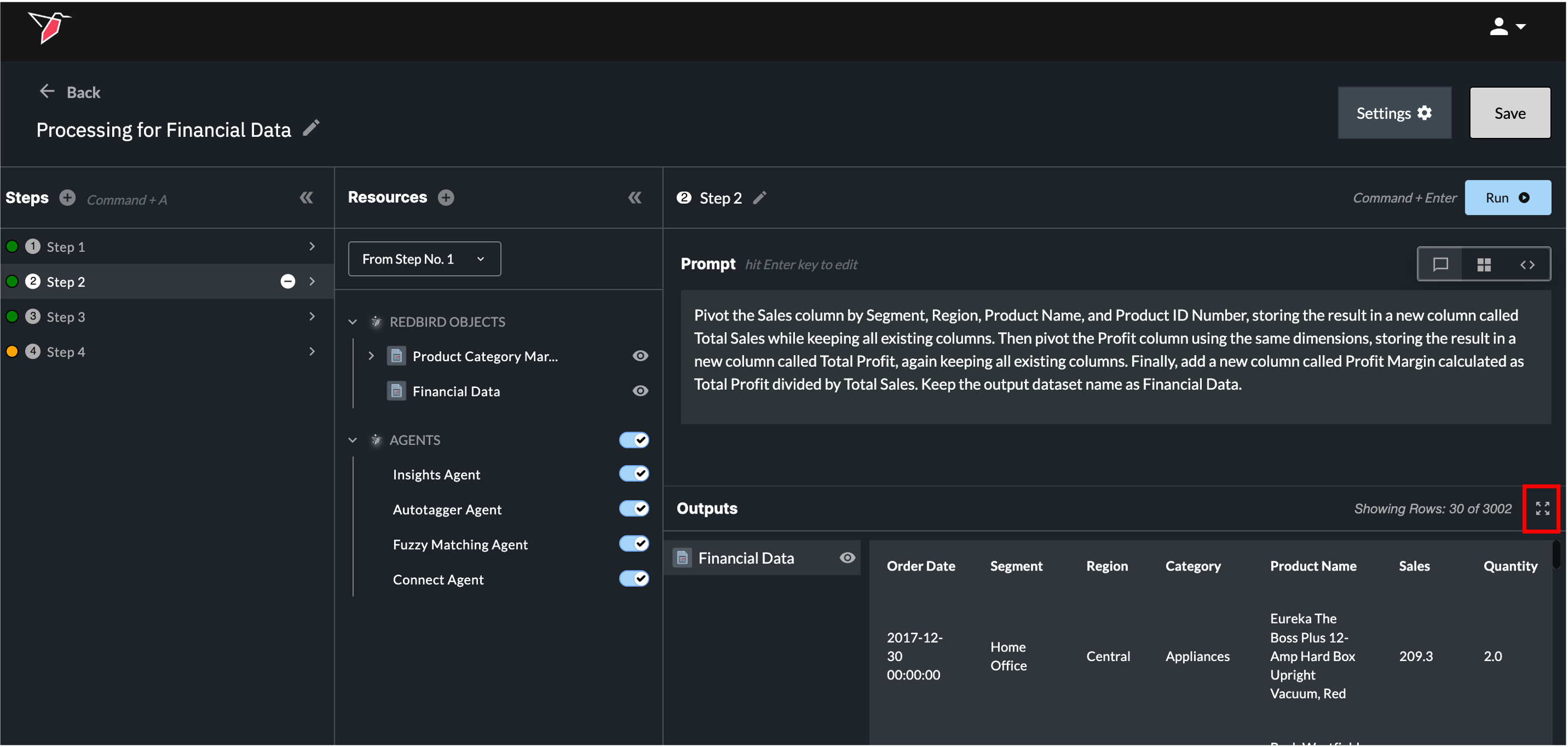
- Pivot the Sales column by Segment, Region, Product Name, and Product ID Number, storing the result in a new column called Total Sales while keeping all existing columns. Then pivot the Profit column using the same dimensions, storing the result in a new column called Total Profit, again keeping all existing columns. Finally, add a new column called Profit Margin calculated as Total Profit divided by Total Sales. Keep the output dataset name as Financial Data.
- Stitch in the Typical Margin column from the Product Category Margin dataset which sits at the category level, so match it on the category column to the financial data dataset. Then add a new column called profit margin performance gap and minus the typical margin column from the profit margin column. Keep the output dataset name as Financial Data.
- Join the product reviews dataset to the Financial Data using the existing product_name field as the join key. Do not add, duplicate, or rename the product name column as part of the join. Preserve the original product_name column from the main dataset only. Keep the output dataset name as Financial Data.
Reviewing the Output
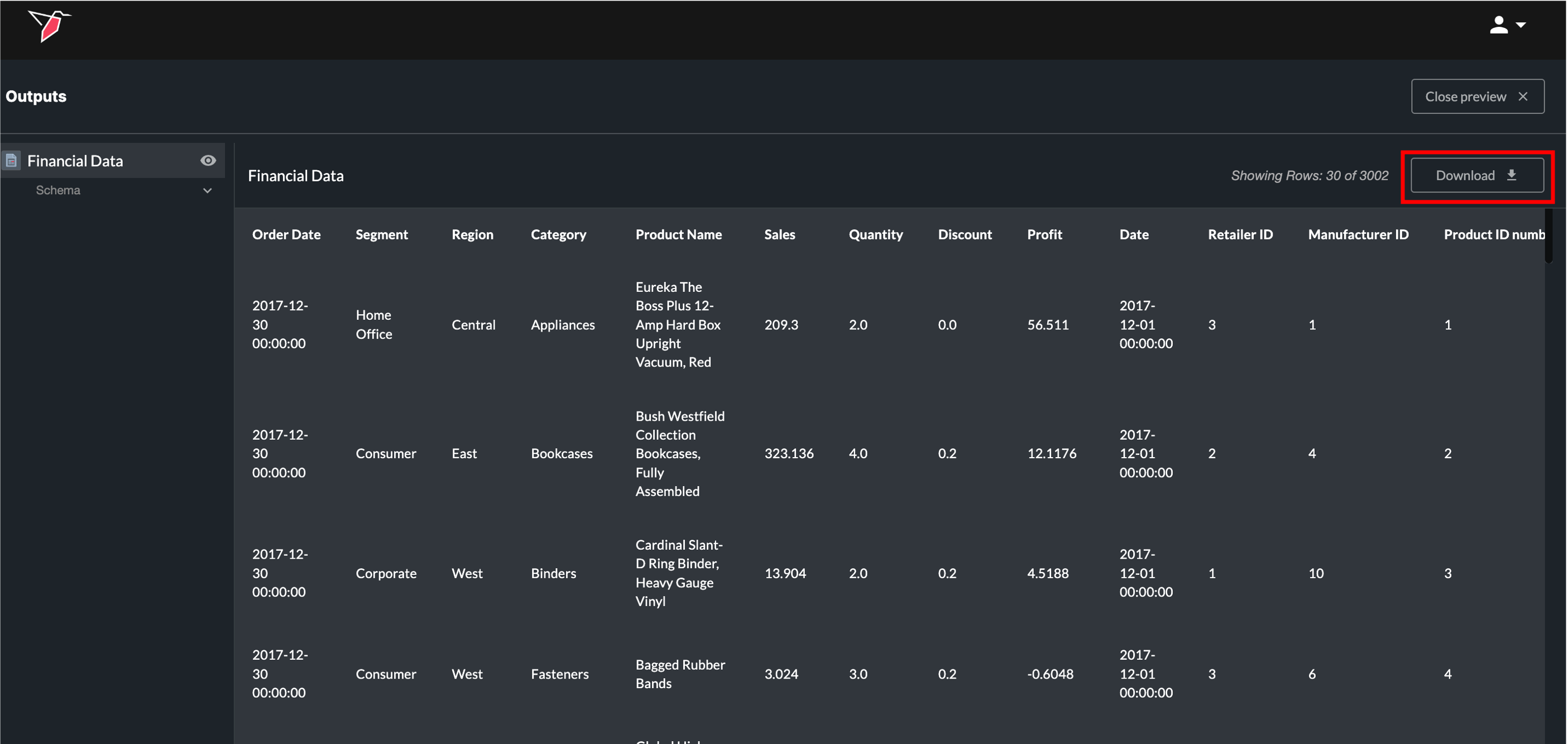
- Once you finish running each step, you can verify the results of the output by expanding it, or downloading it for further review.
Expand
Download
- After confirming the results are as expected, click Save on the top right of the screen which will return you to the canvas.
- Select the AI DT node and click Run in the right side panel.
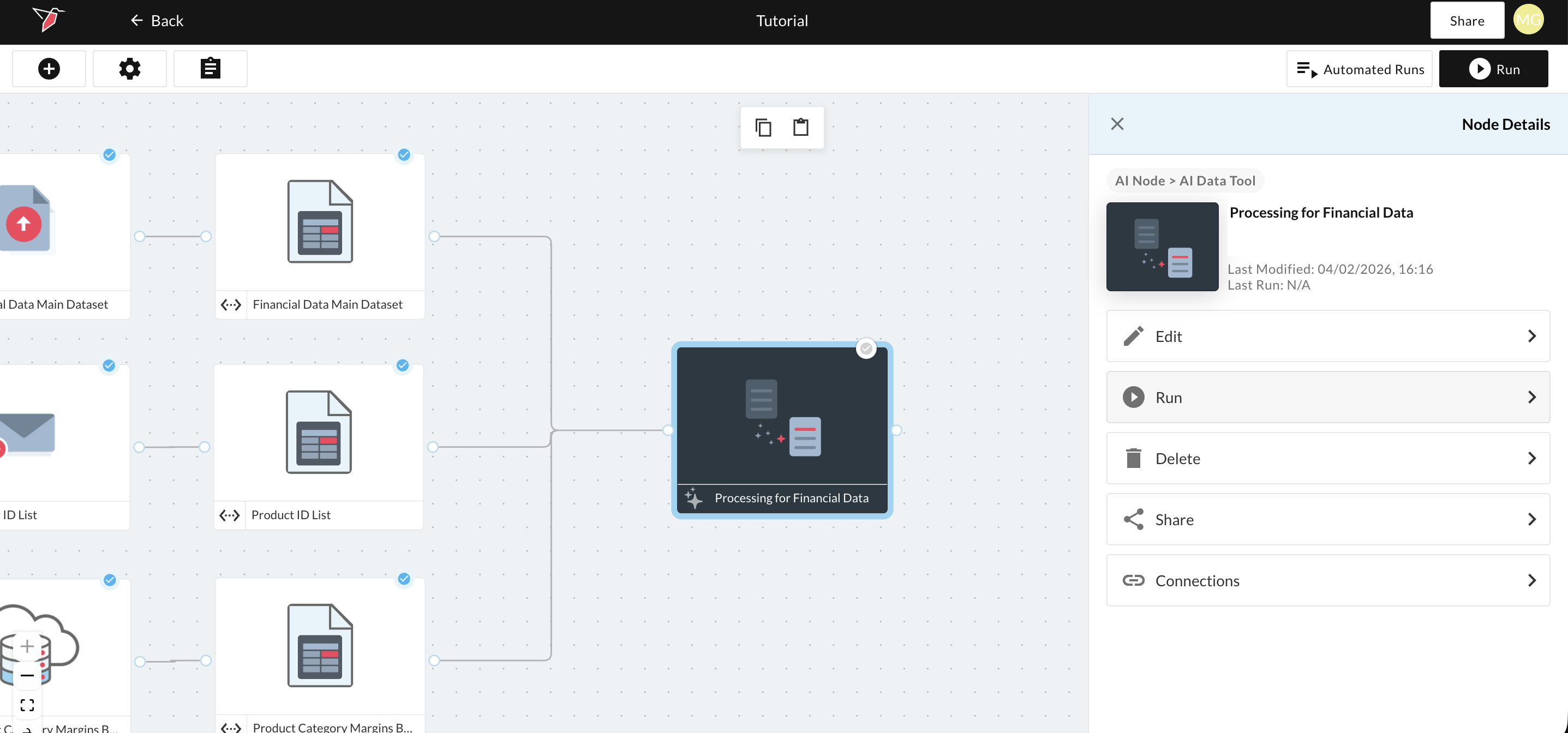
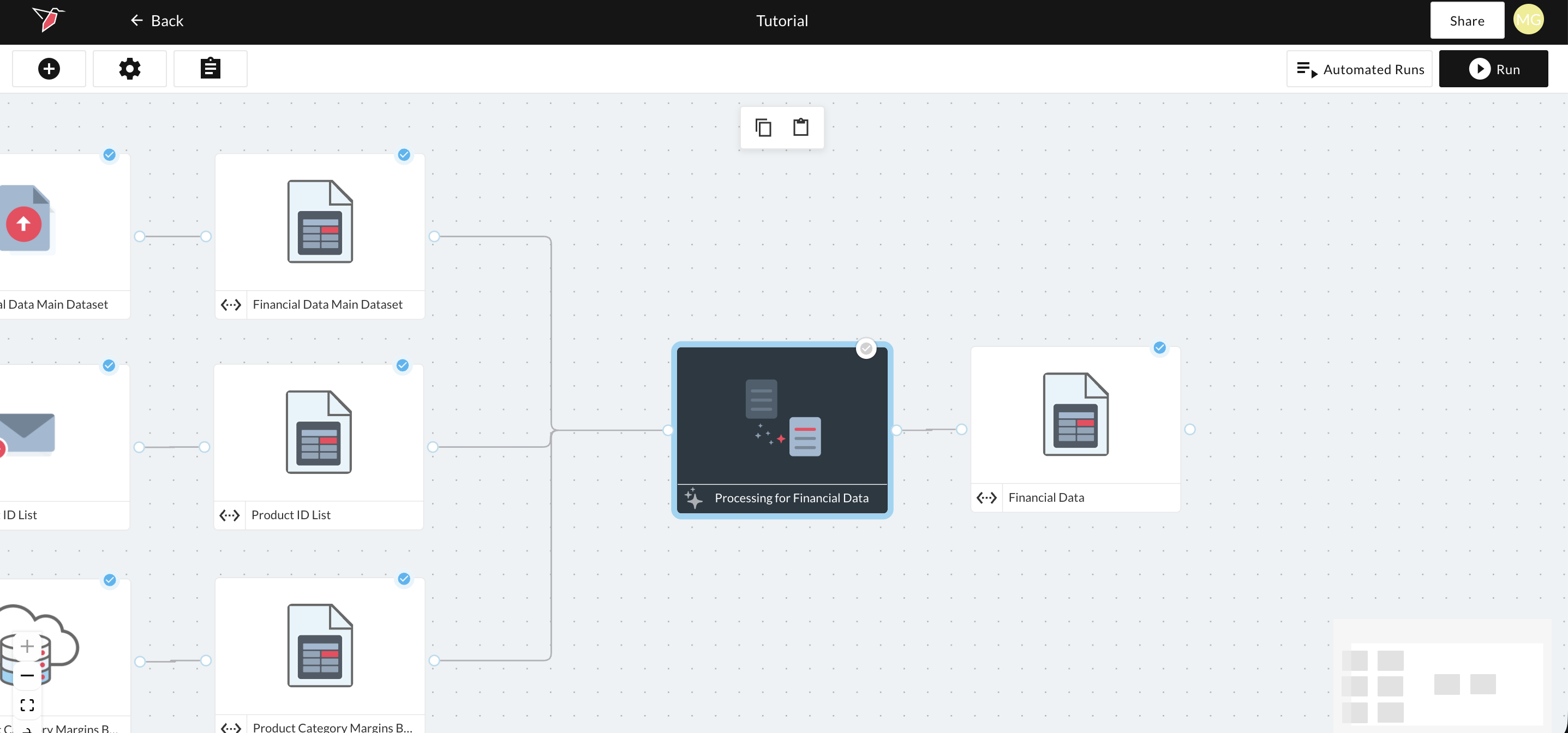
- Running the node will generate an output dataset that you can use in other nodes, such as Dashboard Builder and Redbird Sheets, or send to destinations like cloud data storage, email, or a data warehouse. You can also pass the dataset into other AI nodes, including AI Chat and AI Agent Run.
Updated 3 months ago
What’s Next
The next section will walk you through how to use this dataset in an AI Chat experience.