

Data Warehouse Collect
For more general information on data collection in Redbird, check out: Getting Started With Data Collection
This guide explains how to connect to a data warehouse and extract the data into Redbird. Please ensure you have permission to access the tables required with your data warehouse credentials.
Redbird currently offers connections to Amazon Redshift, Google Big Query, AWS PosgreSQL, Snowflake, Databricks and Azure SQL.
If you cannot see the Data Warehouse collection app in the left-side panel on the workflow canvas, refer to: Enabling Collection Apps Guide
Create a Collection and Entering Credentials
- Double-click the node to enter configuration mode
- Name your data collection by clicking the gray pencil at the top of your screen
- If credentials have already been added to Redbird, they will appear in the Selected Source dropdown. Simply choose the ones you want to use. (If only one set exists, it will be selected automatically.) To add new credentials or edit existing ones, click Add/Edit Credentials.
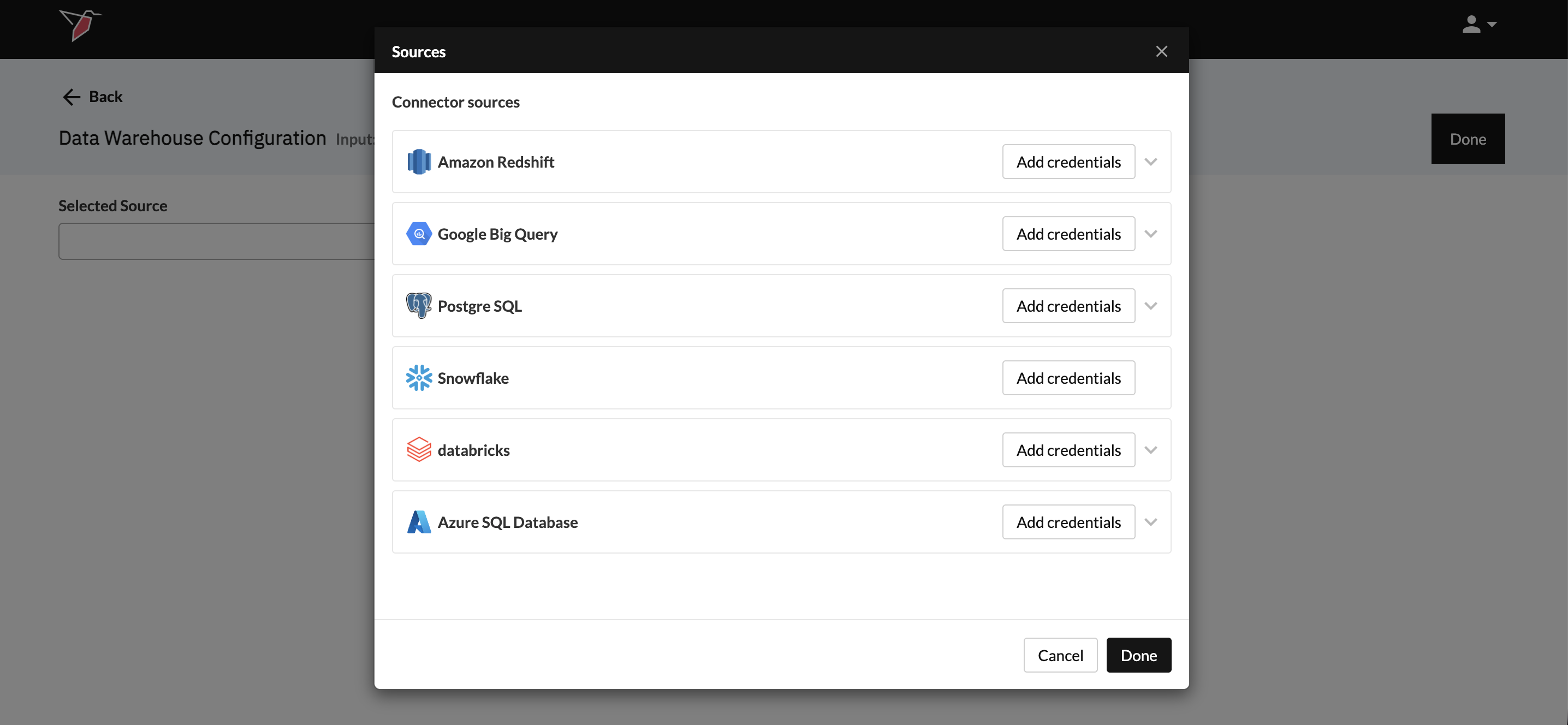
- From the Sources modal, click Add credentials on the Data Warehouse you wish to use.
- You can refer to the guides below on the requirements needed for each of the specific connectors. The first step will always be to name your credentials so that you can reference them at the end of this process.
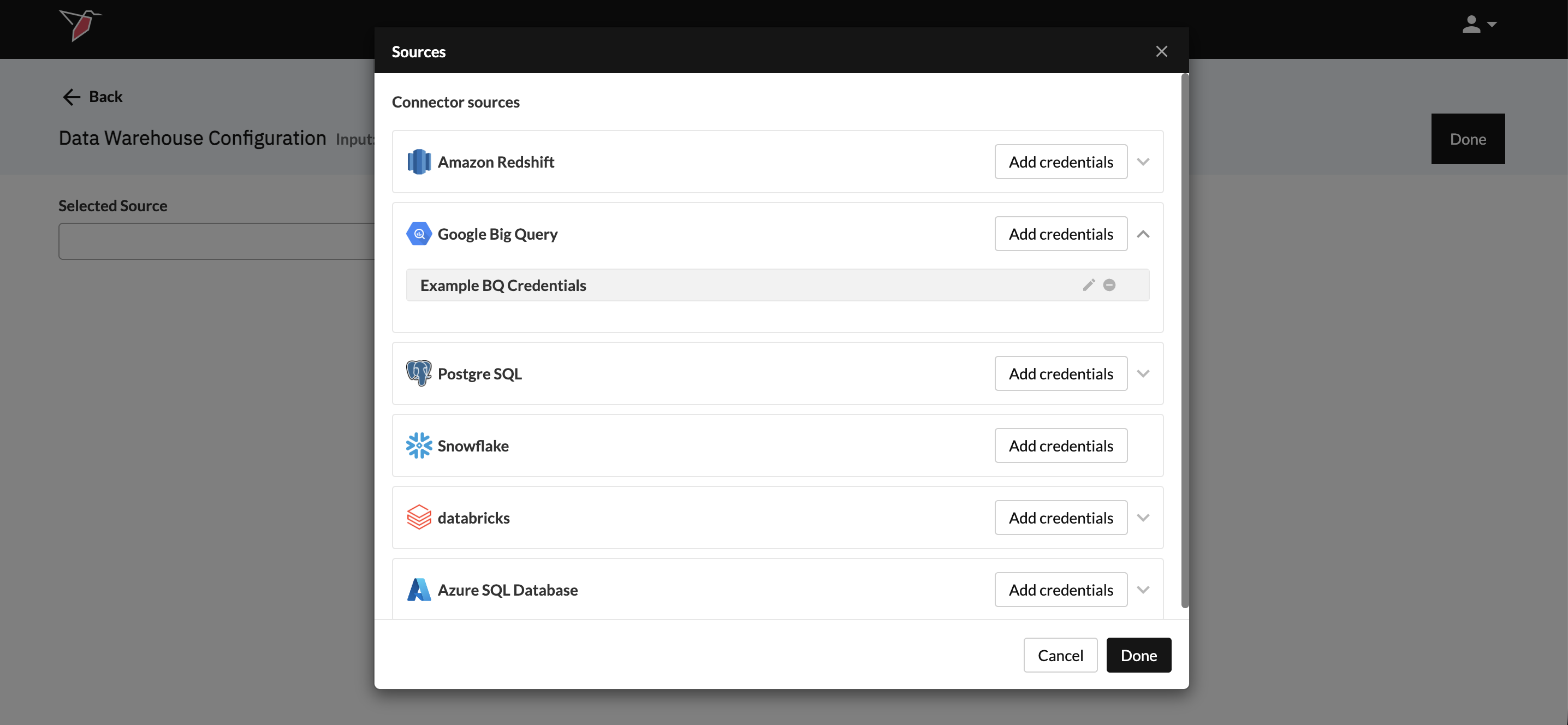
- Once credentials have been added, they will appear in a grey box beneath the Data Warehouse name. You can edit them by clicking the pencil icon or delete them by clicking the minus icon.
- Click Done to return to the main configuration screen
Select your Configuration Method
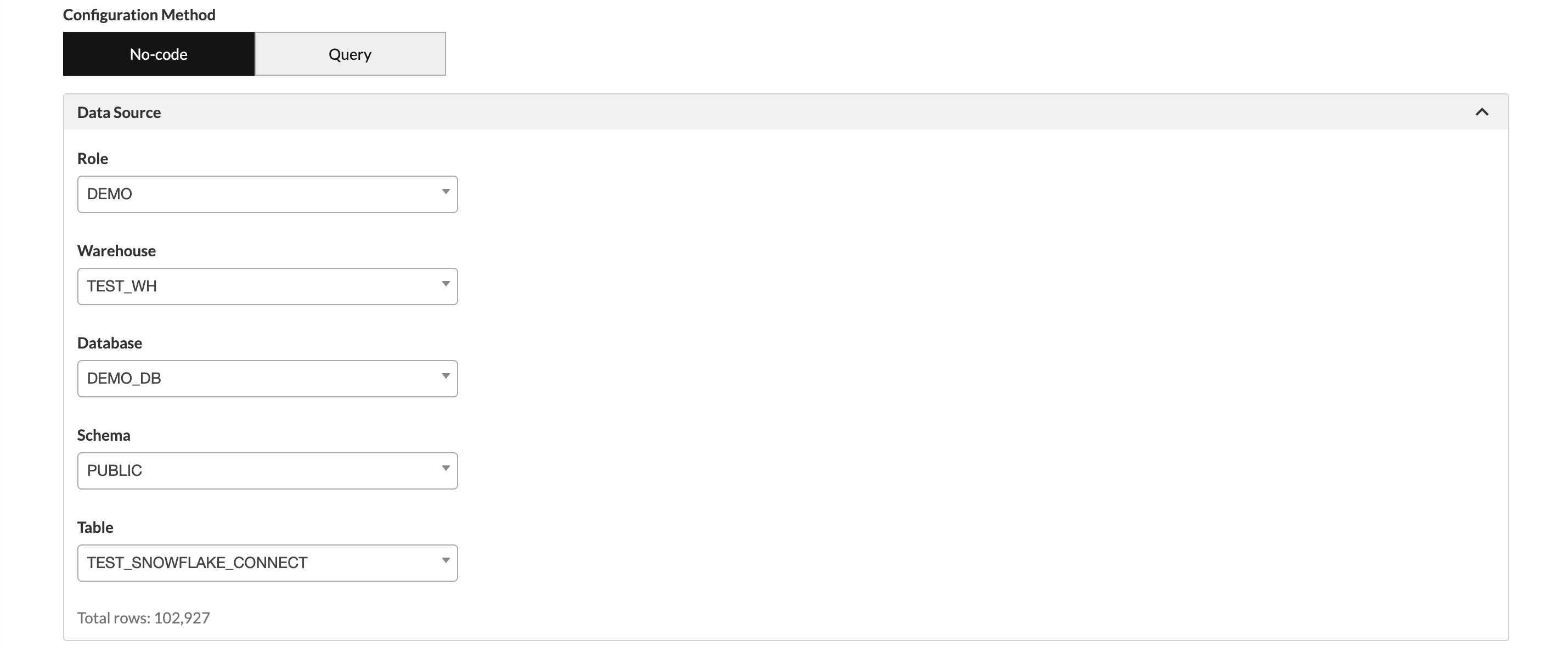
Use the configuration method toggle to choose how you’d like to isolate the data you want to extract from your data warehouse:
- No-code mode lets you select the table you want and optionally filter down to specific columns or rows using a simple point-and-click interface. You will not need to write any queries.
- Query mode allows you to write custom SQL queries to extract exactly the data you need.
No Code Mode
- Use the dropdowns in the Data Source section to navigate your data warehouse structure and locate the table you want to extract data from. The exact path varies slightly by platform but will typically include fields such as Role, Warehouse, Database, Schema, and Table.
-
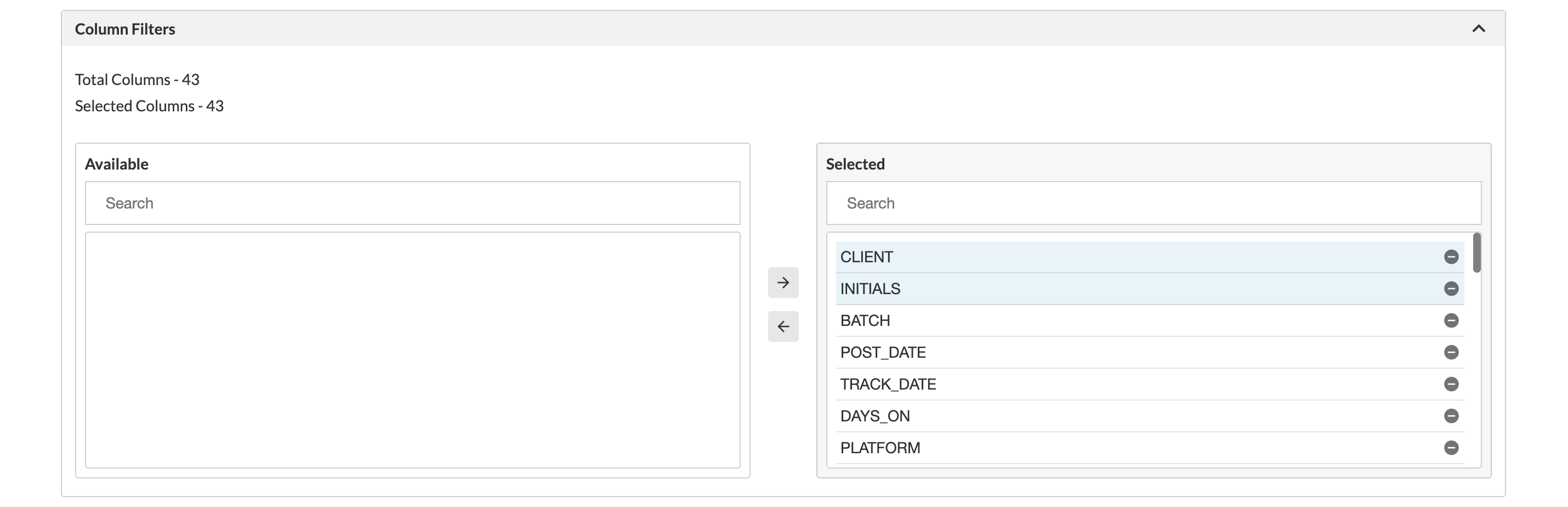
Under Column Filters, the table’s columns will appear in the Available box. To remove columns from your selection, click the minus icon for a single column, or select multiple columns (by clicking to highlight them) and use the left arrow to move them back to the Available box. To include columns, click the plus icon for a single column or select multiple columns in the Available box and click the right arrow.\
-
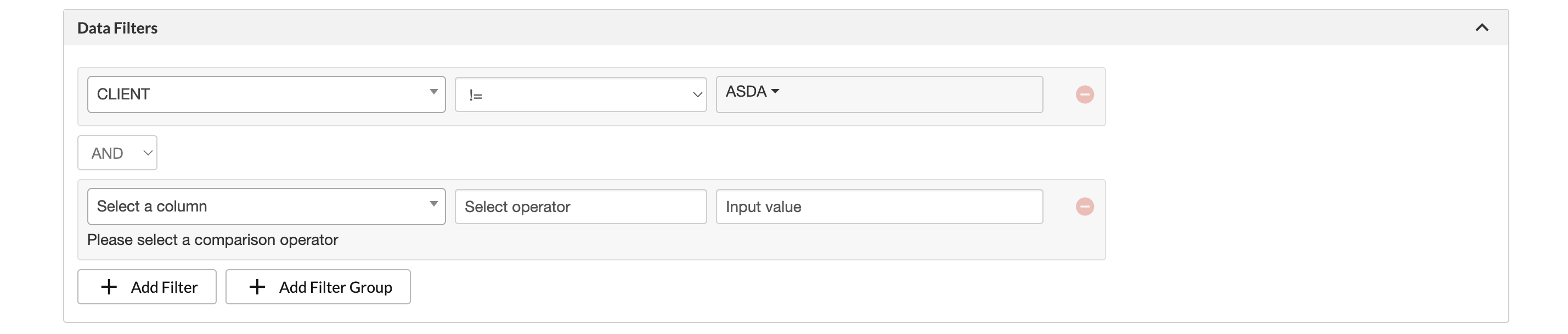
If needed, apply filters in the Data Filters section to control how data is extracted from the warehouse and stored in Redbird. Here, you can isolate specific rows based on chosen values. Click Add Filter to create as many filters as you need, and combine them using AND or OR logic. You can also use Add Filter Group to create nested filters for more complex conditions..
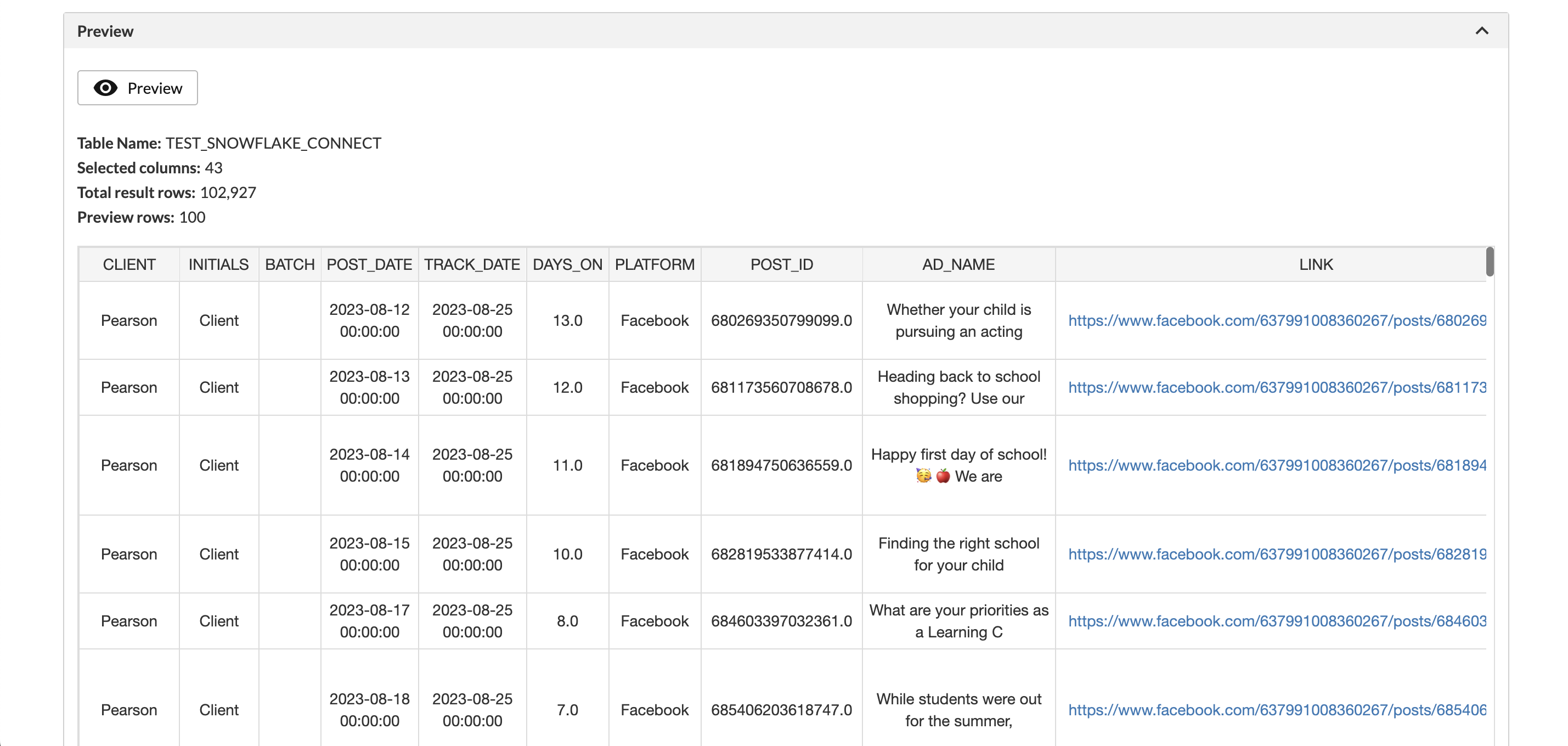
- When you first select a table, a preview will be generated automatically in the Preview section. After refining your data—such as adjusting columns or applying filters—click the Preview button to refresh the preview..
- The Advanced Settings section lets you choose whether to Append or Replace the data in your dataset each time the workflow runs. You can also toggle the option to refresh the dataset only when new data is detected.
- Click Done.
Query Mode
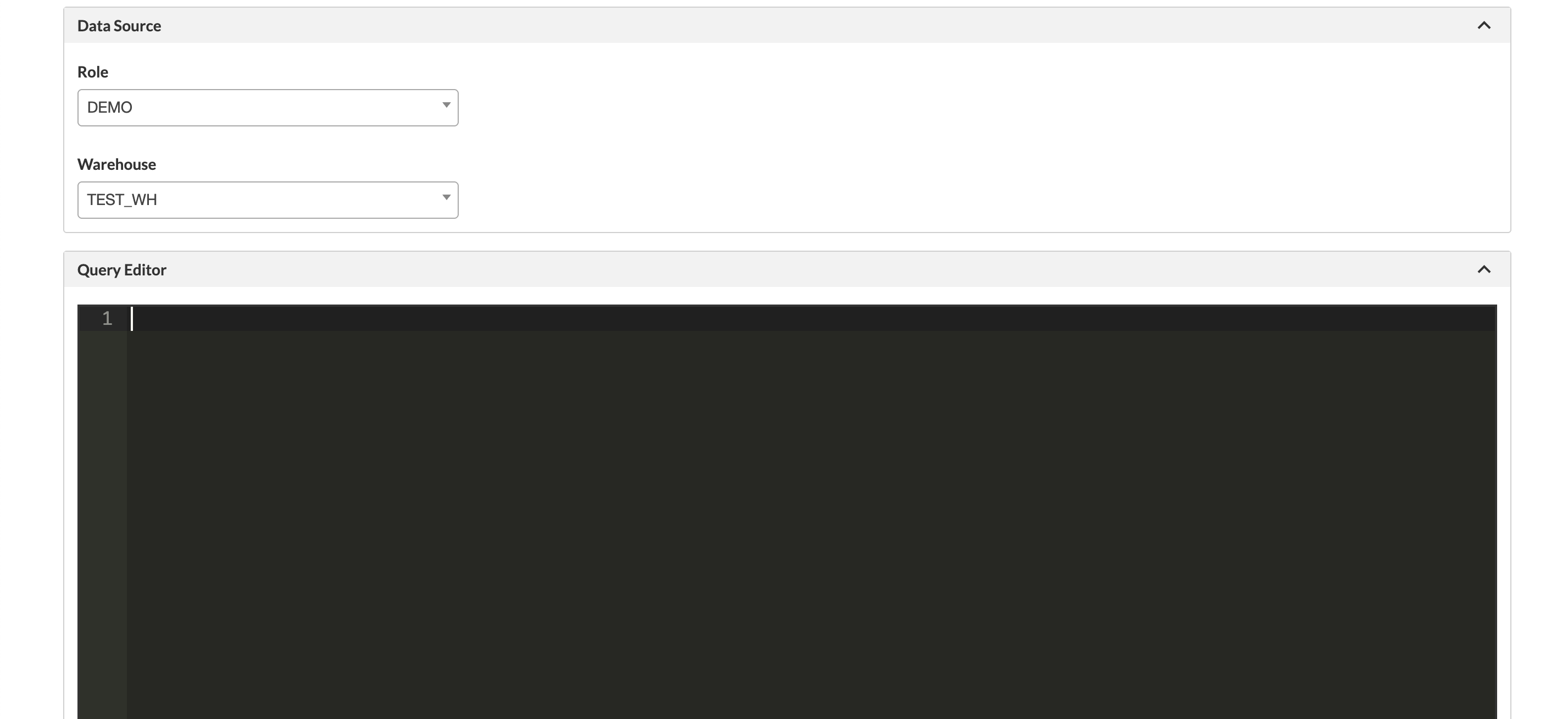
- Use the dropdowns in the Data Source section to navigate your data warehouse structure and locate the warehouse you want to access - this differs slightly by platform, but will typically include fields such as Role and Warehouse.
- Use the query editor to write your query.
- Click the Preview button to preview the output.
- The Advanced Settings section lets you choose whether to Append or Replace the data in your dataset each time the workflow runs. You can also toggle the option to refresh the dataset only when new data is detected.
- Click Done
Running the Data Warehouse Collection
- Click on the Data Warehouse node that you would like to run
- Click Run on the right-side panel
Updated 7 months ago