

Creating A Workflow Canvas
Overview
In Redbird, work is organised into folders and workflow canvases. A workflow canvas is where you build and run workflows by adding and connecting nodes that represent each step in your process.
The workflow builder provides an intuitive, visual interface for creating end-to-end workflows. Each workflow is built by configuring nodes on a canvas, allowing you to automate data collection, processing, and outputs in a clear and structured way. Once a workflow is set up, it can be run on demand or configured to run automatically.
In this section, you’ll learn how to create your first workflow canvas, organise workflows using folders, and navigate the workspace so you can start building immediately.
Getting Started
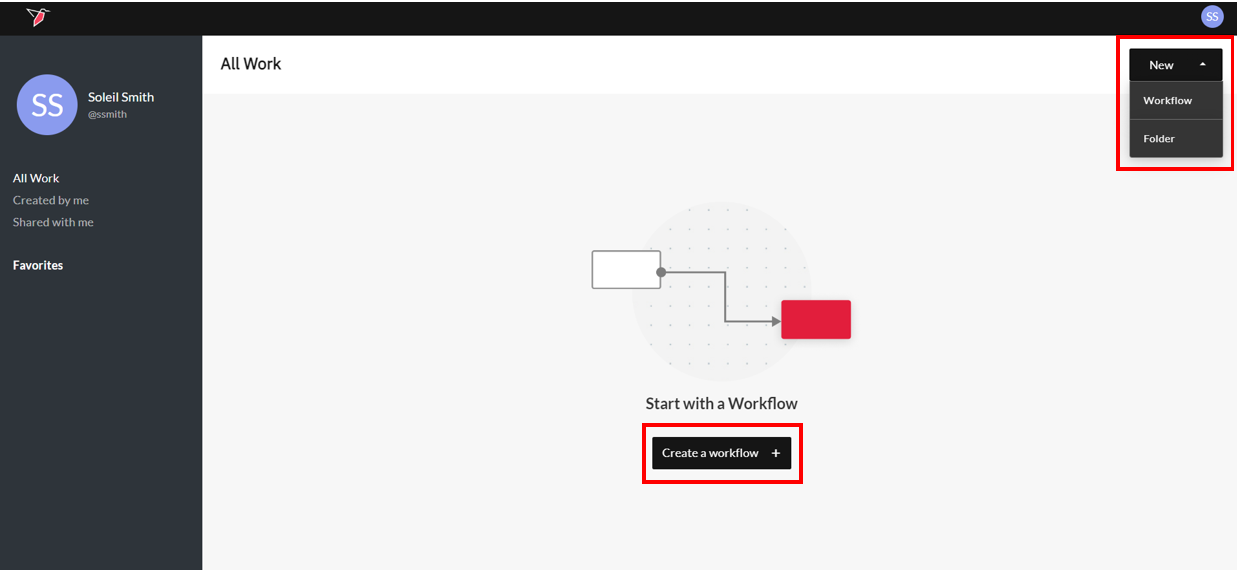
When you log into Redbird, you will see a screen similar to the image below. You can create a workflow or folder containing multiple workflows related to the same project. You can select "Create a workflow" in the center of the page, or click the dropdown in the top right corner for more options.
Creating a Workflow
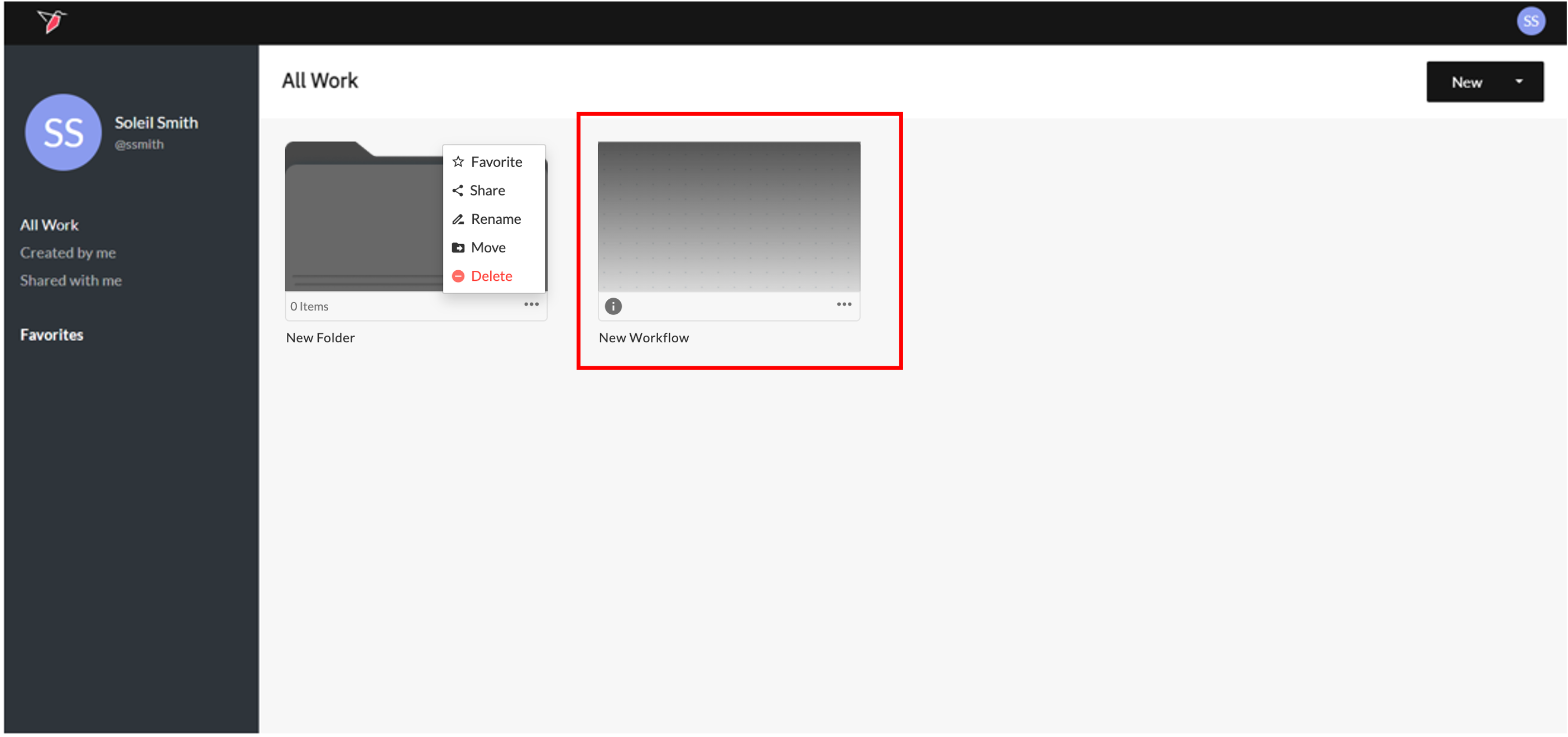
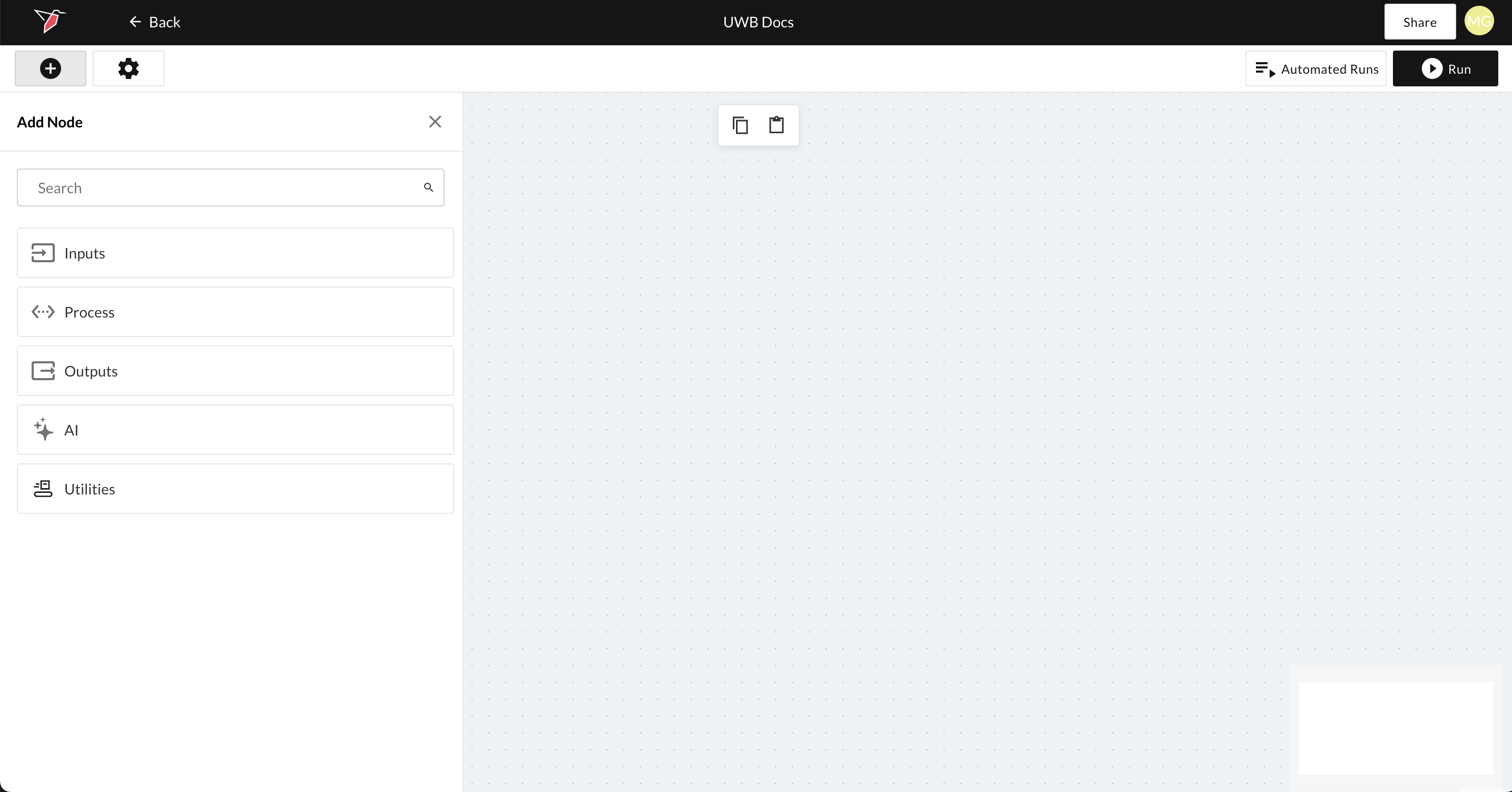
When you click "Create a workflow" or New>Workflow, an icon is generated that brings you to the workflow canvas when you click on it.
Creating a Folder
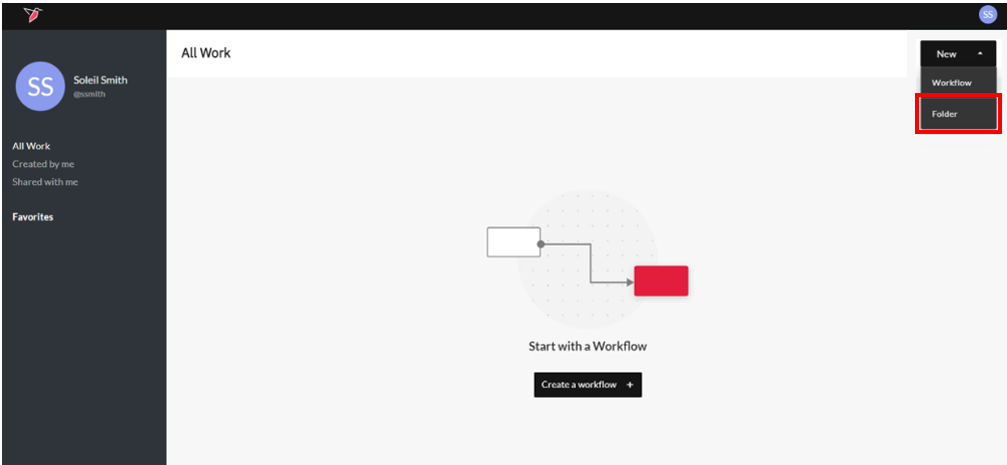
When you click New>Folder, a folder icon is generated and selecting the folder opens it. Follow the steps in the previous section to create workflows. You can store multiple workflows that are related to the same project within a folder.
Navigating the Left Panel
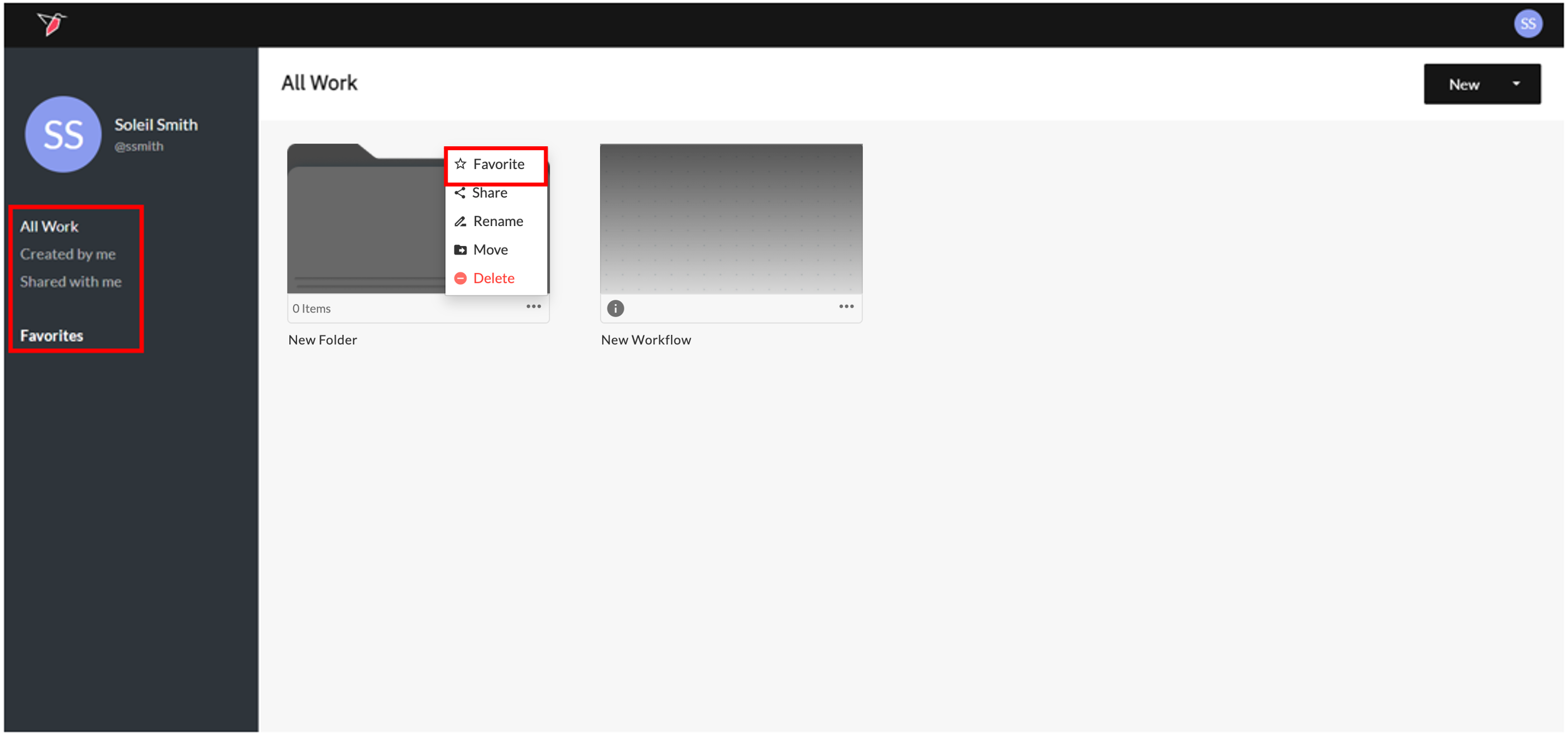
The panel on the left categorizes workflows and folders based on permissions. You can view all of your folders, items you created or items other Redbird users have shared with you by selecting All Work, Created by me and Shared with me, respectively. You can also label workflow canvases and folders as "Favorites" by selecting the three dot menu icon and clicking "Favorite" from the menu that appears. As you interact with the homepage, you can access certain folders and workflow canvases faster by using the left panel.
Updated 6 months ago
What’s Next
Now you know the basics on how to create a canvas, explore the next section to start to build out workflows