

AI Agents - SQL Agent
Introduction
The SQL Agent allows users to interact with their data using natural language. By simply asking questions, users can retrieve, filter, and analyze data effortlessly via AI Chat. Whether you're looking to fetch specific records, aggregate data, or explore complex questions, the SQL Agent interprets your queries and executes the necessary queries in the background. This intuitive, AI-driven approach makes working with data faster and more accessible, even for those without SQL knowledge.
Getting Started Using the SQL Agent
- In order to use the SQL Agent, first, you will need to connect a data source to your AI Chat node - see here for more information on connecting data.
- Once you've connected the data you want to analyze to the chat environment, make sure the SQL agent has been toggled on in the chat environment.
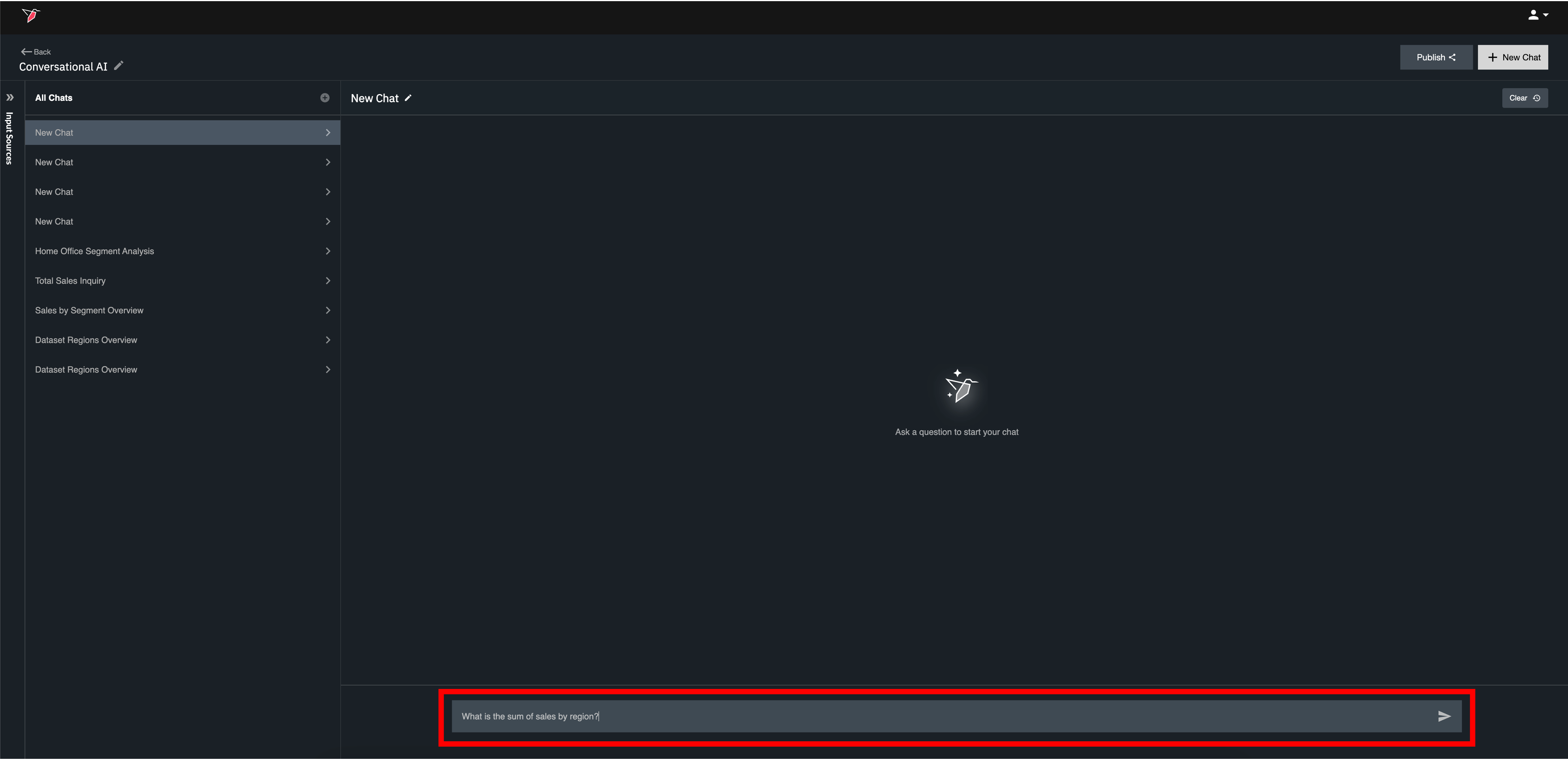
- Once your data and agent are set up, you can easily start using the SQL agent by asking questions in natural language. Simply type your prompt in the prompt box at the bottom of the chat view.
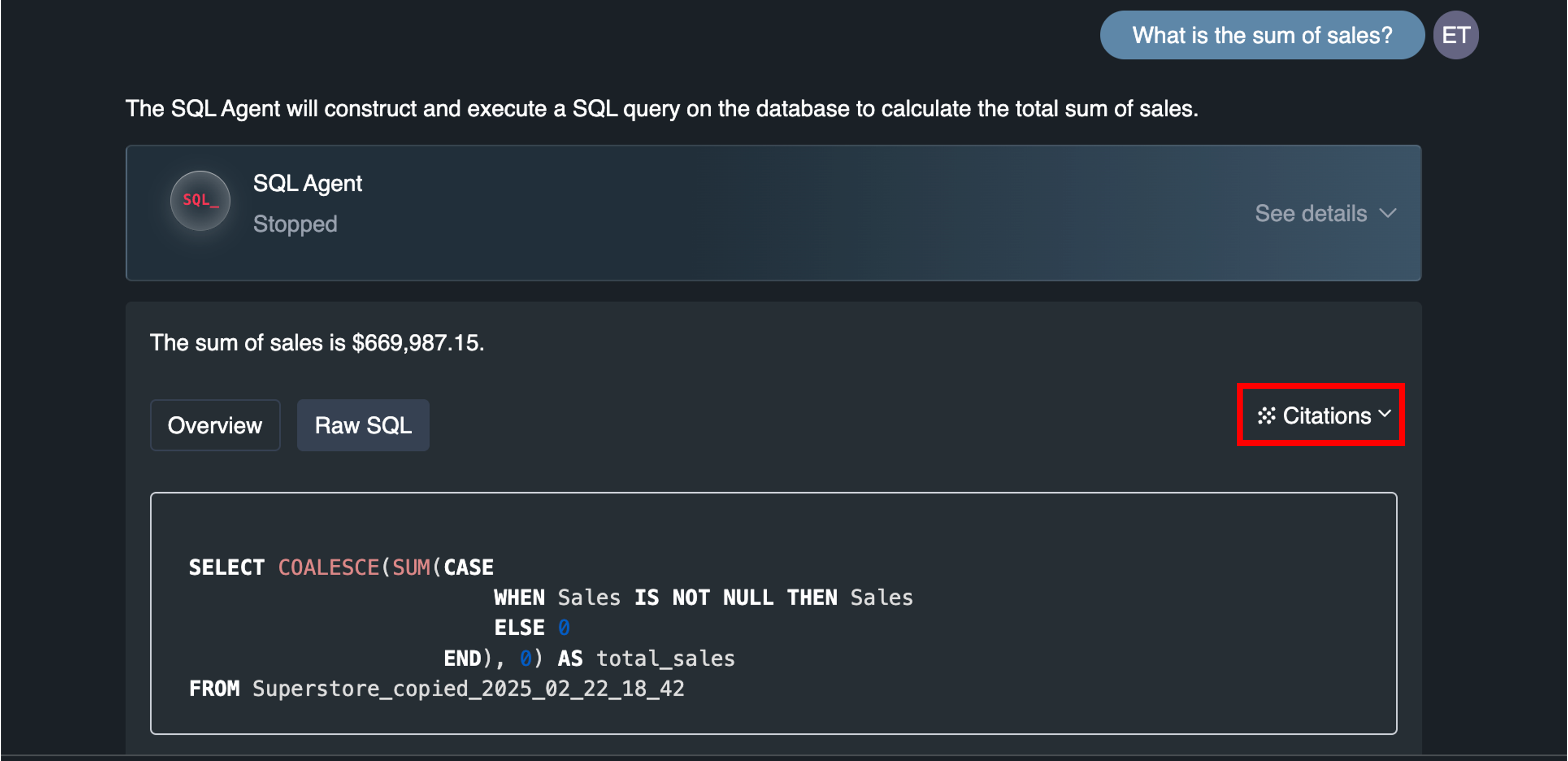
- The SQL Agent will respond to your question with an answer in natural language, as well as citations that specify the data assets and queries used to answer the question.
- You can access citation details by clicking expand on the 'Citations' link below the answer. Within the expanded citation details, click the 'Overview' tab to view a less technical summary of the approach and click the 'Raw SQL' tab to view the actual SQL query that was executed.
Customizing SQL Agent Logic
Certain aspects of the SQL Agent’s logic can be customized using natural language descriptions to tailor how the AI constructs SQL queries and interprets timeframes. Redbird’s SQL Agent allows you to define custom logic to ensure the AI agent generates queries according to specific rules or conditions, as well as how it handles time-related data.
To define custom SQL Agent logic, go to the edit view for your SQL Agent node on your workflow canvas:
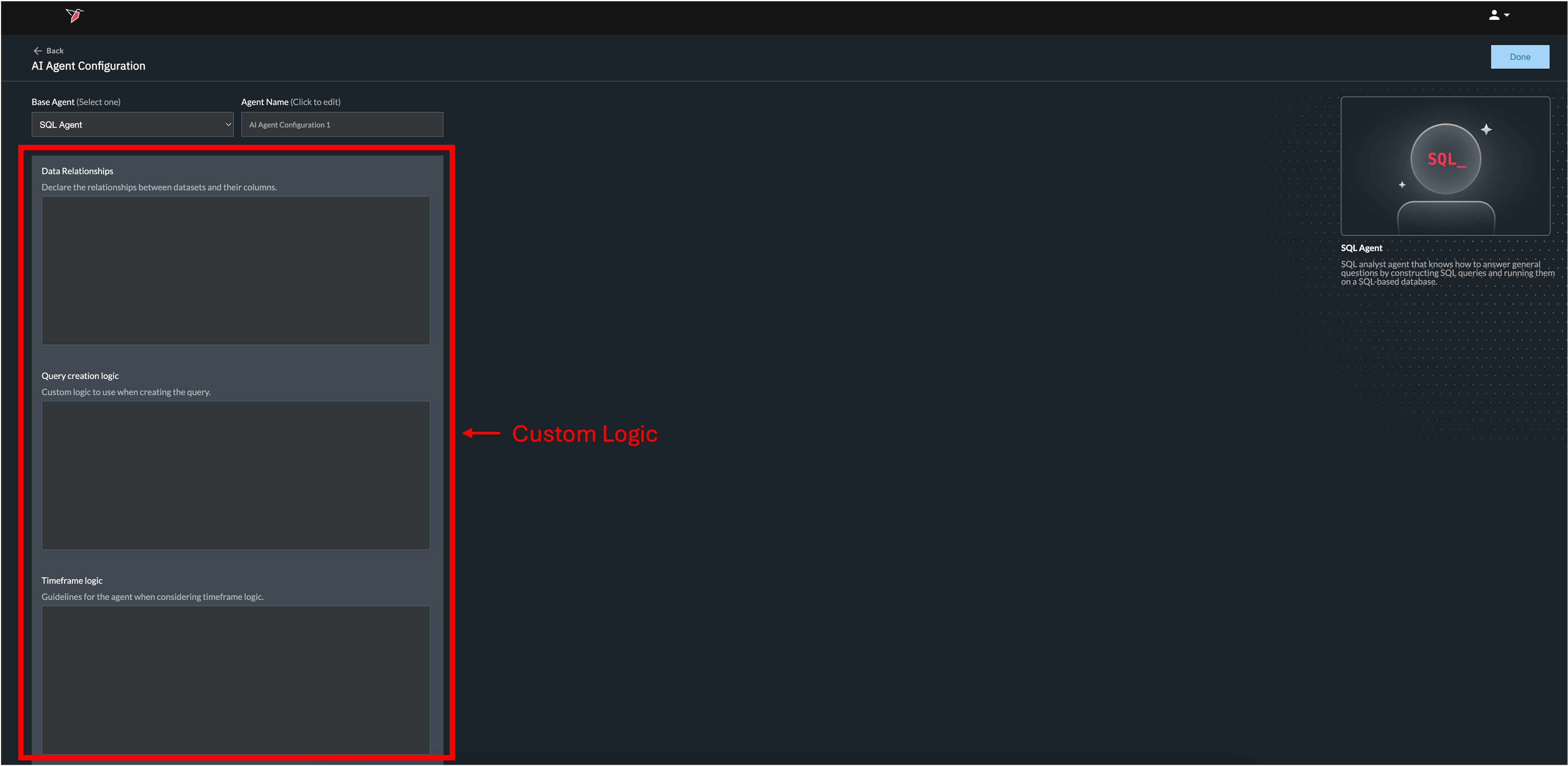
Below are the specific components of SQL Agent's logic that can be customized:
- Data Relationships
- Redbird's AI scanning will automatically identify relationships between your different datasets and the fields within the schema within those datasets. If you would like to make any such data relationships explicit, however, you can describe those relationships in natural language for the SQL Agent to consider as it executes its work.
Example: Data RelationshipsThe following <dataset> | <column> mappings represent links between the different datasets:
Dataset A | Country <-> Dataset B | Location Code
Dataset B | ID = Dataset C | user_id
- Redbird's AI scanning will automatically identify relationships between your different datasets and the fields within the schema within those datasets. If you would like to make any such data relationships explicit, however, you can describe those relationships in natural language for the SQL Agent to consider as it executes its work.
- Query Creation Logic
- SQL Agent is equipped with default logic to generate SQL queries based on the prompts submitted by users, but if you would like to add more custom logic to build on or alter that default behavior you can do so.
Example: Query Creation LogicIf the query is calculating an aggregate financial metric using the Sales, Operating Expenses, or Net Income columns in the dataset, always filter the dataset by Division = Corporate.
As a default, always assume the market is the United States unless the question specifies otherwise.
- SQL Agent is equipped with default logic to generate SQL queries based on the prompts submitted by users, but if you would like to add more custom logic to build on or alter that default behavior you can do so.
- Timeframe logic
- You can give SQL Agent specific instructions on how to consider or assume timeframes in the absence of users clearly specifying which timeframe they are looking to analyze within their prompt.
Example: Timeframe LogicIf the question mentions the 'week of' without specifying a year, find the most recent year in the dataset where the week equals the week mentioned in the question, and filter for that week for that year. Make sure that the logic you use does not automatically use the current year without checking for the most recent year in the dataset where the week equals the week mentioned in the question. Make sure that the query does not use any year information in filters when determining the most recent year in the dataset where the week equals the week mentioned in the question. It should also use a LIKE clause on the week column that correctly accounts for the week format <YYYY-MM-DD> (e.g. WHERE <week column> LIKE '%MM-DD').
- You can give SQL Agent specific instructions on how to consider or assume timeframes in the absence of users clearly specifying which timeframe they are looking to analyze within their prompt.
Updated 6 months ago