

Using AI Chat
Background
Now that you’ve collected and processed your data, there are several ways you can use it in a typical workflow. You might push it to a destination such as a data warehouse or cloud storage, email it, or consume it directly within Redbird to analyze, visualize, or generate insights.
In this tutorial, we’ll focus on two of these options. In this first guide, we will show you how to connect your data to an AI-powered conversational chat experience. In the subsequent (and final) guide, we’ll show how to visualize your data using a Dashboard Builder node.
How AI Chat Works
A great way to interact with your transformed data is through AI Chat, which supports ad hoc analysis using natural-language questions. Behind the scenes, AI agents handle tasks such as querying data, running calculations, generating insights, producing visualizations, and performing more advanced workflows like tagging, matching, summarization, and automation.
In this example, we’ll walk through a few simple use cases to help you get familiar with the types of questions you can ask. For simplicity, the walkthrough uses a single dataset — the output of the transformation and tagging steps performed earlier in the AI Data Tool (AI DT). In practice, AI Chat can operate across multiple datasets, formats, and sources.
For more information on how to configure and use AI Chat nodes, see here.
Using AI Chat
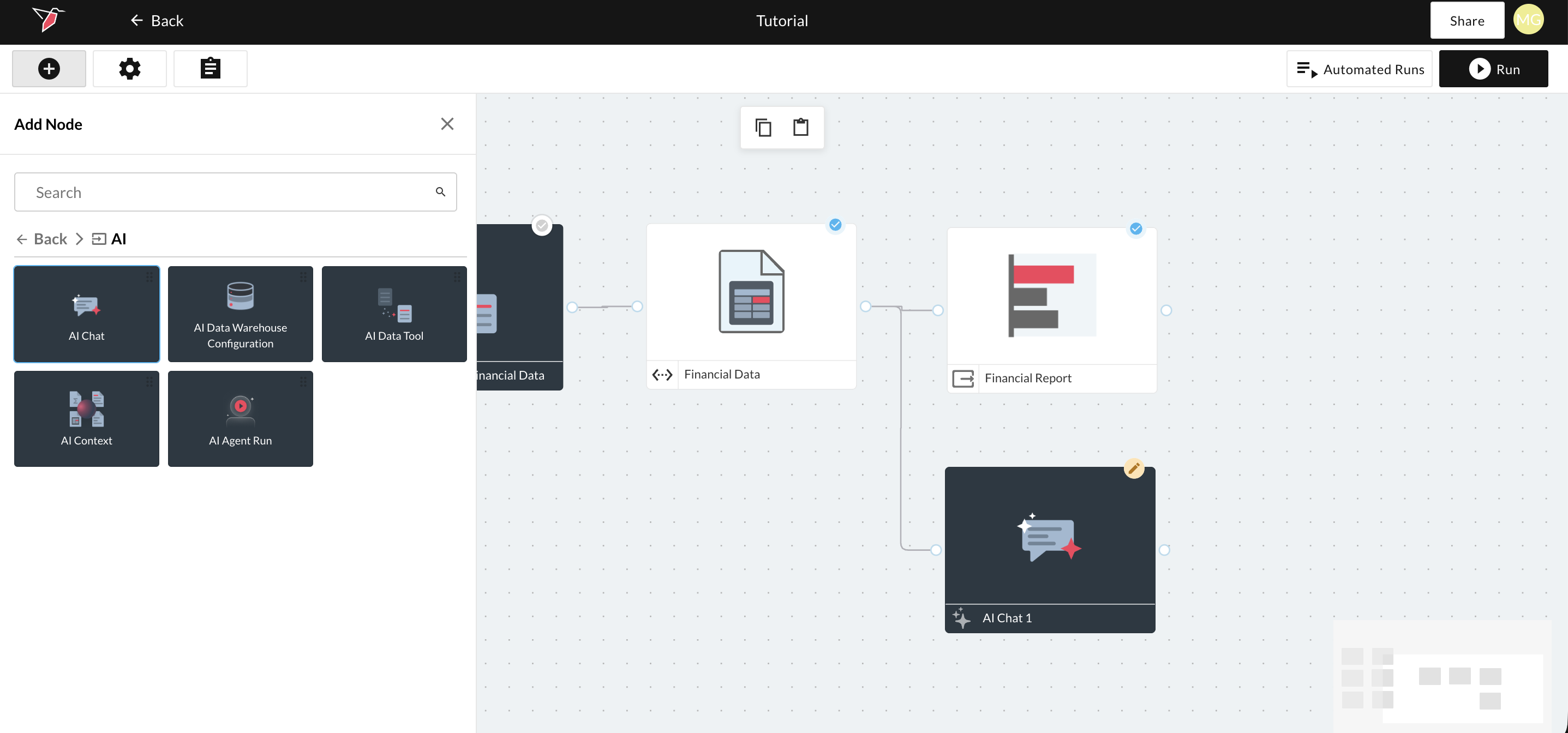
- Open the panel to the left by clicking the plus icon in the top left of your screen. Select AI and drag and drop an "AI chat" node onto the workflow canvas. Connect it to the output dataset produced by the AI DT node: "Financial Data".
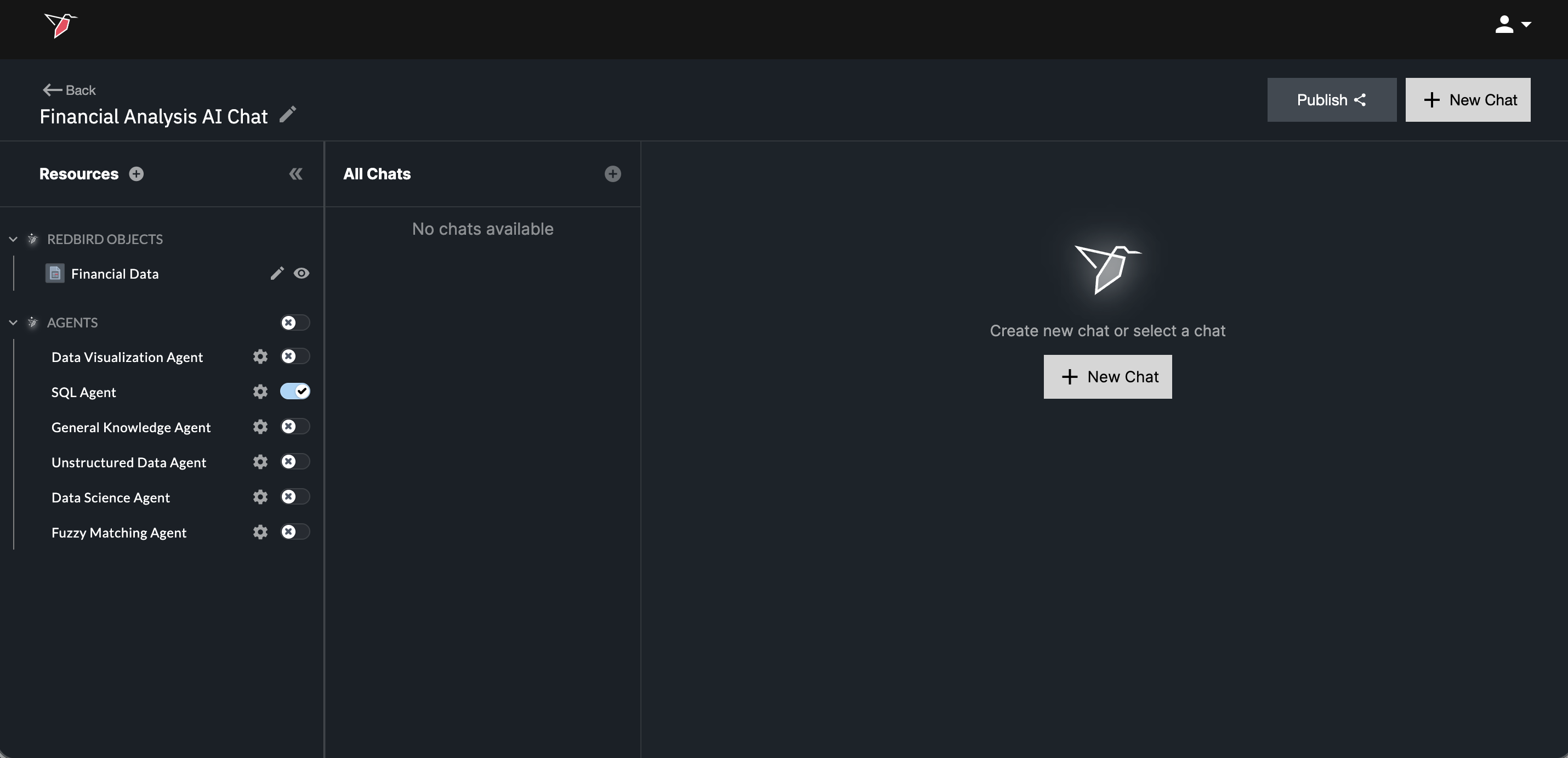
- Double-click the AI Chat node and name it "Financial Analysis AI Chat". In the Resources panel, you’ll see all agents enabled for your Redbird account. By default, all agents are toggled on. For this tutorial, toggle on only the SQL Agent and leave the others toggled off.
Note: Redbird can route questions to multiple AI agent(s) when enabled. This walkthrough uses a simplified setup.
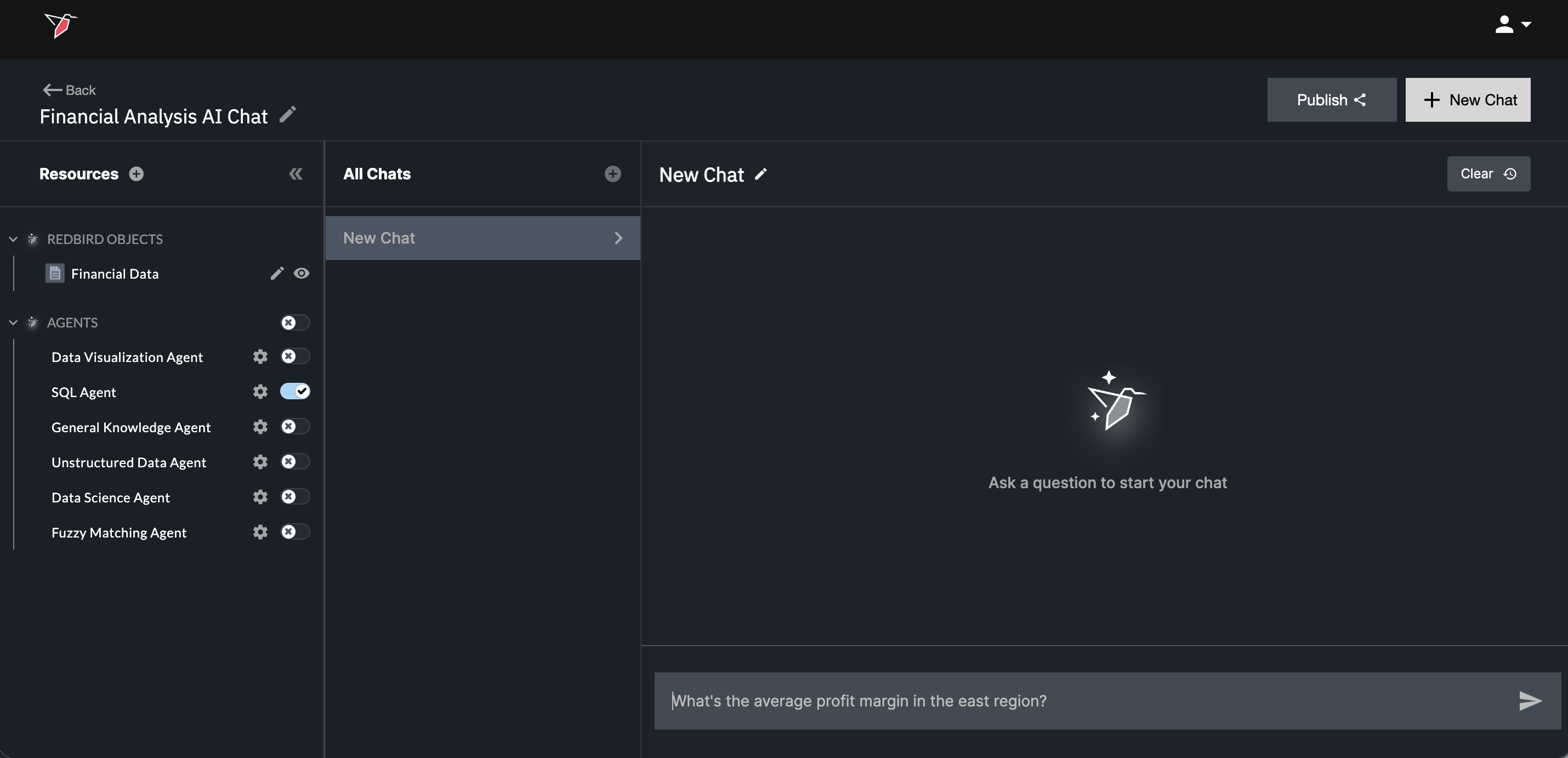
- Click Add New Chat to start a new chat thread. Below are a few example questions you can try, but feel free to experiment with others as well. For more guidance on composing AI prompts see here.
Example Questions:
- What's the average profit margin in the East region?
- Which category in the dataset has the highest average profit margin performance gap?
- Within Binders, rank the 10 products whose profit margin performance gap vs industry is closest to zero. Only show each product once.
- Which are the most frequently mentioned topics in 1- and 2-star reviews, sorted from most to least common?
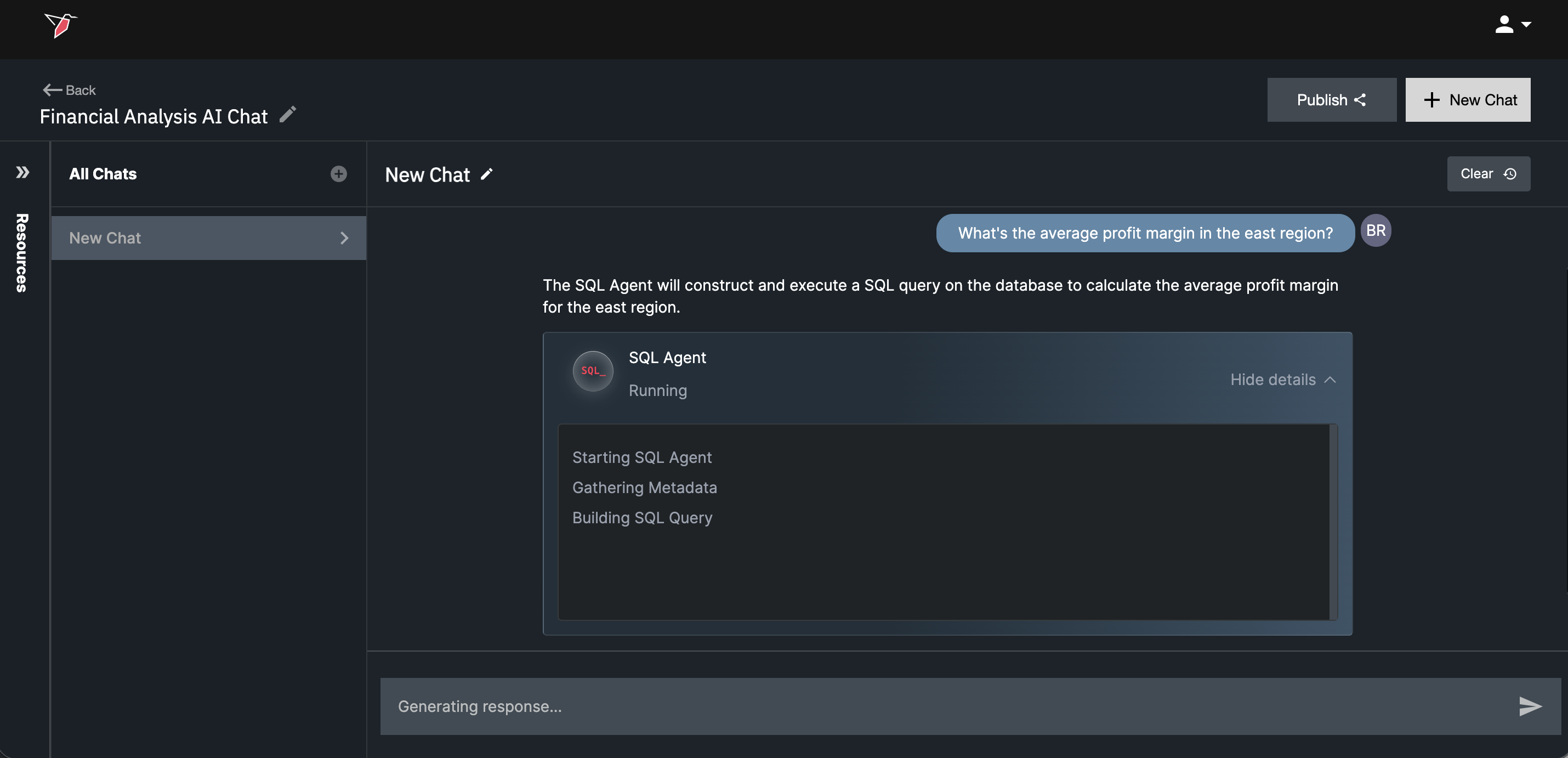
- After you submit a question, you’ll see the response being generated. As it runs, the chat will also show you the step-by-step actions it’s taking in the AI Agents Internal Updates window.
- Once complete, an answer is returned — sometimes as plain text, and in other cases as a table or downloadable dataset.
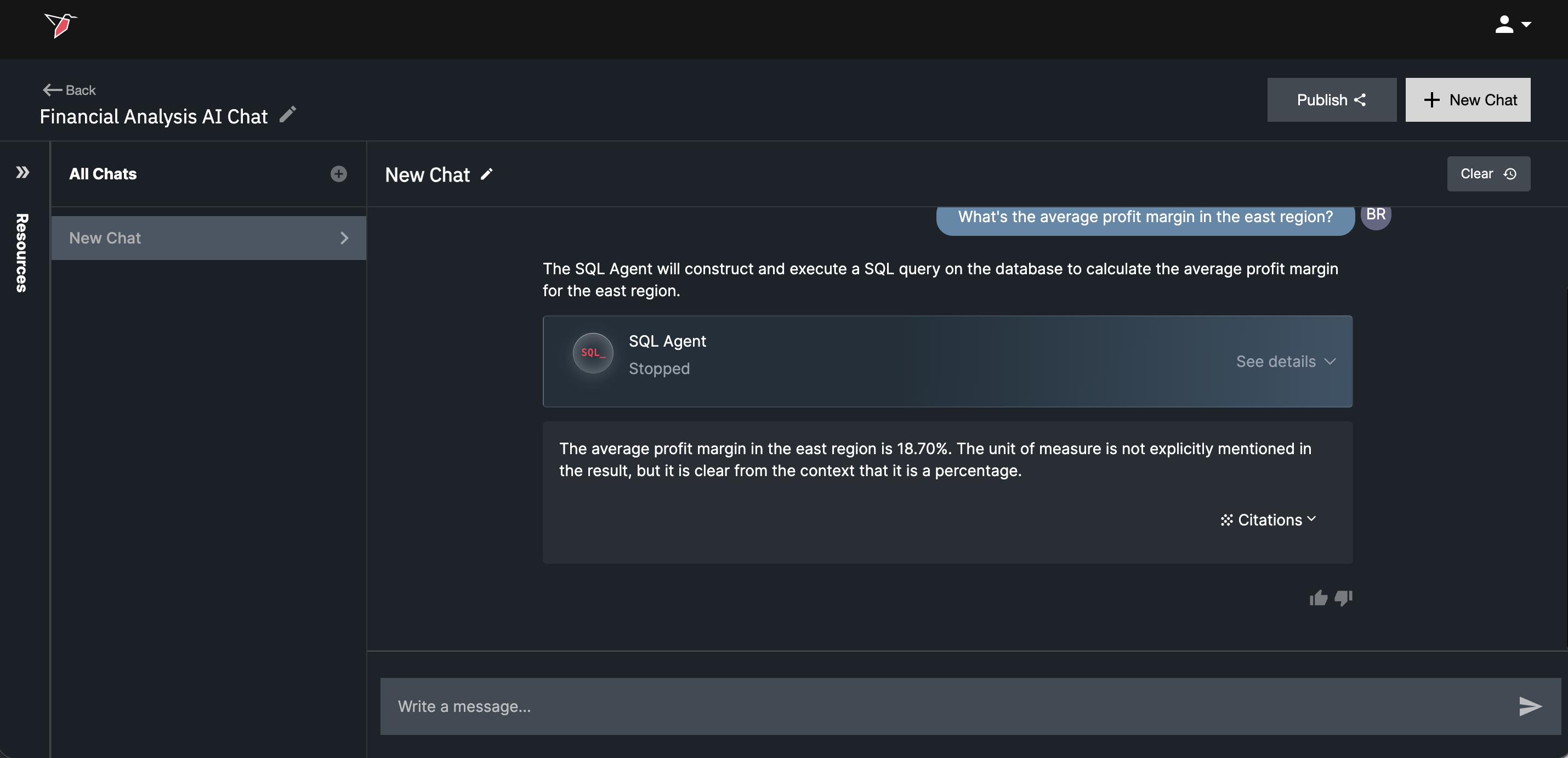
-
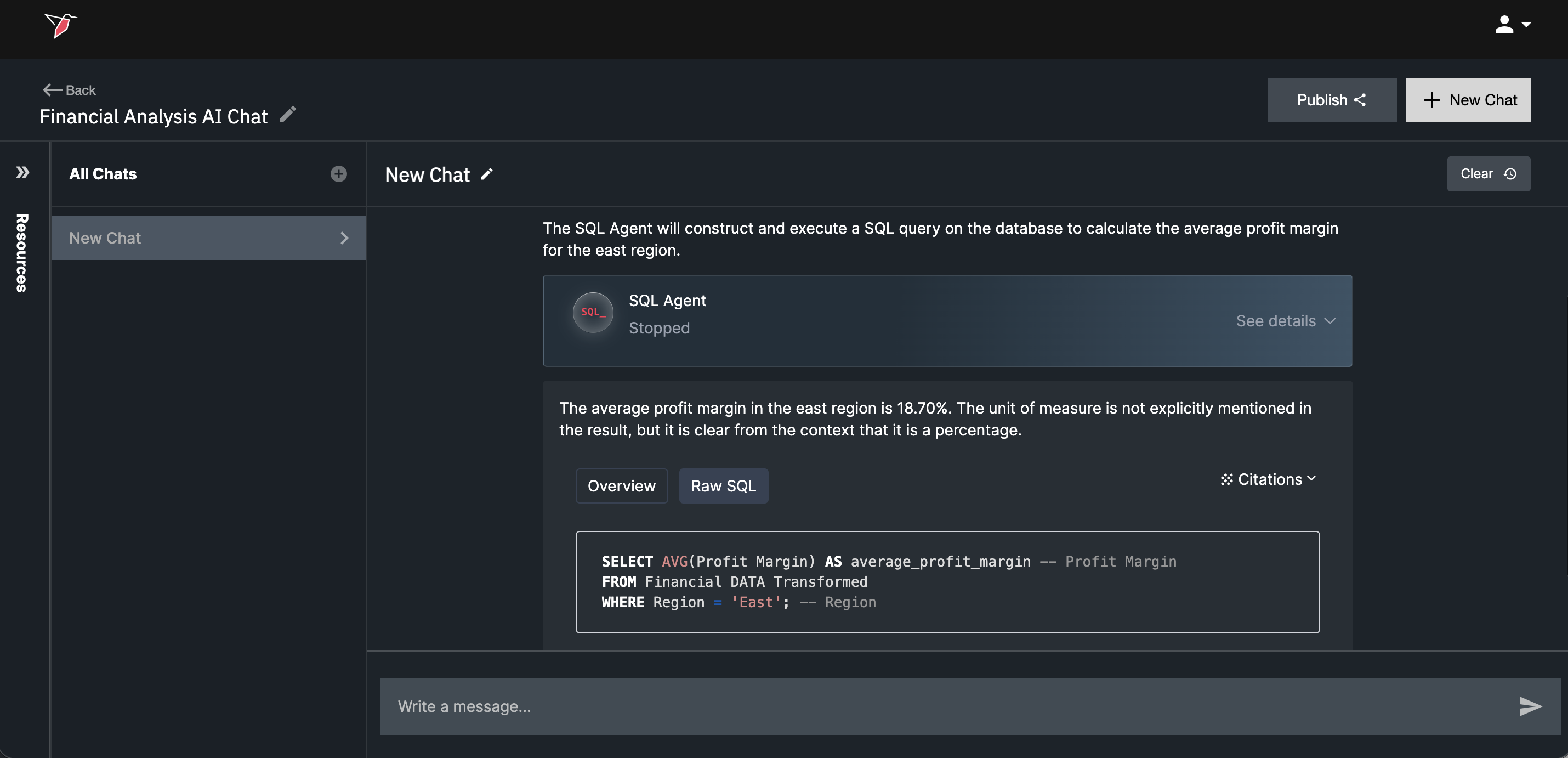
Redbird AI responses may include Citations within the chat thread, providing additional detail on how the AI executed its work. Citations are typically informational and offer transparency into the AI’s logic — for example, queries or code snippets that were run, or references to specific data sources or documents used to generate the response.
You can expand and view citations by clicking Citations in the bottom-right corner of the AI response.
For more information on publishing and sharing AI chats — allowing other users to ask questions of your data in AI Chat without access to the upstream workflow or the ability to edit inputs — see here.
Updated 6 months ago
What’s Next
To create structured, repeatable visualizations from your data, continue to Building a Dashboard.