

Veritonic
For more general information on data collection in Redbird, check out: Getting Started With Data Collection
This guide explains how to set up access and collect data from the Veritonic platform which collects audio listenership and download data.
If you cannot see the Veritonic collection app in the left-side panel on the workflow canvas, refer to: Enabling Collection Apps Guide
Inputting Credentials
- Click the person icon located in the upper right-hand corner of the page
- Click Account Settings
- Click Apps
- Navigate to Veritonic
- Click on the settings cog associated with Veritonic
- Input the credentials\
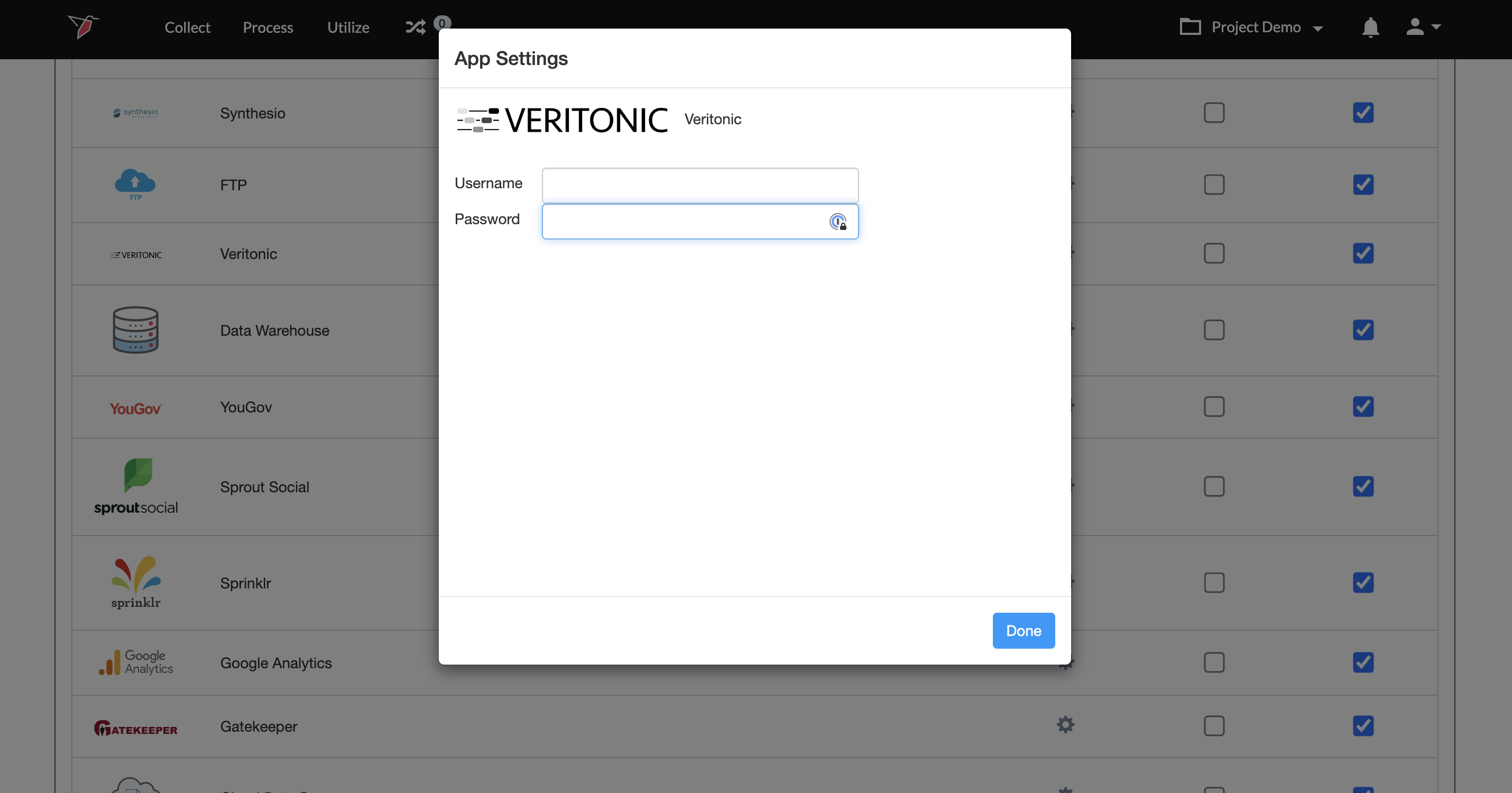
- Click Done
Creating a Collection
- Double-click on the node to enter configuration mode
- Name your collection in the Configuration Name box
- Select the time period from the drop-down that you wish to pull the data for (this will count from the date of running the configuration). You can choose from the last:
- 30 days
- 2 months
- 6 months
- 1 year
- In the Competitive Sets section click all the industry/competitor categories that you wish to pull data for. You can choose as many as you like. Once you have highlighted these, click the right arrow to move them over to the selected side of the picker.
- In the insights section, select the metric that you wish to pull from the drop-down. If you wish to pull data for multiple insights, you can set up a new collection for each one required. There are a range of metrics spanning:
- Campaign Questions
- Creative Questions
- Media Spend Metrics
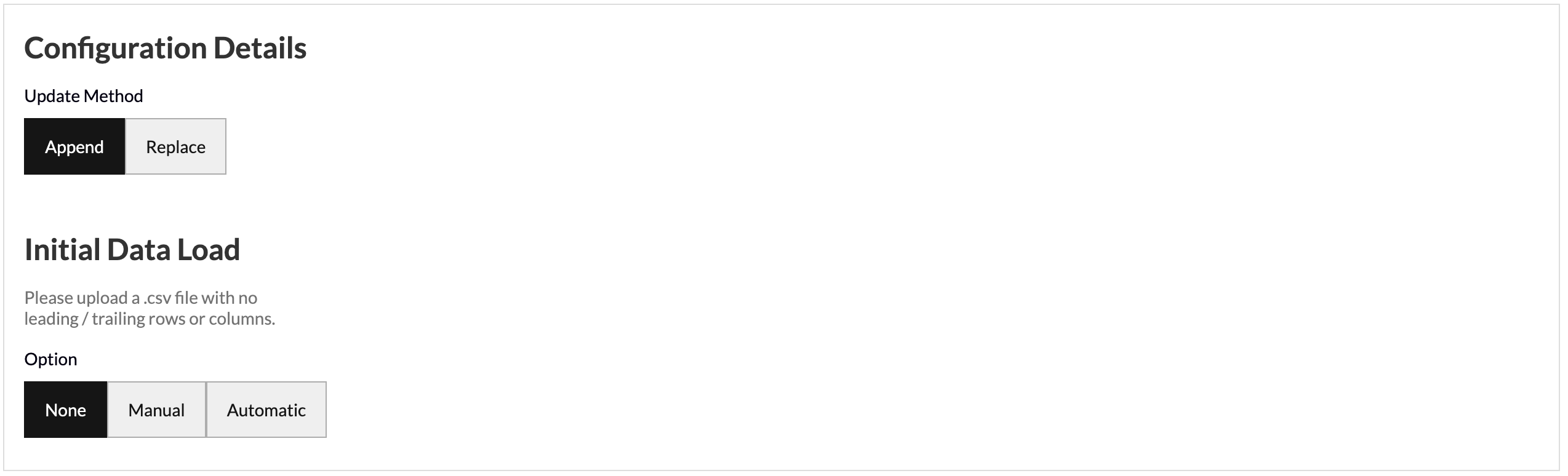
- Update Method allows you to select how you want your data to aggregate when you run future data pulls. Append keeps the historical data and adds the future data pulls below. Replace deletes the historical data and generates the new data in its place.
- Initial Data Load allows you to upload historical data in bulk as a one-off in the event that you have the data saved on your computer. You can upload your data as a CSV file with no leading/trailing rows or columns and Redbird will run future data collections using the configuration that you set up in previous steps.
- Click Done
Running a Collection
- Click on the node.
- In the right-side panel click Run
Updated 7 months ago
Did this page help you?