

Collecting the Data
This tutorial focuses on a small set of universal, file- and document-based ingestion methods, such as file uploads, cloud storage, and email. These connectors are designed to work across many use cases and are often the quickest way to get started.
In addition to these universal options, Redbird supports a broader range of bespoke connectors that pull predefined metrics or reports directly from specific SaaS platforms. We also support creating custom connections using natural language — whether via APIs or automation and RPA-style workflows — allowing data to be programmatically collected from a wide range of sources.
Full documentation for both universal and bespoke connectors can be found in the Inputs section of our documentation, which we’ll reference as needed throughout the tutorial.
Upload Using File Uploader
The simplest way to get data into Redbird is to upload it directly from your computer using the File Uploader connector. This connector supports one or multiple files, in any format. The full documentation can be found here.
- Once you are in the workflow canvas you can start building using the nodes on the left hand side.
- Select Inputs and drag the File Uploader node onto the canvas.
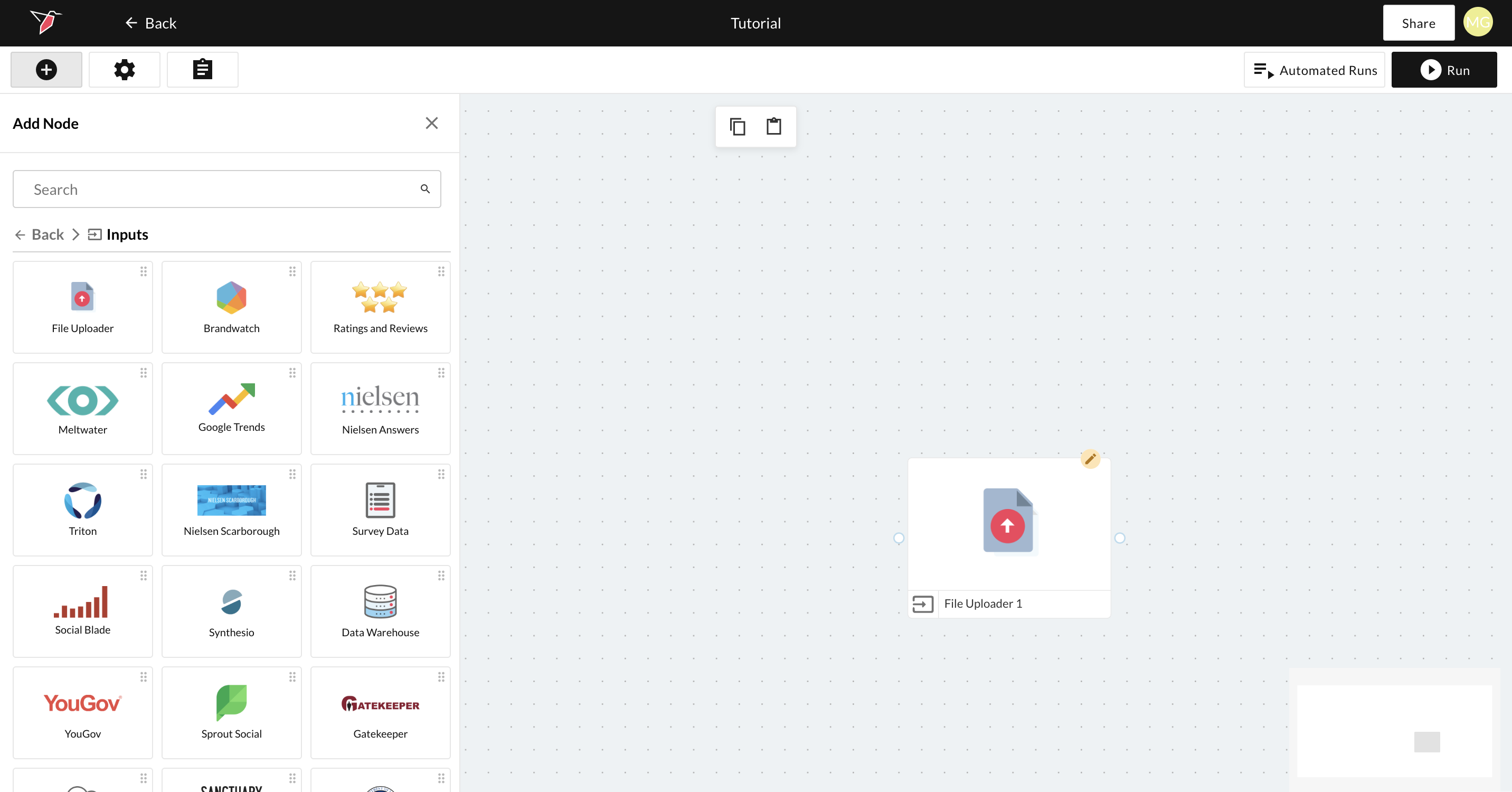
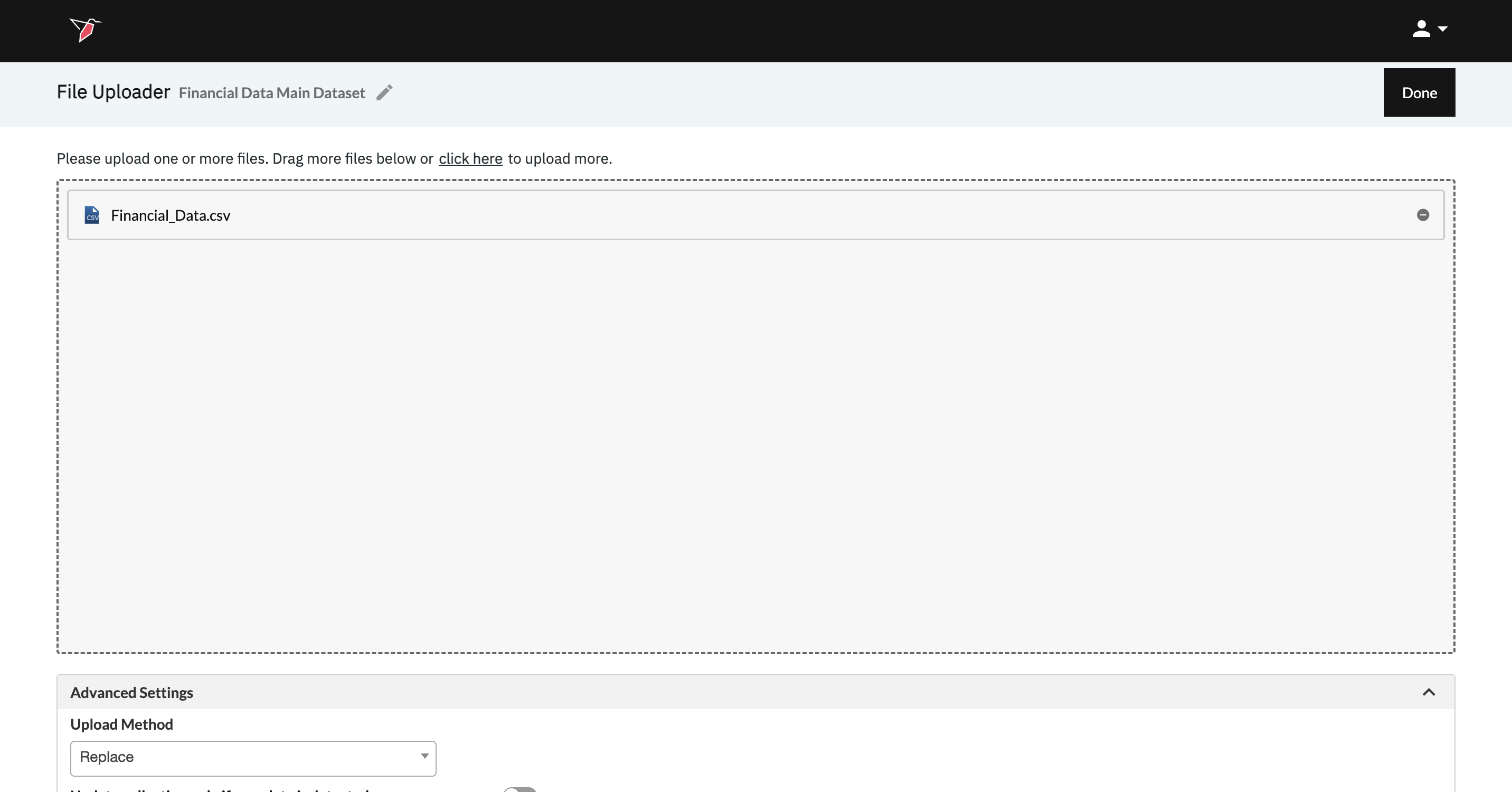
- Double click the File Uploader node to enter the configuration screen.
- Enter Financial Data Main Dataset in the Collection Name box to label your Collection.
- Click Click to upload in the Initial Data Load section and select the CSV file labeled “Financial_Data” and click Open.
- Click Done
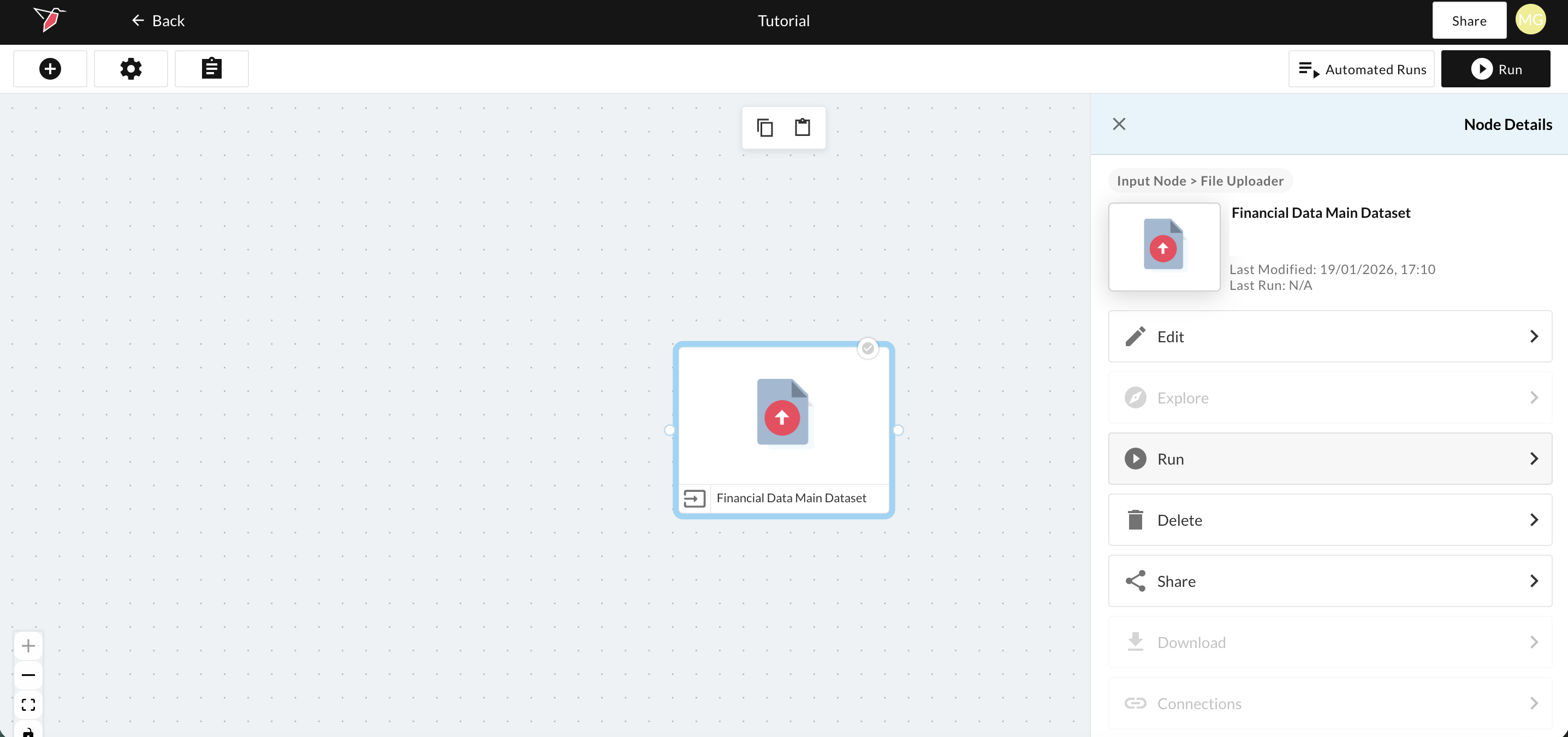
- Click on the node and click Run in the right-side panel (highlighted in gray below). Once it has finished processing a dataset node will also appear on the canvas connected to the File Uploader node.
Ingesting Data Via Email Collect
In some use cases, data is received on a regular basis via email — either as an attachment or via a downloadable link. In typical workflows, this often involves multiple cumbersome manual steps each time a new email is received, such as opening the email, downloading the file, saving it, and then working with the data.
Redbird can automate this entire process by receiving files directly from the source and ingesting them into the platform as part of repeatable, automated workflows. These workflows can run on a time-based cadence or be triggered whenever an email arrives in the inbox.
For a full walkthrough of the email collection functionality, see the documentation here. Below, we’ll walk through a simple example of how to use it.
- Open the left-side panel by clicking the plus icon in the top-left of the canvas. Select Inputs, then drag the Email Collect node onto the canvas.
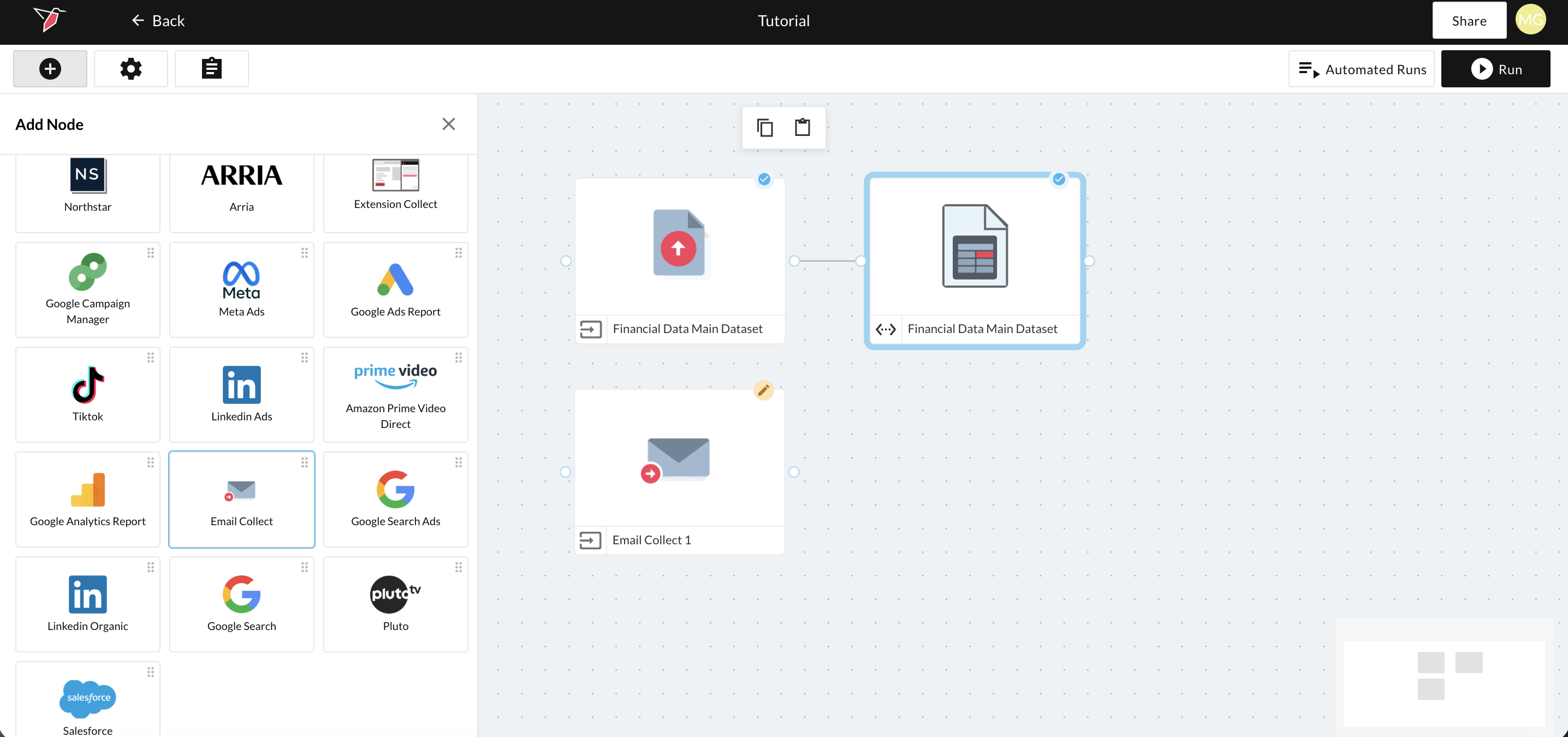
- Double click the Email Collect node to enter the configuration screen.
- Enter Product ID List in the Collection Name box to label your Collection.
- Click the copy icon next to the unique email address in the gray box, then send an email to that address with the Product ID List dataset attached.
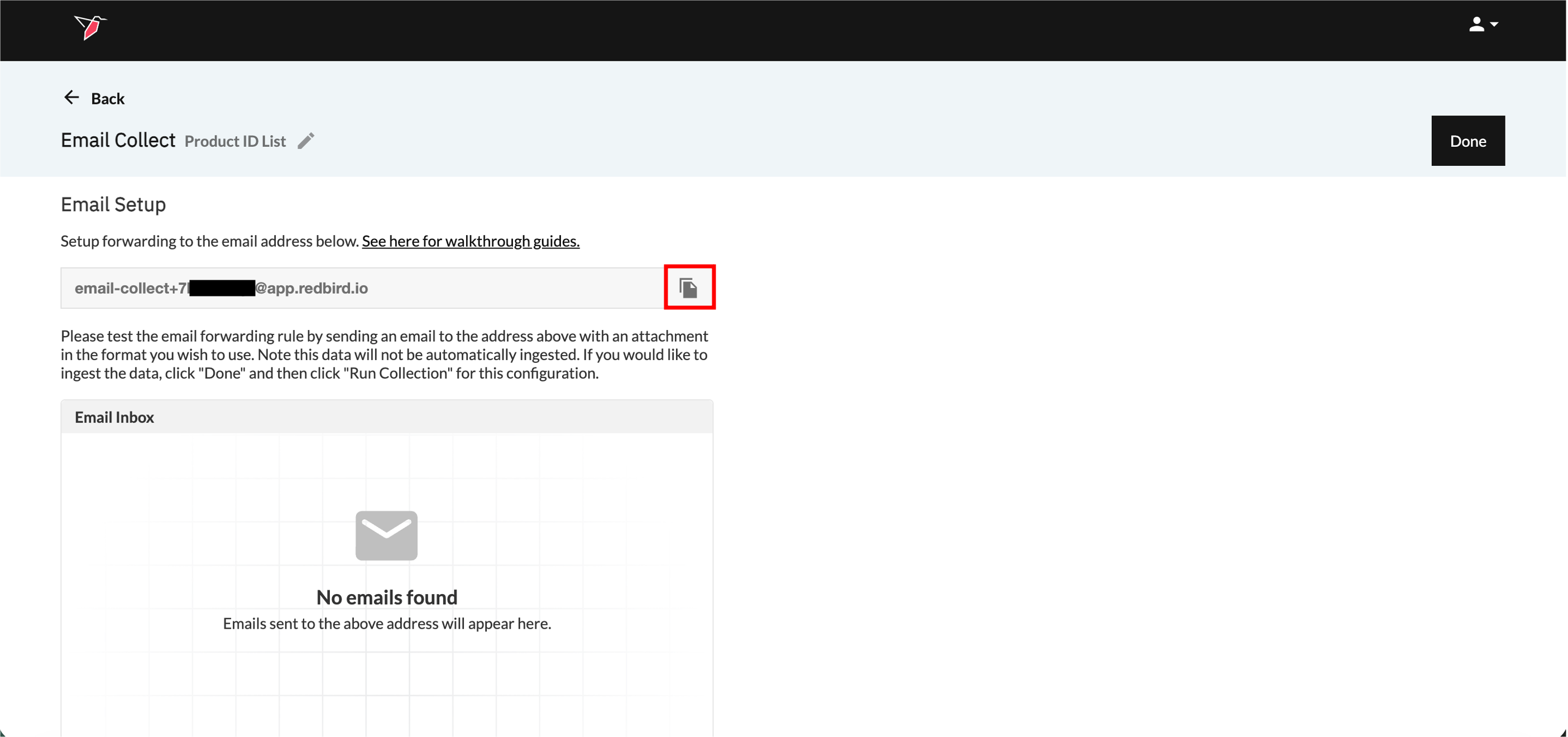
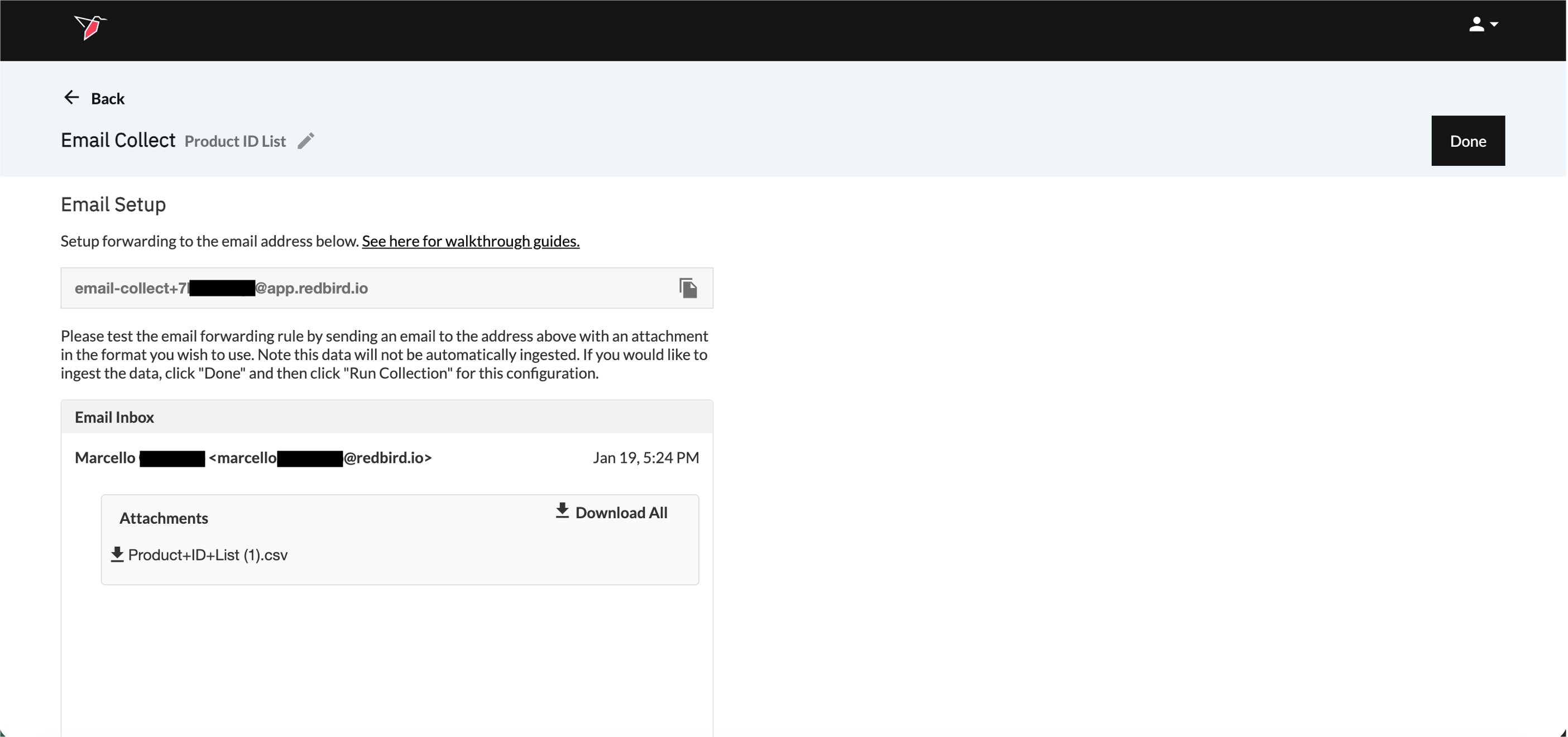
- Once the email arrives in Redbird’s inbox, it will appear in the Email Inbox. Click Done in the top-right corner to finalize the configuration. Note that it may take a short time for the email to be received and processed before it appears in the inbox.
- Click on the node and click Run in the right-side panel.
Extracting Data From a Data WarehouseAlternatively, you could upload either of these files to a table in your data warehouse if you have one, and ingest them by pulling the table using the Data Warehouse connector (see the documentation here) or AI connect for more flexible access via natural language.
This would simulate a workflow where data already exists in a data warehouse and you want to automate extraction, avoiding the manual effort of pulling the data each time you run analysis.
We won’t focus on this approach here, but we’ll cover one more ingestion method in the section below.
Ingesting Data Via a Cloud Data Storage Platform
This section shows how you can ingest files of any format from a cloud data storage platform in an automated way. Common examples include Google Drive, SharePoint, FTP servers, and Amazon S3. A typical use case is when files live in cloud storage and must be manually opened and downloaded before they can be used in analytics workflows.
Redbird can automate this process end to end by ingesting the latest version of a file at run time — whether it’s a static file (such as a PowerPoint that rarely changes) or a dynamic file like a Google Doc or Sheet that’s updated over time — making it immediately available for downstream processing.
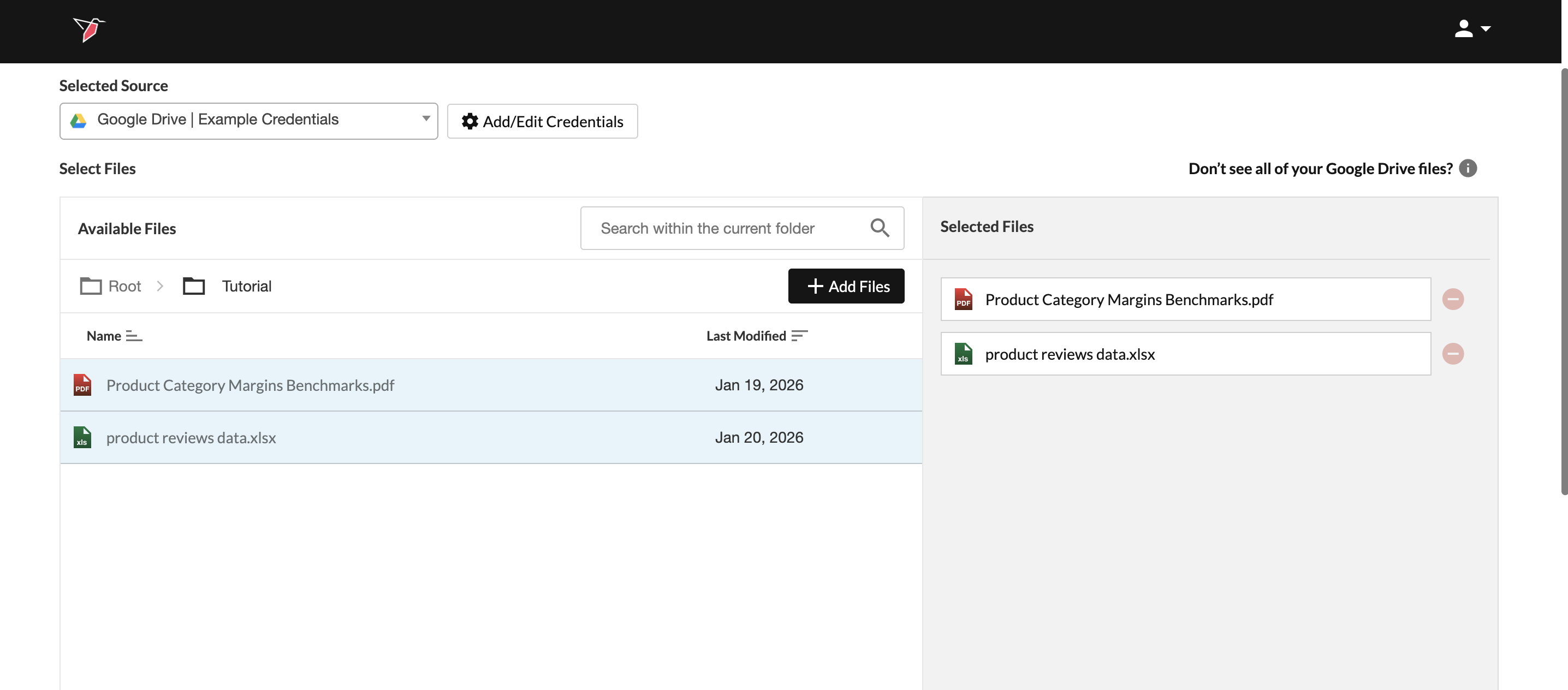
In this example, we’ll upload two datasets: an unstructured document — the Category Benchmarks PDF — which mimics data sourced from online industry reports, and a structured Excel file (Product Reviews Data) containing product reviews that could be extracted from a retailer website.
For full details on cloud storage connectors and configuration options, see the documentation here.
- Open the left-side panel by clicking the plus icon in the top-left of the canvas. Select Inputs, then drag the Cloud Data Storage node onto the canvas.
- Double click the Cloud Data Storage node to enter the configuration screen.
- Enter Product Category Margins Benchmarks and Review Data in the Collection Name box to label your Collection.
- Click Add/Edit Credentials, name your credentials in the box provided then follow the steps shown on screen to add your credentials. If additional information is needed, refer to the relevant documentation below on how to connect to your cloud storage platform of choice:
- Once credentials have been added, select them from the Selected Source dropdown (if they aren’t selected automatically).
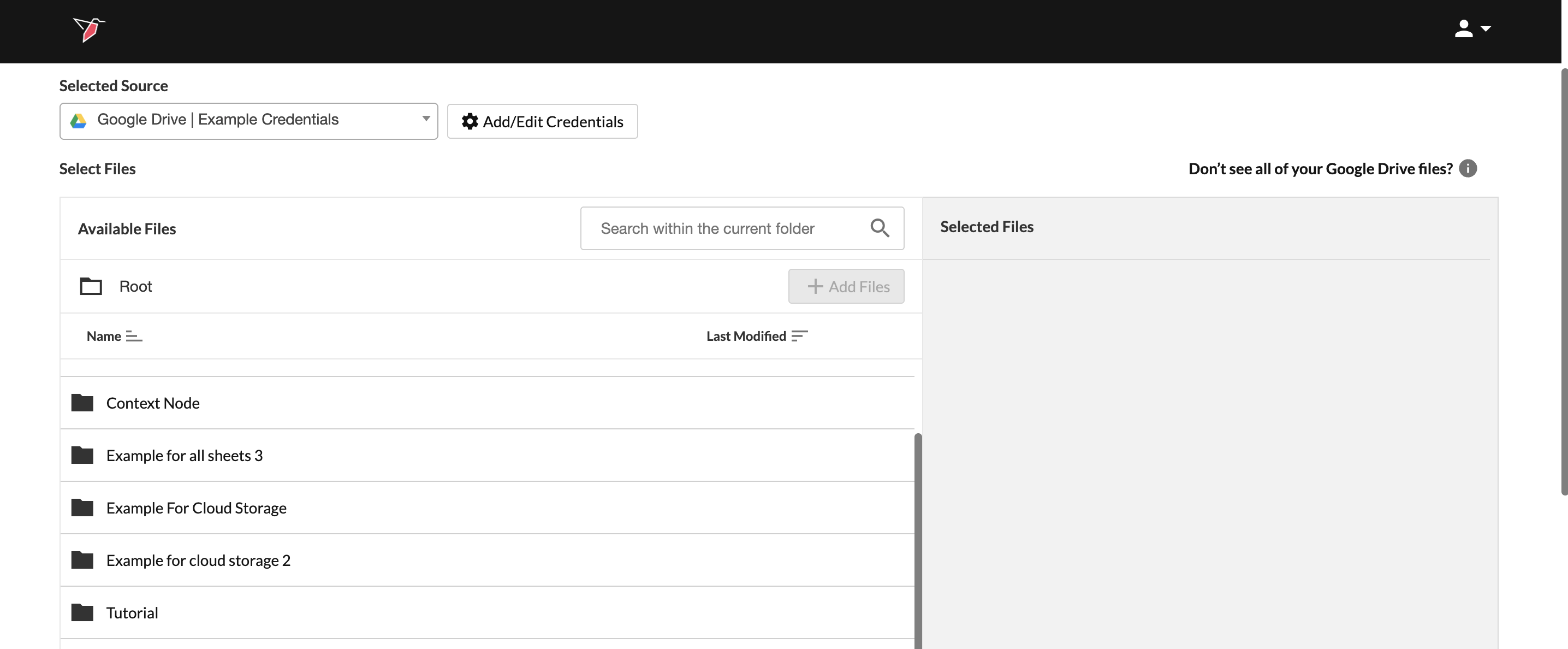
- Navigate to the folder where the files are saved, select the files, then click Add Files to move them to the Selected Files section on the right. Click Done.
- Click on the node and click Run in the right-side panel.
Note: If you don’t have access to a cloud storage platform, or if it isn’t a typical source for your use cases, feel free to use the File Uploader to ingest the benchmarks dataset and the product reviews data instead, or within the AI DT node, just upload the files directly by clicking the plus icon next to resources -> upload file.
File Collection vs. Redbird Dataset Nodes
You’ll notice that the dataset node created from the cloud storage upload run is a File Collection node (rather than a standard Redbird Dataset node like the ones created from CSV uploads).
Redbird creates a File Collection node when:
- Multiple documents are uploaded at once (even if they are structured files such as CSVs), or
- An unstructured document is uploaded.
In this context, an unstructured document is basically any file that does not contain a single, clean tabular dataset in standard cell format — for example, PDFs, multi-tab Excel files, Word documents, PowerPoint files, and similar formats.
In these scenarios, Redbird uses AI agents and computer vision to scan the documents, extract the relevant information, and convert it into a structured tabular format when needed.
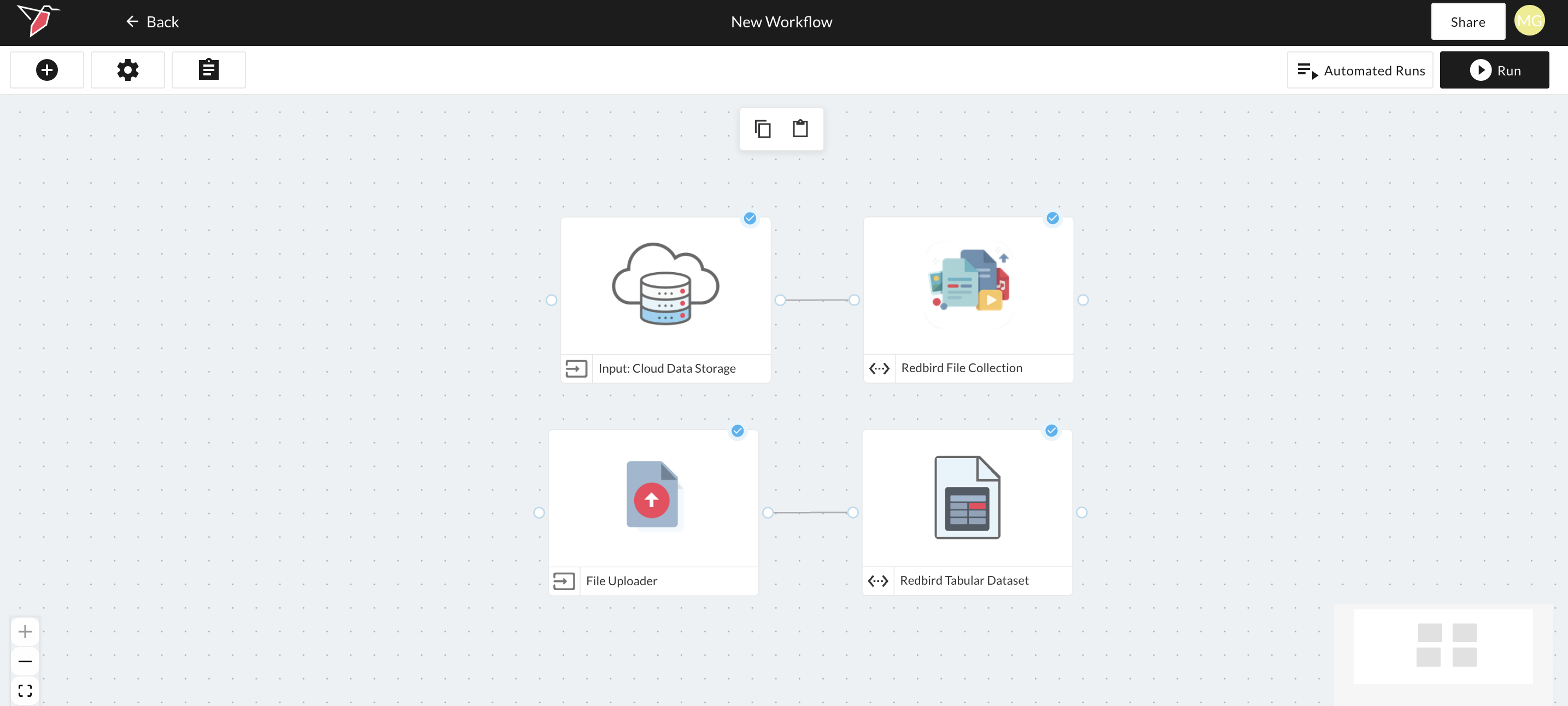
Previewing Documents in a File Collection Node
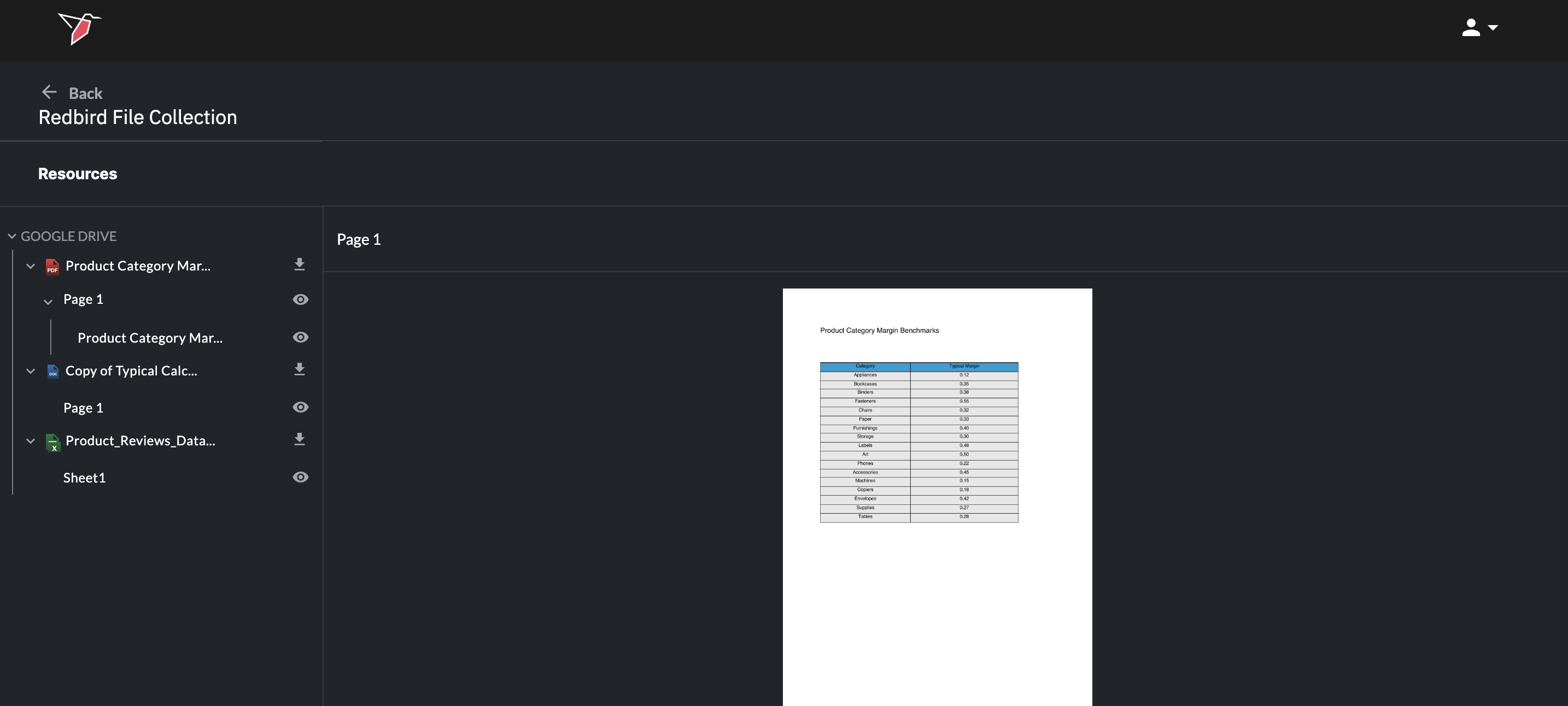
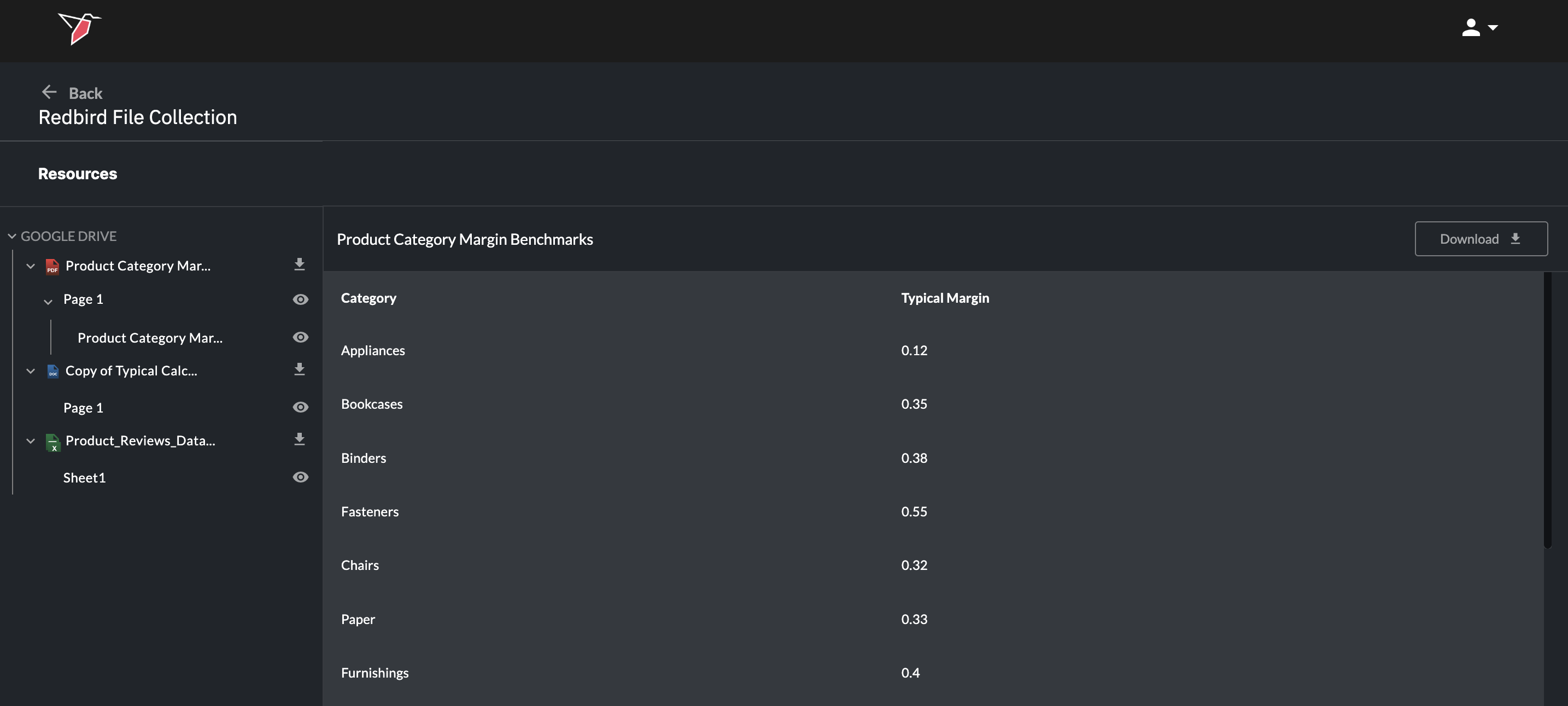
From a File Collection node, you can preview the collected documents by:
- Double-clicking the node, or
- Clicking the node and selecting Explore in the right-hand side panel
Within the Explore view, you can:
- Click the download icon next to each document to download a copy of the whole document, or
- Click the eye icon of the subcomponents within it (e.g. individual tabs in Excel, pages in PDFs, slides in PowerPoint, or the objects themselves e.g. tables)
These extracted components can then be referenced or used downstream as separate objects in your workflow.
Updated 4 months ago
What’s Next
Now you have finished collecting your data you can move on to start processing it.