

Adding Nodes to a Canvas
Overview
Nodes are the core components used to build workflows in Redbird. Each node performs a specific function, and workflows are created by adding nodes to a canvas and connecting them together to define how data flows through each step.
Nodes are added to a workflow canvas using the Add node button, which opens the node panel. From there, you can browse and select from the available node types and add them directly to the canvas.
Redbird workflows are built using three main types of nodes:
- Input nodes, which bring data into a workflow
- Process nodes, which transform, analyse, or enrich data
- Output nodes, which publish or deliver results
In this guide, you’ll learn how to add nodes to a canvas and understand how different node types are used together to build complete workflows.
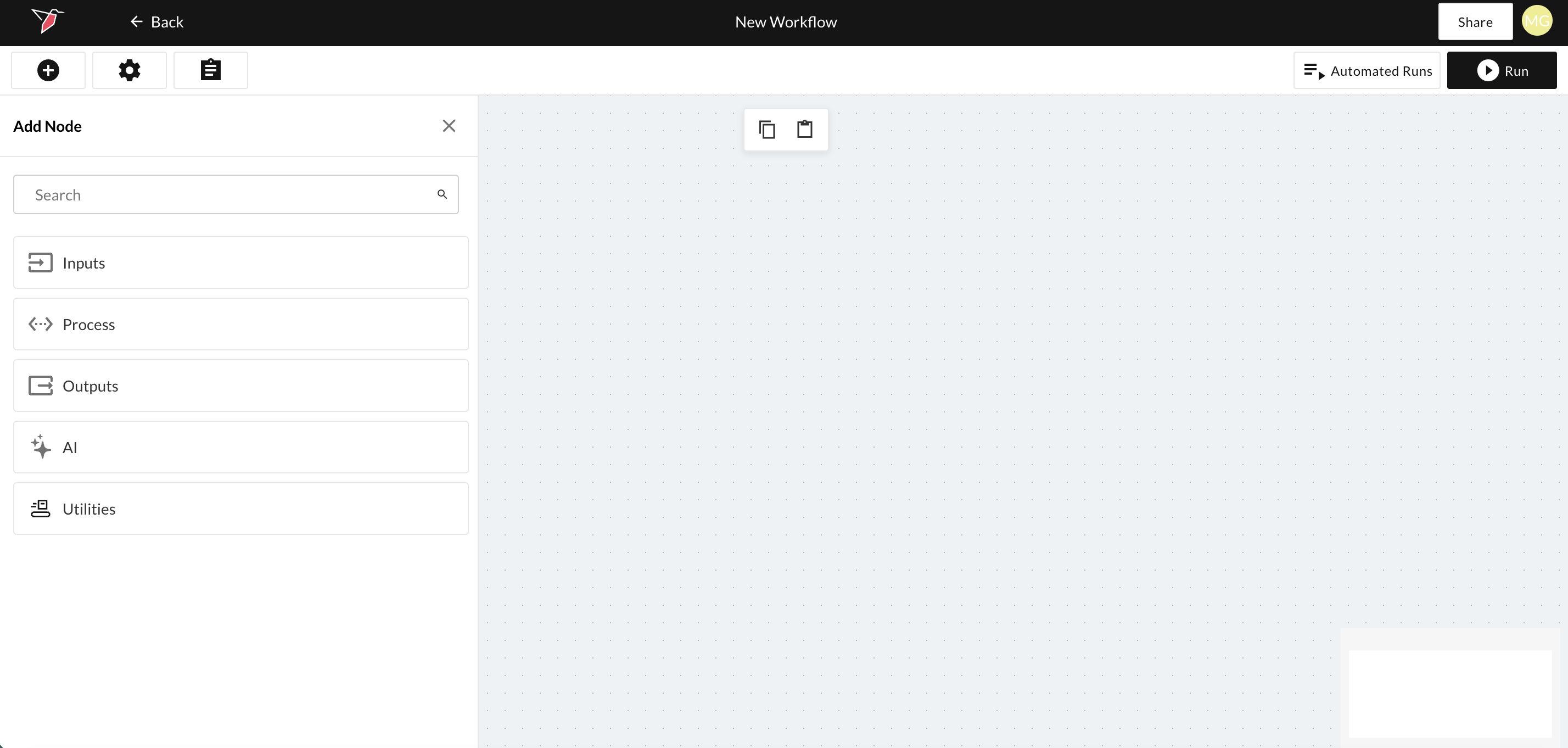
Types of Nodes
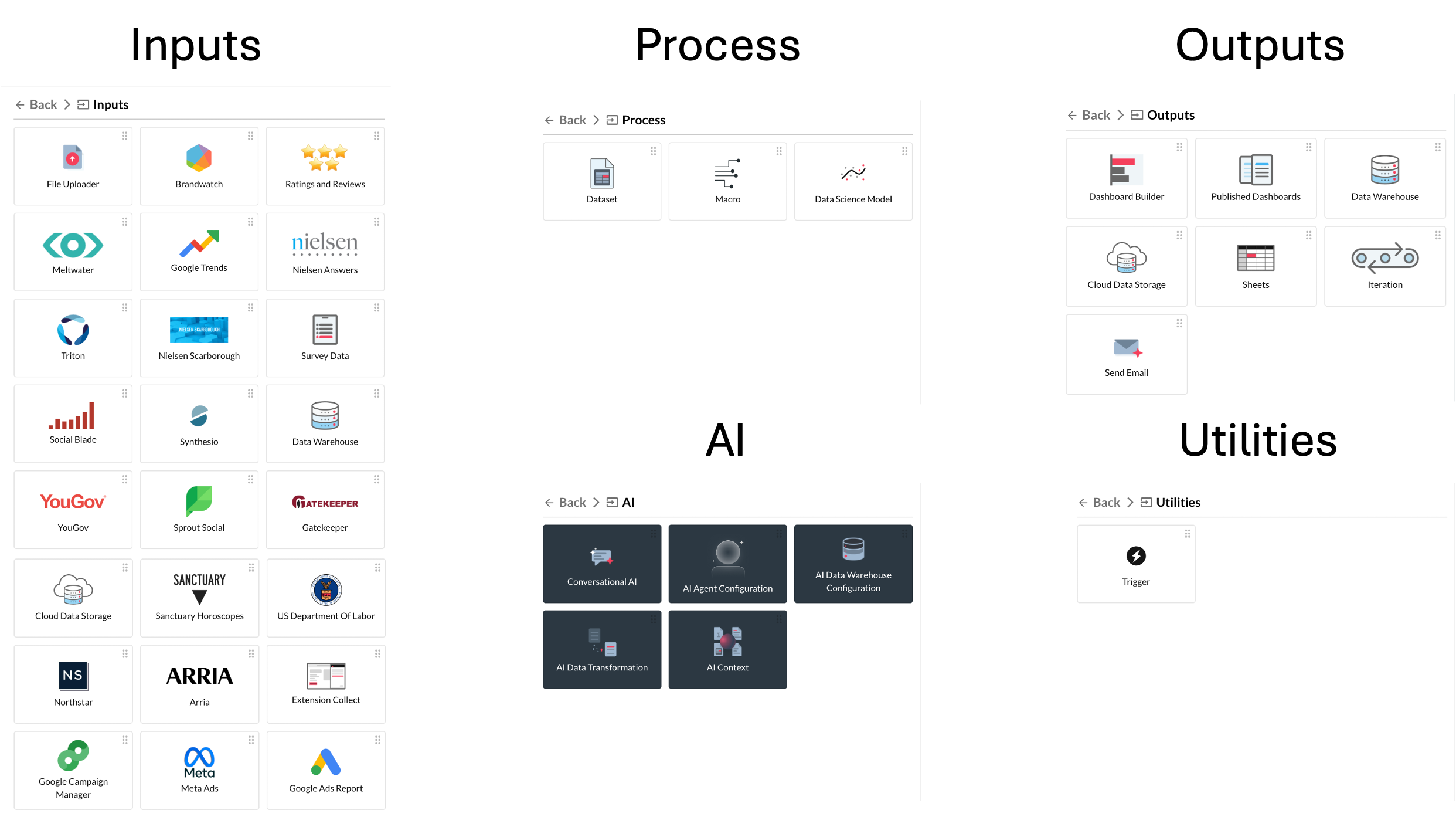
There are 5 main node types. Inputs, Process, Outputs and AI. Read more about them below. The screenshots above show just an example of some available nodes. Your list might help ave different apps available.
Inputs
Input nodes are where your data source connectors live and represent the first step in creating a workflow. To get started, simply drag and drop the data collection method you want to use. You’re not limited to a single source—you can collect data from multiple sources as needed.
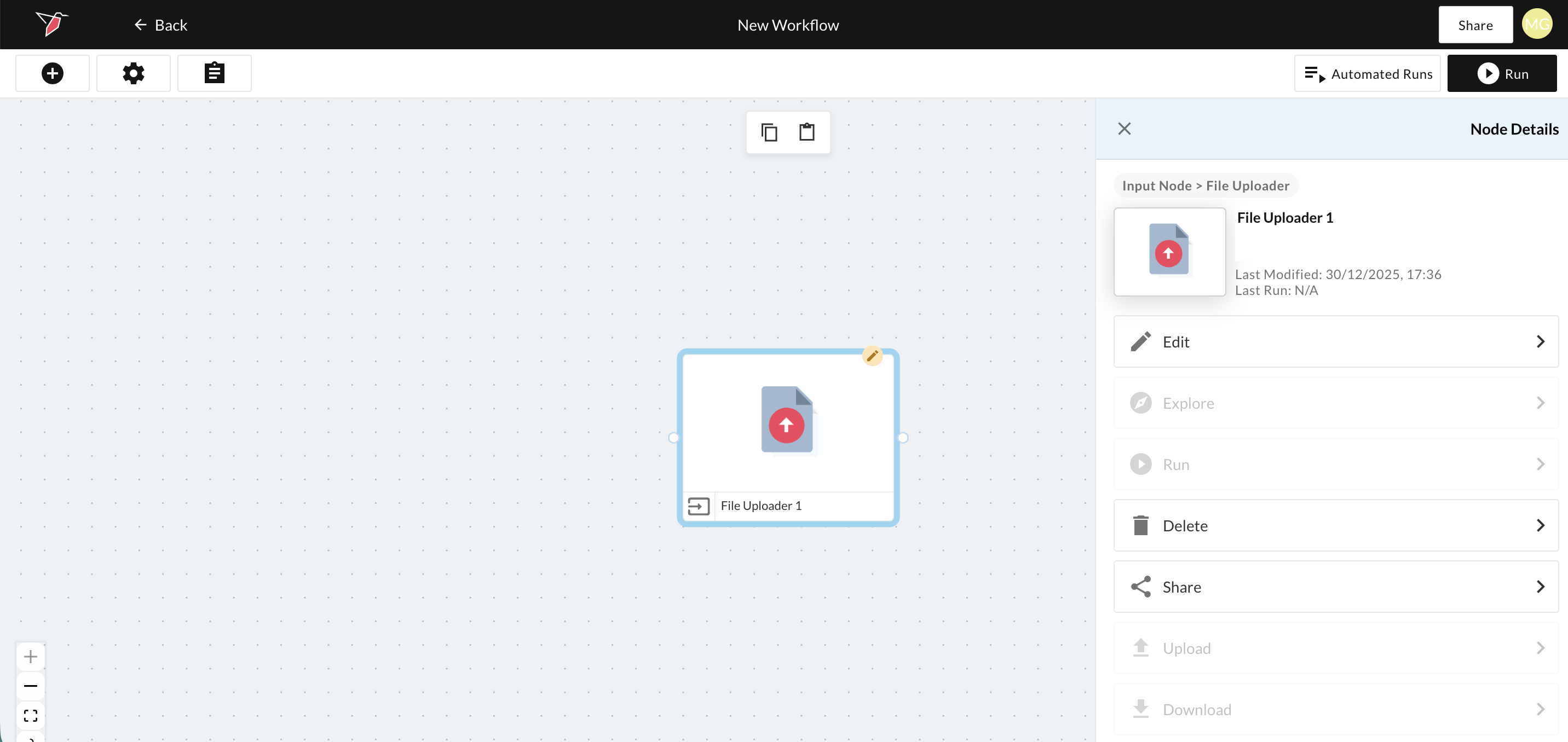
When you select a node, a configuration panel opens on the right-hand side of the screen. This panel provides various actions to edit or interact with the selected node.
Process
The next important node types are Process nodes.
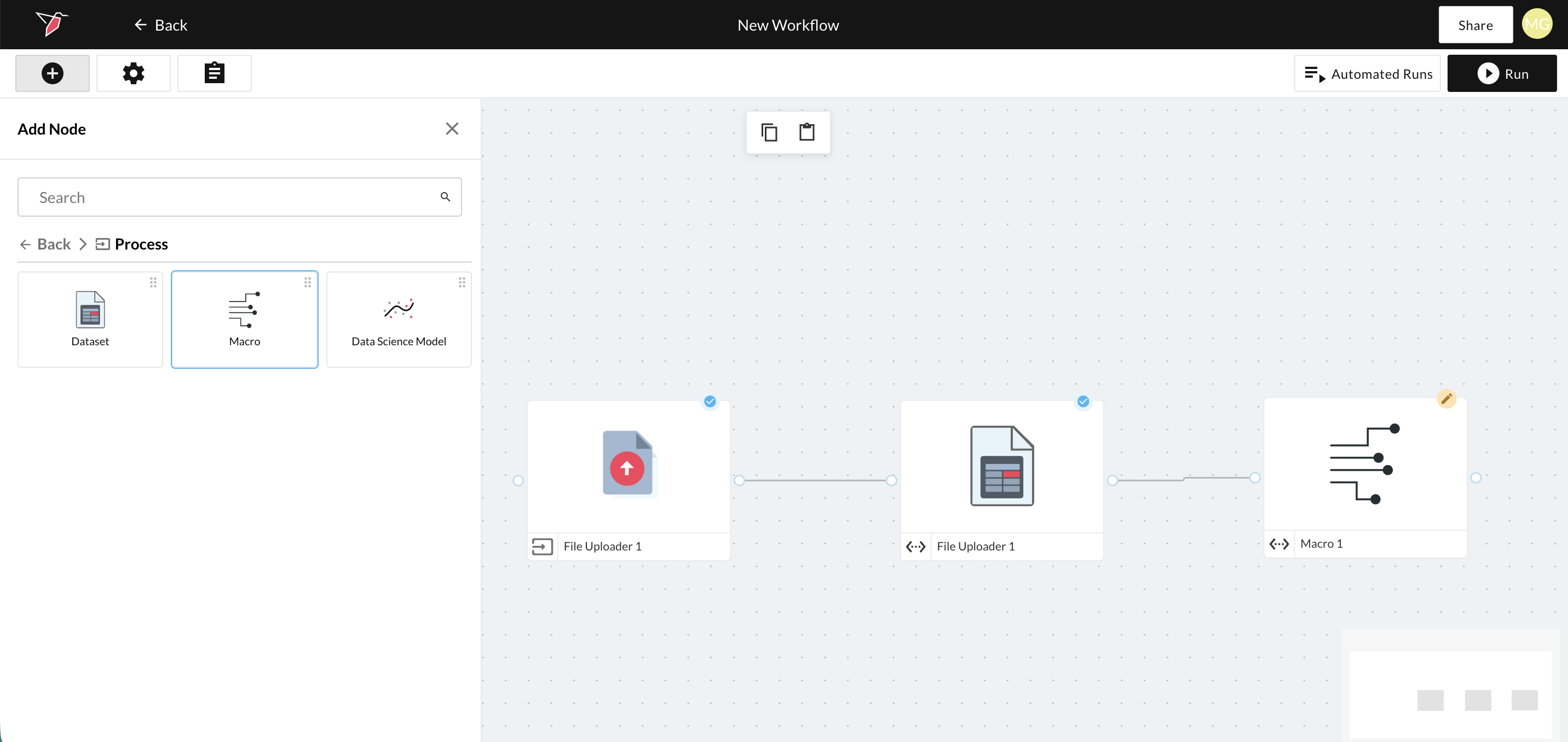
Once you have collected your data you will automatically have a dataset attached to the collection. Now you can drag over a Macro node, connect a dataset to the Macro node, and then edit the Macro node. You can learn more about creating and editing Macros here. There is also the option to import data science models - see here for more information.
Outputs
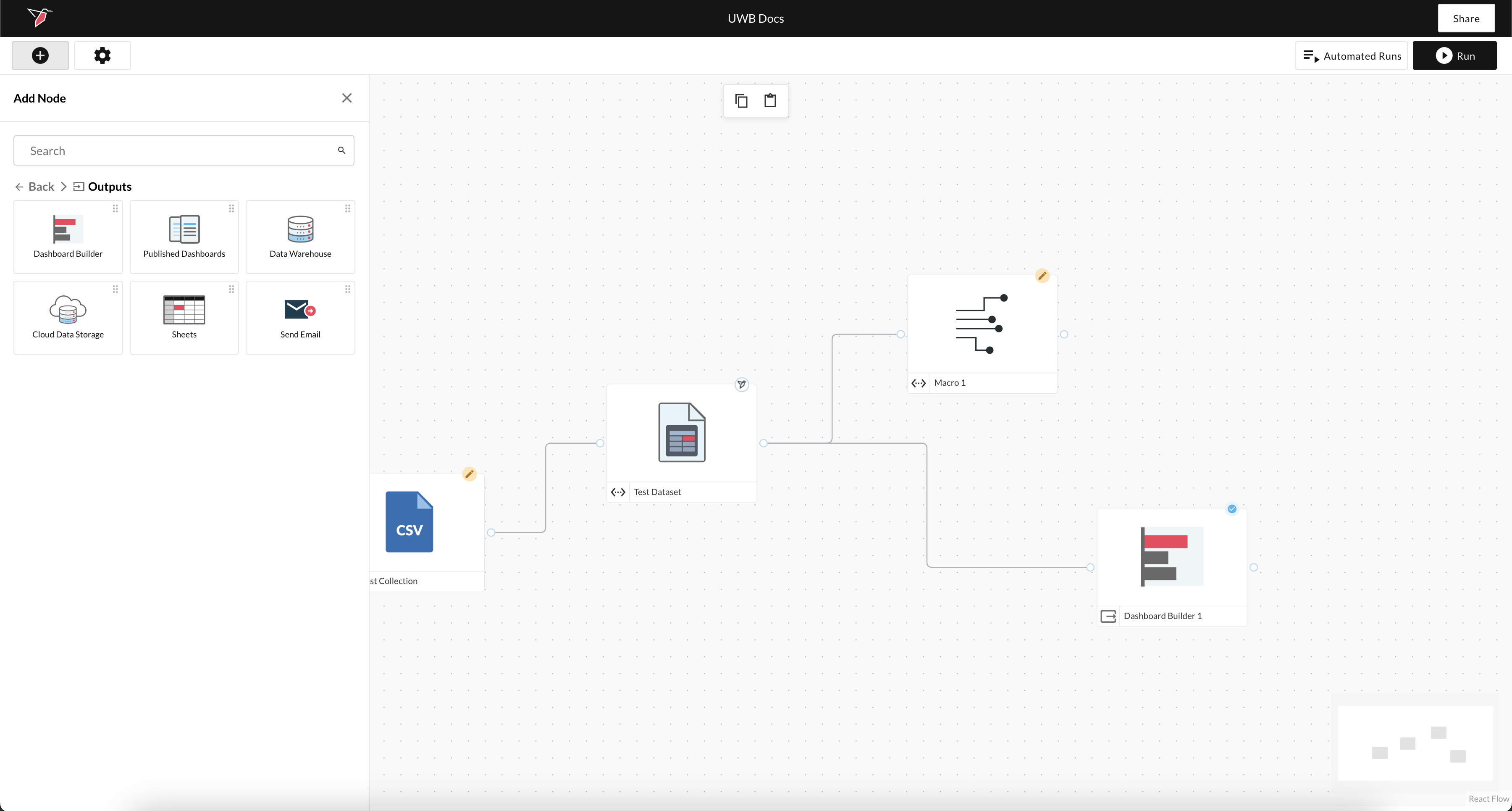
The next important step is creating output nodes. There are multiple output nodes that can be created. Read more about the various ways you can utilize your unified and modified data here.
AI
Redbird enables you to easily build powerful AI workflows on top of your data ecosystem and enable others within your organization to use AI through conversational AI apps where users can interact with the organization's data ecosystem in natural language. Redbird's AI powered workflows help users easily get insights, run data analytics tasks, or generate data science-driven recommendations on how to optimize business results. You can read more about how to use AI agents in the platform here.
Updated 3 months ago