

Chrome Extension Setup
Introduction
The Redbird Chrome Extension is used to record web automation workflows through a visual, point-and-click interface. This page covers how to download, install, and configure it. Once you have completed the steps in this document, see here for documentation on how to use the Chrome extension in conjunction with the AI Connect app.
The extension is distributed directly through Redbird and is not available on the Chrome Web Store.
Download the Extension
- Add an AI DT node to the canvas and double-click to enter it
- Click the + icon next to resources
- Click Add Connection
- Click Add Source
- Select Web Automation as the source type and confirm.
- On the Web Automation source page, click Get Extension.
- A
.zipfile will download to your machine.
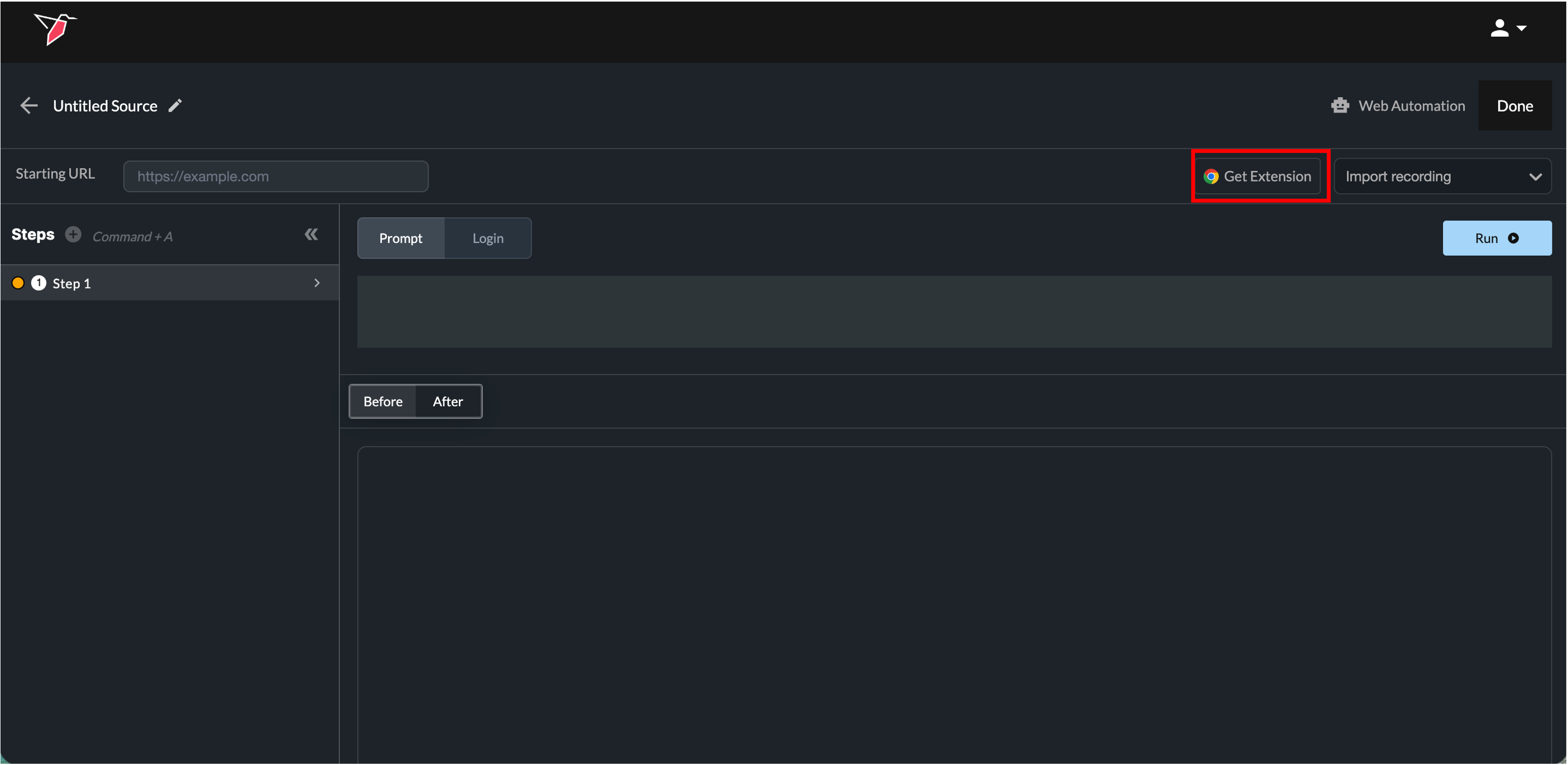
Install in Chrome
- In Chrome, click the jigsaw puzzle icon in the top-right toolbar.

- Select Manage Extensions. This opens
chrome://extensions. - Toggle on Developer mode in the top-right of the page (if not already enabled).
- Drag and drop the downloaded
.zipfile onto the extensions page.
The Redbird extension will now appear in your list of installed extensions.
Enable in Incognito and Pin to Toolbar
When a workflow includes a login step, recordings should be created from an incognito window so the captured flow runs without cookies, matching the fresh browser session Redbird uses when running the workflow later (As an alternative, you can clear your cookies in your normal Chrome window before making the recording). For workflows that don't involve a login step, neither is required and you can record from your normal Chrome window. To allow the extension to run in incognito:
- On the extensions page, locate the Redbird extension and click Details.
- Toggle on Allow in Incognito.
- Toggle on Pin to Toolbar - The extension icon will now appear directly in your toolbar for easy access.
Note: When Redbird releases an update to the Chrome extension, you will need to repeat the install process: download the new
.zipfile from the Web Automation source page and drag it intochrome://extensionsagain. The Allow in Incognito toggle and toolbar pin may also need to be reapplied.
Updated 4 months ago