

CoreBridge
For more general information on data collection in Redbird, check out: Getting Started With Data Collection
This guide explains how to pull existing reports from CoreBridge to build insights on top of your data in Redbird. You will need to use your credentials to log in to the platform.
If you cannot see the CoreBridge collection app in the left-side panel on the workflow canvas, refer to: Enabling Collection Apps Guide
Creating a Collection
- Double-click on the node to enter configuration mode
- Click the pencil next to Configuration Name to name your collection
- Click the Manage Credentials at the top left of the page. Enter a name for the credential to differentiate it from the others. Input the username, password and CoreBridge URL.
Note:If you have multiple CoreBridge websites, you can add all of them by clicking New Login
- Use the dropdown under Choose Report Name to select the report you want to pull
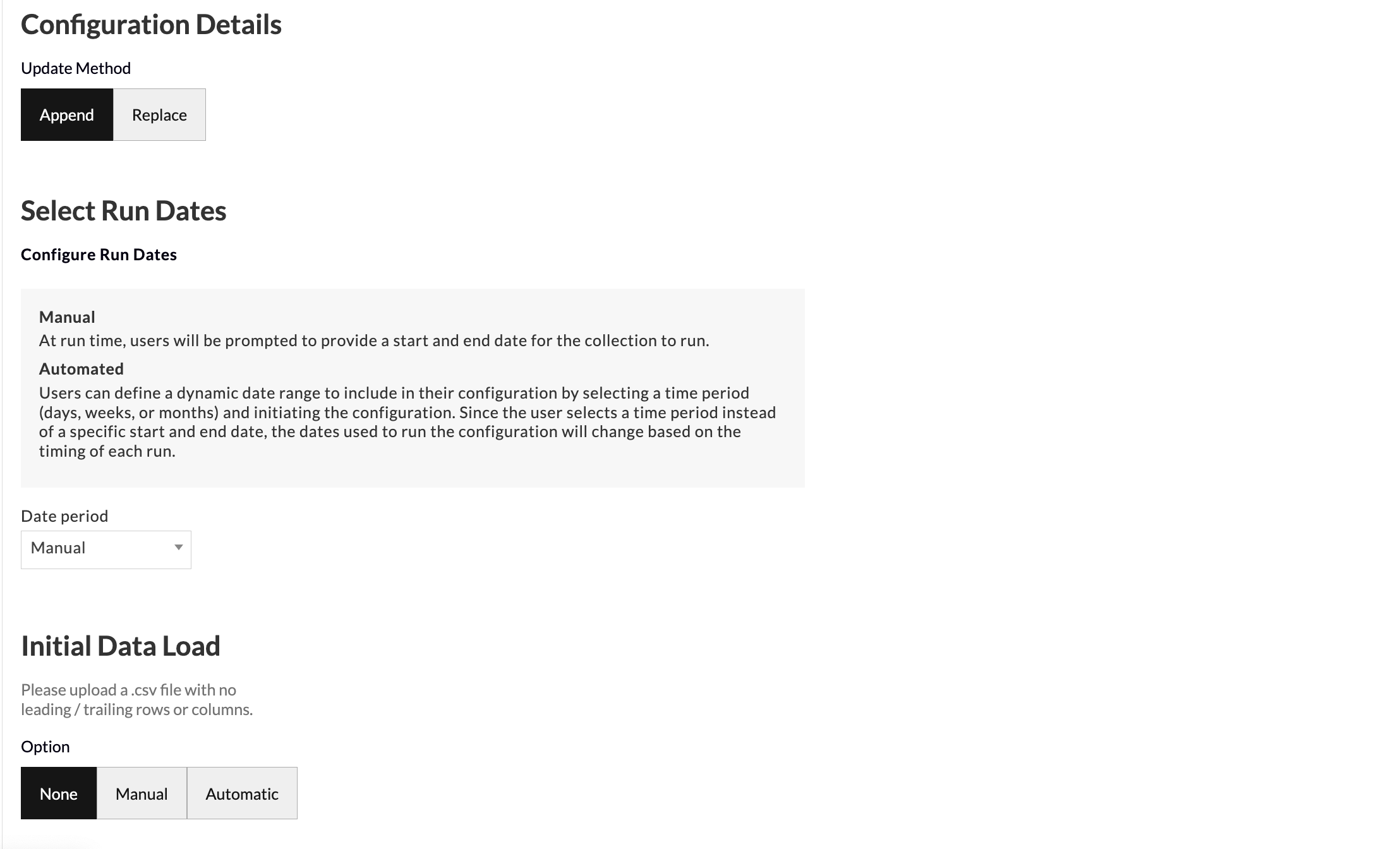
- Update Method allows you to select how you want your data to aggregate when you run future data pulls. Append keeps the historical data and adds the future data pulls below. Replace deletes the historical data and generates the new data in its place.
- Select Run Dates allows you to set the input date period method for your data collection as manual or automatic.
- When set to manual, at run time, users will be prompted to provide a start and end date for the collection to run.
- When set to automatic, users can define a dynamic date range to include in their configuration by selecting a time period (days, weeks, or months) and initiating the configuration. Since the user selects a time period instead of a specific start and end date, the dates used to run the configuration will change based on the timing of each run.
- Initial Data Load allows you to upload historical data in bulk as a one-off in the event that you have the data saved on your computer. You can upload your data as a CSV file with no leading/trailing rows or columns and Redbird will run future data collections using the configuration that you set up in previous steps.
- Click Done
Running a Collection
- Click on the node.
- In the right-side panel click Run
- If date selection is set to manual, then the workflow will be stopped for you to input dates. Click Review on the node.
- Select the Start date and End date of the period you would like to cover.
- Click Back to Workflow
- Click Continue on the node.
Updated 6 months ago
Did this page help you?