

Auto Tag Operation
Background
Once a dataset has been loaded into Redbird, you may find that it is necessary to tag cells within a specific column to enable further analysis. For example, you may need to review cells with unstructured text data and tag each cell with the appropriate topic. In addition, you may want to determine the sentiment (positive, neutral, or negative) of the unstructured data. These tasks can be completed using Redbird’s Auto Tag operation in the Macro Builder tool.
How it Works
To demonstrate how the Auto Tag operation works, we are going to walk through an example where we analyze consumer review data for a television product.
The below reviews were uploaded to the Redbird platform.
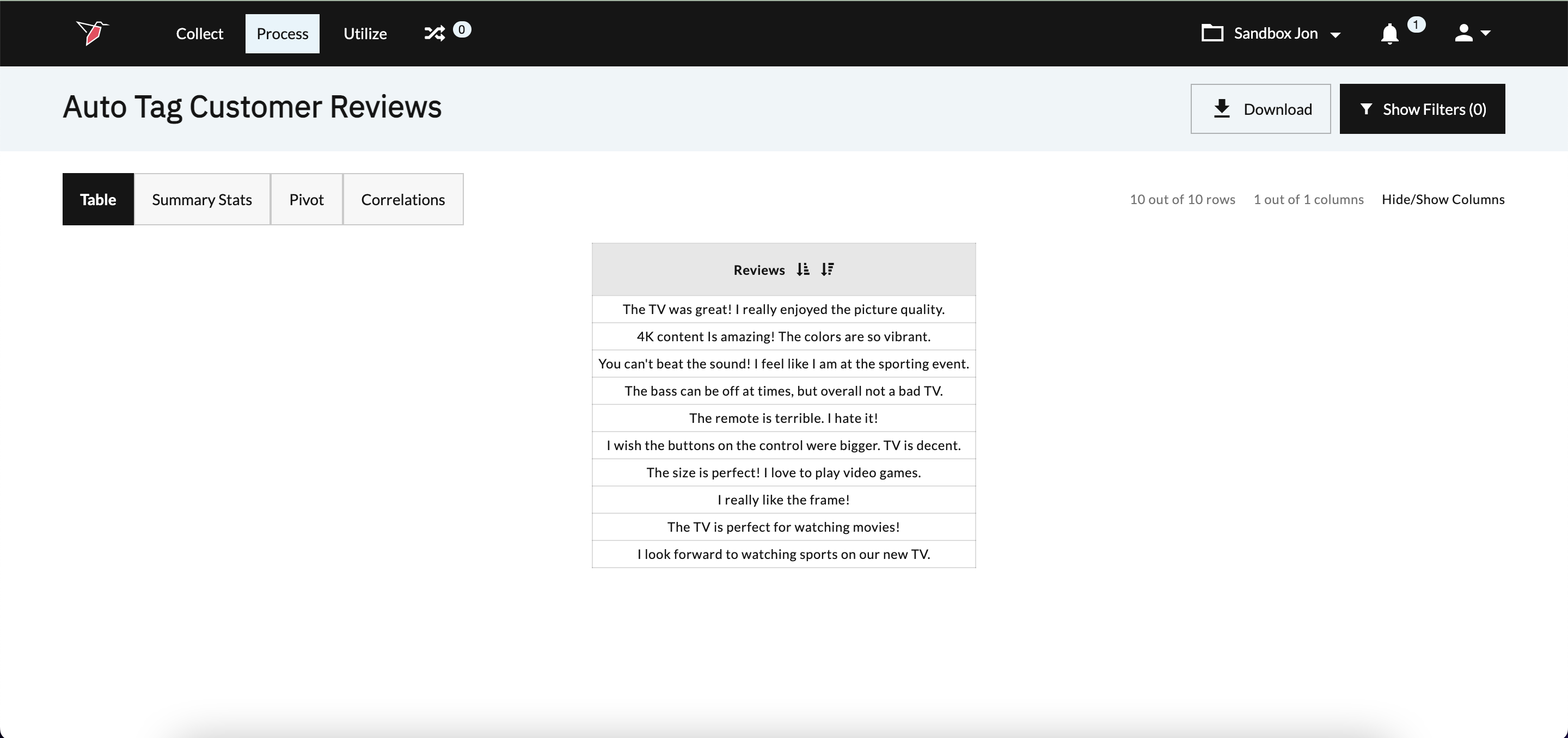
We want to associate each review with one or more topics. The topics for our analysis will include picture quality, sound quality, remote control experience, viewing activities, and design.
We can tag the original dataset by configuring the Auto Tag operation in the Macro Builder. This is done by creating a list of tags that include relevant keywords. For example, we can configure the Picture Quality tag to include the keywords “picture, “color*”, or “HD”.
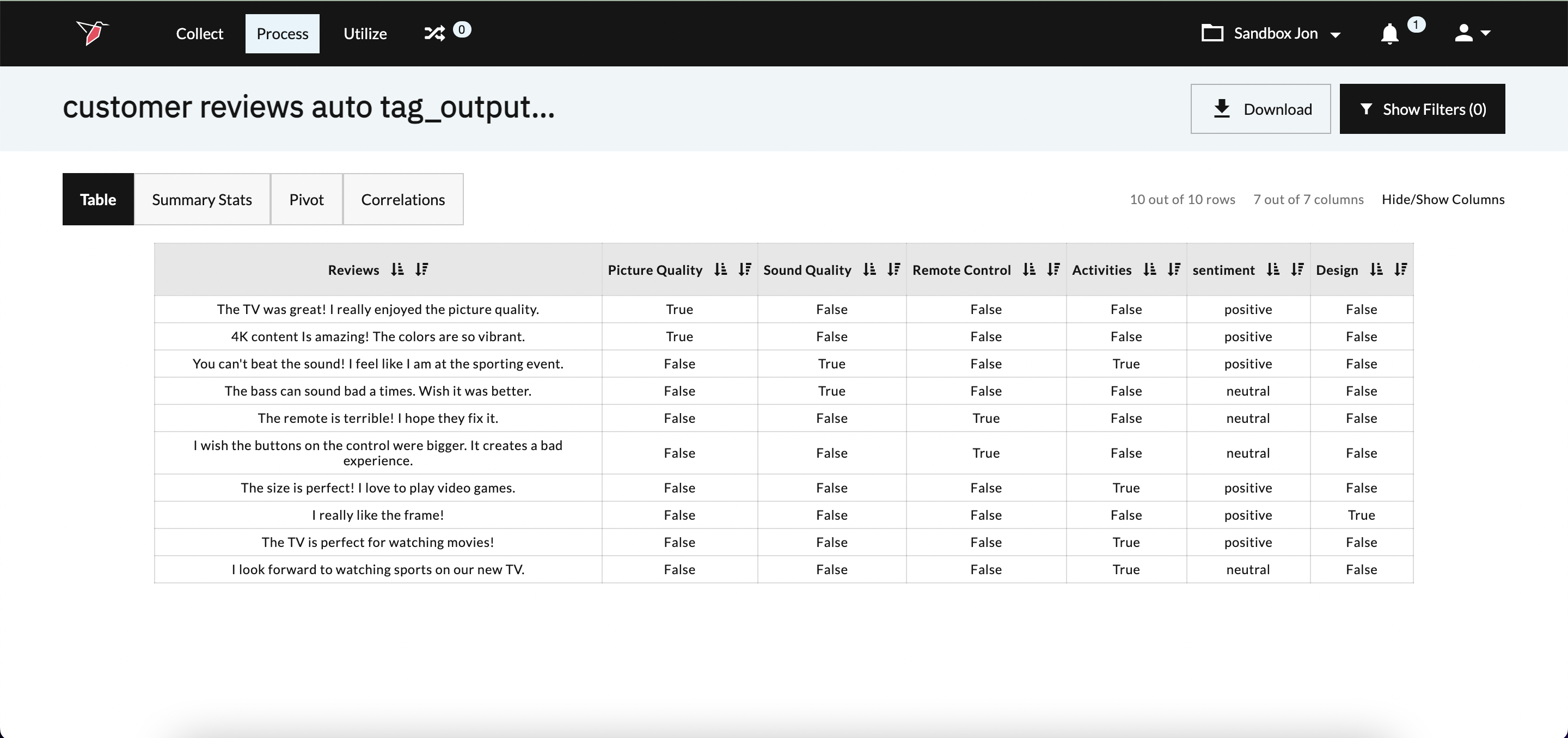
When we run the Auto Tag operation, Redbird will analyze each review and look for the assigned keywords by tag. If Redbird identifies a keyword for a given tag, it will return TRUE. If Redbird does not identify the keywords for a given tag, it will return FALSE. Redbird will also analyze the sentiment of each review to determine if it is positive, negative, or neutral. Below is an example of the output that is created when we run the Auto Tag operation.
Configure an Auto Tag Operation
To configure the Auto Tag operation, please follow the below steps.
- Provide your configuration with a description for future reference. This description will be associated with the operation and will be visible within the Macro Builder.

- Select the column that includes the cells you want to tag in the Content Column section of the page.
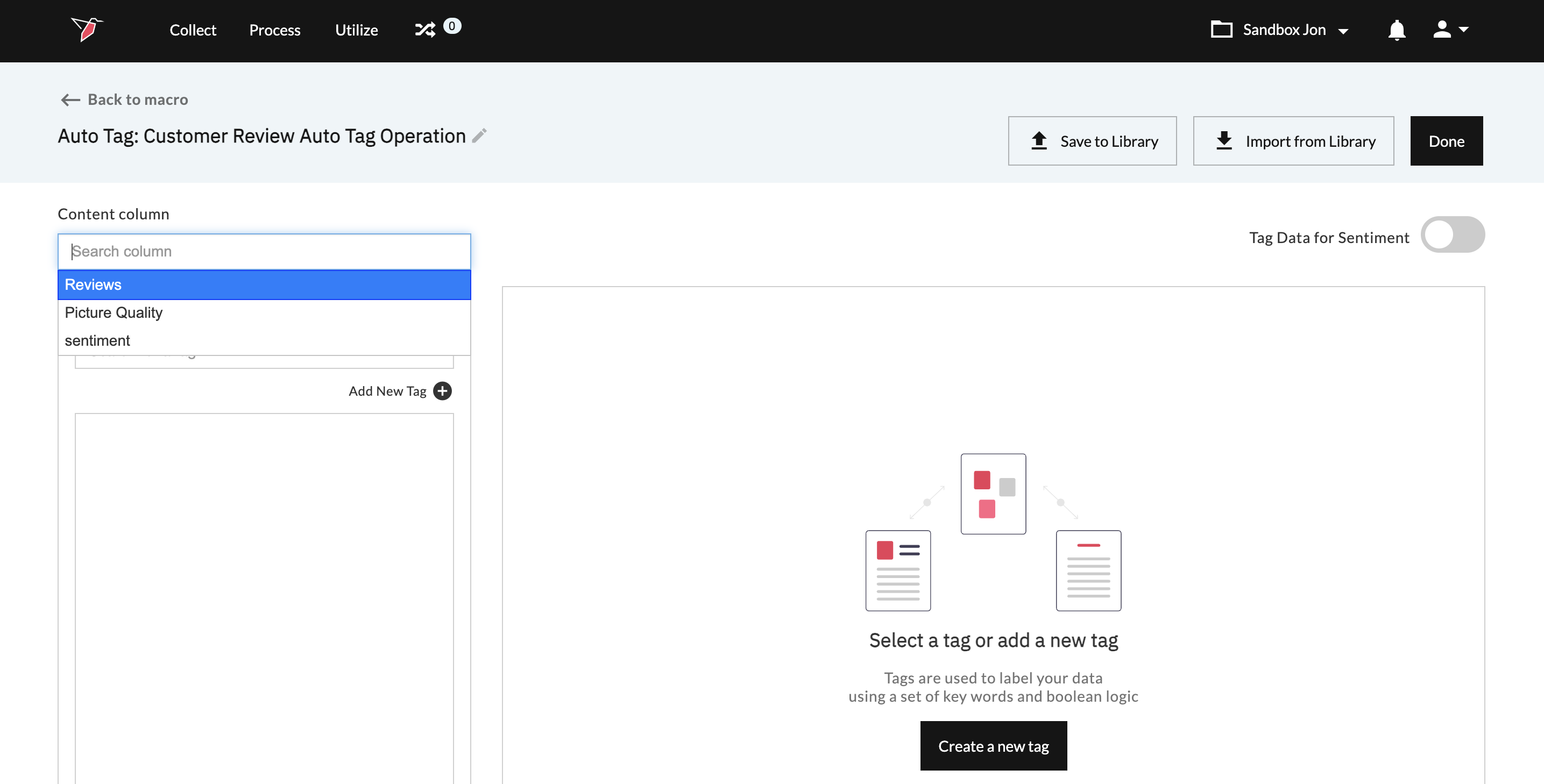
- Toggle On Tag Data for Sentiment if you are interested in conducting sentiment analysis on your content.
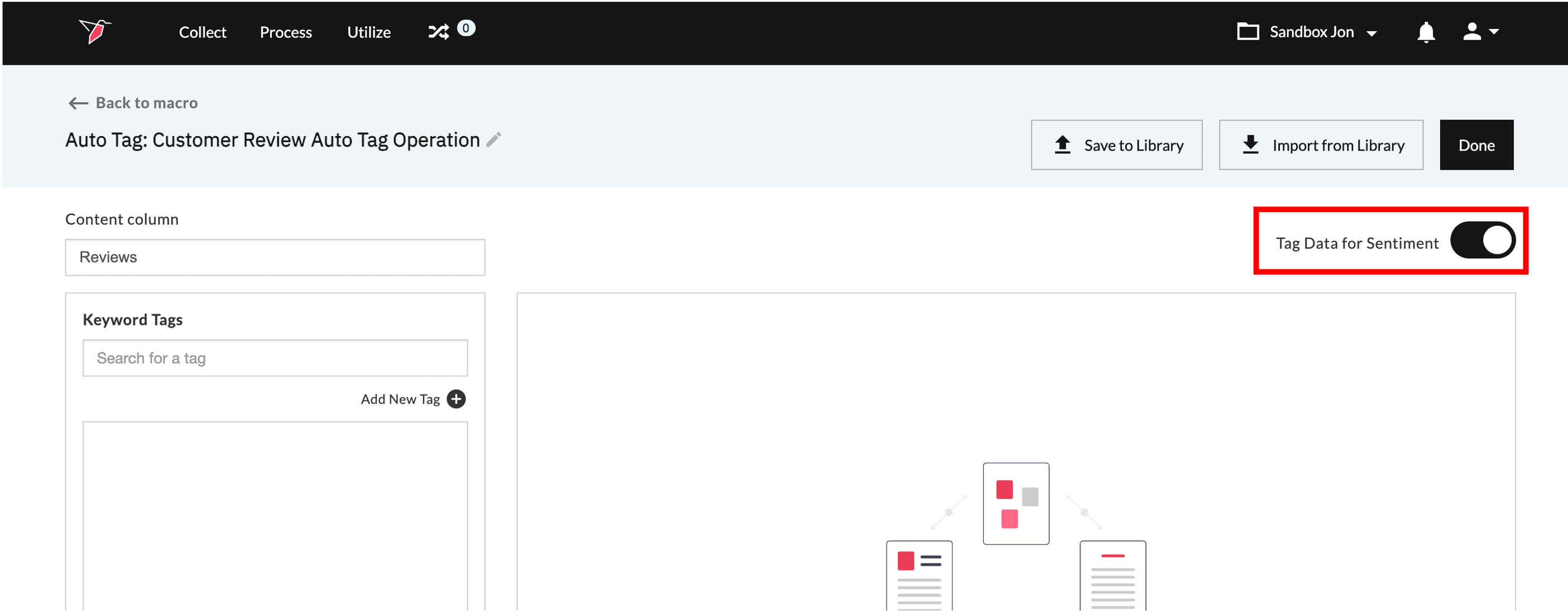
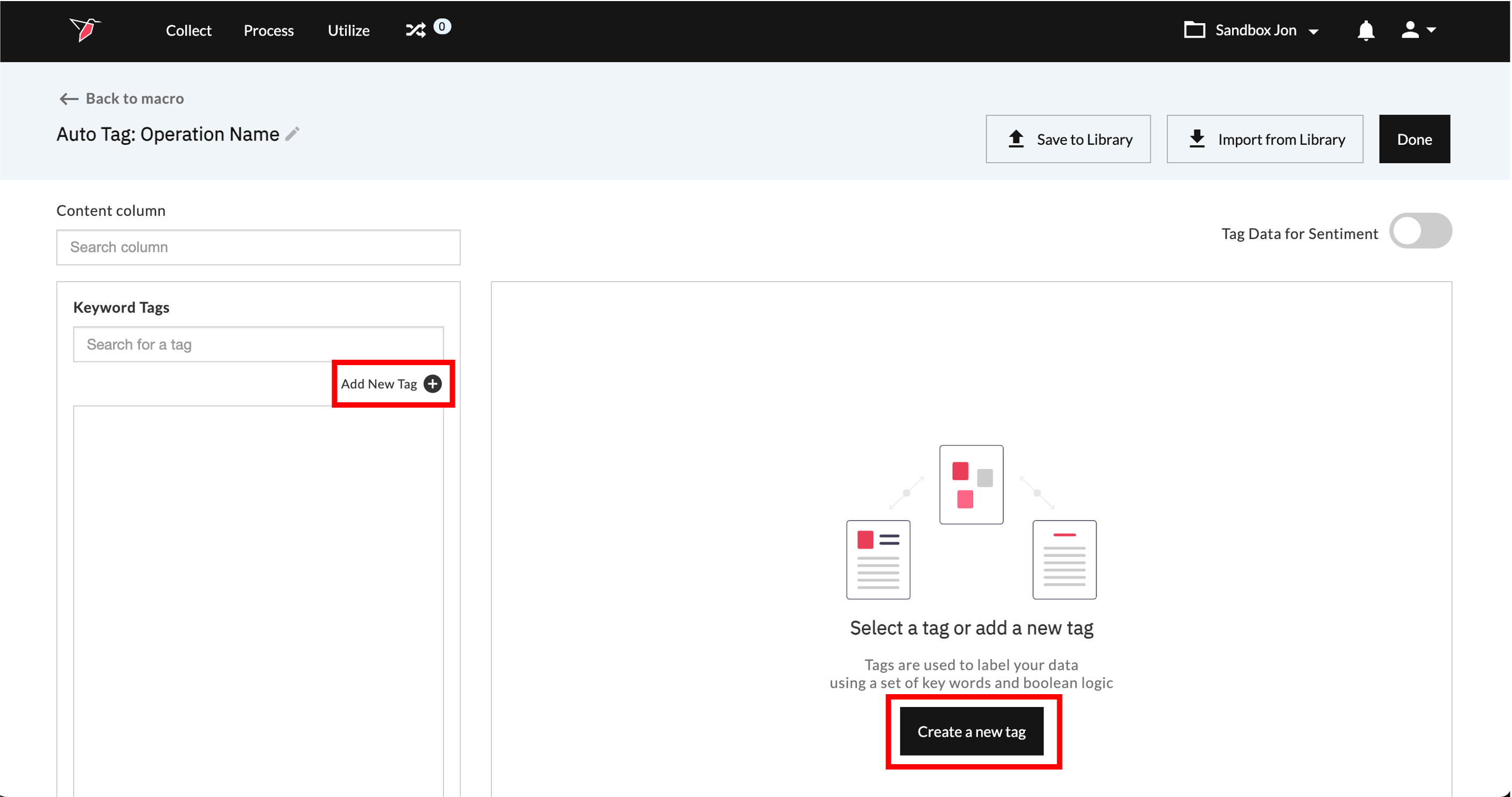
- Click Add New Tag or Create a new tag to create a new empty tag.
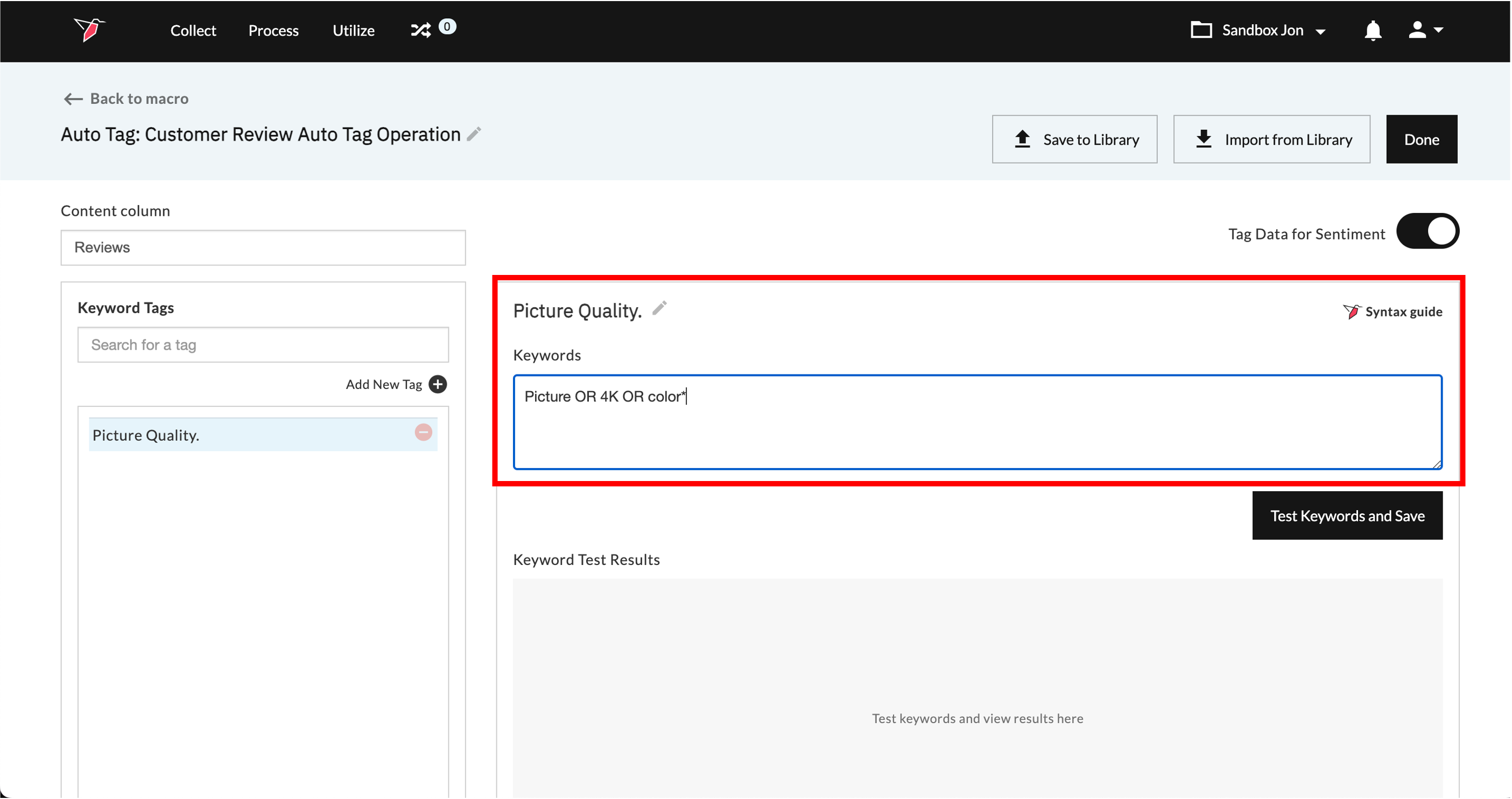
- Provide the tag with a name for future reference. Then input the keywords you want to include as part of the analysis. For our example, we want Redbird to tag a cell as being associated with Picture Quality if the cell includes the words “picture”, “4K” or “color*”.
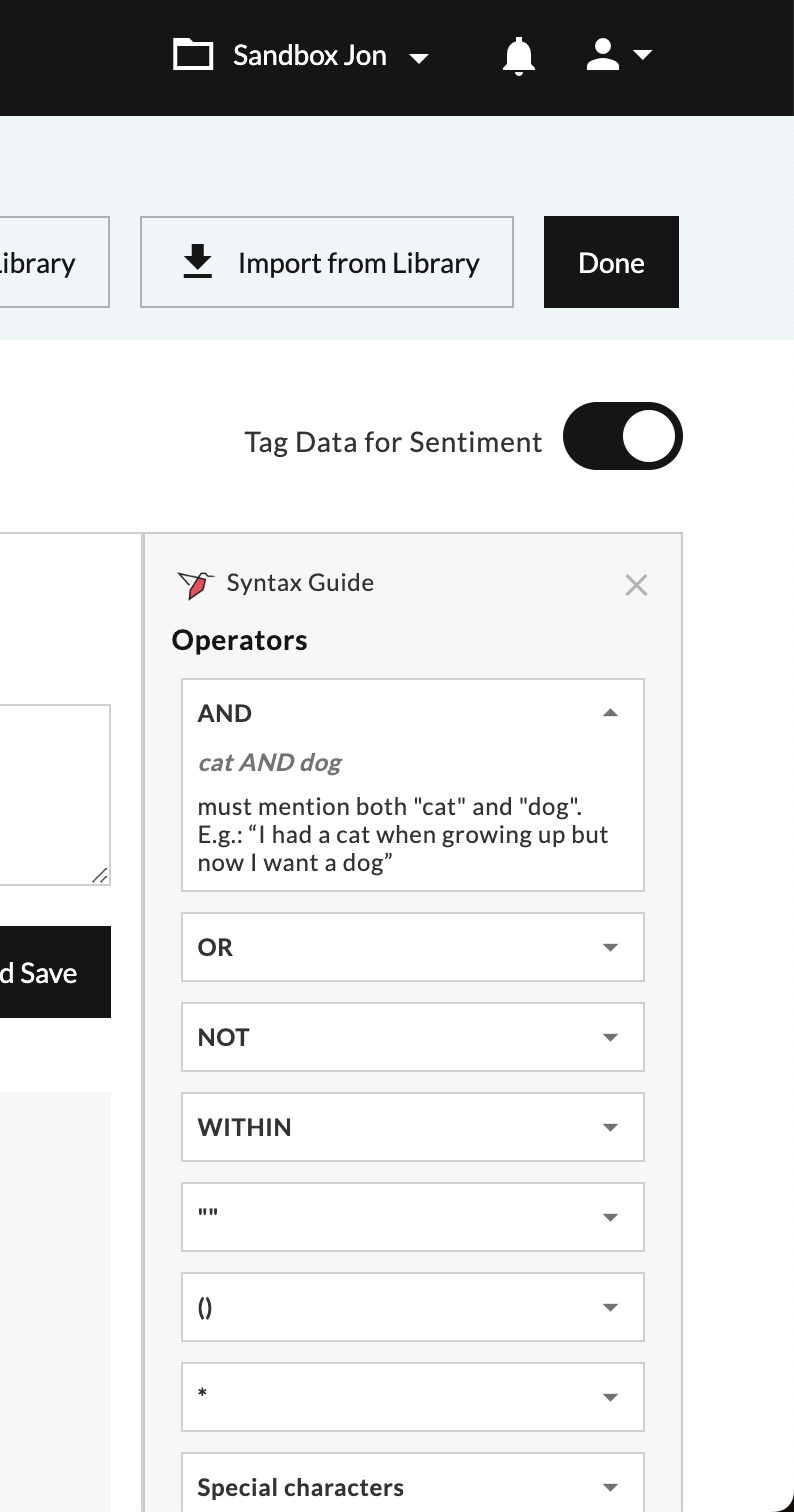
Important:You can refine your tag by using a combination of operators and keywords. For a full list of operators and common errors, you can use click on the Redbird syntax guide button.
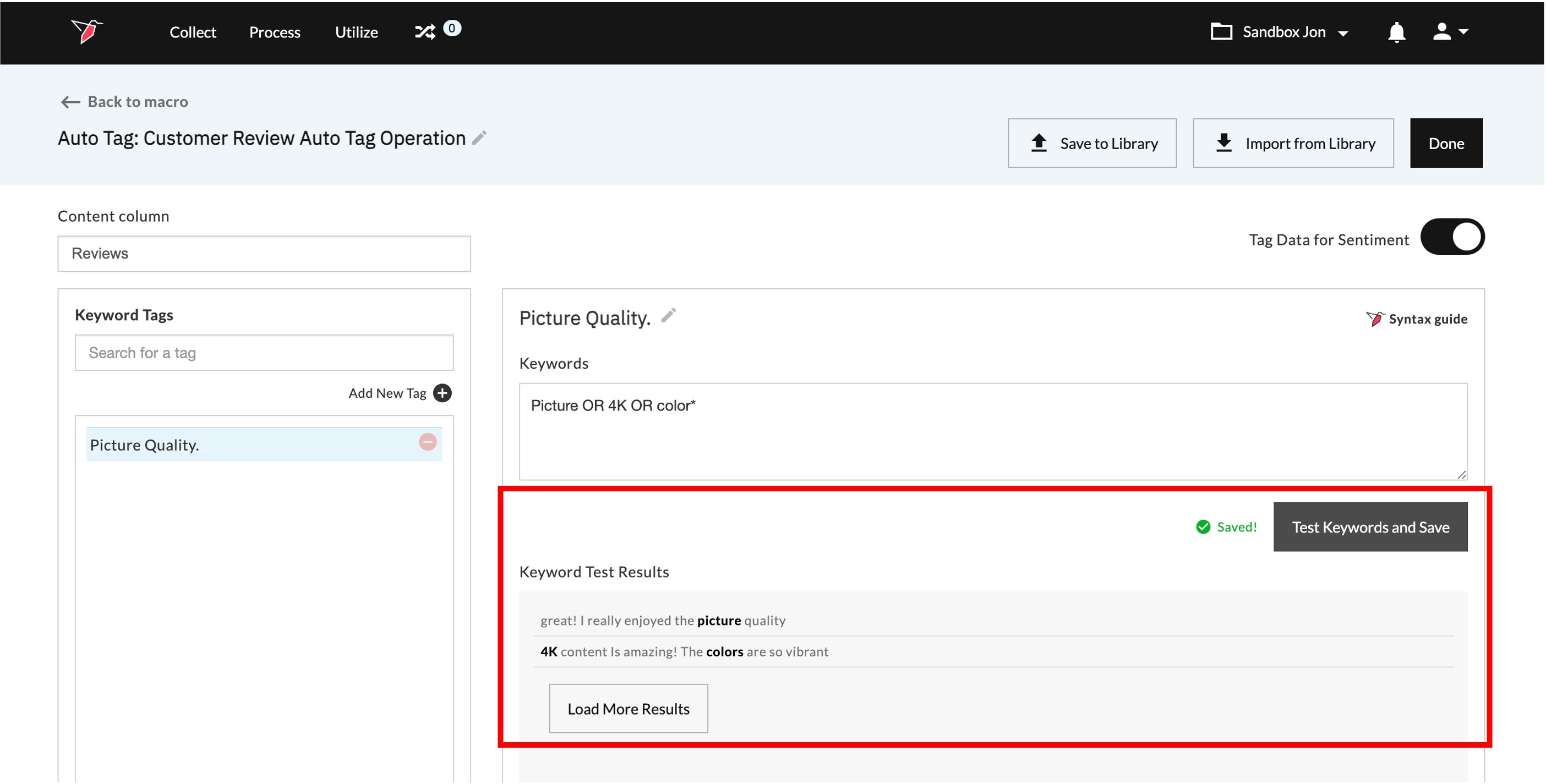
- Click Test Keywords and Save This will preview the results by showing the content of the cells that include the keywords you specified in the keywords section. This will also save your keywords.
- You can continue to create new tags by following the steps above. To save your Keyword Tags Configuration so it can be used on other datasets across Redbird, click Save to Library. You can import saved Keyword Tags by clicking Import from Libary and selecting the project and configuration name from the dropdowns.
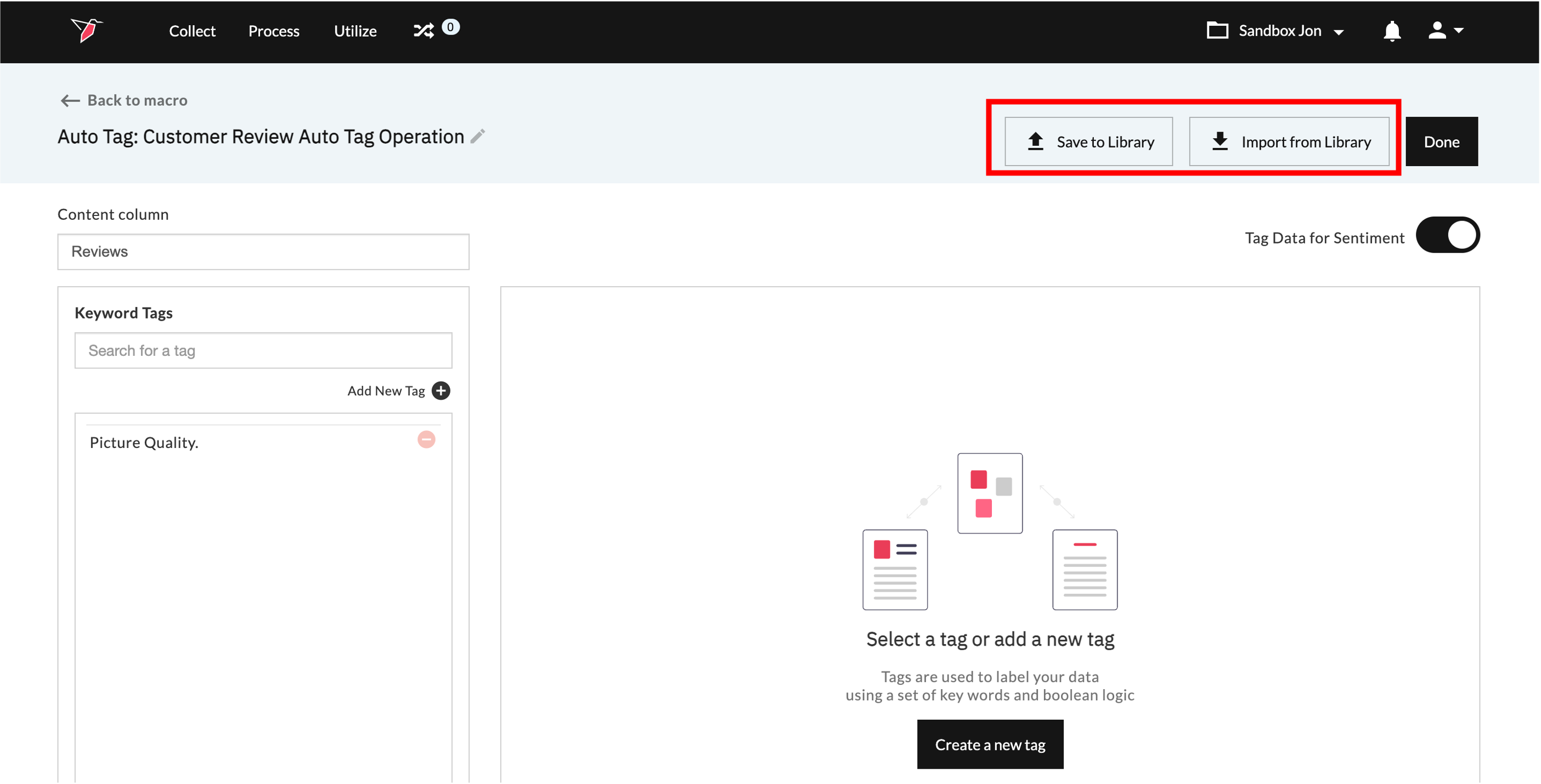
- Once you have added all the required tags, click Done
- Run macro.
Updated 8 months ago